
Transaction History
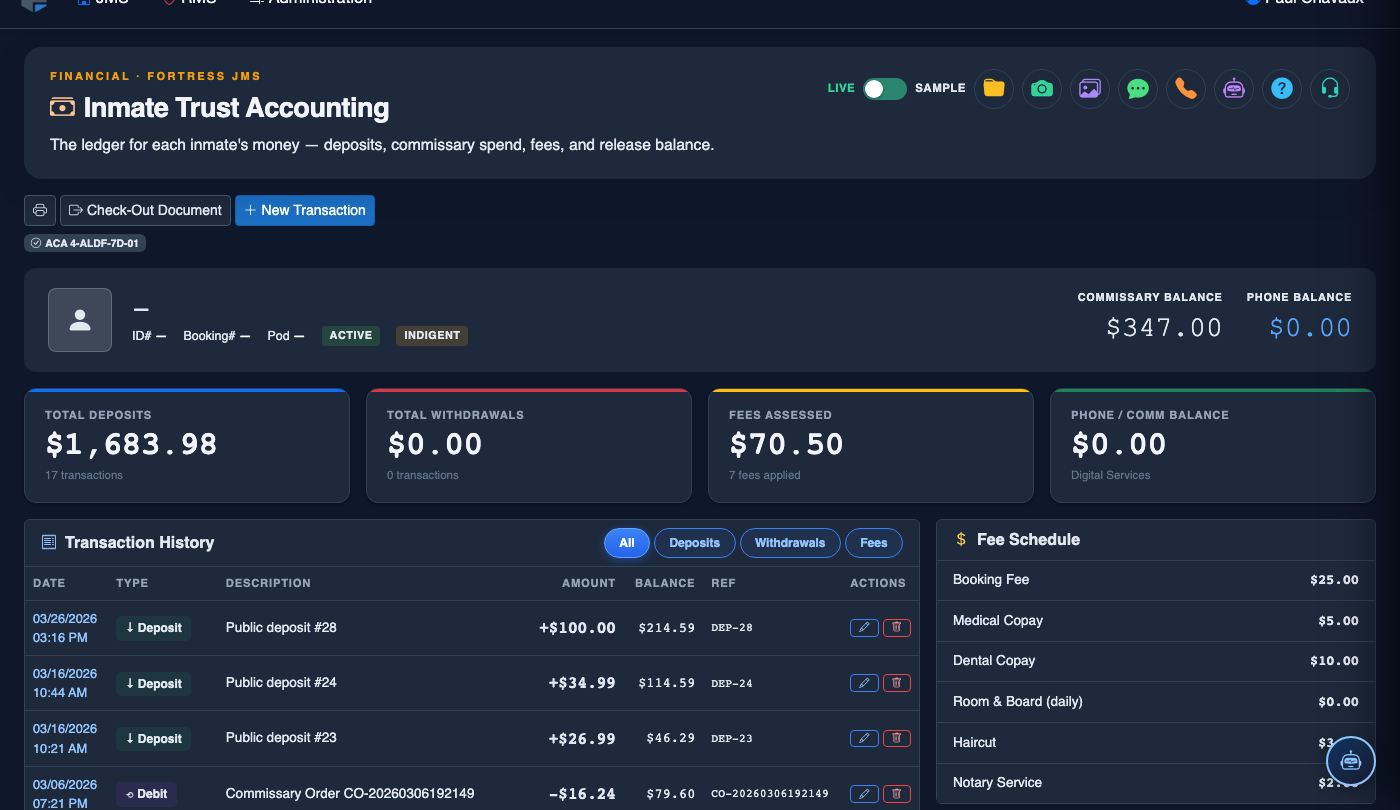
The Transaction History tab presents a complete, immutable chronological ledger of every financial event that has occurred on an inmate’s trust account since its opening — including deposits, withdrawals, court-ordered deductions, commissary charges, reversals, and balance adjustments. Finance officers, supervisors, and auditors use this tab to investigate account discrepancies, produce statements for court or legal proceedings, and verify the accuracy of the facility’s inmate trust fund records. Every entry in the ledger is permanently preserved and cannot be deleted, ensuring an unalterable audit trail.
Complete Ledger View
Every transaction from account opening to present is displayed with running balance, making reconciliation straightforward.
Advanced Filtering
Filter by date range, transaction type, amount range, or posting officer to quickly isolate specific events during investigations.
Account Statement Export
Export filtered or full-history statements as PDF or CSV for legal proceedings, attorney requests, or auditor review.
Immutable Audit Records
All transactions are write-once — reversals appear as separate credit entries, preserving the original debit for full accountability.
Step-by-Step: Reviewing and Exporting Transaction History
Open the Transaction History Tab
From an inmate’s trust account, click the Transaction History tab. The full transaction ledger loads in reverse chronological order — most recent transactions appear first. The opening balance at account creation is shown at the bottom of the ledger, with every transaction and its resulting running balance visible above.
Apply Date Range Filter
Use the Date Range pickers at the top of the ledger to restrict the view to a specific period (e.g., current month, last quarter, or the inmate’s most recent incarceration period). Click Apply to refresh the ledger. A summary line below the filters will show the total credits and debits within the selected range.
Filter by Transaction Type
Use the Transaction Type dropdown to filter the ledger to show only a specific category: All, Deposits, Commissary Debits, Court-Ordered Debits, Medical Co-Pays, Reversals, or Administrative Fees. Combine with the date range filter to zero in on specific activity during an investigation.
Expand a Transaction for Detail
Click any transaction row to expand it and view the full detail: posting officer name and badge number, Reference Number, Notes entered at the time of posting, and any attached documents. For reversals, the expanded view shows both the original transaction and the reversal entry with the reason code and approving supervisor.
Export an Account Statement
Click Export Statement to generate a formal account statement reflecting the current filter settings. Choose PDF for print-ready court submissions or CSV for spreadsheet-based reconciliation. The PDF statement includes the facility name, inmate name and booking number, statement period, and a running balance column for every transaction.
Reconcile Running Balance Discrepancies
If the running balance in the ledger does not match the displayed current balance on the Account Overview tab, click Recalculate Balance to trigger a server-side reconciliation. If the discrepancy persists after recalculation, flag the account for Finance Admin review — do not post additional transactions until the discrepancy is resolved.
Produce an Attorney or Court Statement
For attorney requests or court subpoenas, set the date range to cover the full incarceration period, select All transaction types, and click Export Statement (PDF). The resulting document is formatted as a certified financial statement with the facility header and can be submitted directly to the court without further formatting.
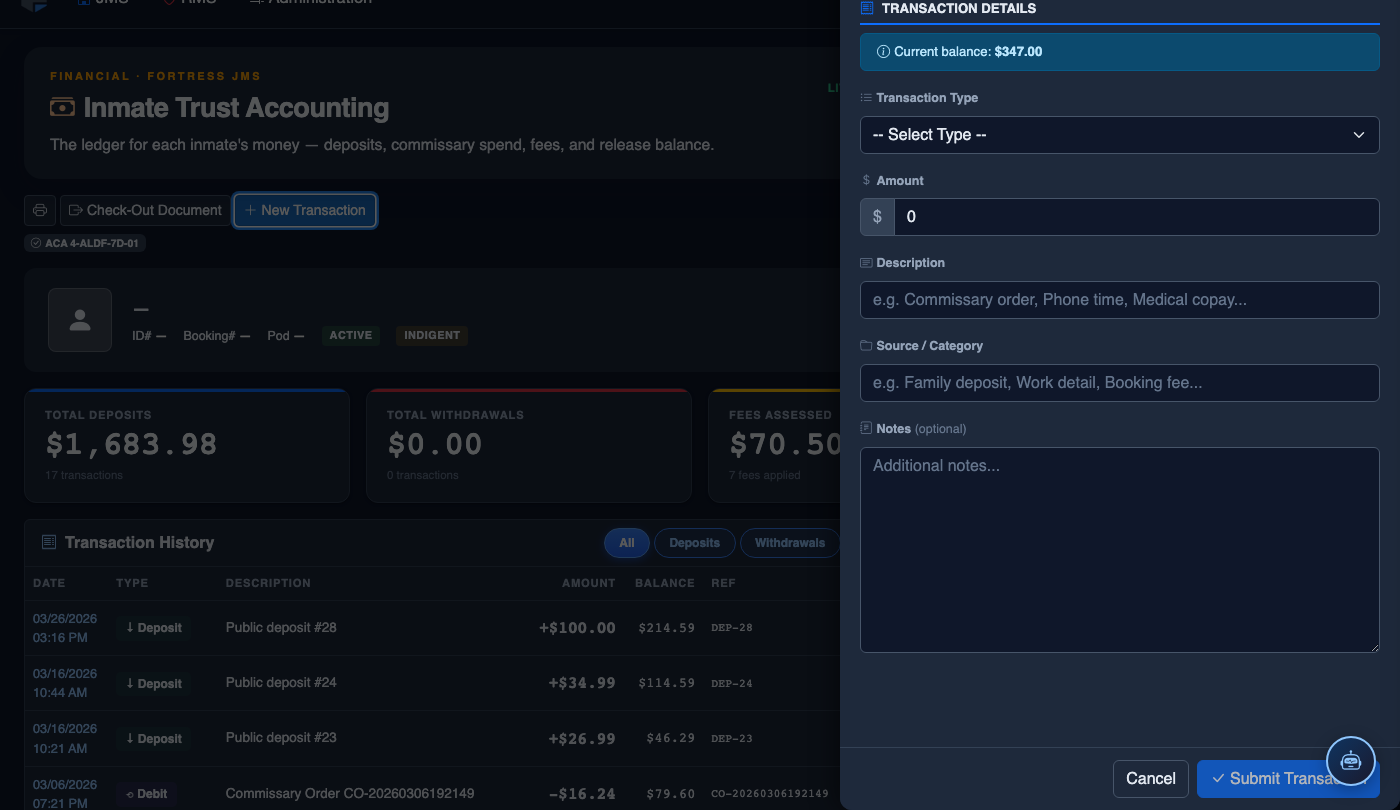
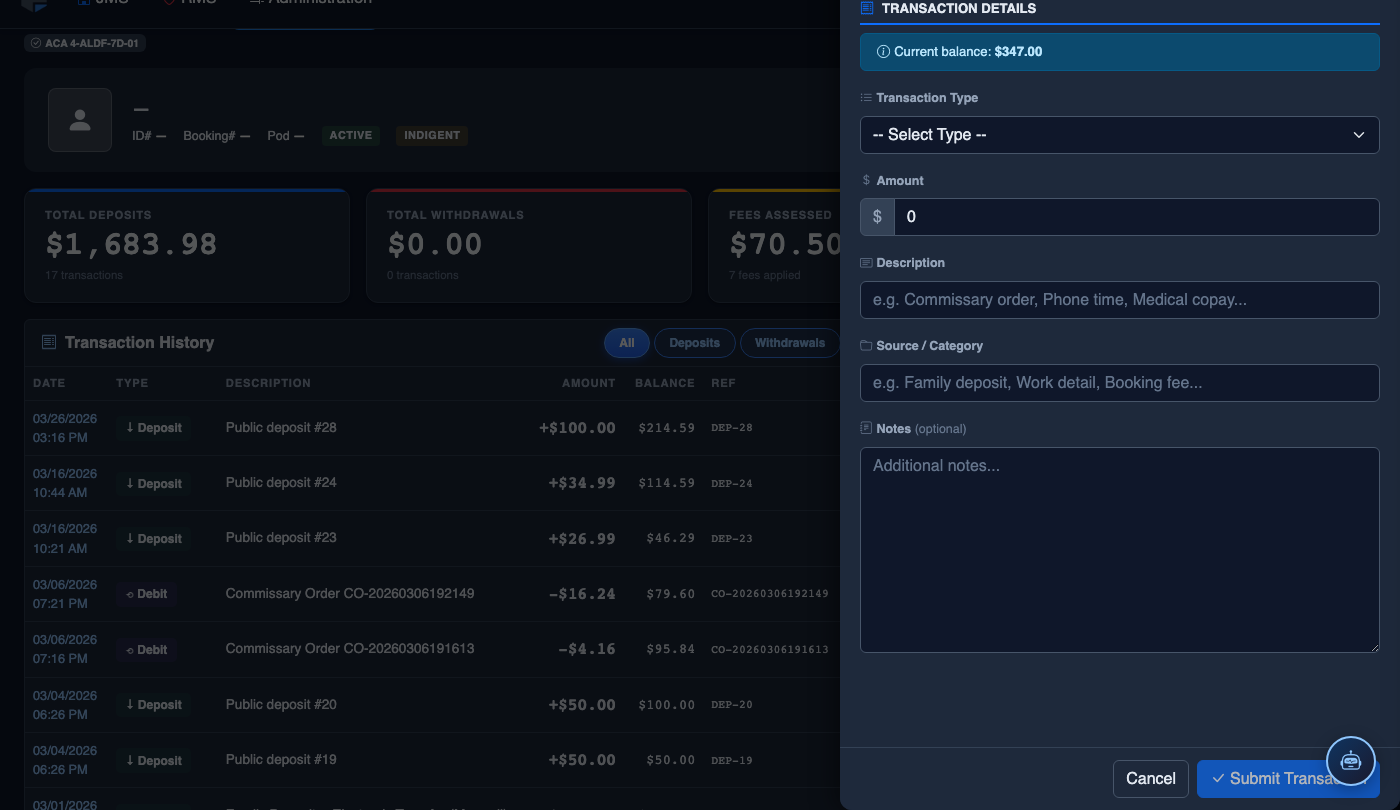
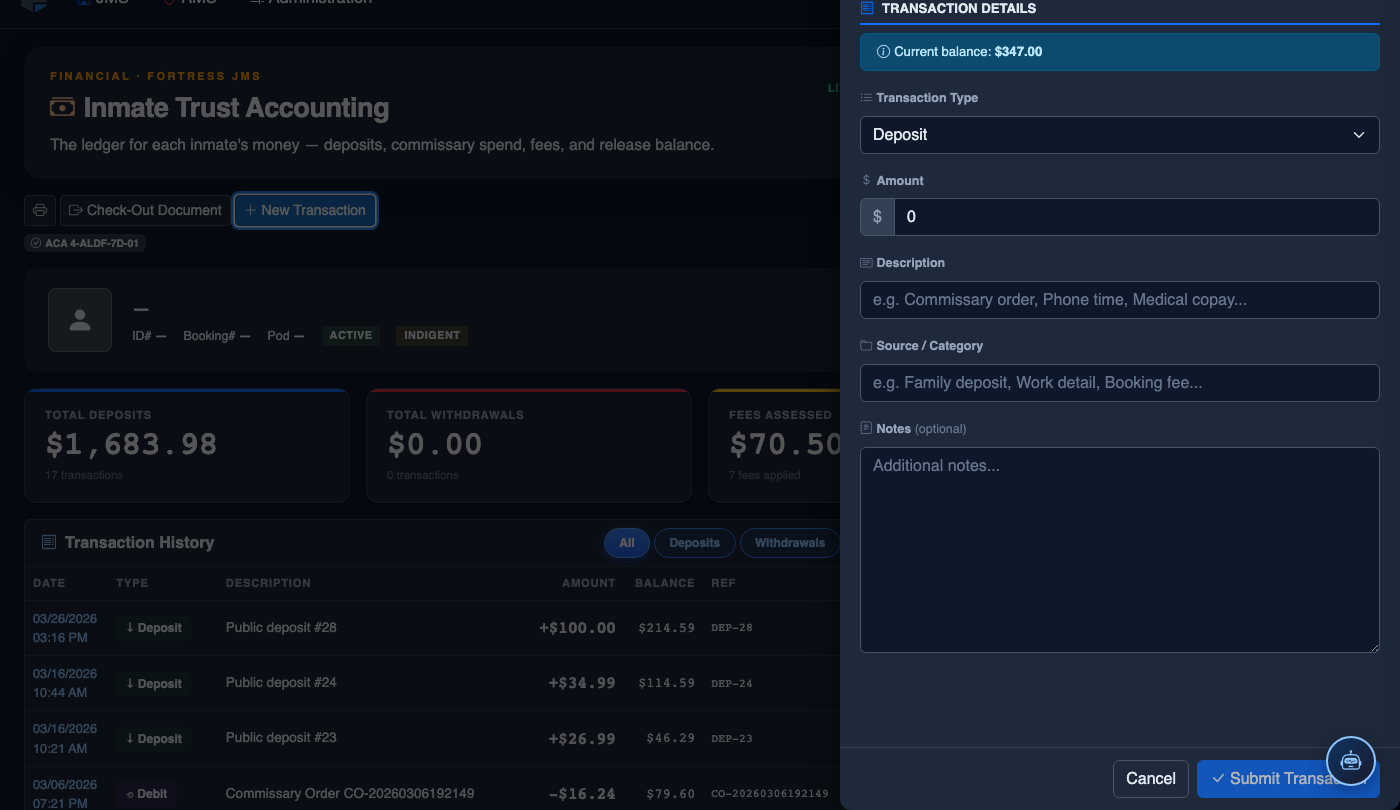
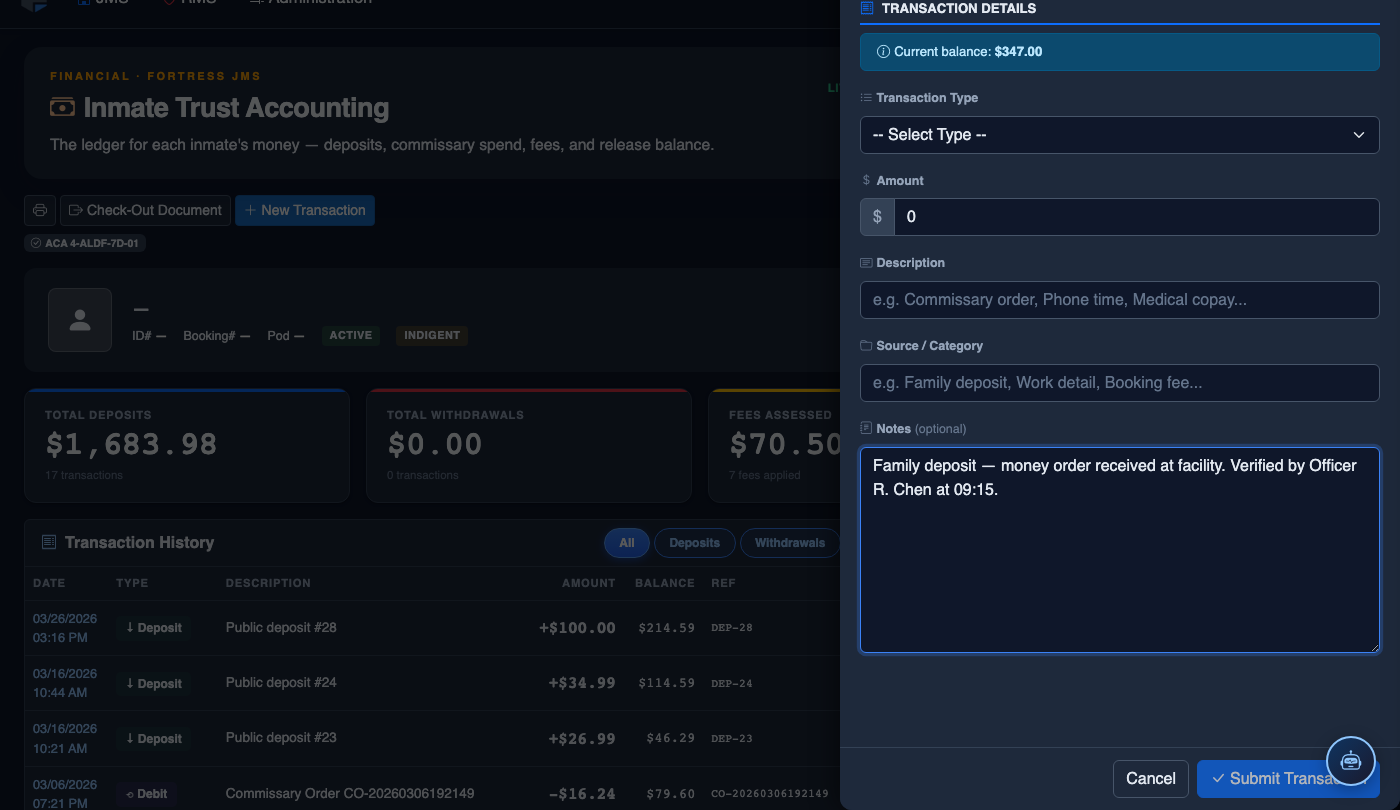
Record a New Financial Transaction
Click New Transaction. Complete the trust accounting form:
- Inmate — search by name or booking number. Current balance displays immediately.
- Transaction Type — Deposit, Withdrawal, Commissary Debit, Court Fee, Restitution, or Adjustment.
- Amount — enter the dollar amount. System validates against available balance for debits.
- Payment Method — Money Order, Cash, Check, Electronic Transfer, or Internal Transfer.
- Reference Number — document the money order number, check number, or authorization code.
- Notes — record who tendered payment and any special circumstances.
- Click Post Transaction. Balance updates immediately; a receipt prints automatically.
💡 Pro Tips
- When responding to an inmate grievance about a missing deposit, use the Transaction Type: Deposits filter with no date range to show all credits ever received — this is the fastest way to find a disputed transaction without scrolling the full ledger.
- Export a CSV version of the transaction history for the current month during shift reconciliation so you can sort and sum in a spreadsheet to verify your facility’s total cash-on-hand matches the aggregate trust fund liability.
- Reversals always appear as a separate positive entry in the ledger — never as a deletion of the original transaction. If you see only one entry for a transaction that was supposed to be reversed, the reversal did not complete and must be reprocessed.
Mobile View — Transaction History
FortressDMS is fully responsive. Officers can access the Transaction History on a phone or tablet directly from the field — no app install required.
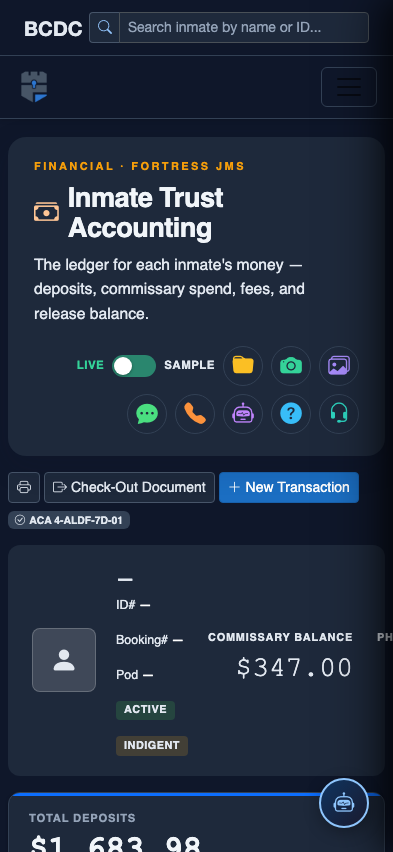
Tab view with data rows
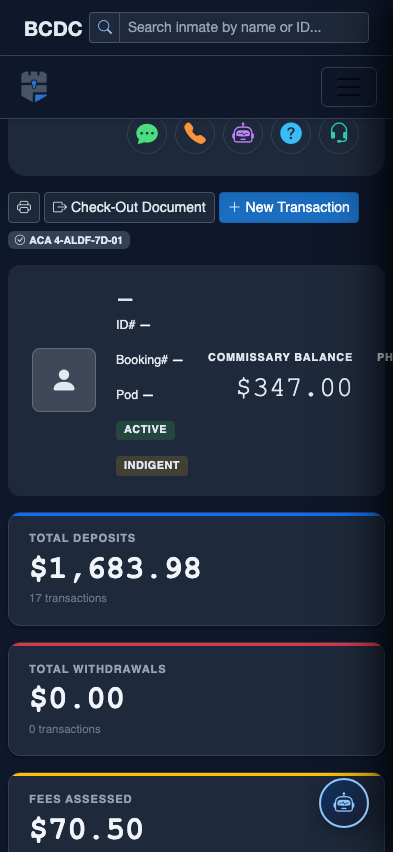
Scrolled / detail view