
Offender Accounts
The Offender Accounts tab manages the limited, supervised digital accounts provisioned for inmates to access approved facility services — including commissary ordering, video visitation scheduling, phone access (IPS), and grievance submission. Each offender account is tightly linked to the inmate’s active booking record, scoped only to explicitly approved services, and automatically deactivated the moment the inmate is released or transferred. Administrators control which services each inmate may access, set spending limits, and review all account activity through the integrated audit log.
Booking-Linked Accounts
Every offender account is bound to an active booking record — no account can exist without a corresponding inmate in custody.
Service Access Control
Toggle individual service access per inmate — Commissary, Video Visitation, Phone (IPS), and Grievance — based on classification level or disciplinary status.
Trust Account Integration
Offender accounts display the linked inmate trust fund balance and enforce spending limits across commissary and phone services in real time.
Auto-Deactivation on Release
When a release or transfer is processed in the booking module, the linked offender account is immediately and automatically deactivated — no manual step required.

Step-by-Step: Provisioning and Managing Offender Accounts
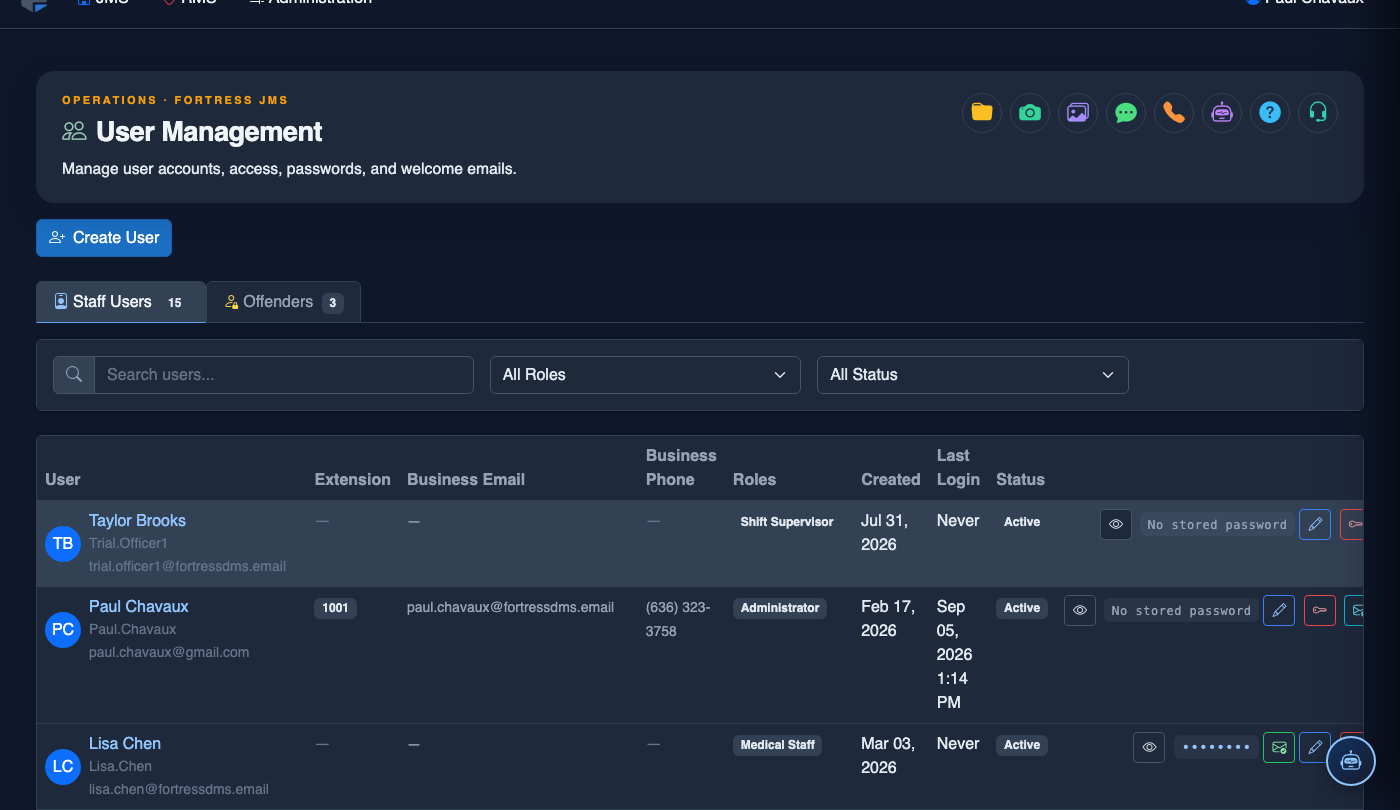
Navigate to the Offender Accounts Tab
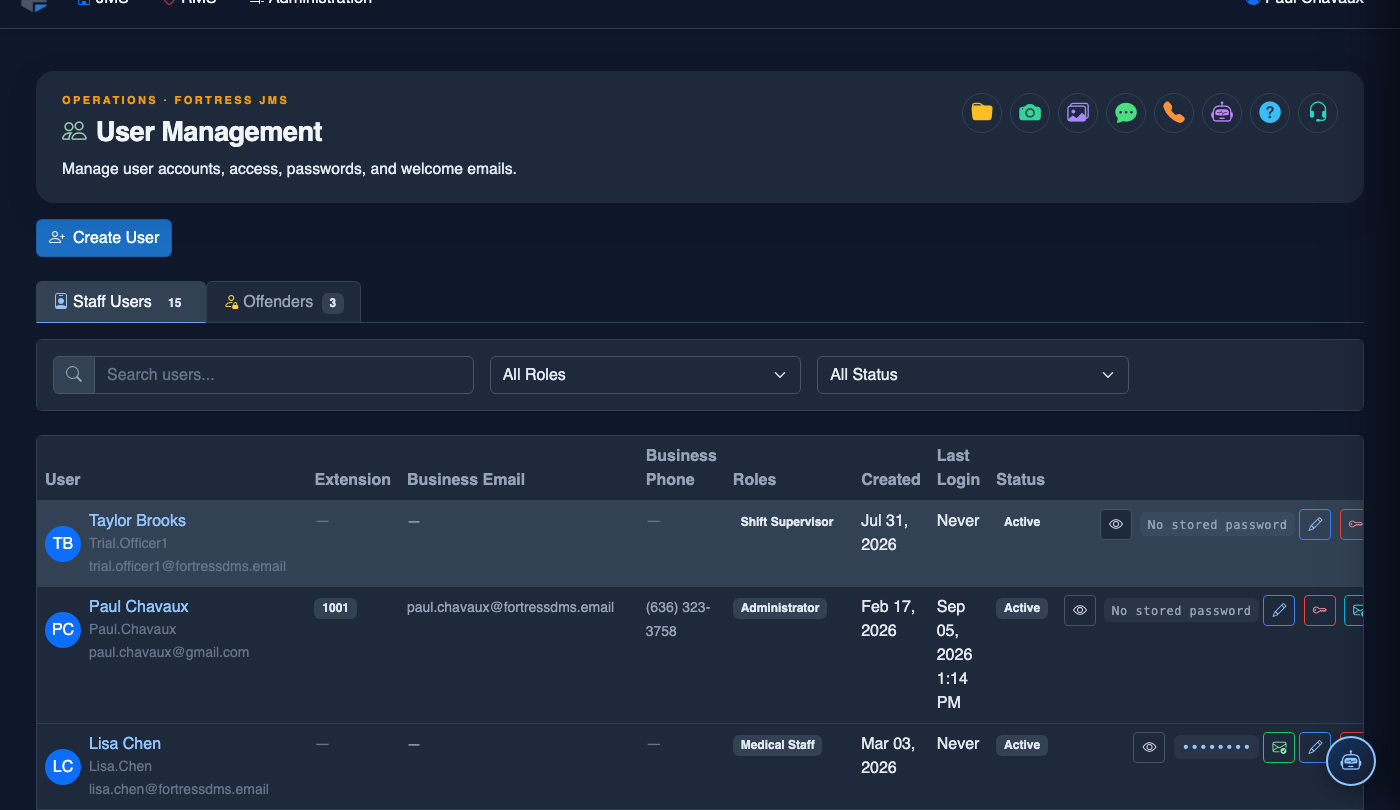
Go to Administration > User Management and click the Offender Accounts tab. The grid lists all currently provisioned offender accounts with columns for Inmate Name, Booking Number, Housing Unit, Services Enabled, Trust Balance, and Account Status. Accounts for released inmates are automatically moved to the Archived filter view.
Provision a New Offender Account
Click + Provision Offender Account. In the search box that appears, type the inmate’s Last Name or Booking Number — the system searches active bookings only. Select the correct inmate from the results. The account form pre-populates with their name, booking number, classification level, and housing unit from the booking record.
Enable Approved Services
In the Service Access section, toggle on only the services the inmate is approved to use based on their classification, housing assignment, and any active disciplinary restrictions. Available services include Commissary, Video Visitation, Inmate Phone System (IPS), and Grievance Submission. Classification rules may automatically disable certain services — the system shows a tooltip explaining any auto-disabled service.
Configure Spending Limits and PIN
Under Account Limits, set the optional Weekly Commissary Spend Cap and Daily Phone Spend Cap to help inmates manage their trust fund in compliance with facility policy. Assign the inmate’s 6-Digit Access PIN — this PIN is used to log in to kiosk terminals for commissary, phone, and video visitation. The system enforces PIN uniqueness across all active offender accounts.
Save and Activate the Account
Click Provision Account. The system creates the offender account, links it to the active booking record, and immediately makes the enabled services accessible to the inmate on approved kiosk terminals. The new account appears in the Offender Accounts grid with status Active. The provisioning officer’s name and timestamp are recorded in the audit log.
Modify Services During Custody (Disciplinary Restrictions)
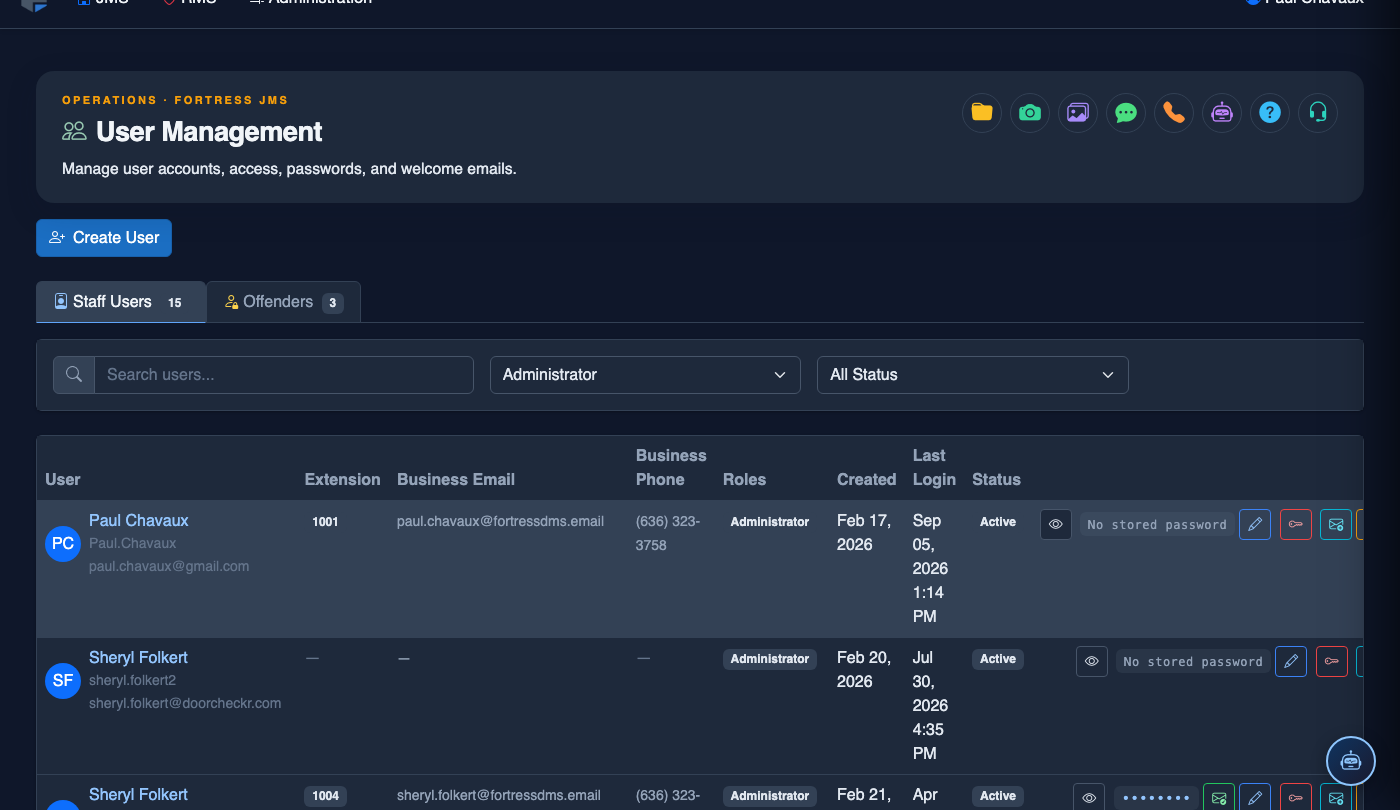
When a disciplinary sanction restricts an inmate’s access to services, locate the inmate in the Offender Accounts grid, open their account record, and toggle off the affected services in the Service Access panel. Enter the Restriction Reason and the Sanction End Date — the system will automatically re-enable the service when the sanction expires. All service changes are logged with the officer’s identity.
Review Account Activity and Trust Balance History
From any offender account record, click Activity Log to view a chronological list of all kiosk logins, commissary orders, phone calls, video visits, and grievance submissions. Click Trust History to see a full ledger of all deposits, debits, and balance adjustments. Both logs are exportable as CSV for inmate grievance responses or legal requests.
💡 Pro Tips
- Offender accounts are automatically deactivated on release — but always verify after processing a release that the account shows Archived status in the grid, especially for emergency or court-ordered releases processed outside normal booking workflow.
- Use the Sanction End Date on service restrictions rather than manually re-enabling services — it eliminates the risk of forgetting to restore services after a sanction period and creates a cleaner audit record.
- For protective custody or segregation inmates, review their service access configuration weekly — classification changes often affect approved services and the system may not always auto-adjust based on manual housing moves.
- The Trust Balance column in the grid is live — use it to quickly identify inmates approaching a zero balance before they place a commissary order, and coordinate with family deposit procedures to prevent frustration at the kiosk.
Mobile View — Offender Accounts
FortressDMS is fully responsive. Officers can access the Offender Accounts on a phone or tablet directly from the field — no app install required.
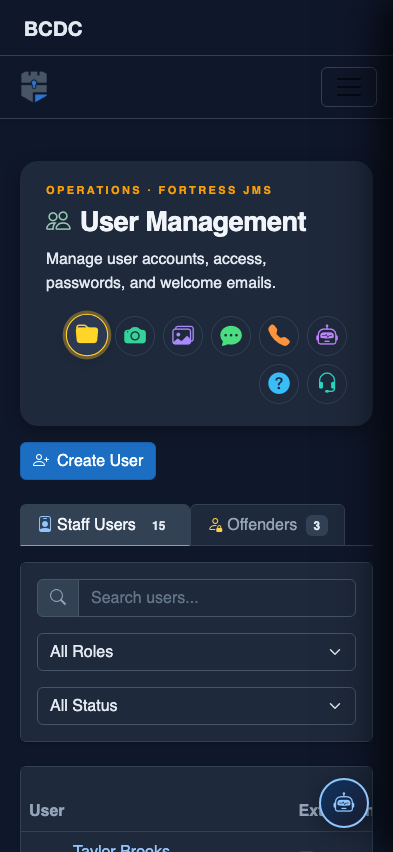
Tab view with data rows
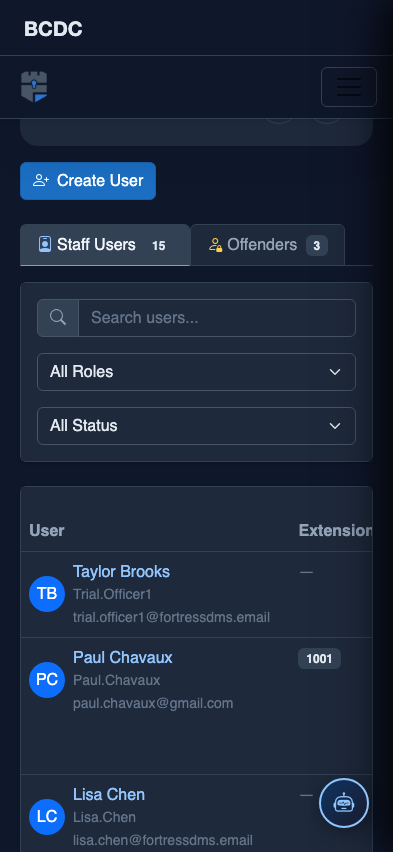
Scrolled / detail view