
Video Visitation
The FortressDMS Video Visitation module enables secure, monitored video calls between inmates and approved visitors without requiring in-person facility access. Administrators control scheduling, session duration, participant approval, and recording settings — while officers monitor live sessions from a centralized dashboard. The module reduces contraband risk, lowers facility traffic, and provides a documented communication record for every call.
Secure Video Platform
Encrypted video sessions run through FortressDMS servers — no third-party consumer apps, no unmonitored channels.
Appointment Scheduling
Visitors self-schedule via a web portal within officer-defined availability windows, reducing scheduling workload at the facility.
Live Monitoring & Recording
Officers can monitor any active session in real time and terminate calls instantly. All sessions are recorded and stored for the retention period you configure.
Participant Verification
Visitors must complete identity verification before their first session — flagged mismatches block the call until officer review.
Billing Integration
Session costs are tracked per inmate account with configurable per-minute rates and prepaid balance management.
Attorney Privileged Sessions
Attorney-client sessions are marked confidential and excluded from recording and officer monitoring per legal privilege requirements.
Step-by-Step: Using the Video Visitation Module
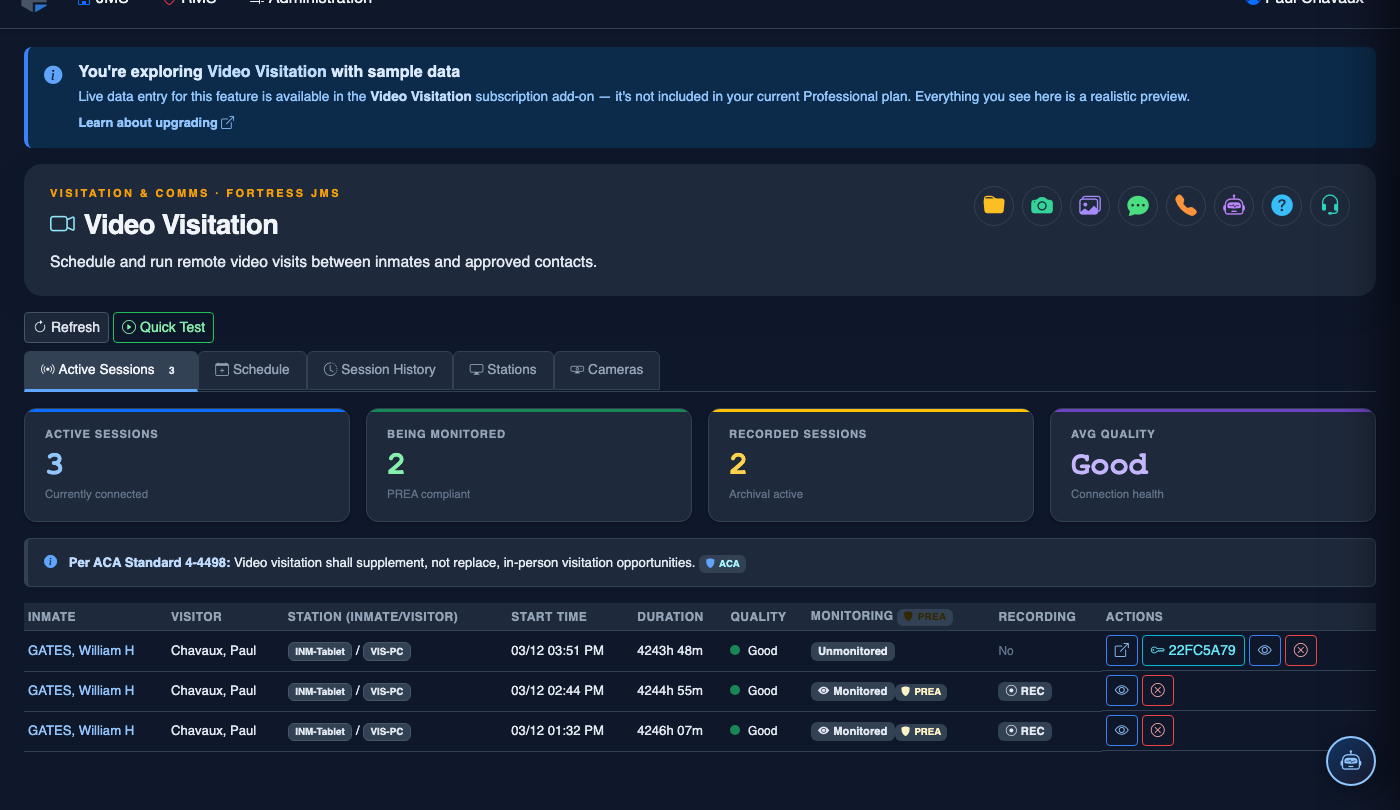
Open the Video Visitation Module
Select Video Visitation from the main navigation. The module home displays the Active Sessions count, upcoming scheduled sessions for the next 24 hours, and any pending visitor verifications requiring officer review.
Configure Availability Windows
Navigate to Settings → Video Visitation Settings to define the days and time blocks when video visits are permitted. Set maximum session duration (minutes), sessions per inmate per week, and blackout periods for count times or lockdowns.
Approve Visitor Accounts
From the Pending Verifications panel, review each new visitor’s submitted government ID. Click Approve to allow scheduling, Deny to block them, or Request Re-submission if the ID image is unclear. Approved visitors can then book sessions via the visitor web portal.
Monitor the Active Sessions Board
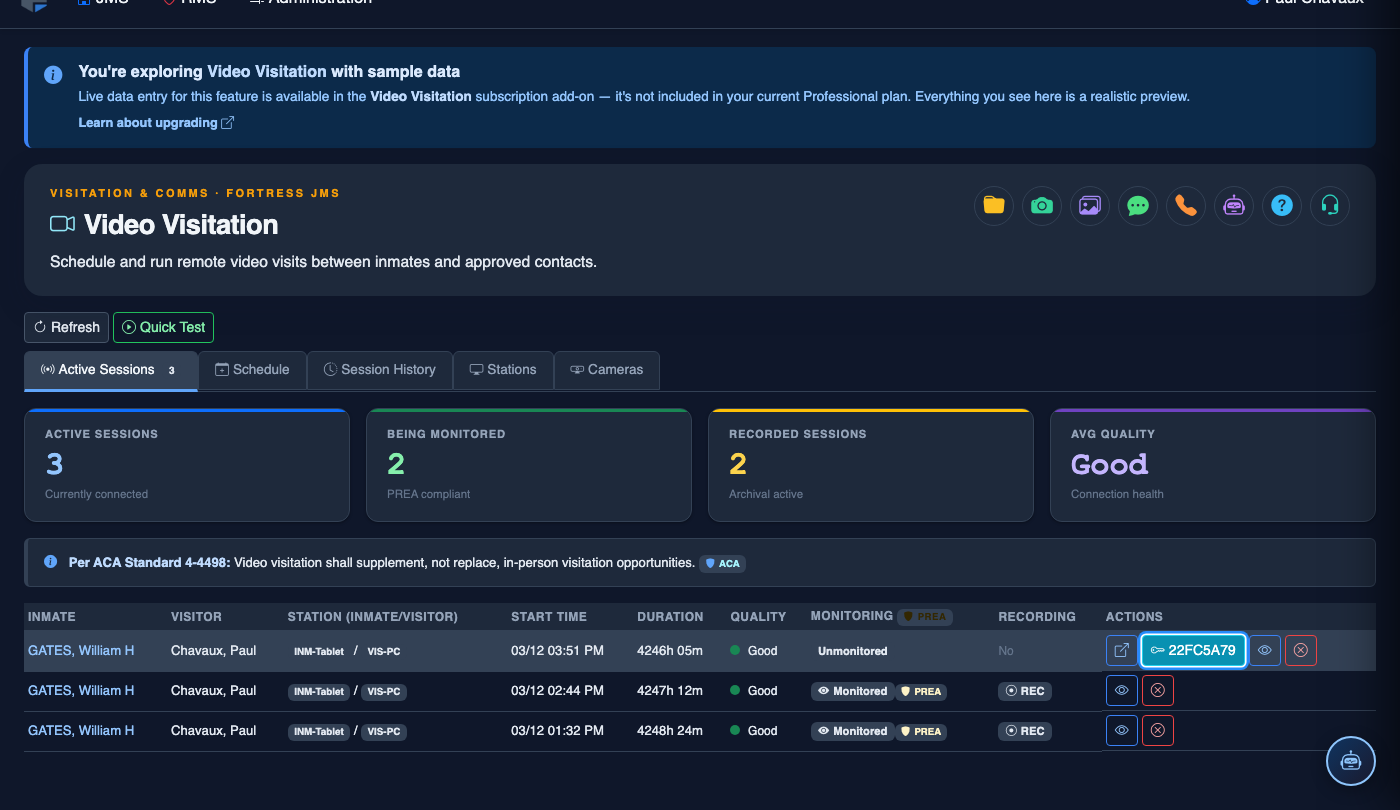
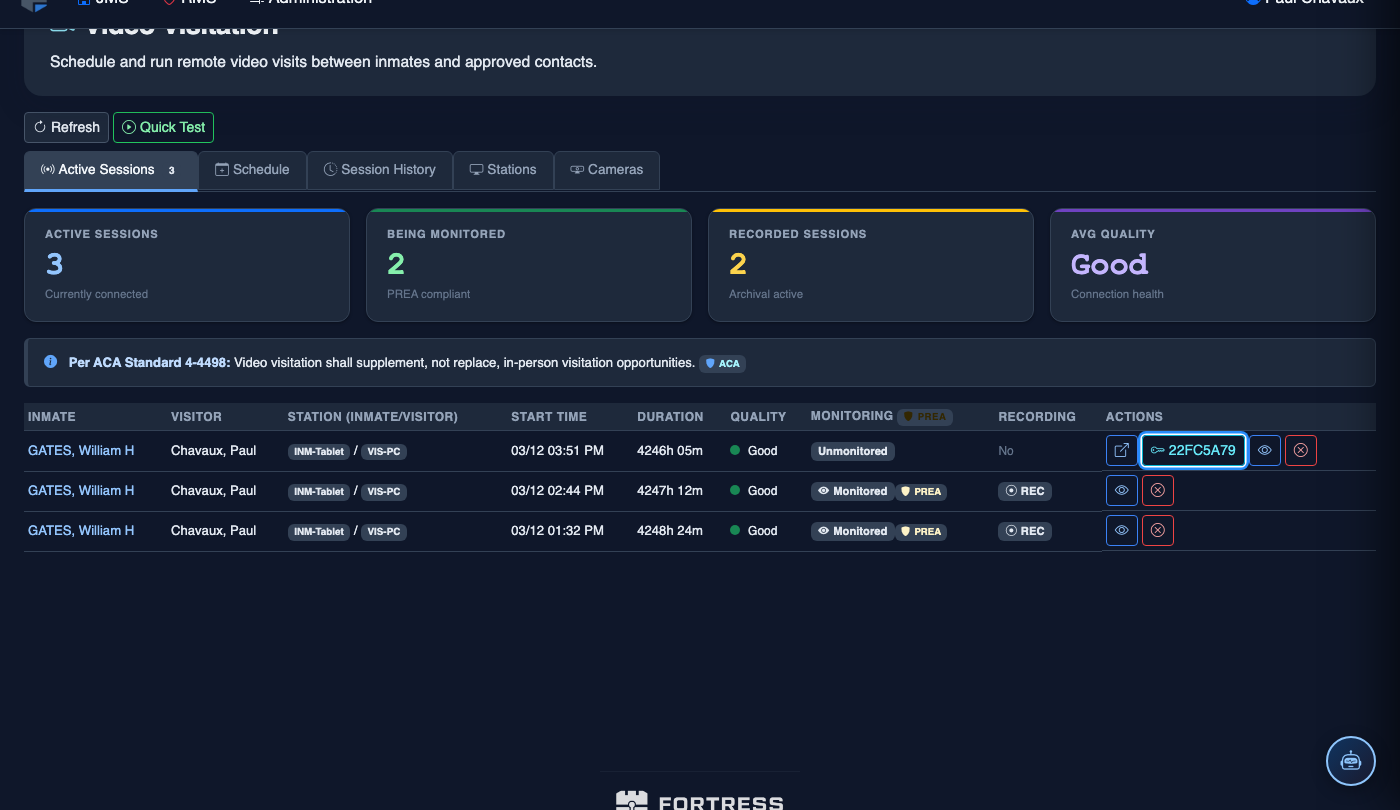
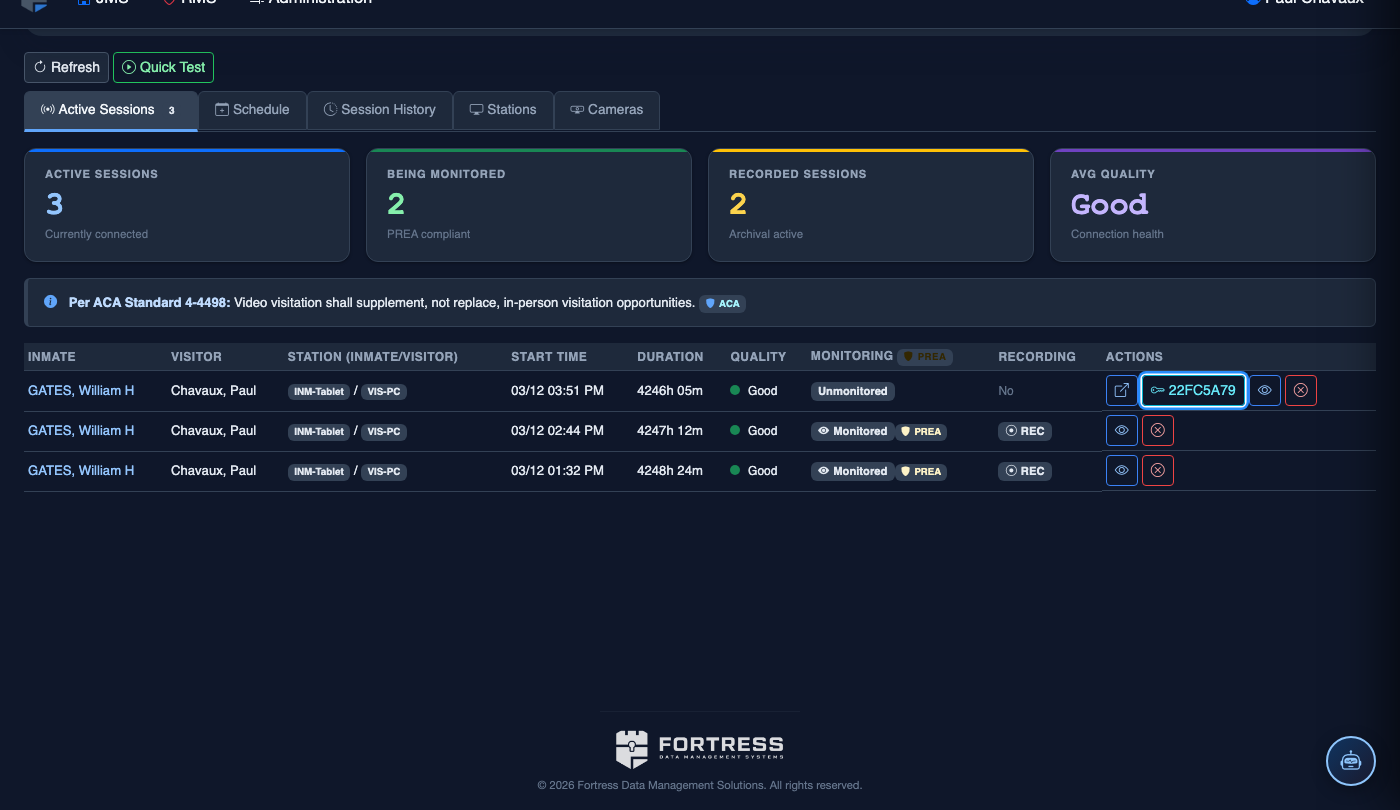
The Active Sessions tab shows all live video calls with inmate name, housing unit, visitor name, call duration, and a Monitor button. Click Monitor to open a live view of the session without alerting the participants (unless your facility policy requires notification).
Terminate a Session If Needed
From the monitoring view or the active sessions list, click Terminate Session and select a reason (e.g., Policy Violation, Contraband Attempt, Unauthorized Participant). The session ends immediately, both participants are notified, and the reason is logged to the incident record.
Review Session Recordings
Navigate to Session Schedule → Past Sessions and click any completed session row to access the recording. Recordings can be flagged for retention holds (e.g., for pending litigation), downloaded for legal discovery, or flagged for investigative review.
Manage Billing and Inmate Balances
Under Settings → Video Billing, set per-minute rates by session type. Inmate accounts are debited automatically at session end. Officers can view an inmate’s prepaid balance and transaction history from the inmate’s profile under Inmate Accounts → Video Credits.
Generate Compliance and Usage Reports
Use Reports → Video Visitation to generate usage summaries, per-inmate session histories, terminated session logs, and billing summaries. Reports are exportable as PDF for administration review or CSV for financial reconciliation.
💡 Pro Tips
- Enable Auto-Verify Known Visitors in settings to automatically approve returning visitors whose government ID has already been verified — this drastically cuts officer processing time.
- Schedule a dedicated officer to the session monitoring board during peak visit windows (evenings and weekends) rather than relying on opportunistic monitoring — this ensures consistent oversight.
- Attorney-client sessions require a privileged session flag set at booking; remind legal teams to use the attorney scheduling portal link (not the standard visitor portal) or the privileged flag will not be applied.