
Separation Orders
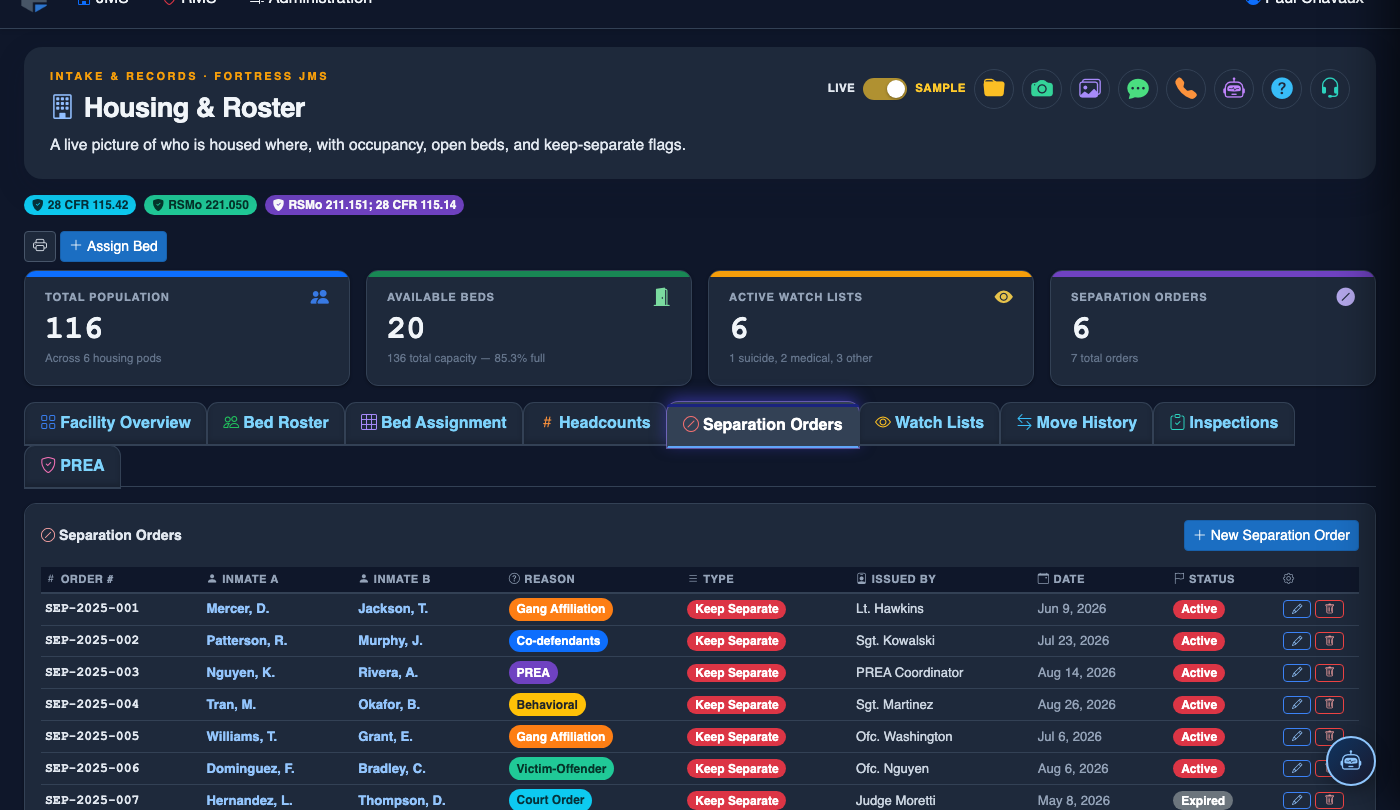
The Separation Orders tab allows classification officers and supervisors to create, manage, and enforce documented orders that prohibit specific inmates from being housed in the same unit, transported together, or placed in proximity during facility operations. Separation orders are automatically checked during bed assignments, headcounts, and transport scheduling to prevent placement conflicts before they become safety incidents. Every order is linked to its originating documentation — court mandates, gang intelligence reports, or incident investigations — and expires or remains active based on configurable criteria.
Order Creation & Documentation
Create separation orders with reason codes, supporting documentation references, and expiration dates — all stored in the inmate record.
System-Wide Enforcement
Active orders are enforced across Bed Assignment, Transport Scheduling, and Program Enrollment so no staff member can accidentally place separated inmates together.
Multi-Party Orders
A single order can cover two or more inmates — ideal for gang-related separations involving multiple group members across the facility.
Expiration Alerts
Supervisors receive automatic notifications before a separation order expires so they can review and renew or close the order before it lapses.
Step-by-Step: Creating and Managing Separation Orders
Open the Separation Orders Tab
Go to Housing & Roster > Separation Orders. The tab displays all currently active orders in a sortable list, with each order showing the involved inmates, reason category, effective date, and expiration date.
Create a New Separation Order
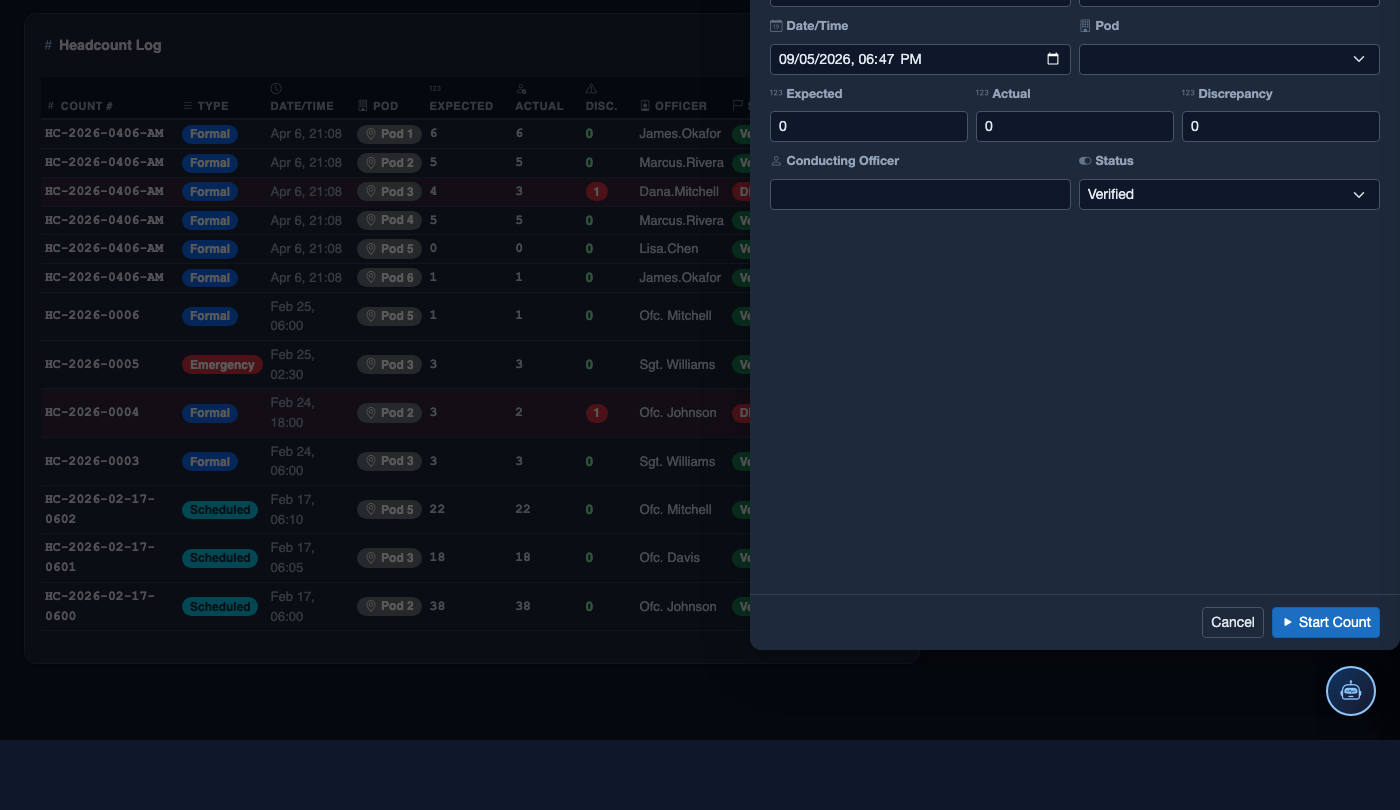
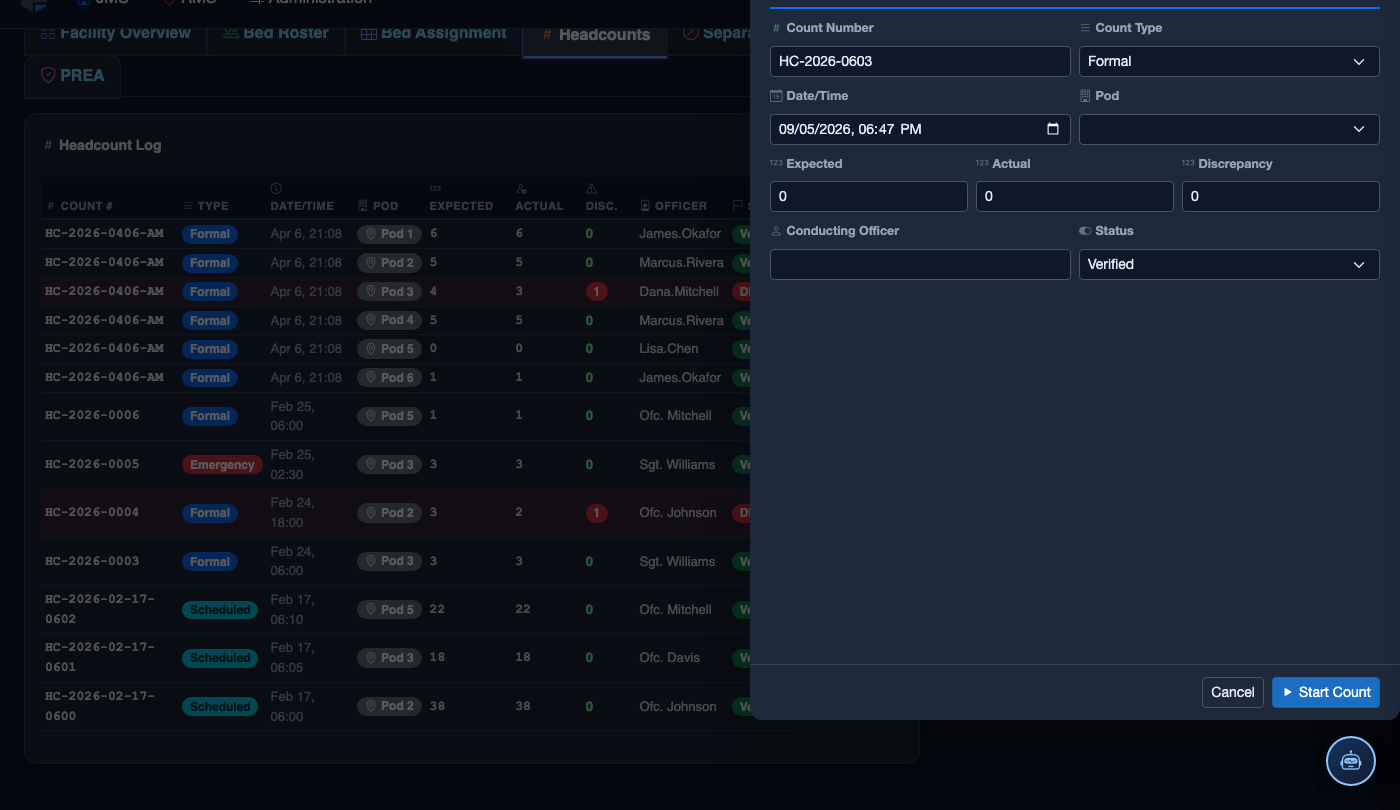
Click New Separation Order. In the form that opens, search for and add each involved inmate by booking number or name. A minimum of two inmates are required; additional parties can be added using the + Add Inmate button.
Set Reason, Scope, and Expiration
Select a Reason Category (Gang Affiliation, Court Order, Victim/Suspect, Prior Assault, or Administrative). Set the Separation Scope — Unit Level, Facility Level, or System Wide (multi-facility). Enter an Expiration Date or check No Expiration for court-mandated indefinite orders.
Attach Supporting Documentation
Use the Attach Document button to link relevant files — court orders, incident reports, or intelligence memos. Attachments are stored in the inmate’s permanent record and are accessible to authorized staff at any time.
Save and Activate the Order
Click Save Order. The system immediately activates the separation rule and notifies the housing classification officer. If any of the involved inmates are currently in the same unit, a Conflict Alert is generated with a link to the Bed Assignment tab to resolve the placement.
Review, Renew, or Close Orders
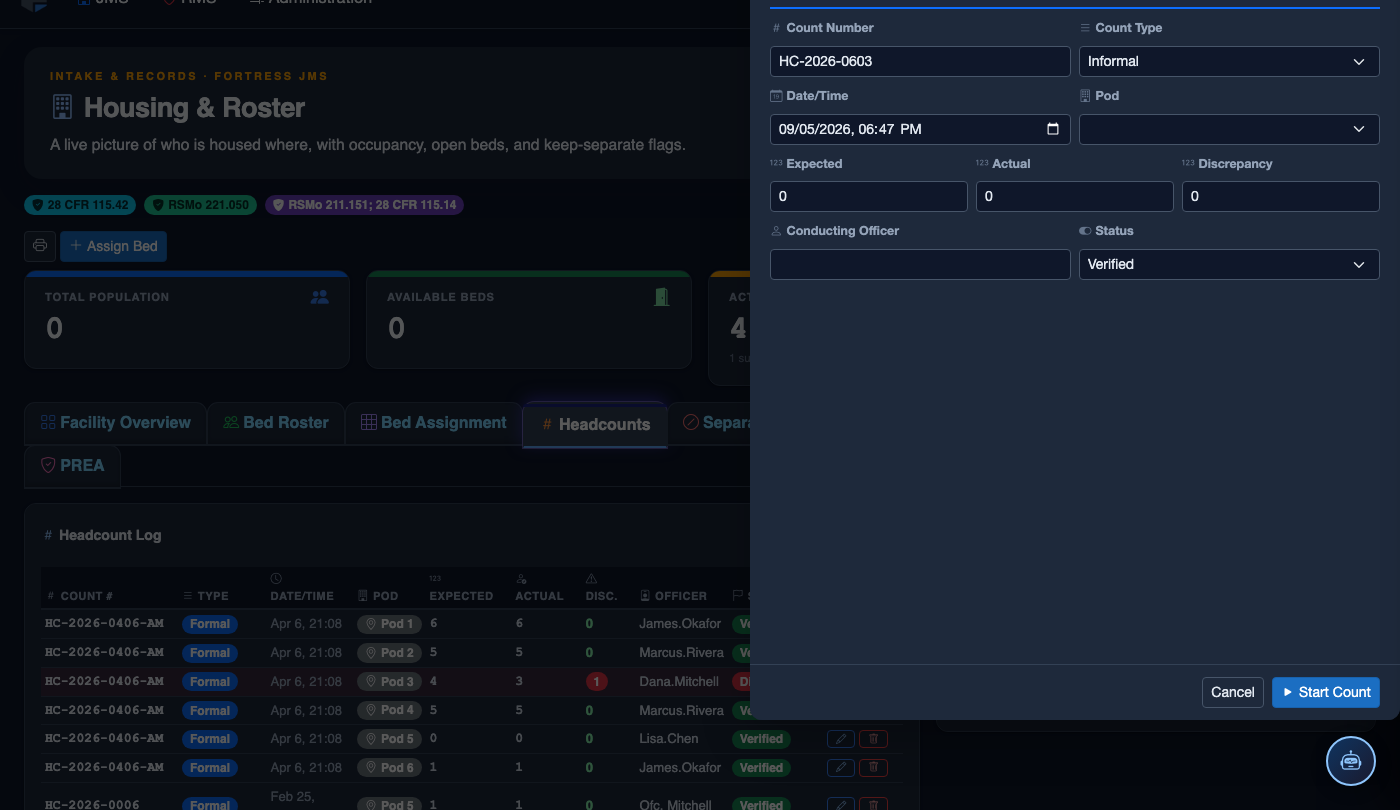
Click on any active order to open its detail view. Use the Renew button to extend the expiration date, or click Close Order to deactivate it with a closure reason. Closed orders remain in the history for audit purposes and are never permanently deleted.
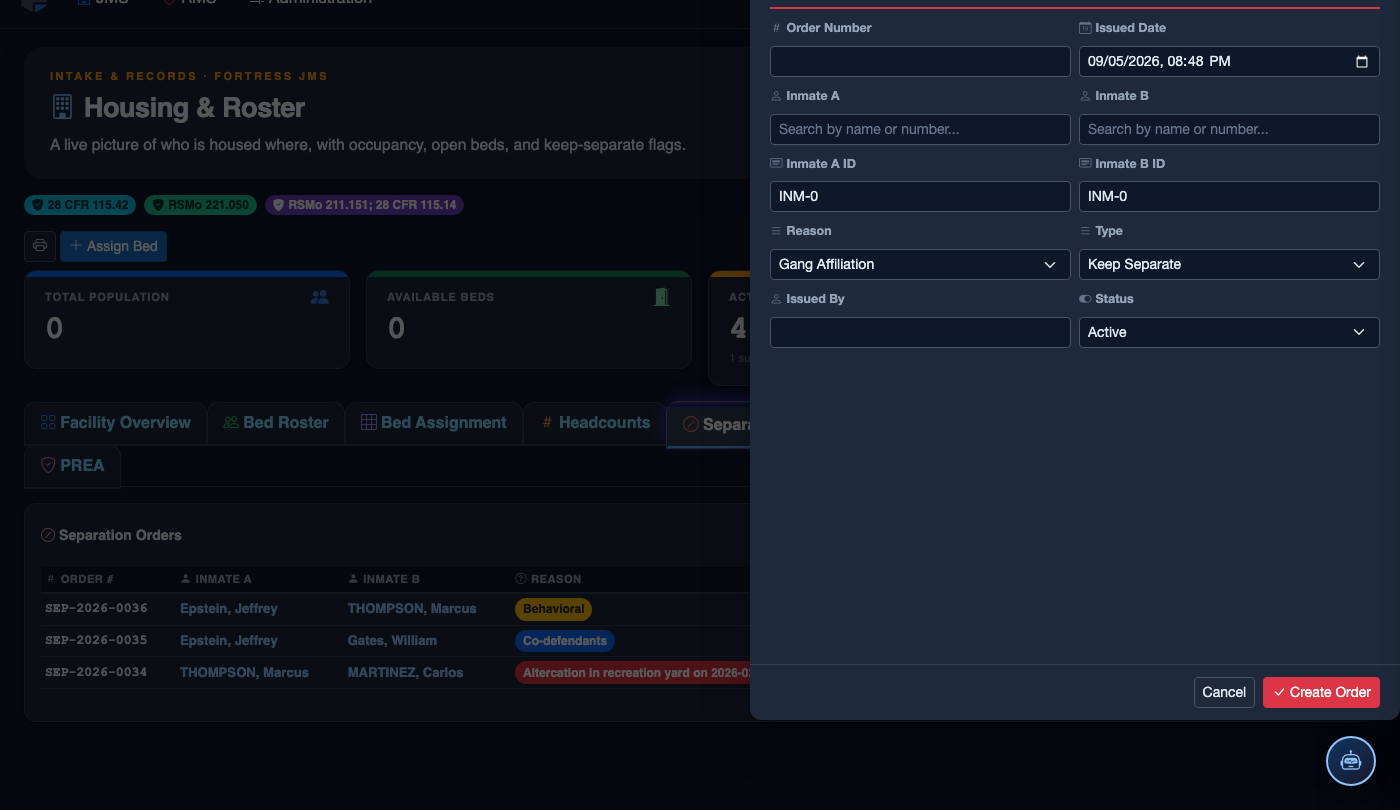
Create a New Separation Order
Click Add Order. In the Separation Order form:
- Inmate A & Inmate B — search and select both individuals who must be kept apart.
- Reason — choose from Assault History, Gang Affiliation, Court Order, Protective Custody Request, or Other (requires description).
- Case Reference — link to an incident report or court case number.
- Effective Date — when the order takes effect. Set Expiry only if the order is temporary.
- Notes — document the factual basis for the order with as much detail as possible.
- Click Save Separation Order. The system flags any future housing assignment that would place these two inmates in the same pod.
💡 Pro Tips
- Set the expiration alert threshold to 7 days in Settings > Separation Order Alerts — this gives classification staff a full week to review court documents and renew legally mandated orders before they lapse.
- Use Facility Level scope for gang-related separations rather than Unit Level — if either inmate is transferred to another unit, the order continues to block proximity placements across the whole facility.
- Separation orders are visible to transport coordinators in real time — if two separated inmates are mistakenly added to the same transport, the system will block the manifest from being finalized until the conflict is resolved.
Mobile View — Separation Orders
FortressDMS is fully responsive. Officers can access the Separation Orders on a phone or tablet directly from the field — no app install required.
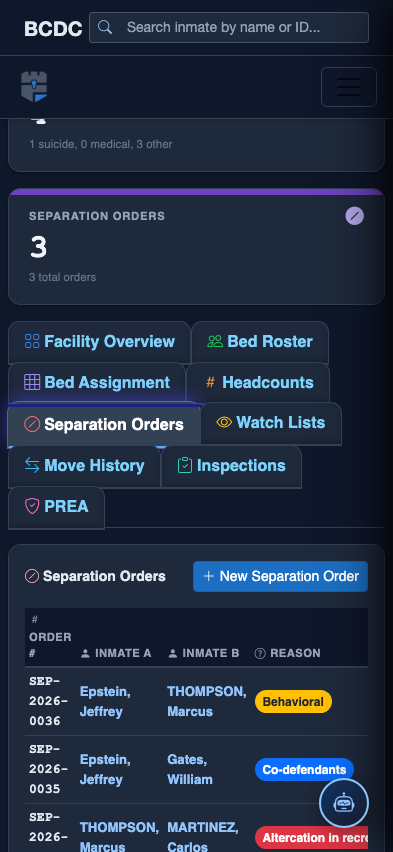
Tab view with data rows
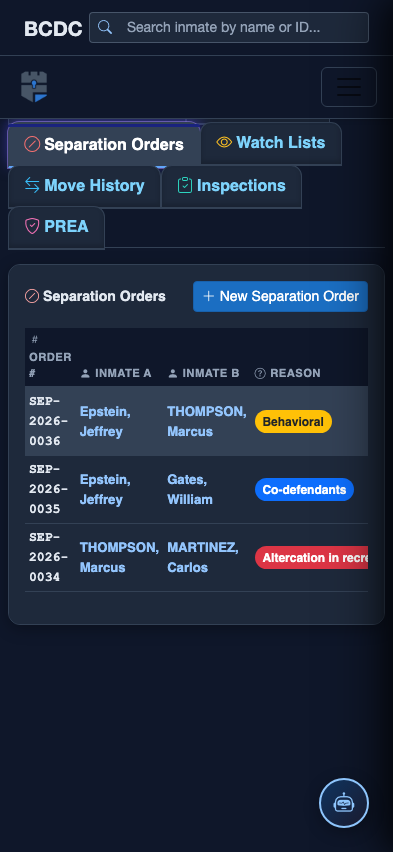
Scrolled / detail view