
Bed Assignment
The Bed Assignment tab gives classification officers and shift supervisors the tools to assign, transfer, and manage inmate bed placements with full enforcement of classification rules, separation orders, and medical restrictions. The system validates every proposed assignment against existing flags and alerts the officer if a placement would violate a separation order or put an incompatible population in the same unit. A complete audit trail of every assignment change is maintained automatically for accountability and legal review.
Rule-Enforced Placement
Automatically validates each assignment against classification rules, separation orders, and medical holds before saving.
Inmate Transfers
Move an inmate from one bed to another — including cross-unit transfers — with a single drag-and-drop or form action.
Assignment Audit Trail
Every bed assignment and transfer is logged with officer ID, timestamp, and reason code for full accountability.
Bulk Assignments
Assign multiple newly booked inmates to available beds in a single workflow — critical during large intake events.
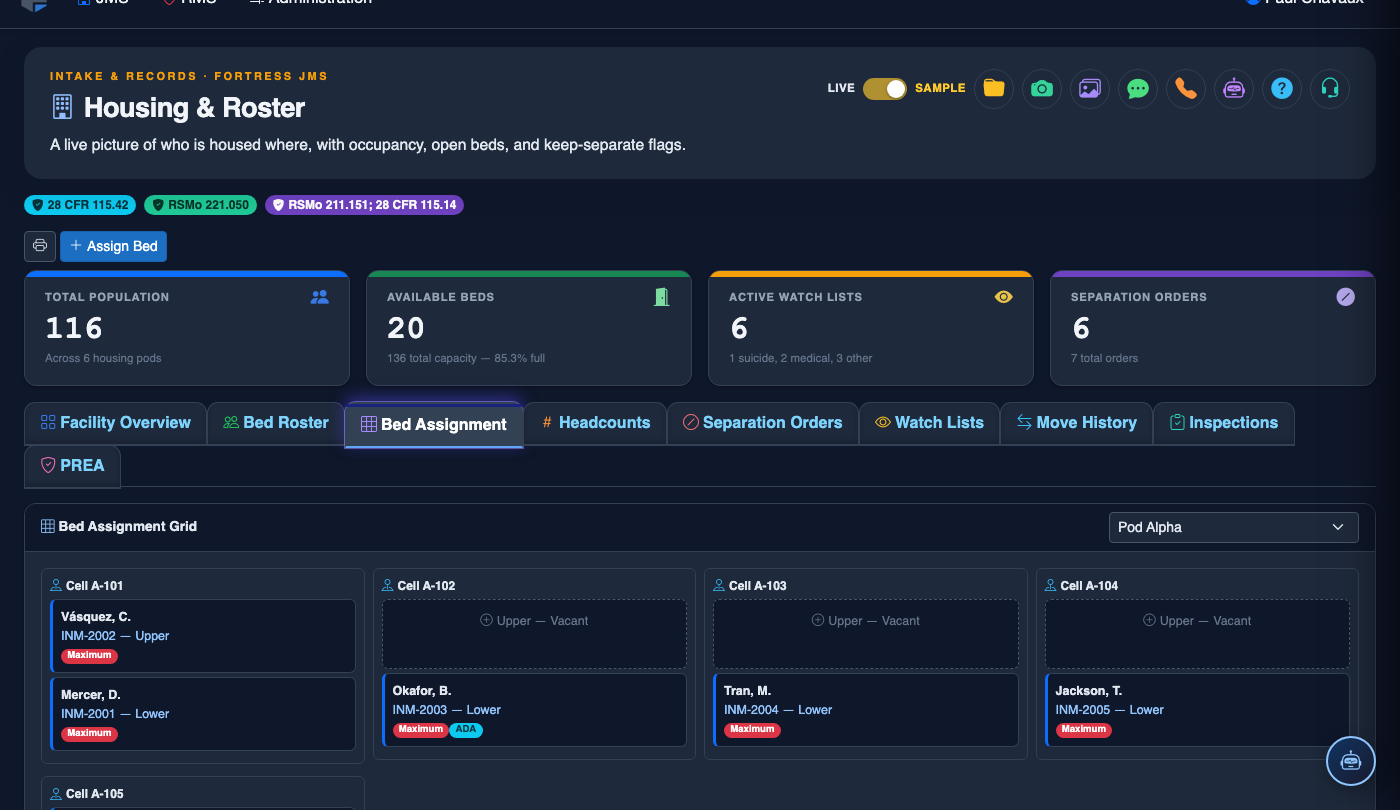
Step-by-Step: Assigning and Transferring Beds
Open the Bed Assignment Tab
Go to Housing & Roster and select the Bed Assignment tab. The view displays a split panel: unassigned inmates awaiting placement on the left, and the bed availability map on the right.
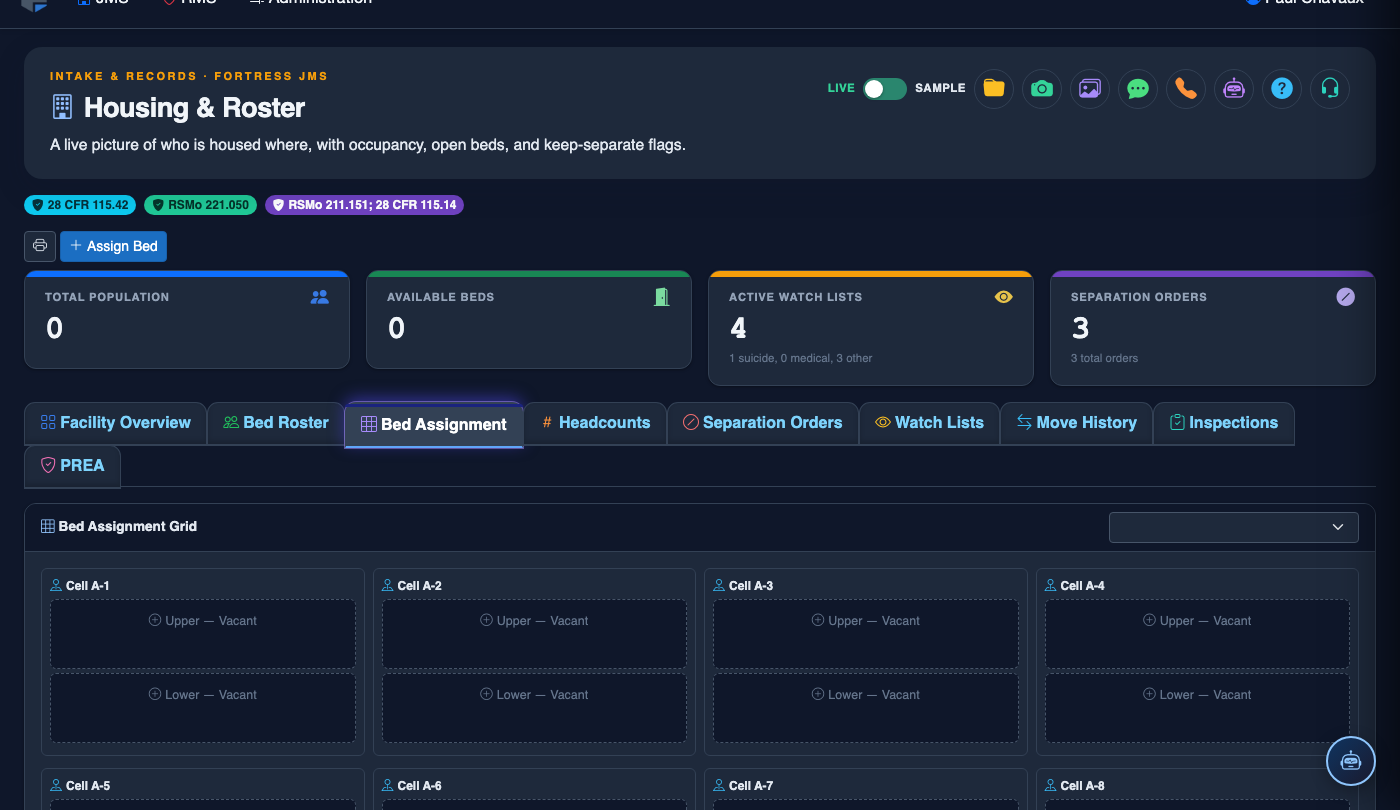
Select an Inmate for Assignment
From the Unassigned Inmates queue, click an inmate’s name or booking number to select them. Their classification level, gender, any active flags, and separation restrictions are displayed in the detail panel below the queue.
Choose a Compatible Housing Unit and Bed
The bed availability map automatically grays out units and beds that are incompatible with the selected inmate based on classification rules or separation orders. Select a green (available and compatible) bed from the map, then click Assign Bed.
Confirm or Override Validation Warnings
If a rule conflict is detected — such as a separation order involving another inmate in the target unit — a red warning dialog will appear. Supervisors with the Override permission can acknowledge the warning and provide a documented reason; standard officers must select a different bed.
Transfer an Existing Inmate
To transfer a currently housed inmate, click Transfer from the Bed Roster tab or search for the inmate in the Bed Assignment search bar. Select the inmate, choose their new bed, enter a Transfer Reason from the dropdown (e.g., Disciplinary, Medical, Classification Change), and click Save Transfer.
Review the Assignment Audit Log
Click Assignment History at the bottom of the tab to view a chronological log of all bed assignments and transfers. Each entry shows the officer’s badge number, the timestamp, the reason code, and any override justifications entered for compliance review.
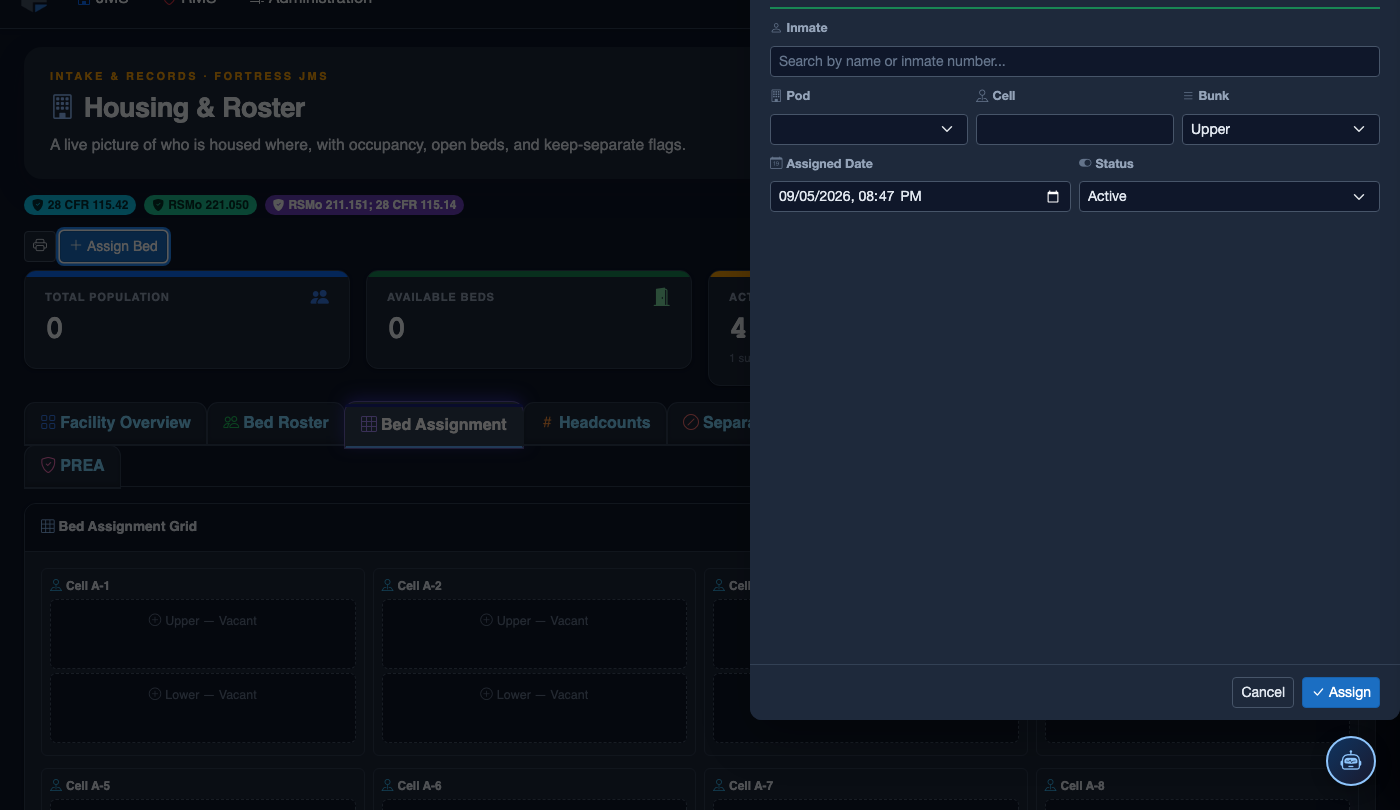
Create a New Bed Assignment
Click Assign Bed in the module toolbar to open the assignment panel. Fill in the required fields:
- Inmate — search by name or booking number.
- Housing Unit › Pod › Cell › Bed — cascading dropdowns filter available beds in real time.
- Assignment Date — defaults to today; adjust for back-dated transfers.
- Classification Level — Pre-Trial, Sentenced, Administrative Seg, Protective Custody, etc.
- Placement Notes — separation conflicts, medical alerts, court holds.
- Click Save Assignment. The bed flips from Available to Occupied on the floor map instantly.
💡 Pro Tips
- During large booking intakes, use the Bulk Assign button to process multiple unassigned inmates at once — the system will automatically suggest compatible beds for each inmate based on classification rules.
- Always enter a meaningful Transfer Reason from the dropdown rather than leaving it as “Other” — this data feeds into monthly housing movement reports required by state corrections auditors.
- If a bed assignment is made in error, use the Undo Last Assignment option (available within 15 minutes of saving) to reverse the placement without creating a confusing transfer record.
Mobile View — Bed Assignment
FortressDMS is fully responsive. Officers can access the Bed Assignment on a phone or tablet directly from the field — no app install required.
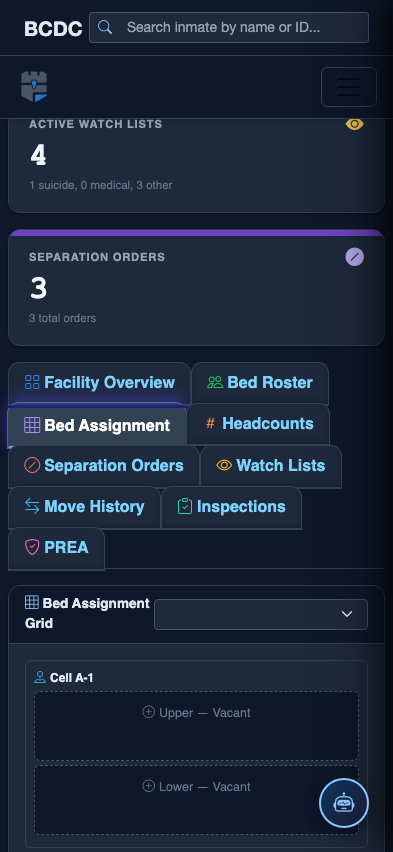
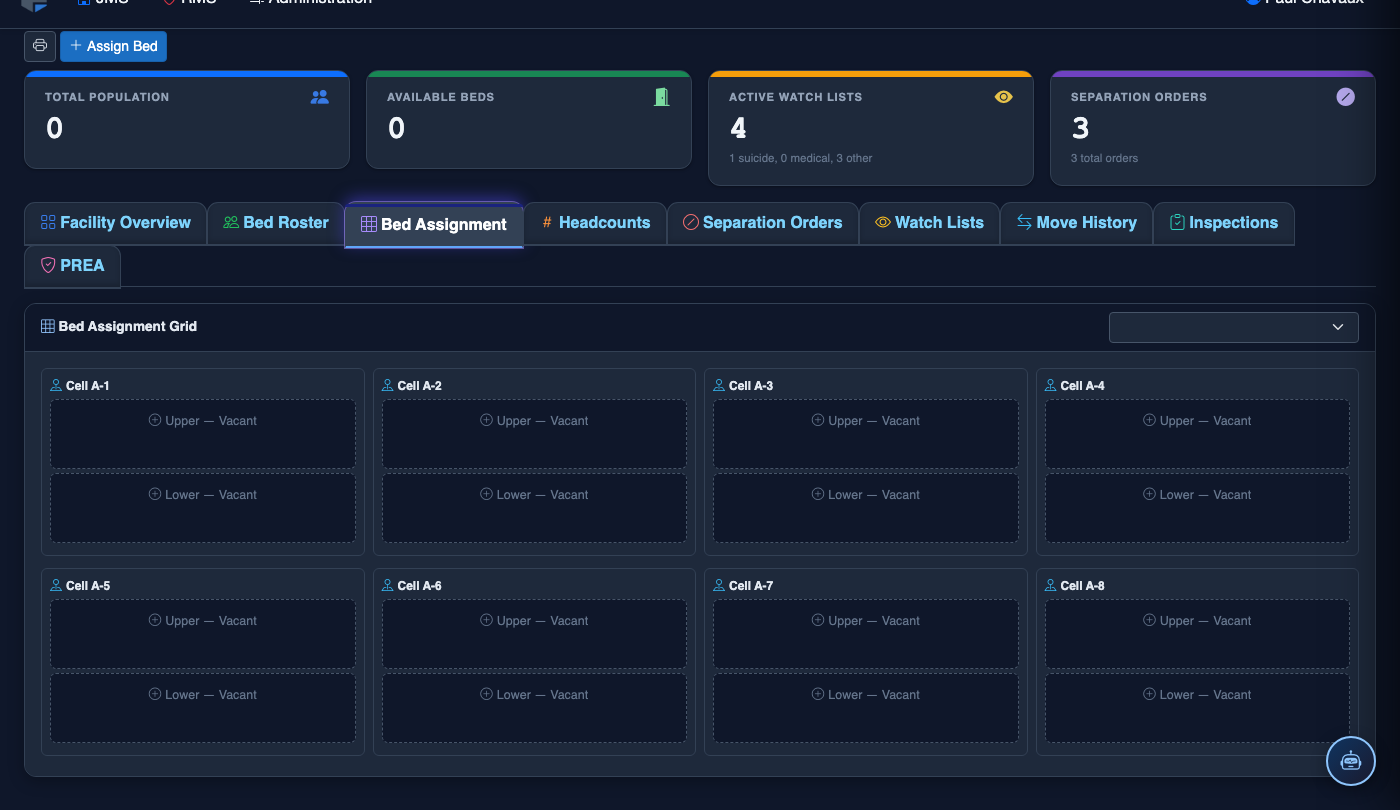
Tab view with data rows
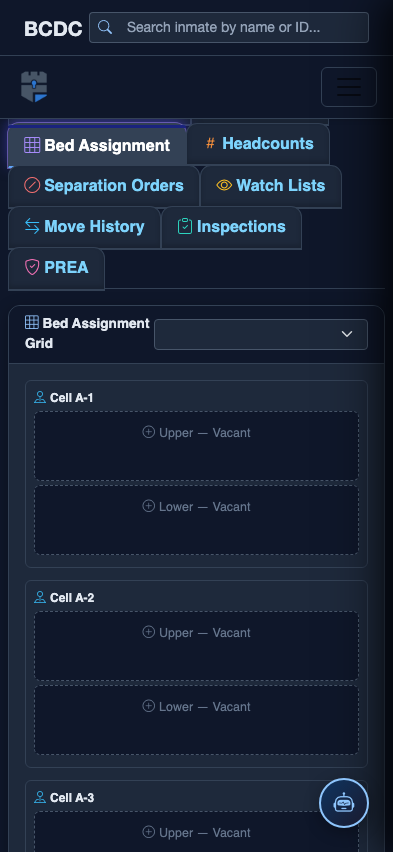
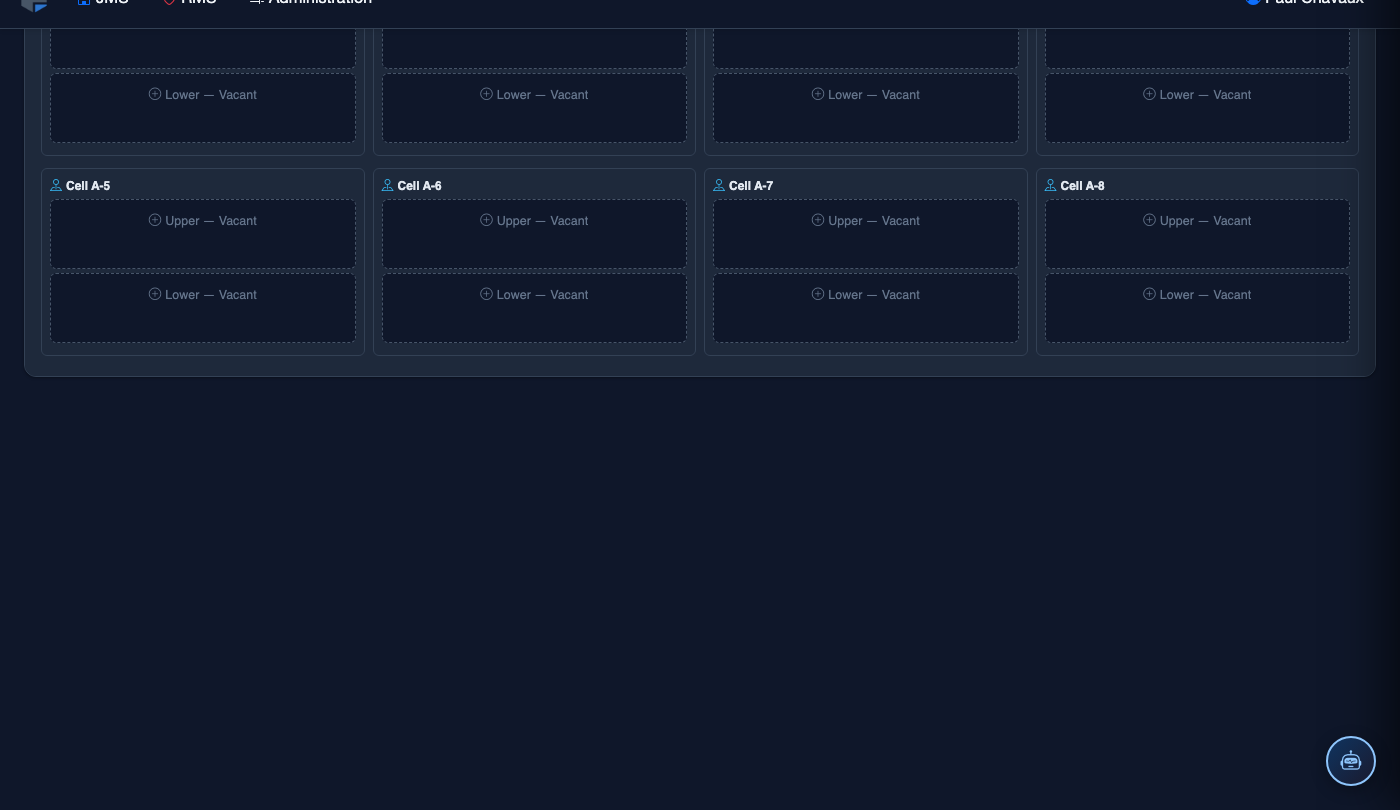
Scrolled / detail view