
Grievance Administrator
The Grievance Administrator panel gives compliance officers, wardens, and senior administrators complete oversight of the grievance program — from configuring response deadlines and category definitions to generating compliance reports for auditors and accreditation bodies. This module is the control center for the entire grievance lifecycle, ensuring your facility’s program meets constitutional requirements, ACA standards, and any applicable state or federal consent decree obligations.
Program Configuration
Define grievance categories, set mandatory response windows per category, and configure multi-tier escalation paths for your facility’s policy.
Compliance Reporting
Generate date-range reports showing resolution rates, average response times, and overdue counts — ready for ACA auditors and court monitors.
Auto-Route Rules
Keyword-based routing rules automatically direct incoming grievances to the correct department queue without manual triage by the intake officer.
Archive & Legal Hold
Search and export the full grievance archive; flag individual records for legal hold to preserve them beyond standard retention schedules.
Step-by-Step: Grievance Administrator
Access the Administrator Panel
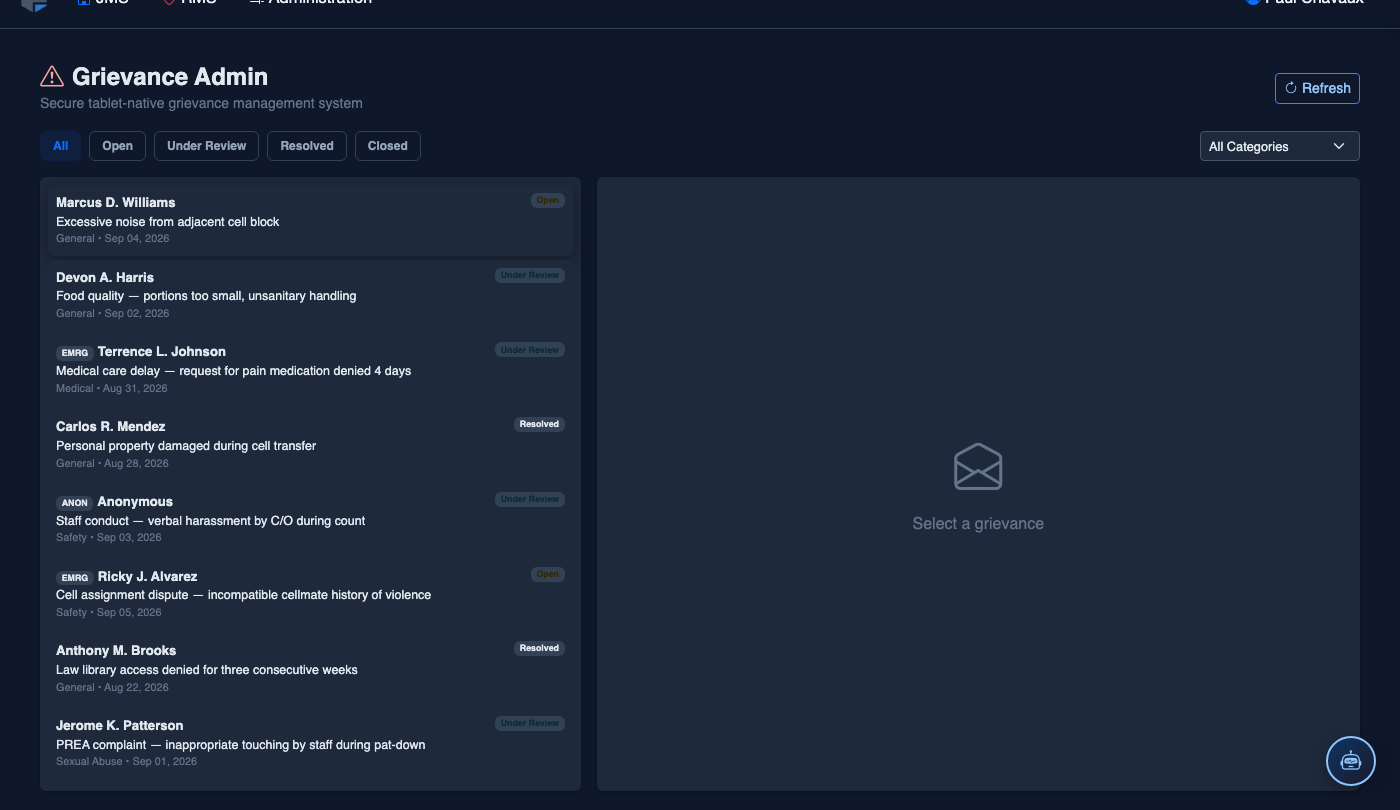
Navigate to Grievances → Administrator. This panel is restricted to the Grievance Administrator or Warden role. The overview page shows a live program health summary: open grievances by category, average response time this month, and a count of overdue items requiring escalation.
Configure Grievance Categories & Response Windows
Click Program Settings → Categories. Add, edit, or deactivate grievance categories and set the mandatory response window in calendar days for each one. For example, Medical grievances may require a 24-hour response, while General Conditions allow 15 days. These windows drive the color-coded deadline badges in the officer inbox.
Define Escalation Tiers
Navigate to Program Settings → Escalation Paths. Create multi-tier escalation chains (e.g., Officer → Shift Supervisor → Warden → External Review Board). Set automatic escalation triggers: if an officer does not respond within a defined window, the system auto-escalates and notifies the next tier without manual intervention.

Set Up Auto-Route Keyword Rules
Go to Auto-Route Rules and click Add Rule. Enter keywords or phrases (e.g., “chest pain,” “medication,” “suicidal”) and map them to the target department queue (e.g., Medical). When an inmate submission contains a matched keyword, it bypasses the general queue and routes directly to the designated team with an elevated priority flag.
Generate a Compliance Report
Click Reports → Compliance Summary. Select a date range, optionally filter by category or housing unit, and click Generate. The report displays total submissions, resolution rate, average response time by category, and a list of all overdue items. Export to PDF or Excel for auditors, accreditation reviews, or court monitor submissions.
Search and Export the Archive
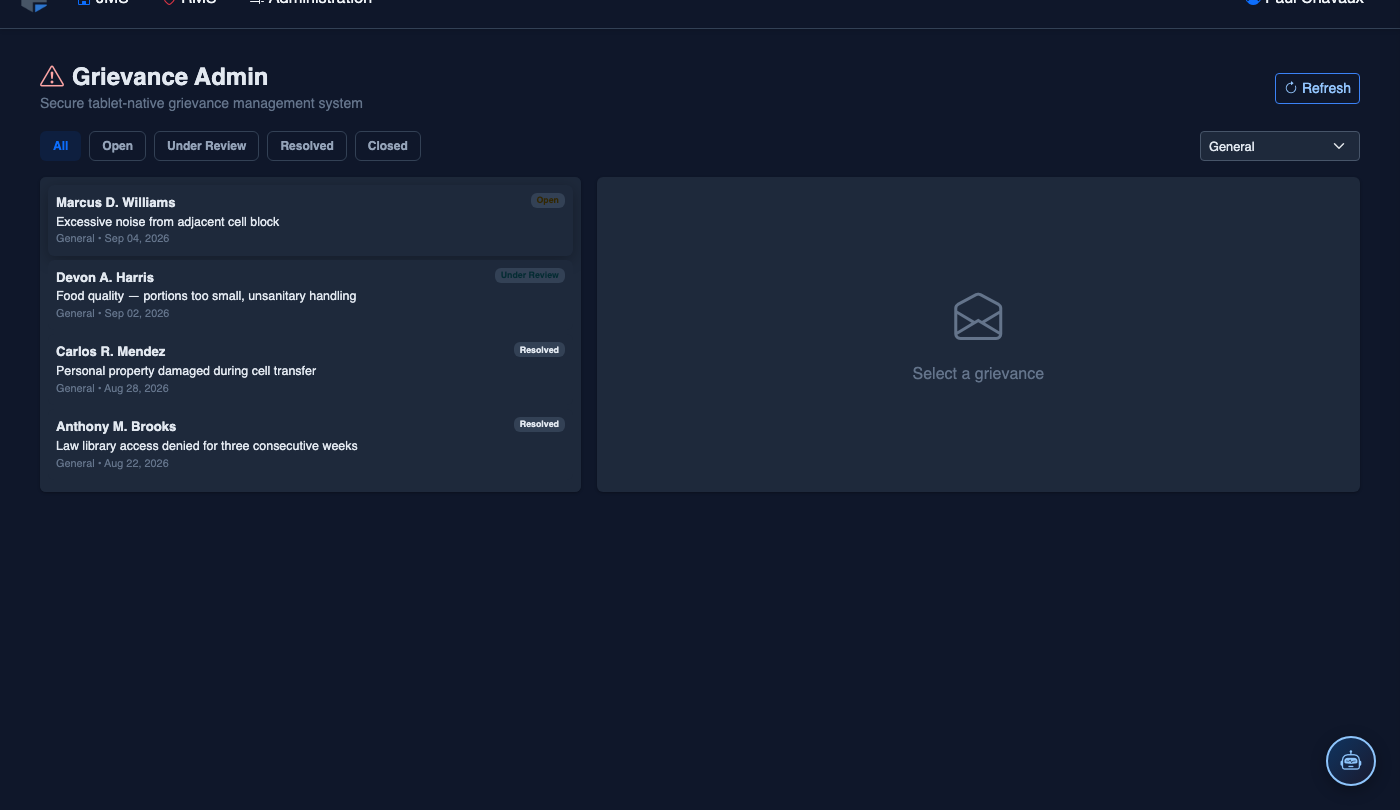
Click Archive to search all closed grievances using full-text search, date range, inmate booking number, or assigned officer. To produce records for discovery or a public records request, select matching grievances and click Export to generate a timestamped PDF packet with the full activity timeline for each record.
Apply Legal Hold to Sensitive Records
For grievances that involve active litigation or an open investigation, open the grievance record and click Apply Legal Hold. Records under legal hold are exempt from automatic purging at the standard retention expiry, are visually marked with a lock badge in the archive, and require administrator confirmation before removal.
Review the Trend Dashboard
Return to the Administrator overview and click Trend Analysis. This dashboard plots monthly grievance volume by category over a rolling 12-month window, highlights repeat filers, and surfaces housing units with disproportionately high submission rates — enabling proactive intervention before issues escalate to formal complaints or litigation.
💡 Pro Tips
- Run the Compliance Summary report monthly and save the exported PDF to your accreditation folder — having 12 consecutive months of clean reports dramatically simplifies ACA re-accreditation reviews.
- Review the Repeat Filer list in Trend Analysis quarterly; inmates filing an unusually high volume of grievances often signal an unresolved underlying condition-of-confinement issue that is cheaper to resolve proactively than to defend in court.
- Configure Auto-Escalation to notify the shift supervisor 4 hours before a Medical grievance deadline expires — this buffer gives supervisors time to assign and respond before the clock runs out, keeping your compliance rate above 98%.