
Sick Call Queue
The Sick Call Queue tab centralizes all inmate-submitted medical requests into a single, priority-ordered worklist for nursing and clinical staff. Each request is time-stamped at submission, triaged to an urgency level, and tracked through scheduling, assessment, and resolution — giving health services administrators real-time visibility into response times and ensuring the facility meets both NCCHC and state-mandated sick call access standards.
Request Intake
Inmate medical requests submitted via kiosk or paper form appear automatically in the queue with timestamp and housing location.
Priority Triage
Assign Emergent, Urgent, or Routine triage levels with color-coded queue sorting so the highest-priority cases surface immediately.
Appointment Scheduling
Schedule nursing assessments or provider visits directly from the queue, with automated reminders to the housing officer.
Response Time Tracking
Automatic elapsed-time indicators flag requests approaching or exceeding the response time standard for each triage level.
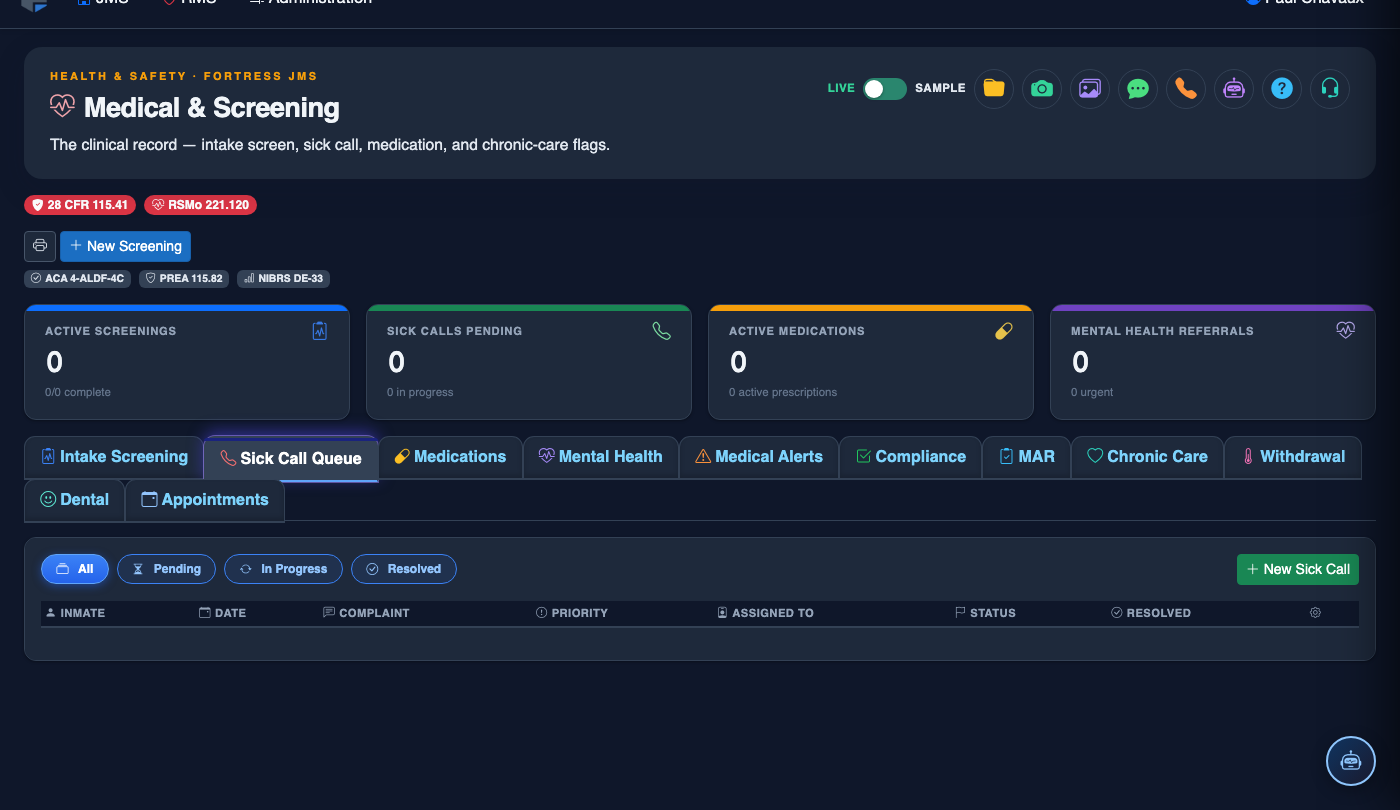
Step-by-Step: Sick Call Queue
Review the Incoming Request Queue
Click the Sick Call Queue tab in the Medical & Screening module. The default view shows all open requests sorted by elapsed time, with color-coded status indicators: red for overdue, amber for approaching the response threshold, and green for within the acceptable window. The request list displays the inmate’s name, housing unit, complaint summary, and submission timestamp.
Open and Read the Request
Click on a request row to expand the full detail panel. Review the inmate’s Complaint Text, their Medical History Summary (pulled from the intake screening and prior sick call records), current medications, and any known allergies. This context is critical for accurate triage before you have seen the inmate in person.
Assign a Triage Level
Click Triage Request and select the appropriate urgency level: Emergent (immediate response — bypasses the queue and alerts the on-call provider), Urgent (assessment within 4 hours), or Routine (scheduled during the next sick call session). The queue resort immediately based on the assigned level and the elapsed-time indicator adjusts to the correct threshold.
Schedule the Assessment Appointment
Click Schedule Assessment to assign the request to a specific nurse or provider and select the appointment date and time. The system sends an automatic notification to the inmate’s housing officer instructing them to escort the inmate to the medical unit at the scheduled time. The appointment also appears on the medical staff calendar view.
Document the Clinical Assessment
When the inmate is seen, click Document Visit on the open sick call record to enter a SOAP note, update vital signs, record the clinical findings, and enter any orders placed (lab, pharmacy, referral). The documentation is timestamped and linked to both the sick call request and the inmate’s permanent medical record.
Close the Request
After the visit is documented and all orders are entered, click Close Request and select a Resolution code (Treated and Released, Referred to Provider, Medication Prescribed, Follow-Up Scheduled, or No Clinically Significant Finding). Closed requests move to the completed archive and are included in response-time compliance reports.
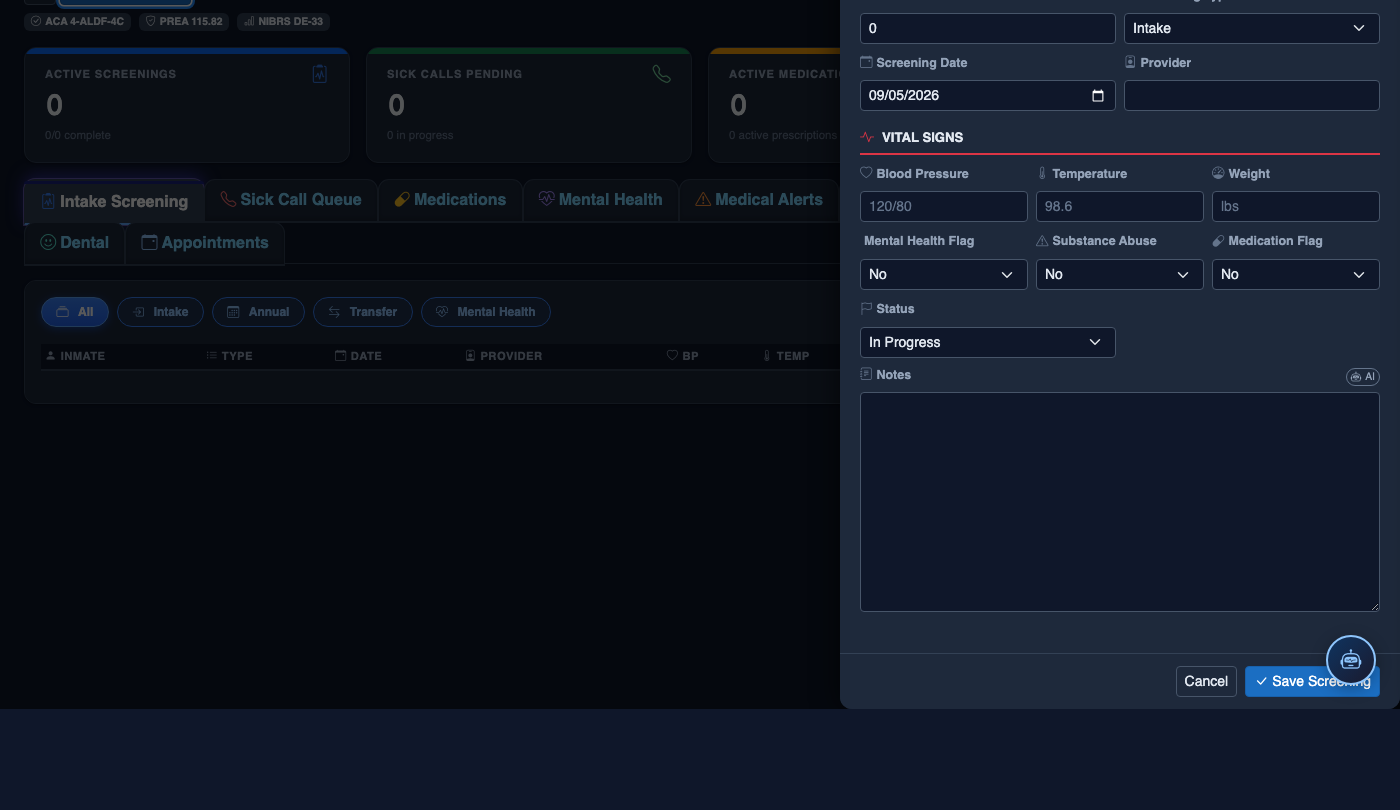
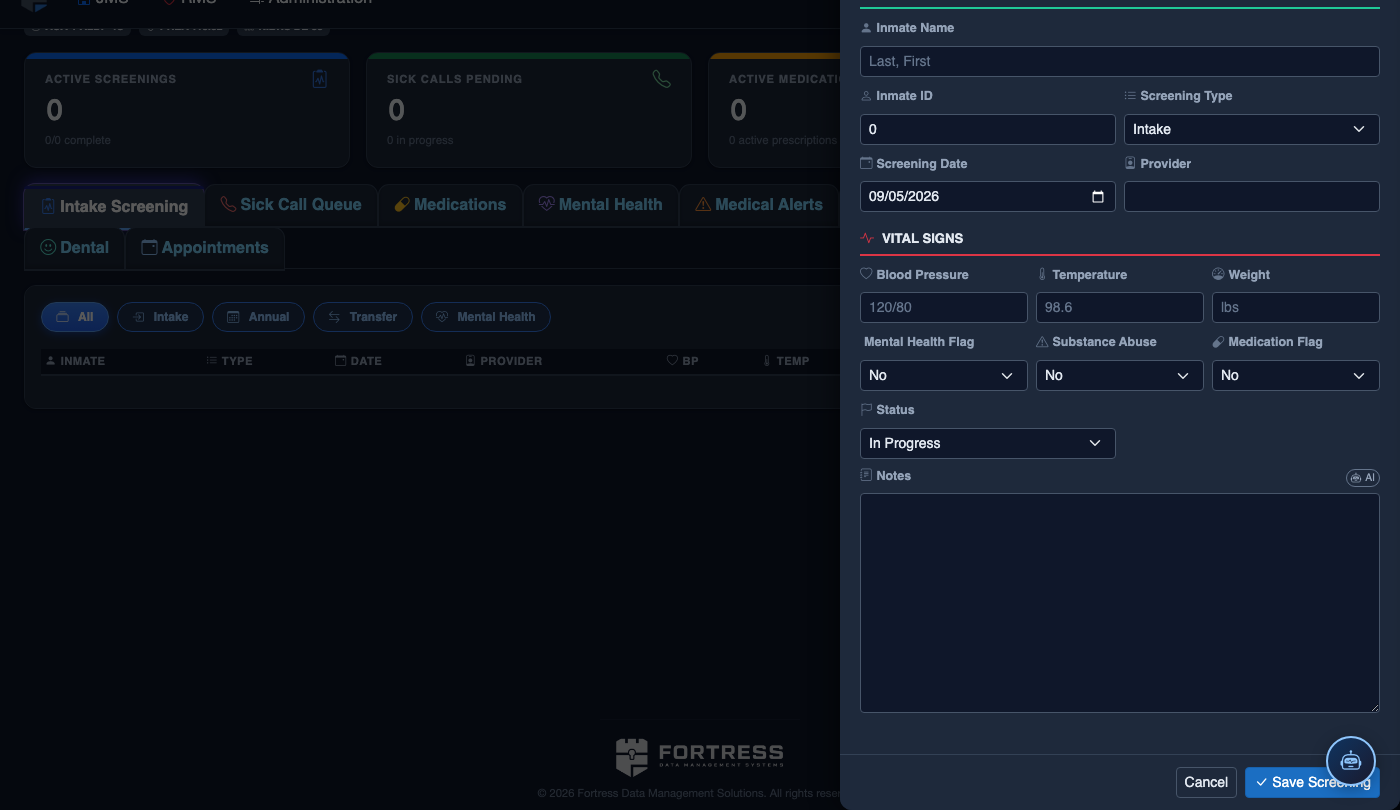
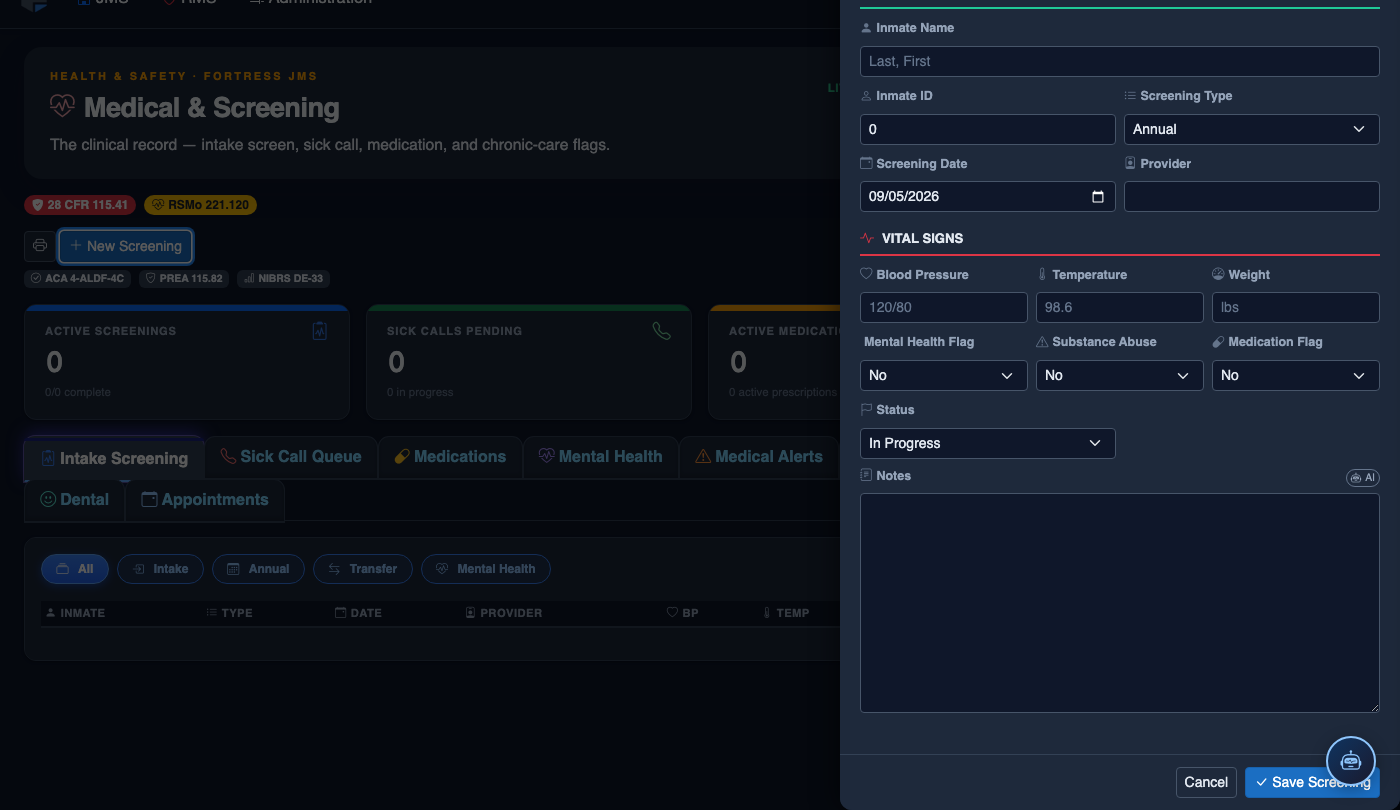
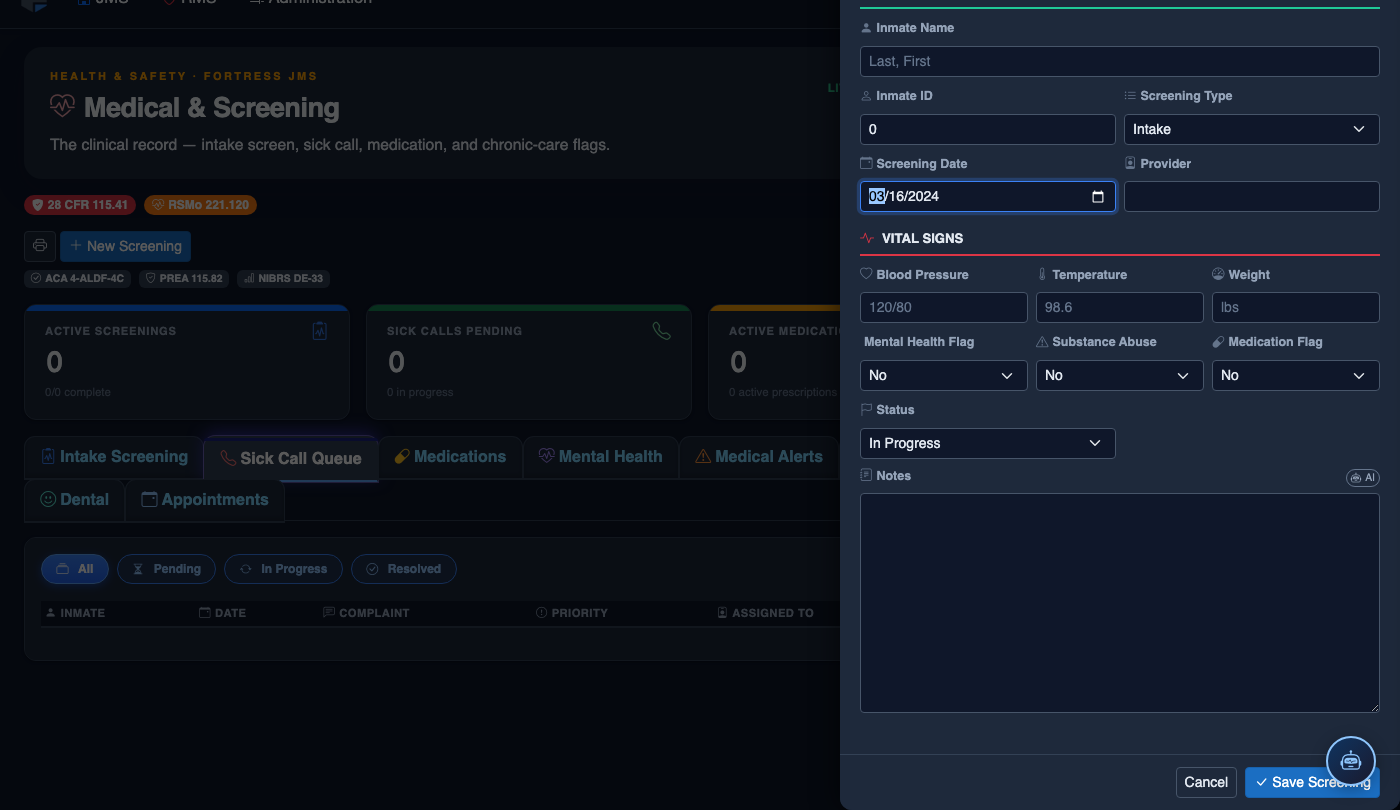
Create a New Medical Record
Click New Screening in the module toolbar. Complete the medical form:
- Inmate — search by name or booking number.
- Visit Type — Intake Screening, Sick Call, Scheduled Follow-Up, or Emergency.
- Priority — Routine, Urgent, or Emergent; Emergent pages on-call provider immediately.
- Chief Complaint / Findings — document symptoms, vitals, and objective observations.
- Provider — assign the clinician or nurse conducting the visit.
- Disposition — Treat and Return, Infirmary Admission, Hospital Transfer, or No Action.
- Add any Prescriptions, Follow-Up Date, or Restrictions.
- Click Save Record. Alerts fire automatically if vital signs are out of range.
💡 Pro Tips
- Never leave an Emergent triage request in the queue unacknowledged for more than a few minutes — the system will escalate the notification to the health administrator and shift commander automatically after 15 minutes if no action is taken.
- Use the Housing Unit filter to batch-schedule routine sick call appointments by pod or cellblock, which minimizes escort time and allows nursing staff to conduct multiple assessments in a single medical unit session.
- The Response Time Report in the module’s Reports section pulls directly from the sick call timestamps — review it weekly to identify patterns of delayed triage that may indicate staffing gaps during certain shifts.
Mobile View — Sick Call Queue
FortressDMS is fully responsive. Officers can access the Sick Call Queue on a phone or tablet directly from the field — no app install required.
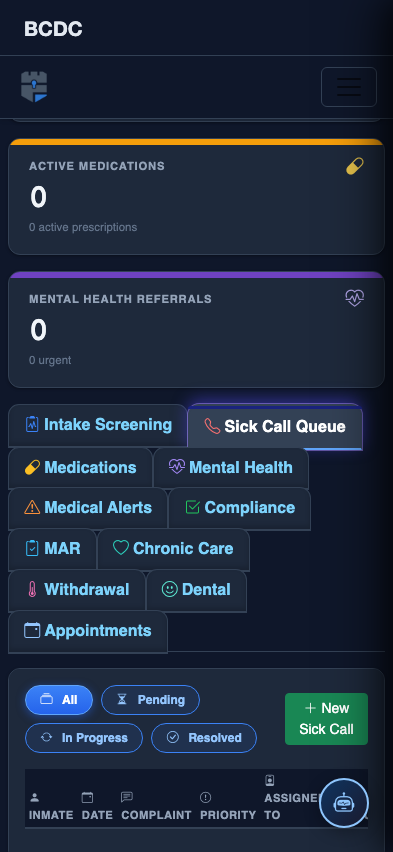
Tab view with data rows
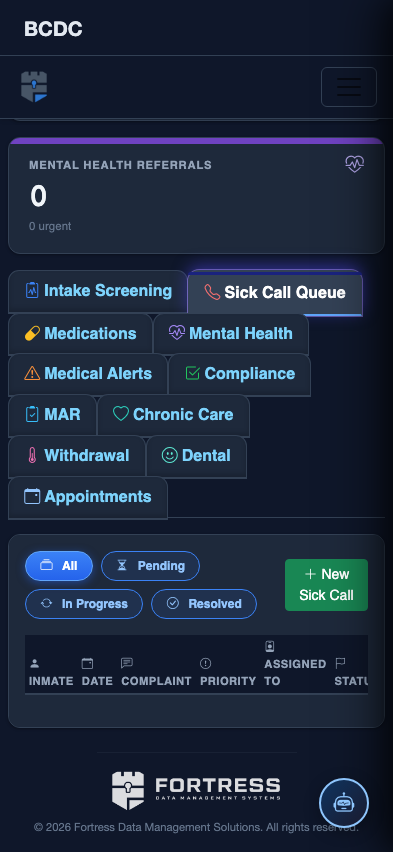
Scrolled / detail view