
Disciplinary Incidents
The Disciplinary Incidents tab is the entry point for the entire disciplinary process — where officers formally document rule violations, classify the severity of each infraction, attach supporting evidence, and initiate the hearing workflow. A well-documented incident report is the foundation of a legally defensible disciplinary action and a defensible agency record.
Structured Incident Reports
Standardized forms capture violation code, narrative, date/time, location, witnesses, and involved officers.
Violation Code Lookup
Searchable rulebook codes ensure every incident is categorized consistently across all officers and shifts.
Evidence Attachments
Attach photos, video links, contraband logs, and supplemental reports directly to the incident record.
Auto Hearing Initiation
Saving a confirmed incident automatically triggers the hearing scheduling workflow and due-process timer.
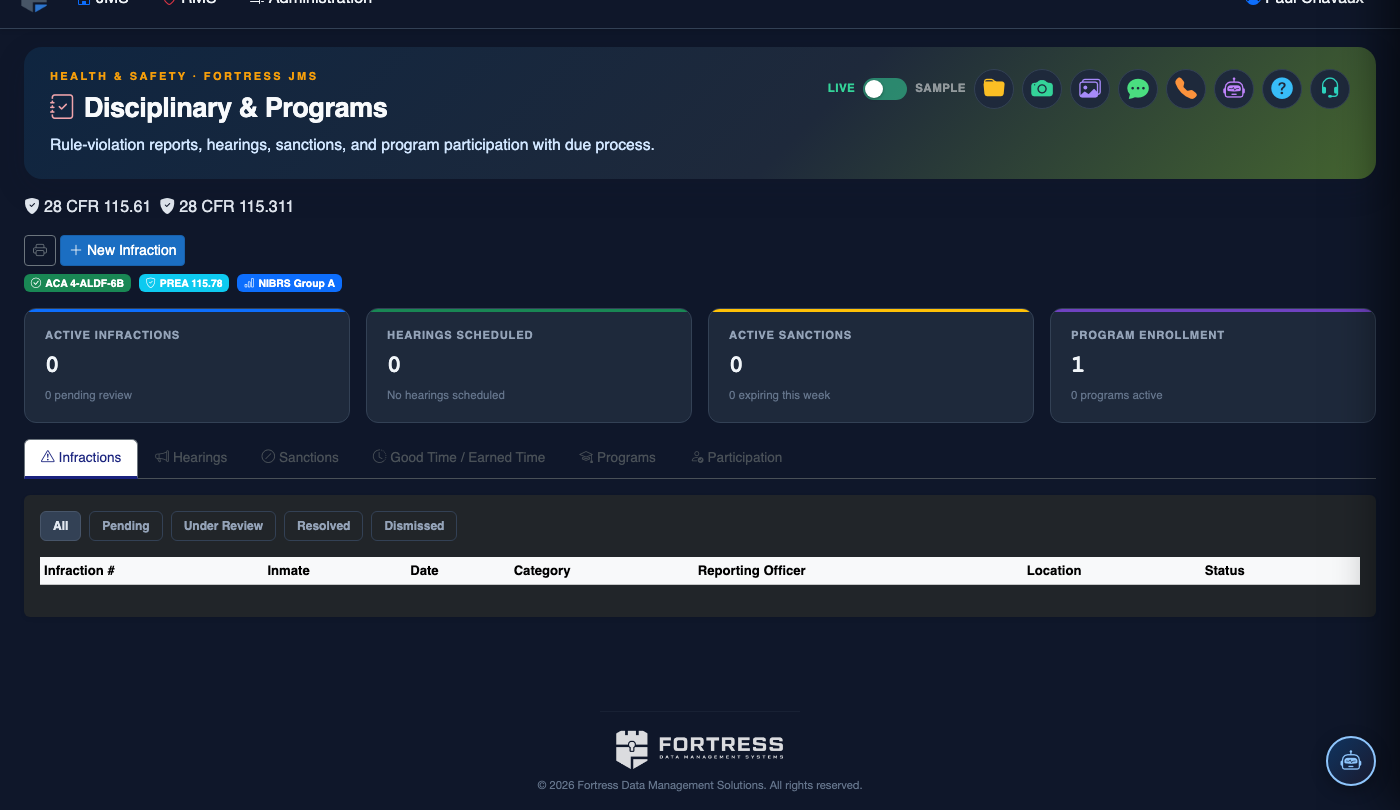
Step-by-Step: Filing a Disciplinary Incident Report
Access the Disciplinary Incidents Tab
Navigate to Disciplinary & Programs in the main menu. The module opens directly on the Disciplinary Incidents tab showing the incident queue. Existing incidents can be filtered by Status, Housing Unit, Date Range, or Inmate Name.
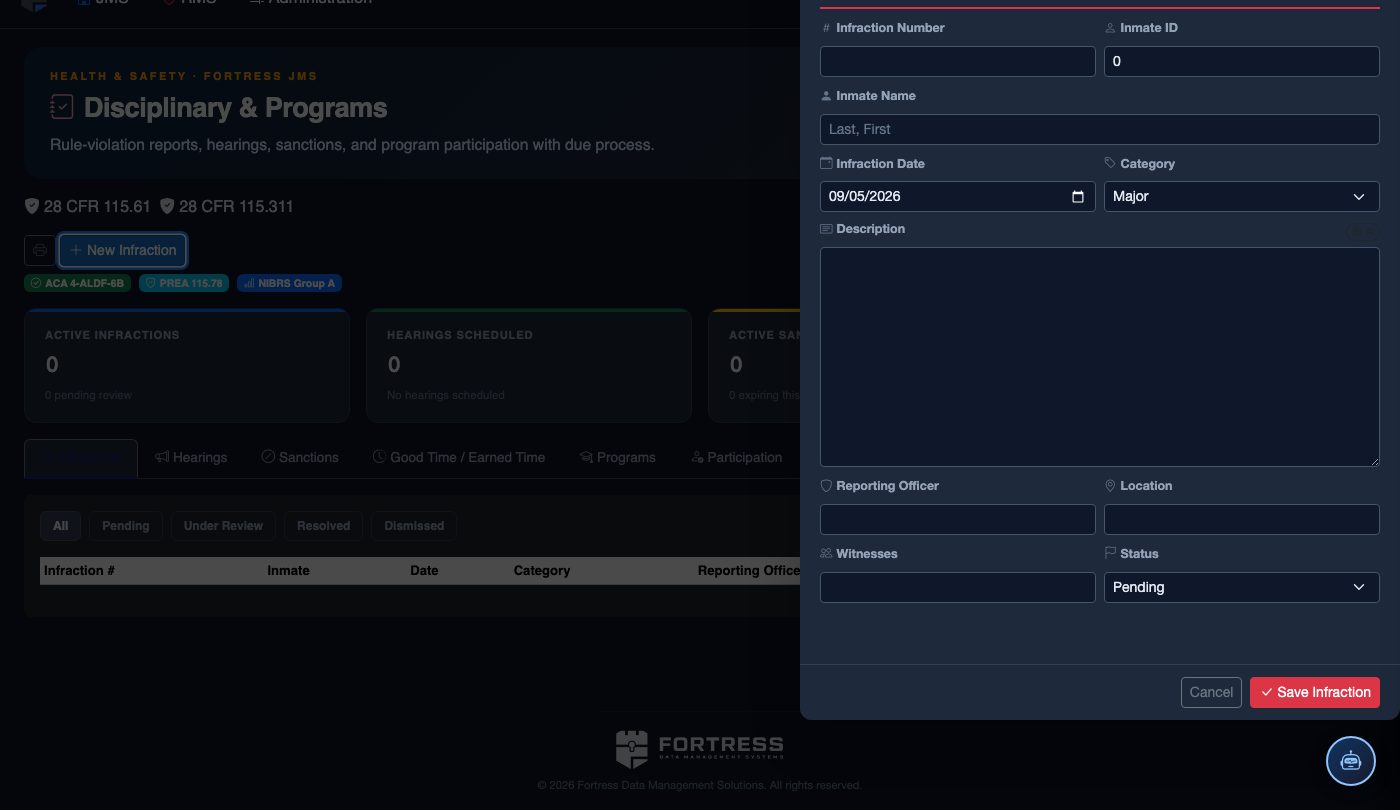
Create a New Incident Report
Click the + New Incident button. Use the inmate search to identify the subject by name, booking number, or housing unit. Confirm the inmate selection — the system pre-populates current classification, housing unit, and booking data.
Select the Violation Code
Click the Violation Code dropdown and search by keyword or code number. The code lookup displays the severity tier (Major, Minor, Administrative) and the standard sanction range associated with the violation, helping officers apply consistent charges.
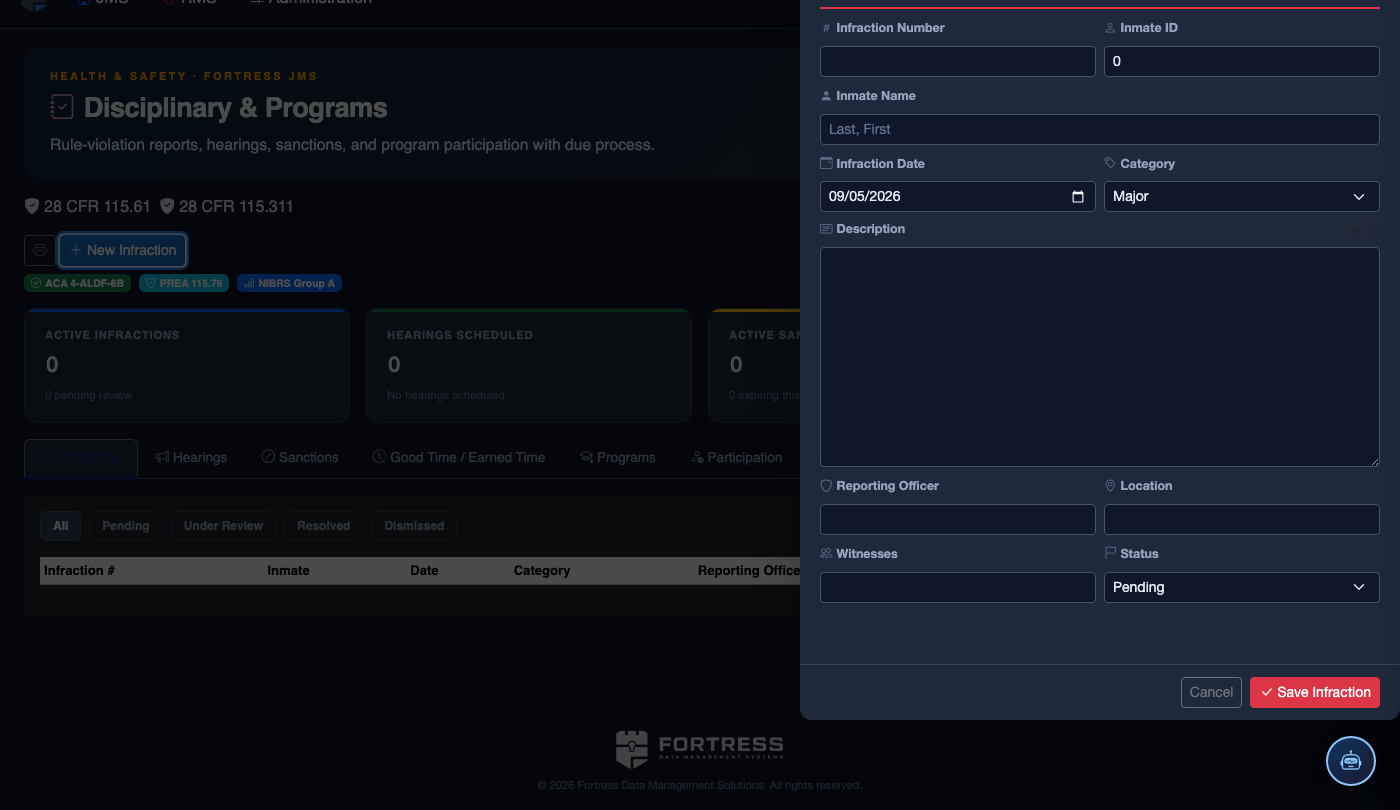
Complete the Officer Narrative
In the Officer Narrative field, document the incident in first-person, past-tense format. Include what you observed, what the inmate said or did, and any immediate actions taken. Add co-reporting officers in the Witness Officers section and any civilian or inmate witnesses in the Witnesses section.
Attach Supporting Evidence
Use the Attachments panel to upload photos (e.g., contraband images, injury documentation), video clip references, and supplemental written reports. Each attachment is permanently linked to the incident record and visible in the hearing and appeals workflow.
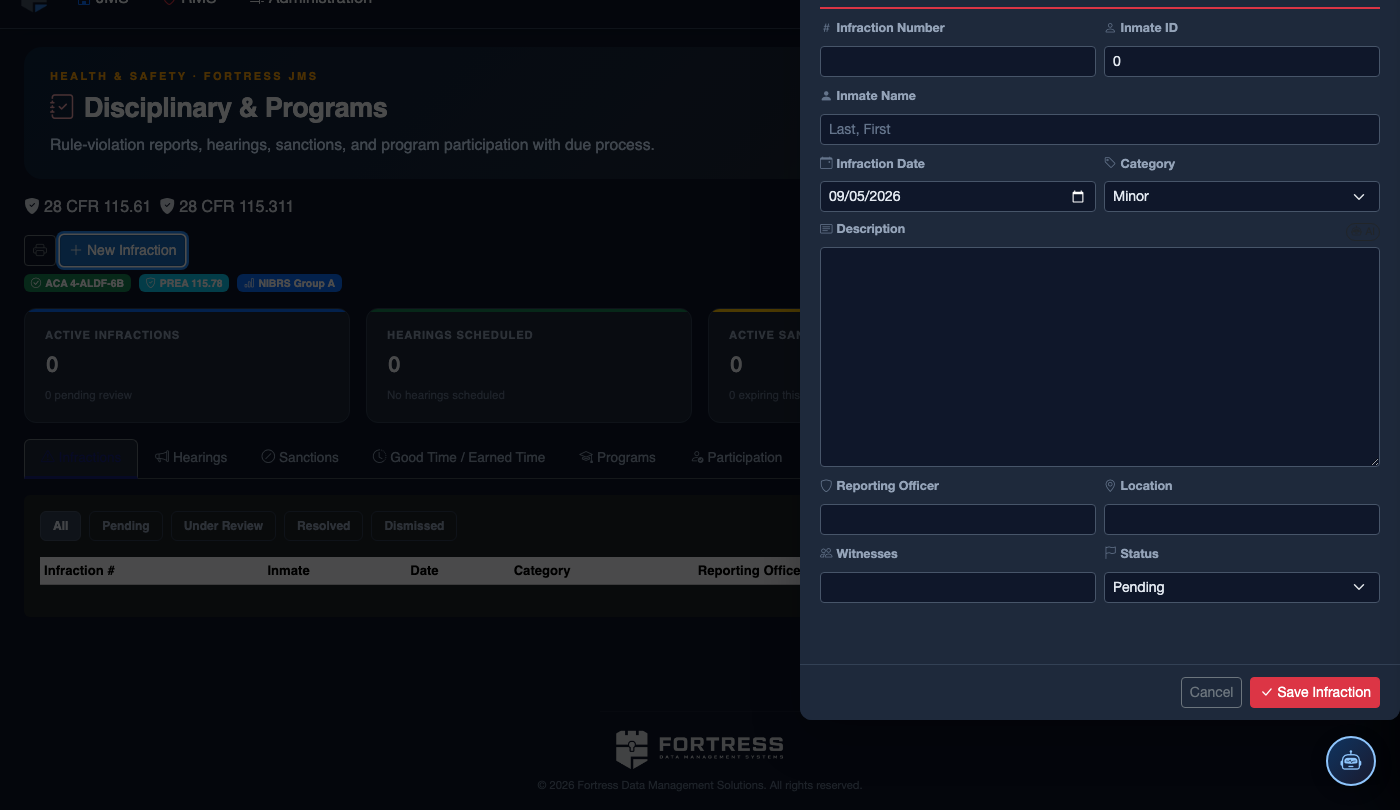
Submit and Route for Supervisory Review
Click Submit Report. The incident enters a Pending Supervisor Review status. Your shift supervisor will receive an alert to review and approve the report. Once approved, the incident status advances to Confirmed and the hearing scheduling step is automatically triggered.
Monitor the Incident Status Queue
Return to the Incidents list to track your report through the workflow. Color-coded status badges — Draft (gray), Pending Review (yellow), Confirmed (blue), Hearing Scheduled (purple), Closed (green) — give an at-a-glance view of every open incident on your unit.
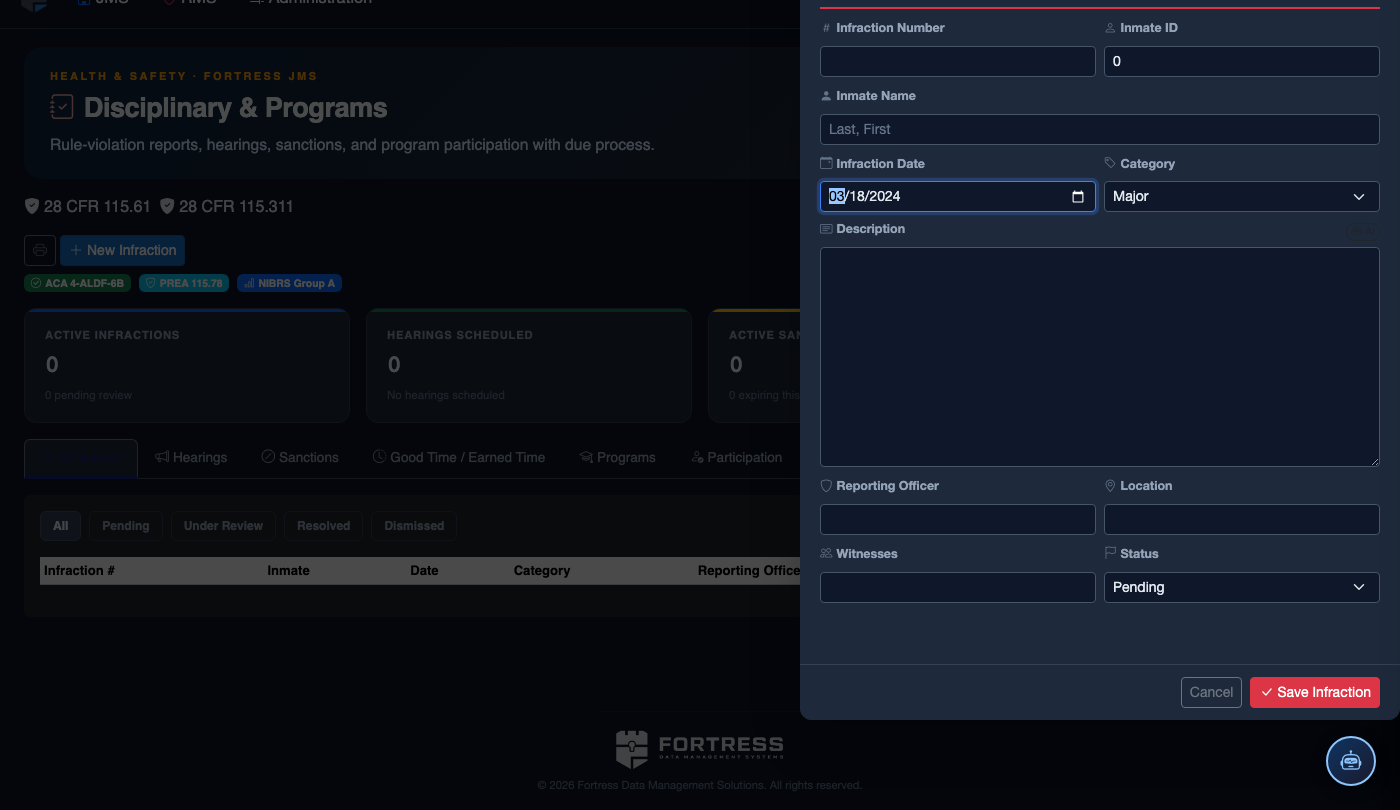
File a New Disciplinary Infraction
Click New Infraction. Complete the disciplinary record:
- Inmate — the subject of the infraction.
- Violation Type — select from the facility’s disciplinary code (Minor, Major, or Felony-level).
- Incident Description — document the incident objectively: date, time, location, what occurred, and who was involved.
- Reporting Officer and any Witnesses.
- Hearing Date — must be scheduled within the required timeframe (typically 24–72 hours for major violations).
- Recommended Sanction — Loss of Privileges, Segregation, Restitution, or Program Removal (final determination set by hearing officer).
- Click Save Infraction. The inmate is automatically notified and a hearing record is created.
💡 Pro Tips
- Complete the incident report as soon as possible after the event — courts and internal reviewers scrutinize the time gap between occurrence and documentation.
- If multiple inmates are involved in a single incident, file a linked incident for each one rather than listing them all on one report; this keeps individual disciplinary records clean and the hearing process trackable per inmate.
- Use the Draft save feature to preserve a partial report if you are interrupted, then return and finalize before end of shift.
Mobile View — Disciplinary Incidents
FortressDMS is fully responsive. Officers can access the Disciplinary Incidents on a phone or tablet directly from the field — no app install required.
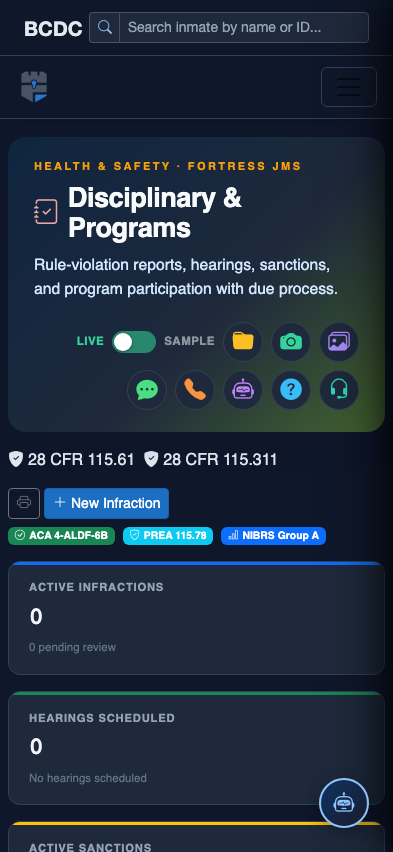
Tab view with data rows
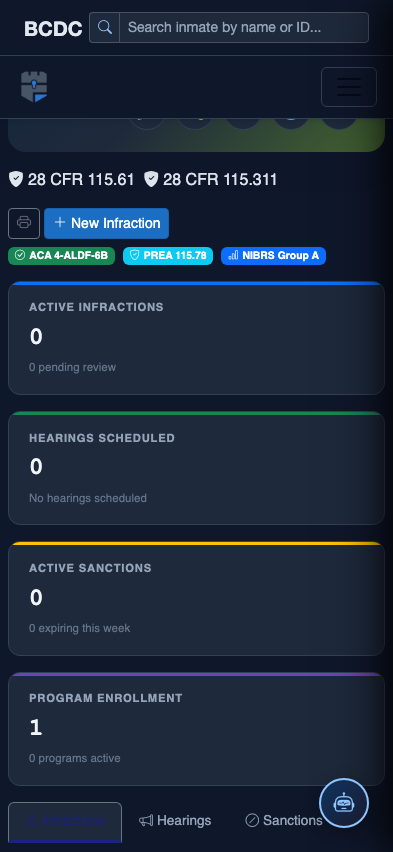
Scrolled / detail view