
Order Management
The Order Management tab is the central hub for reviewing, approving, and denying inmate commissary orders during the active order window. Correctional officers and supervisors can view all pending orders organized by housing unit, verify available trust fund balances before approval, apply disciplinary blocks, and produce batch approval records for audit compliance. Every approval and denial action is logged with the responsible officer’s credentials and timestamp.
Order Queue Review
View all pending orders grouped by housing unit with inmate name, booking number, items, and total cost at a glance.
Bulk Approval
Approve an entire housing unit’s orders in one click after spot-checking balances, dramatically reducing processing time.
Denial with Reason Codes
Deny individual orders with structured reason codes that feed into inmate notification and appeal workflows.
Real-Time Balance Check
Live trust balance display alongside each order total prevents over-approval and eliminates manual balance lookups.
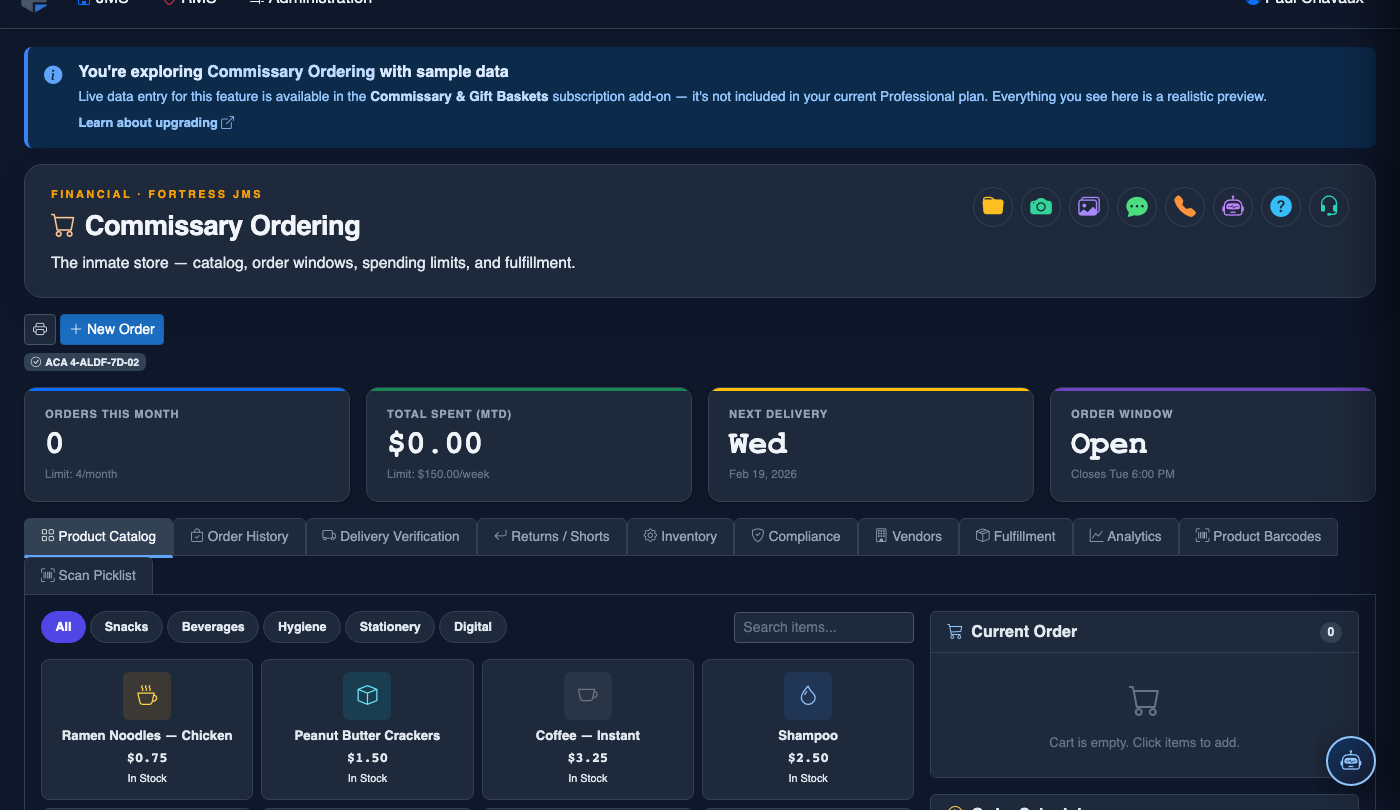
Step-by-Step: Reviewing and Processing Commissary Orders
Open Order Management
In the Commissary Ordering module, click the Order Management tab. The page loads all orders submitted during the current active window. A summary bar at the top shows the total number of Pending Orders, Total Value, and Orders with Insufficient Funds flagged automatically.
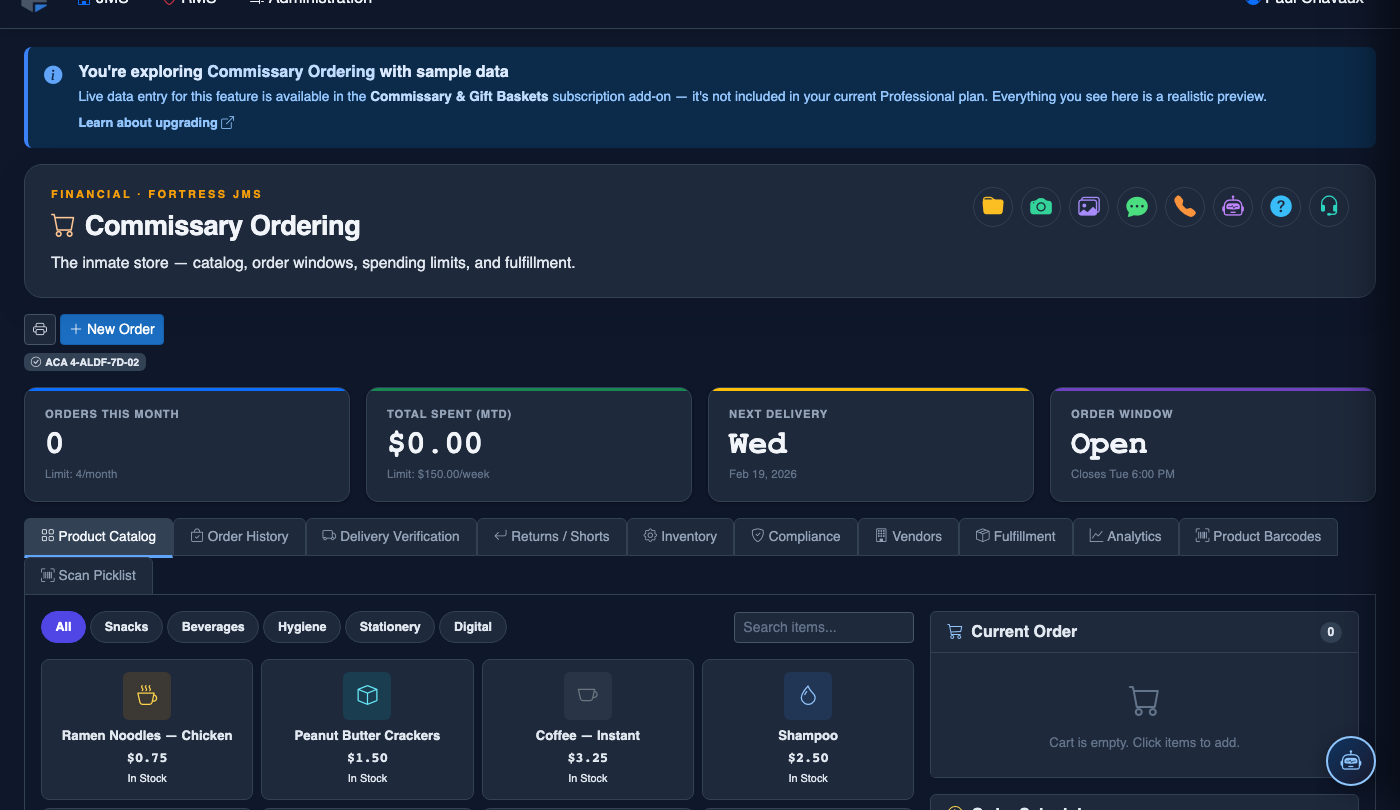
Filter by Housing Unit
Use the Housing Unit dropdown filter to narrow the order list to a specific pod, block, or tier. This is especially useful in larger facilities where processing all units simultaneously is impractical — work through one unit at a time for focused review.
Review Individual Order Details
Click the expand arrow on any order row to view the full item breakdown — product name, quantity requested, unit price, and line total. The inmate’s Available Balance and Order Total are displayed side by side, color-coded green (sufficient) or red (insufficient funds) for immediate visual assessment.
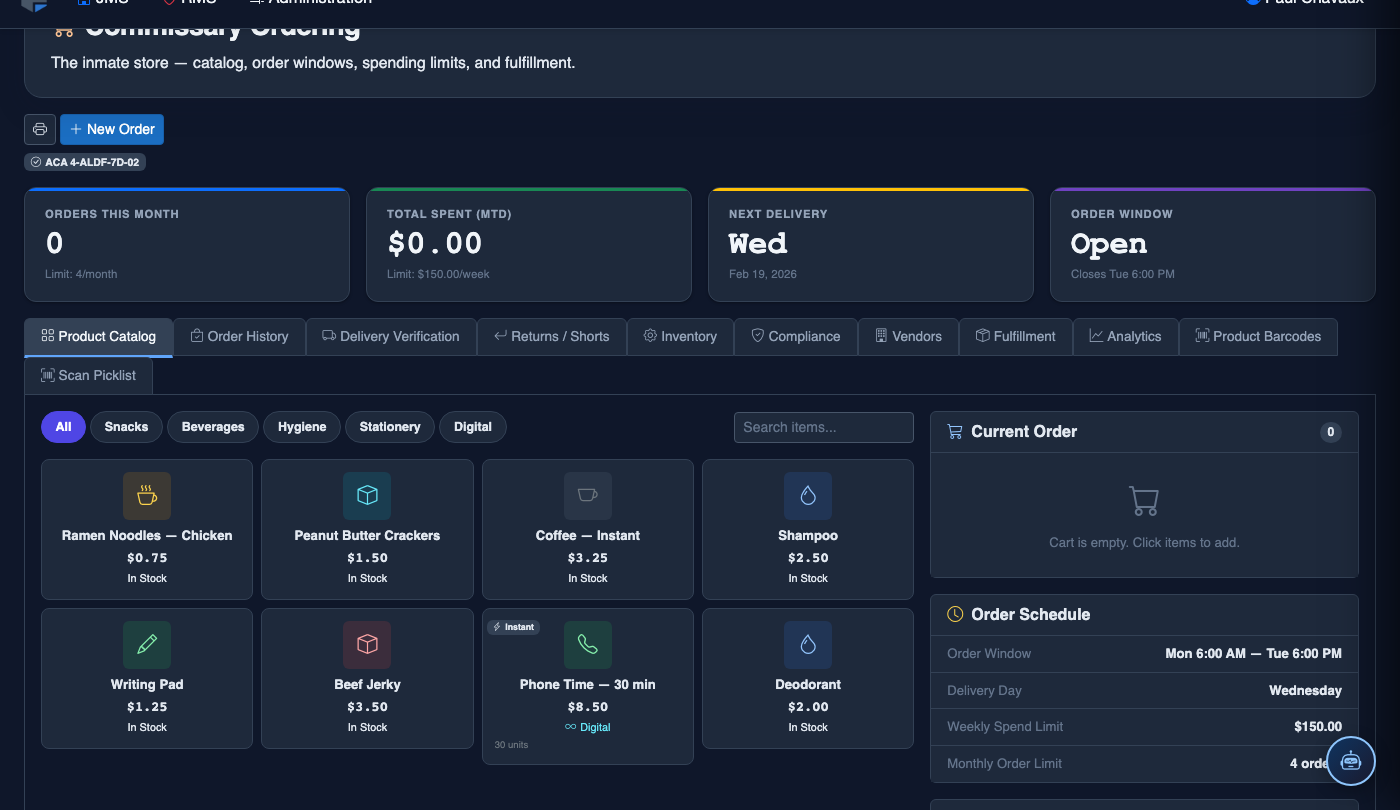
Approve Eligible Orders
Check the box beside each order you wish to approve, or use Select All Eligible to automatically check all orders where the inmate has sufficient funds and no active disciplinary hold. Click Approve Selected — the system will immediately deduct the order total from each inmate’s trust account and mark orders as Approved.
Deny Orders with Reason Codes
For orders that cannot be approved, click Deny on the individual order row. A dialog will prompt you to select a Denial Reason from the standardized list: Insufficient Funds, Disciplinary Hold, Item Unavailable, Quantity Limit Exceeded, or Other. Select the appropriate code and click Confirm Denial. No trust funds are deducted.
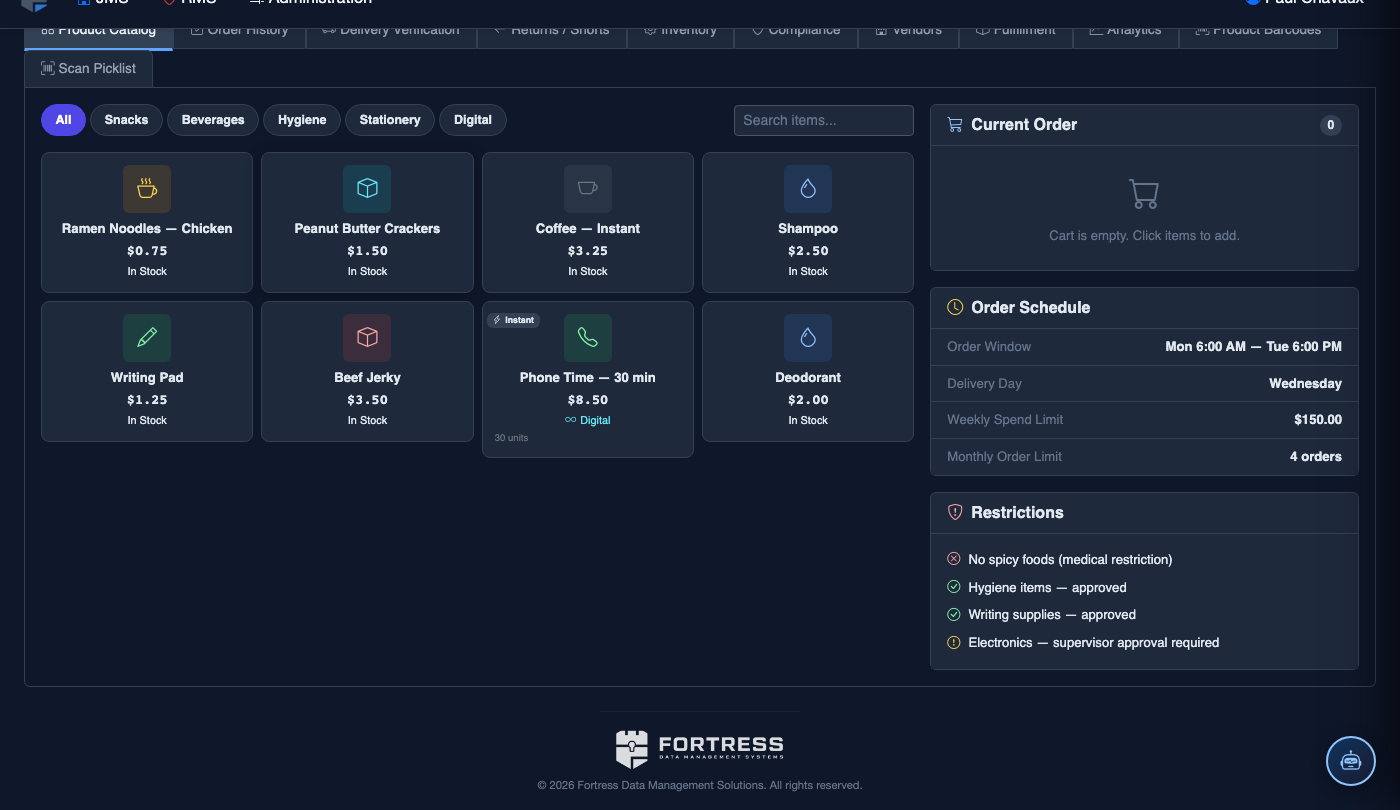
Close the Order Window
Once all orders have been processed, a supervisor with the appropriate role can click Close Order Window to prevent any new order submissions. Any orders still in Pending status at window close are automatically denied with the reason “Window Closed.” This action is logged with date, time, and closing officer for audit purposes.
Export Approval Summary
Click Export Approval Report to download a CSV or PDF summary of all approved and denied orders for the cycle. This document serves as the official record for finance reconciliation and is required to accompany the vendor purchase order in many state DOC audit frameworks.
Place a New Commissary Order
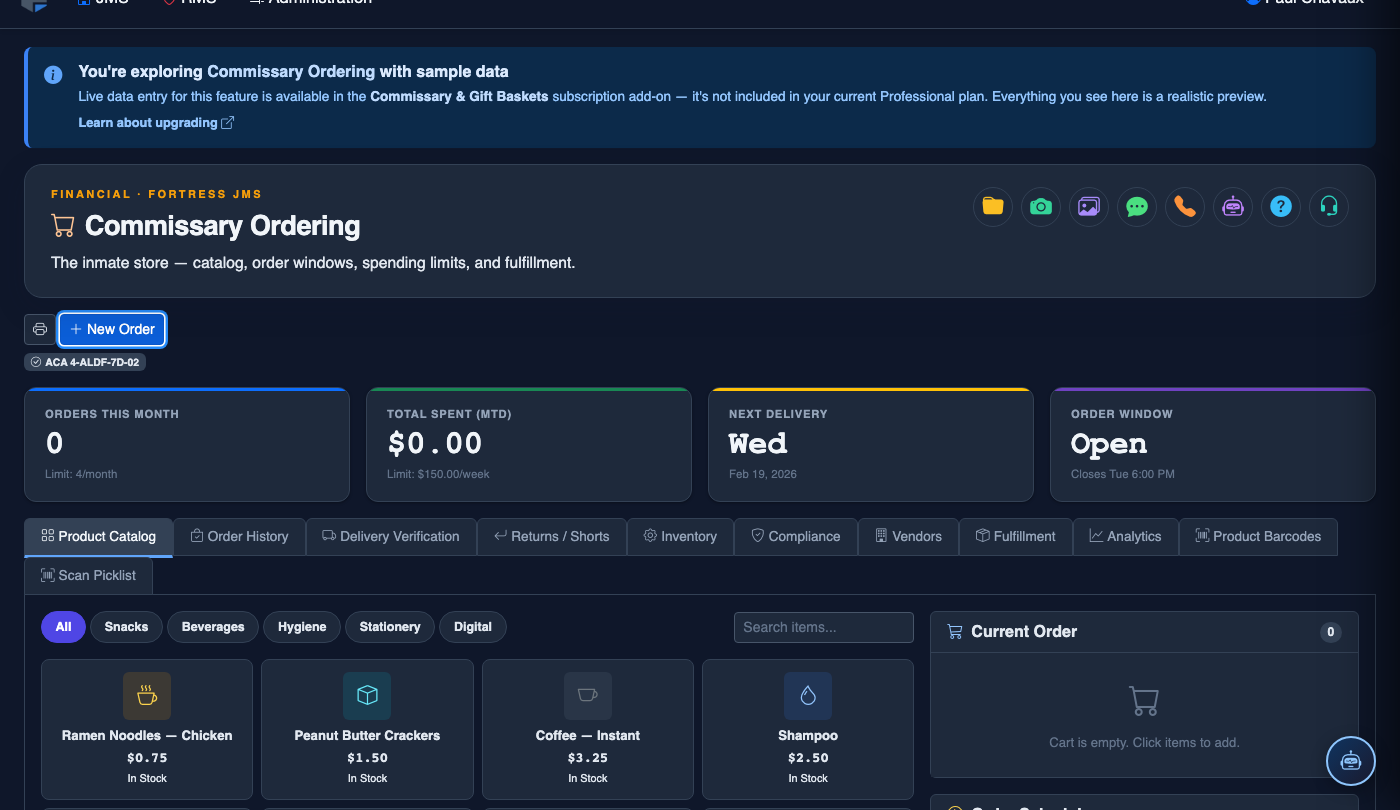
Click New Order. Complete the commissary order:
- Inmate — search by name or booking number. Trust balance and spending limit display automatically.
- Order Type — Standard Weekly, Supplemental, or Special Occasion.
- Browse the Product Catalog and add items — quantity limits per item enforce commissary rules automatically.
- Running Total is shown in real time. Items exceeding the balance are flagged in red.
- Delivery Date — defaults to the next scheduled delivery for this pod.
- Click Submit Order. Funds are placed on hold immediately; the order routes to the fulfillment queue.
💡 Pro Tips
- Always check the Disciplinary Hold flag column before using bulk approval — approving an order for an inmate on restriction is a policy violation that may require supervisor intervention to reverse.
- Use the Sort by Balance option to surface insufficient-funds orders at the top of the queue, so you can address denials quickly before processing approvals.
- If an inmate disputes a denial, the Order Management log provides a timestamped record of the denial reason and the officer who entered it — this is your first line of documentation for any grievance response.
- Coordinate with the trust accounting team before closing the order window on days that coincide with scheduled deposits (family deposits, payroll credits) to avoid denying orders that would have been funded minutes later.
Mobile View — Order Management
FortressDMS is fully responsive. Officers can access the Order Management on a phone or tablet directly from the field — no app install required.
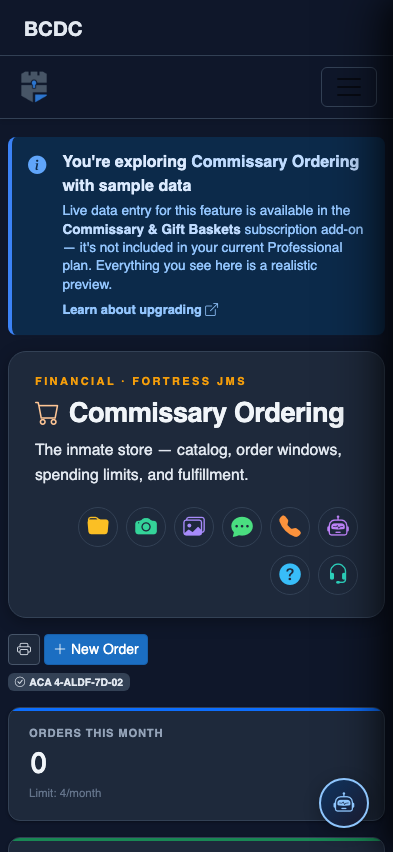
Tab view with data rows
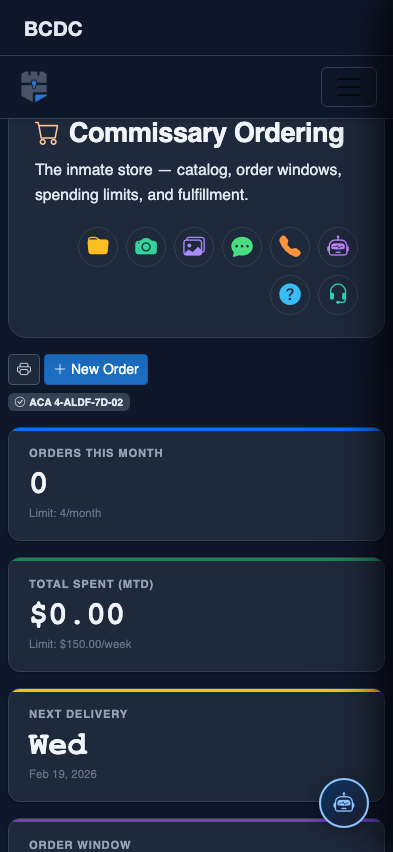
Scrolled / detail view