
Commissary Accounts
The Commissary Accounts tab provides administrators with direct control over the rules and restrictions governing each inmate’s commissary ordering privileges. Officers can configure per-inmate spending limits, apply or lift disciplinary ordering holds, review individual commissary spending history, and set account-level flags that cascade across all future order cycles. This tab is the administrative backbone that ensures the commissary program operates within facility policy and individual classification requirements.
Per-Inmate Spending Limits
Override the facility-wide spending cap for individual inmates based on classification, program participation, or court order.
Disciplinary Holds
Place and lift commissary ordering holds tied to disciplinary actions with start/end dates and documenting supervisor.
Spending History
Review an inmate’s complete commissary purchase history, including order dates, totals, and items ordered, for behavioral and financial analysis.
Order Window Settings
Configure the facility-wide order window schedule and default spending caps that apply to all inmates not individually overridden.
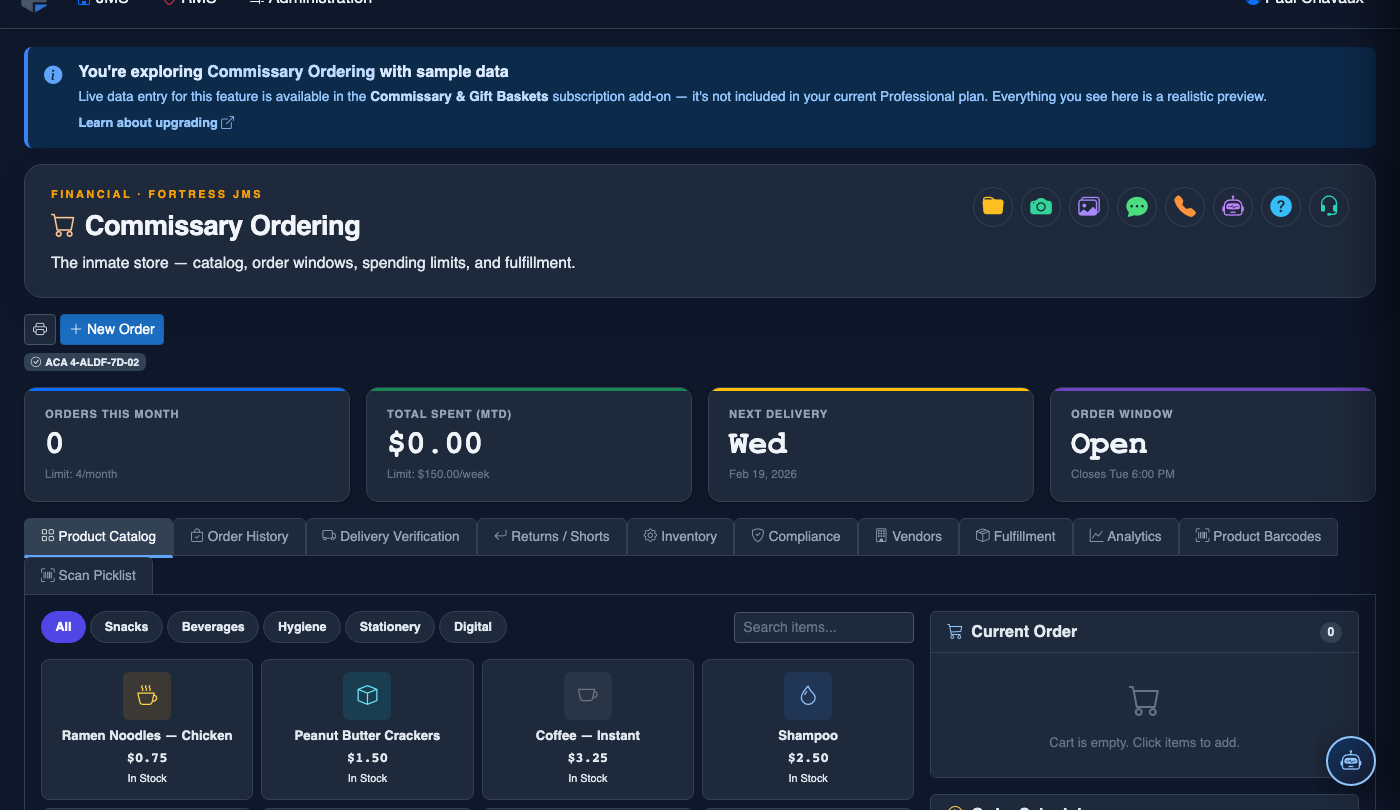
Step-by-Step: Managing Commissary Account Settings
Open Commissary Accounts
In the Commissary Ordering module, click the Commissary Accounts tab. The page displays two sections: the Facility Settings panel (order window and default caps) at the top, and the Inmate Account List below showing all currently incarcerated individuals with their current account status.
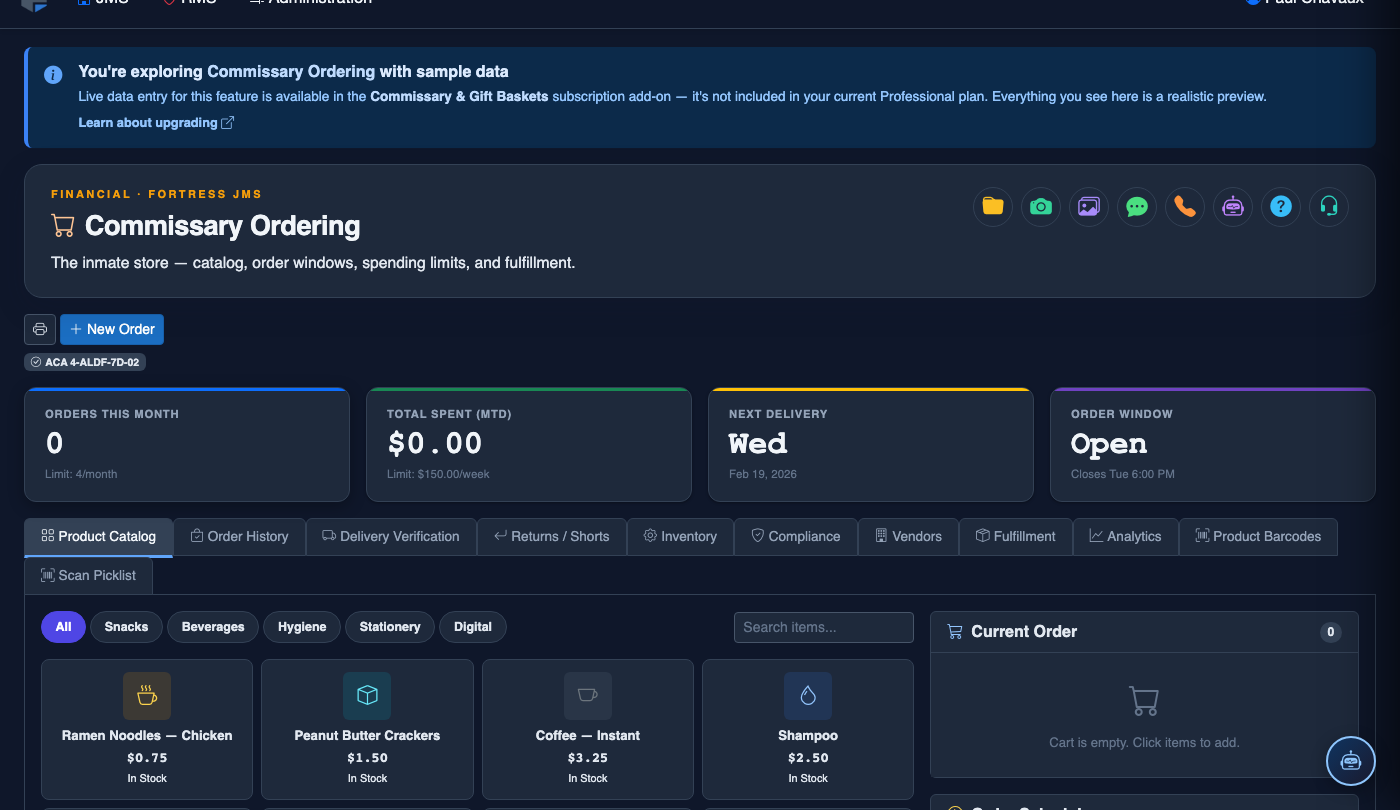
Configure Facility-Wide Order Window
In the Facility Settings panel, click Edit to set the Order Window Open Day, Order Window Close Day, and Default Weekly Spending Cap. These settings apply to all inmates whose individual accounts have not been overridden. Click Save Facility Settings when done. Changes take effect at the next order window open.
Search for an Inmate Account
Use the Inmate Search box in the account list to locate a specific individual by name or booking number. The account row displays the inmate’s current Spending Cap (individual or inherited from facility default), Hold Status, and a link to their Spending History.
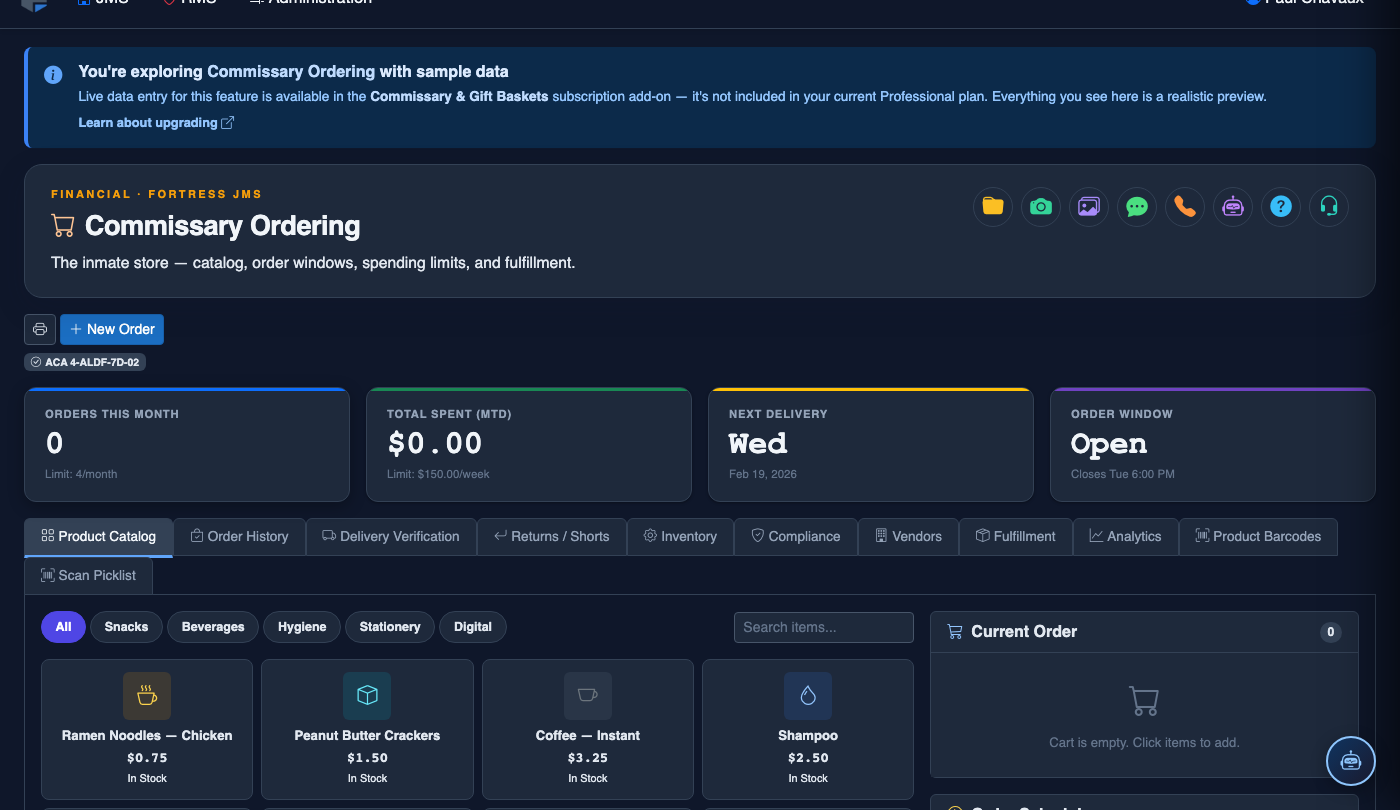
Set an Individual Spending Limit Override
Click Edit on the inmate’s account row, then enter a custom Weekly Spending Cap to override the facility default. This is commonly used to increase limits for trustee-level inmates or restrict limits for those on behavioral management programs. Document the reason in the Override Reason field and click Save.
Apply a Disciplinary Ordering Hold
To suspend an inmate’s commissary ordering privileges, click Place Hold on their account row. Enter the Hold Start Date, Hold End Date (or leave open-ended for indefinite), Reason, and the Authorizing Supervisor. Click Confirm Hold. The inmate will be unable to submit orders while the hold is active, and any pending orders will be flagged for denial.
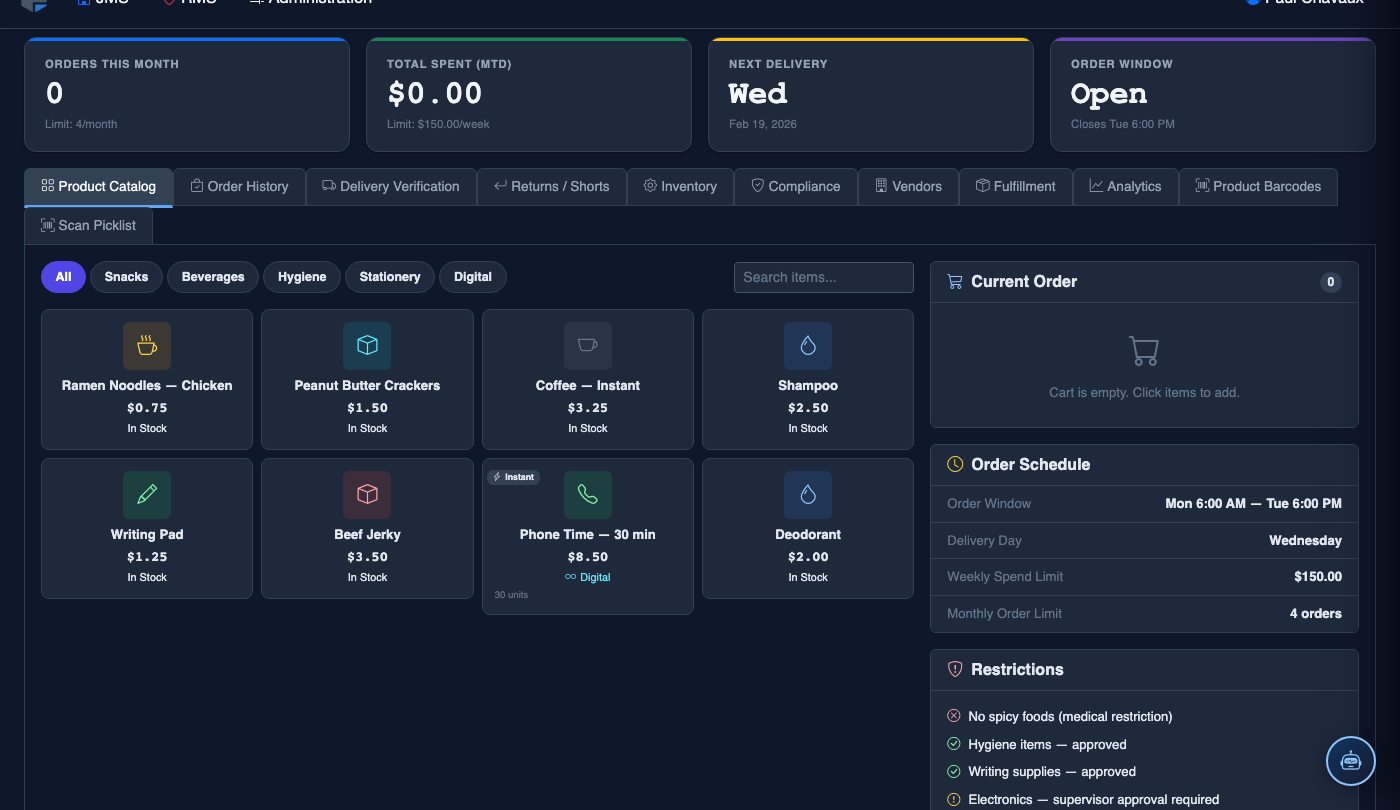
Lift a Disciplinary Hold
When a disciplinary hold is served or administratively lifted, click Remove Hold on the inmate’s account. Enter the Lifting Supervisor’s credentials and a Reason for Removal. The hold record is preserved in the audit log — it is never deleted — and the inmate’s account reverts to active status for the next order window.
Review Spending History
Click View Spending History on any inmate’s account row to open a full chronological log of every approved and fulfilled commissary order, including items purchased, amounts spent, and order cycle dates. This history is useful for behavioral assessments, reentry planning, and responding to inmate grievances about commissary transactions.
Place a New Commissary Order
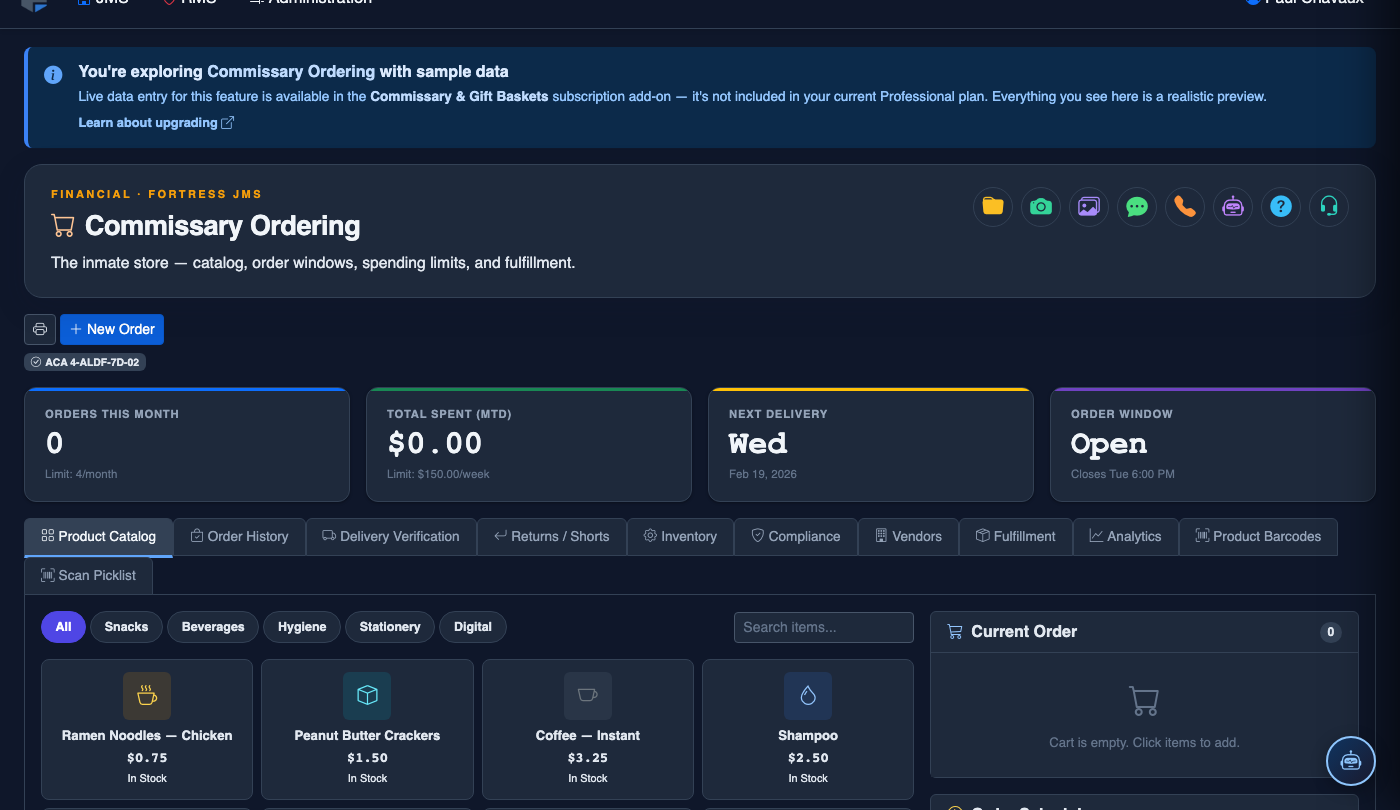
Click New Order. Complete the commissary order:
- Inmate — search by name or booking number. Trust balance and spending limit display automatically.
- Order Type — Standard Weekly, Supplemental, or Special Occasion.
- Browse the Product Catalog and add items — quantity limits per item enforce commissary rules automatically.
- Running Total is shown in real time. Items exceeding the balance are flagged in red.
- Delivery Date — defaults to the next scheduled delivery for this pod.
- Click Submit Order. Funds are placed on hold immediately; the order routes to the fulfillment queue.
💡 Pro Tips
- Always set an end date on disciplinary holds where possible — open-ended holds are easy to forget and can result in prolonged privilege revocation beyond the intended sanction period, which may generate grievances.
- Use individual spending limit overrides proactively for inmates in step-down programs — graduated spending privileges can be a powerful behavioral incentive that staff can administer directly through this tab without policy exceptions.
- The spending history view is your primary tool for responding to inmate grievances about “missing” commissary orders — the complete transaction log will show exactly what was ordered, approved, and delivered in each cycle.
- Review the full inmate account list at the start of each order window to catch any holds that have expired dates but were not manually lifted — FortressDMS will auto-lift date-based holds, but a spot check ensures no active holds are erroneously blocking eligible inmates.
Mobile View — Commissary Accounts
FortressDMS is fully responsive. Officers can access the Commissary Accounts on a phone or tablet directly from the field — no app install required.

Tab view with data rows

Scrolled / detail view