
Trip Sheets
The Trip Sheets tab generates, manages, and archives official transport documentation required for every inmate movement outside the facility. Each trip sheet captures inmate identifying information, restraint requirements, medical alerts, destination details, chain-of-custody signatures, and officer attestations in a court-admissible format. Completed trip sheets are stored digitally and are immediately retrievable for audits, legal proceedings, or incident reviews.
Auto-Generated Forms
Trip sheets auto-populate from the scheduled transport record, eliminating manual data entry and reducing transcription errors.
Digital Signatures
Capture officer and receiving-facility signatures digitally, creating a tamper-evident chain-of-custody record for each leg of the transport.
Medical Alerts Section
Critical medical information — allergies, current medications, and special handling requirements — is automatically included from the inmate’s medical record.
Digital Archive
All completed trip sheets are archived in searchable PDF format with full audit trails, accessible to authorized staff from anywhere in the system.
Step-by-Step: Generating and Completing a Trip Sheet
Access the Trip Sheets Tab
Navigate to Inmate Movement > Trip Sheets. The tab displays a list of all trip sheets sorted by date, with color-coded status badges: Draft (gray), Active (blue), Completed (green), and Voided (red). Use the date range filter at the top to narrow results.
Generate a Trip Sheet from a Transport
Click Generate Trip Sheet and select an existing scheduled transport from the dropdown, or click Manual Entry to create a standalone trip sheet. When linked to a scheduled transport, all inmate details, destination, vehicle, and officer assignments pre-populate automatically.
Review Medical and Classification Sections
Review the Medical Alerts section pulled from the health record. Confirm the Security Classification, Restraint Level, and any Behavioral Flags are accurately displayed. Add any trip-specific notes in the Officer Notes field before finalizing.
Obtain Pre-Departure Signatures
Use the Sign Now button in the Signatures section to capture the Releasing Officer signature. If a supervisor sign-off is required by facility policy, the Supervisor Approval signature block will appear. Both signatures are time-stamped automatically.
Print or Export the Trip Sheet
Click Print to send the trip sheet to the facility printer, or click Export PDF to save a digital copy. Officers should carry the printed copy with them; the PDF copy is automatically saved to the archive. The trip sheet number appears on the printout for reference.
Record Receiving-Facility Acknowledgment
Upon arrival at the destination, record the Receiving Officer Name and capture or enter their signature in the Receiving Acknowledgment section. Enter the actual arrival time to update the transport record. This completes the outbound chain-of-custody.
Close and Archive the Trip Sheet
Upon return to the facility, click Close Trip Sheet. Enter any post-transport incident notes in the Return Notes field, then click Submit. The trip sheet status changes to Completed and is locked from further editing — only a supervisor can reopen it if corrections are needed.
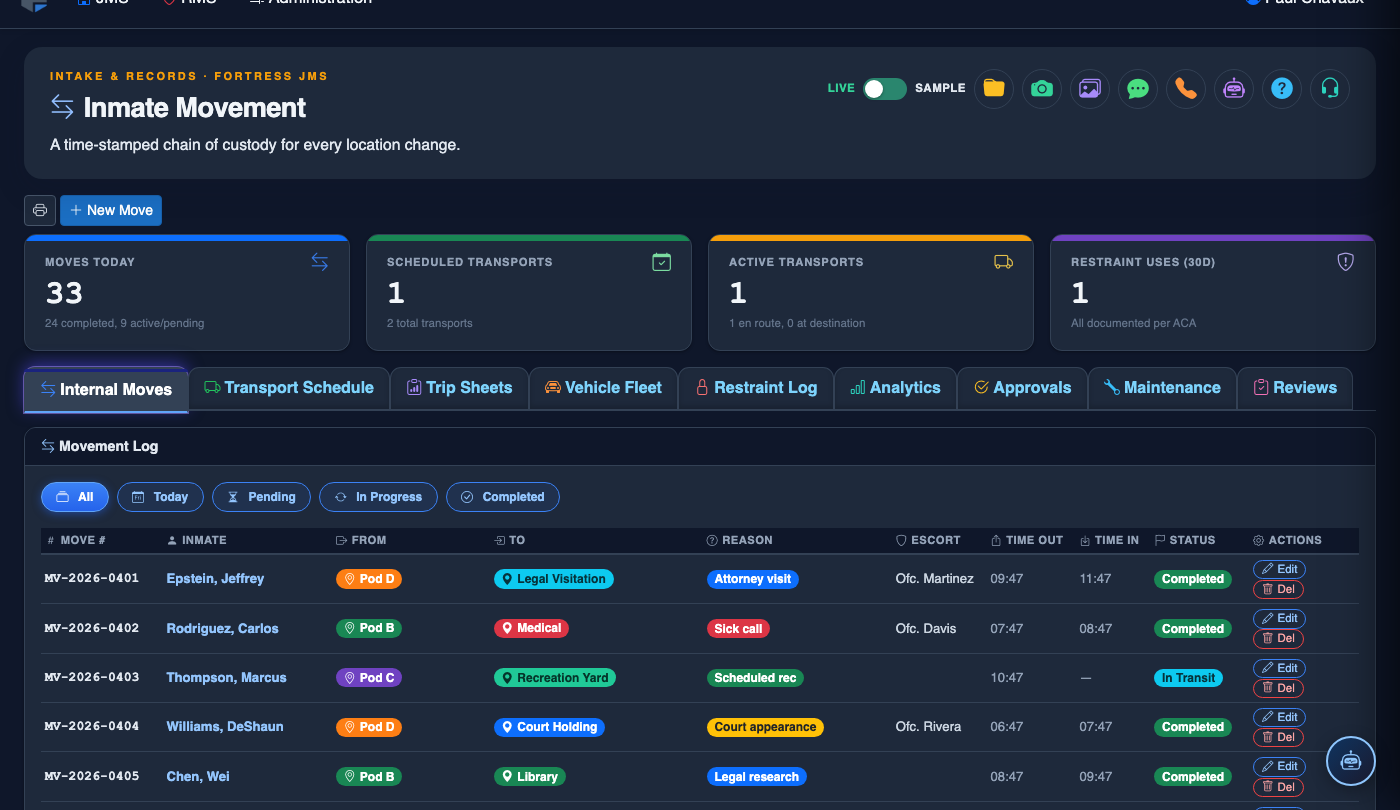
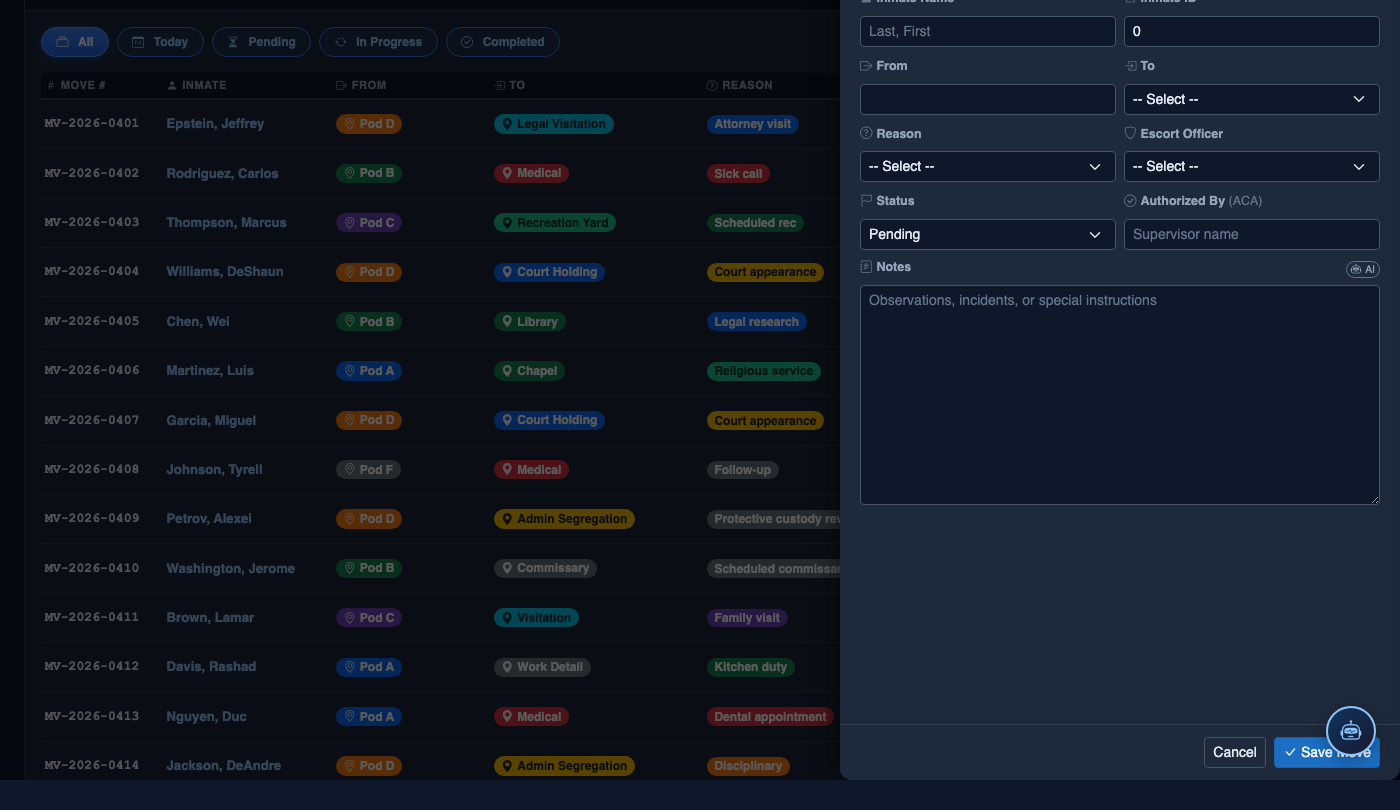
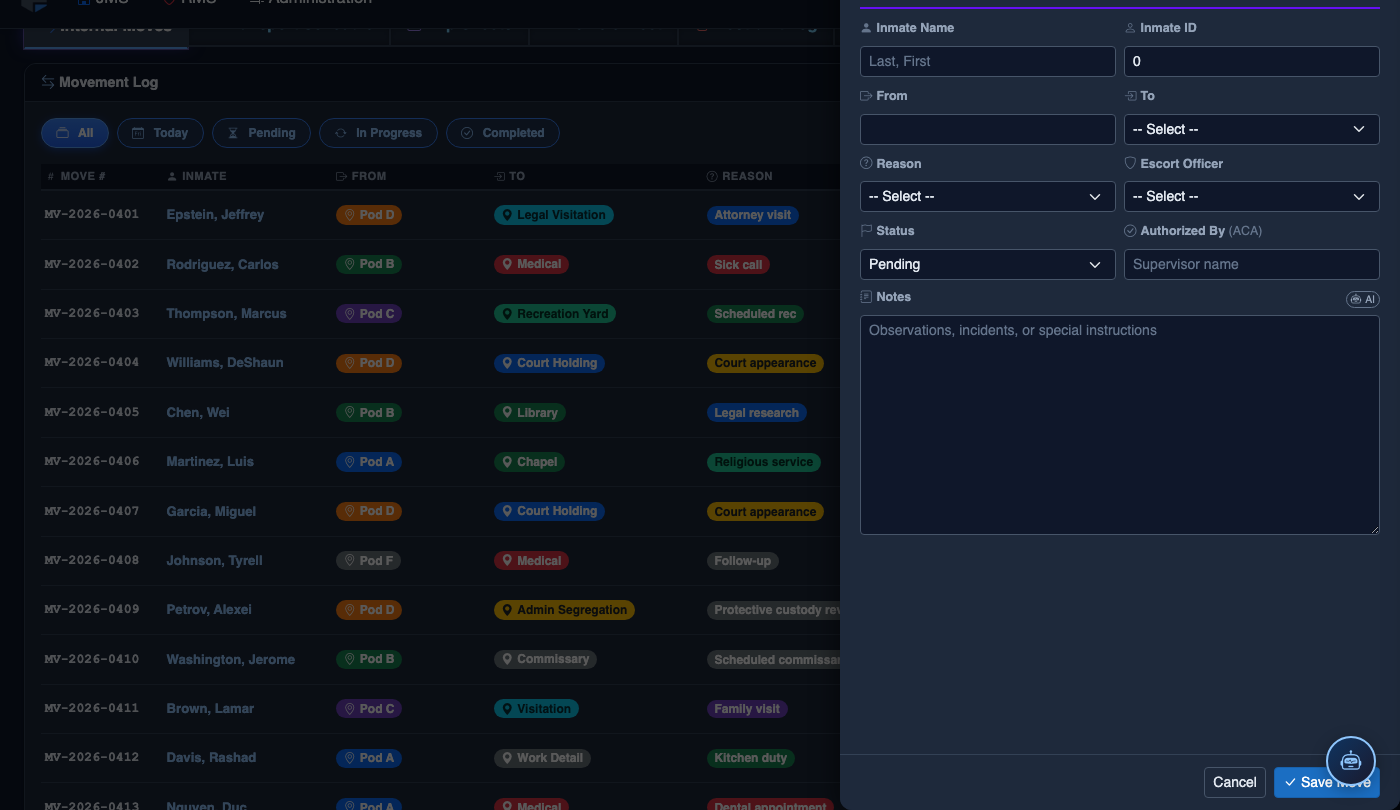
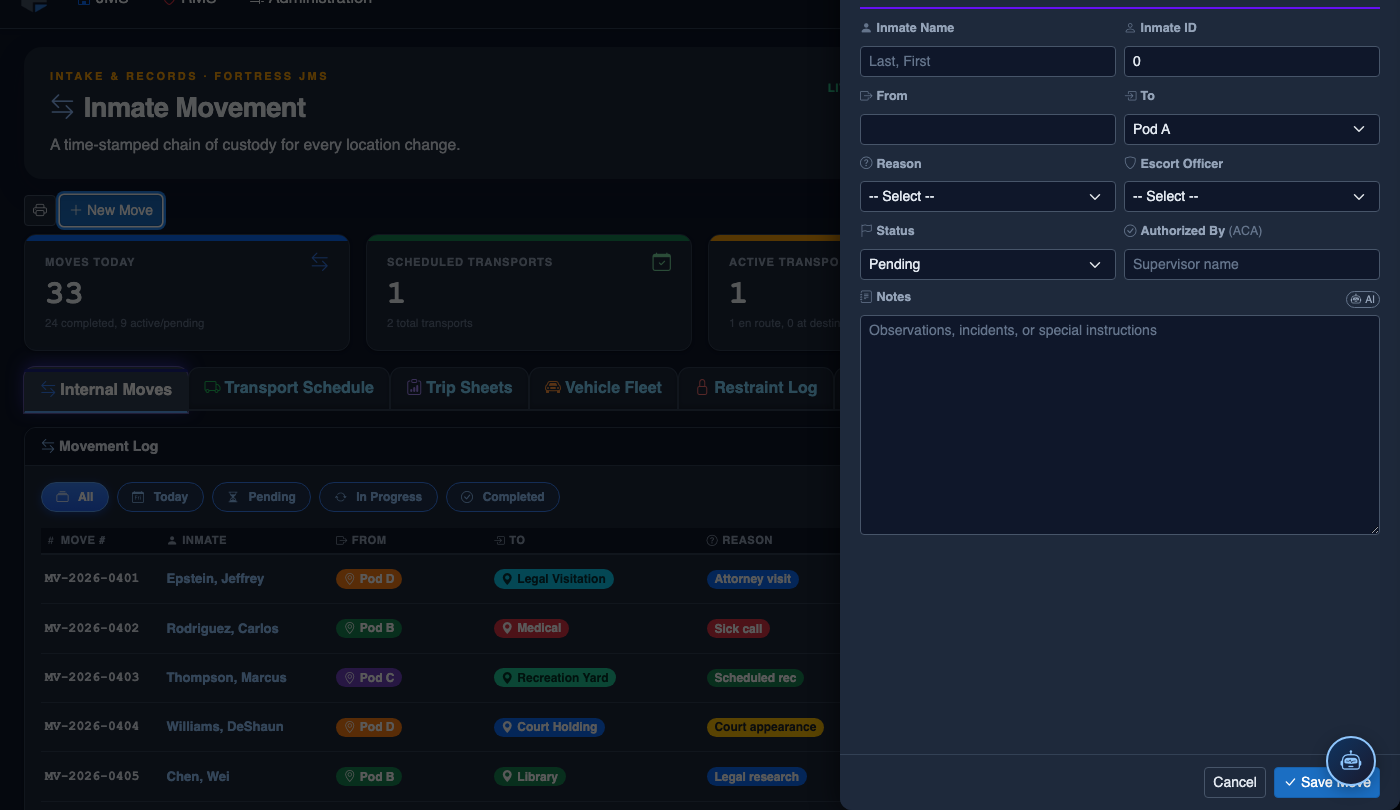
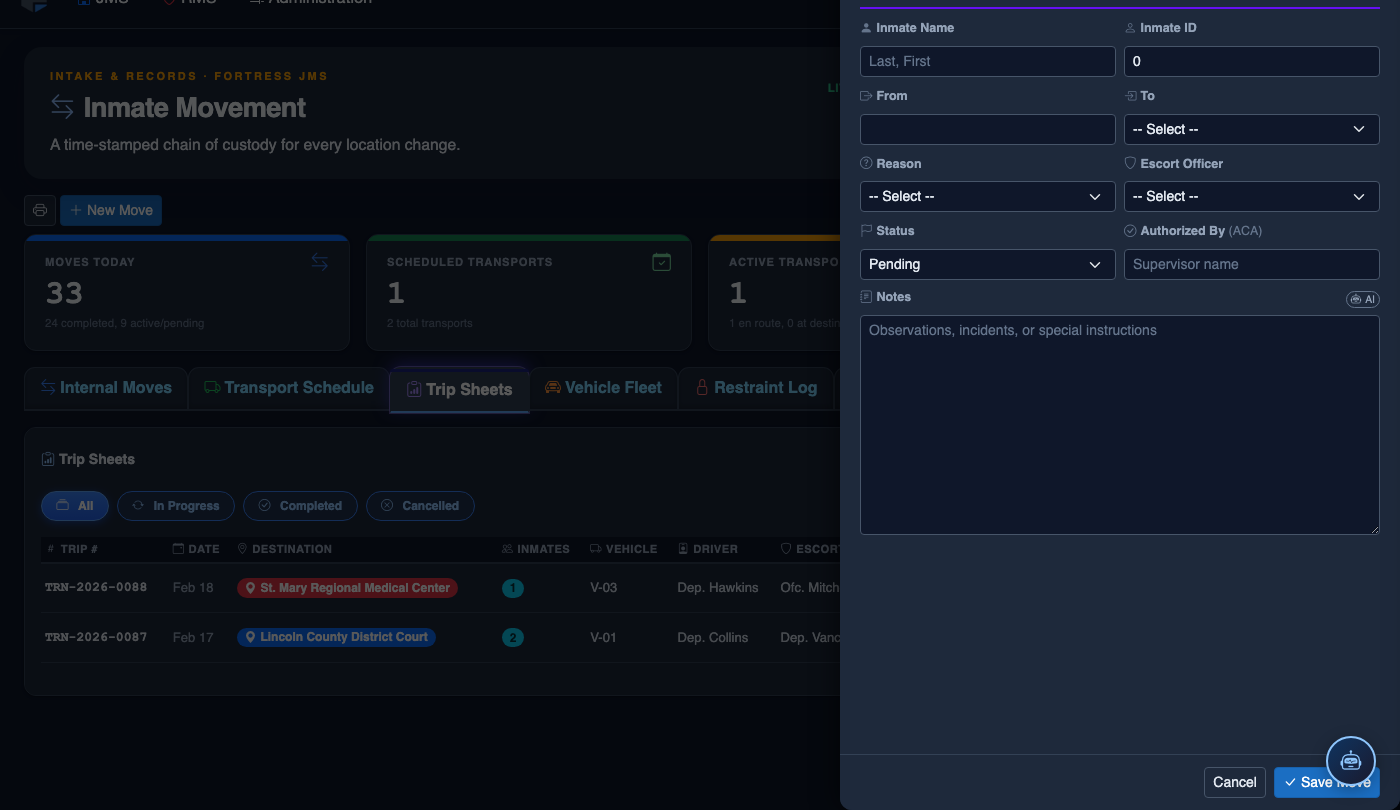
Log a New Movement
Click New Move in the module toolbar. Complete the movement record:
- Inmate — search by name or booking number.
- From Location — select origin unit, pod, and cell.
- To Location — select destination; the system flags restricted or unavailable beds.
- Movement Type — Internal Transfer, Court Transport, Medical, or Emergency.
- Reason — Classification Change, Disciplinary, Safety, Court Hold, etc.
- Authorizing Officer and Escorting Officer.
- Scheduled Date/Time — defaults to now for immediate moves.
- Click Save Movement. Bed Roster and Assignment records update automatically.
💡 Pro Tips
- Trip sheets generated from a scheduled transport automatically inherit restraint requirements from the inmate’s classification — always verify these are current before printing.
- If an inmate refuses to sign any portion of the trip sheet, document the refusal in the Officer Notes field; the system will timestamp the notation for legal purposes.
- Use the Search Archive feature with the inmate’s booking number to quickly pull historical trip sheets when responding to discovery requests or civil litigation.
Mobile View — Trip Sheets
FortressDMS is fully responsive. Officers can access the Trip Sheets on a phone or tablet directly from the field — no app install required.
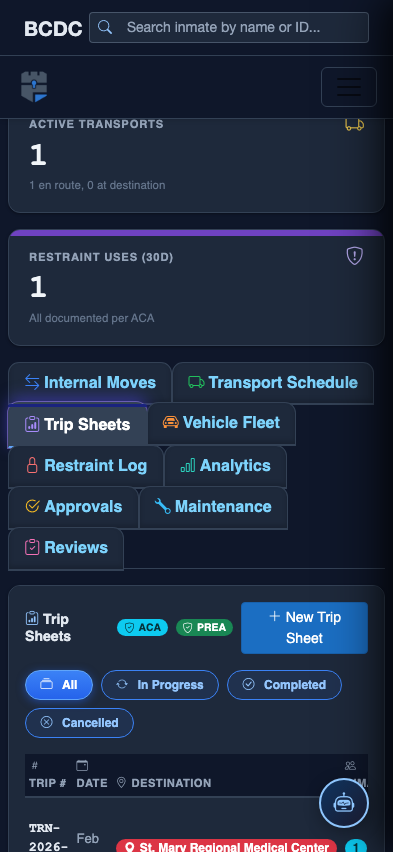
Tab view with data rows
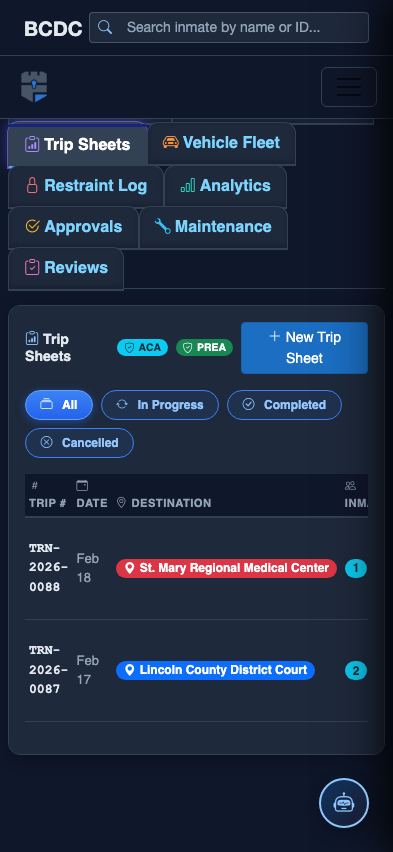
Scrolled / detail view