
Court Transport
The Court Transport tab streamlines the planning, dispatch, and tracking of secure inmate transport runs to and from court appearances, ensuring officers have complete run manifests, vehicle assignments, and chain-of-custody documentation before every departure. Transport supervisors can batch multiple inmates headed to the same courthouse into a single run, assign officers and vehicles, log departure and return times, and close out the run with disposition updates — all from a single, organized workflow. Accurate transport records reduce liability, support accreditation audits, and keep court compliance on track.
Run Planning & Manifests
Build transport runs by batching inmates to the same courthouse, generating printable manifests with inmate details and special handling notes.
Officer & Vehicle Assignment
Assign transport officers and vehicles to each run, tracking officer hours and vehicle availability to optimize resource use across the fleet.
Chain of Custody Log
Automatically timestamps departure, courthouse arrival, return, and each inmate custody transfer for airtight chain-of-custody documentation.
Special Handling Flags
Flag inmates requiring restraints, medical monitoring, separation from other transport inmates, or extra security escorts on every run.
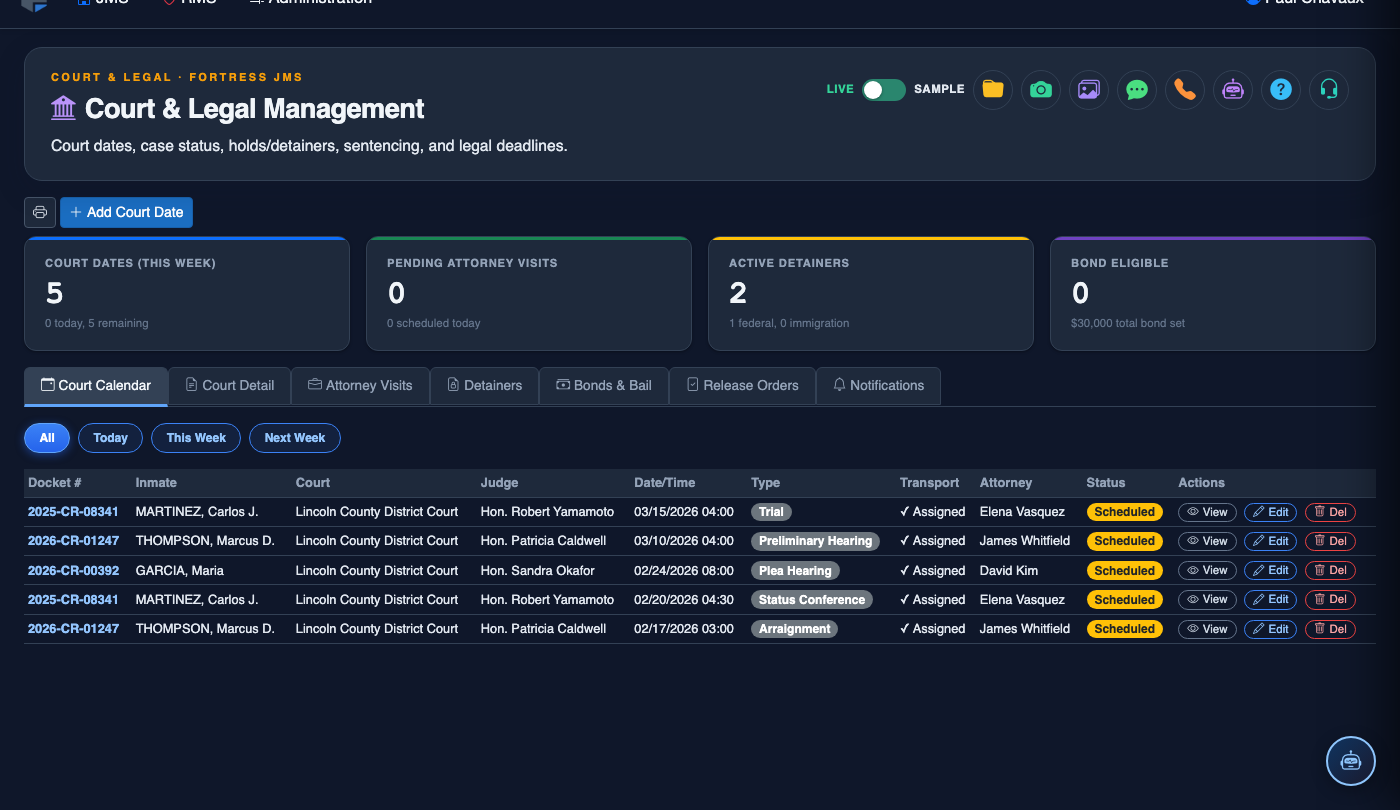
Step-by-Step: Planning and Executing a Court Transport Run
Open Court Transport and Review Pending Runs
Navigate to Court & Legal > Court Transport. The tab displays a list of Pending Transport Runs ordered by departure date and time. Each row shows the scheduled courthouse, the number of inmates assigned, and the run status: Planned, In Transit, Returned, or Cancelled.
Create a New Transport Run
Click New Transport Run. Enter the Courthouse, Run Date, and Scheduled Departure Time. The system automatically suggests inmates with hearings at that courthouse on that date. Review the suggested list and confirm which inmates to include on this run.
Assign Officers, Vehicle, and Special Handling
Select the Lead Transport Officer and any Additional Officers from the staff roster. Choose the Transport Vehicle from available fleet vehicles. Review each inmate’s Special Handling Flags (medical, high-security, separation requirements) and add any run-specific notes for the transport team.
Print the Transport Manifest
Click Print Manifest to generate a formatted transport document for each officer. The manifest includes inmate photos, booking numbers, charges, restraint requirements, hearing times, and emergency contact information. Each officer on the run receives a copy, and the original is retained in the run record for audit purposes.
Log Departure and Mark Run In Transit
When the vehicle departs, open the run record and click Depart. The system timestamps the departure and changes the run status to In Transit. The facility dashboard reflects the number of inmates currently out on transport, enabling accurate headcount management during the run.
Process Returns and Update Outcomes
When the transport run returns, click Mark Returned and enter the actual Return Time. For each inmate on the run, update their Hearing Outcome: if an inmate was released on bond or remanded to another facility, initiate the appropriate release or transfer workflow directly from the run closeout screen.
Close Out the Run and Archive Records
Click Close Run to finalize the transport record. Closed runs are archived with full officer logs, departure/return timestamps, chain-of-custody entries, and hearing outcomes — all accessible for future liability review, accreditation inspections, or legal discovery requests.
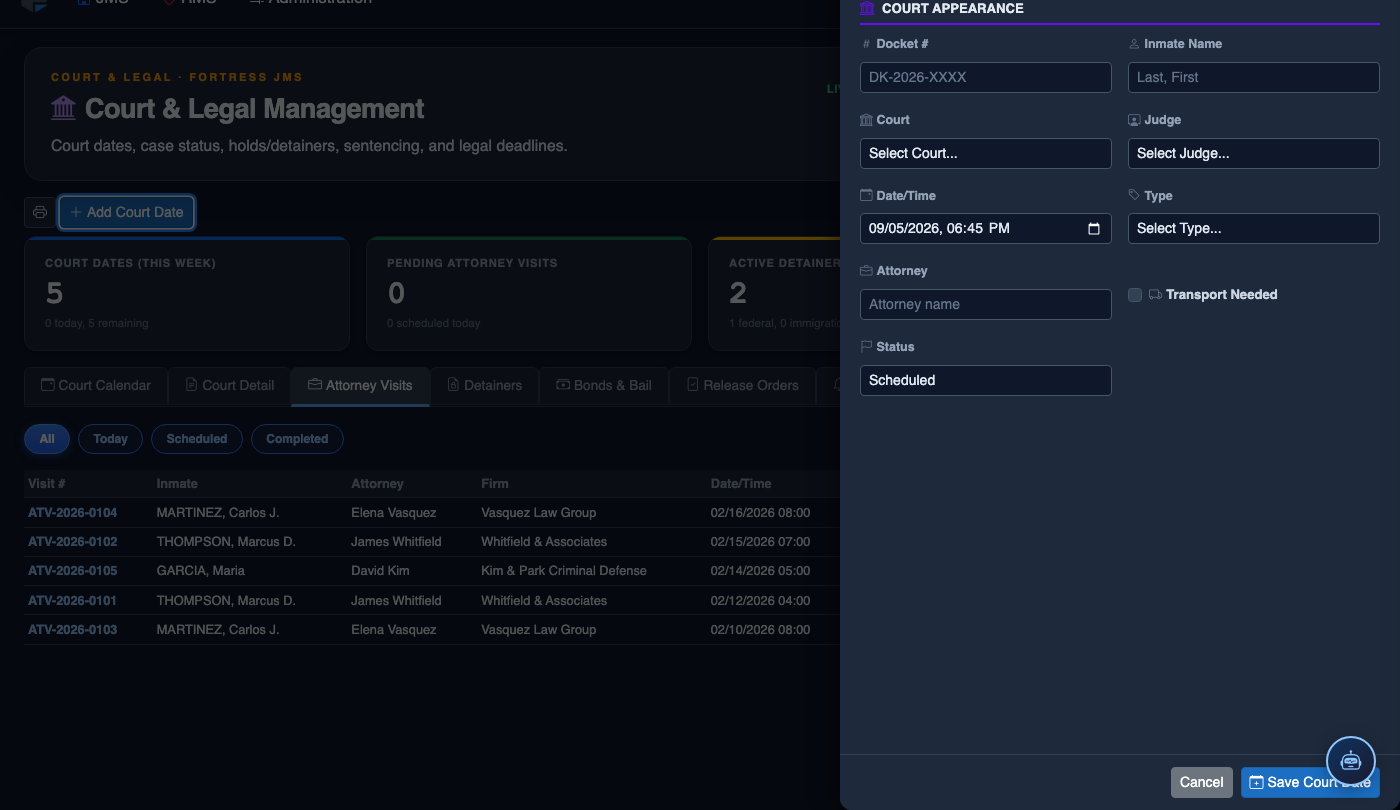
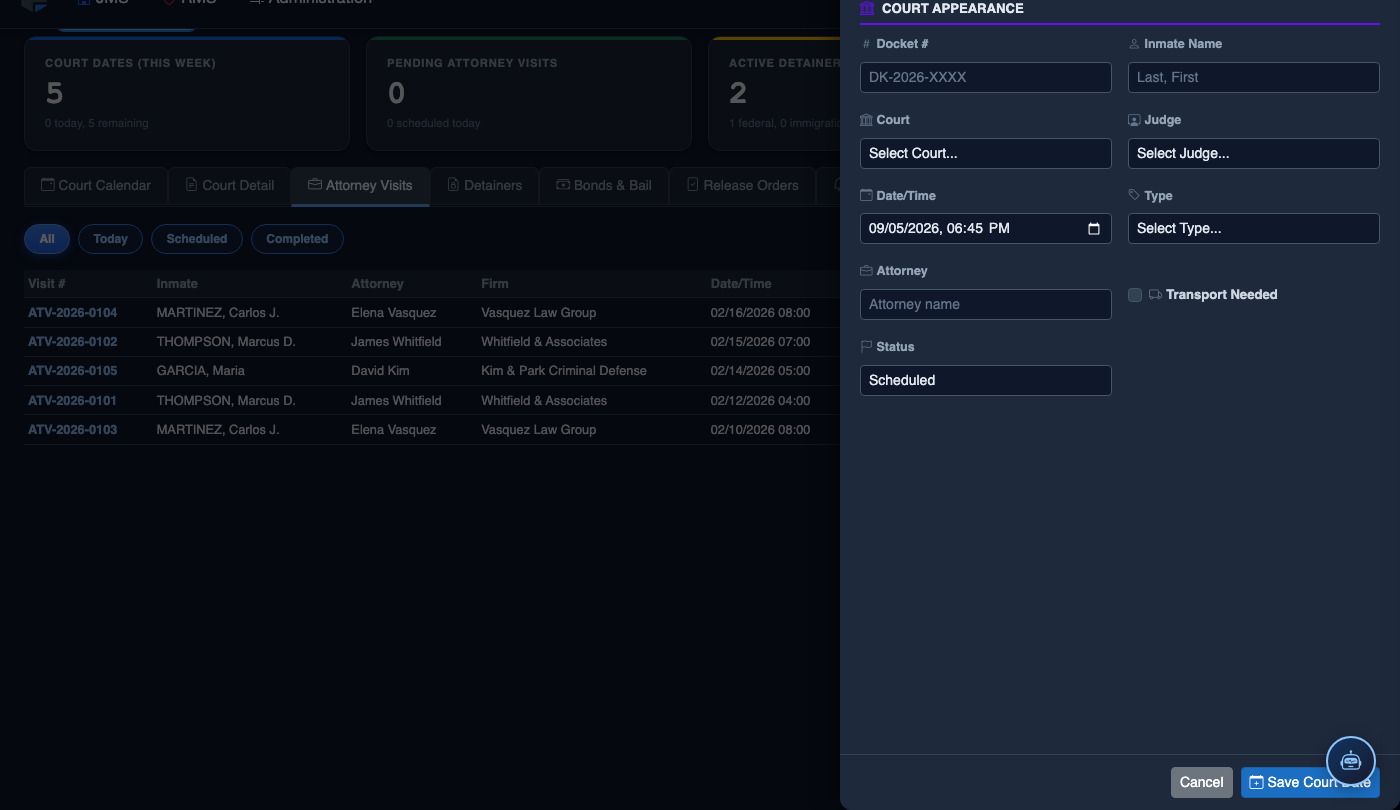
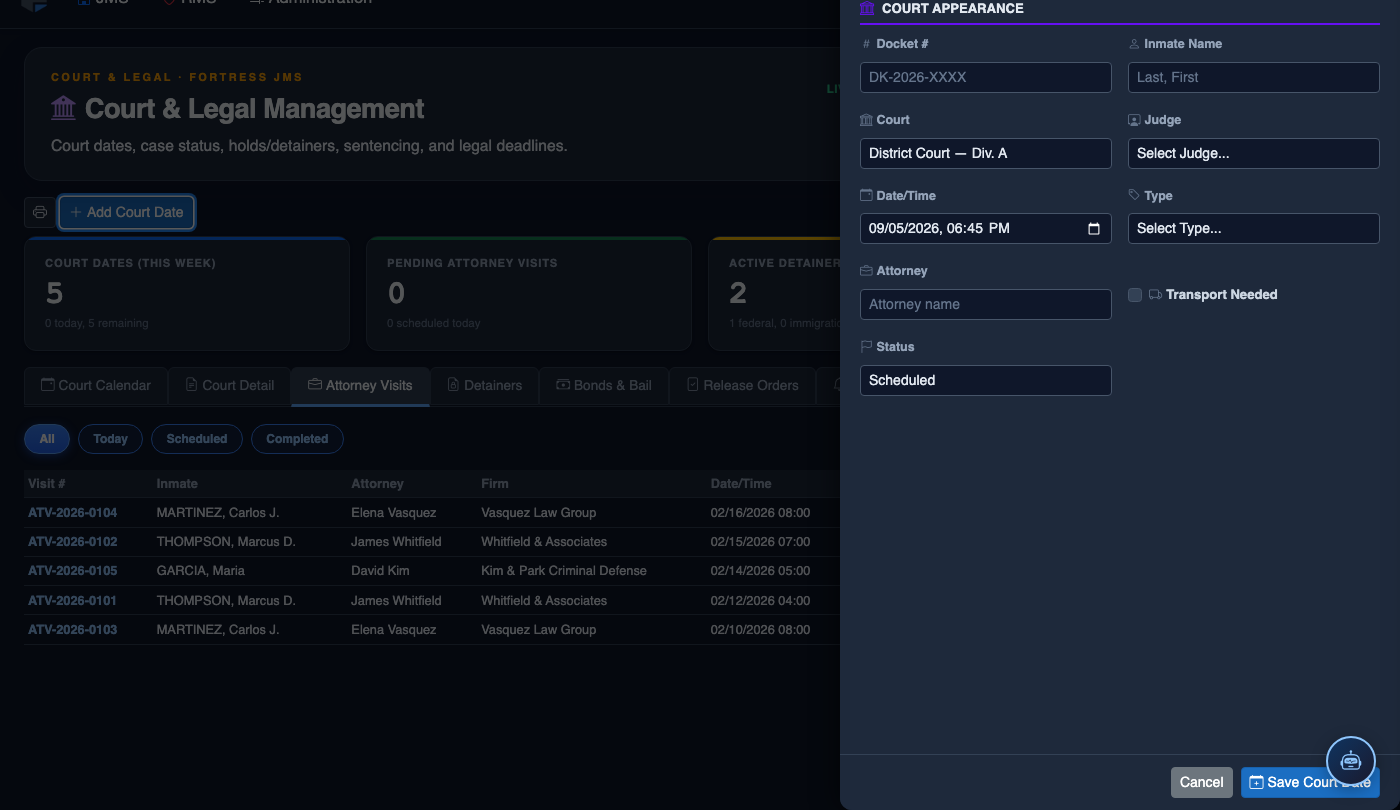
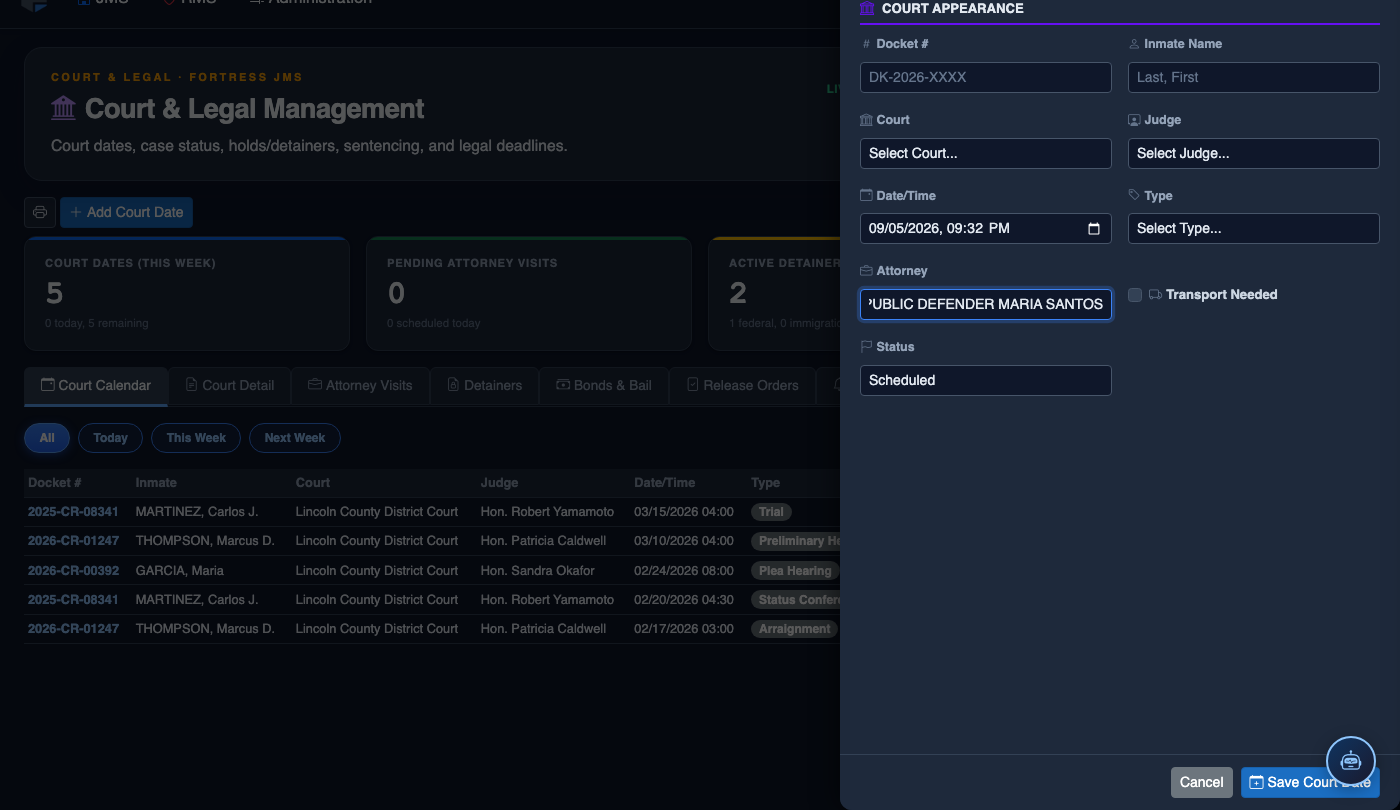
Schedule a New Court Date
Click Add Court Date. Complete the court scheduling form:
- Inmate — search by name or booking number.
- Court — select the court and division from the directory.
- Hearing Type — Arraignment, Pre-Trial, Sentencing, Hearing, or Probation Violation.
- Case Number — enter the docket number for tracking.
- Date and Time — the exact court appearance date/time.
- Transport Required — toggle on to add the inmate to the transport queue; select escort type.
- Attorney — record assigned counsel for court coordination.
- Click Save Court Date. Transport is scheduled and the court docket updates automatically.
💡 Pro Tips
- Always print manifests the evening before a morning transport run — last-minute printer issues should never delay a court departure and risk a bench warrant for failure to appear.
- Use the Group by Courthouse optimizer when planning the week’s runs; batching multiple inmates to the same venue on the same day can cut officer overtime costs significantly.
- Flag inmates with active medical conditions or mental health holds with the Medical Escort Required special handling flag — this automatically prompts medical staff to sign off on transport clearance before the run departs.
Mobile View — Court Transport
FortressDMS is fully responsive. Officers can access the Court Transport on a phone or tablet directly from the field — no app install required.
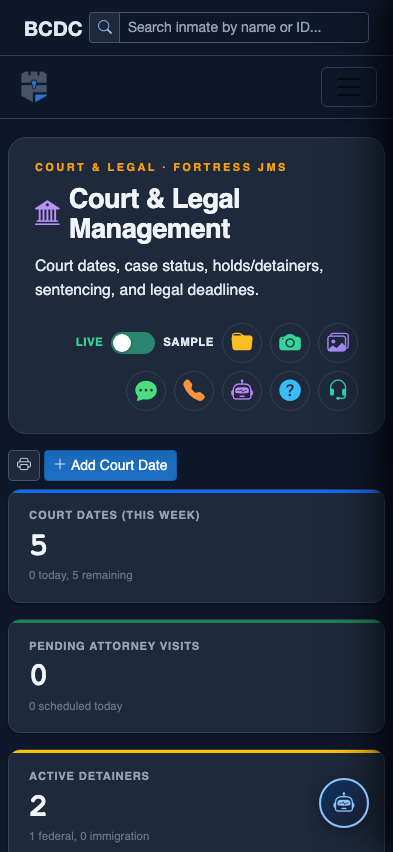
Tab view with data rows
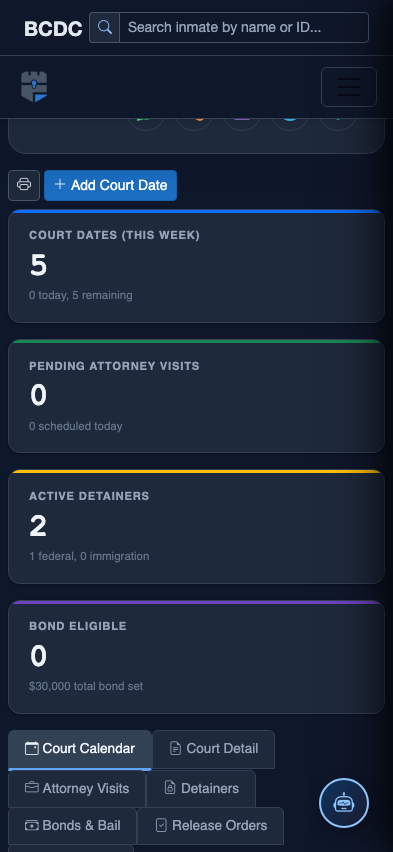
Scrolled / detail view