
Work Orders
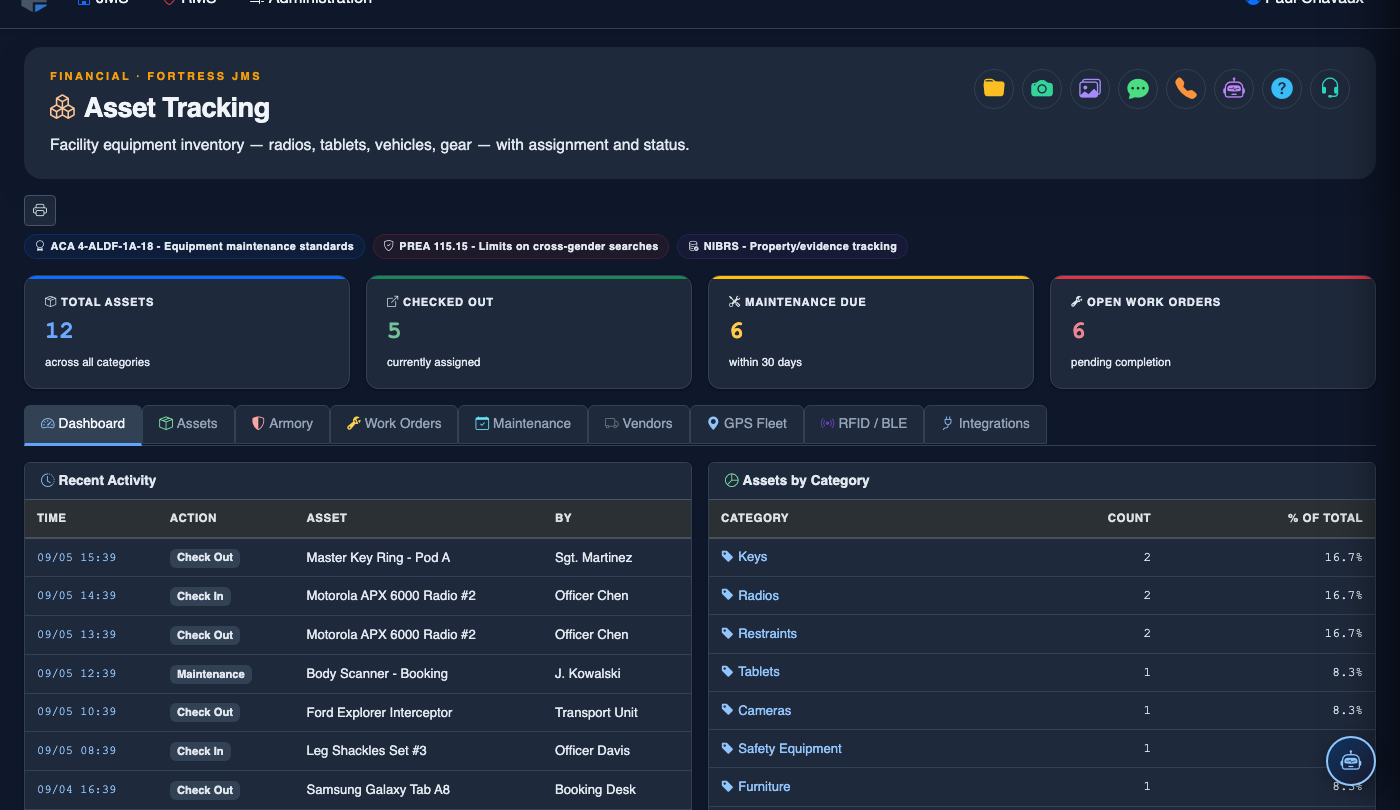
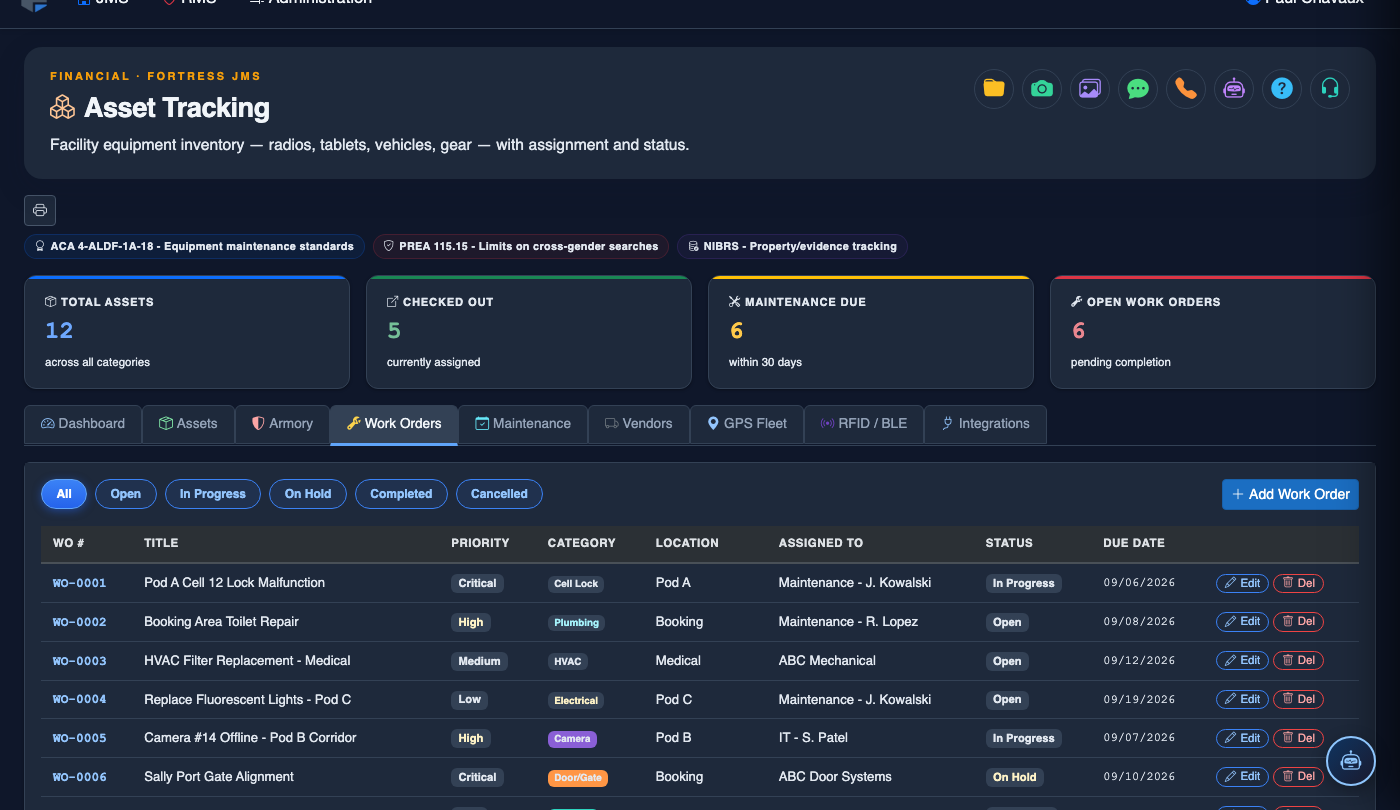
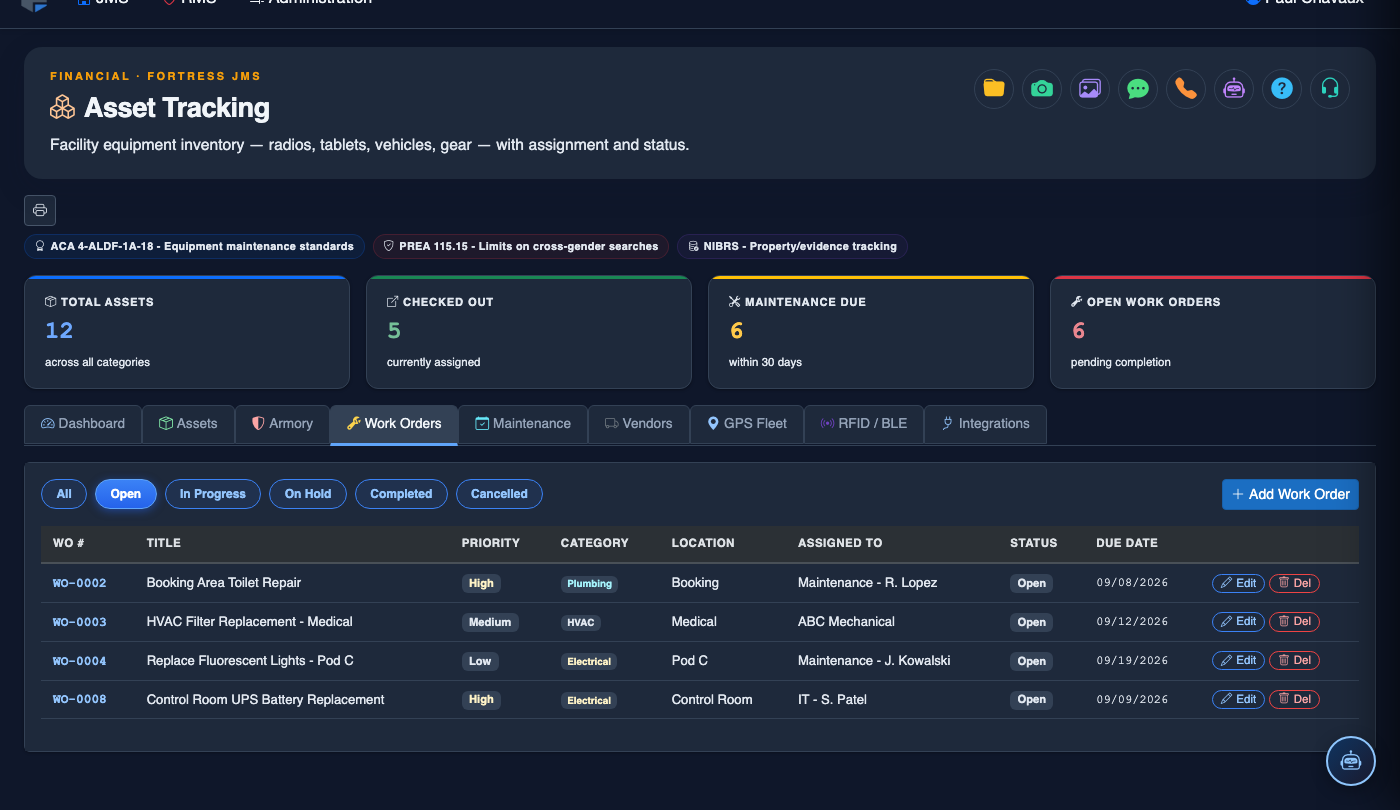
The Work Orders tab streamlines the creation, assignment, and tracking of maintenance and repair tasks for all facility assets. From a broken cell door lock to a vehicle engine issue, every work order is logged with priority, assigned technician, parts used, and resolution notes. Supervisors gain real-time visibility into open tasks, preventing assets from falling into unserviceable status unnoticed.
Work Order Creation
Create detailed work orders with asset linkage, problem description, priority level, and requested completion date.
Technician Assignment
Assign work orders to in-house maintenance staff or external vendors with skill-set matching and workload balancing.
Parts & Labor Tracking
Record parts consumed, labor hours, and associated costs for each work order to support budget reporting.
Status Dashboard
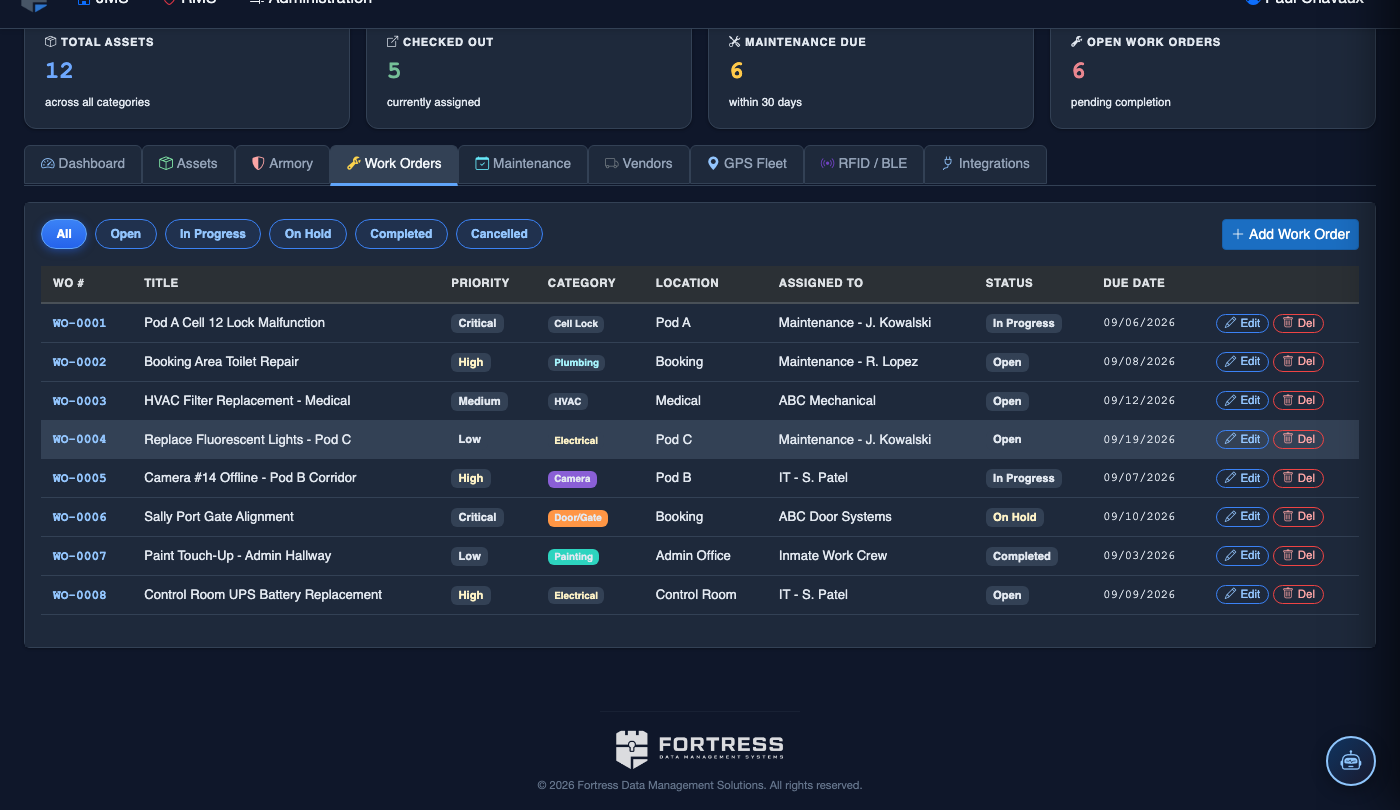
Monitor all open, in-progress, and recently closed work orders from a centralized dashboard with priority-color coding.
Step-by-Step: Work Orders
Open the Work Orders Tab
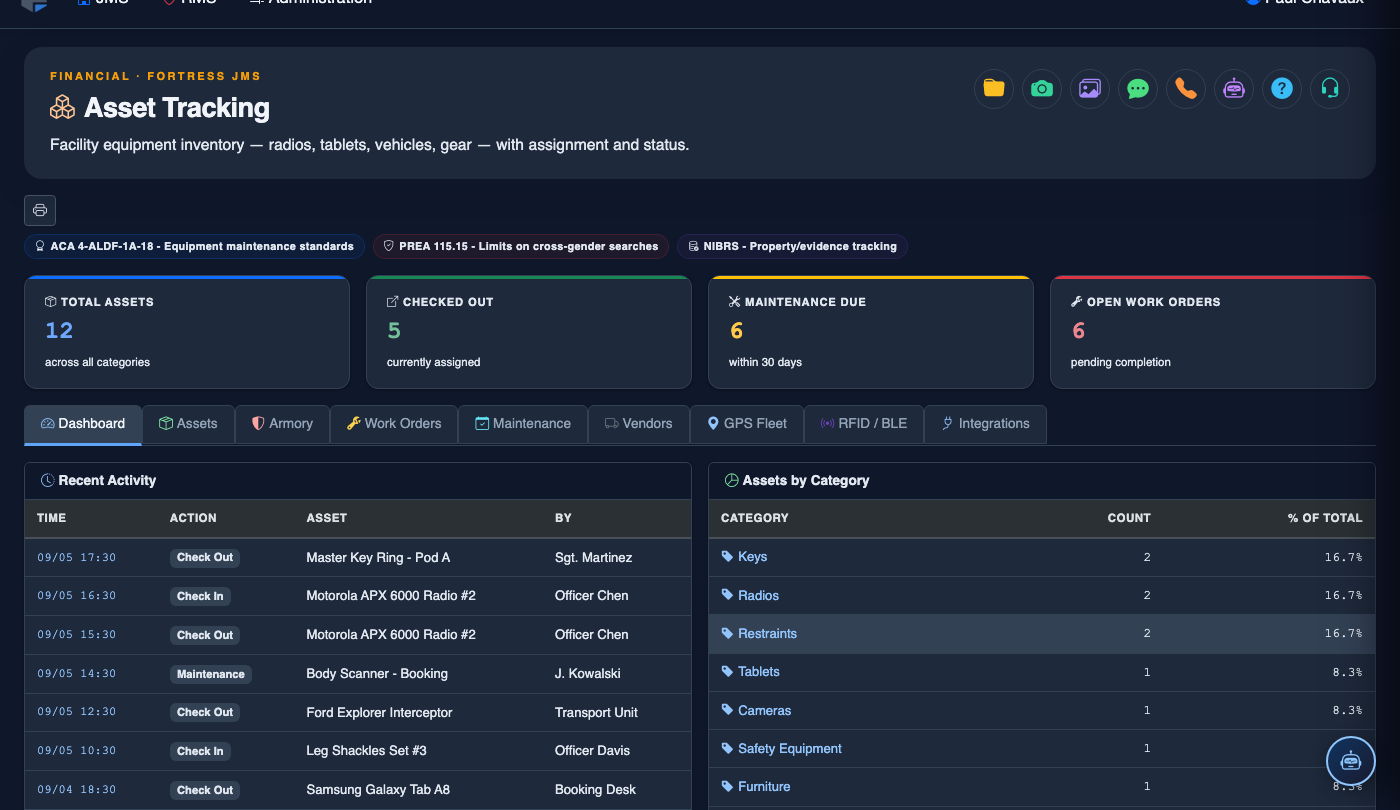
Navigate to Asset Tracking and select the Work Orders tab. The dashboard presents a list of all current work orders sortable by Priority, Status, or Due Date.
Create a New Work Order
Click + New Work Order. Use the Asset Search field to link the work order to the affected asset (e.g., a specific vehicle or cell block door). Fill in the Problem Description, select Priority (Critical / High / Medium / Low), and set a Requested Completion Date.
Assign to a Technician or Vendor
In the Assignment section, choose Internal Staff or External Vendor. Select the technician from the dropdown — the system displays their current open order count to help balance workload. Click Assign & Notify to send the technician an in-system alert.
Log Parts and Labor
As work progresses, open the work order and click Add Parts to record parts used from inventory. Enter Labor Hours and the technician’s hourly rate (or flat-rate for external vendors). All costs roll up to the asset’s lifetime maintenance cost record.
Update Status Through Completion
Move the work order through statuses — Open → In Progress → Pending Inspection → Closed. Each status change is timestamped. When closing, enter Resolution Notes describing the corrective action taken and set the asset’s condition back to Serviceable.
Review Work Order Reports
Navigate to Reports > Work Order Summary to view open order aging, cost-per-asset breakdowns, and technician performance metrics. Export to PDF or CSV for budget review meetings or capital planning discussions.
Open an Asset Record
Click Open to access or create an asset record:
- Asset Type — select the category (Firearm, Body Armor, Vehicle, Electronics, etc.).
- Asset ID / Serial Number — enter or scan the unique identifier.
- Assigned To — link to the officer or location responsible for this asset.
- Condition — New, Good, Fair, Needs Repair, or Out of Service.
- Location — current storage location (Armory bay, vehicle number, officer locker).
- Maintenance Notes — document any recent repairs, inspections, or defects.
- Next Inspection Date — schedule the next mandatory inspection or certification.
- Click Save Asset Record to update the inventory.
💡 Pro Tips
- Set Critical priority for any asset whose failure creates a security risk (e.g., electronic door locks, perimeter cameras) so supervisors receive immediate alerts.
- Link work orders generated from the Armory Management tab directly to those items — this maintains a complete maintenance history for each weapon during inspections.
- Use the Recurring Work Order feature to auto-generate tasks for scheduled preventive maintenance, reducing the risk of missing required service intervals.
Mobile View — Work Orders
FortressDMS is fully responsive. Officers can access the Work Orders on a phone or tablet directly from the field — no app install required.
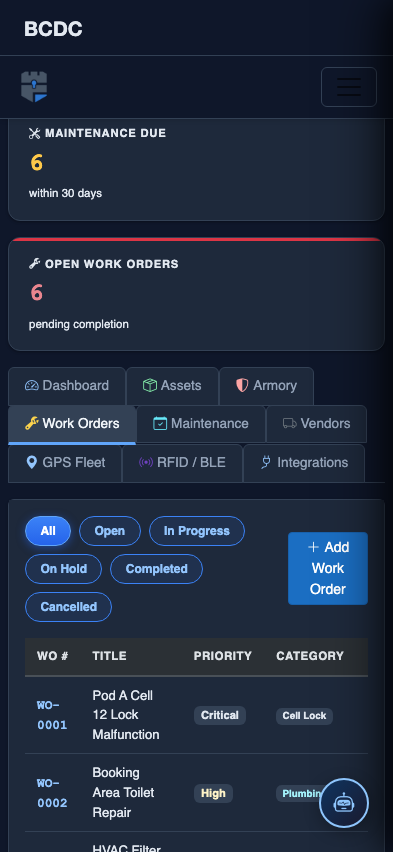
Tab view with data rows
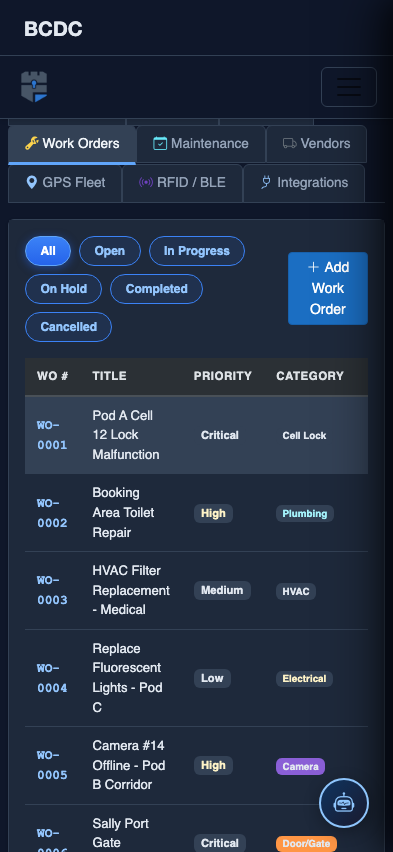
Scrolled / detail view