
Vehicle Fleet
The Vehicle Fleet tab provides complete lifecycle management for every transport vehicle in the facility’s inventory, from vans and buses to secure prisoner transport units. Fleet managers can track vehicle availability, maintenance schedules, mileage logs, inspection records, and certification status from a single dashboard. Integration with the Transport Schedule ensures vehicles are never double-booked and maintenance windows are automatically blocked out.
Fleet Inventory
Maintain a complete roster of transport vehicles with VIN, license plate, capacity, cage configuration, and certifications for each unit.
Maintenance Tracking
Log scheduled and unscheduled maintenance events, receive automatic reminders for oil changes and inspections, and track repair costs over time.
Mileage & Usage Logs
Officers log departure and return mileage for every trip, creating a complete usage history that drives maintenance scheduling and replacement planning.
Pre-Trip Inspections
Standardized digital pre-trip inspection checklists ensure officers document vehicle condition before every transport, protecting the facility from liability.
Step-by-Step: Managing Fleet Vehicles and Inspections
Open the Vehicle Fleet Tab
Go to Inmate Movement > Vehicle Fleet. The dashboard displays all vehicles in a card grid view showing each vehicle’s Unit Number, Make/Model, current Status (Available, In Use, In Maintenance, Out of Service), and the date of the last inspection. Click List View for a sortable table format.
Add a New Vehicle
Click + Add Vehicle to open the vehicle registration form. Enter the Unit Number, VIN, License Plate, Year/Make/Model, Passenger Capacity, and Cage Configuration. Upload photos of the vehicle interior and exterior. Set the initial odometer reading and click Save Vehicle.
Complete a Pre-Trip Inspection
Click on any vehicle card and select Pre-Trip Inspection. The checklist form loads with all required inspection points including Tires, Lights, Restraint Anchors, Cage Integrity, First Aid Kit, and Fire Extinguisher. Mark each item pass or fail and add notes for any deficiencies. If any safety-critical item fails, the vehicle is automatically flagged Out of Service.
Log a Maintenance Event
From any vehicle’s detail page, click Log Maintenance. Select the Maintenance Type (Scheduled, Unscheduled Repair, or State Inspection), enter the Service Date, Odometer Reading, Vendor/Shop, Cost, and a description of work performed. Attach receipts or inspection certificates using the document upload field.
Set Maintenance Reminders
On the Maintenance Schedule sub-tab, click + Add Reminder. Set reminder triggers by Mileage Interval (e.g., every 5,000 miles) or Time Interval (e.g., every 6 months). Assign the reminder to a specific staff member who will receive an automated notification when the threshold is reached.
Mark a Vehicle Out of Service
If a vehicle is taken offline for major repairs, click the vehicle and select Change Status > Out of Service. Enter the reason and estimated return date. The vehicle will be blocked from transport assignments until a supervisor marks it Available again. All affected transports will display a scheduling conflict alert.
Run Fleet Reports
Click Reports in the top toolbar to generate fleet-wide reports including Annual Mileage Summary, Maintenance Cost by Vehicle, Inspection Compliance Rate, and Vehicle Utilization. Export any report to CSV or PDF for budget submissions or accreditation documentation.
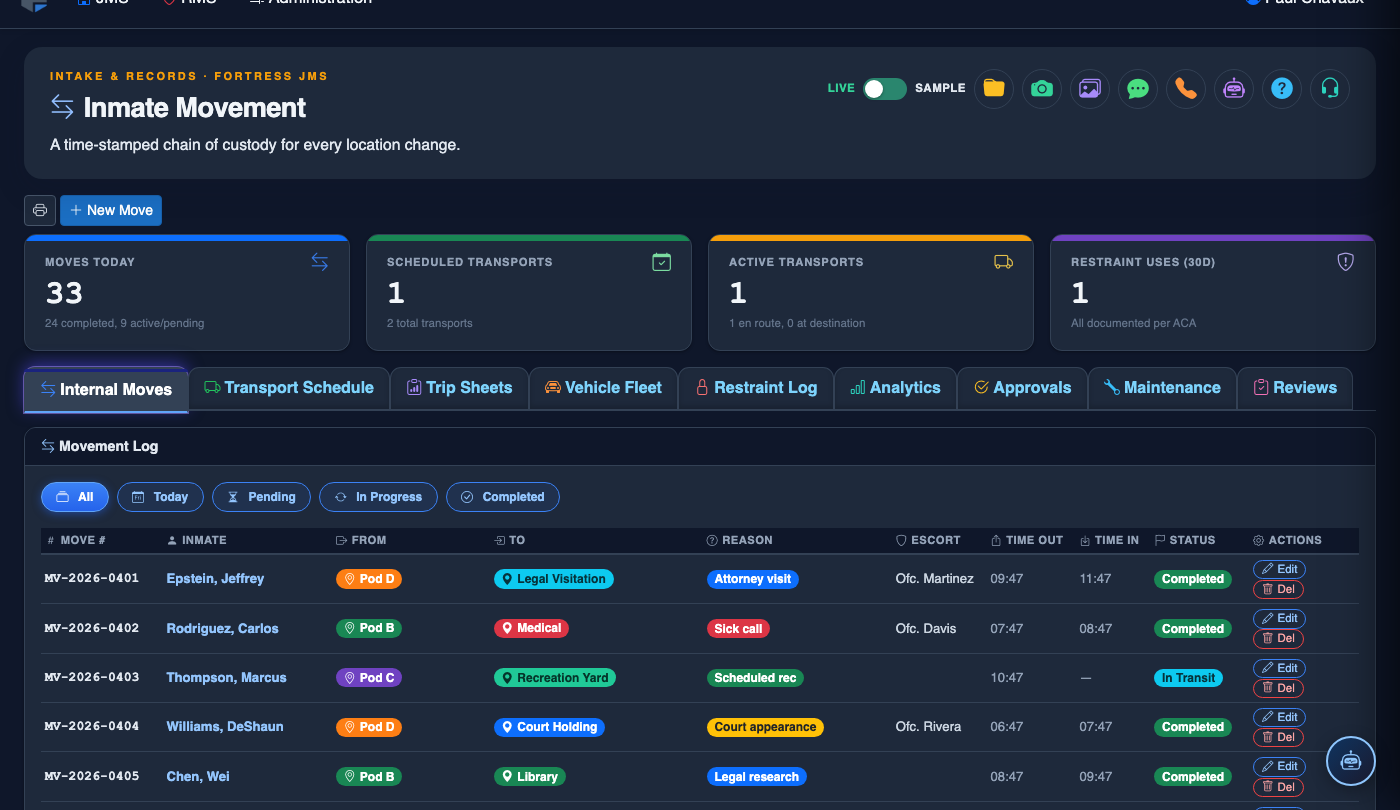
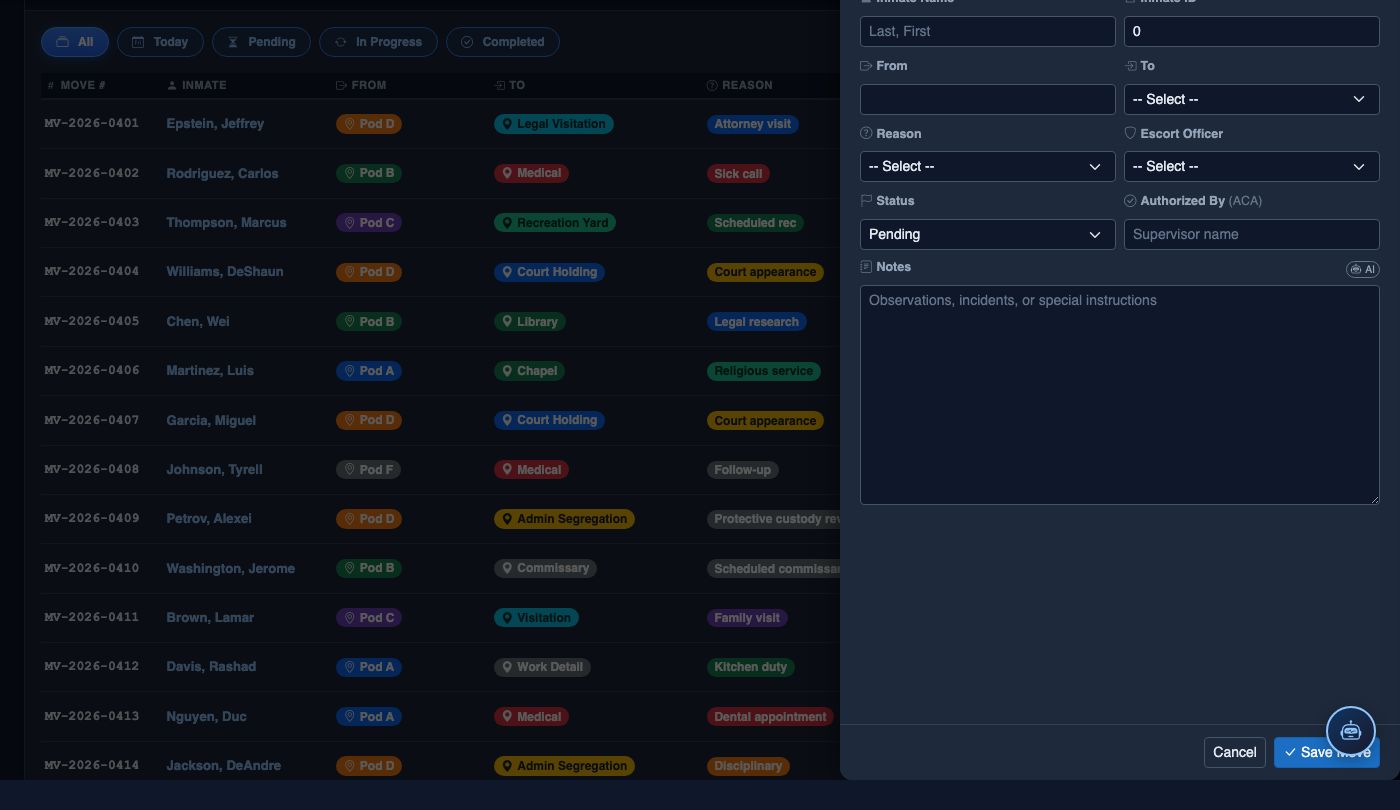
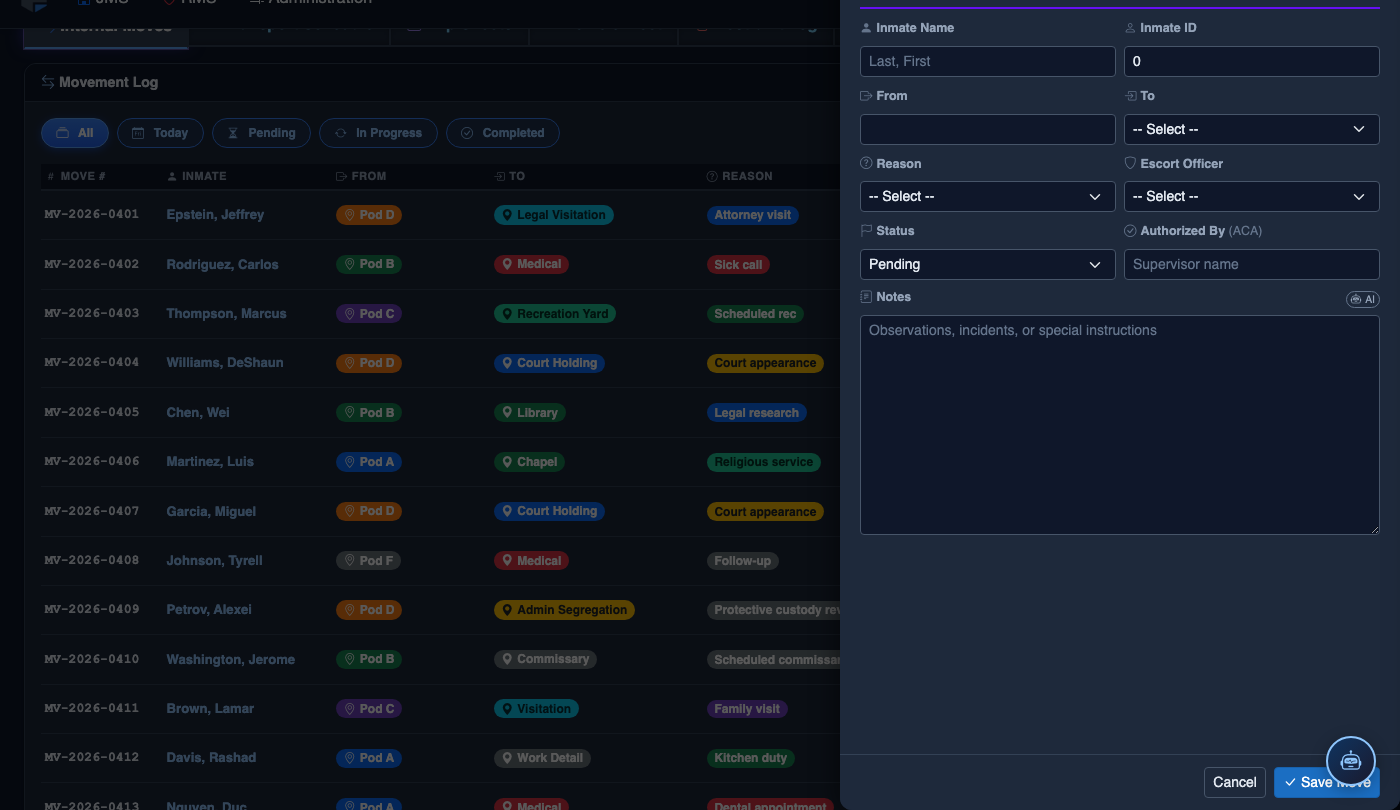
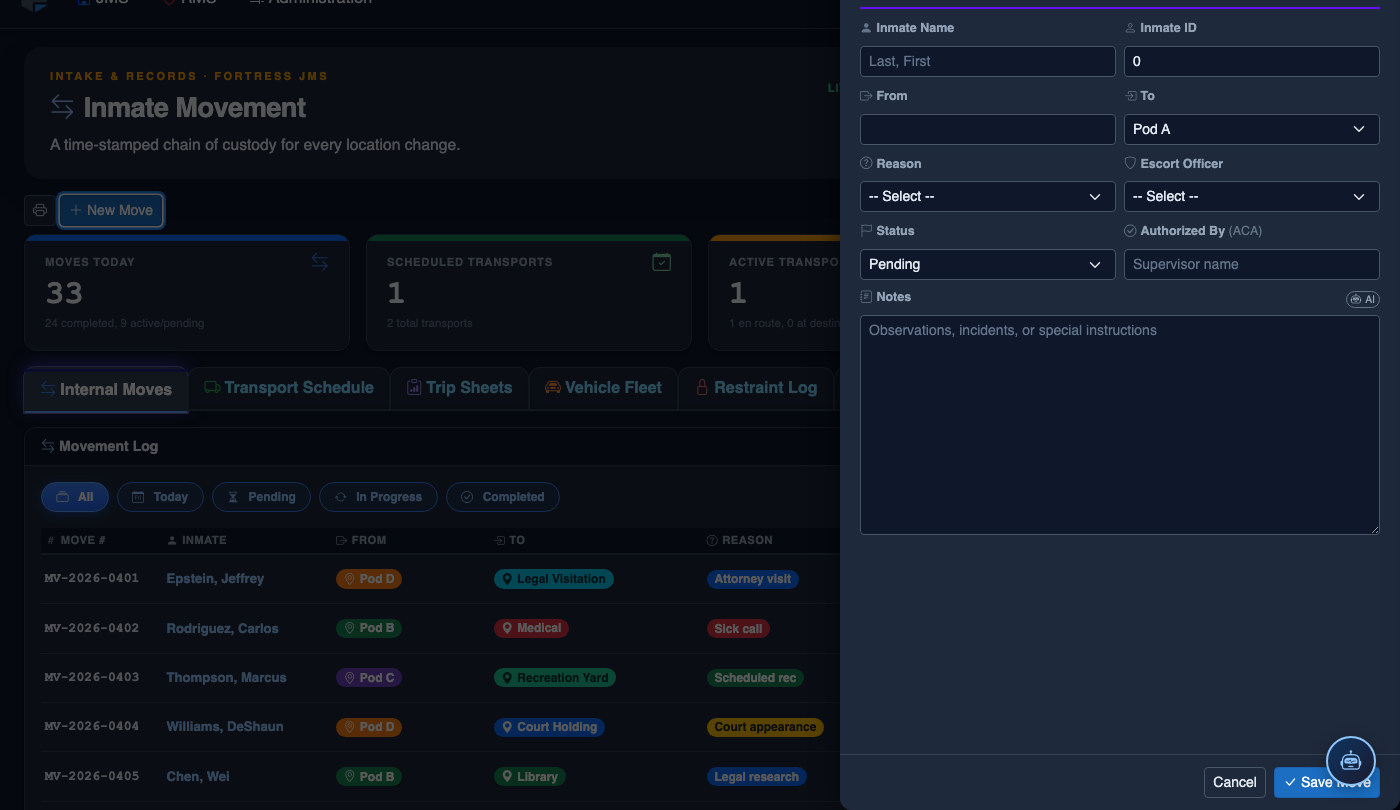
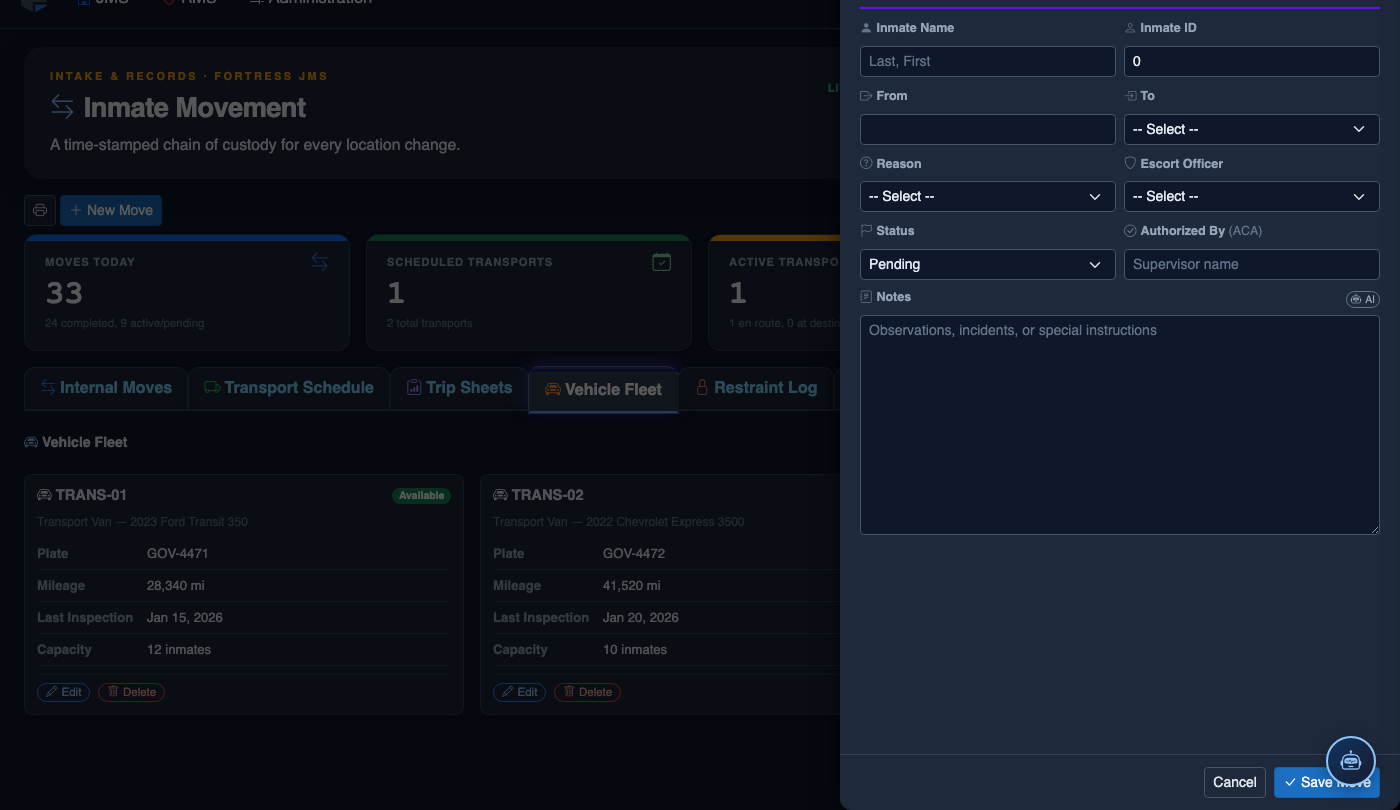
Log a New Movement
Click New Move in the module toolbar. Complete the movement record:
- Inmate — search by name or booking number.
- From Location — select origin unit, pod, and cell.
- To Location — select destination; the system flags restricted or unavailable beds.
- Movement Type — Internal Transfer, Court Transport, Medical, or Emergency.
- Reason — Classification Change, Disciplinary, Safety, Court Hold, etc.
- Authorizing Officer and Escorting Officer.
- Scheduled Date/Time — defaults to now for immediate moves.
- Click Save Movement. Bed Roster and Assignment records update automatically.
💡 Pro Tips
- Always complete the pre-trip inspection in FortressDMS before every transport — the digital timestamp is your best protection against claims that vehicle defects caused an incident.
- Set mileage-based maintenance reminders at 90% of your interval (e.g., at 4,500 miles for a 5,000-mile oil change) so you have lead time to schedule service without grounding a vehicle unexpectedly.
- Use the Utilization Report quarterly to identify underused vehicles that may be candidates for reallocation or disposal, and heavily used vehicles that may need earlier replacement consideration.
Mobile View — Vehicle Fleet
FortressDMS is fully responsive. Officers can access the Vehicle Fleet on a phone or tablet directly from the field — no app install required.
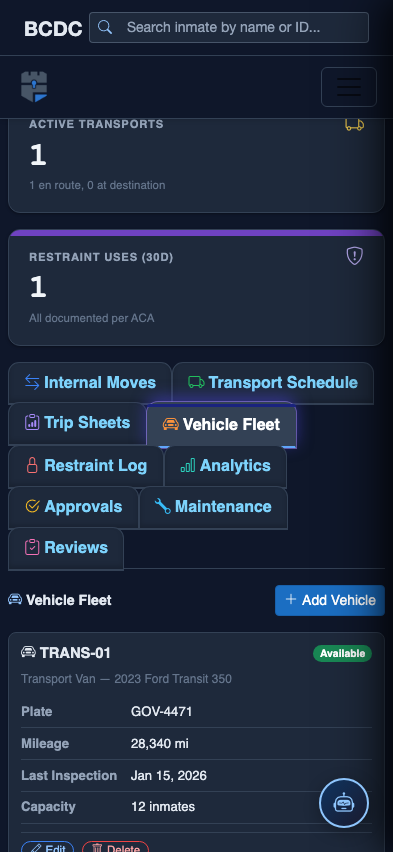
Tab view with data rows
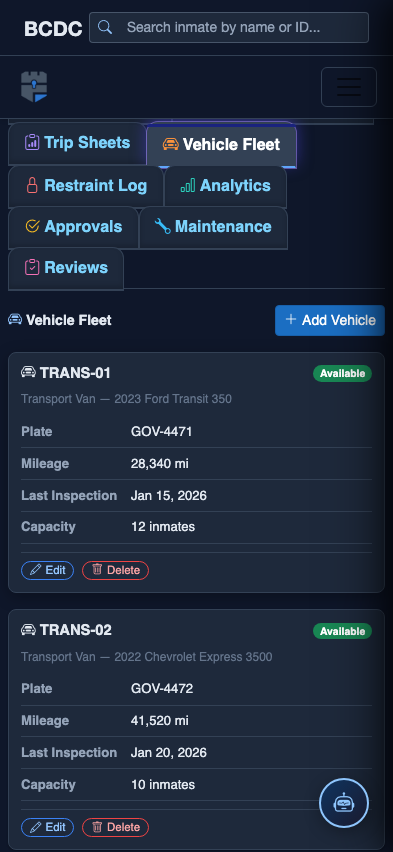
Scrolled / detail view