
Staff Users
The Staff Users tab is the primary interface for creating, editing, and managing every employee account in FortressDMS — from booking officers and correctional officers to medical staff, supervisors, and facility administrators. All staff accounts are secured with role-based permissions that control exactly which modules, data types, and actions each employee can access, ensuring a strict least-privilege security posture across the facility’s digital operations.
Quick Account Creation
Add a new staff member in under two minutes with the guided new-user form — auto-sends a welcome email and temporary credentials.
Role Templates
Pre-configured permission sets for common correctional roles — Officer, Sergeant, Lieutenant, Medical Staff, Classification, Administrator — applied instantly on selection.
Account Lifecycle Controls
Suspend, deactivate, reset passwords, and set account expiry dates to manage the full lifecycle of every staff credential.
Search and Filter
Instantly find any staff account by name, employee ID, department, role, or status — with real-time search across hundreds of accounts.

Step-by-Step: Creating and Managing Staff Accounts
Open the Staff Users Tab
Navigate to Administration > User Management and confirm the Staff Users tab is selected (it is the default). The grid displays all active staff accounts. Use the Status filter dropdown to switch between Active, Suspended, Deactivated, or All to view accounts in each lifecycle state.
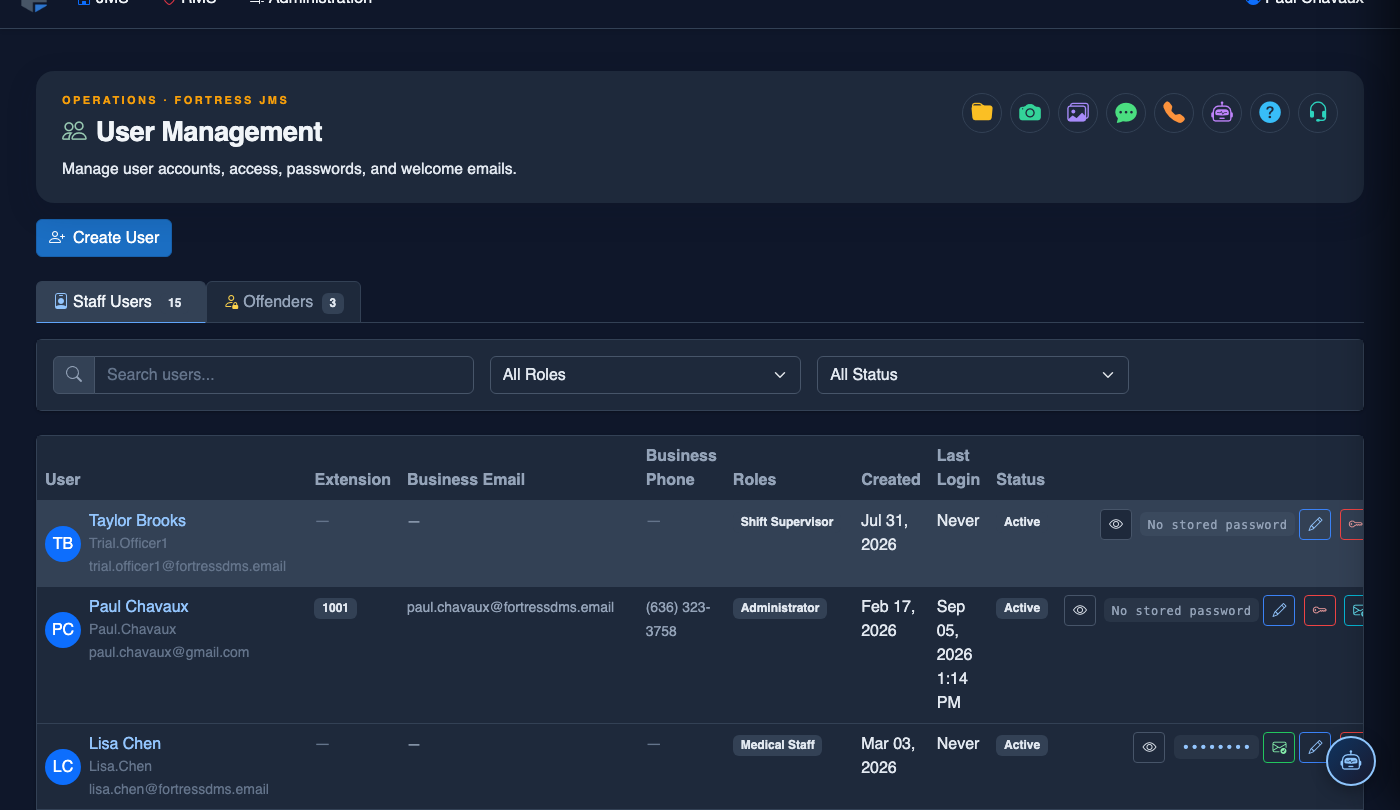
Click Add Staff User
Click the + Add Staff User button in the top-right corner of the grid. A slide-over panel opens containing the New Staff User form. This panel remains open as an overlay so you can reference the existing user list behind it if needed.
Complete the Identity and Role Fields
Enter the officer’s First Name, Last Name, Employee ID (from HR), Work Email, and Direct Phone. Select the appropriate Department and then choose the primary Role from the dropdown. Roles available include: Corrections Officer, Sergeant, Lieutenant, Medical Staff, Mental Health Staff, Classification Officer, Booking Officer, and Facility Administrator.
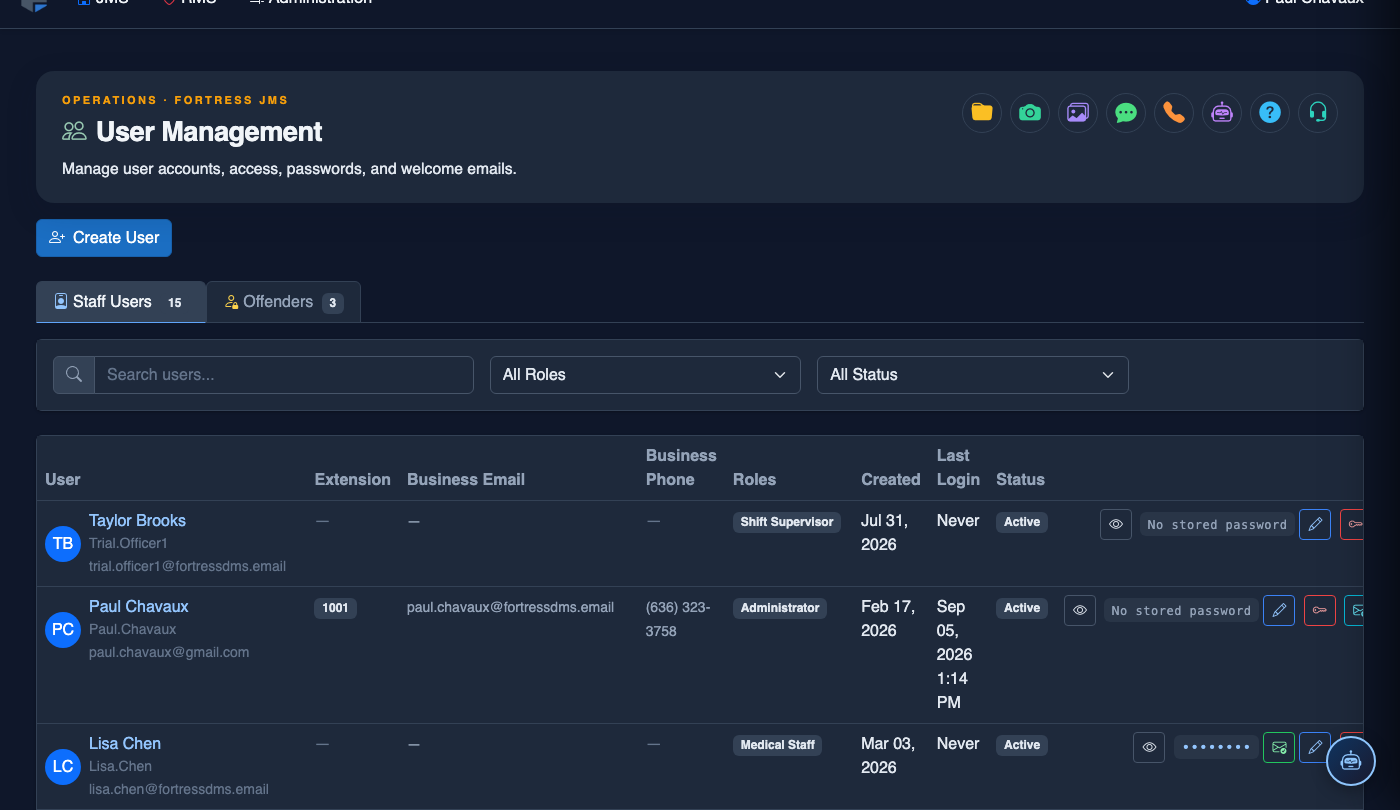
Review and Customize Permissions
After selecting the role, scroll to the Permissions Preview section. The default permission set for the role is pre-populated — review each toggle. To add a specific permission (e.g., granting a booking officer read access to medical alerts), toggle the individual permission on. To restrict a default permission, toggle it off. All non-standard permission changes require a second administrator to confirm via the Dual Approval prompt that appears when you save.
Set Password Options and Account Expiry
Under Account Settings, check Send Welcome Email with Temporary Password to auto-generate credentials and email the officer their login link. Check Require Password Change on First Login — this is mandatory for security compliance. If the account is temporary (contractor, student intern, ride-along supervisor), set an Account Expiry Date using the date picker. Expired accounts are automatically suspended at midnight on the expiry date.
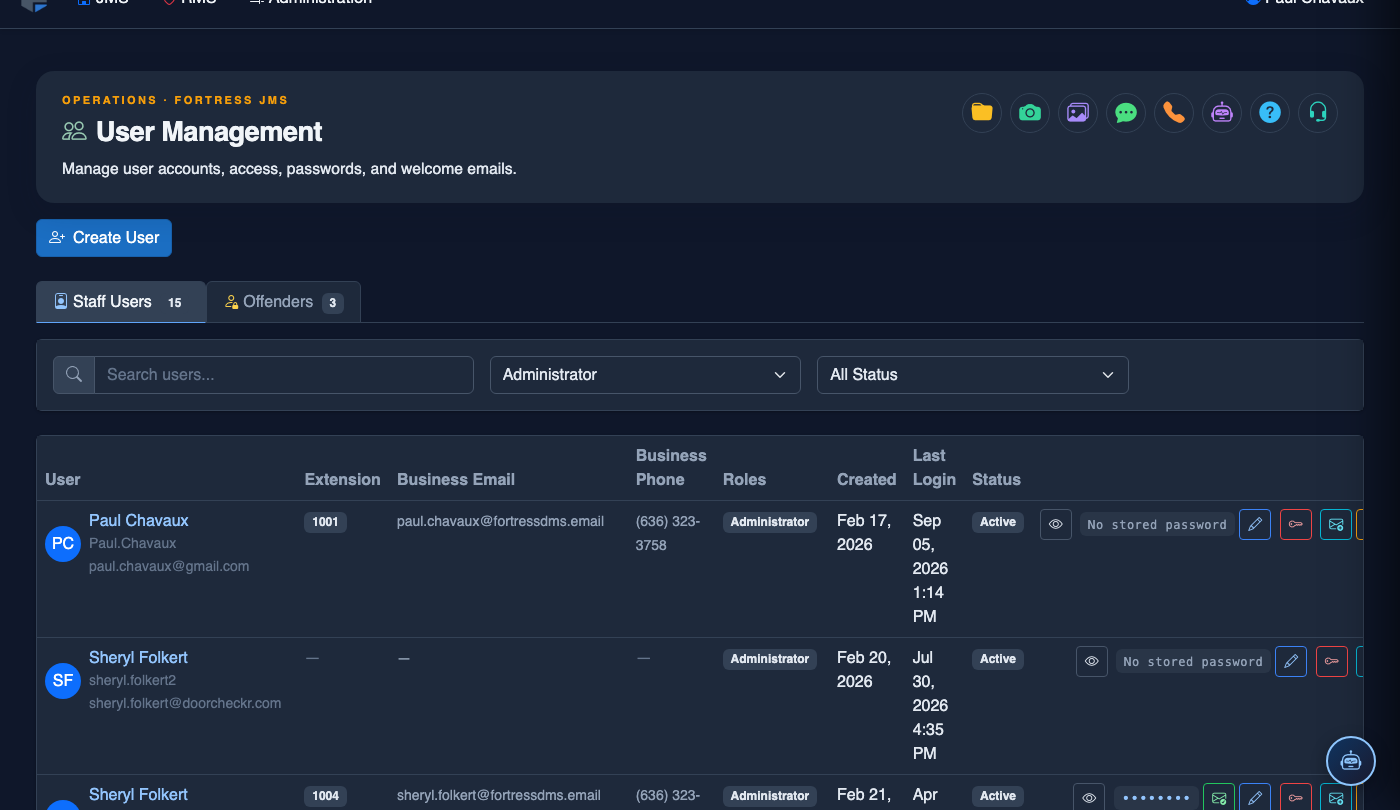
Save and Confirm Account Creation
Click Create Staff User. The system validates all required fields and, if any non-standard permissions were set, presents the Dual Approval confirmation requiring a second administrator to type their password. Once confirmed, the account is created, the welcome email is sent, and the new user appears in the Staff Users grid with status Active — Pending First Login.
Handle Departing Employees
When an officer leaves the facility, locate their account in the Staff Users grid and click their row to open the User Profile. Click Deactivate Account and enter the Separation Date and Reason. The account is immediately locked — all active sessions are terminated within 60 seconds — and the account is archived with its full audit history intact. Never delete departing employee accounts; the historical record is required for compliance.
💡 Pro Tips
- Run a monthly export of all active staff accounts and compare against your current HR roster — unauthorized or forgotten accounts are the most common source of insider security incidents in corrections facilities.
- For new officers in field training, create their account with a Training Role that grants read-only access — upgrade to full role permissions only after training completion is documented.
- When an officer is under an internal investigation, use Suspend Account rather than Deactivate — suspension prevents login but preserves the account in a reviewable state without closing it.
- The Last Login timestamp on the Staff Users grid is your fastest tool for finding dormant accounts — sort by this column during quarterly audits.
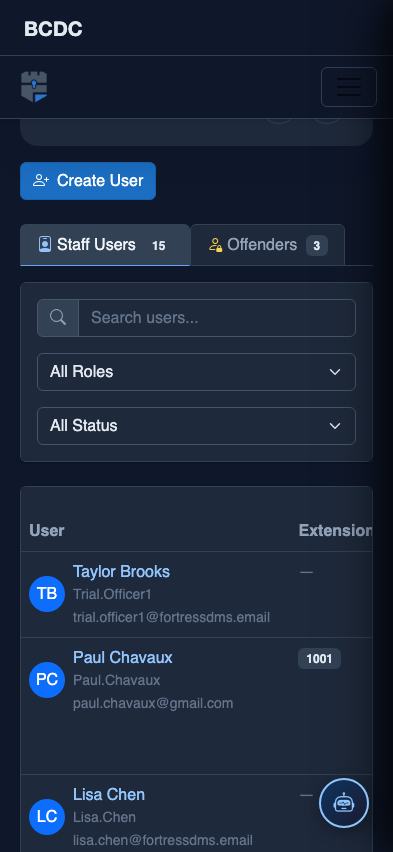
Mobile View — Staff Users
FortressDMS is fully responsive. Officers can access the Staff Users on a phone or tablet directly from the field — no app install required.
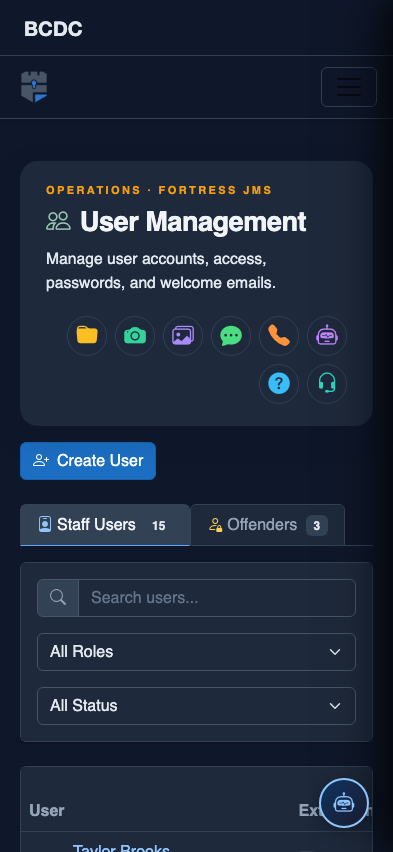
Tab view with data rows
Scrolled / detail view