
Charges & Warrants
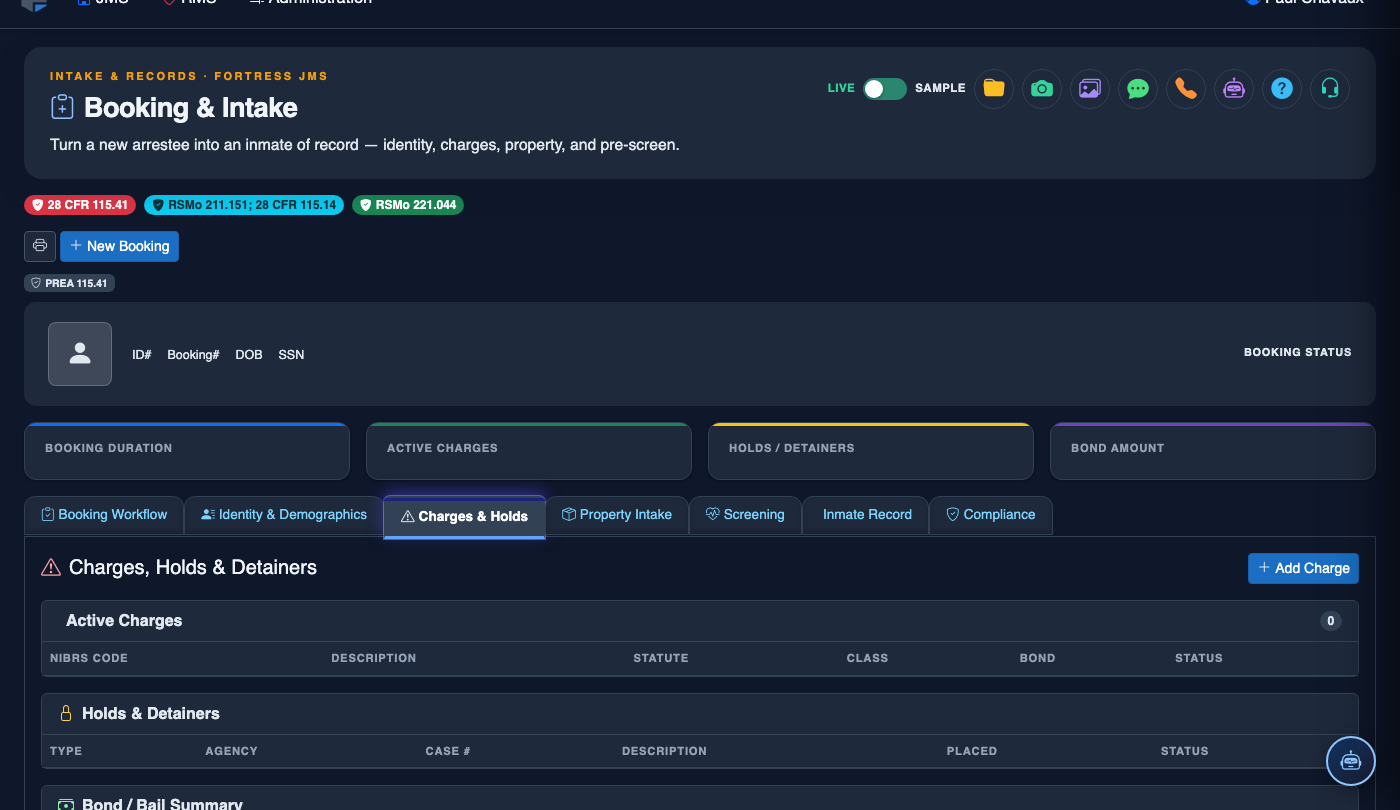
The Charges & Warrants tab centralizes all criminal charges, active warrants, and associated statutory references for each booking. Officers can attach multiple charges per arrest, link outstanding warrants, and ensure complete legal documentation before an inmate proceeds through the intake process.
Charge Entry
Add felony, misdemeanor, or infraction charges with full statute codes and degree classifications.
Warrant Lookup
Search and attach outstanding local, state, or federal warrants directly to the booking record.
Bond Tracking
Record bond amounts, bond types, and surety information for each individual charge.
Disposition Records
Track charge dispositions, court dates, and case outcomes throughout the inmate’s stay.
Step-by-Step: Adding Charges & Warrants
Navigate to the Charges & Warrants Tab
From the active booking record, click the Charges & Warrants tab (Tab 3) in the booking intake navigation bar. Ensure the inmate’s personal information has been saved in the prior tabs before proceeding.
Add a New Charge
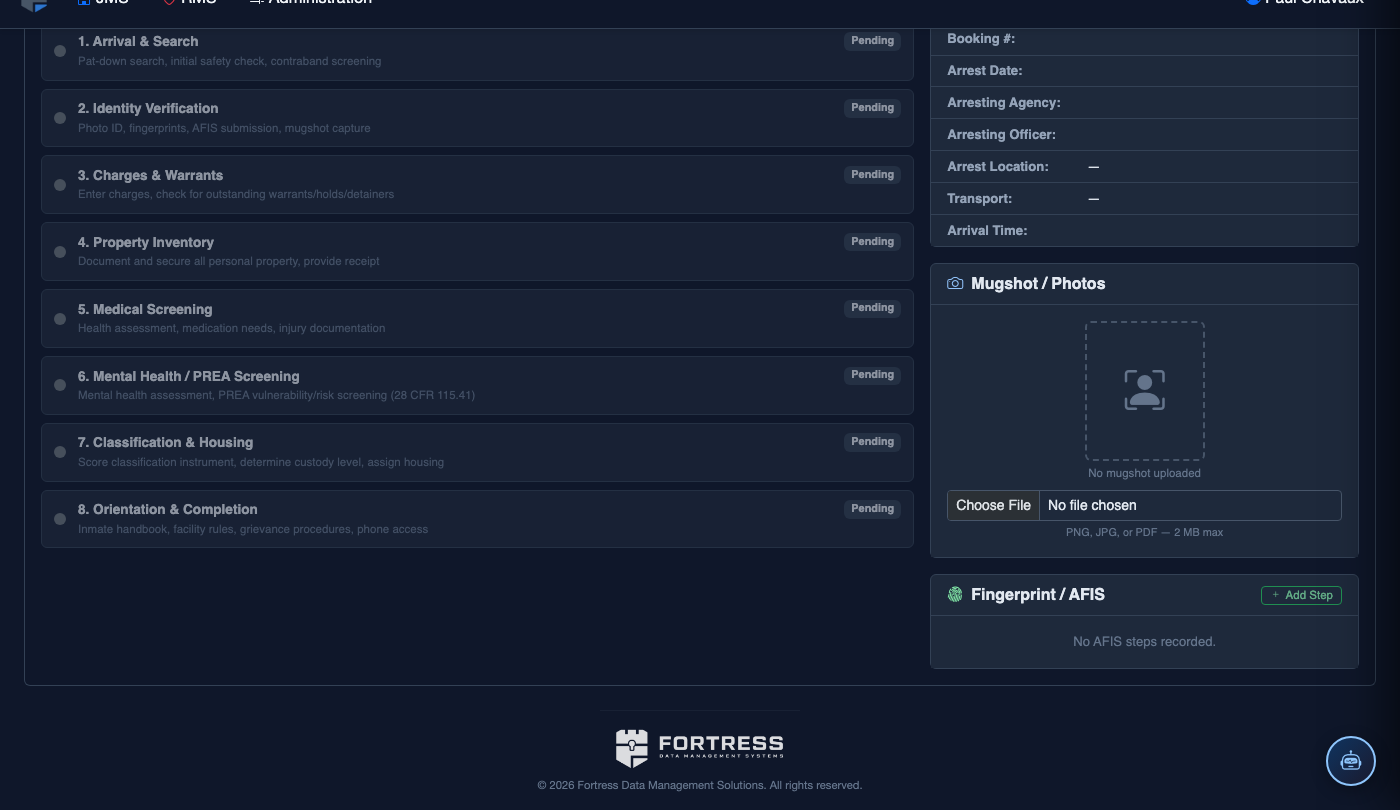
Click Add Charge to open the charge entry form. Enter the Statute Code or begin typing the charge description in the search field to auto-populate from the statute database. Select the appropriate Charge Class (Felony, Misdemeanor, Infraction) and Degree.
Set Bond Information
Enter the Bond Amount as set by the magistrate or court. Choose the Bond Type from the dropdown (Cash, Surety, PR Bond, or No Bond). If a surety company is involved, enter the Surety Name and bond agent details.
Search for Outstanding Warrants
Click Warrant Lookup to search for active warrants. Enter the inmate’s name, date of birth, or warrant number. Review returned results and click Attach next to any matching warrants to link them to this booking record.
Enter Arresting Officer & Incident Details
Select the Arresting Officer from the officer lookup, enter the Arrest Date/Time, and provide the Incident/Case Number from the originating law enforcement agency. This links charges to the originating police report.
Save & Review Charge Summary
Click Save Charges to commit all entered charges and warrants. The charge summary panel will display all active charges, total bond amount, and any attached warrants. Review this list carefully for accuracy before proceeding to the next booking tab.
💡 Pro Tips
- Use the statute code search to quickly find charges rather than scrolling — partial code matches are supported.
- Multiple charges can be added to a single booking; each charge maintains its own independent bond amount and status.
- Always confirm warrant information with the issuing jurisdiction before processing a hold — warrant details may have been recalled or modified.