
Medical Pre-Screen
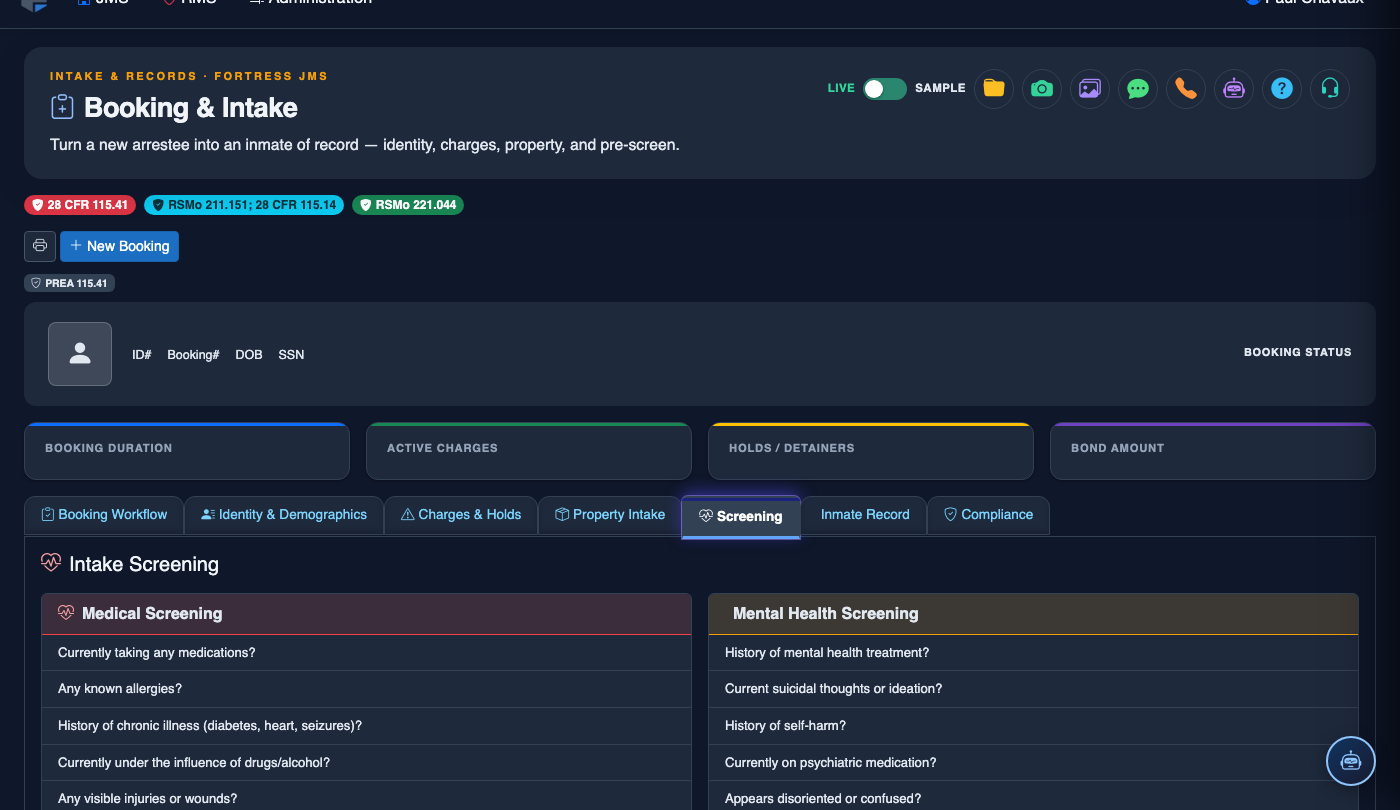
The Medical Pre-Screen tab captures critical health information during the initial booking process to ensure inmate safety and facility liability protection. Officers and medical staff document current medications, injuries, communicable disease risks, and immediate medical needs before an inmate is placed into the general population.
Health Assessment
Systematic intake questionnaire covering current conditions, medications, allergies, and recent medical history.
Medication Tracking
Document all prescribed and over-the-counter medications with dosage schedules for medical staff handoff.
Injury Documentation
Record pre-existing injuries and visible wounds at booking to protect both staff and the facility from liability.
Communicable Disease Screening
Flag potential communicable disease risks to trigger appropriate isolation and medical follow-up protocols.
Step-by-Step: Completing the Medical Pre-Screen
Open the Medical Pre-Screen Tab
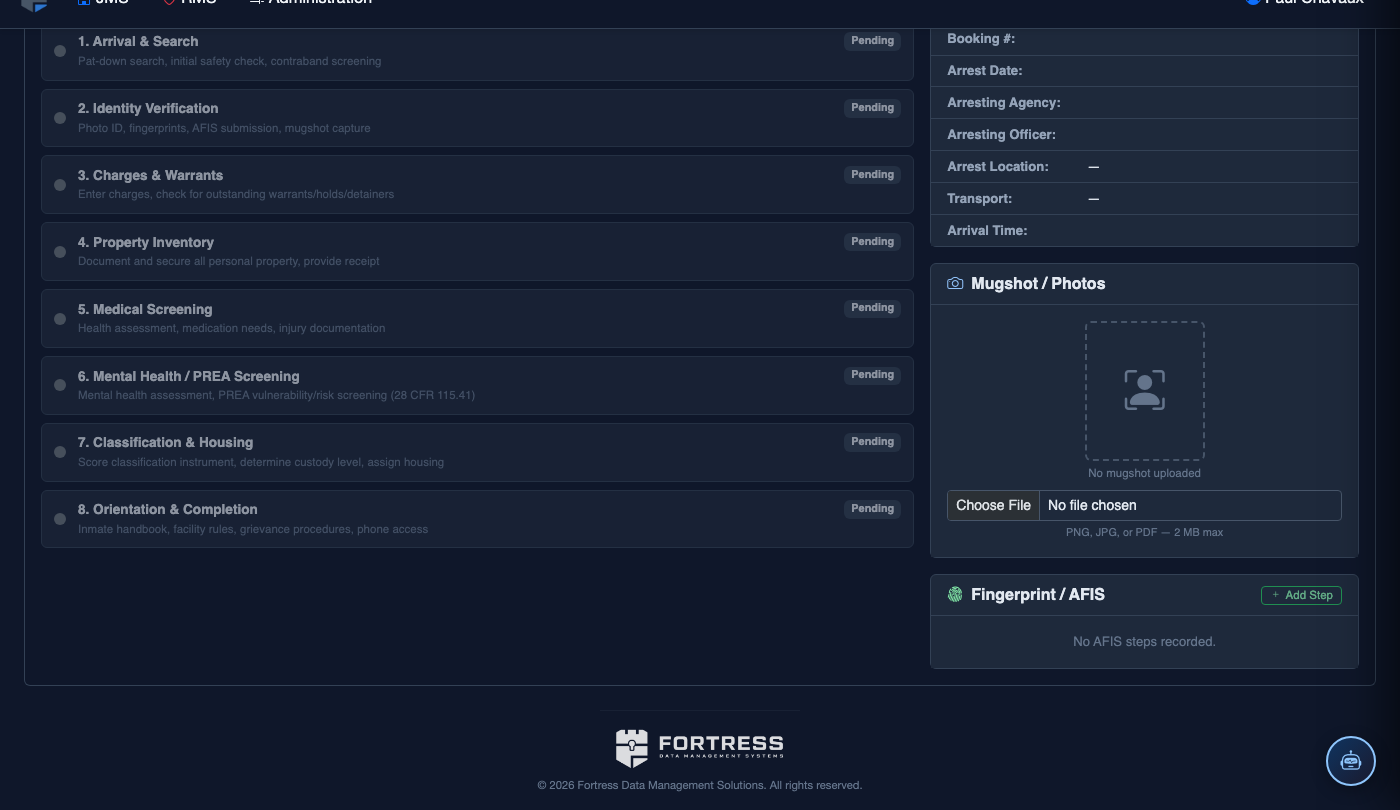
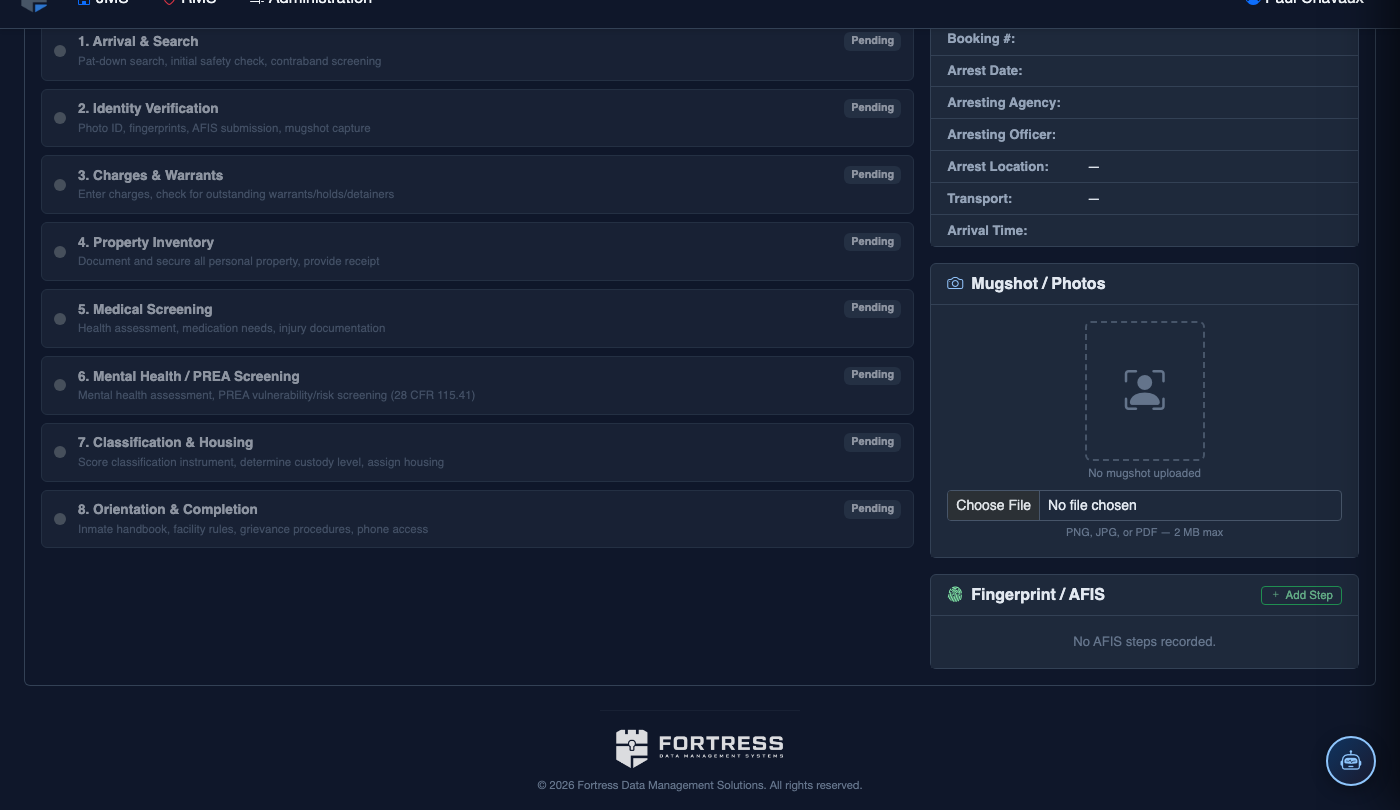
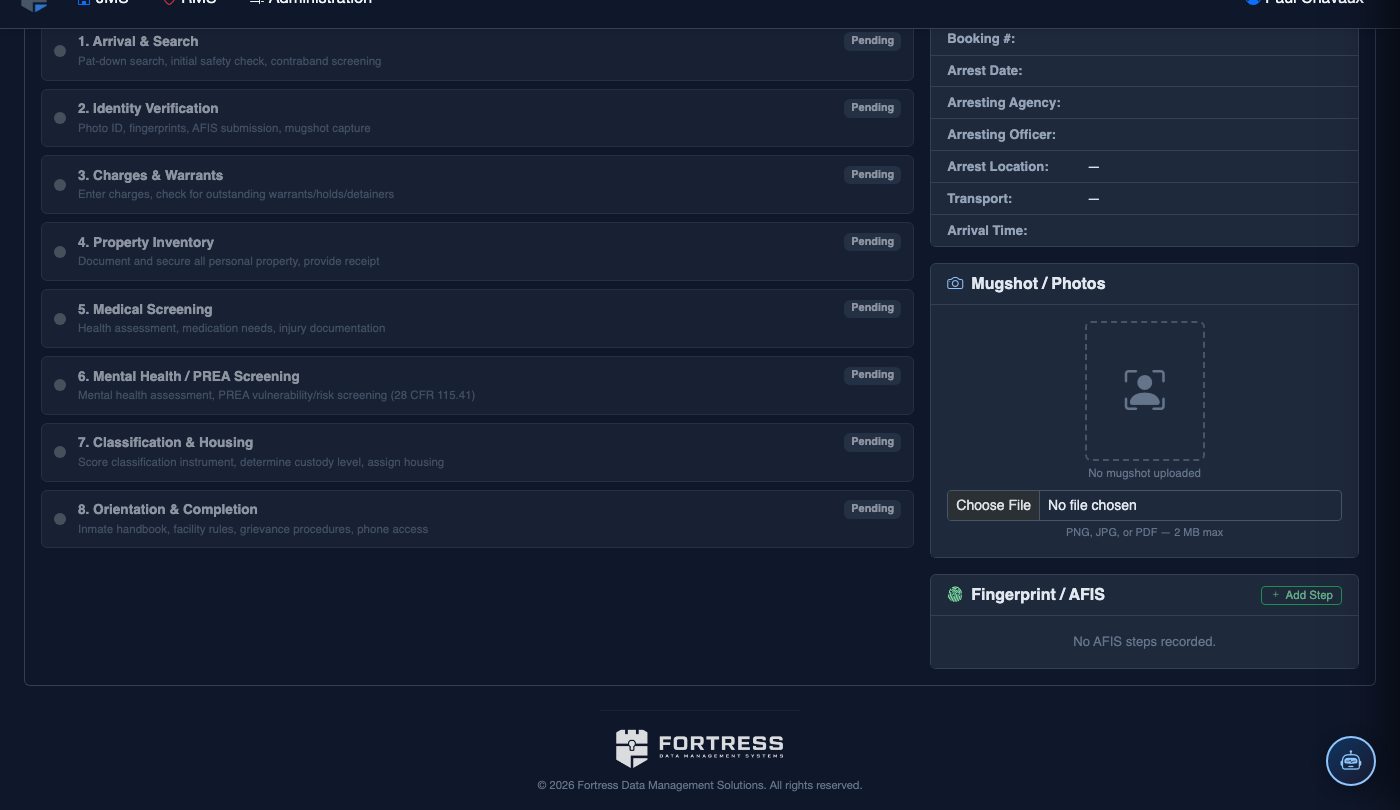
From the booking record, select the Medical Pre-Screen tab (Tab 4). This tab should be completed by a booking officer in conjunction with medical staff or a nurse when available. Ensure the inmate is present and coherent before beginning.
Complete the Health Questionnaire
Work through each question in the Health Questionnaire section. Answer Yes/No for each item including pregnancy status, diabetes, seizure history, heart conditions, and recent hospitalizations. The system will highlight any responses that require immediate medical attention.
Enter Current Medications
Click Add Medication for each drug the inmate is currently prescribed. Enter the Medication Name, Dosage, Frequency, and Prescribing Physician. Flag any controlled substances for enhanced tracking. Confiscated medications are logged here as well.
Document Visible Injuries
In the Injury Documentation section, describe any visible injuries, bruises, lacerations, or marks present at the time of booking. Use the body diagram tool to mark injury locations. This protects the facility from false claims of in-custody injuries.
Screen for Communicable Diseases
Answer the communicable disease screening questions including TB exposure, recent illness, open sores, and known diagnoses. If risk factors are identified, the system will prompt you to set an Isolation Flag and generate a medical referral for the facility nurse or physician.
Save and Generate Medical Alert
Click Save Medical Pre-Screen. If any critical health flags were identified, FortressDMS automatically generates a Medical Alert notification to the on-duty nurse. Review the generated summary and obtain the inmate’s signature if your facility policy requires consent documentation.
💡 Pro Tips
- Even if an inmate denies medical issues, document all visible signs of distress or injury — this protects both the officer and the facility.
- Controlled substance medications confiscated at booking must be logged here and turned over to medical staff per facility policy, not placed in property.
- The medical pre-screen record is subject to HIPAA protections — ensure access is limited to authorized booking and medical personnel only.