
Offenses & Charges
The Offenses & Charges tab allows officers to formally document every criminal statute or facility rule violation connected to an incident, linking charges directly to involved persons. Charges entered here flow into inmate classification, housing decisions, and court preparation workflows, ensuring a legally precise and consistent record from the moment of the incident through adjudication.
Statute Code Lookup
Search the built-in offense code library by statute number or keyword to quickly attach the correct charge without manual entry errors.
Person-Charge Linkage
Assign each offense to a specific involved person, supporting multi-defendant incidents where different charges apply to different individuals.
Facility Rule Violations
Log internal disciplinary infractions alongside criminal charges, supporting both criminal prosecution and administrative sanction workflows.
Charge Severity Classification
Each charge is tagged with felony, misdemeanor, or infraction level, feeding automated classification scoring and housing assignment logic.
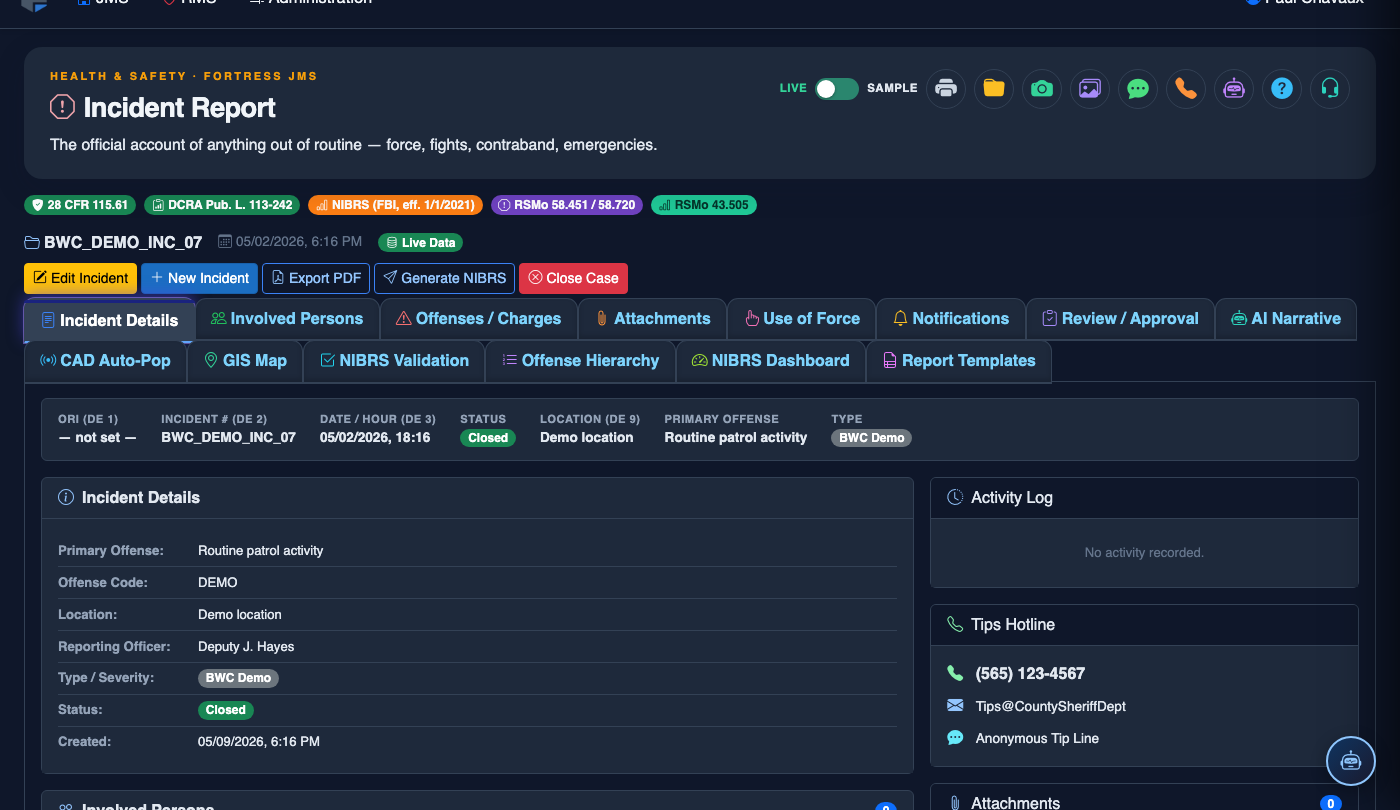
Step-by-Step: Documenting Offenses & Charges on an Incident Report
Navigate to the Offenses & Charges Tab
With the incident report open, click the Offenses & Charges tab (Tab 3) at the top of the report. Confirm that Involved Persons have already been added on Tab 2, since charges must be linked to specific persons.
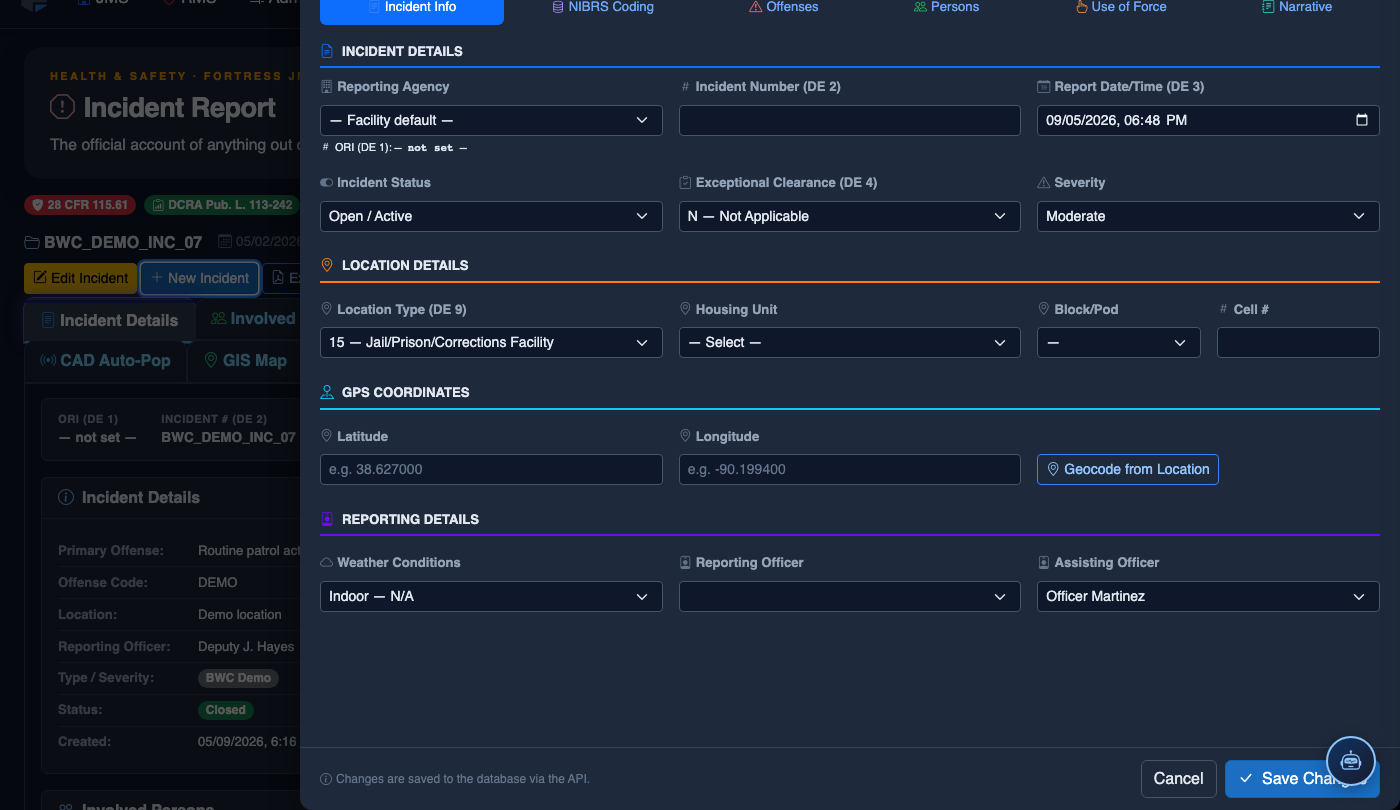
Click “Add Offense” to Open the Charge Entry Form
Click Add Offense in the top right of the panel. The charge entry drawer will open, presenting fields for offense type, statute reference, and the person to whom the charge applies.
Search and Select the Offense Code
In the Offense Code field, type the statute number or a keyword (e.g., “assault,” “drug,” “theft”). The system will display matching codes from the jurisdiction’s offense library. Click the correct code to select it — the Offense Description and Charge Severity (Felony, Misdemeanor, Infraction) will auto-fill based on the code.
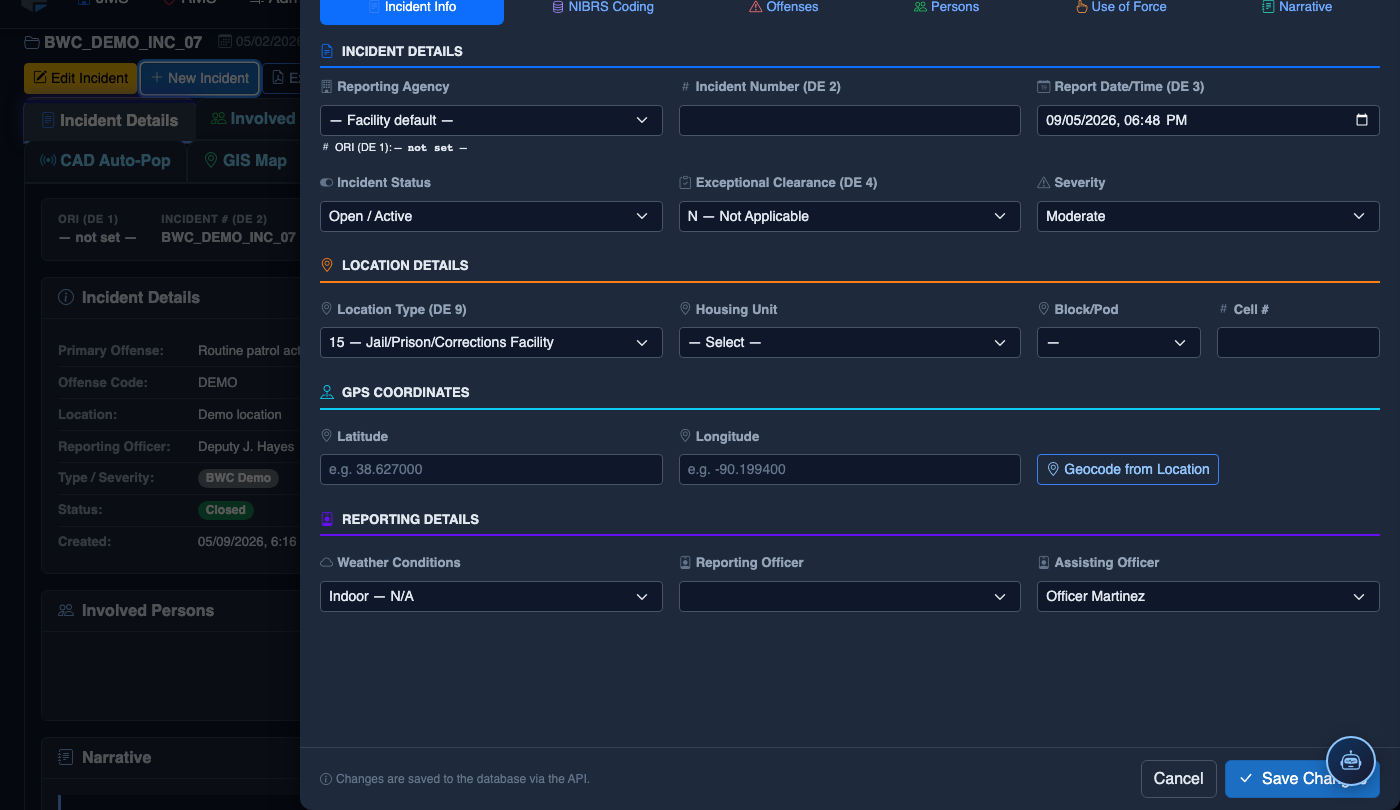
Assign the Charge to an Involved Person
From the Charged Person dropdown, select the individual from the incident’s Involved Persons list who is being charged with this offense. In multi-inmate incidents, you will add separate offense entries for each person facing distinct charges.
Specify Charge Disposition and Notes
Set the initial Charge Disposition (Pending, Referred to DA, Dismissed, etc.) and add any charge-specific notes in the Officer Notes field. This field supports internal comments not intended for the formal incident narrative.
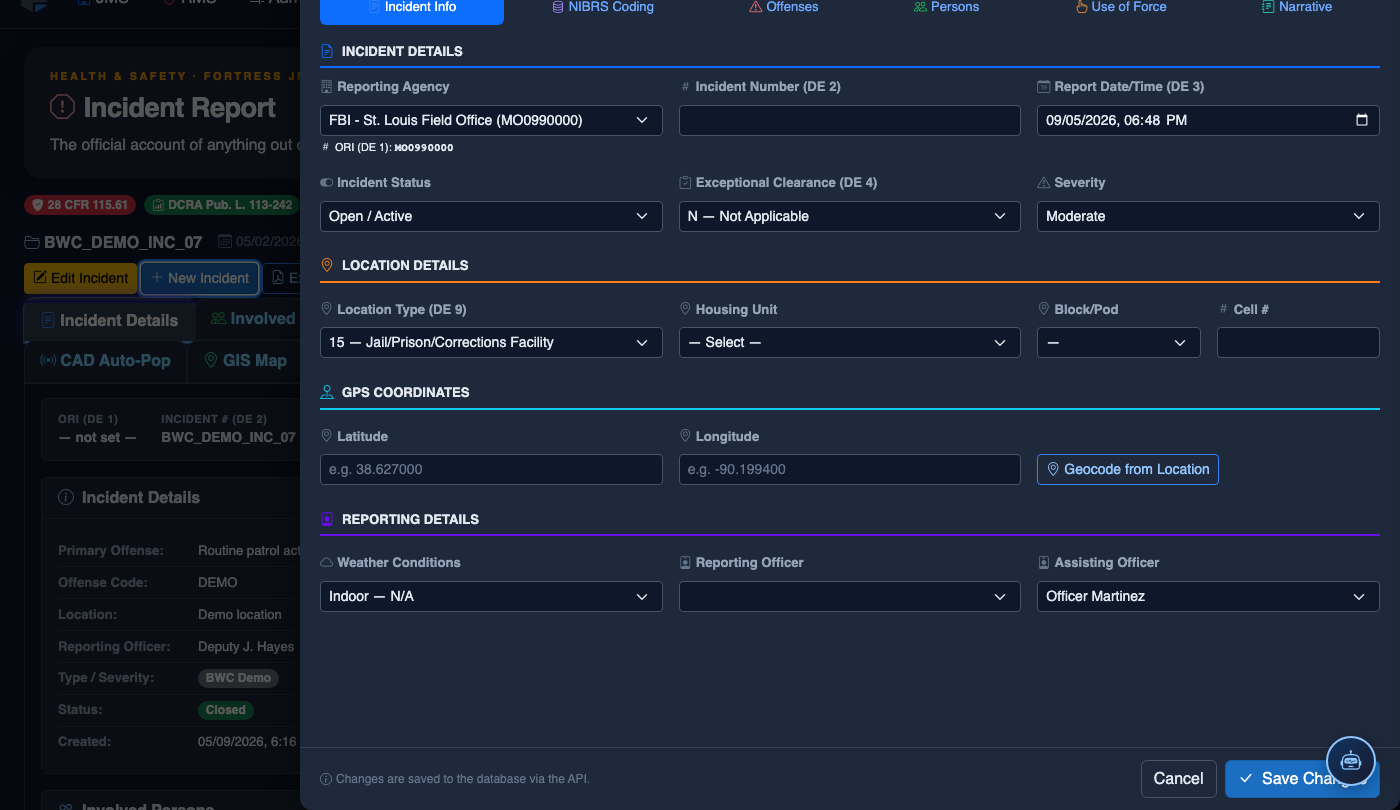
Add Facility Rule Violations if Applicable
Toggle the Facility Rule Violation switch if the conduct also violates internal disciplinary rules. Select the applicable rule from the facility rulebook dropdown. This creates a parallel disciplinary record that can be acted upon by the Classification module independent of criminal prosecution timelines.
Save Charges and Review the Summary Table
Click Save Offense after each entry. The charge will appear in the Offenses Summary table, grouped by person. Review all entries for accuracy — charges recorded here are transmitted to the Court Preparation and Classification modules, so correctness is critical before supervisory submission.
File a New Incident Report
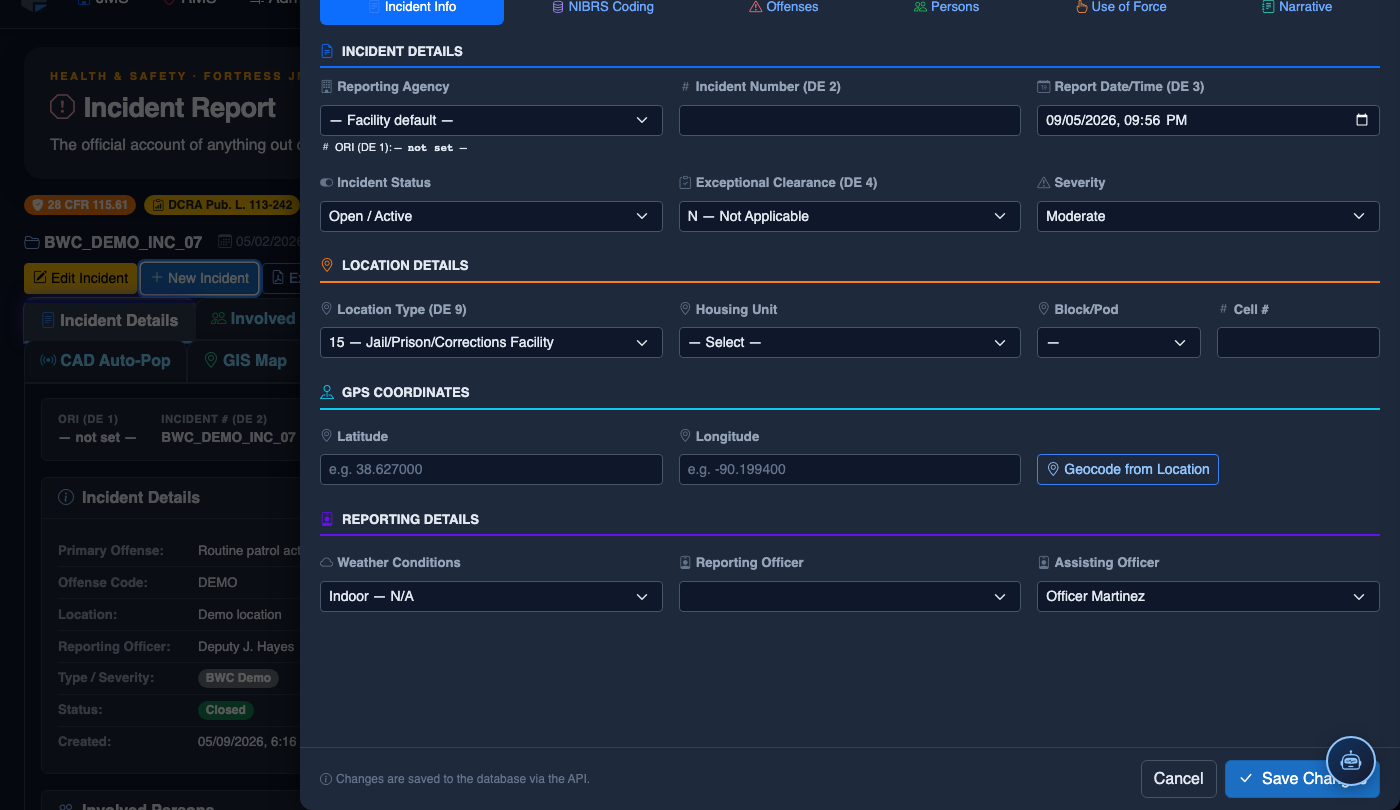
Click New Incident. Complete the incident report:
- Incident Type — select the category (Altercation, Medical Emergency, Escape Attempt, Property Damage, Use of Force, etc.).
- Date, Time, and Location — the precise time and place of the incident.
- Involved Persons — add all Inmates, Staff, and Witnesses using the search tool.
- Narrative — write the factual incident description in first person, past tense. The AI Narrative Assist can draft based on your bullet points.
- Severity — Minor, Moderate, or Major. Major incidents trigger automatic supervisor notification.
- Attachments — upload photos, BWC footage, or medical documentation directly.
- Click Save Draft to continue later, or Submit for Review to route to your supervisor.
💡 Pro Tips
- Use the statute keyword search rather than free-typing offense descriptions — this ensures the charge code is valid and reportable to state statistics systems.
- Facility rule violations and criminal charges are independent — log both when applicable, as the disciplinary process can proceed even if criminal charges are later dropped.
- If charges change after initial entry (e.g., DA upgrades or dismisses), update the Charge Disposition field rather than deleting and re-adding the charge to preserve the audit trail.
- For multi-count incidents, add each count as a separate offense entry — do not combine multiple charges into a single entry’s notes field.
Mobile View — Offenses Charges
FortressDMS is fully responsive. Officers can access the Offenses Charges on a phone or tablet directly from the field — no app install required.
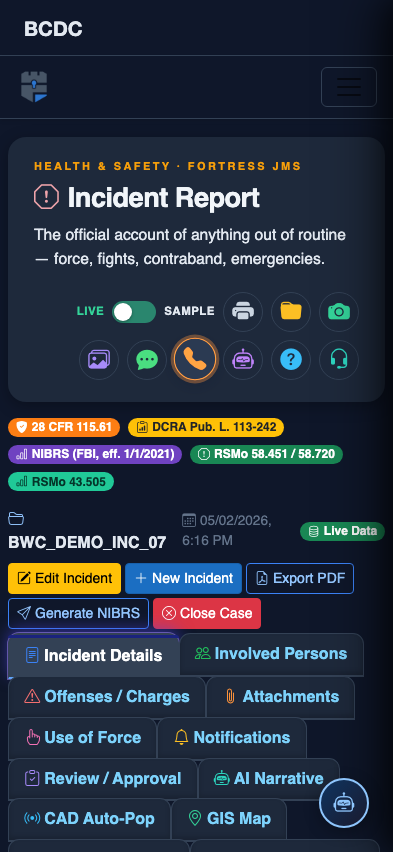
Tab view with data rows
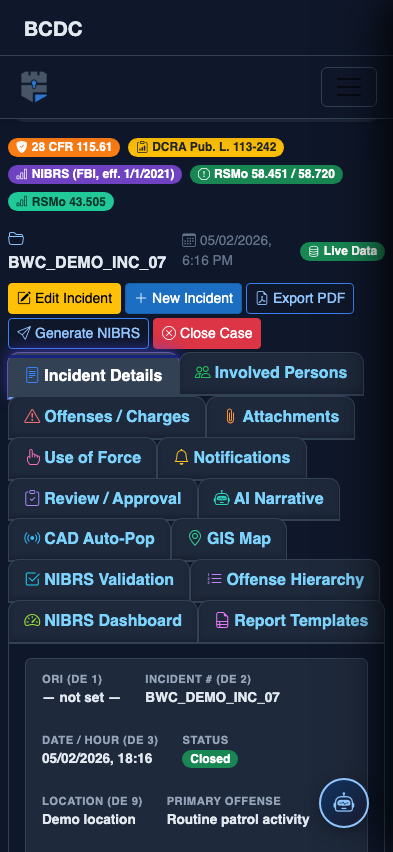
Scrolled / detail view