
Movement Approvals
The Movement Approvals tab enforces a structured supervisory review process for all scheduled transports before they are authorized to depart. Supervisors receive automated approval requests, can review inmate risk profiles, transport details, and officer assignments in a single workflow view, and can approve, modify, or deny transports with a documented justification. The approval audit trail protects the facility from liability and ensures policy compliance is enforced at every movement.
One-Click Approval Workflow
Supervisors review and approve pending transports from a consolidated queue without navigating through multiple screens or modules.
Automated Notifications
Approval requests are automatically routed to the on-duty supervisor’s notification queue and email — no manual handoff required from the scheduling officer.
Denial and Escalation Paths
Denied transports are returned to the scheduler with a mandatory reason code; approvals can be escalated to a second supervisor for high-risk transports requiring dual sign-off.
Complete Approval Audit Trail
Every approval, denial, and modification is time-stamped and attributed to a named supervisor, creating an immutable record for accreditation reviews and legal proceedings.
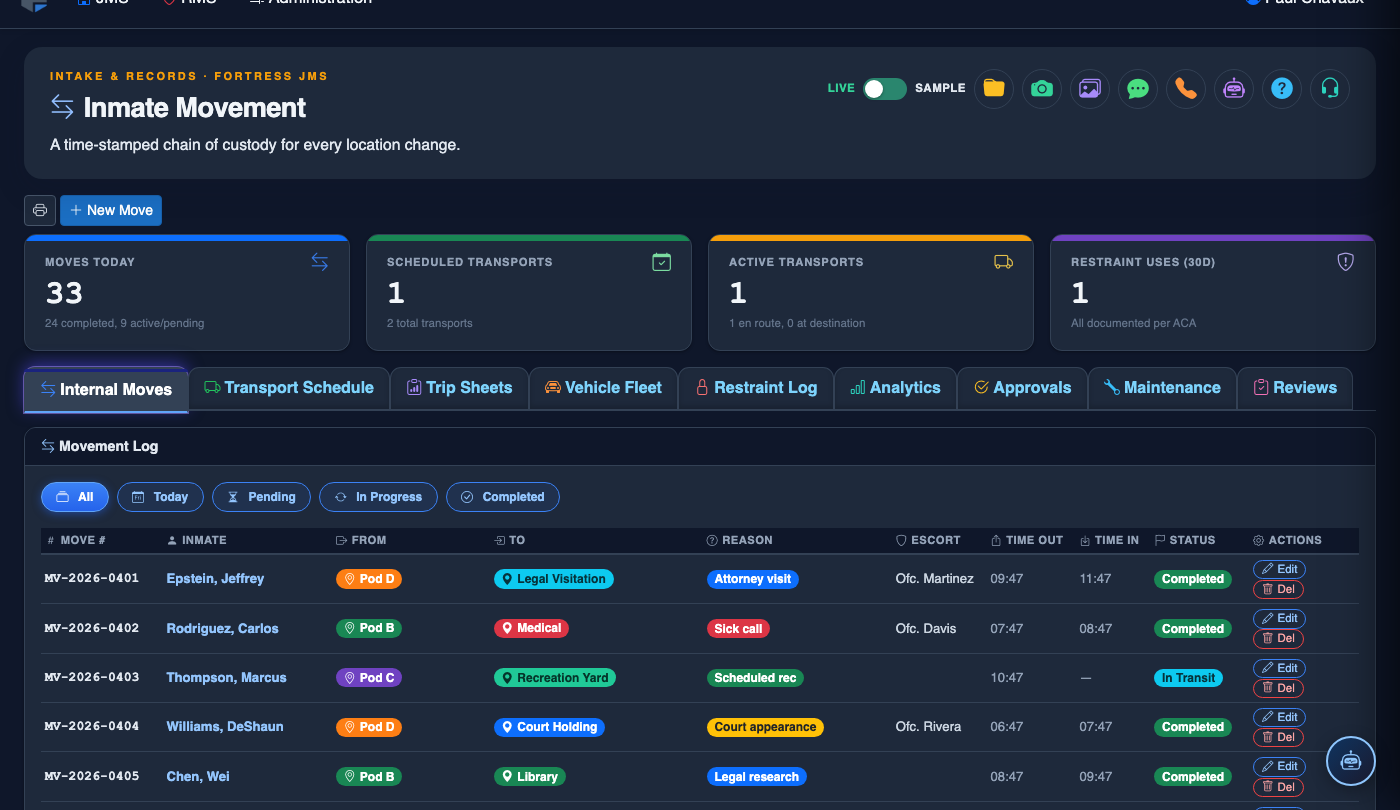
Step-by-Step: Reviewing and Approving a Transport Request
Access the Approval Queue
Navigate to Inmate Movement > Movement Approvals. The queue displays all transports in Pending Approval status, sorted by scheduled departure time with the most urgent at the top. A red badge on the tab icon shows the count of pending items awaiting your review. Supervisors can also access the queue directly from the notification bell in the top navigation bar.
Open a Pending Transport Request
Click any row in the pending queue to open the Transport Review Panel. This panel presents all relevant information in a single view: transport type and destination, scheduled departure and return times, assigned vehicle and officers, and an inmate roster with risk classification badges for each occupant. Active holds, behavioral alerts, and medical flags are displayed in colored banners at the top of the panel.
Review Inmate Risk Profiles
Click on any inmate name in the roster to expand their Quick Profile: security classification, current housing unit, known associates (to check for co-transport conflicts), active warrants, and medical transport requirements. If two inmates have a documented gang affiliation conflict, the system will display a Co-Transport Warning requiring supervisor acknowledgment before approval.
Request Modifications if Needed
If the transport needs changes before approval — such as a different vehicle or additional escort officer — click Request Modification. Enter your required changes and comments, then click Send to Scheduler. The request is returned to the scheduling officer with your notes, and the transport status changes to Revision Required until the changes are made and resubmitted.
Approve the Transport
After confirming all details are correct, click Approve Transport. Enter your supervisor PIN to authenticate the approval. The transport status changes from Pending Approval to Approved, the scheduling officer receives a confirmation notification, and the transport appears as confirmed on the Transport Schedule calendar. For high-security inmates, a Secondary Approval request may automatically route to the shift commander.
Deny a Transport and Document the Reason
If a transport cannot be authorized, click Deny. You must select a Denial Reason Code (Insufficient Staffing, Safety Conflict, Medical Hold, Court Order, Administrative Hold) and optionally add a free-text explanation. The denial is logged with your name and timestamp, and the scheduling officer is notified immediately. Denied transports remain in the queue under the Denied filter for reference.
Audit the Approval History
Click the History tab in the Approvals view to see all past approval actions. Filter by supervisor name, date range, or action type (Approved, Denied, Modified). Each entry shows the full transport summary alongside the supervisor’s decision, timestamp, and any comments. Export the history as PDF for accreditation visits or legal discovery responses.
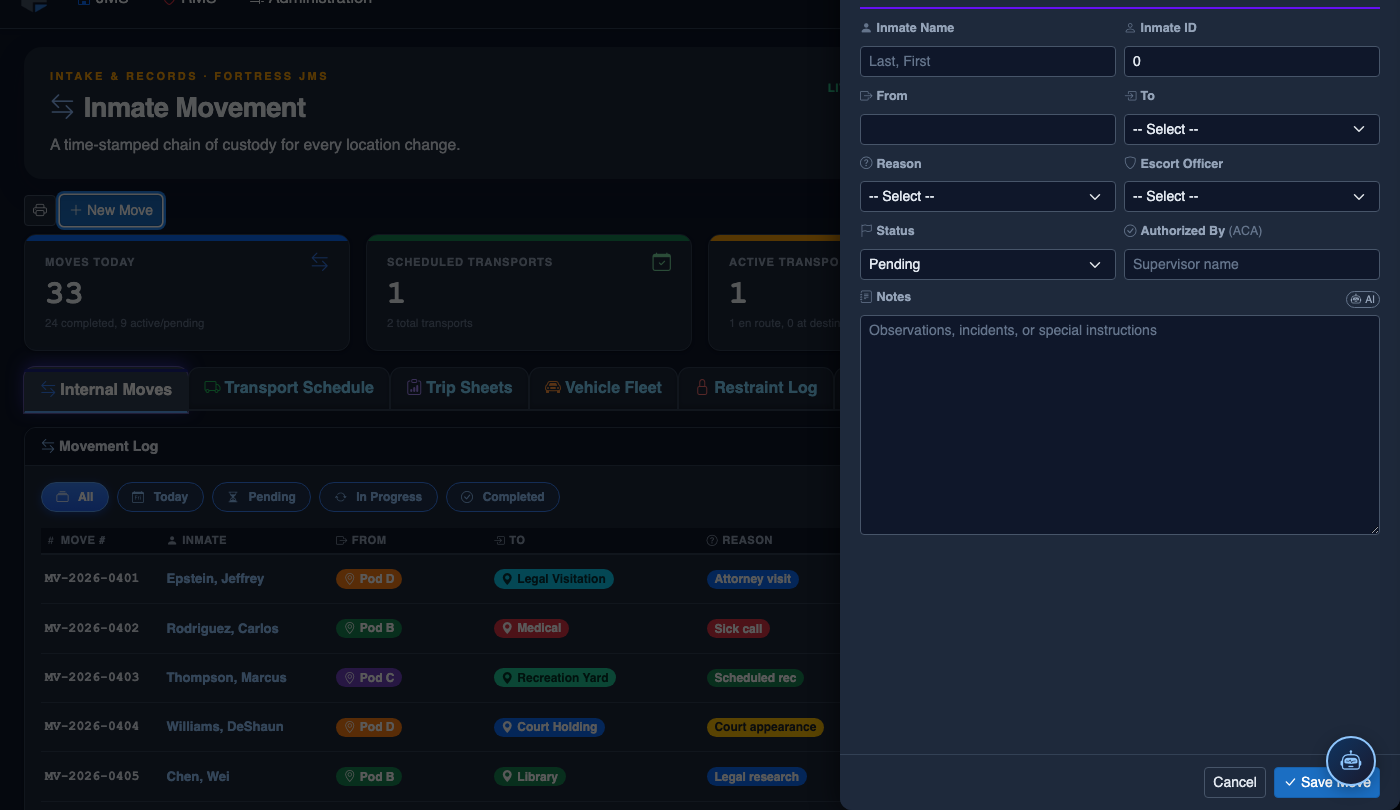
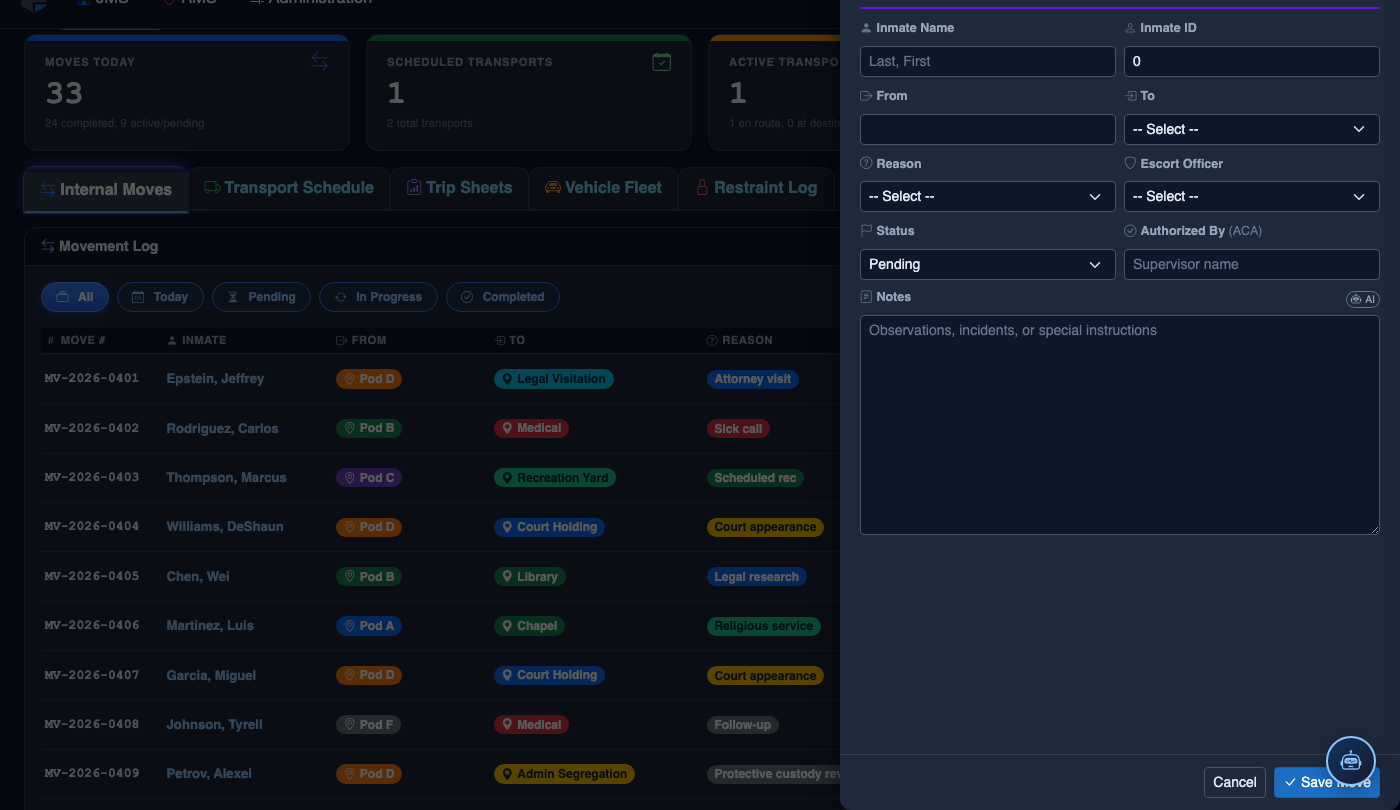
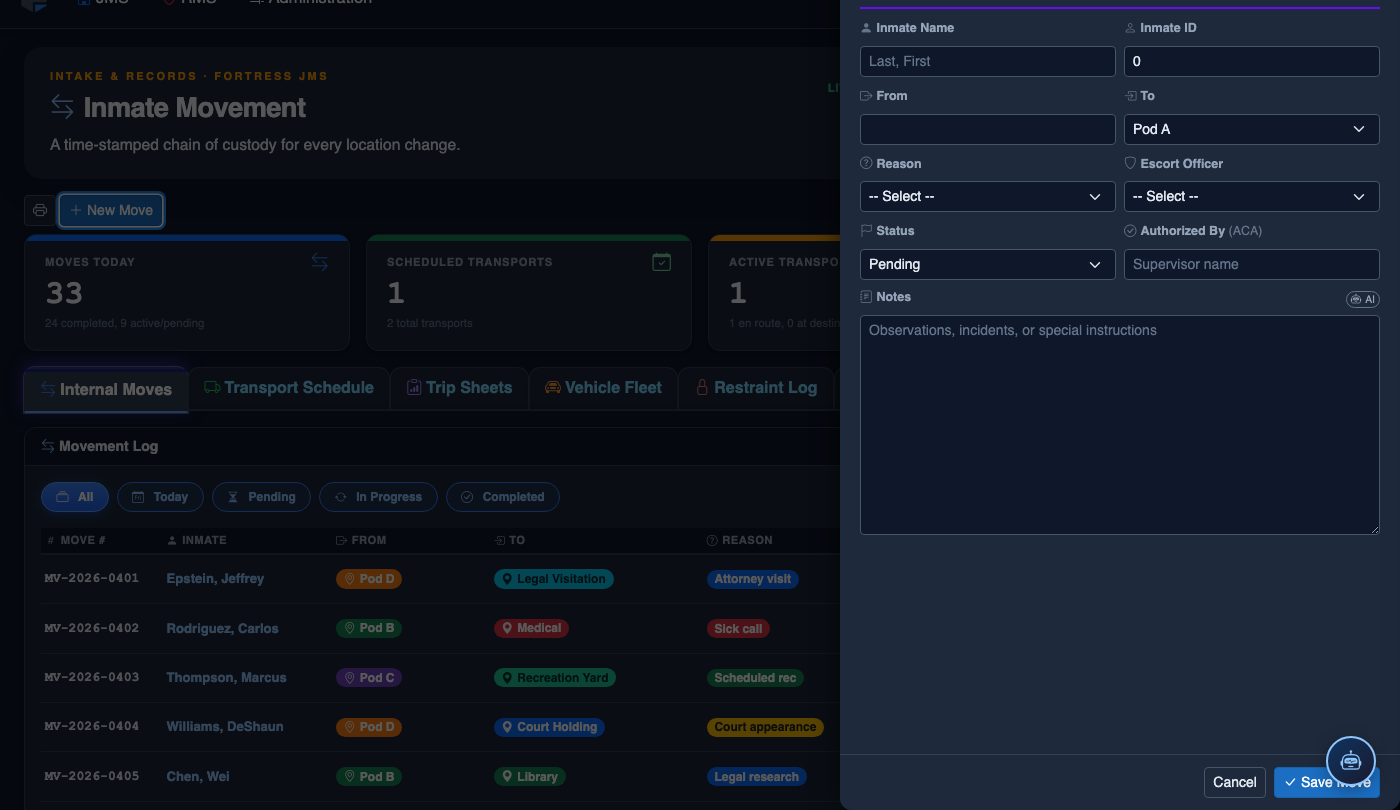
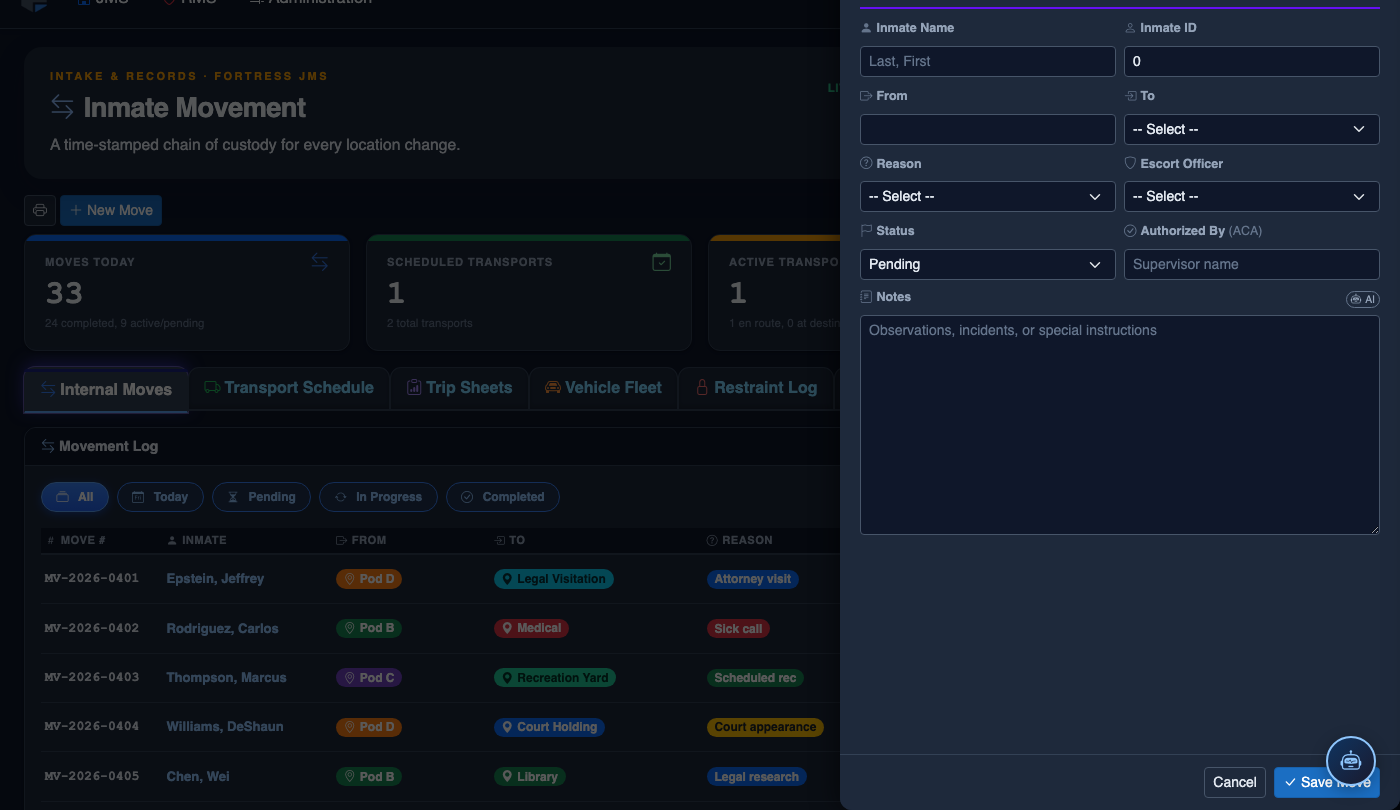
Log a New Movement
Click New Move in the module toolbar. Complete the movement record:
- Inmate — search by name or booking number.
- From Location — select origin unit, pod, and cell.
- To Location — select destination; the system flags restricted or unavailable beds.
- Movement Type — Internal Transfer, Court Transport, Medical, or Emergency.
- Reason — Classification Change, Disciplinary, Safety, Court Hold, etc.
- Authorizing Officer and Escorting Officer.
- Scheduled Date/Time — defaults to now for immediate moves.
- Click Save Movement. Bed Roster and Assignment records update automatically.
💡 Pro Tips
- Configure the Advance Approval Window in module settings to require all transports to be submitted for approval at least 2 hours before departure — this gives supervisors adequate review time and prevents last-minute rushes.
- Use the Batch Approve feature for routine recurring transports (e.g., daily court runs to the same destination with consistent staffing) — select multiple pending items and approve them simultaneously after reviewing the group.
- The approval audit trail is discoverable in civil rights litigation — always use the official denial reason codes rather than free-text-only explanations so your decisions align with documented facility policy.
Mobile View — Movement Approvals
FortressDMS is fully responsive. Officers can access the Movement Approvals on a phone or tablet directly from the field — no app install required.
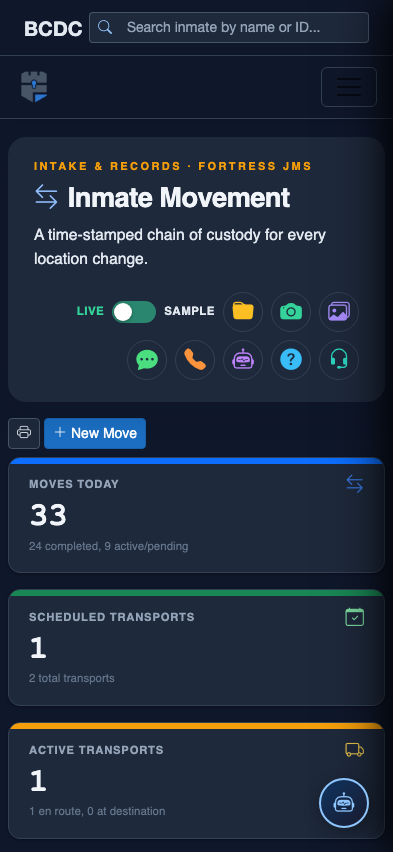
Tab view with data rows
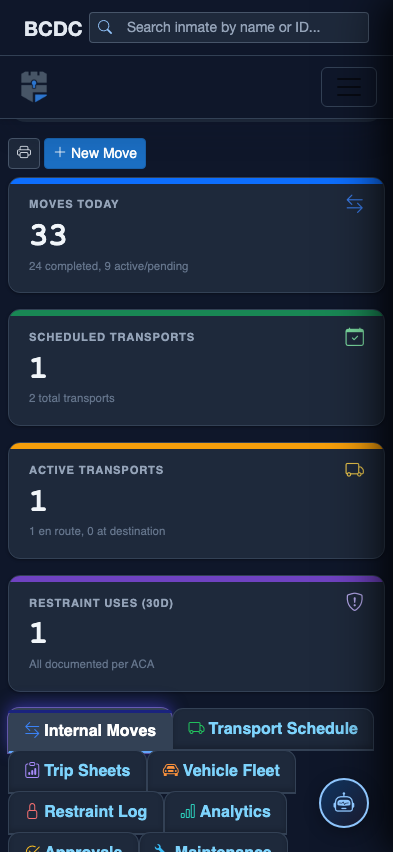
Scrolled / detail view