
Dietary Profiles
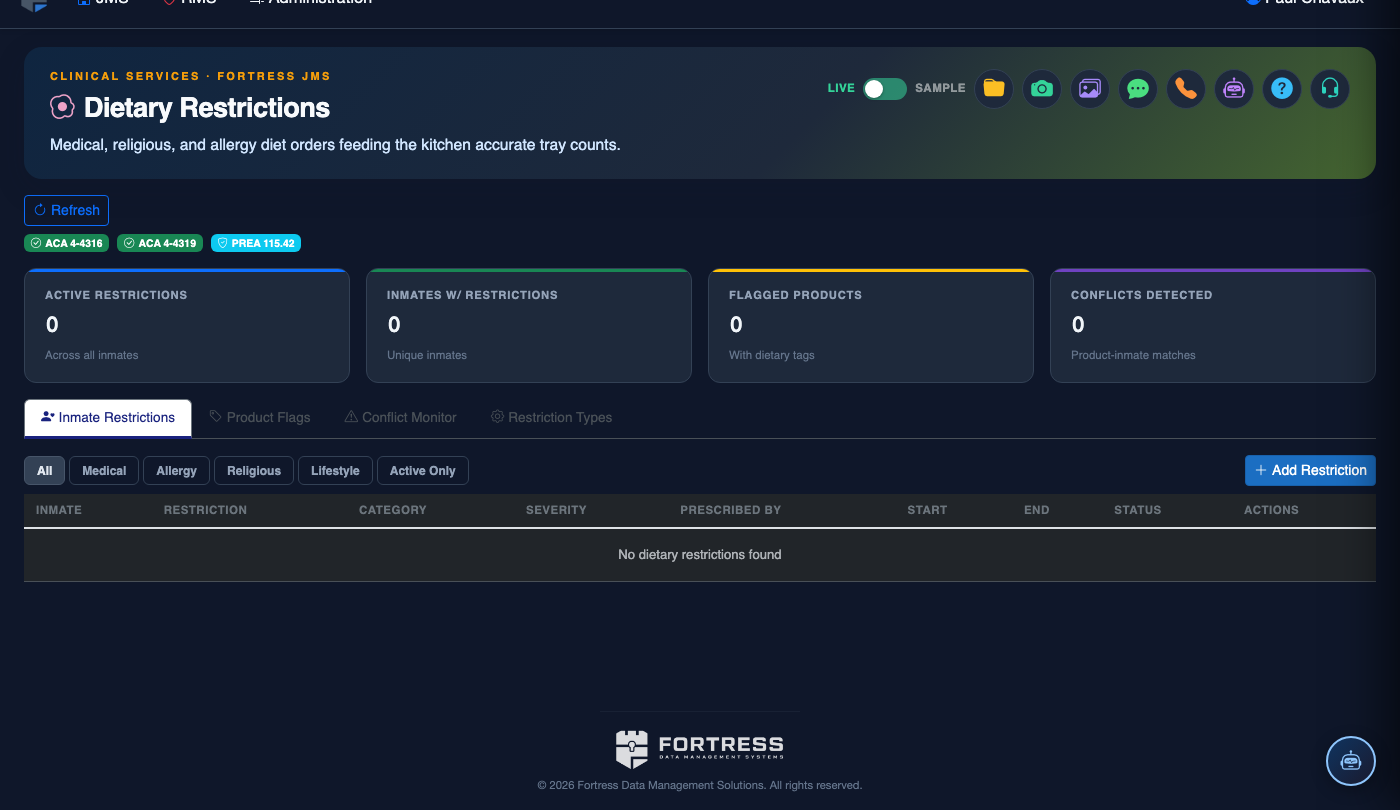
The Dietary Profiles tab is the foundation of inmate dietary management in Fortress JMS. Each inmate’s dietary classifications — whether religious, medical, or accommodative — are documented here with effective dates, approving authority, and current status. This tab drives meal planning conflict detection, kitchen pull-sheet segmentation, and compliance reporting across the entire Dietary Restrictions module.
Individual Assignments
Assign one or more dietary classifications to each inmate, supporting complex cases such as a diabetic inmate who also requests a Halal meal plan.
Effective Date Tracking
Every diet assignment has a start date, optional end date, and history log — enabling precise audit trails for grievance responses.
Approval Workflow
Medical diets require physician or APRN approval within the system before the profile becomes active and begins affecting meal pull-sheets.
Transfer Continuity
Dietary profiles persist through housing transfers and booking cycles so kitchen staff in every unit see current requirements without manual re-entry.
Step-by-Step: Dietary Profiles
Open the Dietary Profiles Tab
In the Dietary Restrictions module, click the Dietary Profiles tab. The view shows an inmate search bar at the top and, below it, a paginated list of all active dietary profiles sorted by housing unit.
Search for an Inmate
Enter the inmate’s last name, booking number, or ID in the Search bar and press Enter. Matching records appear in the list. Click the inmate’s row to open their individual dietary profile summary.
Add a New Dietary Assignment
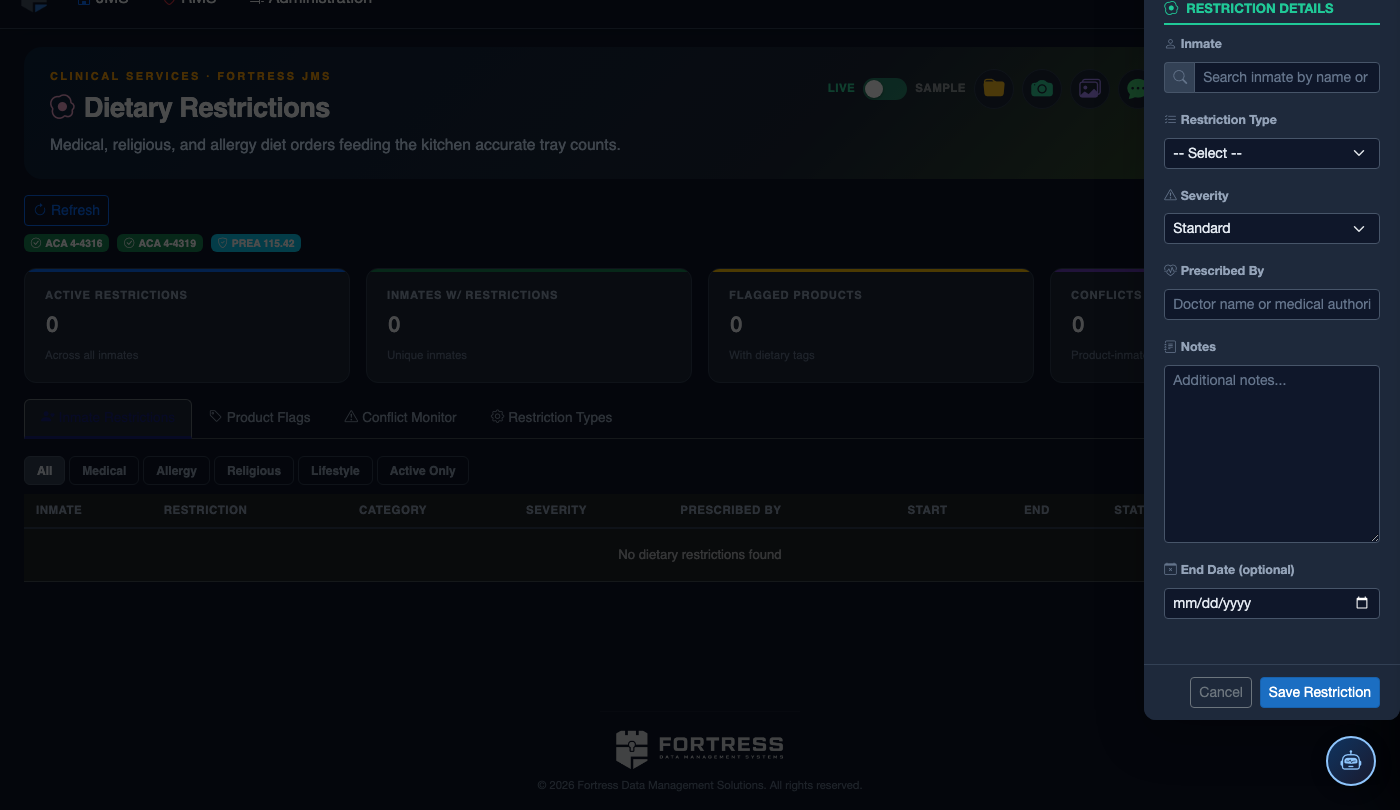
Click Add Diet Assignment. In the form that opens, select the Diet Type from the dropdown — categories include Standard, Vegetarian, Vegan, Kosher, Halal, Diabetic, Renal, Low Sodium, High Protein, and Mechanical Soft. Enter the Effective Date and, if applicable, an Expiration Date.
Select Approval Authority
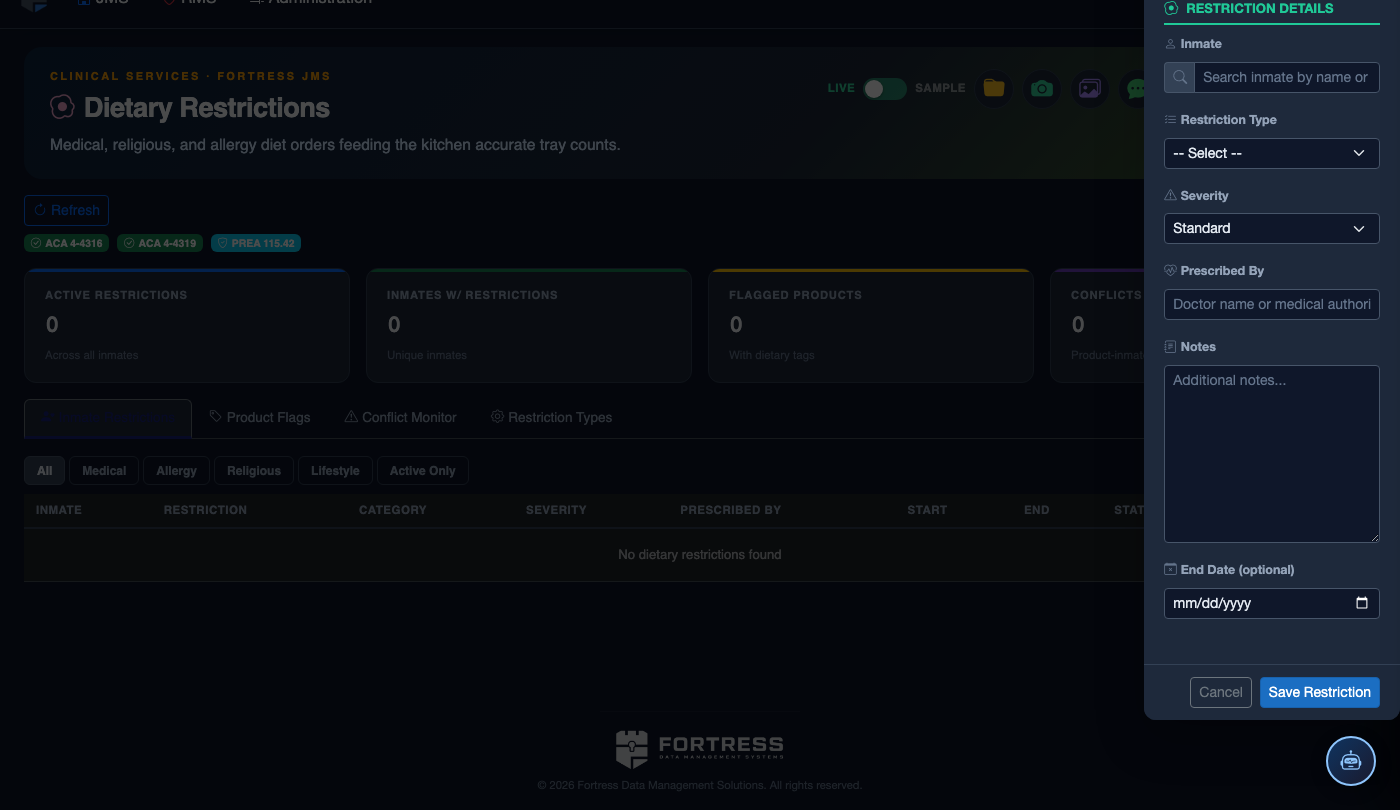
For medical diets (Diabetic, Renal, Low Sodium, etc.), the Approving Provider field is required. Select the ordering physician or APRN from the dropdown. The profile will display as Pending Approval until the designated provider electronically confirms the order.
Provider Approval
The assigned provider receives an in-system notification. They click Review & Approve from their task queue, confirm the diet type and effective date, and click Approve. The profile status changes to Active and immediately affects meal planning and pull-sheets.
Edit or Expire a Profile
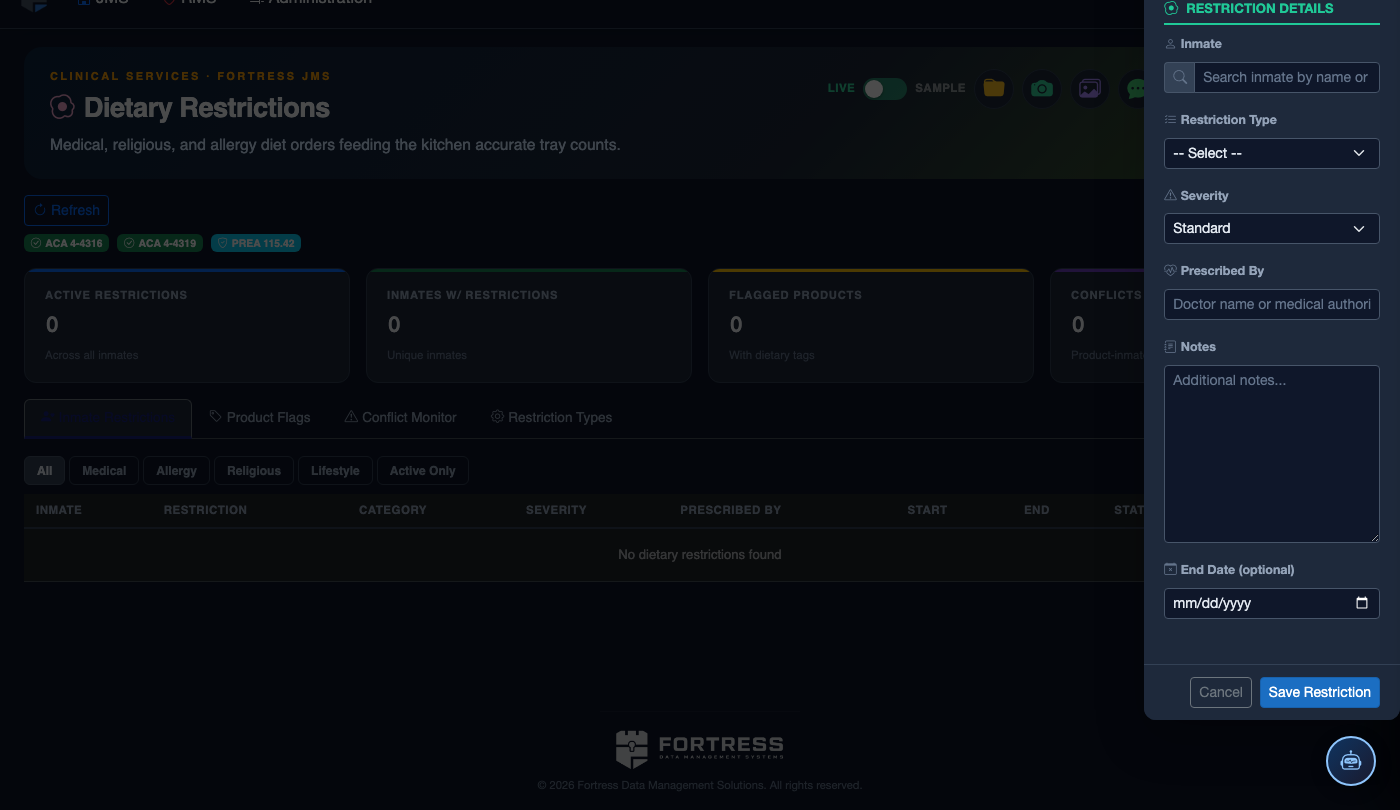
To modify an existing diet, click the diet row and select Edit. To end a diet on a specific date (e.g., post-surgery recovery diet that is no longer needed), enter an Expiration Date and click Save. The record remains in history; it is never deleted.
Review Profile History
Click View History on any dietary profile to see every assignment, change, and approval with timestamps and staff names — this view is the primary audit record for dietary grievance responses.
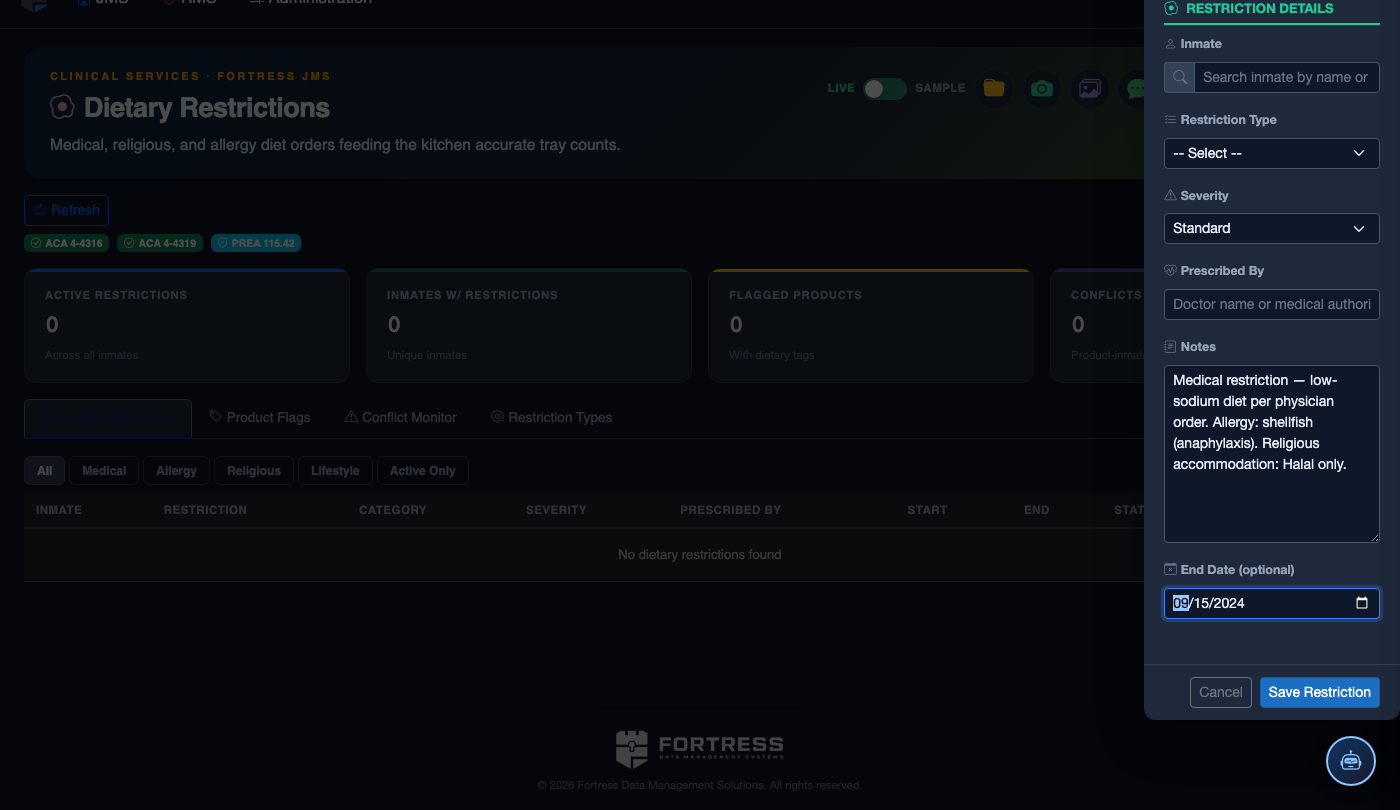
Add a Dietary Restriction or Profile
Click Add Restriction. Complete the dietary record:
- Inmate — search by name or booking number.
- Restriction Type — Medical, Allergy, Religious, or Lifestyle Preference.
- Specific Restriction / Allergy — document precisely (e.g., “Shellfish — anaphylaxis risk, auto-injector on file”).
- Meal Plan — select the kitchen plan that satisfies all active restrictions (plans update kitchen print sheets automatically).
- Physician Order — for medical restrictions, attach or reference the ordering physician’s note.
- Effective / Expiry Dates — set expiry for temporary restrictions; permanent restrictions have no expiry.
- Click Save Profile. The restriction appears on kitchen tray-line cards at the next meal cycle.
💡 Pro Tips
- An inmate can have multiple simultaneous active diet assignments (e.g., Halal + Diabetic). The kitchen pull-sheet will flag both and use the most restrictive combination.
- Use the Expiration Date field for temporary medical diets like post-surgical soft diets — the system will automatically revert to the prior active diet when the expiration date passes.
- Pending medical diets that have not been approved within 48 hours are flagged in the module dashboard; follow up with the ordering provider to avoid missed meal accommodations.
- Religious diet requests that lack documented religious affiliation verification should be noted in the Notes field — this supports the facility’s response to First Amendment-based legal challenges.
Mobile View — Dietary Profiles
FortressDMS is fully responsive. Officers can access the Dietary Profiles on a phone or tablet directly from the field — no app install required.
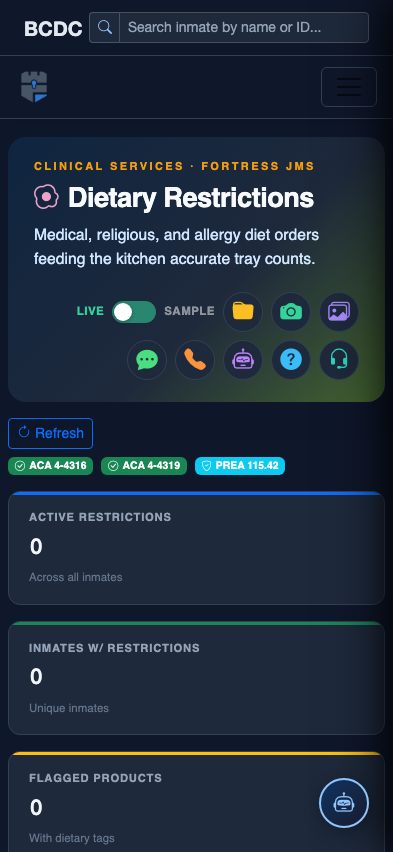
Tab view with data rows
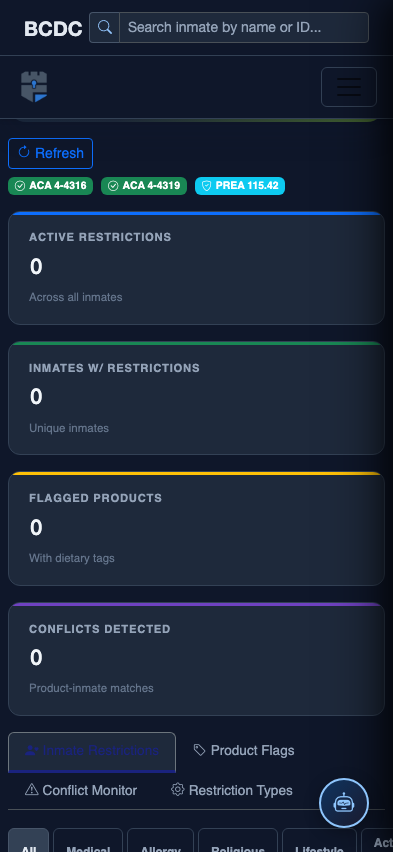
Scrolled / detail view