
Meal Planning
The Meal Planning tab provides food service supervisors with a structured weekly and monthly menu management tool that is fully integrated with active inmate dietary profiles. The system automatically identifies menu items that conflict with recorded dietary restrictions or allergies and guides staff to approved substitutions — ensuring every meal served meets legal and constitutional standards before a tray is ever pulled.
Weekly Menu Grid
Build and edit the weekly menu in a day-by-day, meal-by-meal grid with drag-and-drop meal item assignment and real-time conflict detection.
Conflict Detection
Automated alerts highlight any meal item that violates an active inmate dietary restriction or allergy, with a drill-down list of affected inmates.
Substitute Meal Management
Maintain a library of approved substitute meals for each dietary category, enabling one-click substitution when the standard menu item conflicts.
Kitchen Pull-Sheet Export
Generate segmented pull-sheets by diet type and housing unit, ready for printing or digital display in the kitchen and distribution staging area.
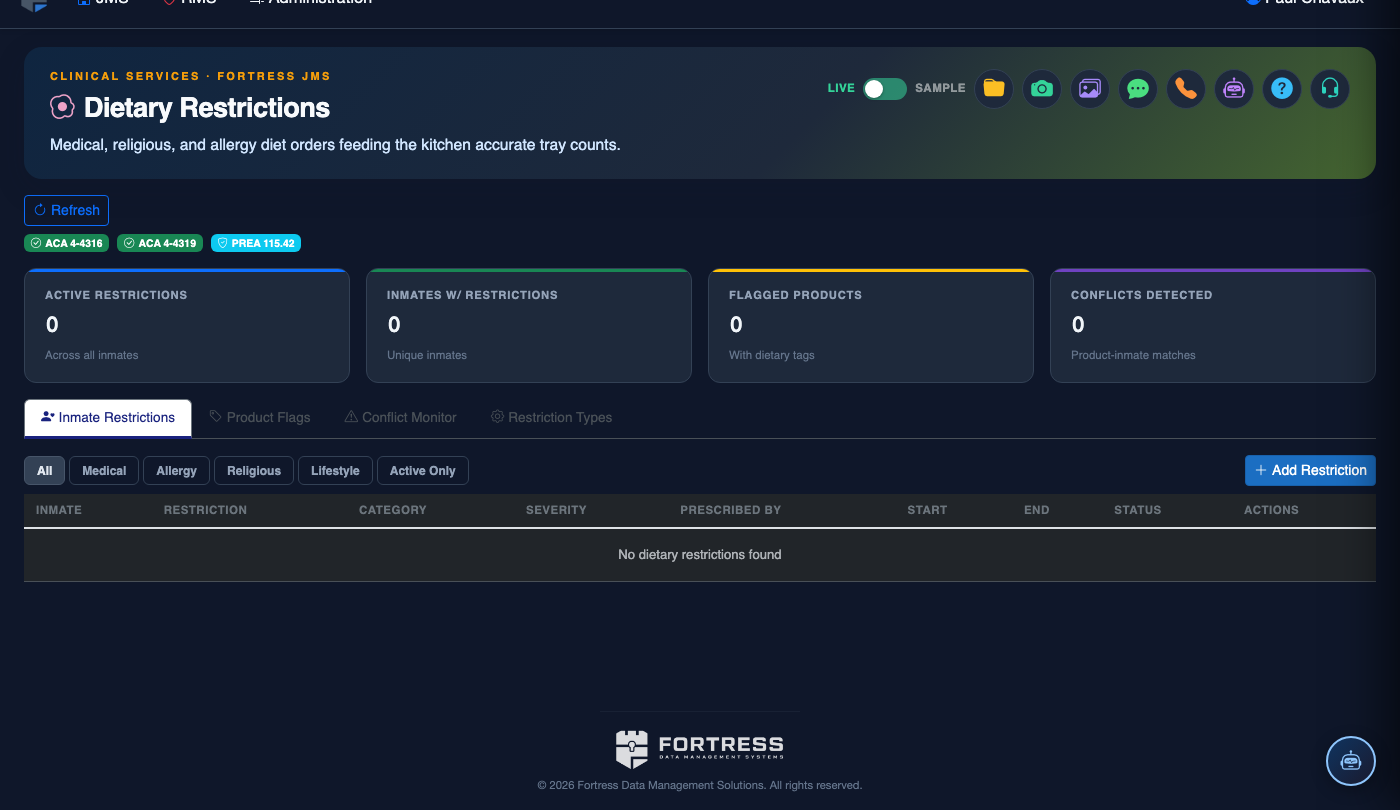
Step-by-Step: Meal Planning
Open the Meal Planning Tab
In the Dietary Restrictions module, click the Meal Planning tab. The view defaults to the current week’s menu grid, displaying Breakfast, Lunch, and Dinner columns across a Monday-through-Sunday row layout.
Navigate to the Target Week
Use the Previous Week / Next Week arrow buttons or click the date picker to jump to any specific week. Future weeks are editable; past weeks are read-only but remain available for audit review.
Add or Edit a Meal Item
Click any empty cell or existing meal item in the grid to open the Meal Item Editor. Search the menu item library by name or dietary category. Select the item; the system immediately queries active dietary profiles and displays a Conflict Badge if any current inmate’s restriction would be violated by this meal.
Resolve Conflicts with Substitutes
Click the Conflict Badge to expand the affected-inmate list. For each conflicted inmate, select an approved substitute from the Substitute Meals dropdown — filtered automatically to items compatible with their dietary profile. The substitution is recorded and linked to the original menu item for reporting.
Approve the Weekly Plan
Once all conflicts are resolved (the Conflict Badge count reads 0), click Approve Plan in the toolbar. Enter your staff ID or PIN to authenticate the approval. Approved plans are locked and cannot be changed without a supervisor override — this creates the official audit record.
Generate and Print Pull-Sheets
Click Export Pull-Sheets after approval. Select the housing unit(s) and output format (PDF for printing, CSV for digital kitchen systems). Pull-sheets segment trays by diet type (Standard, Diabetic, Kosher, etc.) with allergen flags printed prominently on each line.
Handle Late-Breaking Changes
If a new dietary profile is approved after the weekly plan is locked, the system sends a notification to the food service supervisor. Use Supervisor Override to unlock the affected meal, apply the substitution, and re-approve. The override is logged with the reason and authorizing staff member.
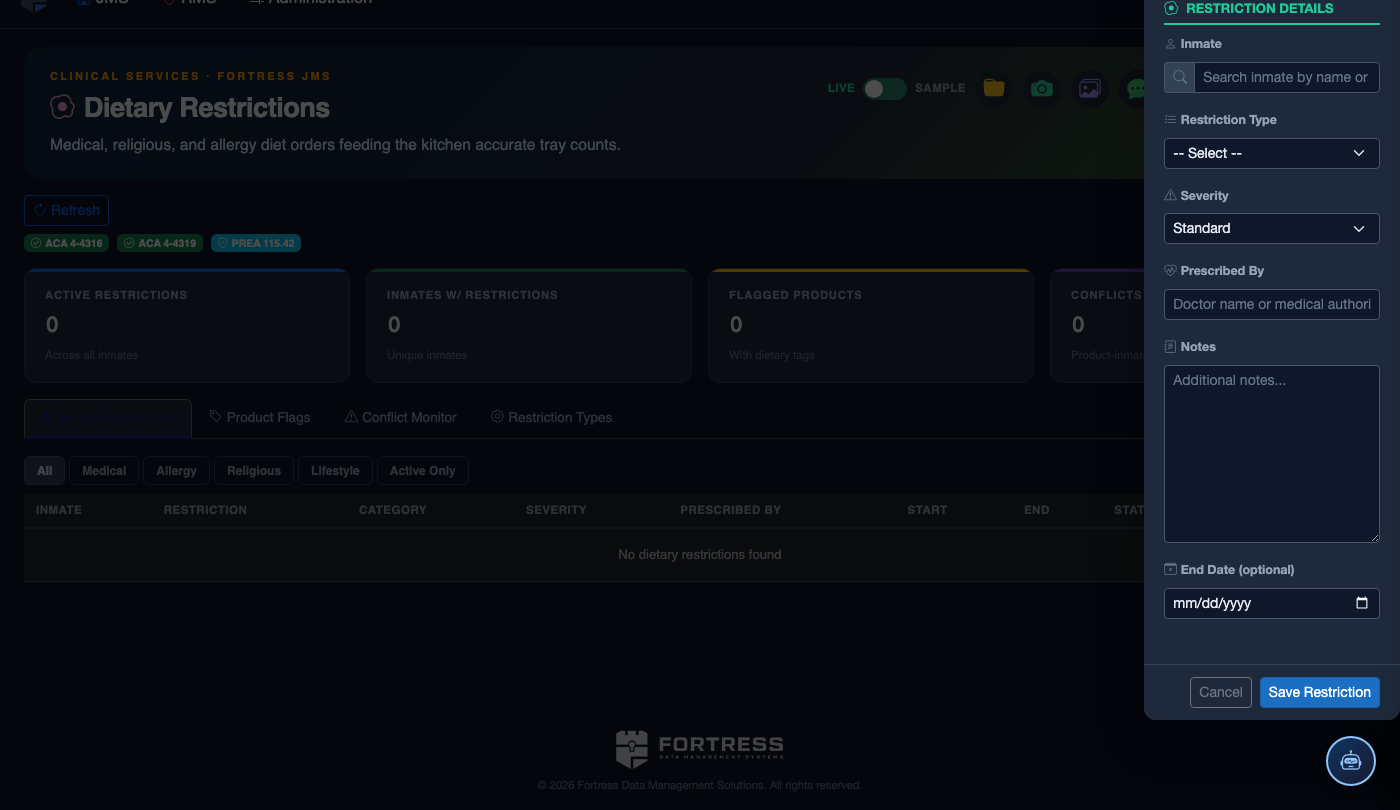
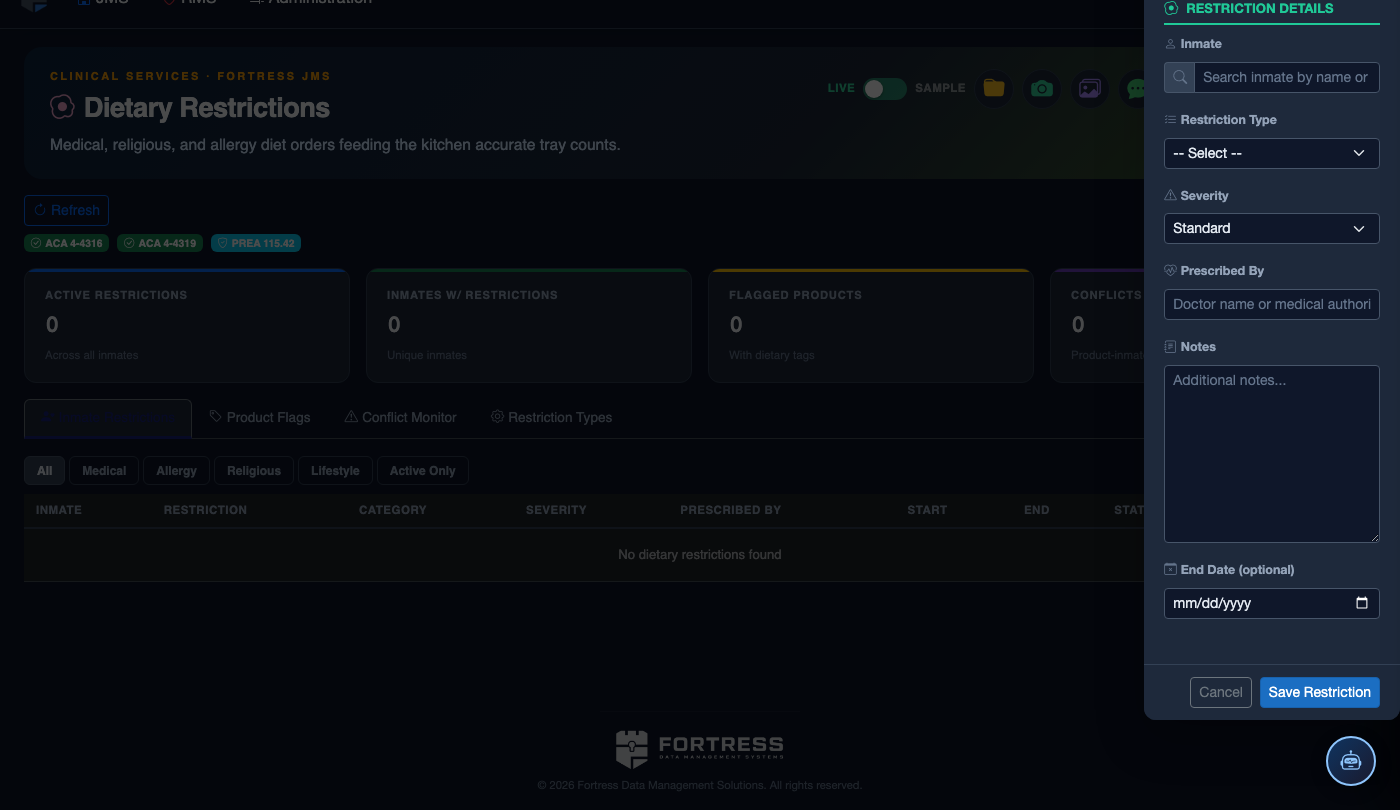
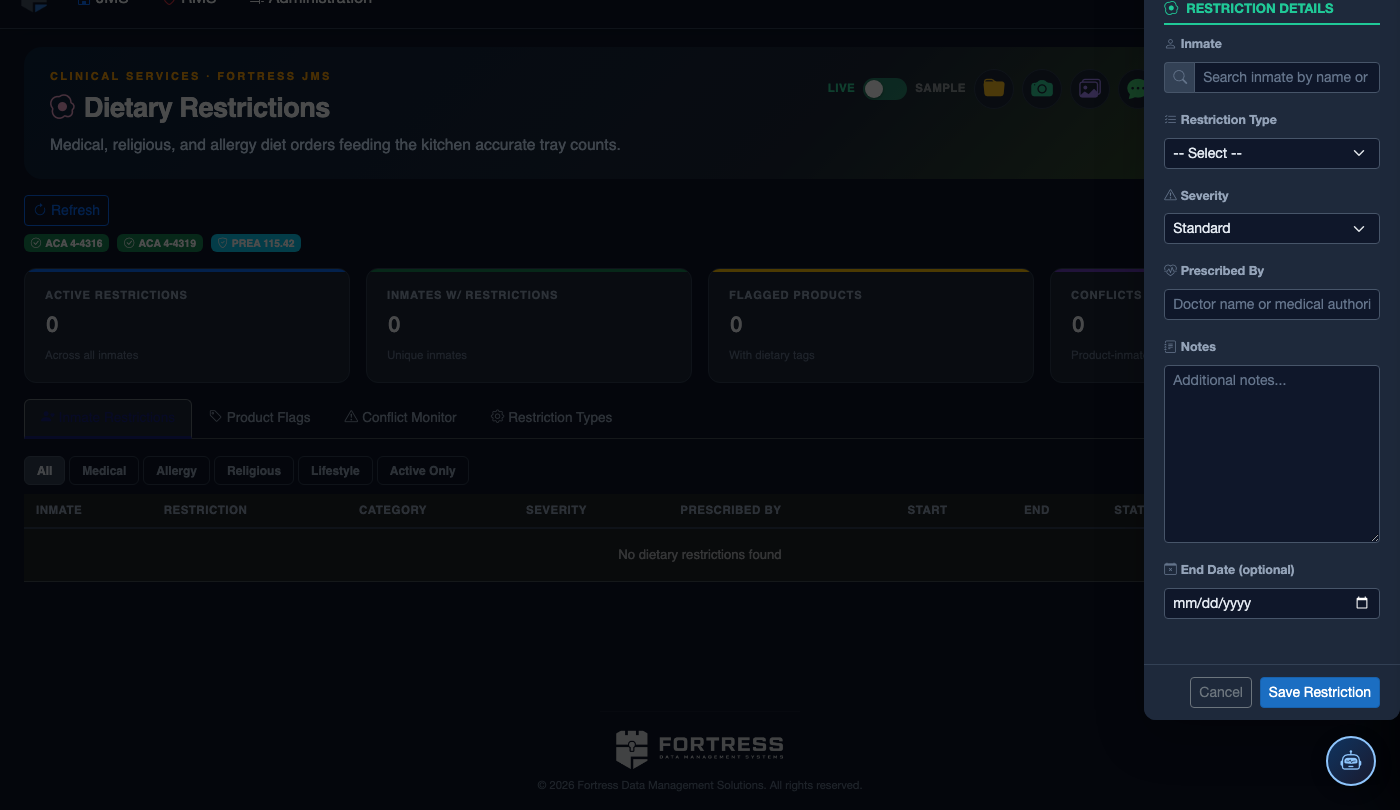
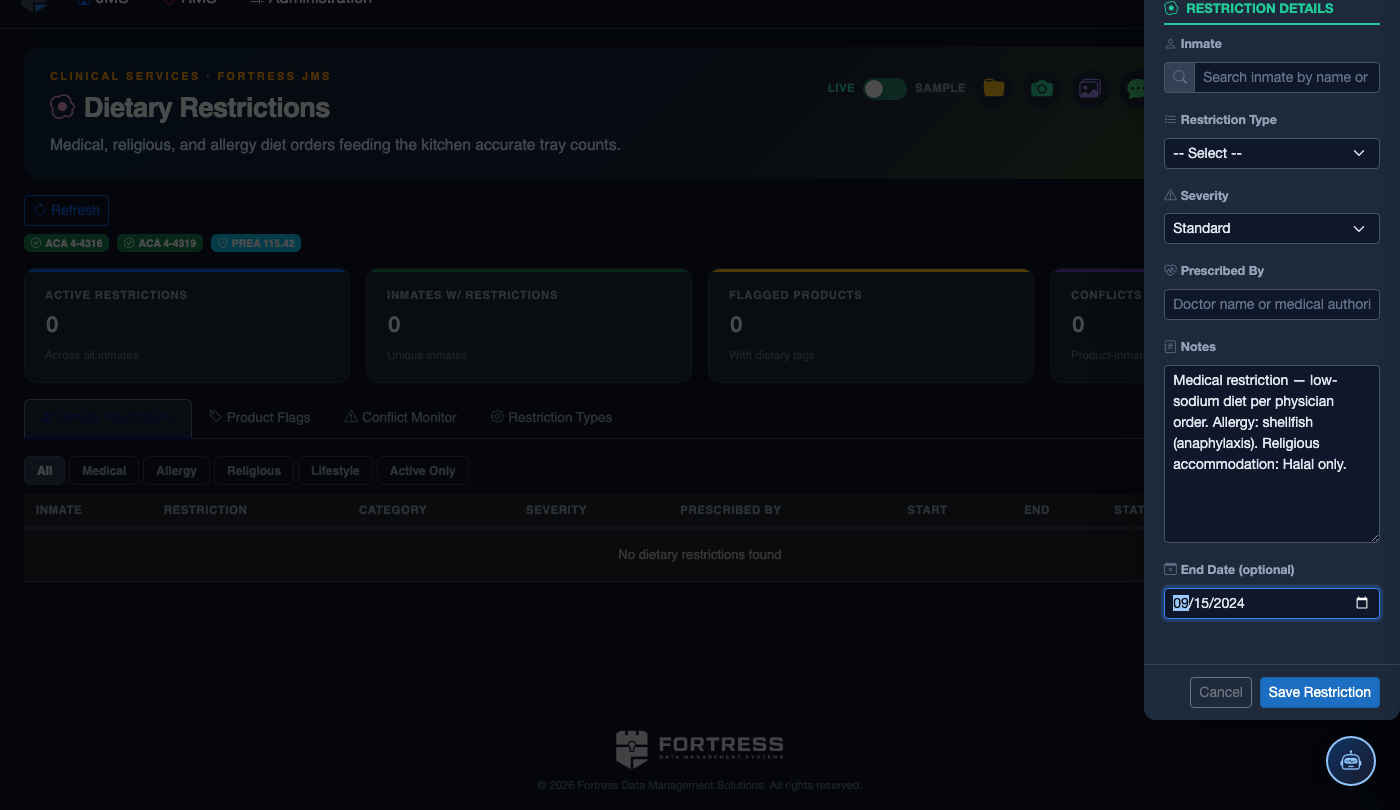
Add a Dietary Restriction or Profile
Click Add Restriction. Complete the dietary record:
- Inmate — search by name or booking number.
- Restriction Type — Medical, Allergy, Religious, or Lifestyle Preference.
- Specific Restriction / Allergy — document precisely (e.g., “Shellfish — anaphylaxis risk, auto-injector on file”).
- Meal Plan — select the kitchen plan that satisfies all active restrictions (plans update kitchen print sheets automatically).
- Physician Order — for medical restrictions, attach or reference the ordering physician’s note.
- Effective / Expiry Dates — set expiry for temporary restrictions; permanent restrictions have no expiry.
- Click Save Profile. The restriction appears on kitchen tray-line cards at the next meal cycle.
💡 Pro Tips
- Run the Conflict Check report every Sunday after approving the upcoming week’s menu — it catches any profiles approved after the menu was built but before the first meal is served.
- Build a robust Substitute Meal Library with at least two approved substitutes per dietary category; having only one option creates bottlenecks when that item is unavailable.
- The pull-sheet export is timestamped with the plan approval time and the exporting staff member’s name — retain printed copies in the kitchen log binder for accreditation visits.
- Supervisor overrides on locked plans are logged permanently; encourage supervisors to add a brief reason (e.g., ‘New Halal approval received 11/14’) to support any future audit inquiry.
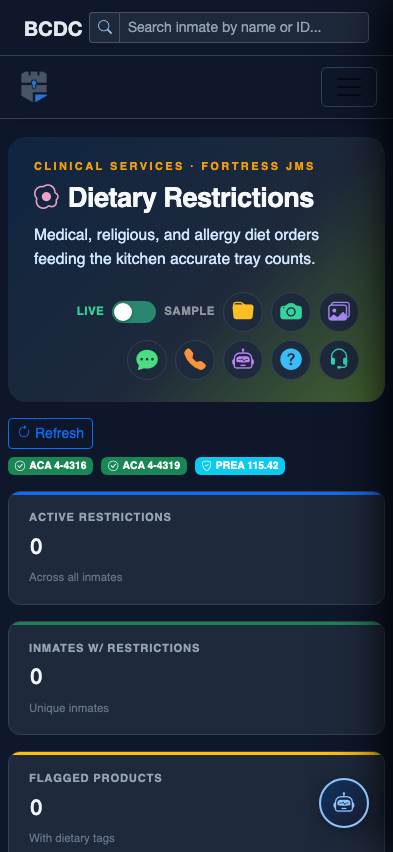
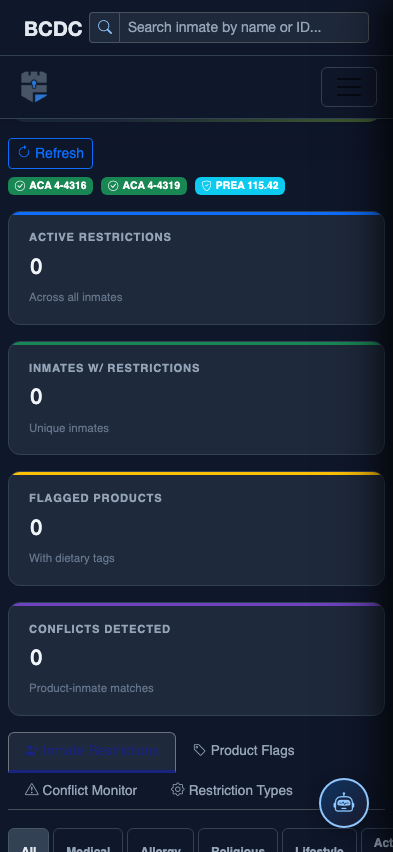
Mobile View — Meal Planning
FortressDMS is fully responsive. Officers can access the Meal Planning on a phone or tablet directly from the field — no app install required.
Tab view with data rows
Scrolled / detail view