
Religious Food Accommodations
The Religious Food Accommodations tab allows facility dietary and classification staff to document, approve, and track faith-based meal requirements for inmates whose sincerely held religious beliefs mandate specific dietary practices. From Halal and Kosher meals to vegan requirements tied to religious observance, this tab ensures constitutional compliance under RLUIPA while maintaining an auditable record of every accommodation decision.
Faith-Based Meal Tracking
Record and manage Halal, Kosher, vegetarian, and other religion-mandated dietary needs per inmate.
Approval Workflow
Route accommodation requests through chaplain review and facility administrator sign-off before activation.
RLUIPA Compliance
Maintain legally defensible audit trails documenting the basis and approval status of each religious accommodation.
Kitchen Integration
Approved accommodations flow directly to meal production lists so kitchen staff serve the correct tray every time.
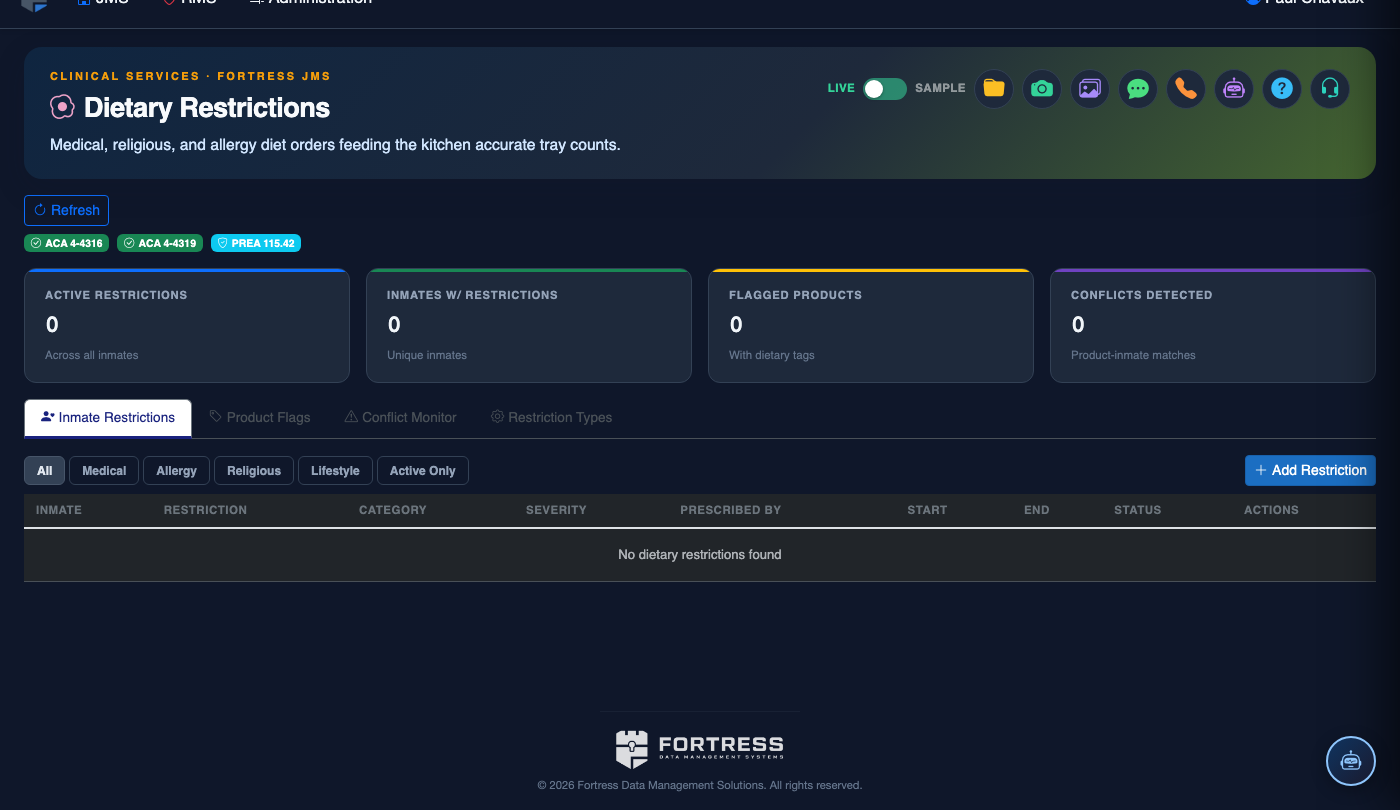
Step-by-Step: Managing Religious Food Accommodations
Navigate to Inmate Dietary Management
From the main menu, select Inmate Management then click Dietary Management. Select the target inmate from the roster and click the Dietary Restrictions tab, then choose the Religious Accommodations sub-tab.
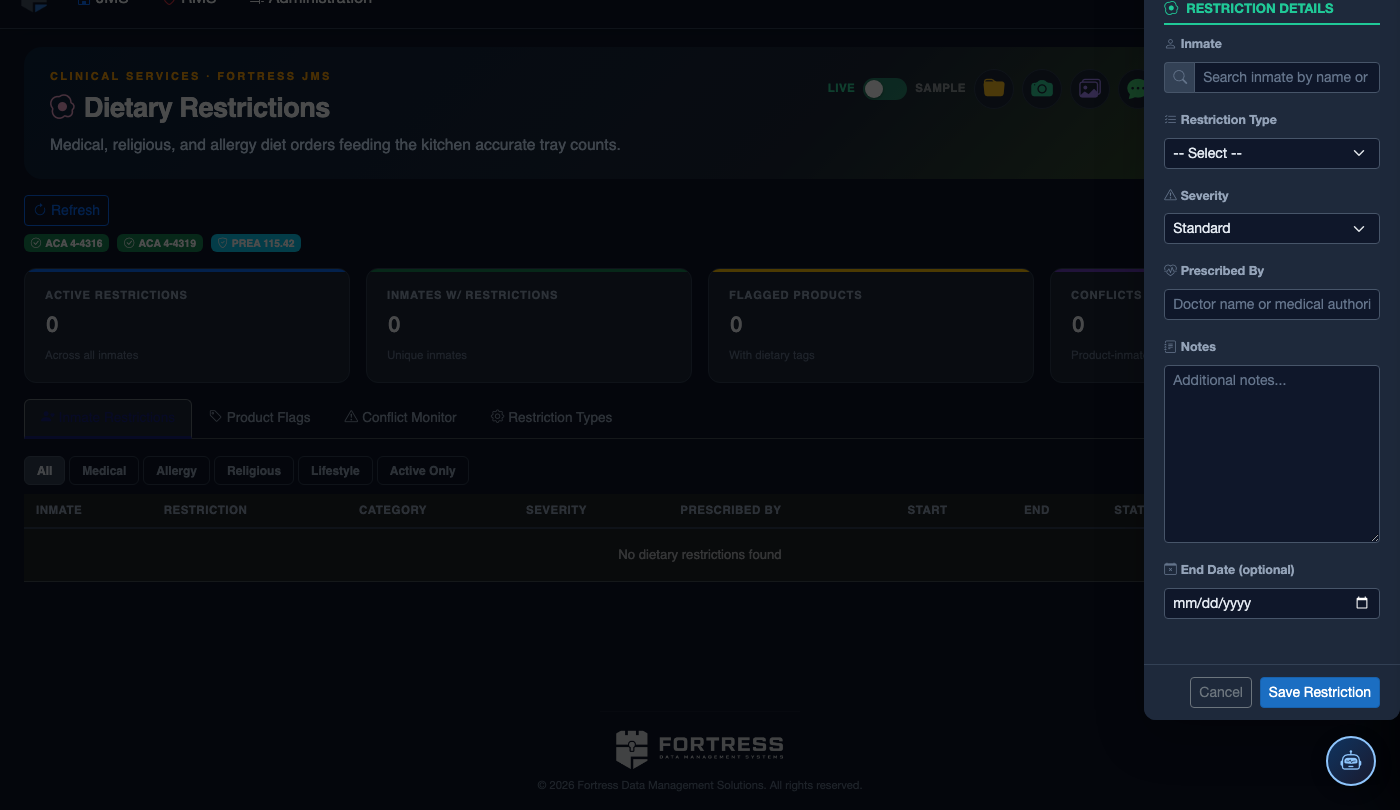
Click Add Religious Accommodation
Press the + Add Accommodation button in the upper right of the panel. A modal form will open prompting you to select the inmate’s Religion/Faith Tradition and the specific Dietary Practice required (e.g., Halal, Kosher, No Pork, Vegan).
Document the Religious Basis
In the Basis Statement field, enter a brief narrative of the inmate’s sincerely held religious belief that requires this accommodation. Reference any supporting documentation (e.g., chaplain letter, prior facility records) in the Supporting Documents attachment field.
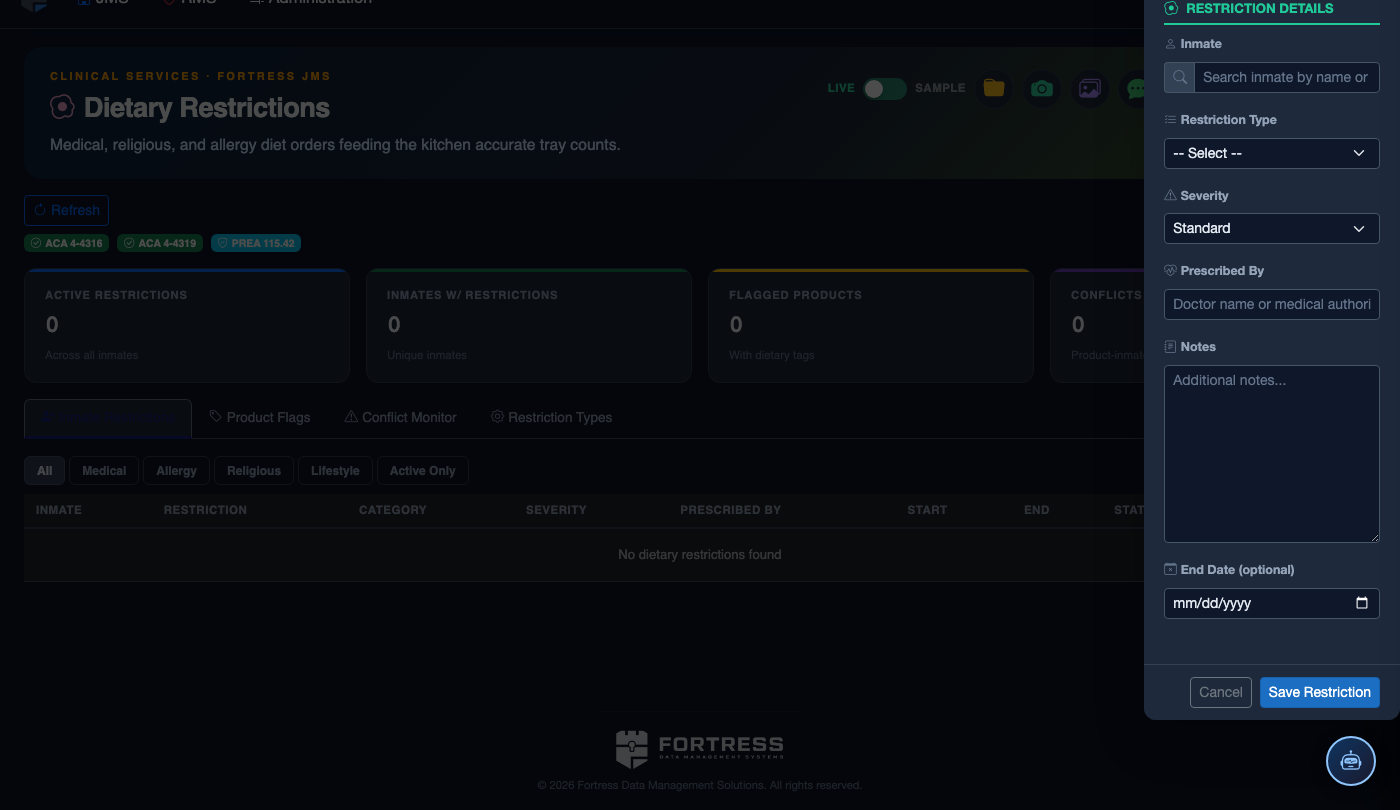
Submit for Chaplain Review
Set the Review Status to Pending Chaplain and click Submit Request. The assigned chaplain will receive an in-system notification. You can track the approval queue under the Pending Accommodations view at the top of the tab.
Administrator Final Approval
After chaplain sign-off, a facility administrator must provide Final Approval by selecting Approve or Deny from the action menu. Denials require a written Denial Reason to support any potential grievance or litigation response.
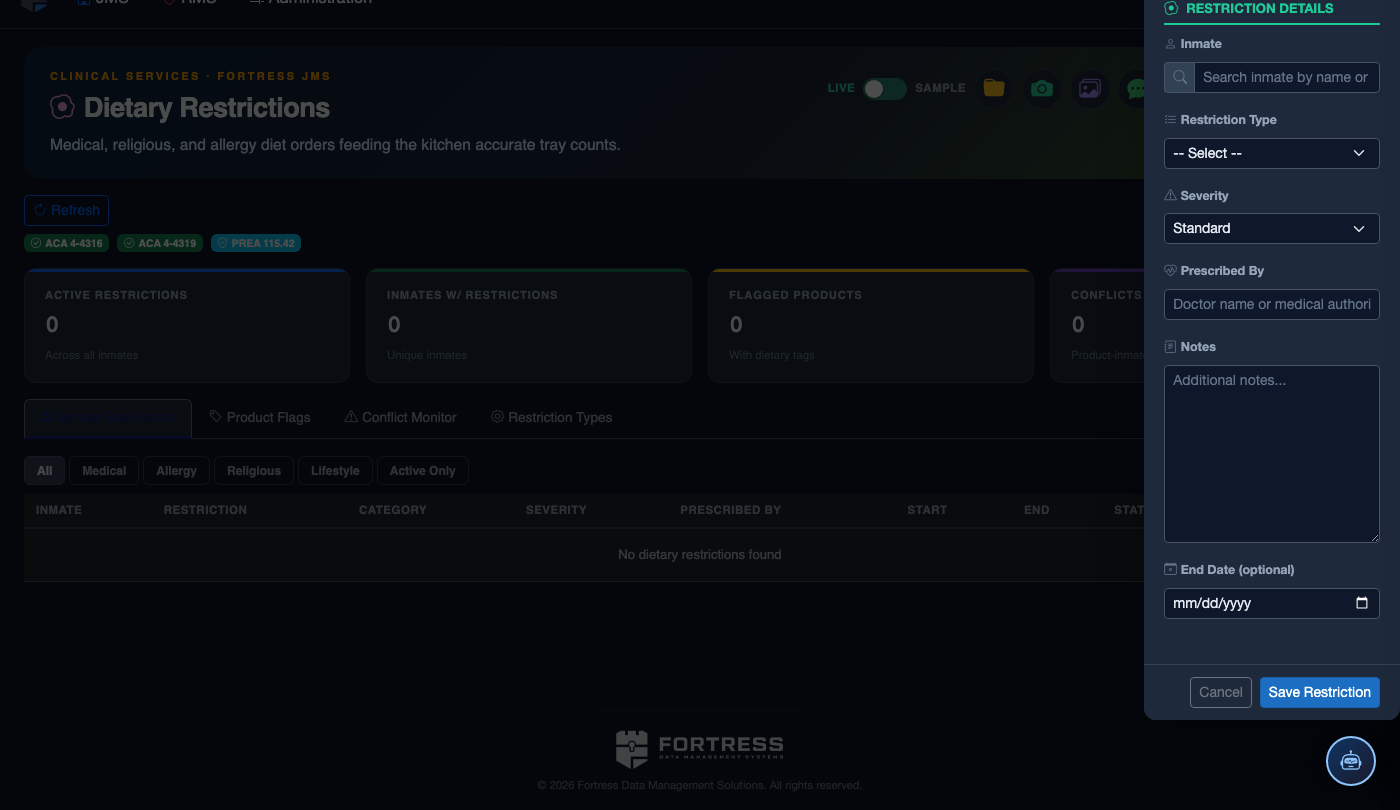
Confirm Kitchen Activation
Once approved, the accommodation status changes to Active and automatically populates the inmate’s meal tray assignment in the kitchen production module. Verify the Effective Date and confirm the accommodation appears on the next day’s meal roster printout.
Periodic Review and Renewal
Set the Review Interval (recommended: 90 days) to trigger automatic reminders for re-verification. When an accommodation expires, it moves to Pending Renewal status and the kitchen reverts to the inmate’s standard diet until renewed approval is recorded.
Add a Dietary Restriction or Profile
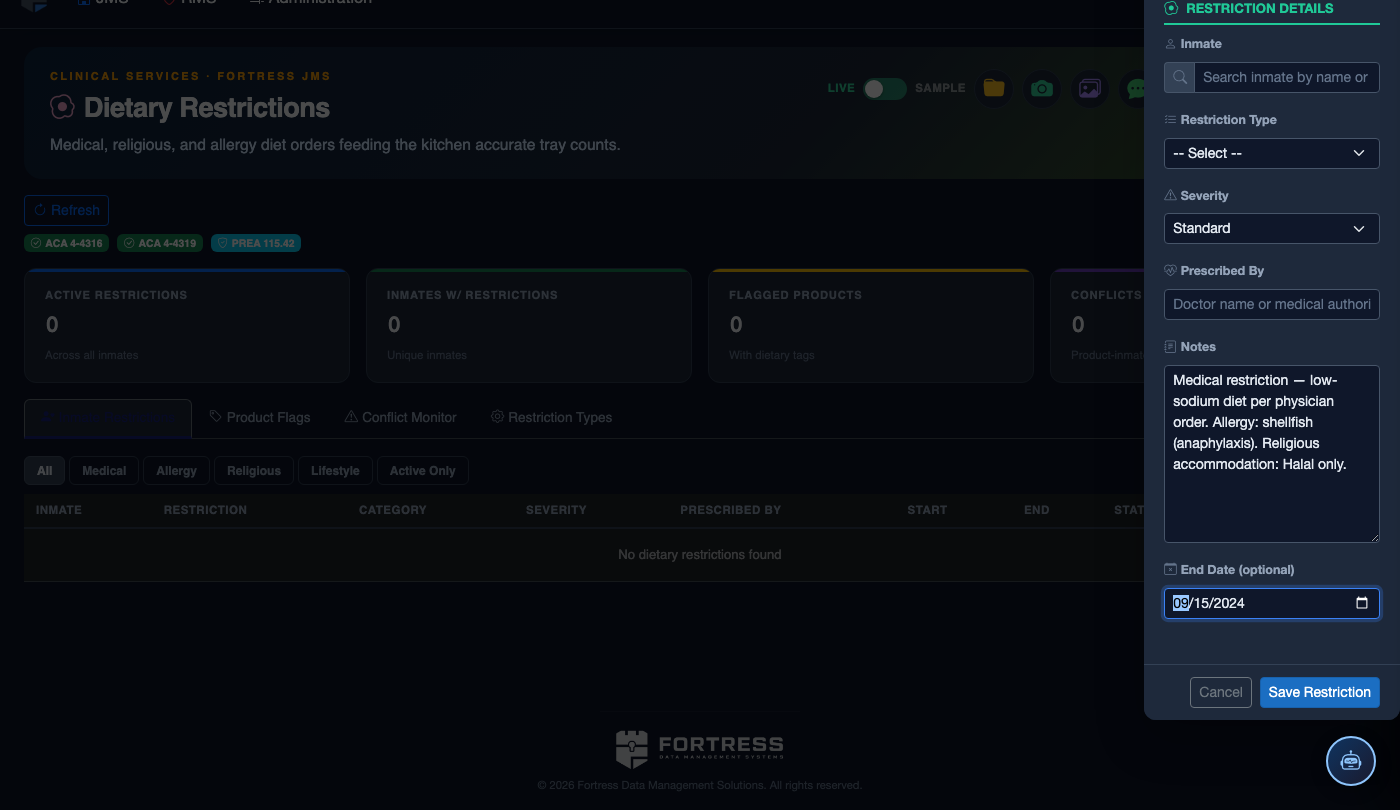
Click Add Restriction. Complete the dietary record:
- Inmate — search by name or booking number.
- Restriction Type — Medical, Allergy, Religious, or Lifestyle Preference.
- Specific Restriction / Allergy — document precisely (e.g., “Shellfish — anaphylaxis risk, auto-injector on file”).
- Meal Plan — select the kitchen plan that satisfies all active restrictions (plans update kitchen print sheets automatically).
- Physician Order — for medical restrictions, attach or reference the ordering physician’s note.
- Effective / Expiry Dates — set expiry for temporary restrictions; permanent restrictions have no expiry.
- Click Save Profile. The restriction appears on kitchen tray-line cards at the next meal cycle.
💡 Pro Tips
- Always obtain a signed chaplain attestation before activating Kosher or Halal trays — this is your strongest defense against RLUIPA litigation.
- Use the Bulk Review view to audit all active religious accommodations facility-wide before a state inspection or accreditation visit.
- When an inmate transfers between housing units, verify their accommodation follows them by checking the Transfer Carry-Over flag on the accommodation record.
Mobile View — Religious Accommodations
FortressDMS is fully responsive. Officers can access the Religious Accommodations on a phone or tablet directly from the field — no app install required.
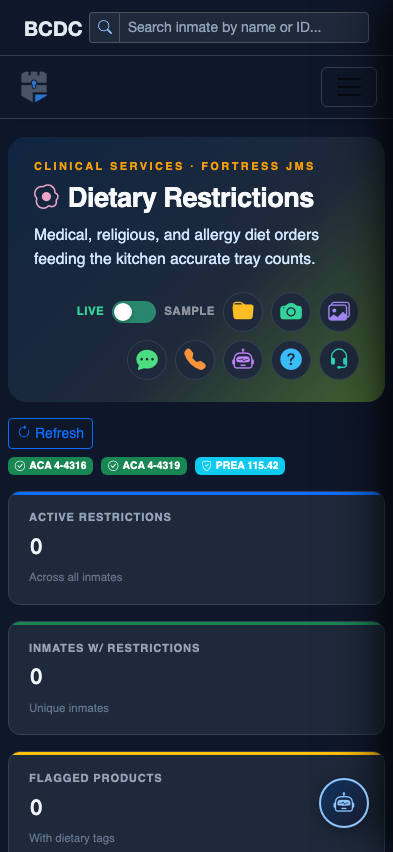
Tab view with data rows
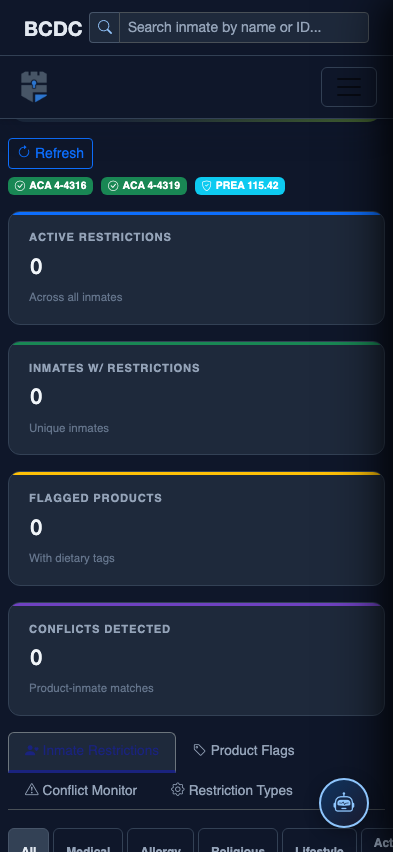
Scrolled / detail view