
Use of Force
The Use of Force tab captures a structured, policy-compliant record of every force event that occurs during an incident — including the type of force applied, the officers involved, the inmate’s behavior that precipitated it, and the medical assessment afterward. This documentation is essential for PREA compliance, civil liability defense, and administrative review by command staff and oversight bodies.
Force Type Classification
Document the exact type of force applied — verbal commands, physical restraint, OC spray, taser, baton, or emergency response team deployment — in standardized, reportable categories.
Precipitating Behavior Log
Record the specific inmate behavior or threat that necessitated the use of force, providing the factual basis for the proportionality assessment.
Officer Participation Tracking
Identify every officer who applied force or was present, capturing their role (primary, backup, observer) to support accountability and training reviews.
Post-Force Medical Review
Document the mandatory post-force medical assessment, including whether the inmate was examined, findings, and any treatment provided, satisfying constitutional and policy requirements.
Step-by-Step: Completing a Use of Force Report
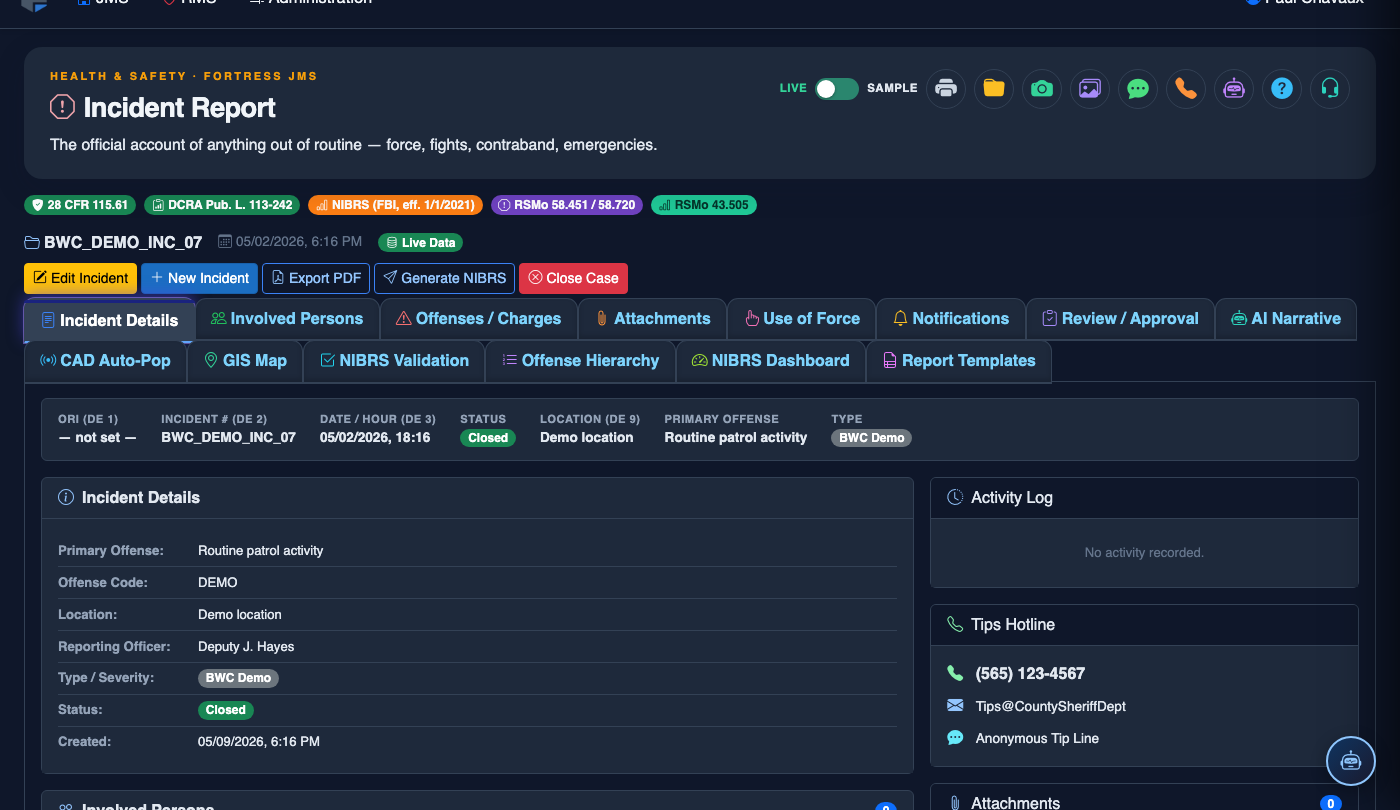
Navigate to the Use of Force Tab
Open the incident report and click the Use of Force tab (Tab 5). This tab is only editable if the incident type selected on Tab 1 includes a use-of-force flag — if the tab is grayed out, confirm the incident category on the General Information tab.
Confirm Use of Force Occurred and Add a Force Event
Toggle Use of Force Occurred to Yes. Click Add Force Event to open the force event entry form. Each distinct application of force (e.g., verbal de-escalation attempt, then physical restraint) should be its own event entry.
Select Force Type and Document the Precipitating Behavior
Choose the Force Type from the standardized list (Verbal Command, Escort/Control Holds, OC Spray, Taser/Electronic Control Device, Physical Takedown, Emergency Response Team, Other). In the Precipitating Behavior field, describe the specific inmate actions or threats that made the force necessary, using objective, factual language.
Identify All Officers Involved in the Force Event
Under Officers Involved, select each officer’s name and assign their role: Primary Officer (applied force), Backup (assisted), or Witness (present but did not apply force). Listing witnesses is as important as listing participants — their presence may be reviewed by investigators.
Document the Force Outcome and Inmate Response
Record the Force Outcome — whether the inmate complied, was restrained, or continued to resist — and the Duration of Force in seconds or minutes. Note whether any additional force escalation was required and whether the force event was terminated before or after supervisor arrival.
Complete the Post-Force Medical Assessment Section
Complete the mandatory Post-Force Medical Assessment block: indicate whether the inmate was offered and received a medical evaluation, the name of the examining medical staff member, the time of evaluation, and the clinical findings. This satisfies the constitutional requirement that inmates receive timely medical attention following any use of force.
Save and Flag for Supervisory Review
Click Save Force Event. Any incident report containing a Use of Force entry is automatically flagged for mandatory supervisory review and will appear in the supervisor’s Use of Force Review Queue. Proceed to the Notifications tab to confirm that the chain-of-command notification was generated.
File a New Incident Report
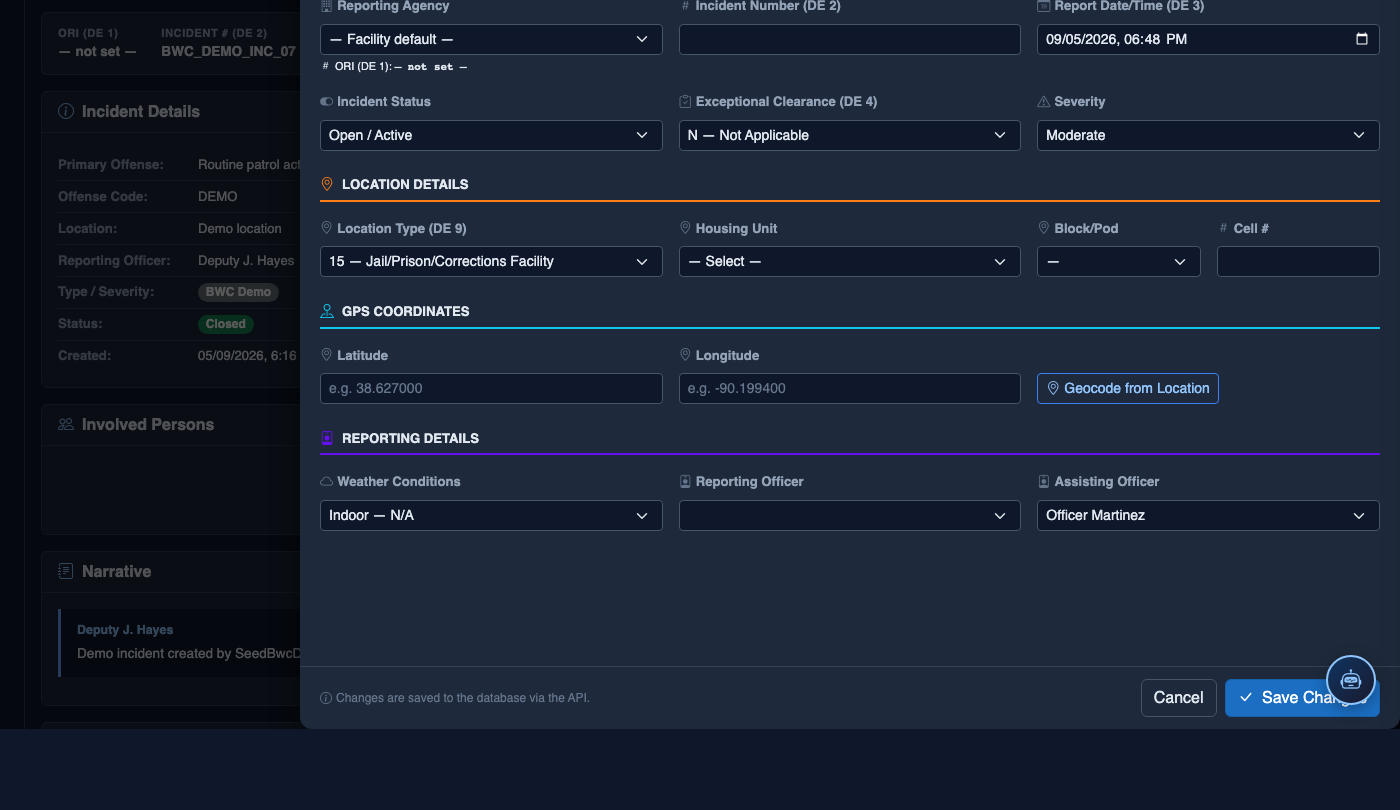
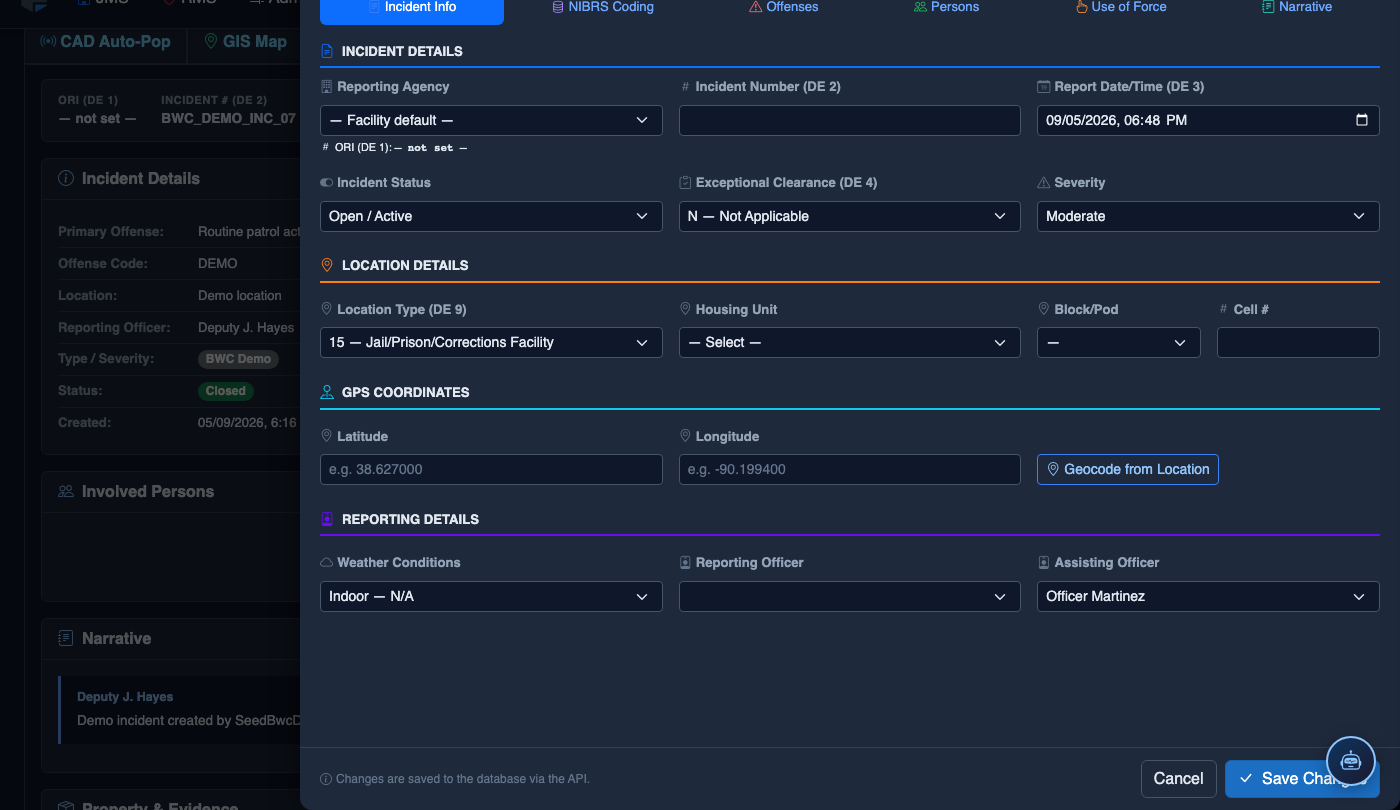
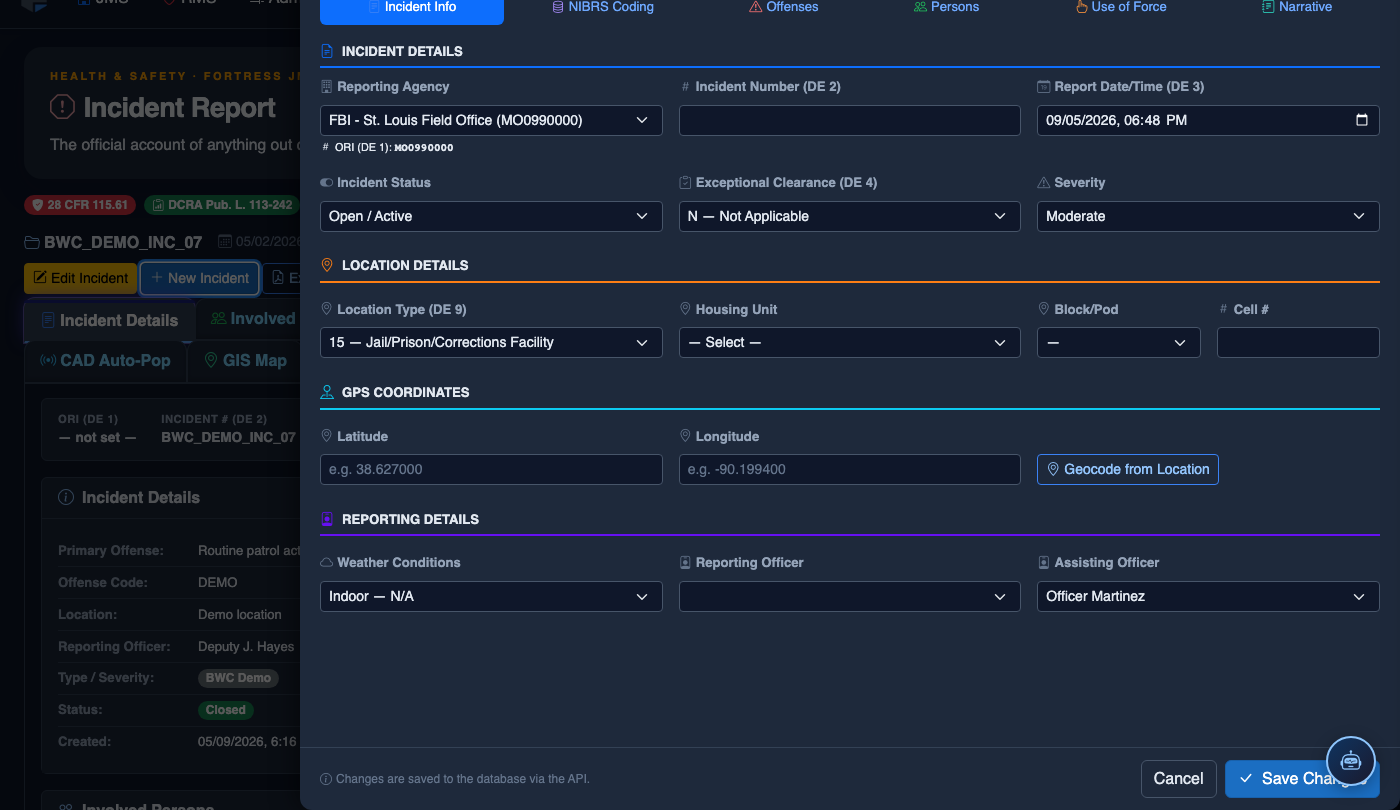
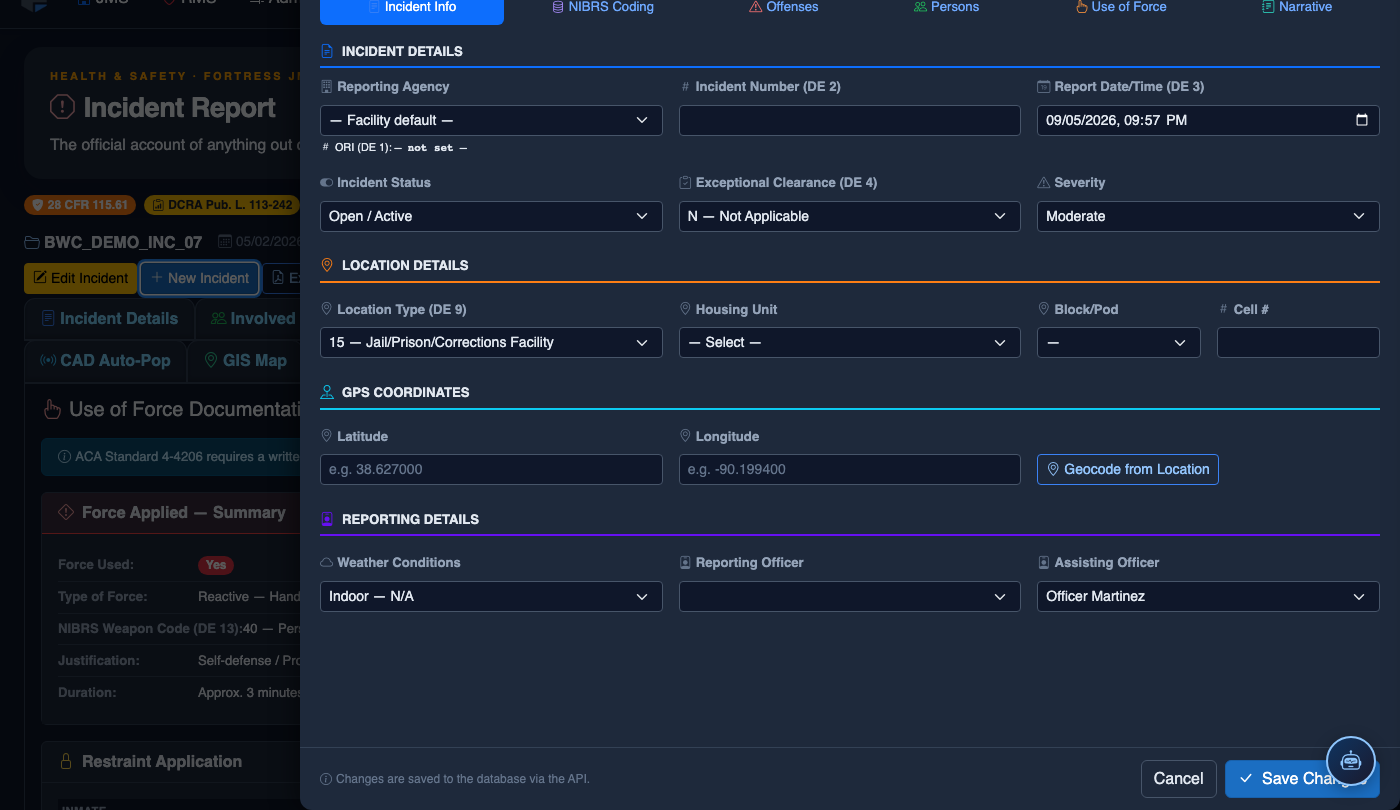
Click New Incident. Complete the incident report:
- Incident Type — select the category (Altercation, Medical Emergency, Escape Attempt, Property Damage, Use of Force, etc.).
- Date, Time, and Location — the precise time and place of the incident.
- Involved Persons — add all Inmates, Staff, and Witnesses using the search tool.
- Narrative — write the factual incident description in first person, past tense. The AI Narrative Assist can draft based on your bullet points.
- Severity — Minor, Moderate, or Major. Major incidents trigger automatic supervisor notification.
- Attachments — upload photos, BWC footage, or medical documentation directly.
- Click Save Draft to continue later, or Submit for Review to route to your supervisor.
💡 Pro Tips
- Use force type entries in chronological order — de-escalation attempts first, escalating force after — to clearly demonstrate proportionality and policy compliance to reviewers.
- Avoid subjective language in the precipitating behavior field; write what the inmate did, not what you believed their intent was (e.g., “inmate raised fist and lunged” not “inmate tried to attack me”).
- Incidents involving OC spray, tasers, or ERT deployment may require a secondary supervisor review within a shorter timeframe per your facility policy — check the Notifications tab immediately after saving.
- If the post-force medical exam was refused by the inmate, document the refusal explicitly, including the time of offer and any witness officers present during the refusal.
Mobile View — Use of Force
FortressDMS is fully responsive. Officers can access the Use of Force on a phone or tablet directly from the field — no app install required.
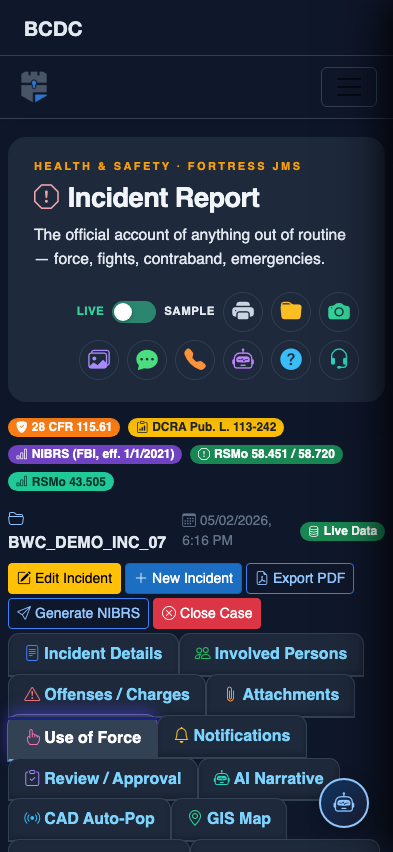
Tab view with data rows
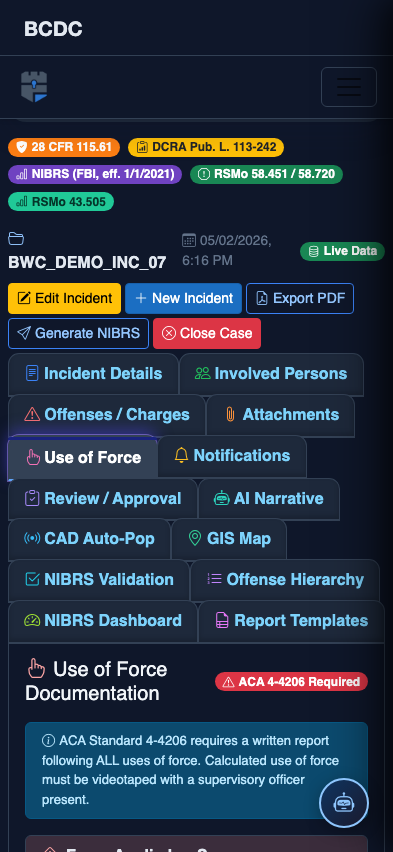
Scrolled / detail view