
Release Workflow
The Release Workflow tab presents the structured, step-by-step checklist that every officer must complete before an inmate can be officially discharged from the facility. Each checklist item is system-enforced — the workflow will not advance to the next stage until the current requirement is satisfied, preventing inadvertent releases in the presence of active holds, unserved warrants, or incomplete paperwork. Every action is timestamped and officer-attributed for full accountability.
Enforced Checklist
Each step must be positively confirmed before the workflow progresses, eliminating missed holds or incomplete paperwork.
Automated Hold Checks
Automatic cross-checks against the NCIC, state warrant systems, and internal detainer database surface hidden holds instantly.
Document Attachment
Attach court orders, bond receipts, and supervision paperwork directly to the release record at each checklist step.
Supervisor Override Log
Any checklist bypass or exception requires a supervisor PIN and logged justification, creating a clear chain of accountability.
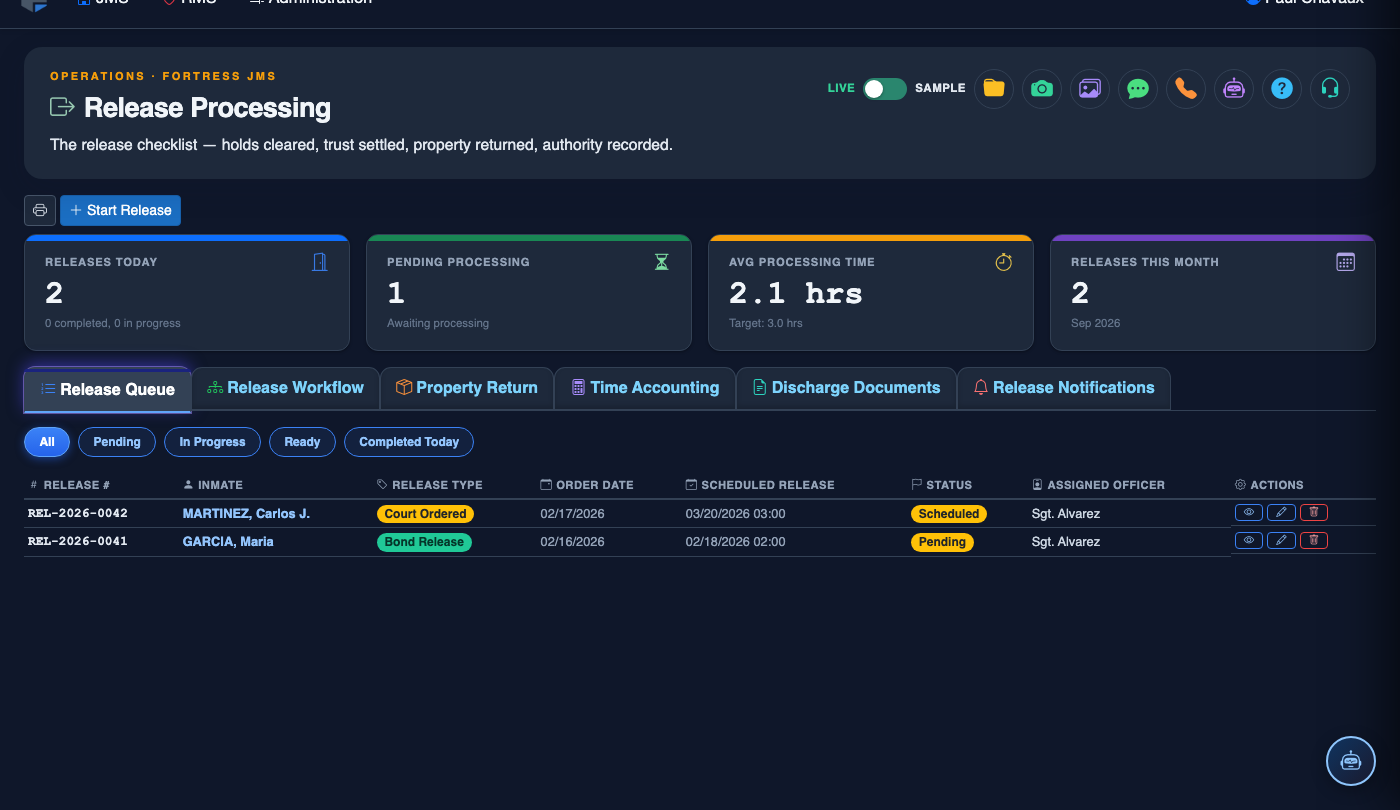
Step-by-Step: Completing the Release Workflow
Open the Release Workflow Tab
From the Release Queue, click Process Release on the inmate’s row to open the Release Workflow tab pre-loaded with their booking data. Alternatively, navigate directly to Release Workflow and use the Search Inmate field to locate the record by name or booking number.
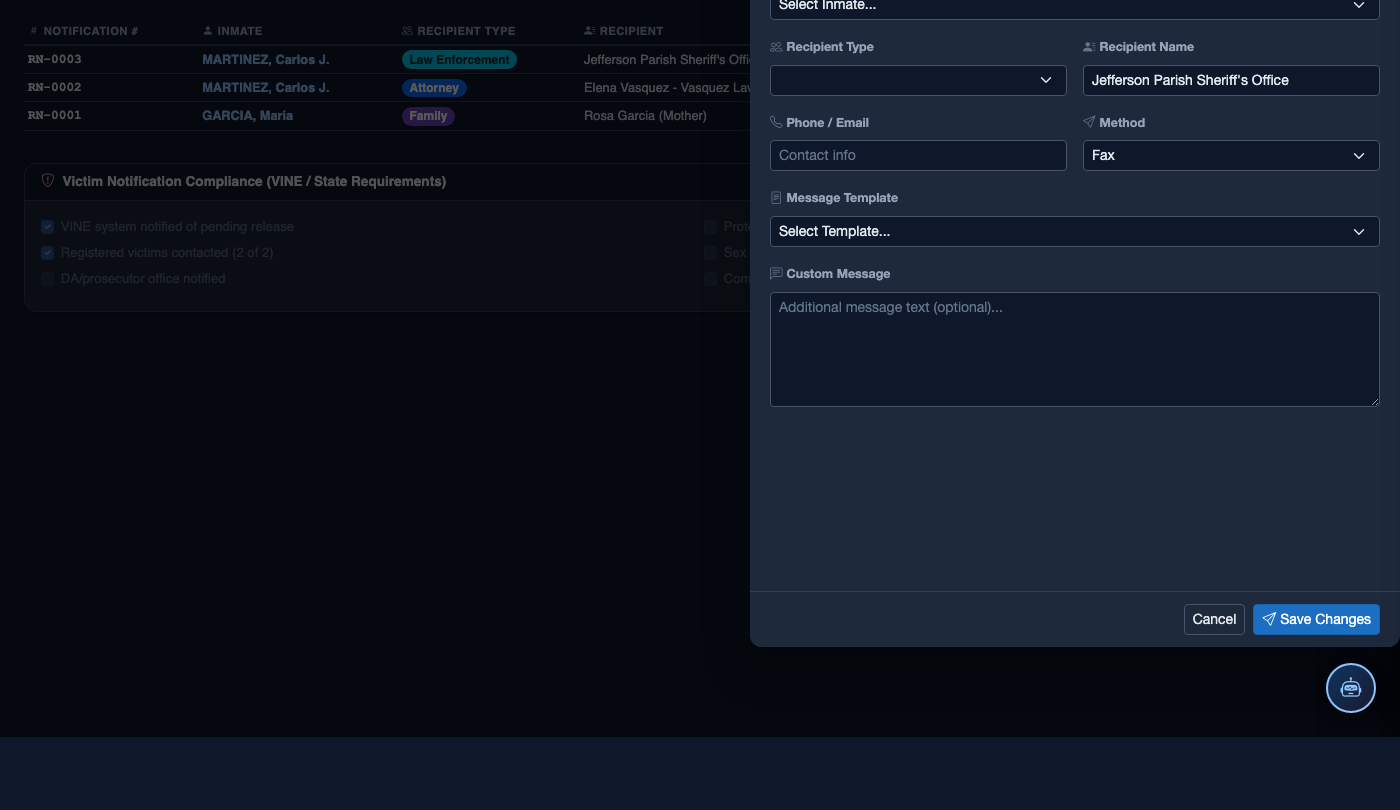
Confirm Release Authorization
Review the displayed Release Type and Authorizing Document Number. Select the release authority from the dropdown (e.g., Judge Name, Bond Company, Sheriff) and attach the authorizing document using the Upload Document button. Check the confirmation box to advance.
Run Automated Hold and Warrant Check
Click Run Checks to trigger the automated hold verification. FortressDMS queries active ICE Detainers, Agency Holds, and the Outstanding Warrant database. Results appear within seconds — green checkmarks for clear, red flags for matches. Each flagged item must be resolved or supervisor-overridden before continuing.
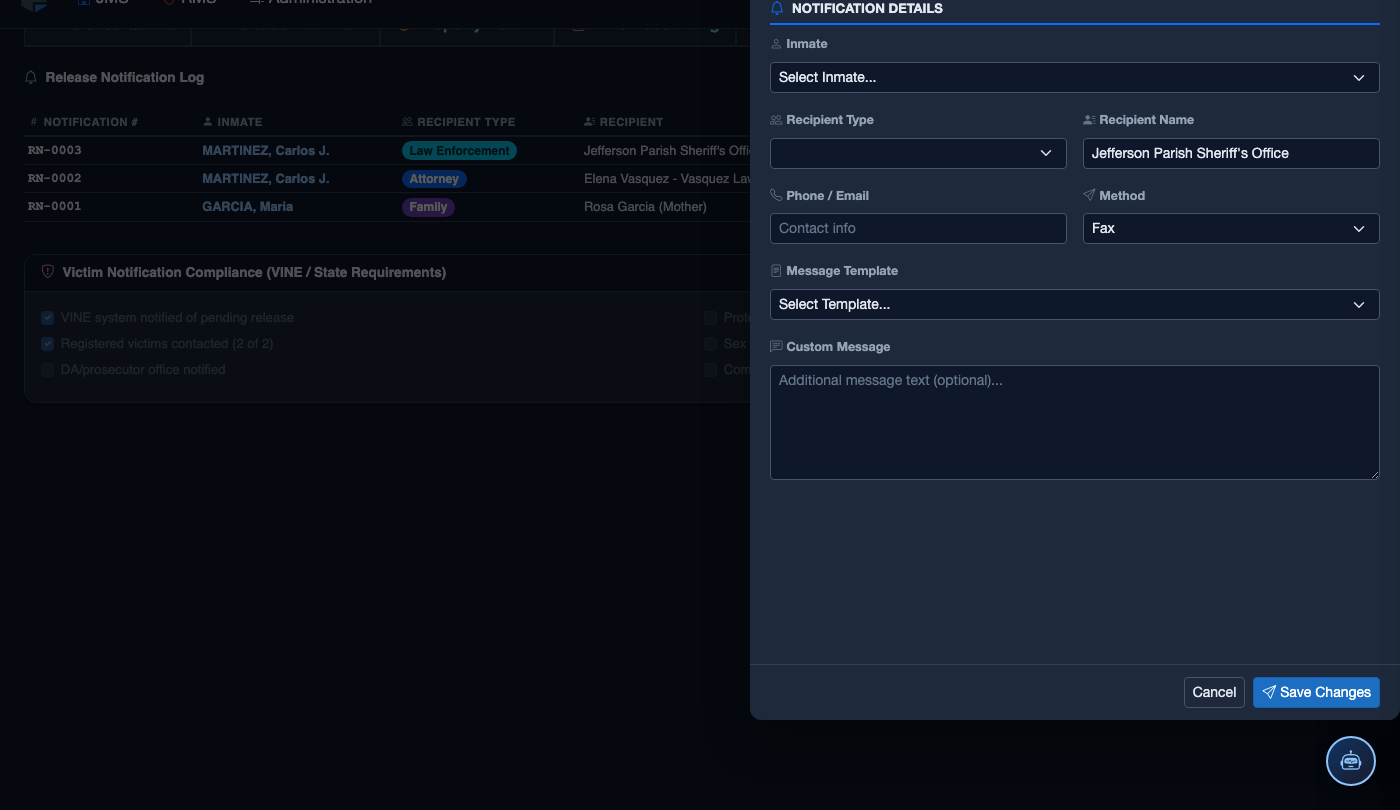
Verify Release Conditions
Review the Court-Ordered Conditions section listing any probation requirements, no-contact orders, GPS monitoring, or supervision reporting instructions tied to this release. Confirm that required paperwork (reporting instructions, monitoring equipment forms) is ready to hand to the inmate.
Confirm Medical and Classification Clearance
The workflow checks for any open Medical Hold or Mental Health Observation flags on the inmate’s record. If a medical hold exists, medical staff must electronically sign off the clearance in the system before this step can be checked off. Classification staff must also confirm no pending disciplinary sanctions are unresolved.
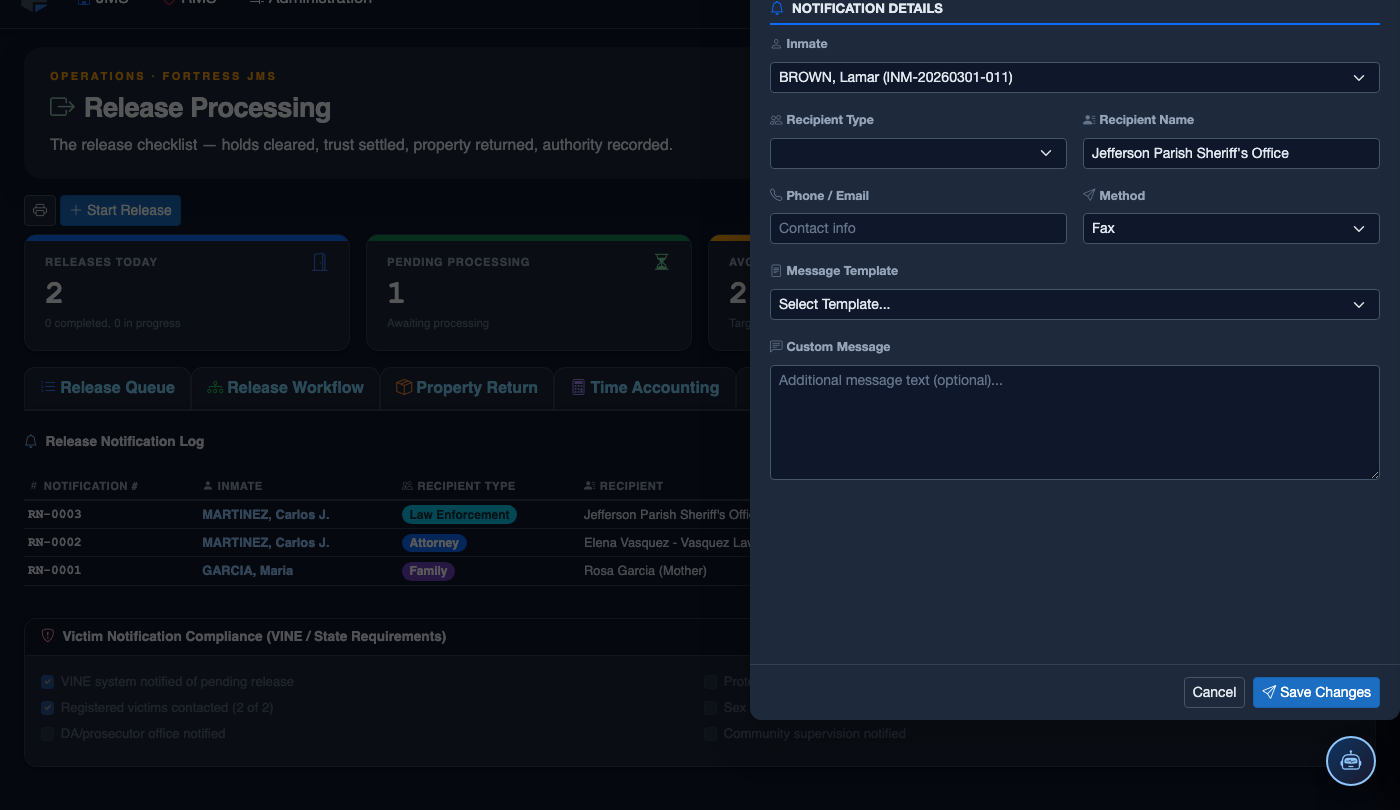
Authorize the Release
Once all checklist items show a green checkmark, the Authorize Release button becomes active. Enter your Officer PIN to authorize. If facility policy requires a supervisor co-sign, the system will prompt for a Supervisor PIN before finalizing the authorization.
Hand Off to Property Return
After workflow authorization, the system automatically marks the release as Workflow Complete and creates a task in the Property Return tab for property room staff. A notification is sent to the housing officer to escort the inmate to the release holding area.
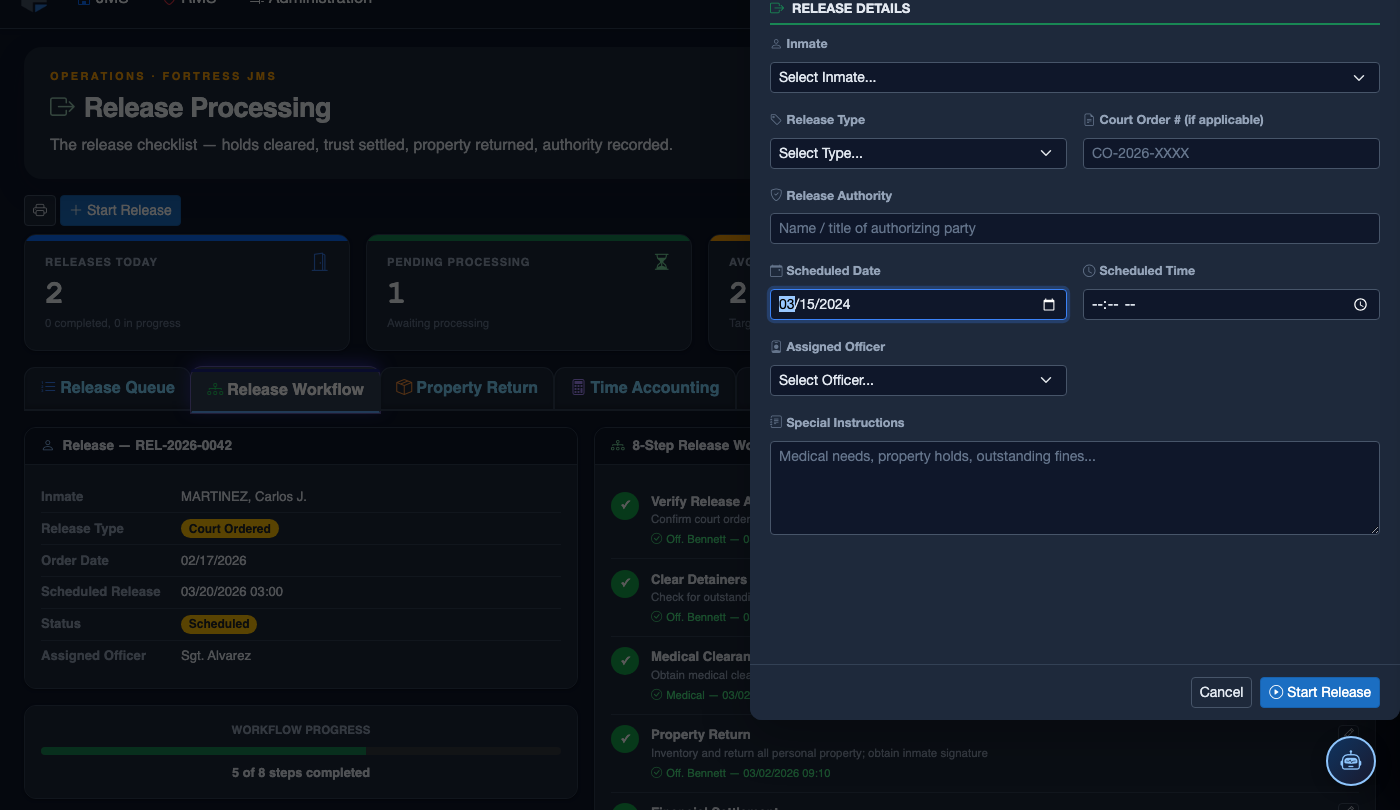
Initiate the Release Process
Click Start Release. Work through the release checklist:
- Inmate — search by name or booking number. Active detainers display as warnings.
- Release Type — Sentence Served, Bond Posted, Court Order, Transfer, or Supervised Release.
- Detainer Check — confirm no holds from other jurisdictions are active before proceeding.
- Property Return — verify all personal property is accounted for and the inmate signs the receipt.
- Release Date and Time — set the official release timestamp.
- Transportation — document how the inmate is leaving (self, family, transport agency).
- Post-Release Notes — conditions of release, supervision reporting requirements, etc.
- Click Finalize Release. Bed status changes to Available; housing and case records are closed.
💡 Pro Tips
- Never use the Supervisor Override to bypass a warrant or detainer flag without first contacting the issuing agency — bypassing a legitimate hold can create civil and criminal liability for the facility.
- If the automated warrant check returns an error (system timeout), document the manual NCIC check result in the Notes field before proceeding — this protects you if the hold is later disputed.
- Complete the release workflow in sequence even when time pressure exists — skipping steps to catch up often creates the errors that lead to wrongful release incidents and litigation.
Mobile View — Release Workflow
FortressDMS is fully responsive. Officers can access the Release Workflow on a phone or tablet directly from the field — no app install required.
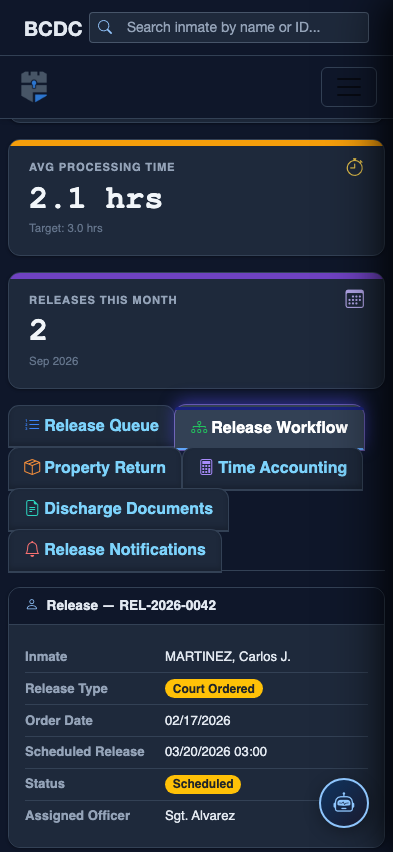
Tab view with data rows
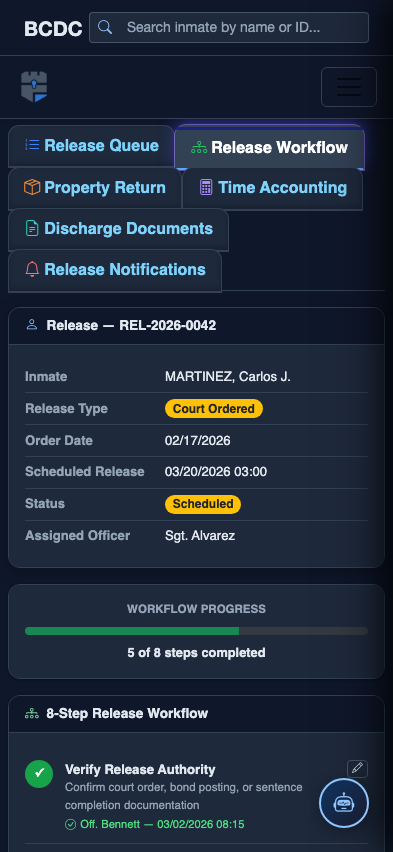
Scrolled / detail view