
Release Notifications
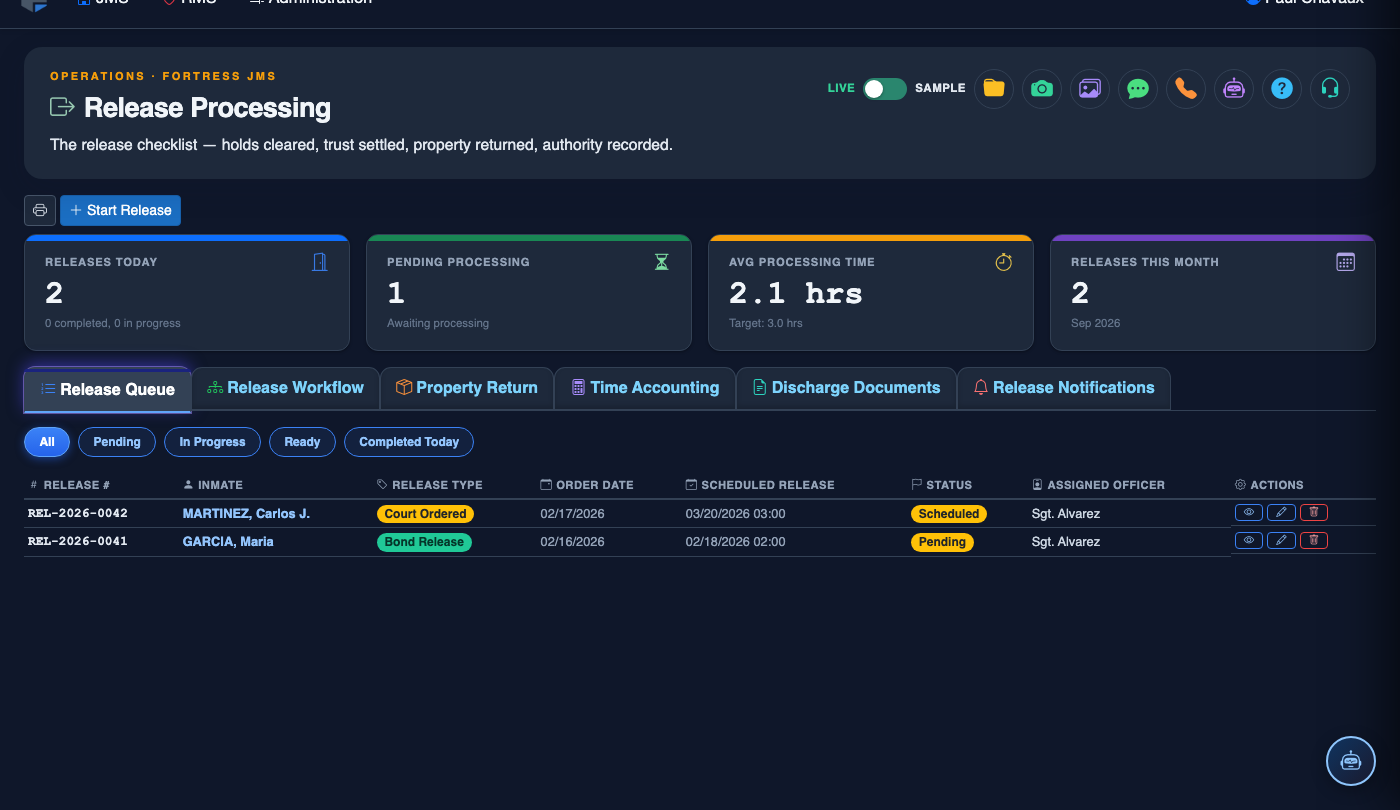
The Release Notifications tab manages all mandatory and discretionary notifications that must be dispatched when an inmate is released from custody. Fortress JMS automatically identifies which agencies, courts, victims, and supervision officers require notification based on the inmate’s case profile — generating letters, automated messages, and confirmation receipts so your facility stays compliant with statutory victim notification laws and inter-agency reporting requirements.
Victim Notification
Automatically triggers VINE-compatible or direct victim notifications at the moment of release, satisfying statutory notification requirements.
Court & Agency Alerts
Notifies the sentencing court, prosecuting agency, probation/parole officers, and any detaining jurisdiction when an inmate is released.
Multi-Channel Delivery
Delivers notifications via email, SMS, fax, or certified letter depending on the recipient’s configured preference and jurisdictional requirements.
Delivery Confirmation
Logs delivery confirmations, read receipts, and failed-delivery alerts with timestamps for every outgoing notification in the audit trail.
Step-by-Step: Sending Release Notifications
Access the Release Notifications Tab
From the inmate’s release record in Release Processing, click the Release Notifications tab (Tab 6). The system immediately loads the notification queue, pre-populated based on the inmate’s charges, sentence type, active court cases, probation or parole status, and any registered victims in the case file.
Review Required vs. Discretionary Notifications
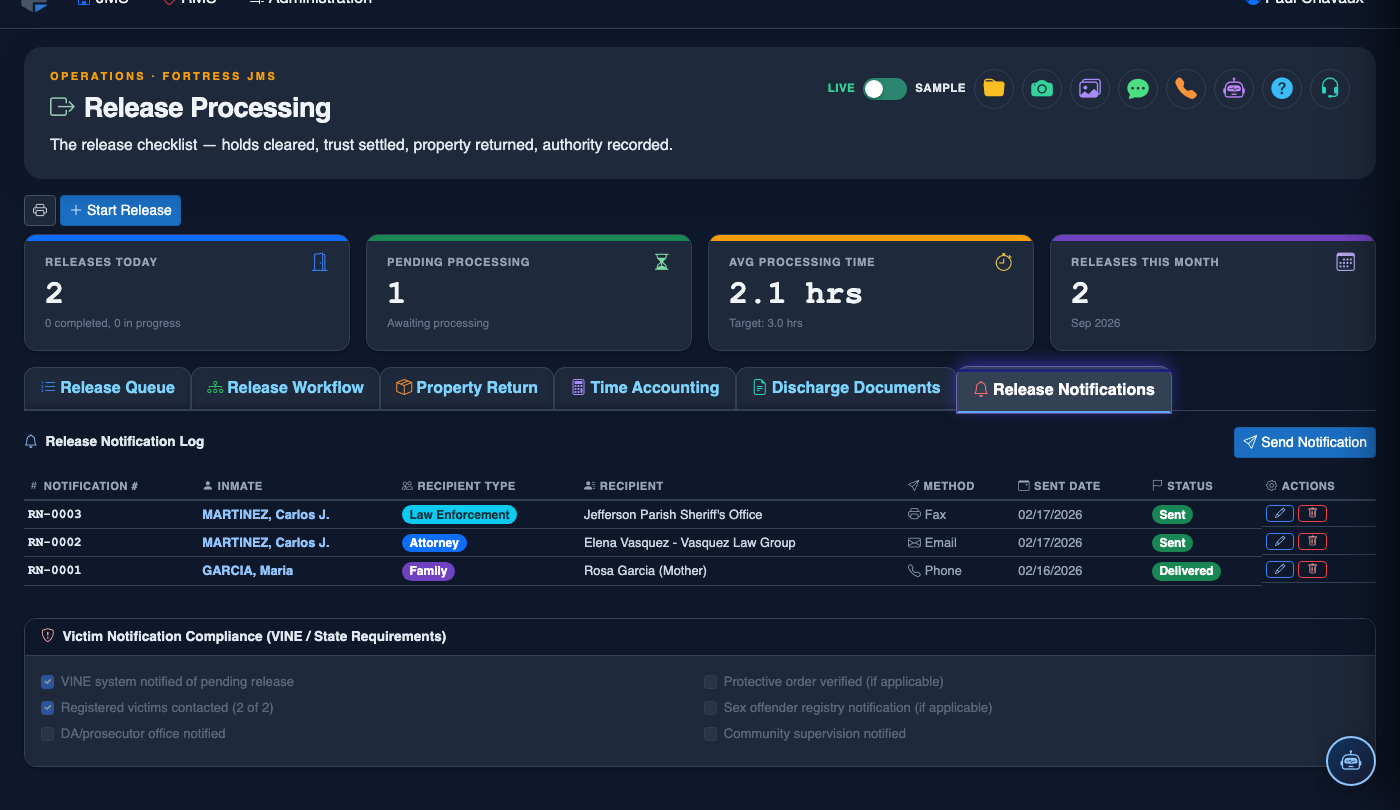
The notification list is divided into two sections. Required Notifications (highlighted in red) are mandated by statute or standing court order and cannot be skipped without a supervisory override. Discretionary Notifications (listed in gray) are optional communications to family contacts, social service agencies, or re-entry program staff. Review both sections and confirm recipient contact information is current before dispatching.
Verify Recipient Contact Information
Click the Edit icon next to any recipient to update their notification method, email address, phone number, or fax number before sending. Corrections here update only this release’s notification — to permanently update a court or agency contact record, use the Agency Directory in Administration. Recipients flagged with a warning icon have unverified or outdated contact information requiring manual confirmation.
Add Supplemental Notification Recipients
Click Add Recipient to include additional parties not automatically identified by the system — for example, a re-entry case manager, a halfway house intake coordinator, or an out-of-jurisdiction law enforcement agency with an active warrant check. Select the recipient type, enter contact details, choose the delivery method, and click Save Recipient.
Dispatch All Notifications
Click Send All Notifications to dispatch the complete notification queue. The system sends each message via the configured channel (email, SMS, fax) and immediately updates each row with a Sent status badge and timestamp. For VINE-enrolled victims, the system transmits the release event to the VINE network automatically — no separate action is required.
Monitor Delivery Status and Handle Failures
After dispatch, the Delivery Status column updates in real time. Successful deliveries show a green Delivered badge; failed attempts show a red Failed badge with the error reason. For any failed notification, click Retry to attempt re-delivery or Manual Override to log that the notification was delivered by alternate means (e.g., a phone call), attaching a note and the officer’s badge number.
Confirm Notification Completion
Once all required notifications show a Delivered or Manual Override status, click Mark Notifications Complete. This closes the notification queue, stamps the release record as notification-compliant, and allows the release process to proceed to final authorization. A permanent log of all notifications sent — including delivery timestamps, method, and recipient — is archived to the inmate’s record.
Initiate the Release Process
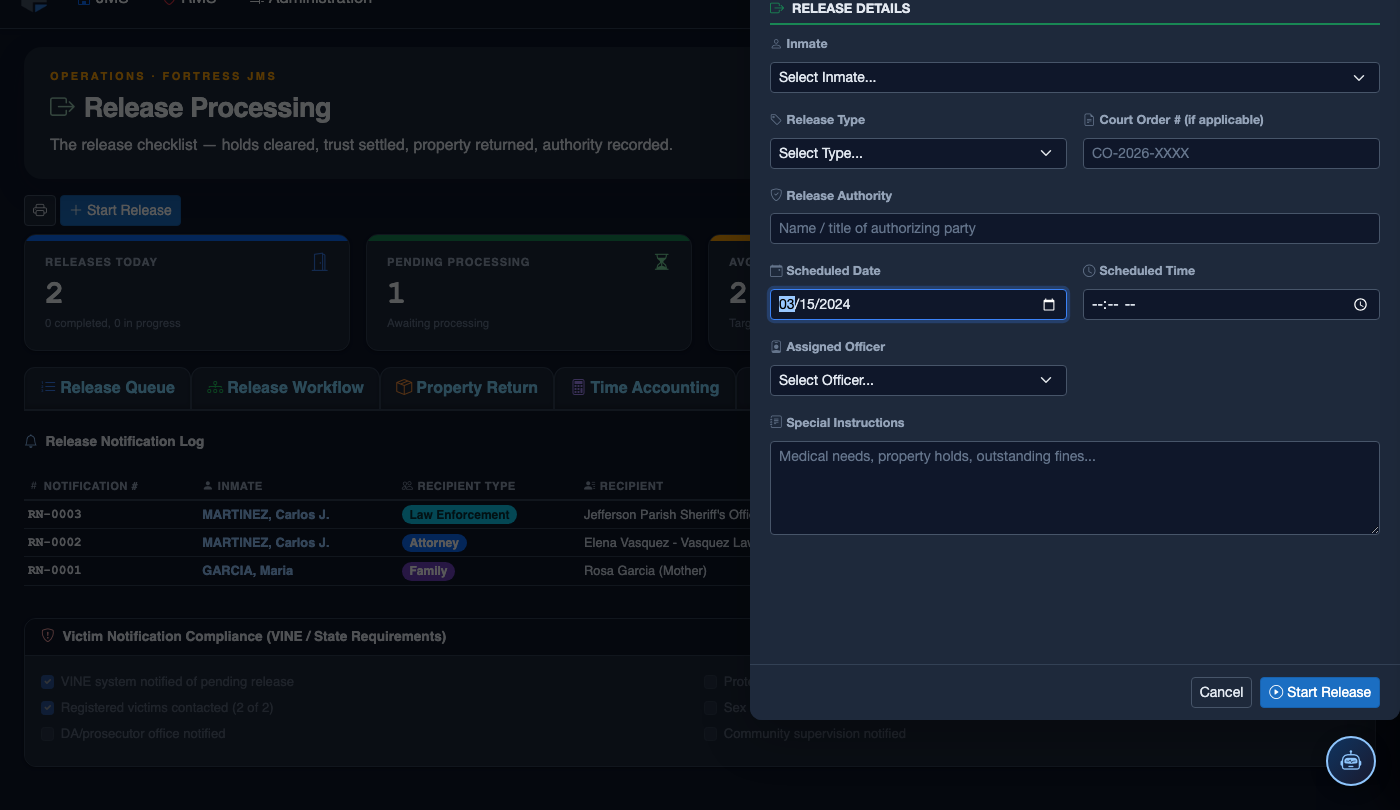
Click Start Release. Work through the release checklist:
- Inmate — search by name or booking number. Active detainers display as warnings.
- Release Type — Sentence Served, Bond Posted, Court Order, Transfer, or Supervised Release.
- Detainer Check — confirm no holds from other jurisdictions are active before proceeding.
- Property Return — verify all personal property is accounted for and the inmate signs the receipt.
- Release Date and Time — set the official release timestamp.
- Transportation — document how the inmate is leaving (self, family, transport agency).
- Post-Release Notes — conditions of release, supervision reporting requirements, etc.
- Click Finalize Release. Bed status changes to Available; housing and case records are closed.
💡 Pro Tips
- Run a Contact Verification Report from Administration monthly to identify stale court and agency contact records before they cause notification failures at release time.
- If a release is delayed after notifications are sent, use the Release Hold button to automatically send a hold notification to all recipients, preventing agencies from acting on an incorrect release time.
- For sex offender registrants, the system will automatically flag the required law enforcement and Sex Offender Registry Unit notifications — never manually add these, as the auto-generated versions include the required statutory language.
- Discretionary notifications to family members are governed by the inmate’s Contact Preferences set at booking — always verify these preferences have not been revoked before sending.
Mobile View — Release Notifications
FortressDMS is fully responsive. Officers can access the Release Notifications on a phone or tablet directly from the field — no app install required.
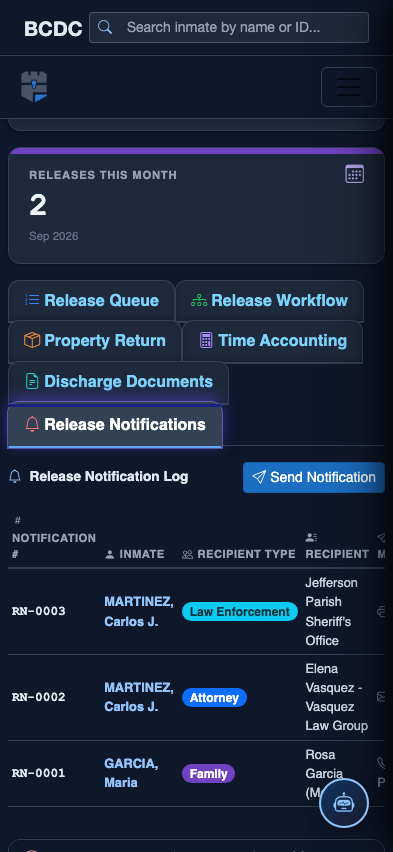
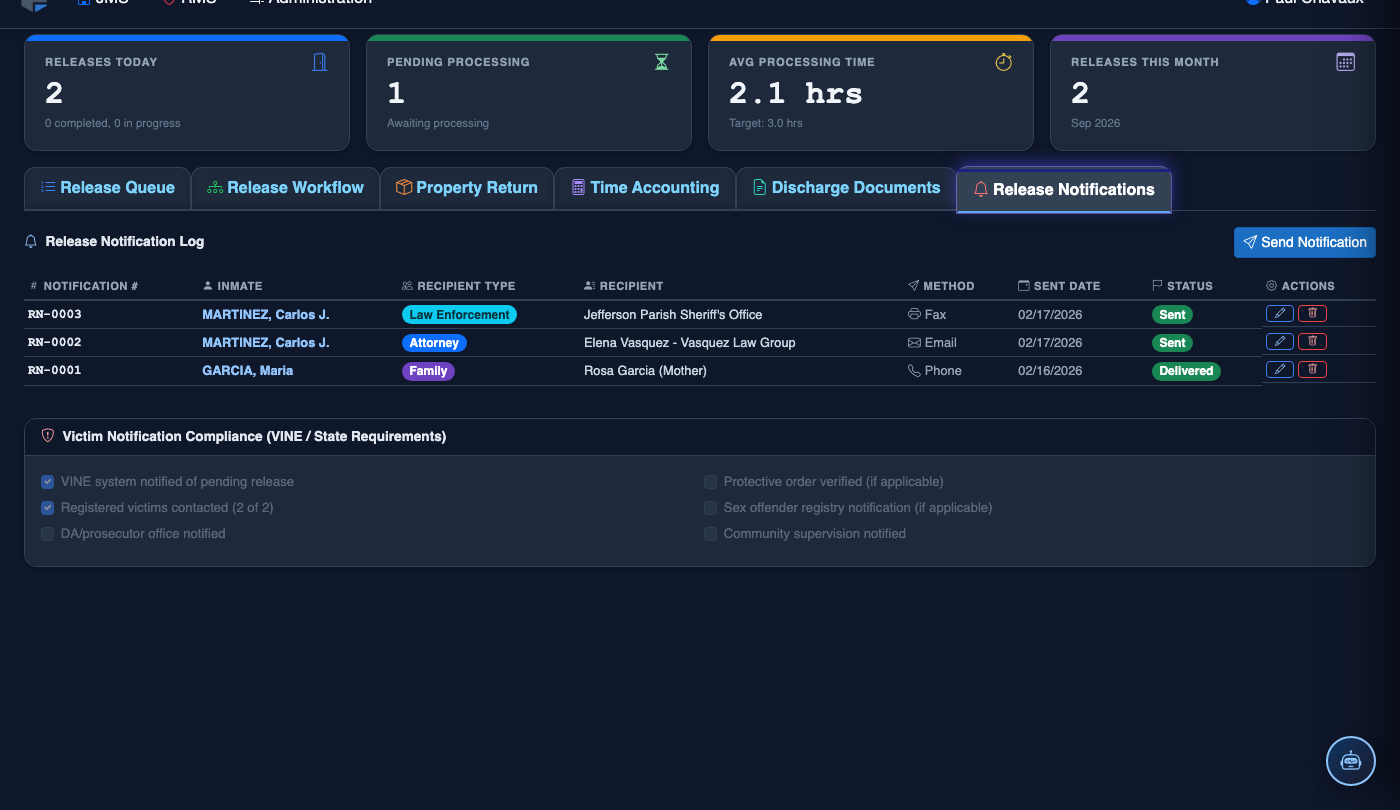
Tab view with data rows
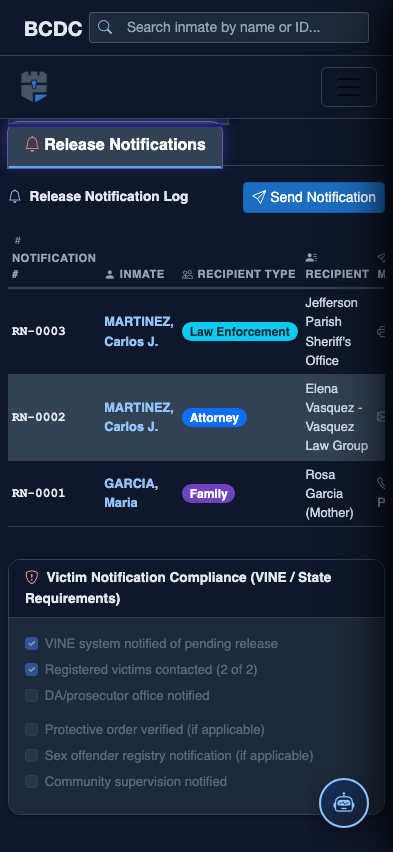
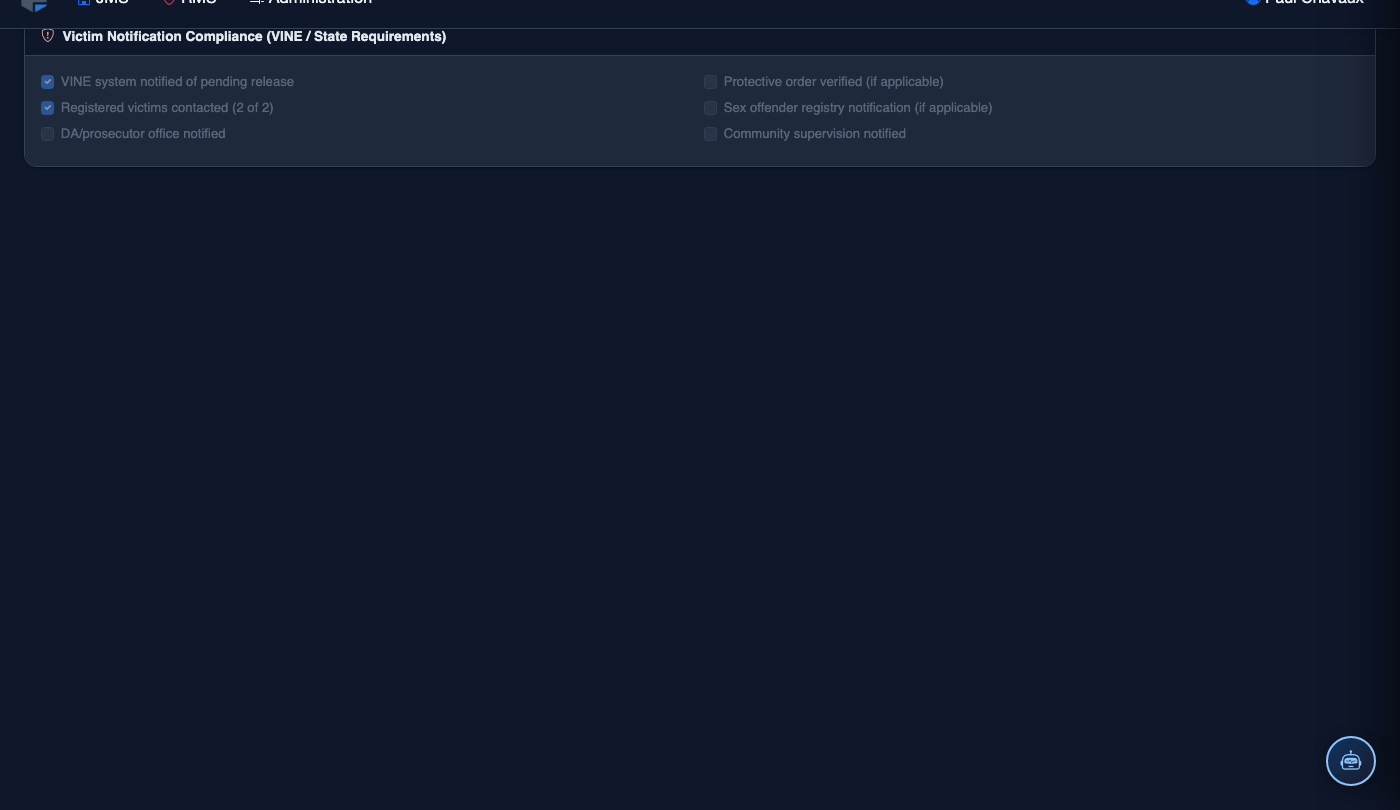
Scrolled / detail view