
Active Holds
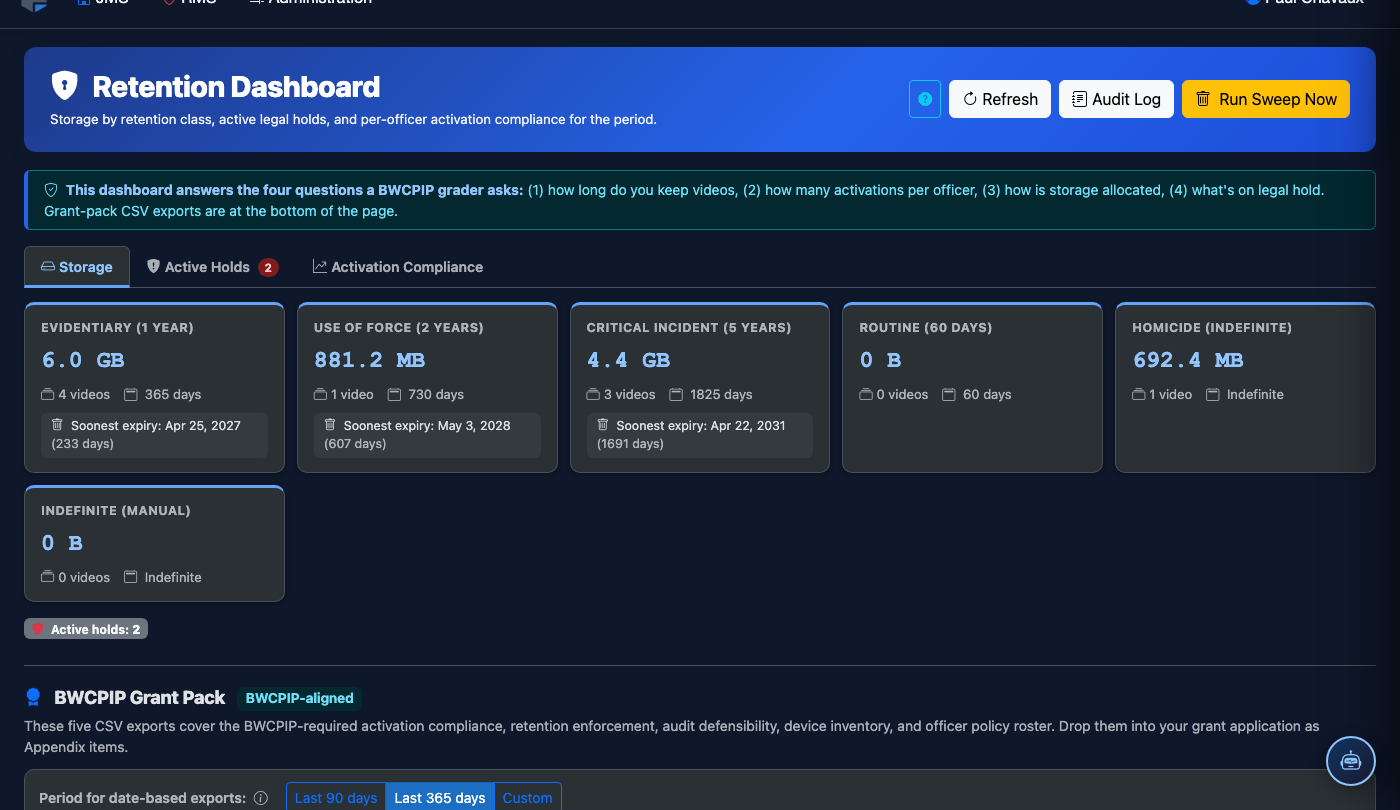
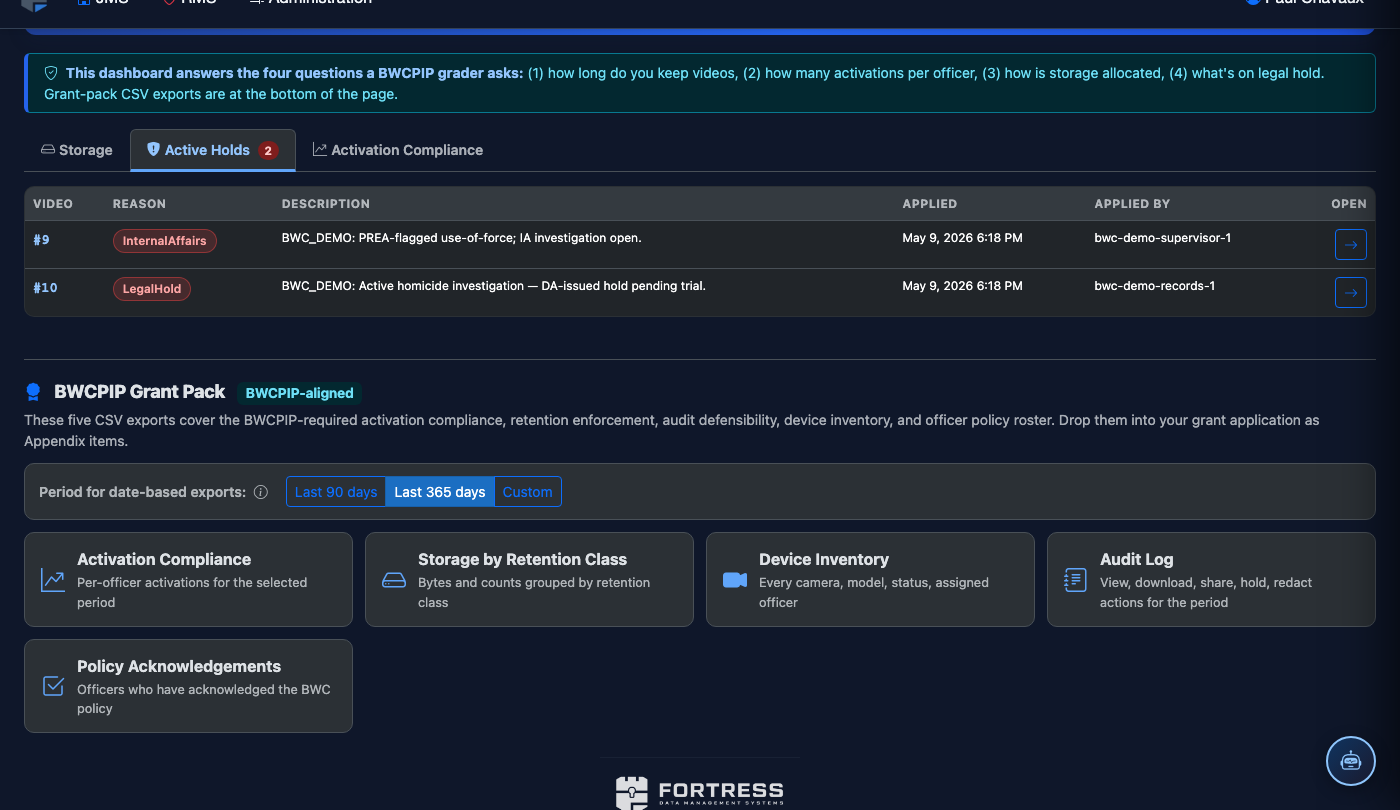
The Active Holds tab is the centralized registry for every litigation hold, administrative hold, and legal preservation order currently protecting BWC footage from automated deletion. Correctional administrators and legal liaisons can create new holds, track expiration dates, assign responsible parties, and release holds once legal matters are resolved — all with a complete, immutable audit trail for chain-of-custody documentation.
Litigation Holds
Link footage directly to open court cases, civil litigation, or discovery orders with case number tracking.
Administrative Holds
Protect footage during internal affairs investigations, grievance reviews, or accreditation inspections.
Expiration Tracking
Configurable hold durations with automated reminders sent to responsible parties before expiration.
Hold Audit Log
Every hold creation, modification, and release is permanently recorded with user identity and timestamp.
Step-by-Step: Creating and Managing Footage Holds
Open the Active Holds Registry
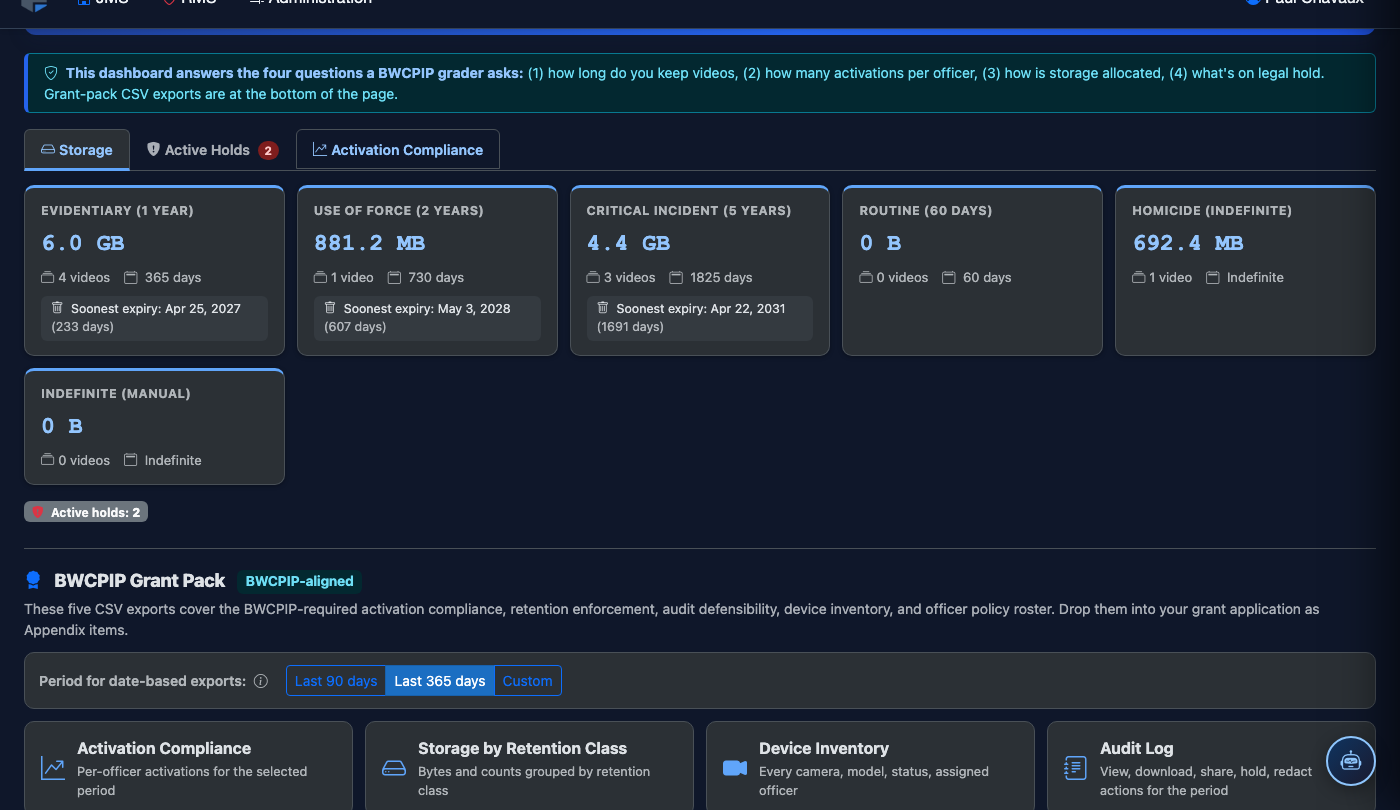
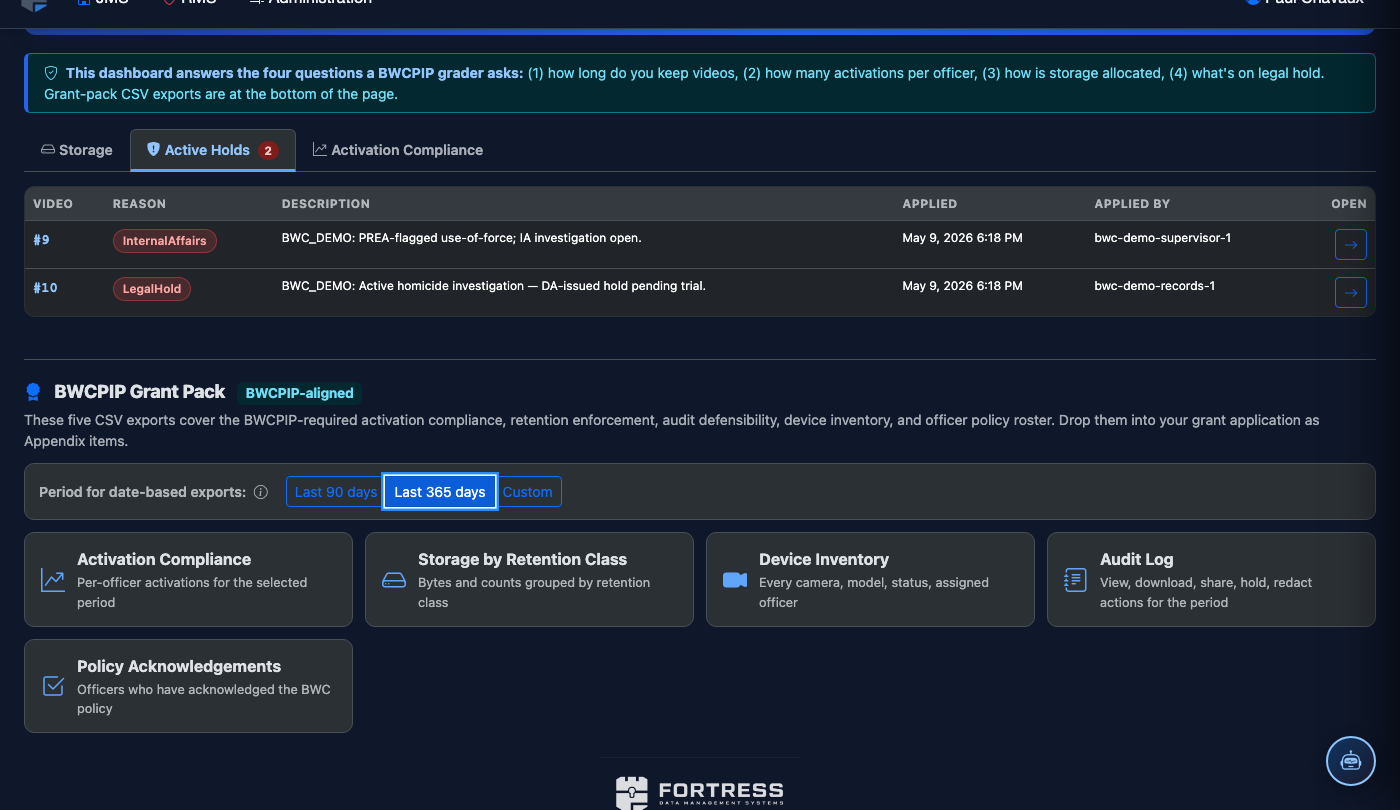
Navigate to BWC & Video > Retention Dashboard and click the Active Holds tab. The registry displays all current holds in a sortable table showing Hold Type, Case Reference, Footage Count, Responsible Party, Created Date, and Expiration Date. Holds expiring within 14 days are highlighted in amber.
Create a New Hold
Click New Hold in the top-right corner. Select the Hold Type: Litigation Hold, Administrative Hold, Grand Jury Hold, or Public Records Hold. Enter the Case or Reference Number, the Responsible Party (attorney name, supervisor badge number, or department), and an optional Hold Notes field for context. Set the Expiration Date or leave it open-ended for indefinite holds.
Select the Footage to Hold
In the footage selection panel, search for recordings by Officer Name, Date Range, Booking Number, or Incident Tag. Use the checkboxes to select individual recordings or click Select All in Range to hold all footage from a specified time window. The total size and count of selected recordings is shown in the summary before you apply the hold.
Apply and Confirm the Hold
Review the hold summary: type, case reference, responsible party, expiration, and footage list. Click Apply Hold. A confirmation dialog requires you to acknowledge that this action is being recorded. After confirmation, each selected recording is immediately flagged — any automated deletion jobs will skip these recordings until the hold is released.
Extend or Modify an Existing Hold
Click any hold in the registry to open its detail panel. From here you can Extend the Expiration Date, Add Recordings to the hold scope, Remove Recordings that are no longer in scope, or Update the Responsible Party. All modifications are versioned — click the History tab on the hold detail to see every change ever made to that hold with the user and timestamp.
Release a Hold When No Longer Needed
When the legal matter is resolved, open the hold record and click Release Hold. Enter the Release Reason (Case Dismissed, Settlement Reached, Investigation Closed, etc.) and the Authorizing Document Reference if applicable. Click Confirm Release. The footage immediately returns to normal retention scheduling — it will be queued for deletion per its original category policy.
Export the Hold Registry for Legal Discovery
Click Export Registry at the top of the Active Holds tab. Choose All Active Holds or filter by case reference, date range, or hold type. The export produces a PDF report listing every hold, the footage it covers, all modification history, and the current status — suitable for submission as a chain-of-custody document in legal proceedings.
💡 Pro Tips
- Enable Expiration Reminder Emails on each hold — the system will automatically notify the responsible party 30 days, 14 days, and 3 days before the hold expires, preventing accidental lapses in legal preservation obligations.
- Use the Auto-Hold on Incident Tag feature in Policy Settings to automatically apply a litigation hold to any footage tagged with "Use of Force" or "Grievance Filed" at the time of tagging — reducing manual oversight risk.
- Holds placed by one administrator can only be released by an administrator of equal or higher privilege level, preventing unauthorized early release of legally protected footage.