
Intake Screening
The Intake Screening tab guides correctional health staff through a structured, legally defensible health assessment for every inmate at the moment of booking. The form captures vital signs, medical and mental health history, communicable disease risk factors, suicide risk indicators, and current medications — ensuring that clinical needs are identified before an inmate is ever placed in general population housing.
Structured Assessment Form
Section-by-section guided assessment ensures no critical health question is skipped during the high-pressure booking process.
Vital Signs Capture
Record blood pressure, pulse, respiratory rate, temperature, and oxygen saturation with automatic alerting for out-of-range values.
Suicide Risk Screening
Integrated Columbia Suicide Severity Rating Scale (C-SSRS) flags high-risk inmates for immediate mental health watch placement.
Communicable Disease Screening
Screen for TB, MRSA, COVID-19, and other communicable disease risks with automatic isolation recommendations based on responses.
Step-by-Step: Intake Screening
Open a Pending Intake Screening
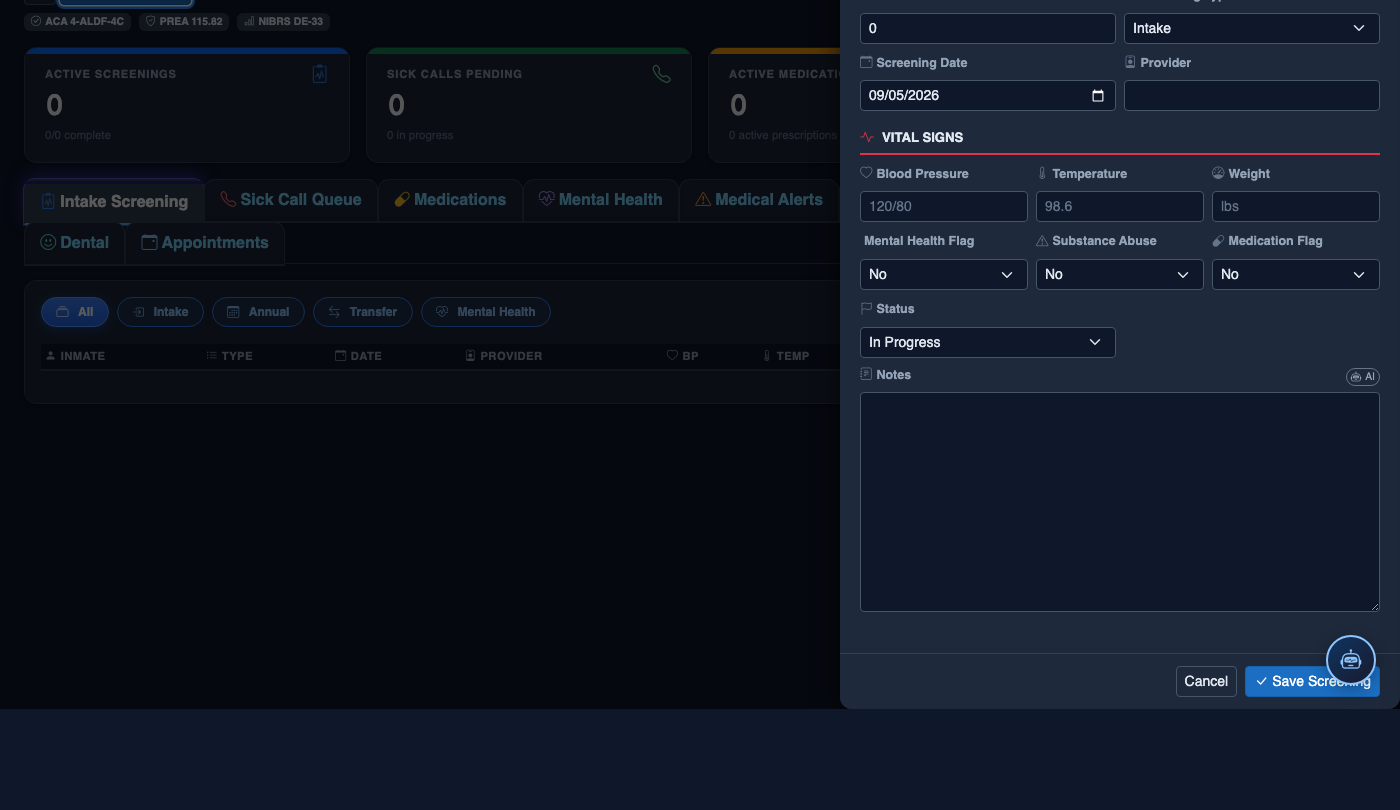
In the Medical & Screening module, click the Intake Screening tab. The queue shows all newly booked inmates whose initial health assessment has not yet been completed. Click the inmate’s name to open the assessment form — the booking number, name, and date of birth are pre-populated from the custody record.
Record Vital Signs
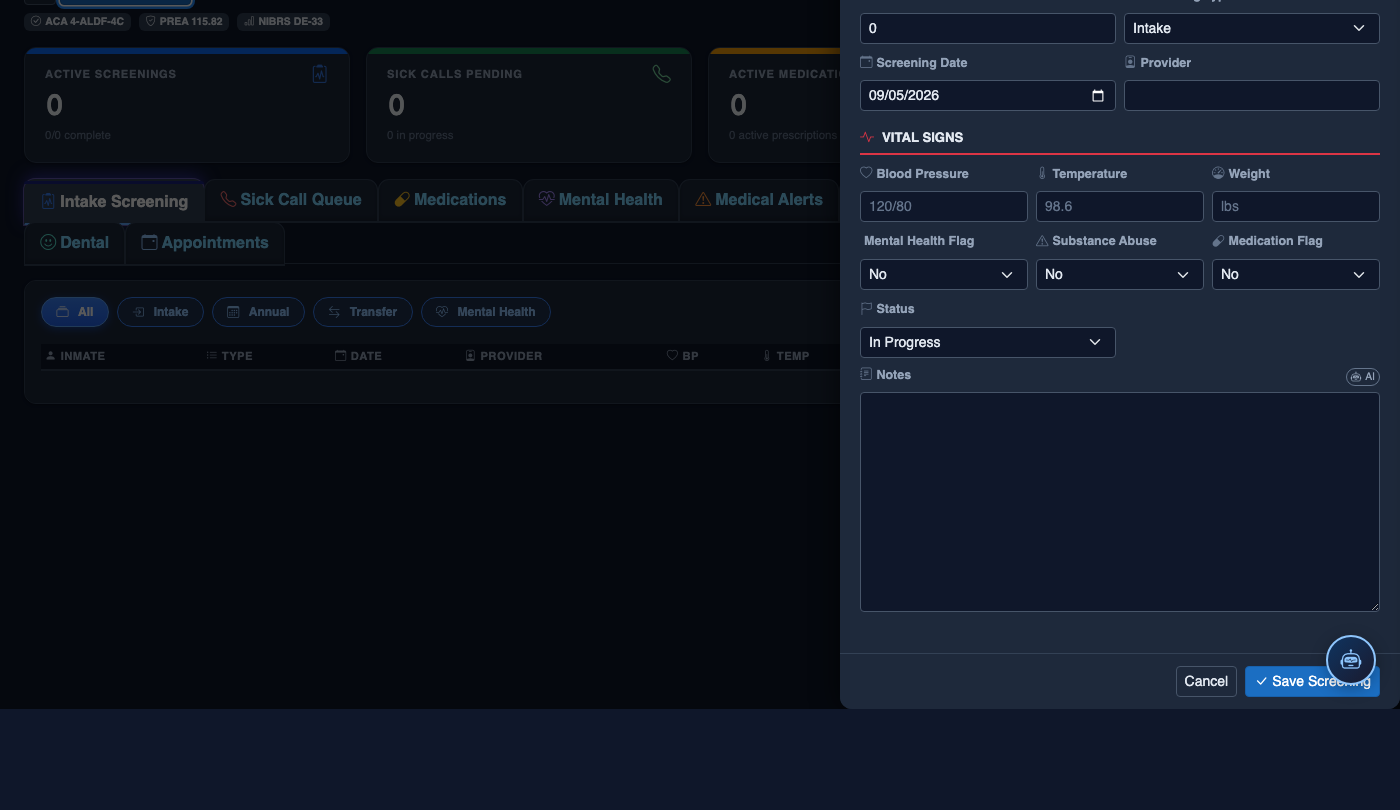
In the Vital Signs section, enter the inmate’s Blood Pressure, Pulse, Respiratory Rate, Temperature, and Oxygen Saturation (SpO2). Values outside the normal clinical range are highlighted in red and will generate a prompt asking whether to escalate to a nurse or physician before continuing the screening.
Complete the Medical History Section
Work through the Medical History checklist, asking the inmate about known diagnoses, past hospitalizations, surgeries, allergies, and current prescriptions. Check all applicable conditions and enter free-text details where prompted. Medications entered here automatically create a pending Medication Verification task for pharmacy review.
Conduct Communicable Disease Screening
In the Communicable Disease section, answer the structured screening questions for TB exposure, MRSA history, skin lesions, and other reportable conditions. A positive response on any TB indicator will automatically add a TB Test Order to the inmate’s medical record and notify the health services administrator.
Complete the Suicide Risk Assessment
The Suicide Risk Screening section uses a validated instrument to assess ideation, history of attempts, current stressors, and access to means. Any score above the low-risk threshold immediately displays a Place on Suicide Watch prompt. Clicking Confirm Watch notifies the shift supervisor, flags the inmate’s housing tile in red, and logs the watch activation in the mental health record.
Finalize and Sign the Screening
Review the completed assessment summary at the bottom of the form. Click Sign & Submit and enter your clinician credentials to finalize the record. The system timestamps the completion, locks the form from further editing without a supervisor override, and clears the inmate from the pending screening queue.
Create a New Medical Record
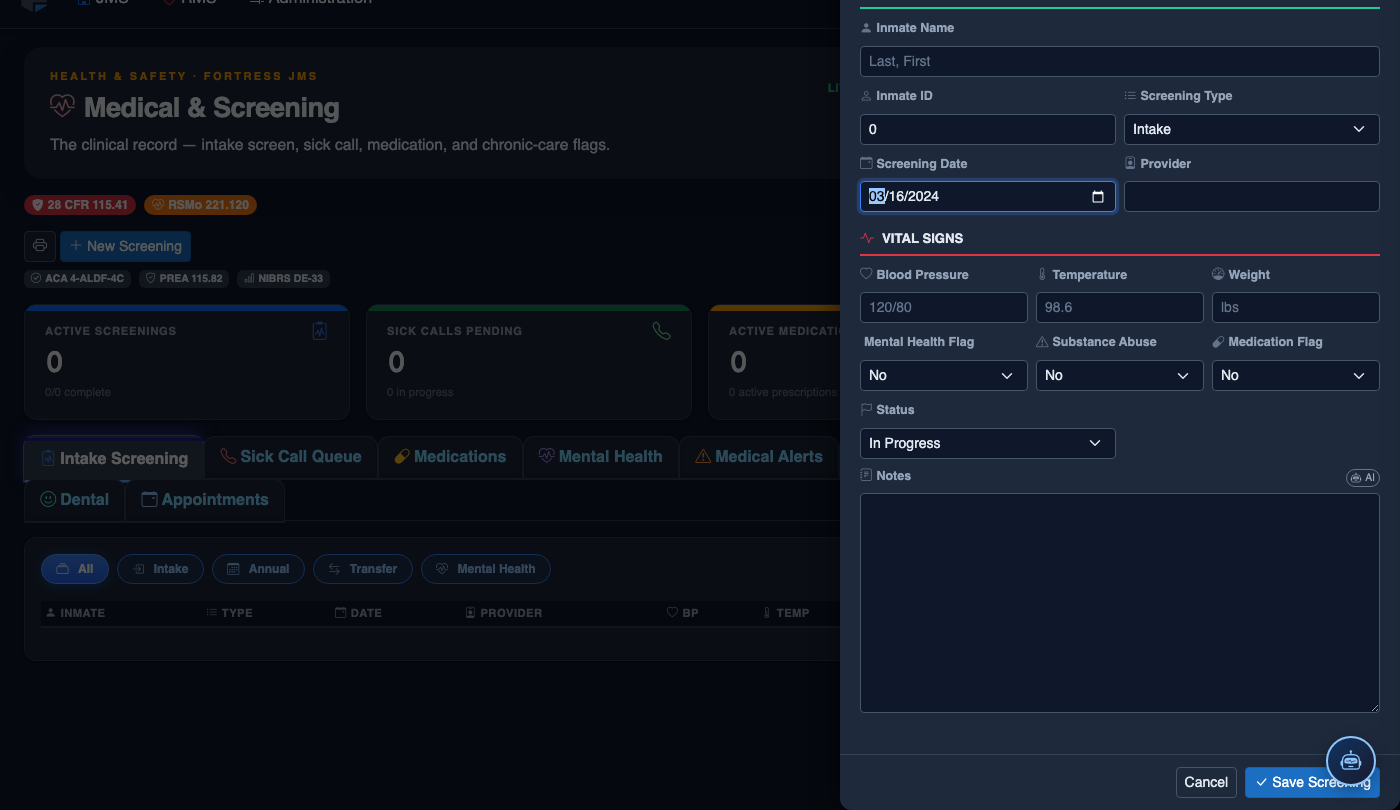
Click New Screening in the module toolbar. Complete the medical form:
- Inmate — search by name or booking number.
- Visit Type — Intake Screening, Sick Call, Scheduled Follow-Up, or Emergency.
- Priority — Routine, Urgent, or Emergent; Emergent pages on-call provider immediately.
- Chief Complaint / Findings — document symptoms, vitals, and objective observations.
- Provider — assign the clinician or nurse conducting the visit.
- Disposition — Treat and Return, Infirmary Admission, Hospital Transfer, or No Action.
- Add any Prescriptions, Follow-Up Date, or Restrictions.
- Click Save Record. Alerts fire automatically if vital signs are out of range.
💡 Pro Tips
- Complete the intake screening within two hours of booking — most state standards and NCCHC accreditation require health assessment within this window, and the system will flag overdue screenings to the health administrator.
- If an inmate is uncooperative or unable to respond (due to intoxication or altered mental status), document the reason in the Assessment Notes field and set a Follow-Up Screening reminder for when the inmate is able to participate.
- Verified prescription medications entered during intake are automatically cross-referenced against known interactions in the formulary — review any interaction warnings before confirming continuation orders.
Mobile View — Intake Screening
FortressDMS is fully responsive. Officers can access the Intake Screening on a phone or tablet directly from the field — no app install required.
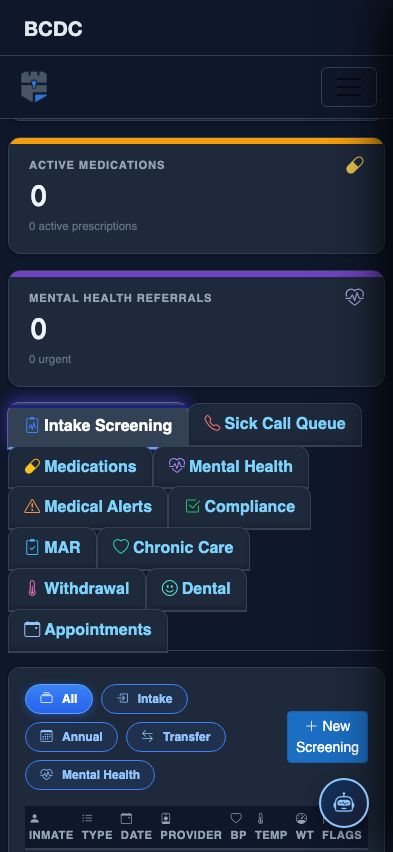
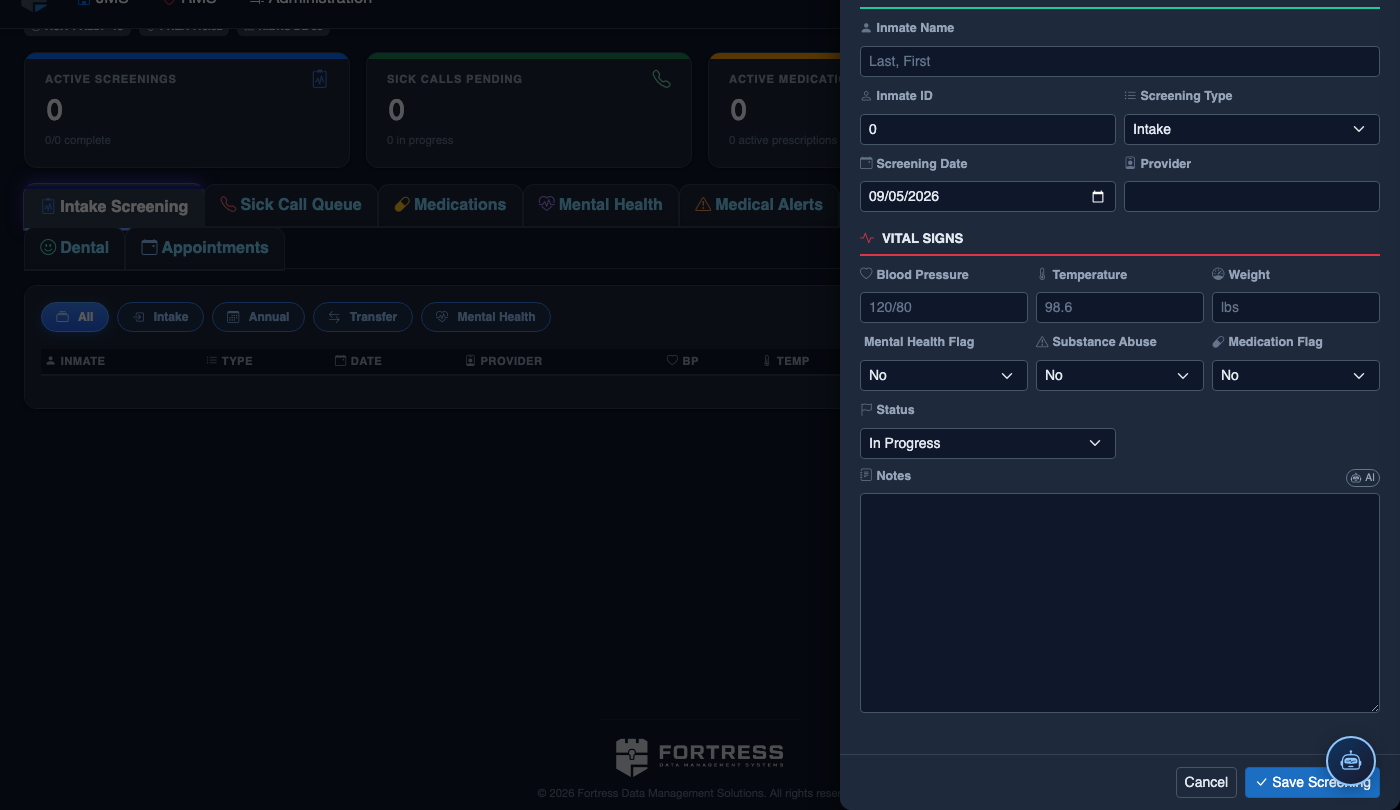
Tab view with data rows
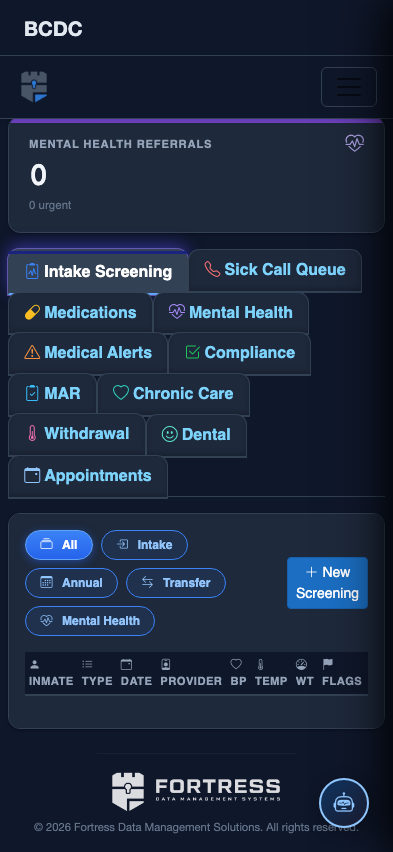
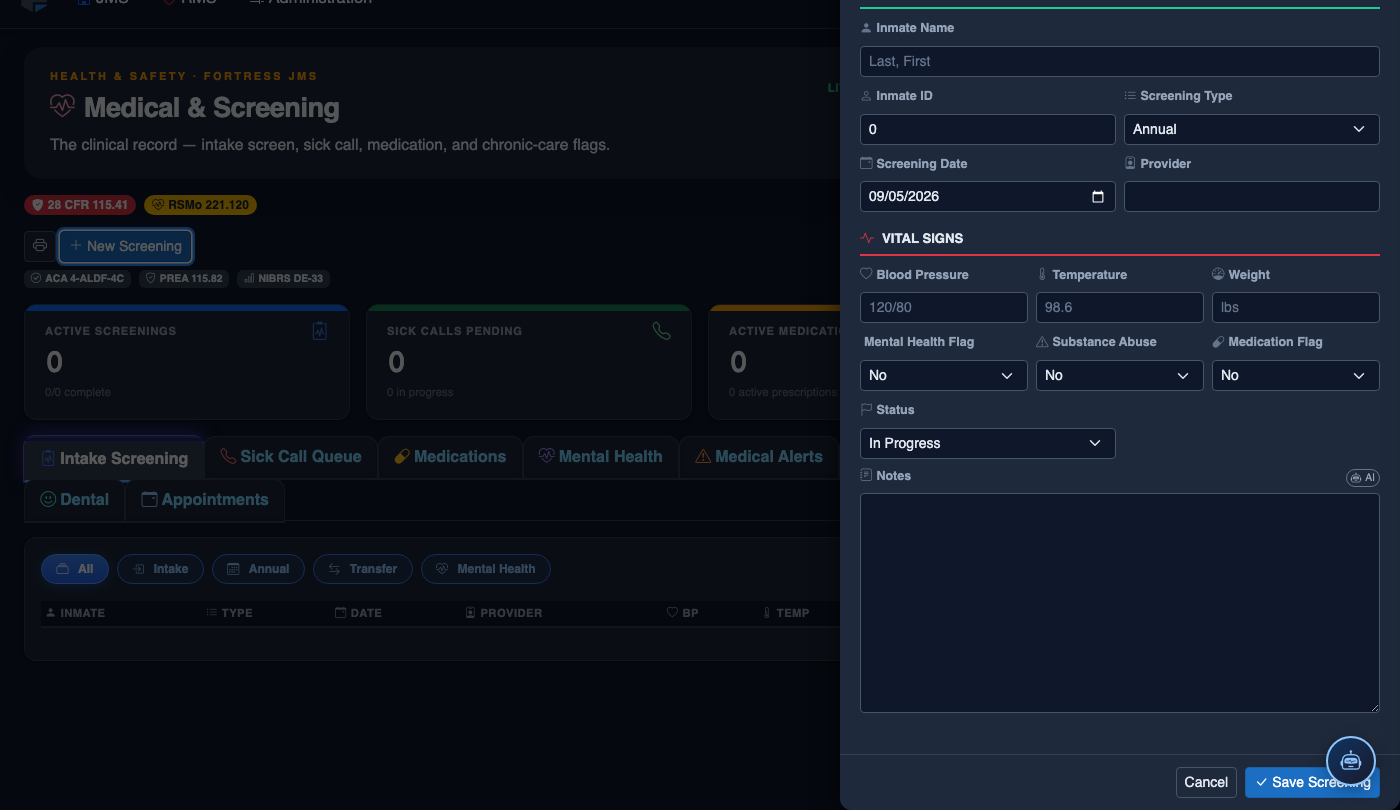
Scrolled / detail view