
Inmate Self-Service
The Inmate Self-Service tab within the Offender Portal delivers a kiosk and tablet interface that allows inmates to handle routine requests independently — freeing officers from answering repetitive questions and processing manual forms. Inmates submit commissary orders, file grievances, view their court dates, request medical appointments, and read policy documents, all within a controlled, staff-configured environment. Every action is logged and reviewed before it leaves the inmate-facing interface.
Commissary Requests
Inmates browse the approved commissary catalog and submit orders against their account balance — no officer involvement required.
Grievance Filing
Inmates submit written grievances with a category selection, which routes directly to the assigned supervisor for timed review.
Medical Request Submission
Inmates submit a sick-call request with a brief symptom description, creating a triage ticket in the medical queue automatically.
Court Date Viewer
Upcoming hearings, attorney contacts, and transport notices are displayed in a read-only view drawn from the court management module.
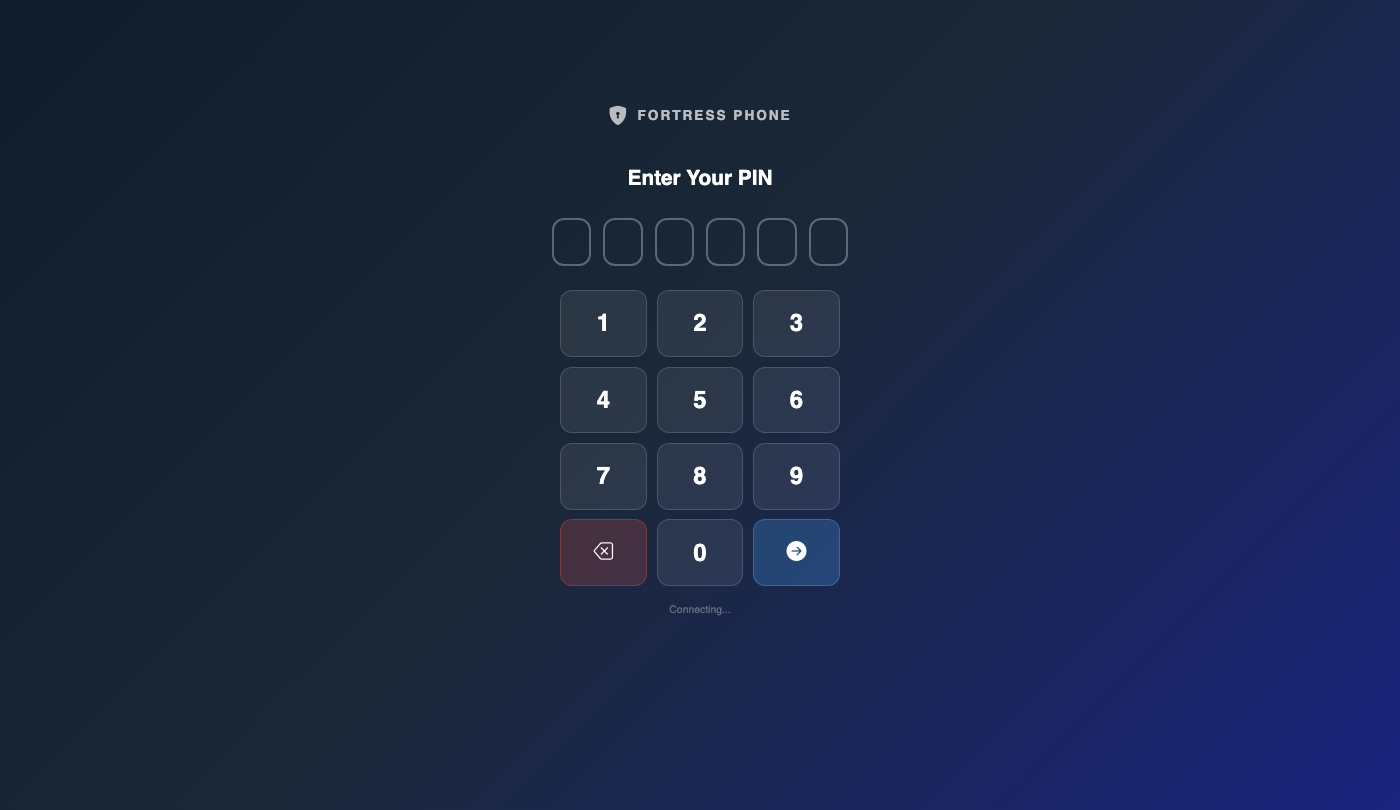
Step-by-Step: Configuring and Using Inmate Self-Service
Open the Inmate Self-Service Tab
Navigate to Offender Portal in the main menu and click the Inmate Self-Service tab. This view shows the admin configuration panel for the kiosk/tablet interface along with a live queue of pending requests submitted by inmates.
Enable Features by Housing Unit
Click Feature Access Settings and use the housing unit matrix to toggle which self-service features each block or pod can access. Restrict Commissary for disciplinary units while leaving Grievances and Medical Requests active to maintain compliance with inmate rights requirements.
Process Pending Commissary Orders
Under the Commissary Queue, pending orders appear with the inmate name, requested items, and current account balance. Click Approve to route the order to the commissary fulfillment staff or Deny to decline with a reason. Approved orders debit the inmate’s account immediately.
Triage Medical Requests
Navigate to Medical Request Queue to see sick-call tickets submitted by inmates. Each request displays the symptom description and submission time. Medical staff click Schedule Appointment to assign a time slot, which notifies the officer in the housing unit to escort the inmate to the medical unit.
Review Submitted Grievances
Open the Grievance Queue to view inmate-submitted grievances alongside their category (conditions, medical, staff conduct, etc.). Assign a supervisor and a mandatory response date. Each status change — Under Review, Responded, Closed — is reflected on the inmate’s kiosk view so they can track progress.
Manage the Commissary Catalog
Under Catalog Settings, add, update, or deactivate products available for inmate ordering. Set prices, quantity limits per order, and ordering frequency restrictions (e.g., once per week). Deactivated items disappear from the inmate interface immediately without requiring a kiosk restart.
Review Self-Service Activity Logs
Navigate to Activity Log in the Self-Service tab to see a full chronological record of every inmate interaction: PIN logins, pages viewed, requests submitted, and any denied access attempts. Filter by date or inmate name to support internal investigations or compliance audits.
💡 Pro Tips
- Configure Kiosk Lockout Hours in Self-Service Settings to restrict portal access to daytime hours only, preventing inmates from submitting requests during count times or overnight.
- Use the Commissary Order Limit setting to cap the number of orders an inmate can place per week — reducing the risk of stockpiling and contraband-related trading.
- Enable the Medical Request Urgency Flag so inmates can mark a request as urgent, which immediately pushes an alert to the on-duty medical staff rather than placing the ticket in the standard queue.
- Set up a Grievance Deadline Report delivered weekly to your administrator inbox — it flags any grievances approaching their mandatory response date before a policy violation occurs.
Mobile View — Inmate Self
FortressDMS is fully responsive. Officers can access the Inmate Self on a phone or tablet directly from the field — no app install required.
Tab view with data rows
Scrolled / detail view