
Grievance Filing
The Grievance Filing tab in FortressDMS provides a structured, auditable channel for inmates to submit formal complaints and grievances directly through the offender portal. Jail administrators and classification staff receive grievances in a centralized queue, can assign cases to the appropriate responding officer, track resolution timelines, and maintain full documentation required for PREA compliance and state audits. The system enforces mandatory response windows and escalates overdue cases automatically.
Structured Submission Form
Inmates complete a guided form categorizing their grievance by type, date of incident, and involved staff or inmates.
PREA & Compliance Tracking
Flags PREA-related grievances for priority routing and mandatory reporting with enforced response deadlines.
Case Assignment & Routing
Supervisors assign grievances to responding officers or departments with accountability tracked in the system.
Automated Escalation
Cases approaching or exceeding mandatory response deadlines are automatically escalated to supervisory staff.
Step-by-Step: Processing Inmate Grievances
Open the Grievance Queue
Navigate to Offender & Family Portal and click the Grievance Filing tab. The incoming grievance queue displays all new, pending, and overdue submissions sorted by priority and submission date.
Review Grievance Details
Click any grievance row to open the full submission. Review the Grievance Category (conditions, medical, staff conduct, PREA, property, or program access), the inmate’s narrative, and any attached documentation. The submitting inmate’s current classification and housing unit are displayed in the sidebar.
Flag PREA and Priority Cases
If the grievance involves allegations of sexual misconduct or assault, click Mark as PREA to trigger mandatory routing to the facility’s PREA Coordinator. The system will apply a 72-hour first-response deadline and lock the case from general-queue resolution until the coordinator acknowledges receipt.
Assign the Case to a Responding Officer
Use the Assign To dropdown to select the officer, sergeant, or department responsible for investigating and responding to the grievance. The assigned staff member receives an in-system notification and the case appears on their personal dashboard. A Due Date is automatically calculated based on grievance category and facility policy.
Document the Investigation and Response
The assigned officer uses the Response Notes field to document investigative steps, interviews conducted, and findings. Supporting files such as incident reports, camera footage logs, or medical records can be attached directly to the case. All edits are timestamped with the officer’s credentials.
Issue the Formal Decision
Select a Resolution from the dropdown: Upheld, Denied, Resolved Informally, or Referred to External Agency. Enter the formal decision text that will be delivered to the inmate through the portal. Click Submit Decision to finalize and notify the inmate.
Track Appeals and Export Reports
Inmates may file an appeal through the portal within the configured appeal window. Appeals appear as child records linked to the original grievance. Use the Export button to generate a PDF or CSV report of all grievances for a selected date range — required for quarterly state compliance submissions and annual audits.
💡 Pro Tips
- Set up category-based auto-assignment rules under Settings > Grievance Routing so medical grievances automatically route to the health services coordinator without manual intervention.
- Review the Overdue Cases dashboard filter daily — facilities can face liability exposure when mandatory response windows are missed. The system flags these in red 48 hours before the deadline.
- When an inmate submits multiple grievances within a short period, check the Filing History tab to assess patterns — serial filers may require classification review or mental health referral.
Mobile View — Grievance Filing
FortressDMS is fully responsive. Officers can access the Grievance Filing on a phone or tablet directly from the field — no app install required.
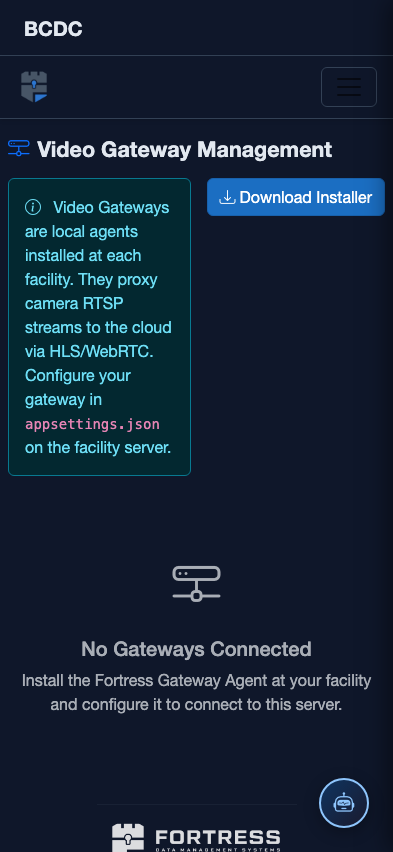
Tab view with data rows
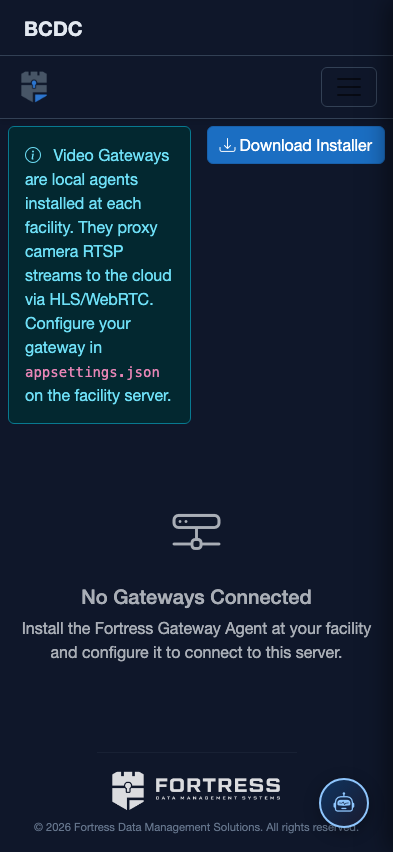
Scrolled / detail view