
Sanctions Management
The Sanctions Management tab allows disciplinary staff to impose, track, and automatically expire the full range of correctional sanctions following a guilty finding — from administrative segregation and loss of privileges to commissary restrictions and program removal. Automated expiration alerts and housing integration eliminate manual tracking errors and ensure inmates serve exactly the sanction imposed, no more and no less.
Segregation Orders
Issue administrative segregation or disciplinary separation orders that auto-route to housing for cell reassignment.
Auto-Expiration Timers
Each sanction has a system-enforced end date with alerts to staff when time served is complete and restrictions should be lifted.
Privilege Restrictions
Apply commissary, recreation, visitation, and phone restriction flags that integrate with the relevant facility modules.
Sanction History Audit Trail
Every sanction imposition, modification, early release, and expiration is logged with officer name and timestamp.
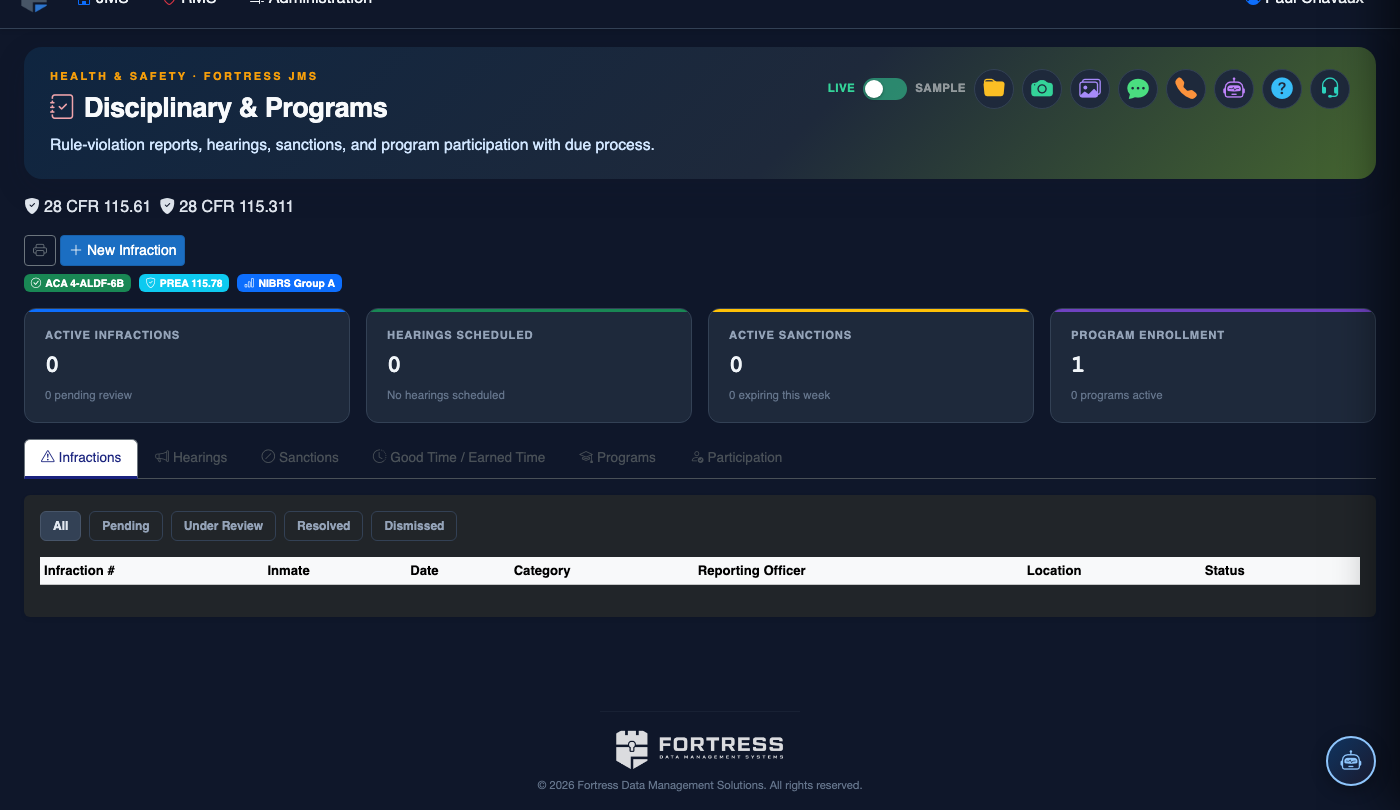
Step-by-Step: Imposing and Managing Disciplinary Sanctions
Access Sanctions Management After Guilty Finding
After a Guilty finding is entered in the Hearings tab, click the Proceed to Sanctions prompt, or navigate manually to the Sanctions Management tab and open the linked incident record. The inmate’s name, violation, and hearing finding are pre-populated.
Select Sanction Types
Click + Add Sanction and choose from the available sanction types: Administrative Segregation, Disciplinary Separation, Commissary Restriction, Recreation Restriction, Visitation Loss, Phone Restriction, Good Time Forfeiture, or Program Removal. Multiple sanction types can be stacked on a single guilty finding.
Set Duration and Start Date
For each sanction, enter the Start Date (typically today or a future date for stacked sanctions) and Duration in days. The system calculates and displays the Release Date automatically. Verify the duration falls within the sanction range allowed for the violation code per facility policy.
Activate Segregation Housing Orders
If Administrative Segregation is imposed, click Issue Housing Order. This generates a housing change request in the Classification module and notifies the housing officer to move the inmate to the designated segregation unit. The inmate’s housing record updates automatically when the move is confirmed.
Apply Privilege Restriction Flags
Commissary, recreation, visitation, and phone restrictions automatically push a restriction flag to the respective module. For example, a commissary restriction blocks the inmate’s name from appearing on the approved order list until the restriction expires. No manual entry in each module is needed.
Monitor Active Sanctions
The Active Sanctions view on the Sanctions tab displays all currently running sanctions with a countdown to release date. Sanctions expiring within 48 hours are highlighted in amber. On the release date, the system auto-expires the sanction and notifies the relevant staff (housing, commissary, phone) to restore privileges.
Process Early Release or Modification
If a supervisor approves early sanction release (e.g., for good behavior), open the active sanction record and click Modify Sanction. Enter the new release date, the authorizing administrator, and the reason. The audit trail records the original sanction, modification details, and authorizing officer for accountability.
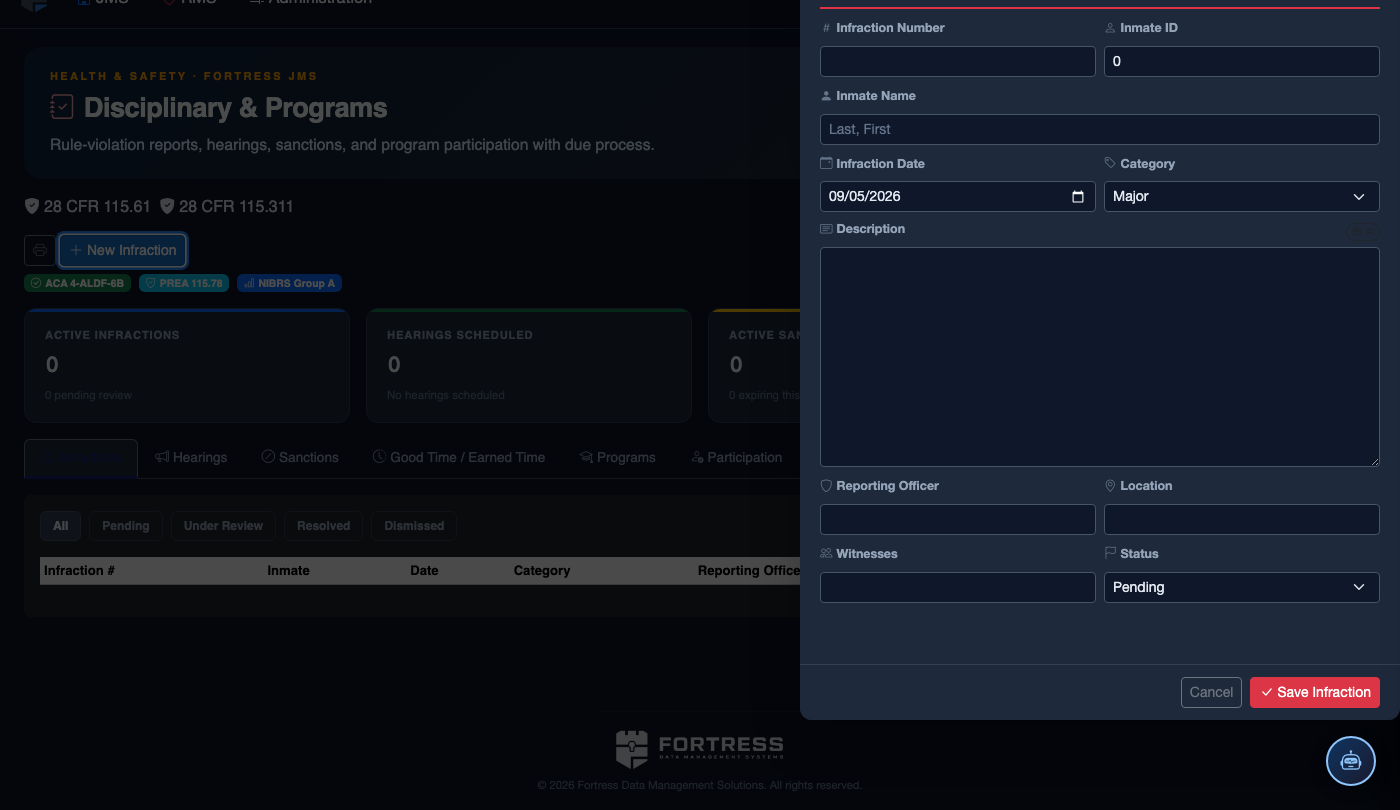
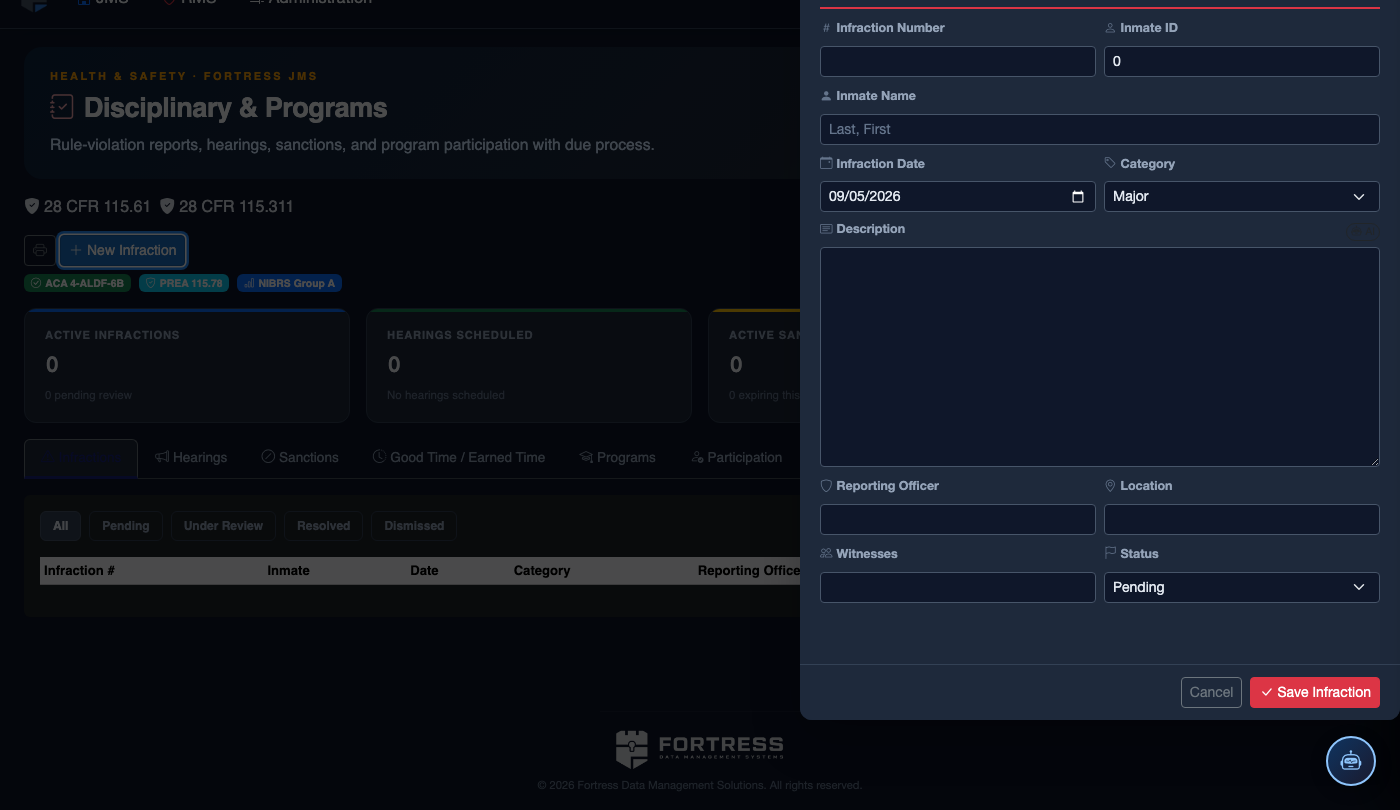
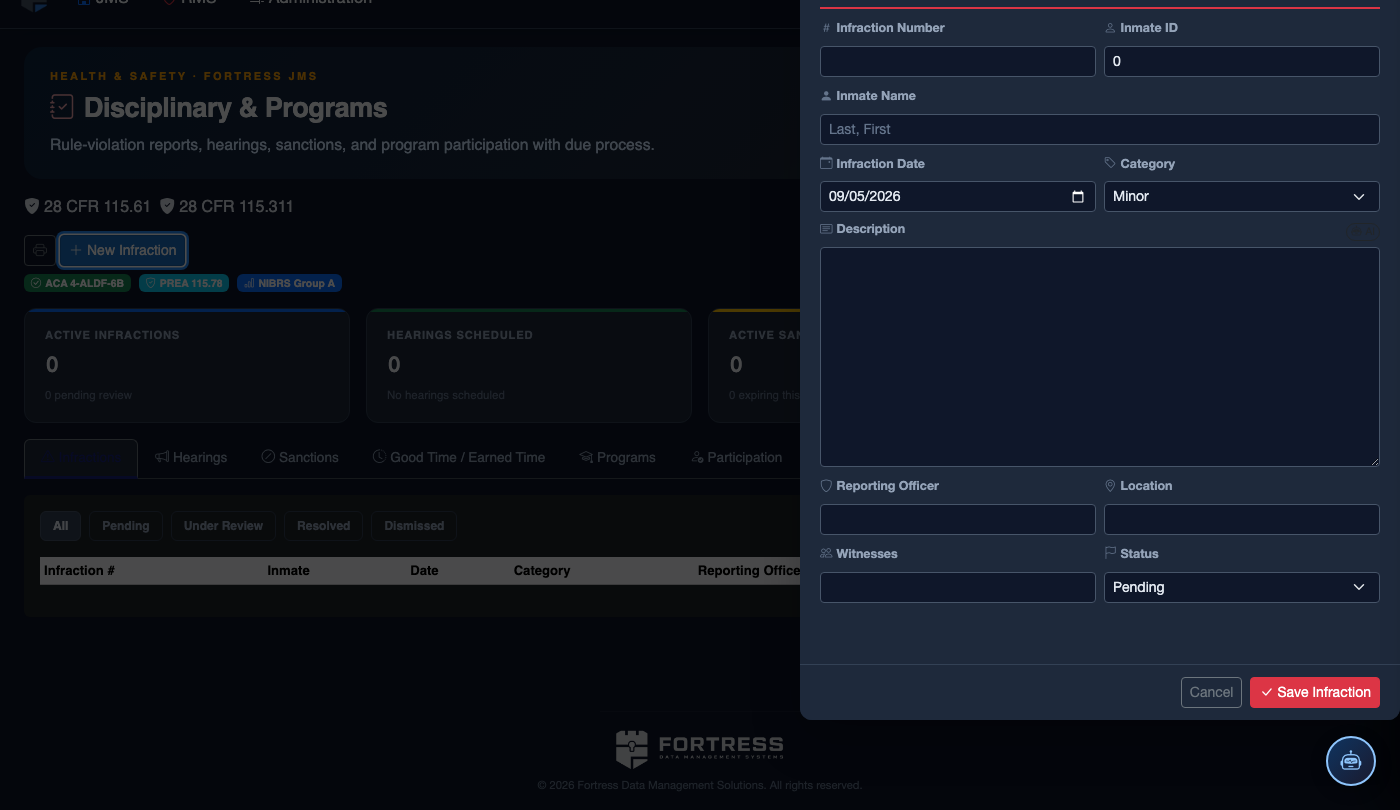
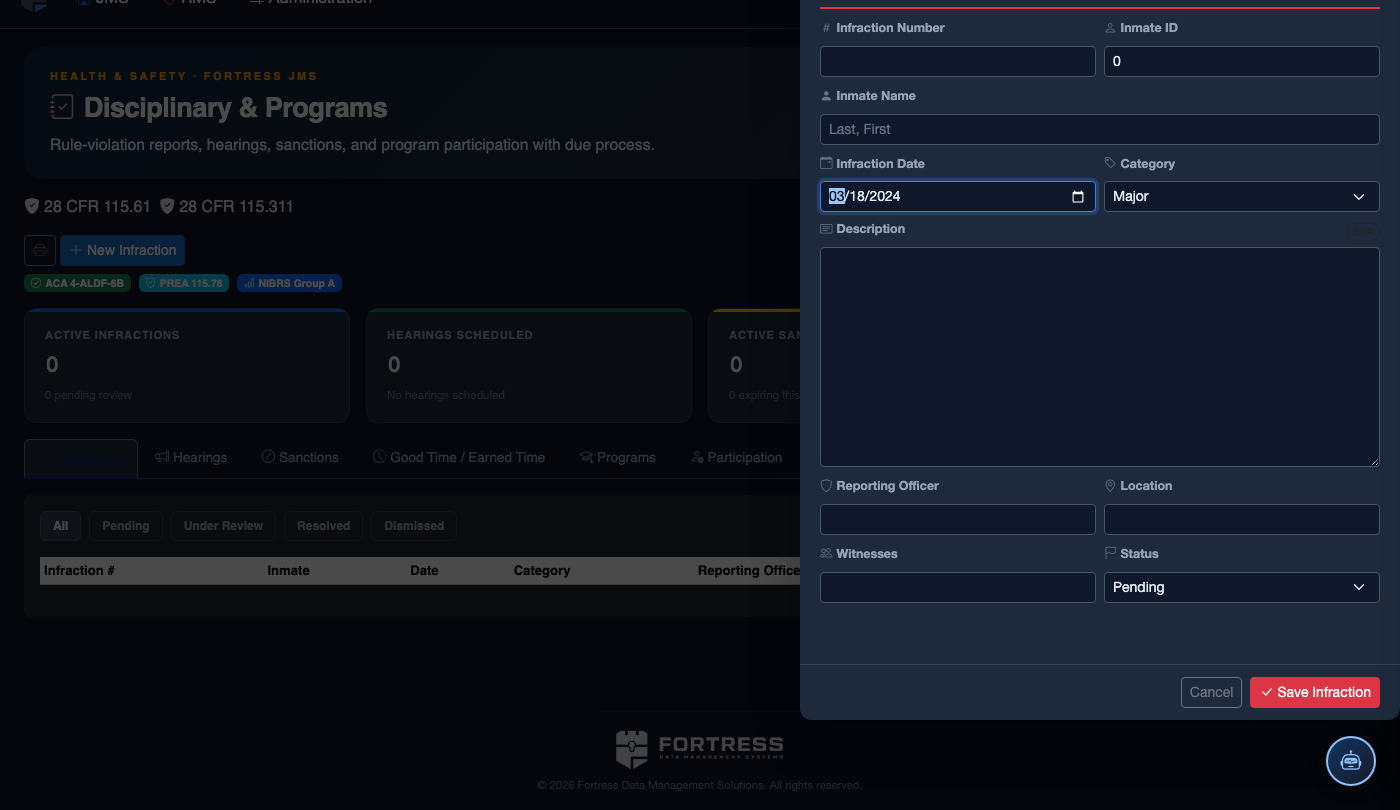
File a New Disciplinary Infraction
Click New Infraction. Complete the disciplinary record:
- Inmate — the subject of the infraction.
- Violation Type — select from the facility’s disciplinary code (Minor, Major, or Felony-level).
- Incident Description — document the incident objectively: date, time, location, what occurred, and who was involved.
- Reporting Officer and any Witnesses.
- Hearing Date — must be scheduled within the required timeframe (typically 24–72 hours for major violations).
- Recommended Sanction — Loss of Privileges, Segregation, Restitution, or Program Removal (final determination set by hearing officer).
- Click Save Infraction. The inmate is automatically notified and a hearing record is created.
💡 Pro Tips
- Always verify that the sanction duration is within the range specified by your facility rulebook for the specific violation code — imposing a sanction outside the allowed range is a common source of grievances and appeals.
- Use the Stacked Sanction feature when an inmate commits a new violation while already serving a sanction; future sanctions start the day after the previous one ends, preventing overlap and maintaining the correct total time served.
- Run the Expiring Sanctions report weekly to proactively prepare housing and program reassignments before inmates return from segregation.
Mobile View — Sanctions Management
FortressDMS is fully responsive. Officers can access the Sanctions Management on a phone or tablet directly from the field — no app install required.
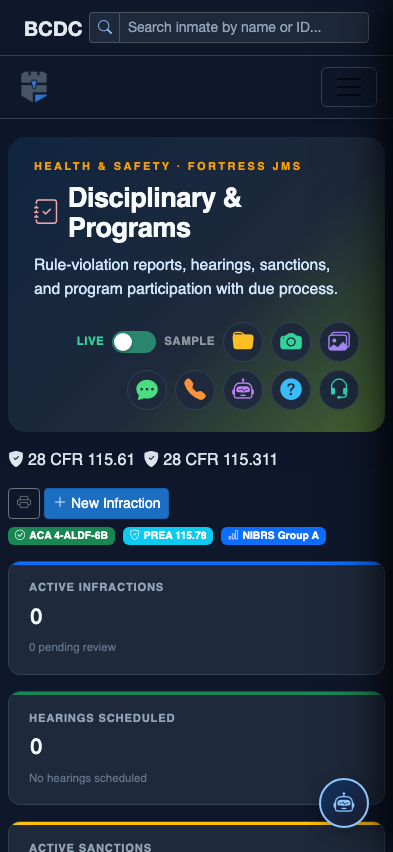
Tab view with data rows
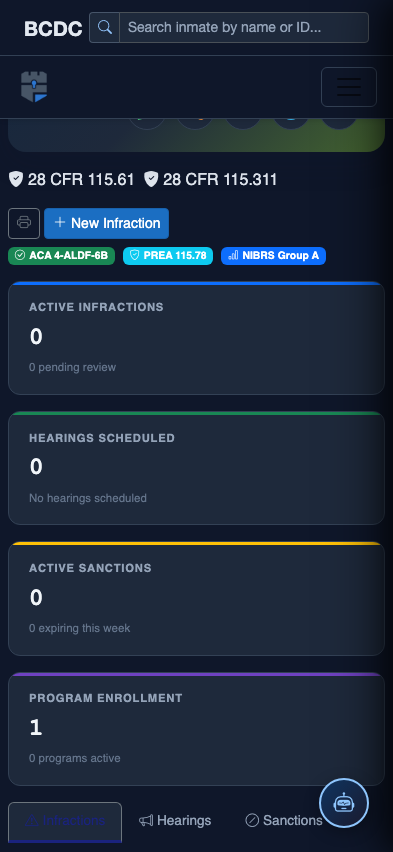
Scrolled / detail view