
Program Enrollment
The Program Enrollment tab enables case managers and program coordinators to enroll inmates in rehabilitative, educational, and vocational programs, track attendance and progress milestones, and issue completion certificates — all linked to the inmate’s classification and disciplinary record. Strong program participation data supports positive parole outcomes and demonstrates a facility’s commitment to evidence-based corrections practices.
Program Catalog
Browse and search all available educational, vocational, substance abuse, and cognitive-behavioral programs offered at the facility.
Eligibility Screening
Automated eligibility checks flag active sanctions, classification restrictions, or prerequisite deficiencies before enrollment.
Attendance Tracking
Log attendance session by session with instructor sign-off, supporting program integrity and accurate completion records.
Completion Certificates
Generate and store official completion certificates that attach to the inmate’s permanent record for parole and reentry use.
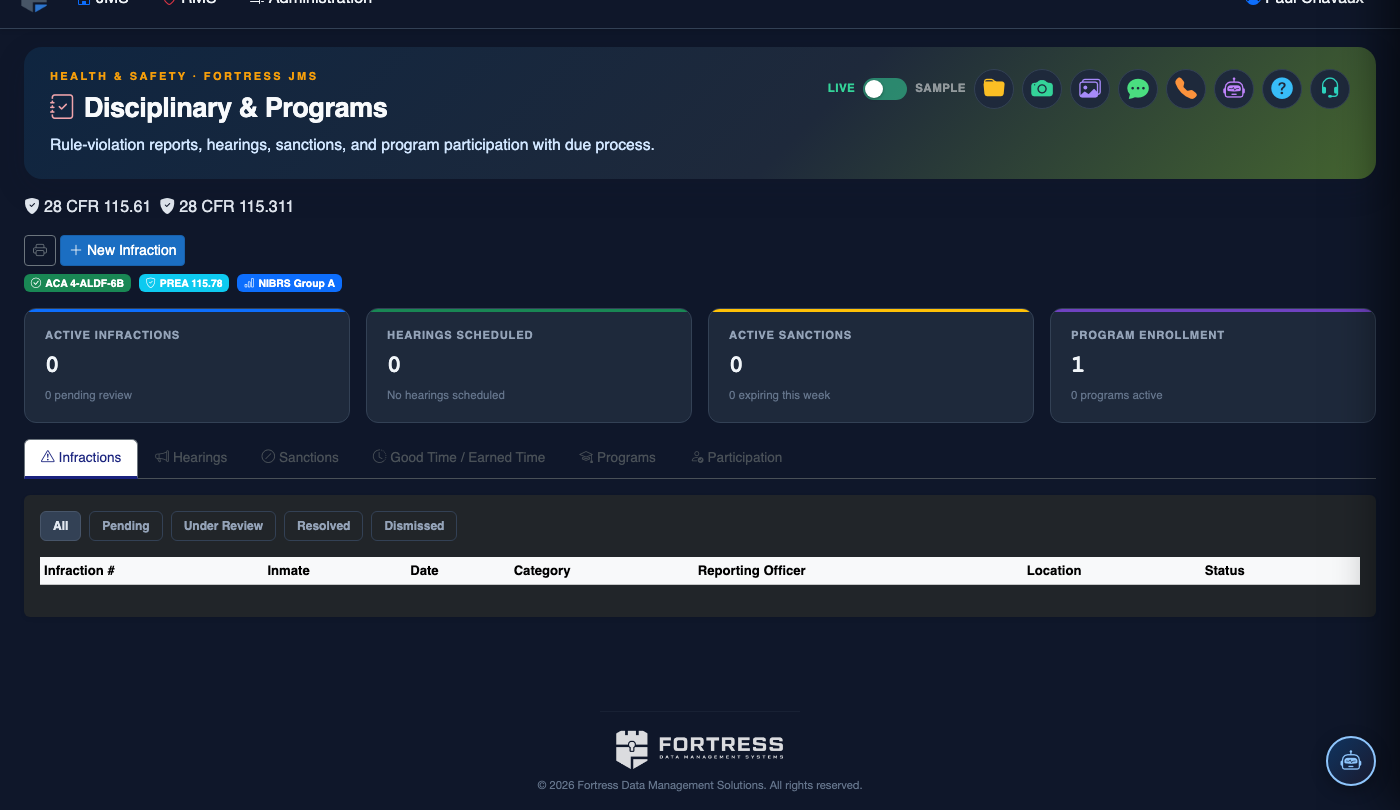
Step-by-Step: Enrolling an Inmate in a Rehabilitative Program
Open the Program Enrollment Tab
Navigate to Disciplinary & Programs and click the Program Enrollment tab. The tab displays both the Active Enrollments list and the Program Catalog. You can also access program enrollment directly from an inmate’s profile under the Programs section.
Search for the Program
Click Browse Programs in the Program Catalog. Filter by category — Education (GED, literacy), Vocational (welding, culinary, HVAC), Substance Abuse Treatment, Cognitive Behavioral (anger management, thinking errors), or Reentry Preparation. Click a program name to view its description, schedule, capacity, and eligibility requirements.
Run the Eligibility Check
Click Check Eligibility and search for the inmate by name or booking number. The system automatically screens for active sanctions that block program participation, classification security level conflicts, prerequisite program completion gaps, and current housing unit conflicts with the program schedule.
Complete the Enrollment Form
If eligible, click Enroll. Complete the enrollment form by confirming the Start Date, assigning the responsible Program Instructor, and noting any case management observations or treatment goals in the Enrollment Notes field. Save the enrollment to activate it.
Log Attendance Sessions
Open the enrollment record after each program session and click Log Attendance. Mark the inmate as Present, Absent – Excused, or Absent – Unexcused. Instructors can add session notes. Unexcused absences beyond the policy threshold trigger an automatic alert to the case manager for follow-up.
Record Milestone Progress
For programs with graded or phased completion (e.g., GED modules, substance abuse curriculum phases), use the Milestone Tracker within the enrollment record to mark each phase complete with instructor sign-off and a score or evaluator comment. Milestones build toward the final completion status.
Issue Completion Certificate
When all attendance requirements and milestones are met, click Mark Complete. The system prompts you to generate an official Completion Certificate, which is stored in the inmate’s digital file. The completion is also recorded in the inmate’s program history, visible during classification reviews and parole board hearings.
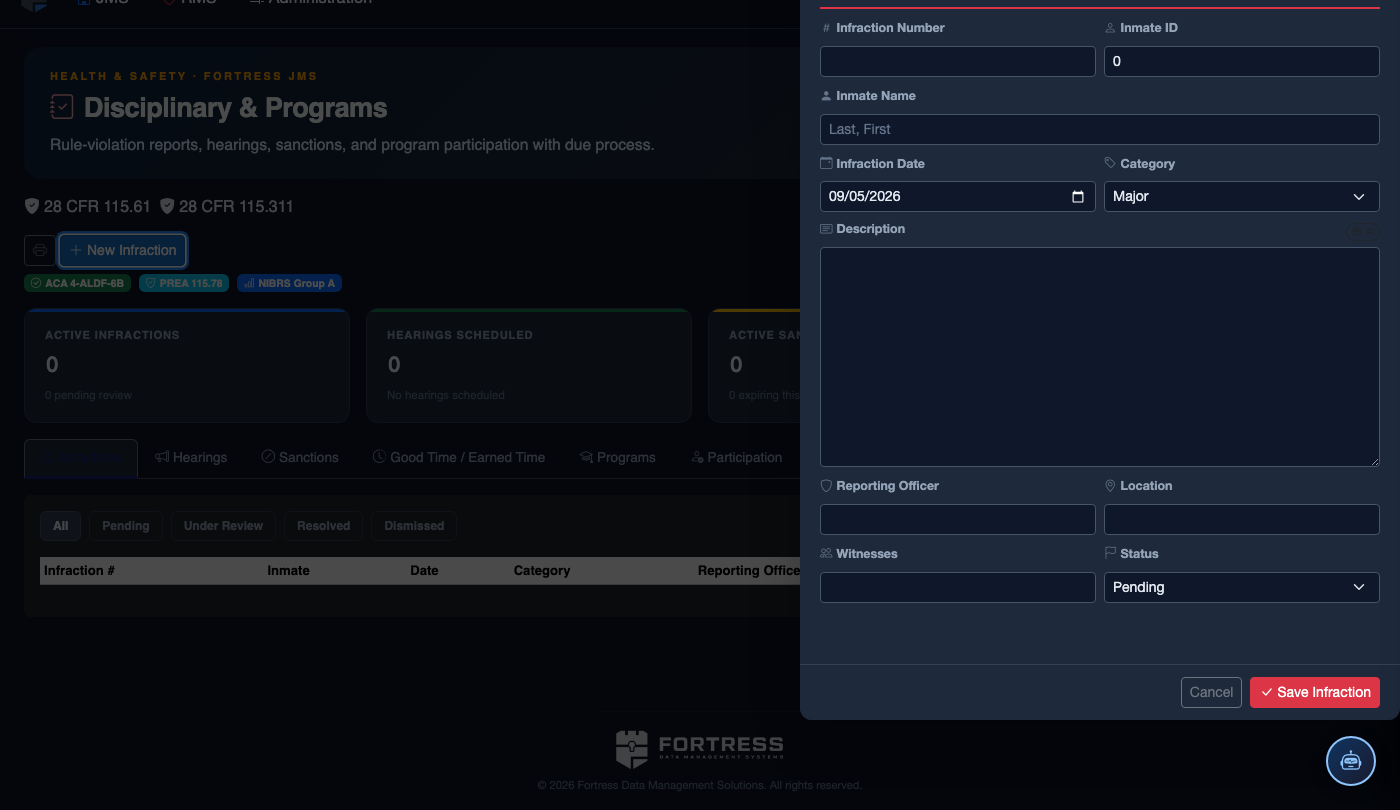
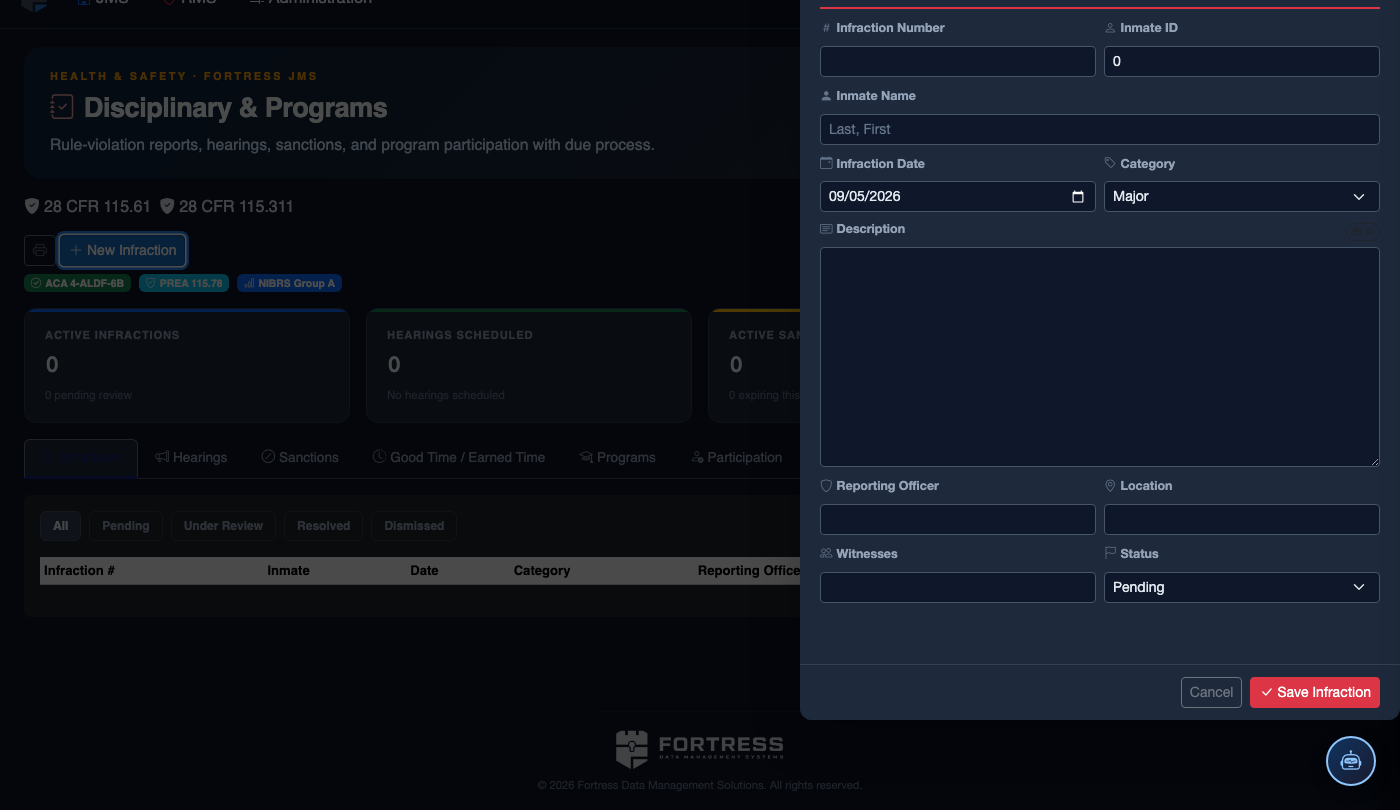
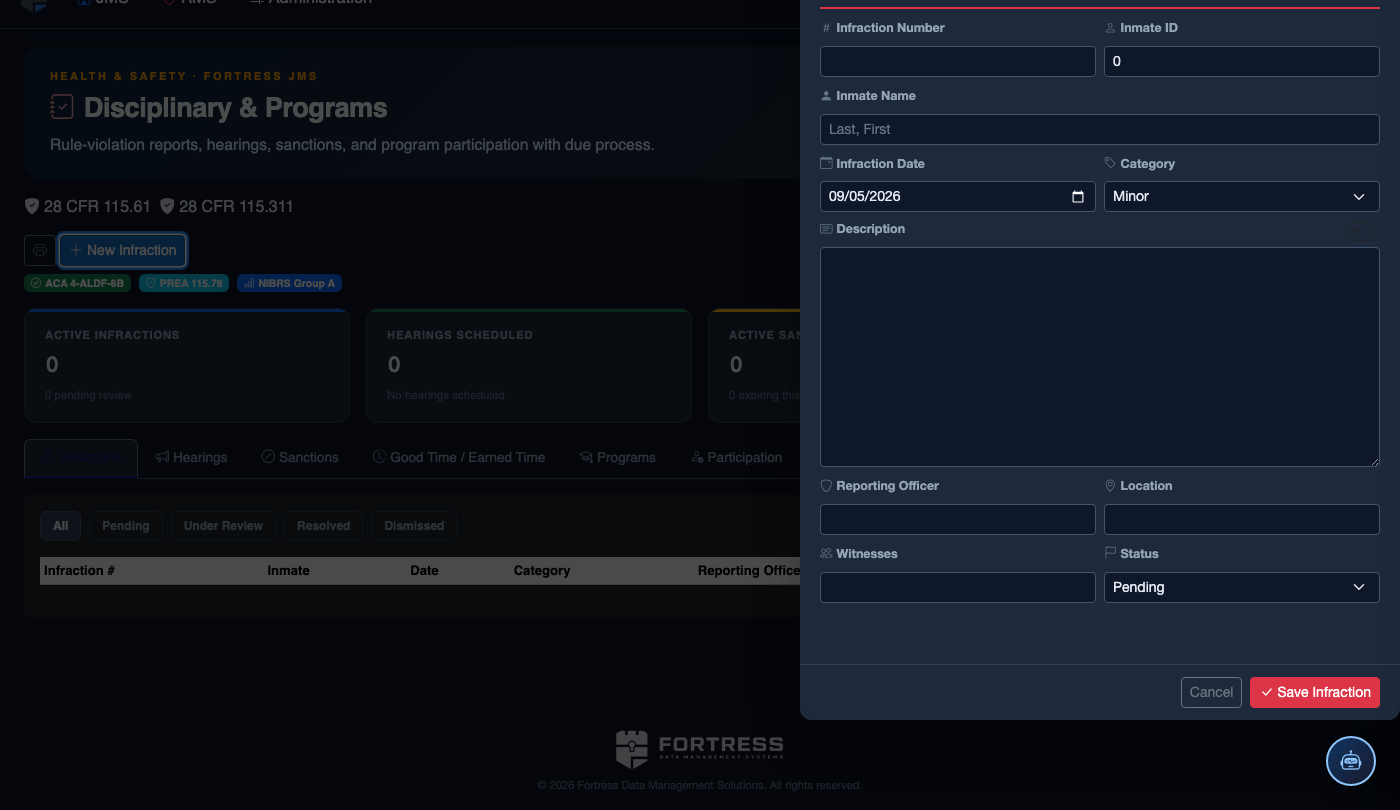
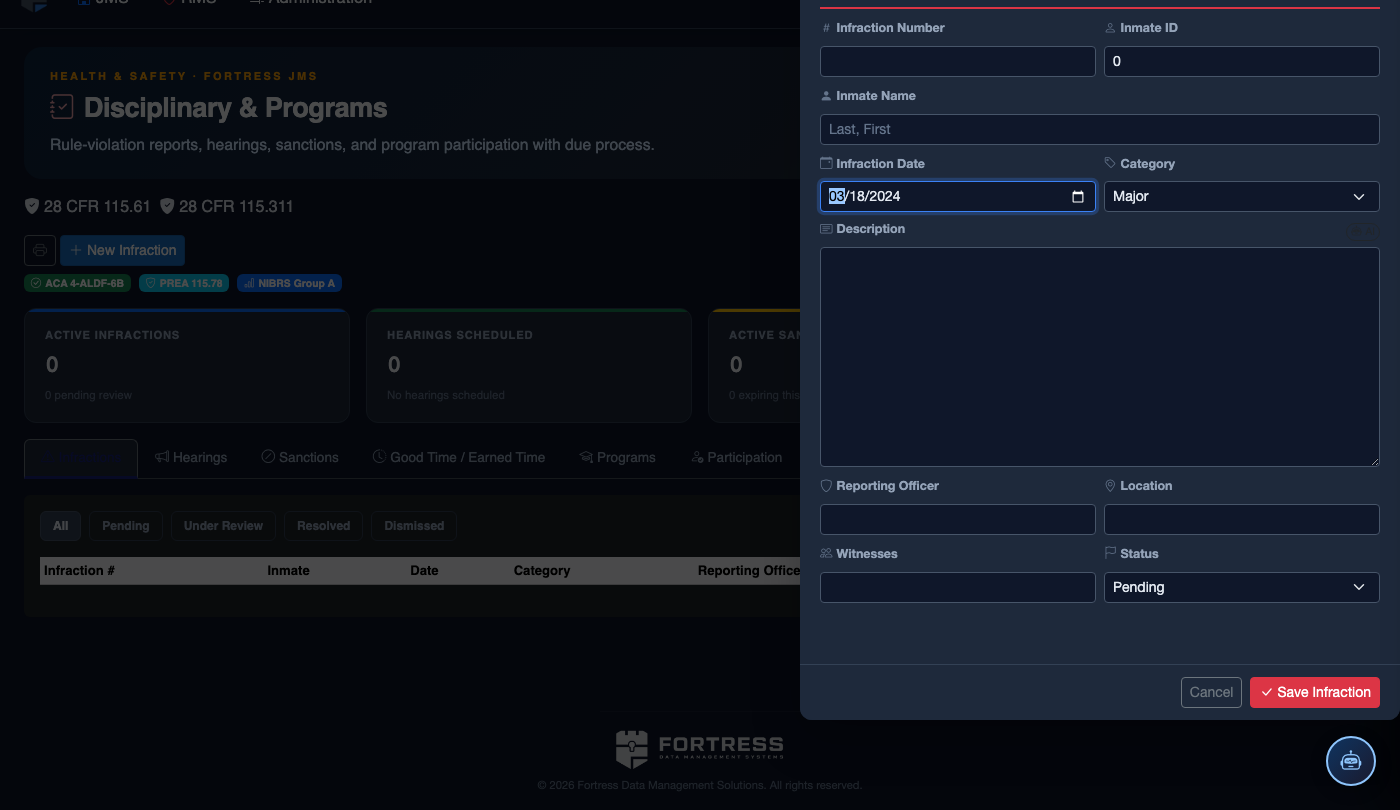
File a New Disciplinary Infraction
Click New Infraction. Complete the disciplinary record:
- Inmate — the subject of the infraction.
- Violation Type — select from the facility’s disciplinary code (Minor, Major, or Felony-level).
- Incident Description — document the incident objectively: date, time, location, what occurred, and who was involved.
- Reporting Officer and any Witnesses.
- Hearing Date — must be scheduled within the required timeframe (typically 24–72 hours for major violations).
- Recommended Sanction — Loss of Privileges, Segregation, Restitution, or Program Removal (final determination set by hearing officer).
- Click Save Infraction. The inmate is automatically notified and a hearing record is created.
💡 Pro Tips
- Use the Recommended Programs view on the inmate’s profile — it surfaces programs matched to their risk/needs assessment score and release date proximity, saving case managers research time.
- If an inmate is removed from a program due to a new disciplinary sanction, the enrollment is automatically placed on Hold (not deleted), so they can resume without losing their attendance history once the sanction expires.
- Program completion data exports directly to the parole board packet via the Generate Reentry Summary function — no manual transcription needed.
Mobile View — Program Enrollment
FortressDMS is fully responsive. Officers can access the Program Enrollment on a phone or tablet directly from the field — no app install required.
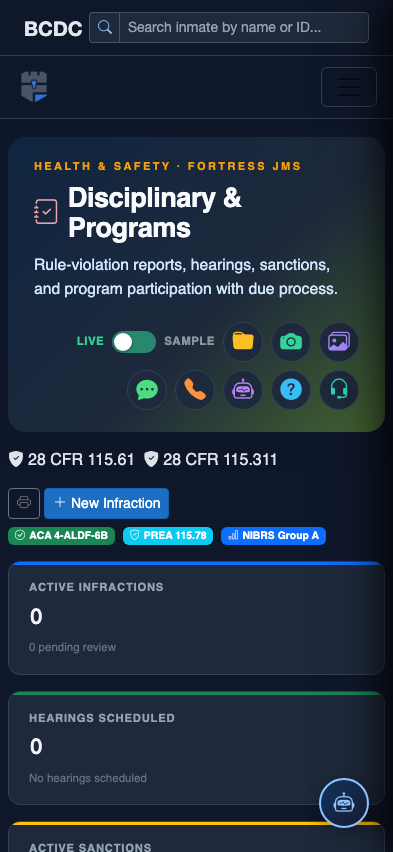
Tab view with data rows
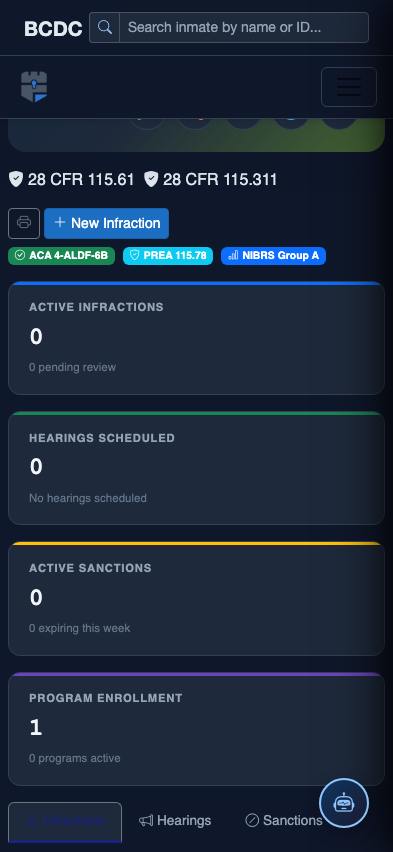
Scrolled / detail view