
Behavioral Records
The Behavioral Records tab provides a comprehensive longitudinal view of each inmate’s conduct history within the facility, aggregating disciplinary incidents, program participation outcomes, and behavioral scores in a single auditable record. Officers and classification staff use this tab to track behavioral trends, identify inmates who may benefit from intervention programs, and generate documentation required for classification reviews or court proceedings. Accurate behavioral records are essential for making informed housing, privilege, and release decisions.
Incident Logging
Record disciplinary incidents with date, officer, violation type, and disposition in a structured, searchable format.
Behavioral Trend Analysis
Visualize conduct patterns over time to identify improvement or escalation and support data-driven classification decisions.
Program Participation
Link enrollment and completion records for rehabilitative programs directly to each inmate’s behavioral profile.
Audit-Ready Export
Generate printable or PDF behavioral summaries for classification hearings, court orders, or accreditation reviews.
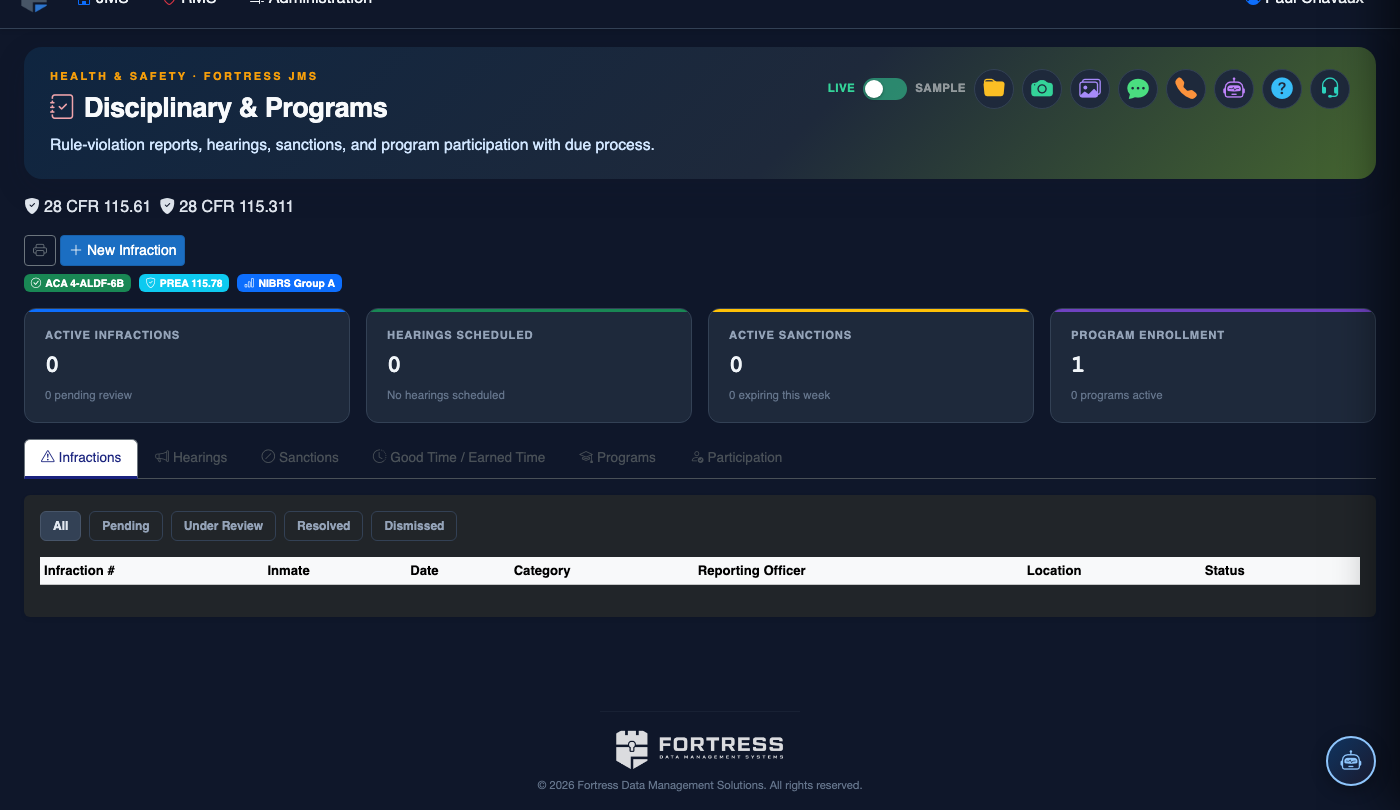
Step-by-Step: Reviewing & Managing Behavioral Records
Navigate to Inmate Disciplinary & Programs
From the main navigation, select Inmate Disciplinary & Programs. Use the inmate search bar at the top to locate the individual by name, booking number, or ID. Click the inmate’s row to open their disciplinary profile.
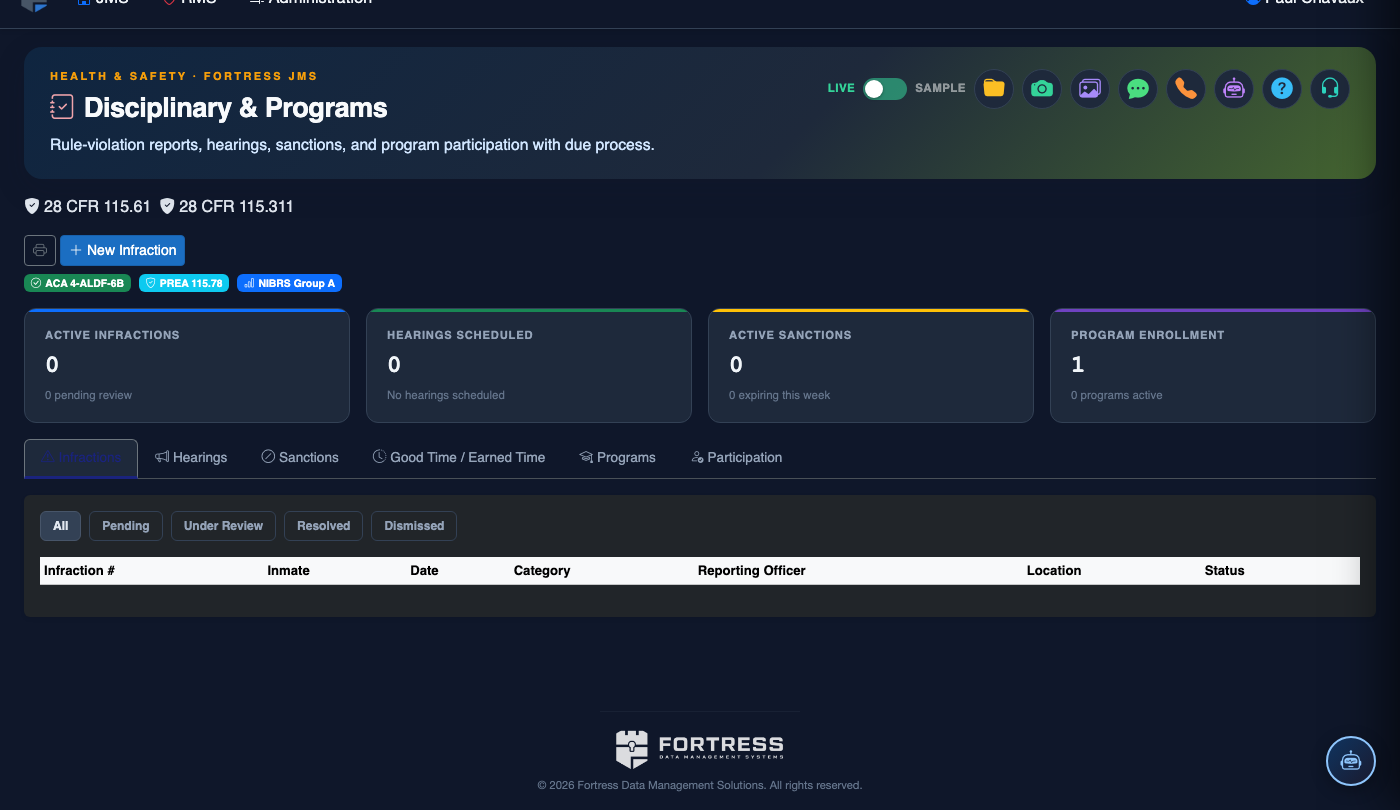
Open the Behavioral Records Tab
Within the inmate’s disciplinary profile, click the Behavioral Records tab (Tab 5). The screen will display a chronological list of all behavioral events including disciplinary write-ups, program completions, and conduct scores.
Review Existing Behavioral Entries
Scroll through the behavioral timeline. Each entry displays the Date, Event Type (e.g., Major Infraction, Program Completion, Good Conduct Credit), Reporting Officer, and Disposition. Use the Filter dropdown to narrow by event type or date range.
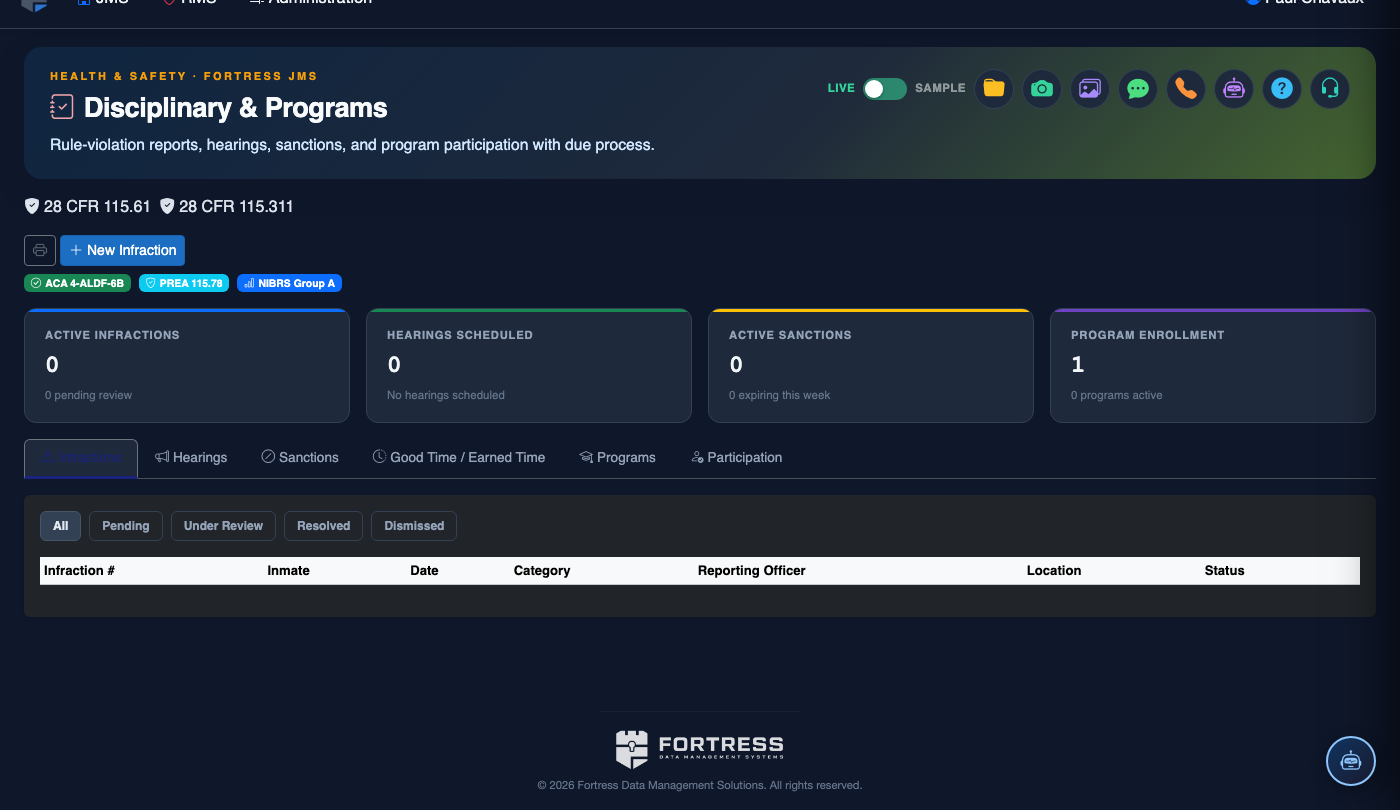
Add a New Behavioral Entry
Click + Add Behavioral Record to open the entry form. Select the Event Type, enter the Incident Date, choose the Reporting Officer from the dropdown, and provide a detailed description in the Narrative field. Attach any relevant supporting documentation using the Attach File button.
Link Program Participation Outcomes
In the entry form, use the Program Association field to link a behavioral record to a specific rehabilitative program (e.g., GED Completion, Substance Abuse Counseling). This creates a direct connection between program outcomes and the inmate’s overall behavioral profile.
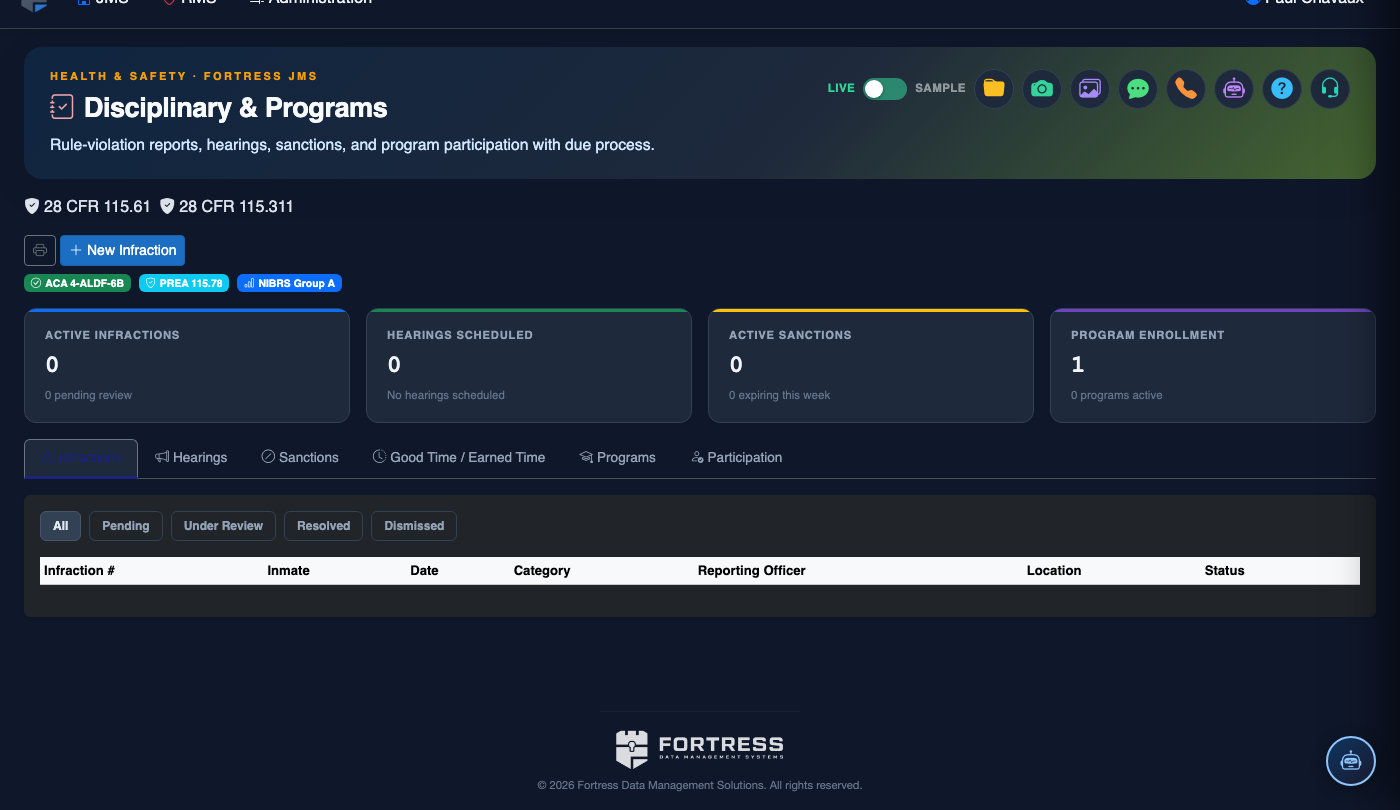
Save and Confirm the Record
Click Save Record to commit the entry to the inmate’s behavioral file. The system will timestamp the entry with the current officer’s credentials and log the action in the facility audit trail. A confirmation banner will appear upon success.
Export Behavioral Summary Report
To generate a formal behavioral summary, click Export Report at the top right of the Behavioral Records tab. Choose between PDF or Print format. The exported document includes all logged events, program associations, and a signature block for classification review hearings.
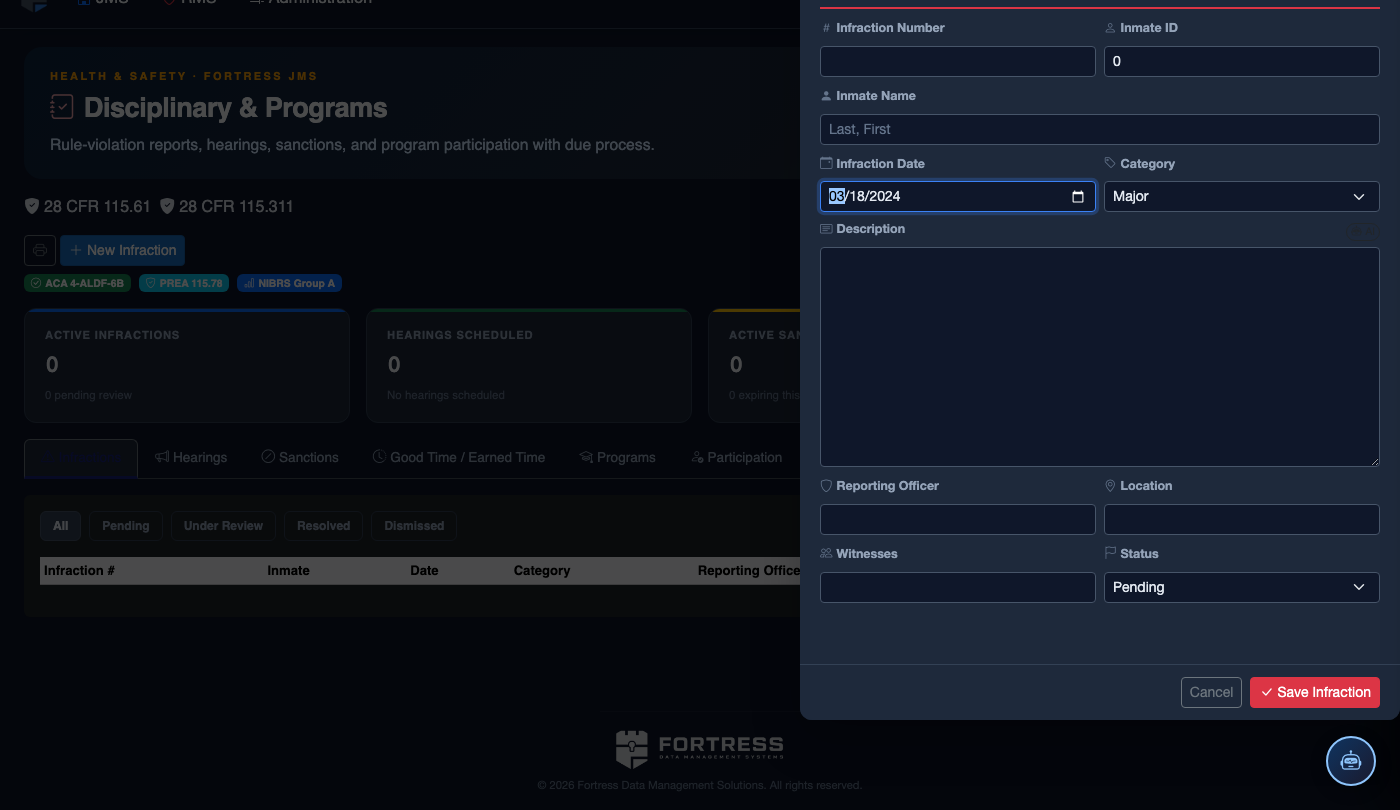
File a New Disciplinary Infraction
Click New Infraction. Complete the disciplinary record:
- Inmate — the subject of the infraction.
- Violation Type — select from the facility’s disciplinary code (Minor, Major, or Felony-level).
- Incident Description — document the incident objectively: date, time, location, what occurred, and who was involved.
- Reporting Officer and any Witnesses.
- Hearing Date — must be scheduled within the required timeframe (typically 24–72 hours for major violations).
- Recommended Sanction — Loss of Privileges, Segregation, Restitution, or Program Removal (final determination set by hearing officer).
- Click Save Infraction. The inmate is automatically notified and a hearing record is created.
💡 Pro Tips
- Use the Date Range filter before classification hearings to quickly pull only the relevant period’s behavioral data instead of scrolling the full history.
- Always link program completions as positive behavioral entries — this gives classification boards a balanced view rather than only seeing disciplinary incidents.
- The behavioral record feeds directly into the inmate’s classification score; timely and accurate entries ensure that reclassification decisions reflect current conduct.
- Attach scanned officer reports or hearing forms directly to each behavioral entry to create a self-contained, audit-ready record that satisfies accreditation requirements.
Mobile View — Behavioral Records
FortressDMS is fully responsive. Officers can access the Behavioral Records on a phone or tablet directly from the field — no app install required.
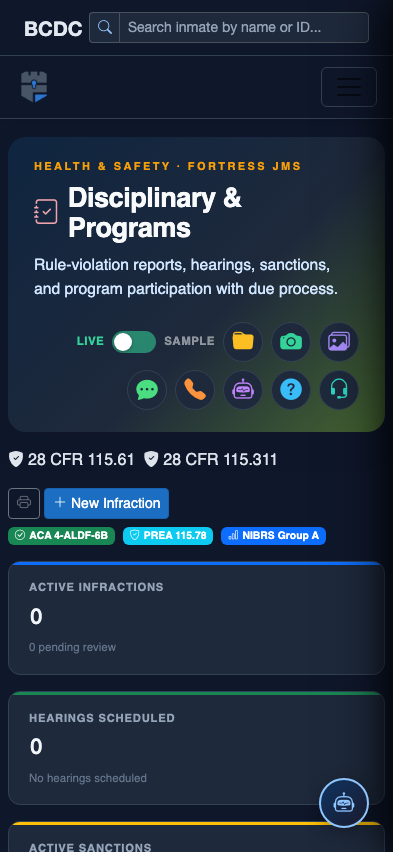
Tab view with data rows
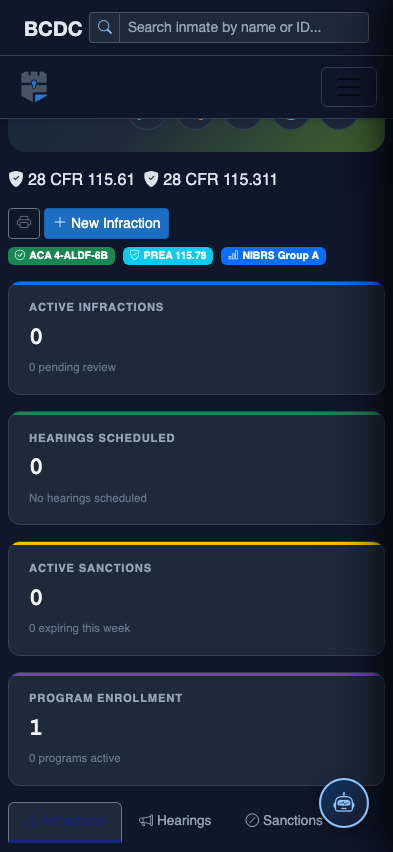
Scrolled / detail view