
Medical Alerts
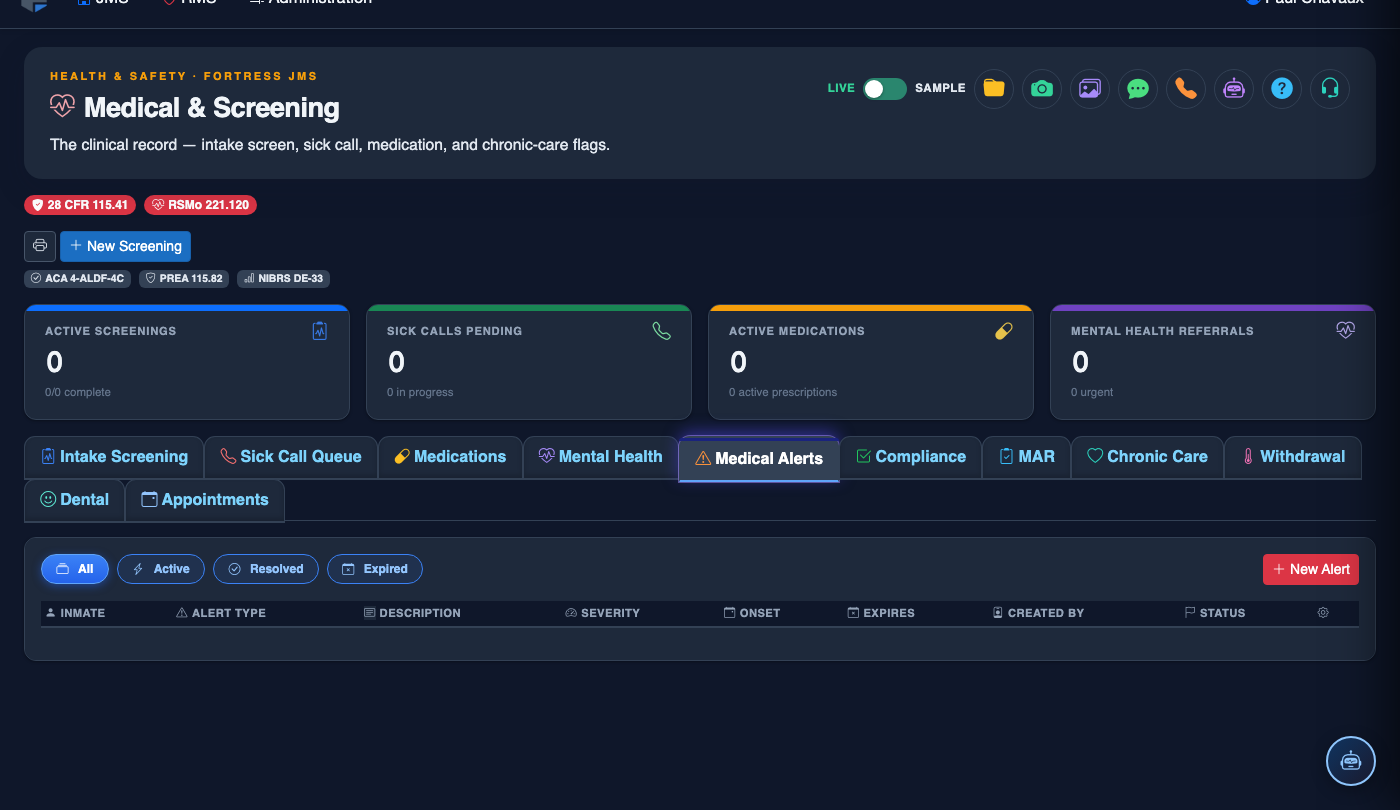
The Medical Alerts tab gives correctional and medical staff a real-time, centralized view of every active health alert associated with an inmate — from drug allergies and chronic condition flags to communicable disease precautions and special housing requirements. Alerts propagate automatically to booking officers, housing deputies, and medical staff so that critical health information is never siloed or missed.
Active Alert Dashboard
Color-coded alert severity levels provide an at-a-glance view of every inmate’s active medical flags.
Allergy & Drug Interaction Flags
Automatically cross-references prescribed medications against known allergies and drug interaction databases.
Communicable Disease Precautions
Isolation and PPE requirement alerts for TB, MRSA, and other communicable disease flags visible to all housing staff.
Cross-Facility Alert Propagation
Alerts created at intake automatically appear on housing rosters, transport manifests, and court appearance records.
Step-by-Step: Managing Medical Alerts
Open the Medical Alerts Tab
From the inmate’s medical record, select the Medical Alerts tab (Tab 5). The tab displays a summary count badge in red if any active high-priority alerts exist, so staff can spot critical cases before opening the record.
Create a New Alert
Click Add Alert and select the Alert Category (Allergy, Chronic Condition, Communicable Disease, Mental Health, Dietary, or Other). Enter the Alert Description, set the Severity Level (Low / Medium / High / Critical), and specify any Special Instructions for officers or medical staff.
Configure Alert Visibility & Recipients
Use the Visible To checkboxes to control which staff roles see the alert: Medical Staff, Housing Officers, Booking Officers, and Transport Staff. Critical-severity alerts are broadcast to all roles automatically regardless of settings.
Review Drug Allergy Cross-Reference
When an allergy alert is saved, the system automatically checks the inmate’s current Active Prescriptions for conflicts. Any flagged interactions are highlighted in the alert detail with a Conflict Warning banner, prompting the prescribing provider to review.
Acknowledge and Resolve Alerts
Staff can Acknowledge an alert to confirm they have read and understood it — acknowledgments are logged with name, badge number, and timestamp. Once a condition is resolved, click Close Alert and provide a resolution note. Closed alerts remain in the audit trail but no longer appear in the active view.
Export Alert Report
Use the Export button to generate a PDF or CSV report of all active alerts for a housing unit or the entire facility. This report is useful for shift briefings, accreditation audits, and facility inspections.
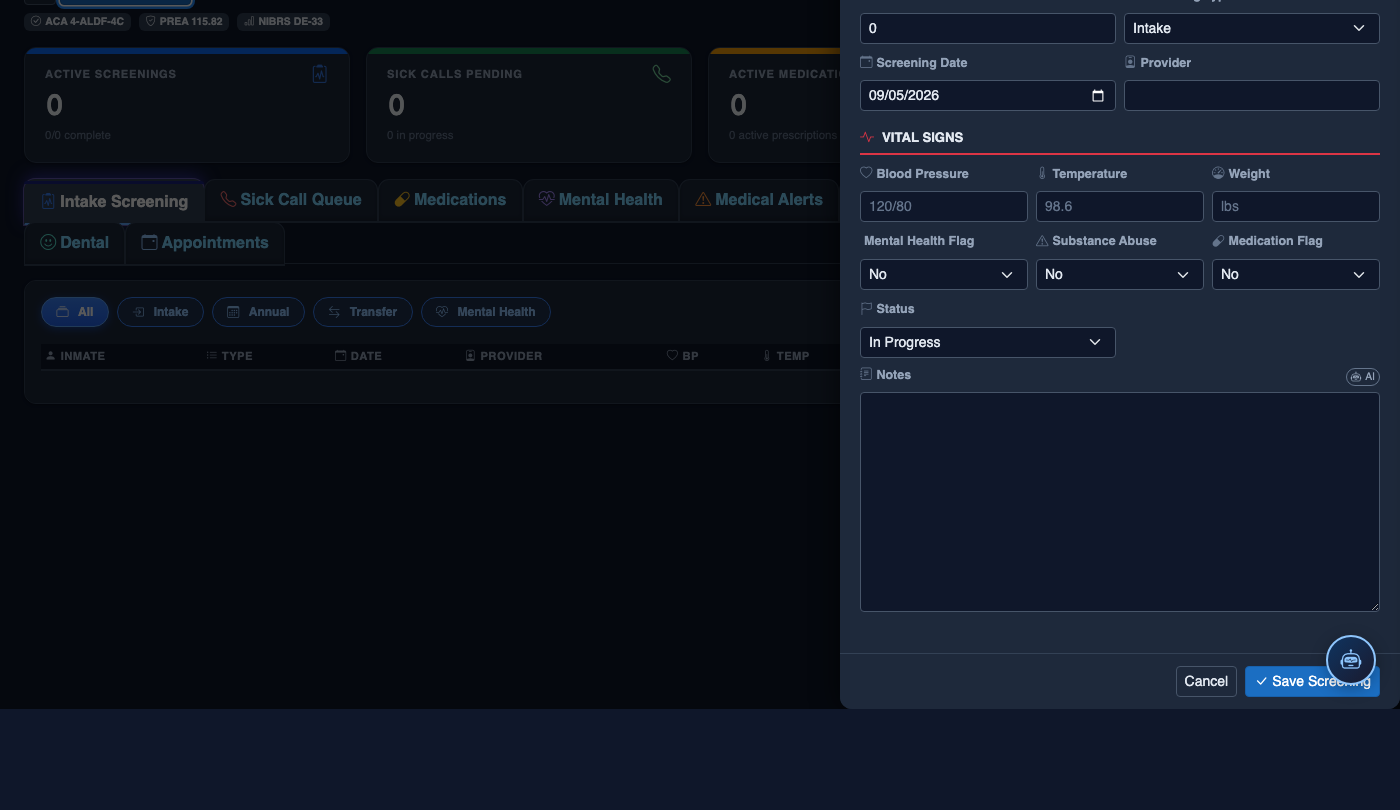
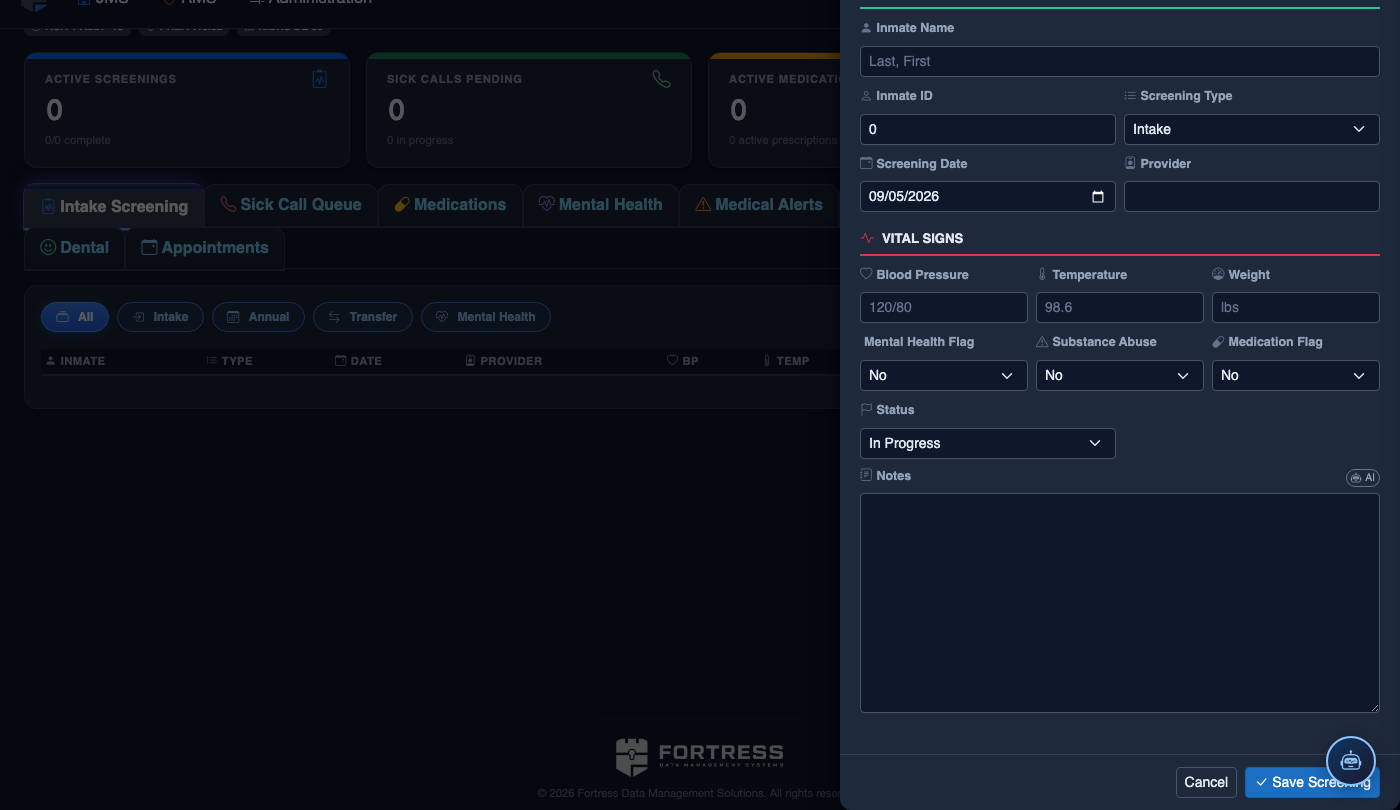
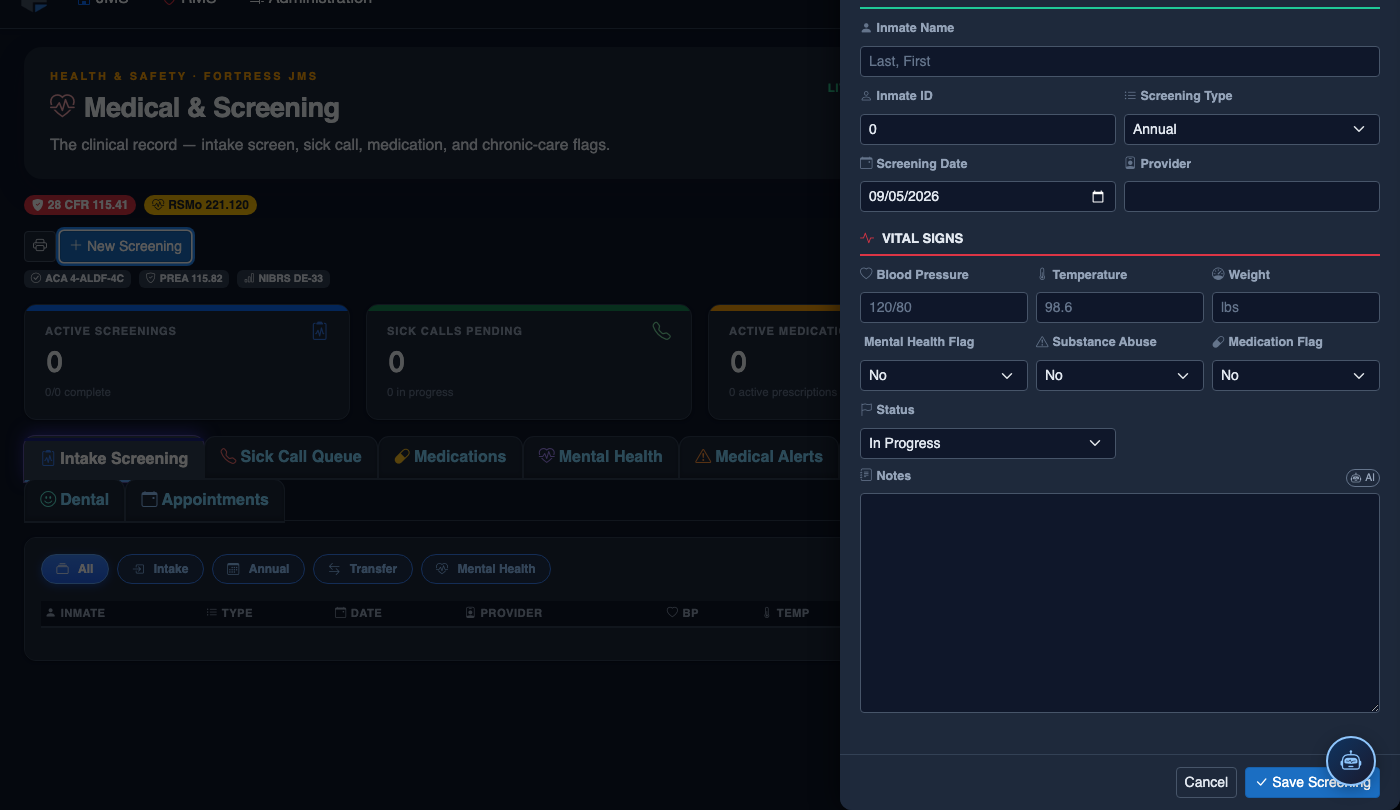
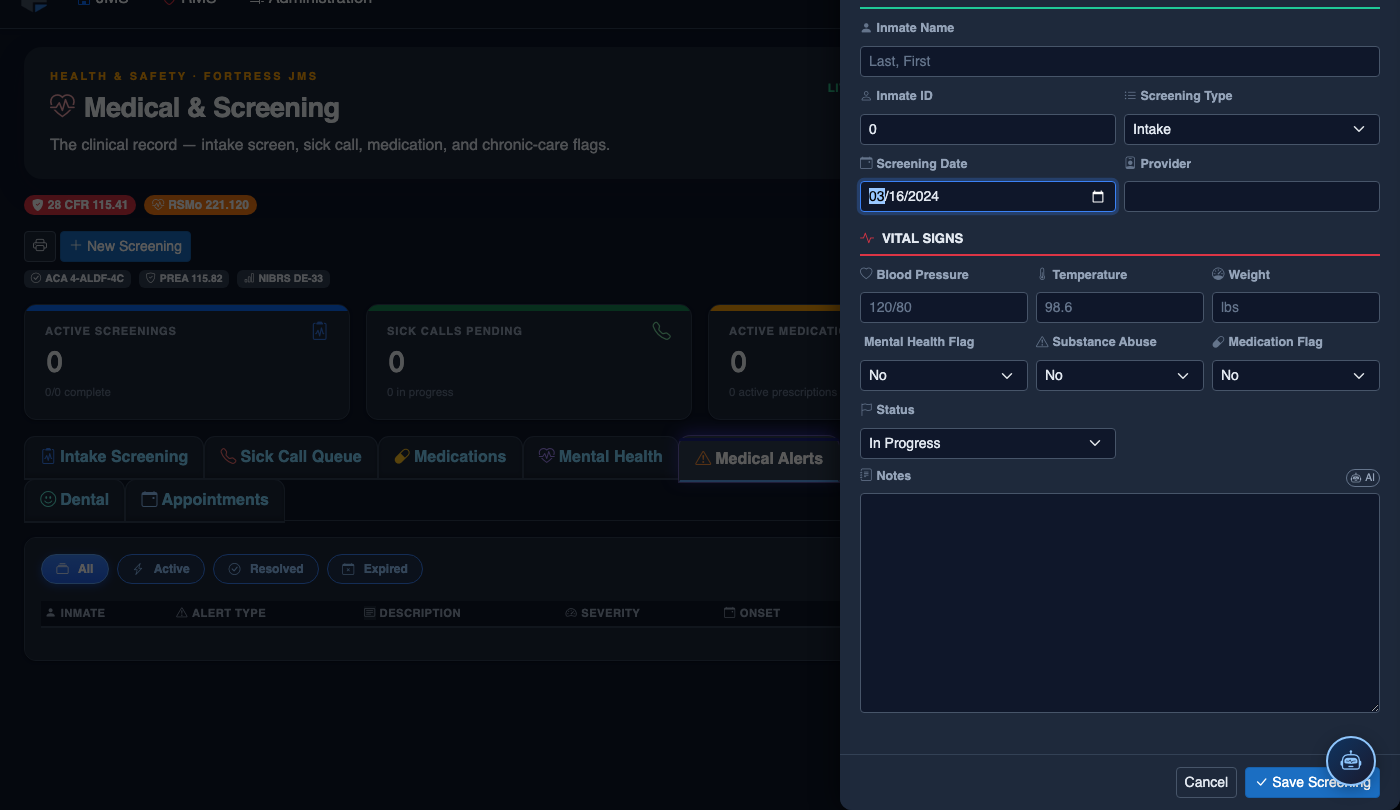
Create a New Medical Record
Click New Screening in the module toolbar. Complete the medical form:
- Inmate — search by name or booking number.
- Visit Type — Intake Screening, Sick Call, Scheduled Follow-Up, or Emergency.
- Priority — Routine, Urgent, or Emergent; Emergent pages on-call provider immediately.
- Chief Complaint / Findings — document symptoms, vitals, and objective observations.
- Provider — assign the clinician or nurse conducting the visit.
- Disposition — Treat and Return, Infirmary Admission, Hospital Transfer, or No Action.
- Add any Prescriptions, Follow-Up Date, or Restrictions.
- Click Save Record. Alerts fire automatically if vital signs are out of range.
💡 Pro Tips
- Set communicable disease alerts to Critical severity — this auto-populates a PPE requirement note on every housing roster view for officers on that pod.
- Use the Alert History filter to pull a complete timeline of all past alerts for an inmate, invaluable for demonstrating deliberate indifference protections during civil litigation.
- Dietary alerts (e.g., severe nut allergy, diabetic diet) automatically flag the inmate on the Commissary module to prevent prohibited item purchases.
Mobile View — Medical Alerts
FortressDMS is fully responsive. Officers can access the Medical Alerts on a phone or tablet directly from the field — no app install required.
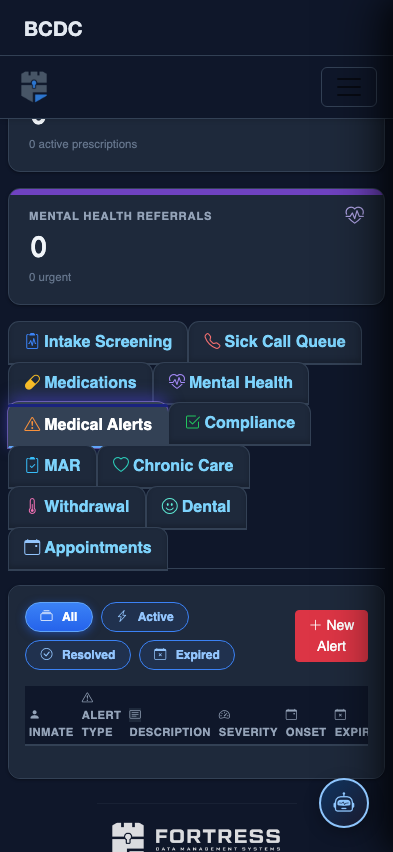
Tab view with data rows
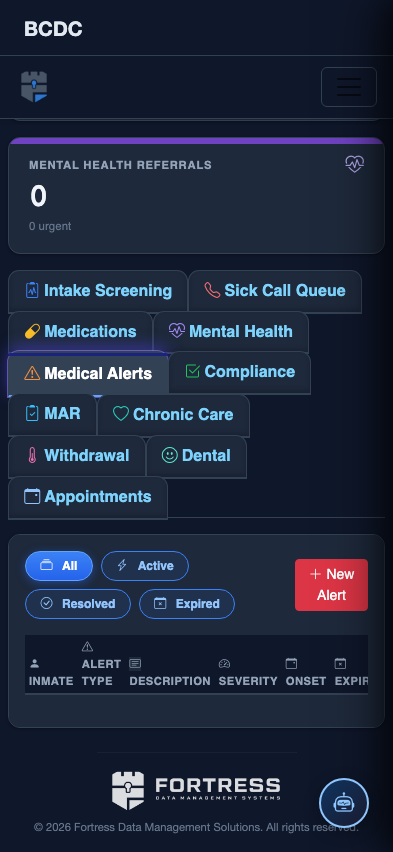
Scrolled / detail view