
Grant Library
The Grant Library tab is the searchable repository of all federal, state, and private funding opportunities curated specifically for correctional facilities within FortressDMS. Each entry provides the full program description, funding amounts, eligibility criteria, and direct links to the granting agency so administrators can quickly identify and act on opportunities relevant to their facility’s size, population, and safety priorities.
Keyword Search
Full-text search across grant titles, program descriptions, and eligibility requirements to find relevant opportunities fast.
Category Filtering
Filter by funding category: technology, mental health, officer training, infrastructure, PREA compliance, or reentry programs.
Bookmark & Track
Mark grants as Interested to receive automatic alerts when new application cycles open and deadlines are set.
Eligibility Checklist
Built-in eligibility worksheet helps staff pre-screen whether the facility qualifies before committing time to a full application.
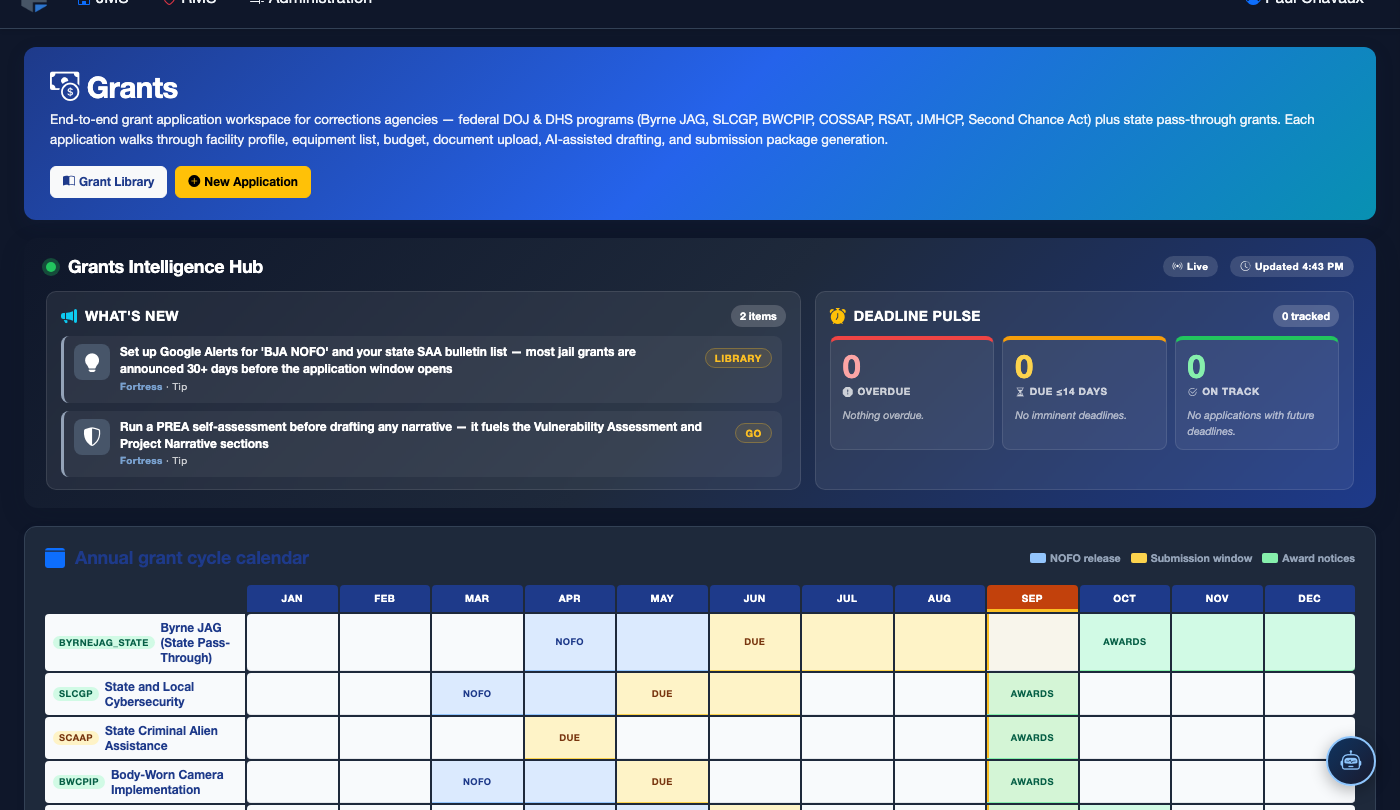
Step-by-Step: Searching and Saving Grants
Open the Grant Library Tab
Navigate to Grants in the main menu, then click the Grant Library tab. The full library listing loads with the most recently added grants at the top. A count badge shows the total number of available grants currently in the database.
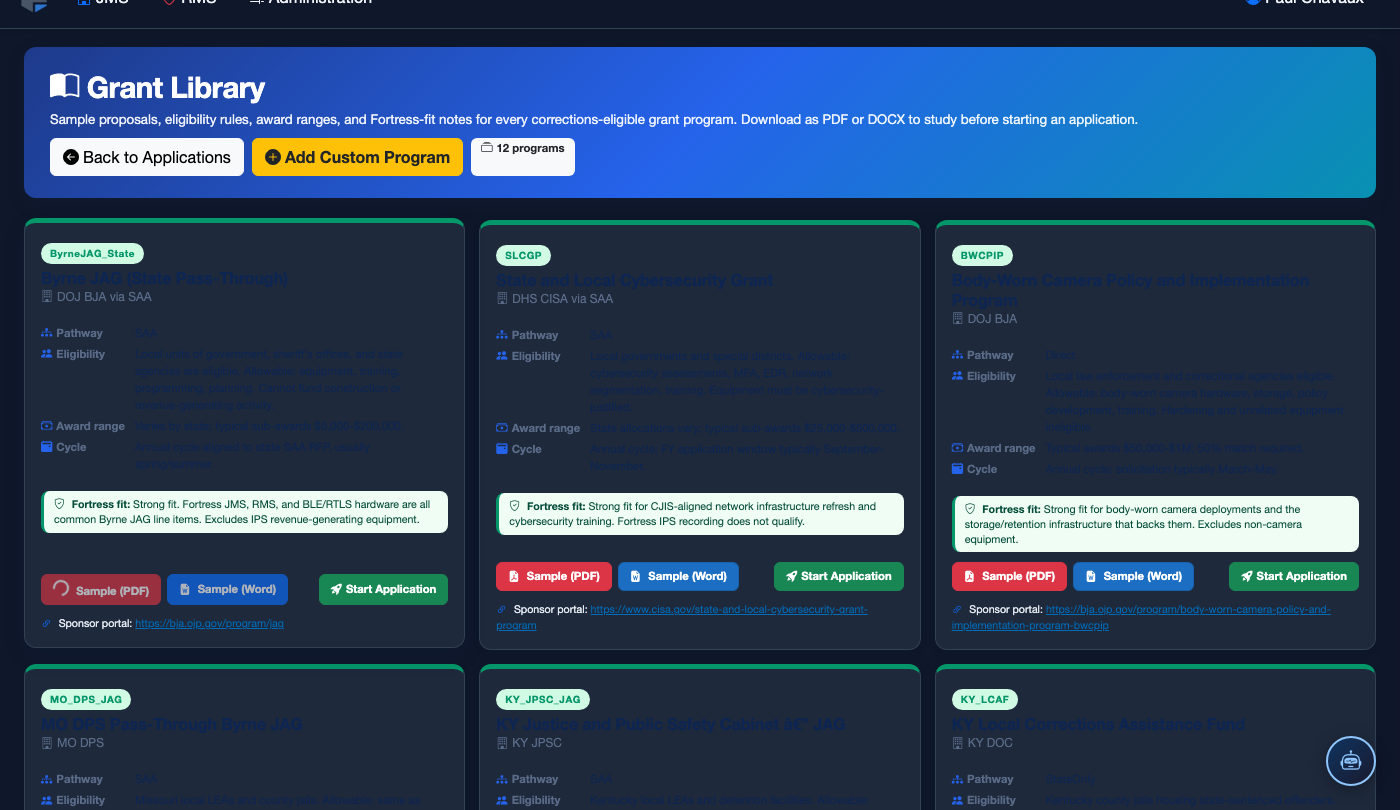
Search by Keyword or Program Name
Type in the Search Grants field to filter by keyword. Common useful searches include "mental health," "body camera," "reentry," "PREA," or the specific agency name such as "BJA" or "COPS." Results update live as you type without requiring a page reload.
Apply Category and Amount Filters
Use the Filter panel on the left to narrow results by funding category, eligible facility type (county jail, state prison, detention center), minimum and maximum award amounts, and open vs. upcoming application status. Multiple filters can be combined simultaneously.
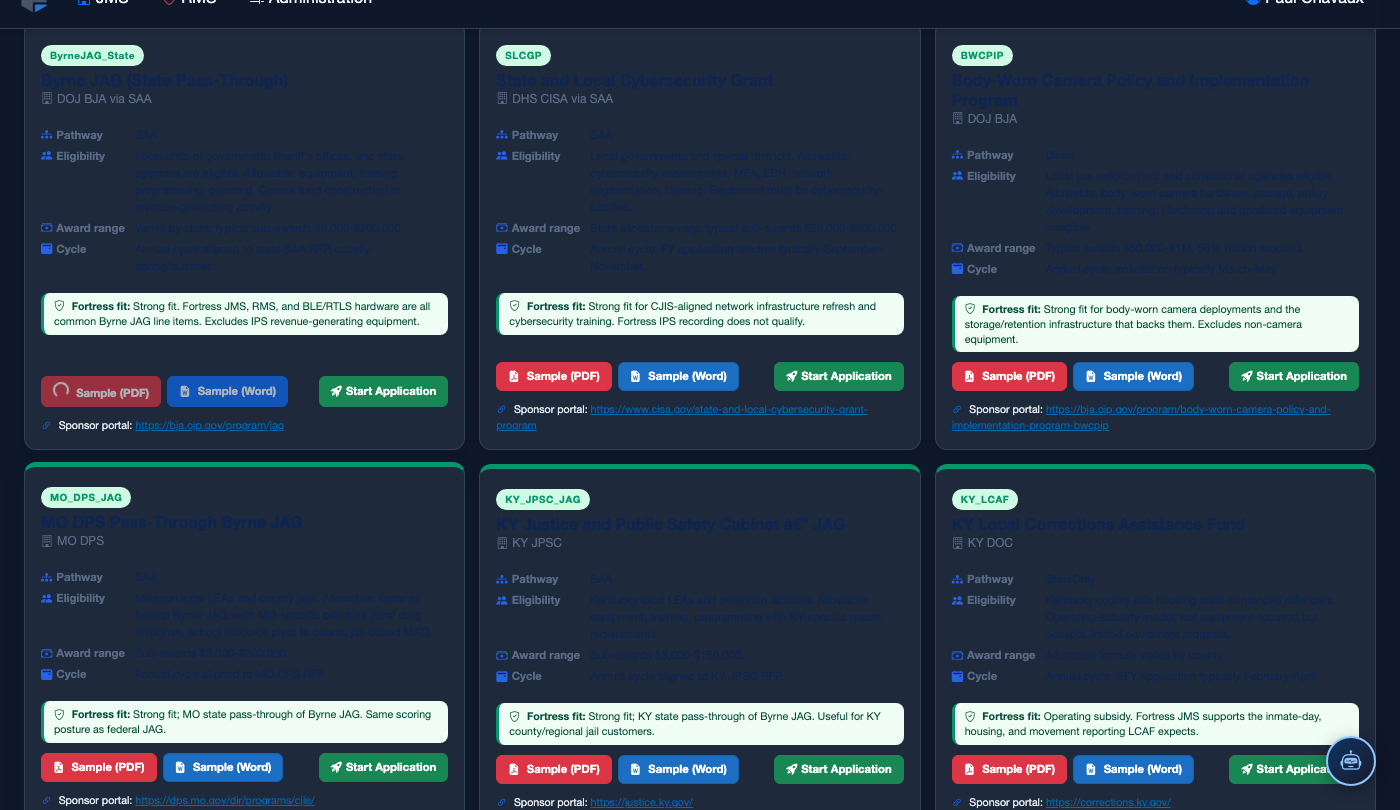
Open a Grant Detail Record
Click the grant title to open the full detail view. Here you will find the Program Description, Award Range, Cost Share Requirements, Performance Period, Eligible Applicants, and Key Contacts at the granting agency. A direct link to the official solicitation document is also provided.
Complete the Eligibility Checklist
Click Check Eligibility to walk through a pre-screening checklist tailored to that grant’s requirements. Answer questions about your facility’s jurisdiction type, inmate population size, prior award history, and required certifications. A results summary indicates whether the facility is likely eligible, marginal, or ineligible — saving time before a full application is started.
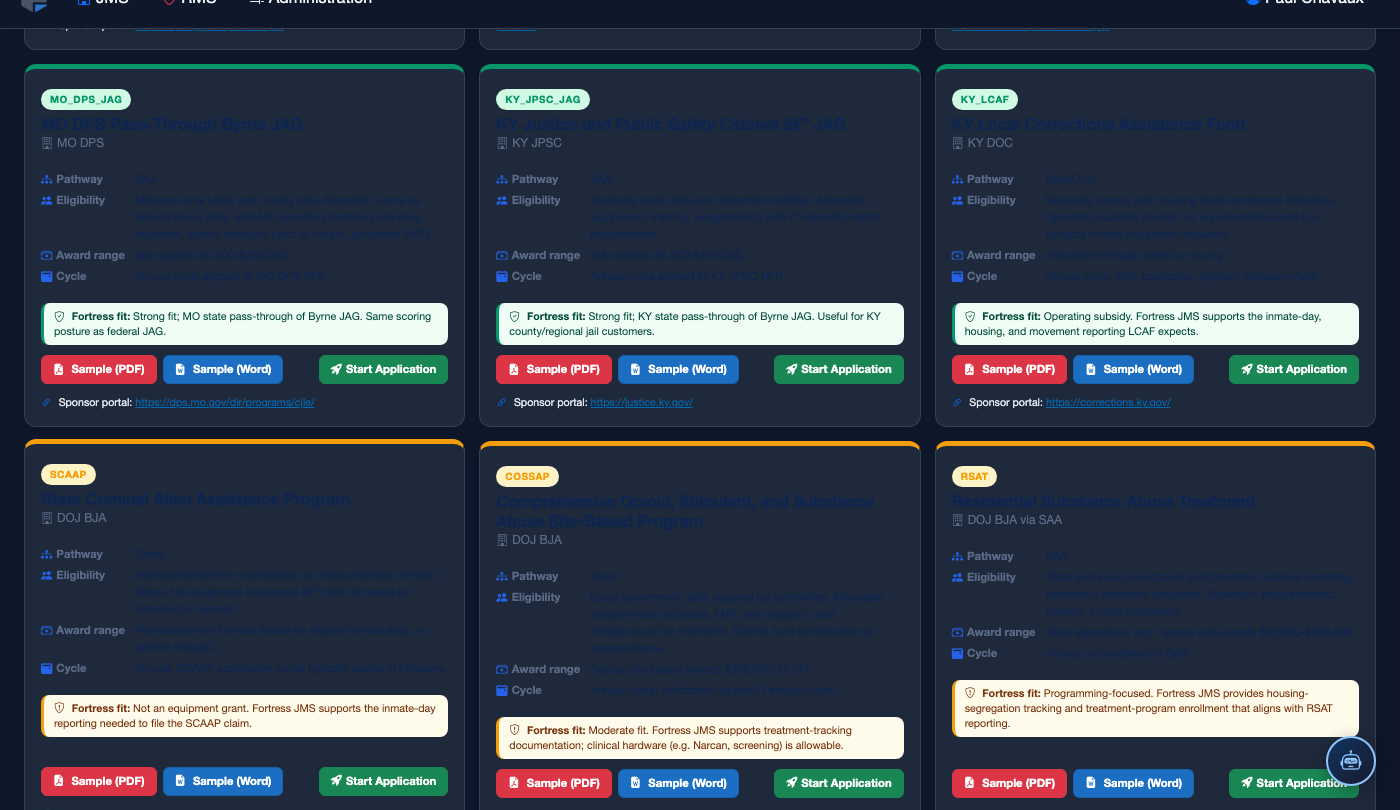
Bookmark Grants for Future Cycles
Click the Mark as Interested star icon on any grant to add it to your bookmarked list. When the next application period opens or the grant is updated with a new deadline, the system will send an automatic notification to the facility’s designated grant coordinator.
Launch a New Application from the Library
When you are ready to pursue a grant, click Start Application from the detail view. This creates a linked application record under the Grant Applications tab, pre-populated with program data. You will be redirected to the application workspace to begin the full submission workflow.
💡 Pro Tips
- Sort the library by Deadline (soonest first) each Monday morning to immediately identify any grants with application windows closing that week before they are missed.
- Filter for grants with No Cost Share Required if your facility has limited discretionary funds — many BJA and PREA grants are fully federally funded with no local match requirement.
- Download the official solicitation PDF from the detail page and save it to your facility’s shared drive alongside the FortressDMS application record so the full team has offline access during the writing process.
Mobile View — Grant Library
FortressDMS is fully responsive. Officers can access the Grant Library on a phone or tablet directly from the field — no app install required.
Tab view with data rows
Scrolled / detail view