
Grant Applications
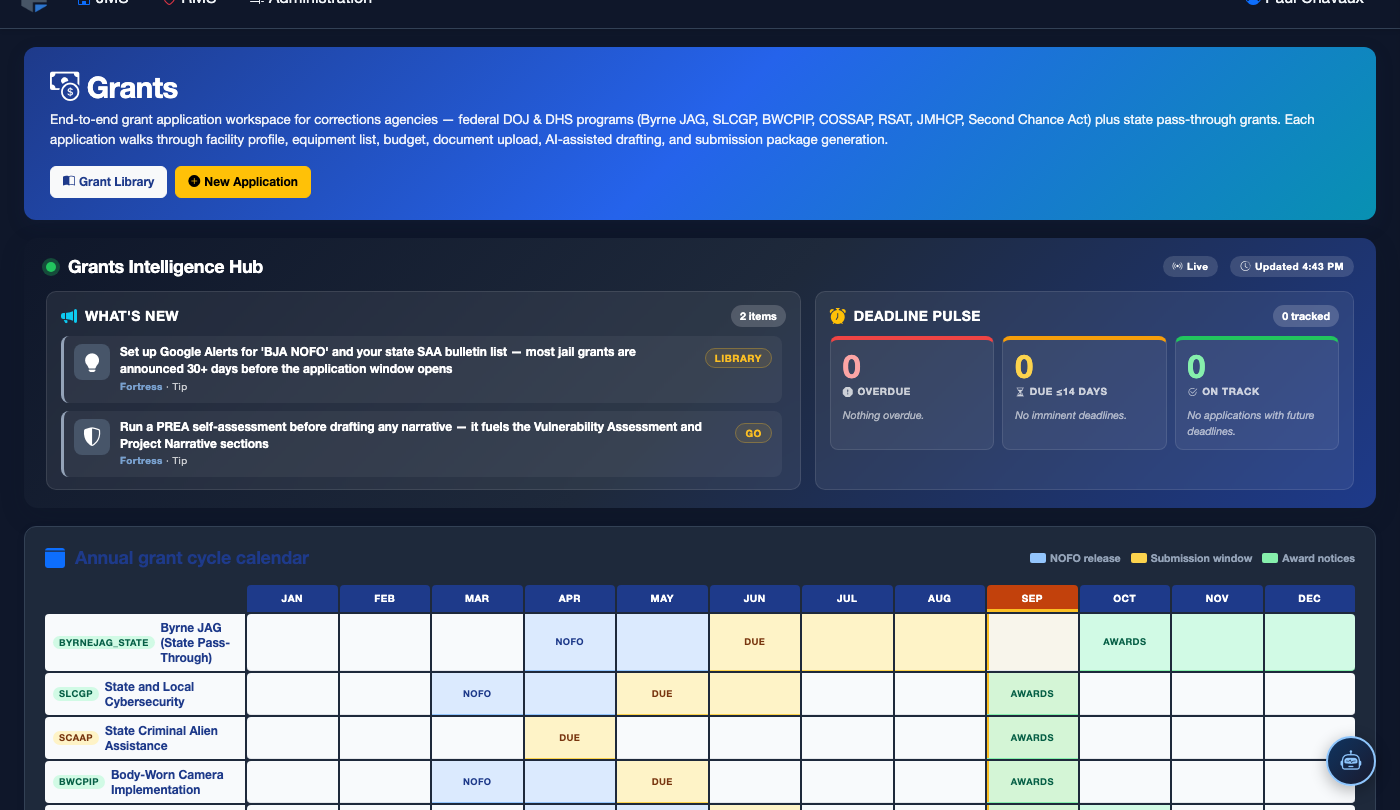
The Grant Applications tab is the active workspace where correctional facility staff draft, collaborate on, review, and finalize all grant submissions managed within FortressDMS. Each application record tracks progress through configurable workflow stages — from initial draft through internal approval, external submission, and post-award compliance reporting — giving administrators real-time visibility into every grant the facility is actively pursuing and the status of each submission.
Structured Application Workspace
Section-by-section application editor with narrative fields, document attachments, and a completion progress tracker.
Multi-Staff Collaboration
Multiple staff members can contribute to different sections of an application simultaneously with section-locking to prevent conflicting edits.
Supervisor Approval Workflow
Built-in review-and-approve workflow routes completed drafts to supervisors for sign-off before external submission is permitted.
Award & Compliance Tracking
Post-award records capture disbursement schedules, spend tracking, and mandatory reporting due dates to maintain award compliance.
Step-by-Step: Managing a Grant Application
Open the Grant Applications Tab
Navigate to Grants and click Grant Applications. The applications list displays all active, submitted, awarded, and closed applications. Filter by Status to focus on applications requiring immediate action. A progress bar on each row shows what percentage of the application checklist is complete.
Open an Application Record
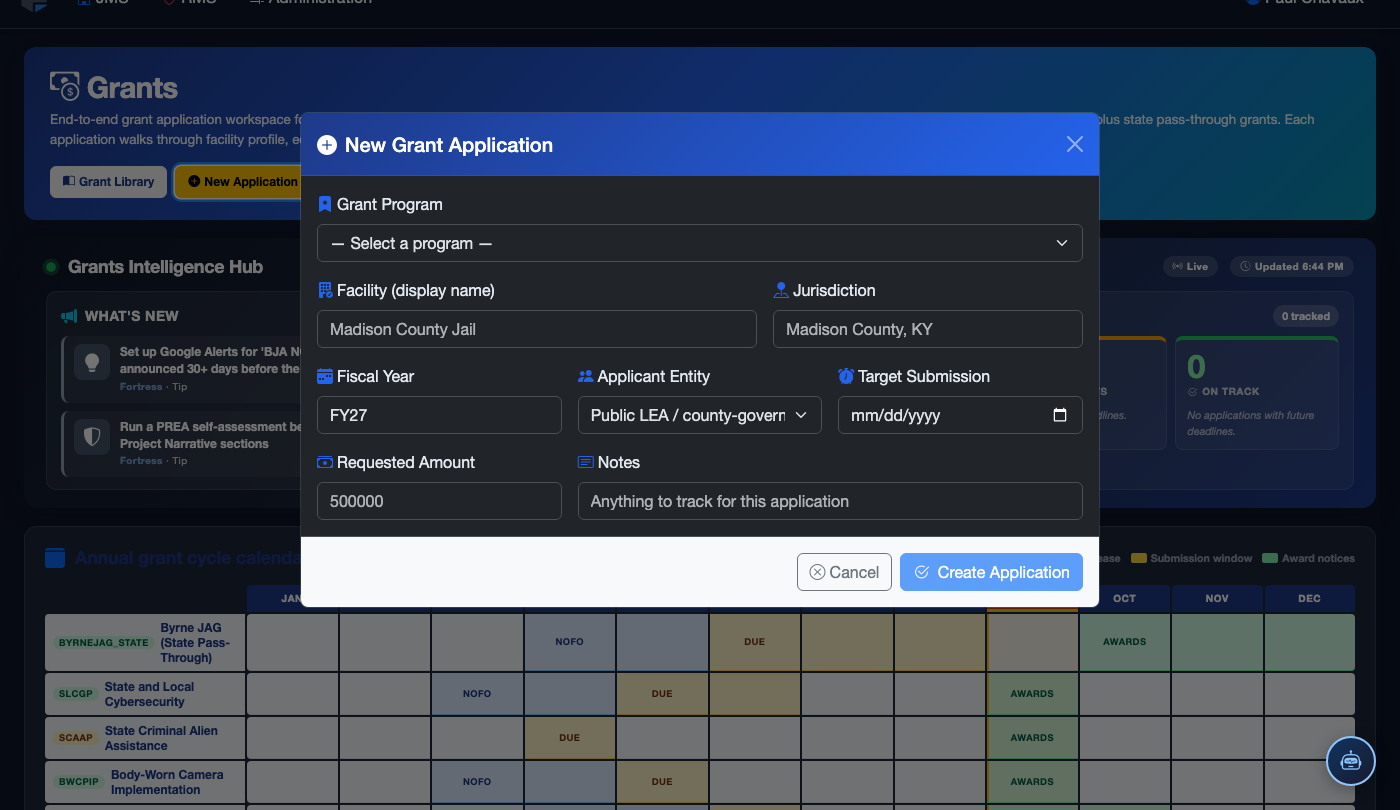
Click an application row to open the full workspace. The left panel shows the application sections checklist and completion percentage. The center panel is the active editing area for whichever section is currently selected. The right sidebar shows the grant deadline, assigned coordinator, internal milestone dates, and linked grant library entry.
Complete the Application Sections
Work through each required section: Project Narrative, Goals & Objectives, Budget Justification, Organizational Capacity, and Evaluation Plan. Click a section name in the checklist to open it for editing. When a section is fully completed, mark it as Done to advance the overall completion percentage. Sections can be assigned to different staff members for parallel drafting.
Attach Supporting Documents
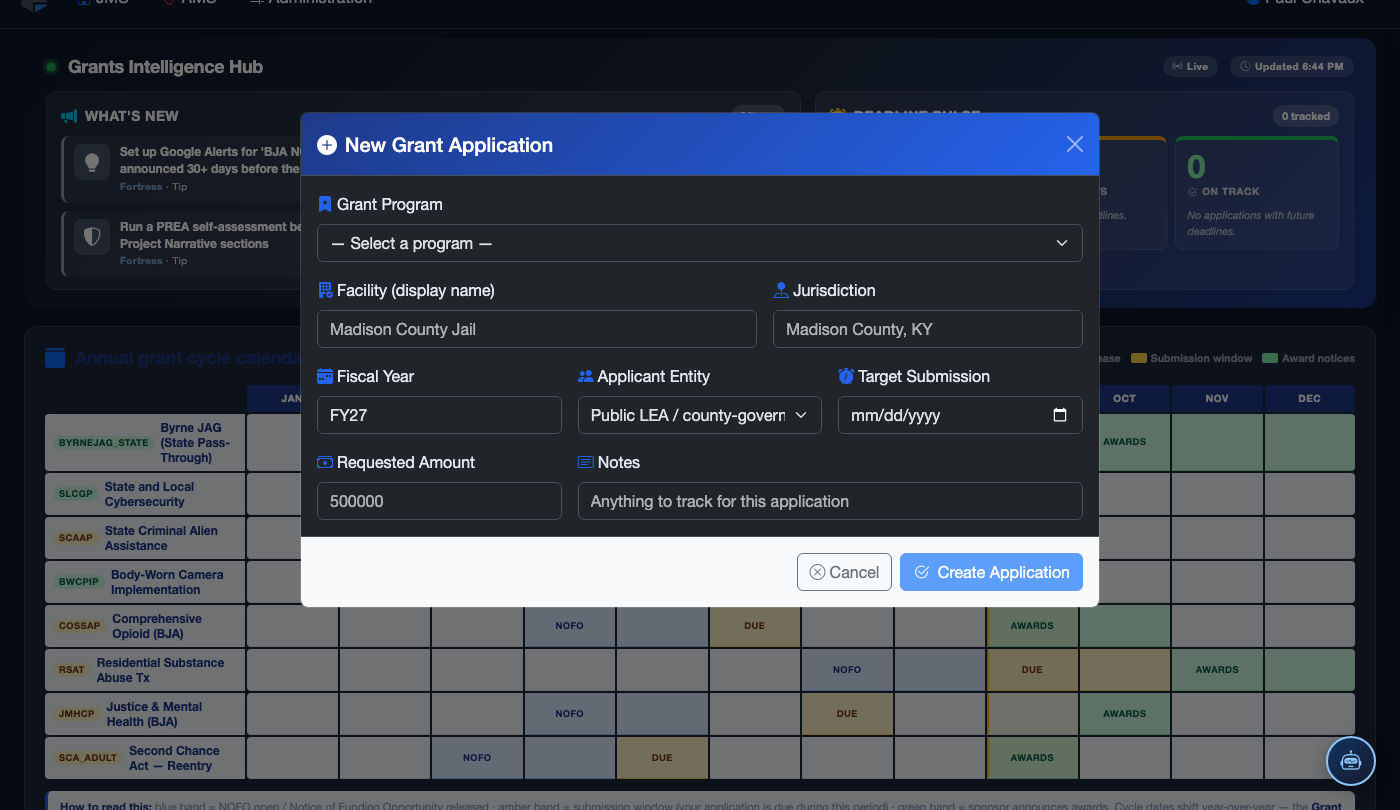
Use the Attachments panel to upload required supporting documentation: facility statistics reports, letters of support from partner agencies, prior audit findings, organizational charts, and signed assurances. Each document is tagged to the relevant application section so reviewers can locate it quickly. Supported formats include PDF, DOCX, and XLSX.
Submit for Internal Supervisor Review
When all sections reach 100% completion, click Submit for Review. The application is routed to the designated reviewing supervisor, who receives an in-system notification. The supervisor reviews all narrative sections and attached documents, may leave inline comments on specific sections for the coordinator to address, and then either Approves the application for external submission or returns it with revision notes.
Record External Submission
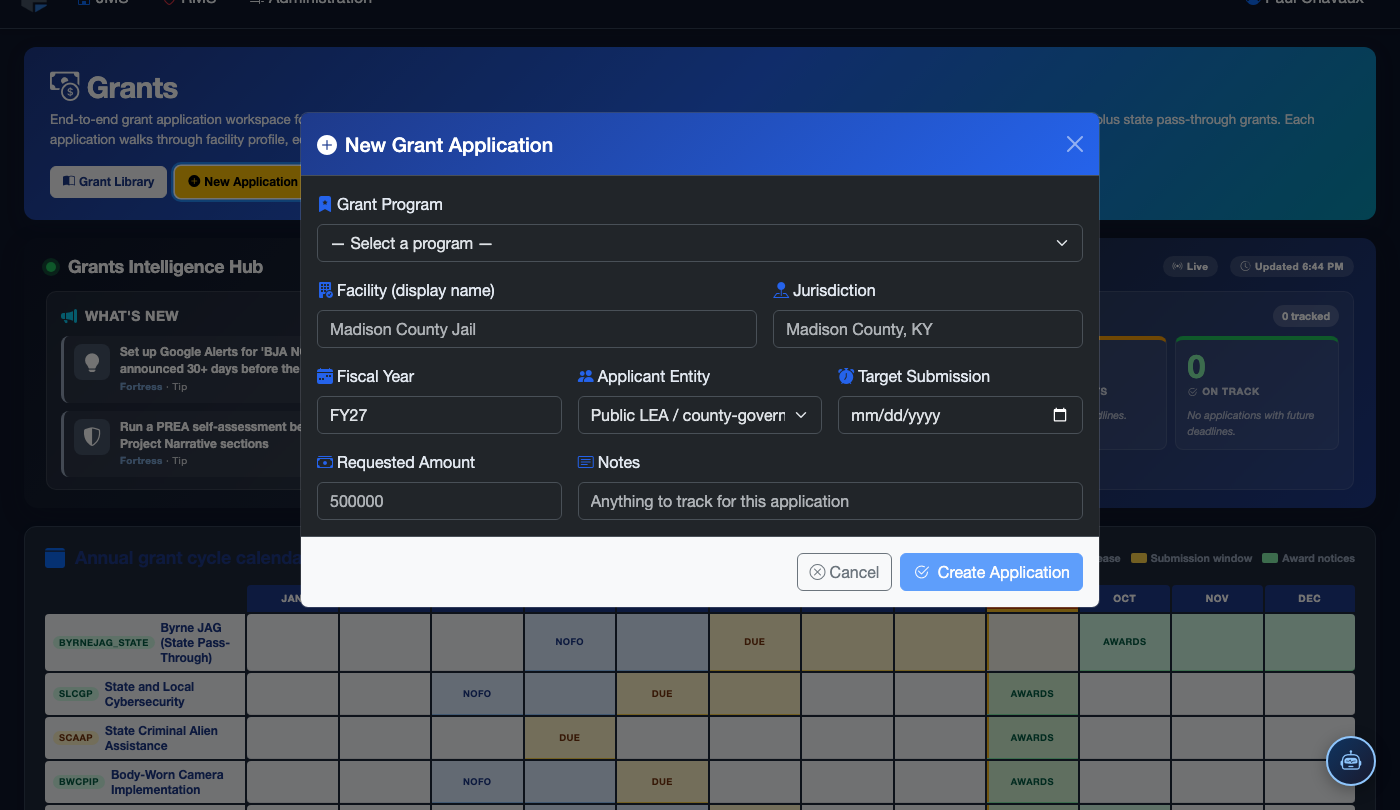
Once supervisor-approved, the grant coordinator submits the application through the granting agency’s external portal (Grants.gov, JustGrants, or state system). Return to FortressDMS and click Mark as Submitted, entering the official submission date and confirmation number. The application status updates to Submitted and a submission record is logged in the audit trail.
Manage Post-Award Compliance
When an award decision is received, update the status to Awarded and enter the award amount, grant period start/end dates, and required reporting schedule. The system will create calendar entries for all performance report due dates and send automated reminders to the designated coordinator. Document all expenditures and program outputs in the Award Compliance section to support the required progress reports.
💡 Pro Tips
- Build a reusable Facility Profile document with current inmate population, capacity, staffing ratios, incident statistics, and accreditation status — this data is required by nearly every grant application and having it pre-compiled saves hours per submission cycle.
- Allow at least 5 business days for the supervisor review stage — rushing the internal approval step is the most common cause of application errors that reach the granting agency. Set an internal milestone deadline one week before the official grant deadline.
- After receiving an award, immediately create a project folder in your facility’s file system linked to the FortressDMS record — store all correspondence, reports, and expenditure documentation there to ensure audit readiness throughout the entire grant period.
Mobile View — Grant Applications
FortressDMS is fully responsive. Officers can access the Grant Applications on a phone or tablet directly from the field — no app install required.
Tab view with data rows
Scrolled / detail view