
Bed Roster
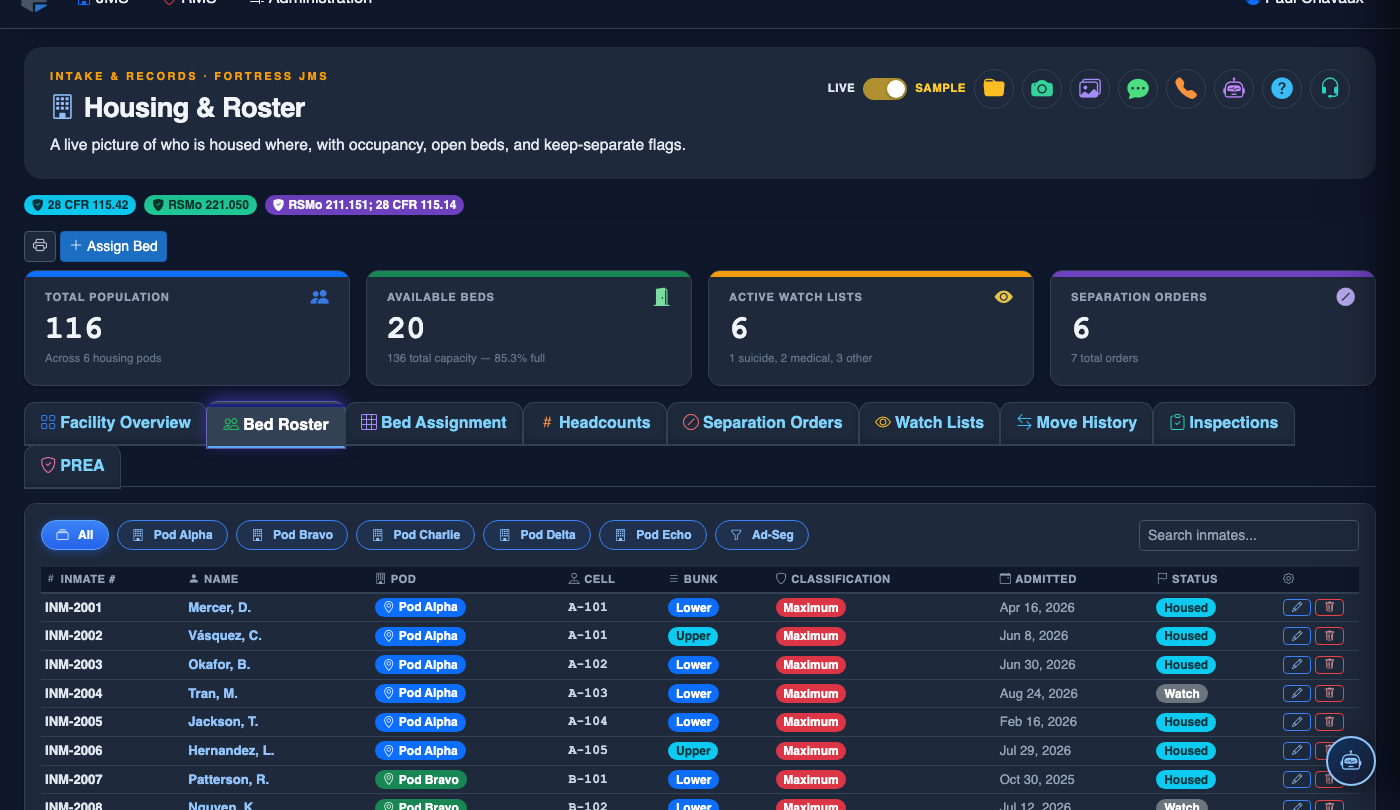
The Bed Roster tab delivers a detailed, unit-by-unit listing of every bed in the facility and the inmate currently assigned to it, giving officers an authoritative reference during count time, shift change, and emergency mustering. Each roster entry shows the inmate’s booking number, name, classification level, and any active flags such as medical holds or protective custody designations. The roster can be filtered by housing unit, classification, or flag status and exported for official documentation.
Complete Bed Inventory
Lists every bed across all housing units with current occupant details or an “Available” status for open beds.
Advanced Filtering
Filter the roster by unit, pod, classification level, gender, or flag type to quickly isolate specific inmate populations.
Flag Visibility
Active flags — including medical holds, separation orders, suicide watch, and court appearances — are displayed inline on each roster row.
Roster Export
Generate a printer-ready PDF or CSV roster for shift briefings, court submissions, and audits in one click.
Step-by-Step: Working with the Bed Roster
Open the Bed Roster Tab
Navigate to Housing & Roster in the main menu, then click the Bed Roster tab. The roster loads with all housing units expanded by default, showing every bed and its current occupant.
Filter by Housing Unit or Classification
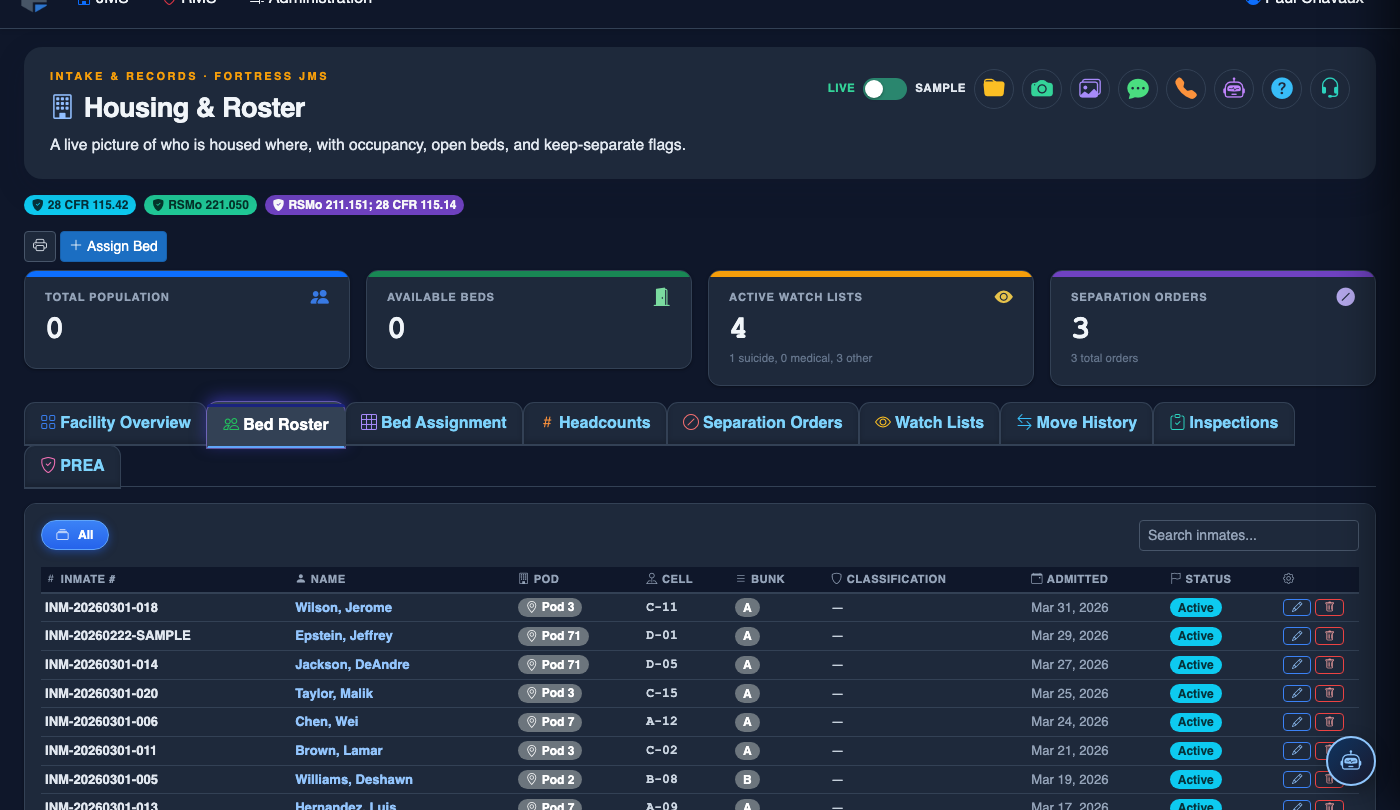
Use the Unit dropdown at the top of the roster to narrow the view to a single pod or cell block. The Classification filter lets you isolate populations such as Pre-Trial, Sentenced, Protective Custody, or Administrative Segregation.
Review Inmate Details and Flags
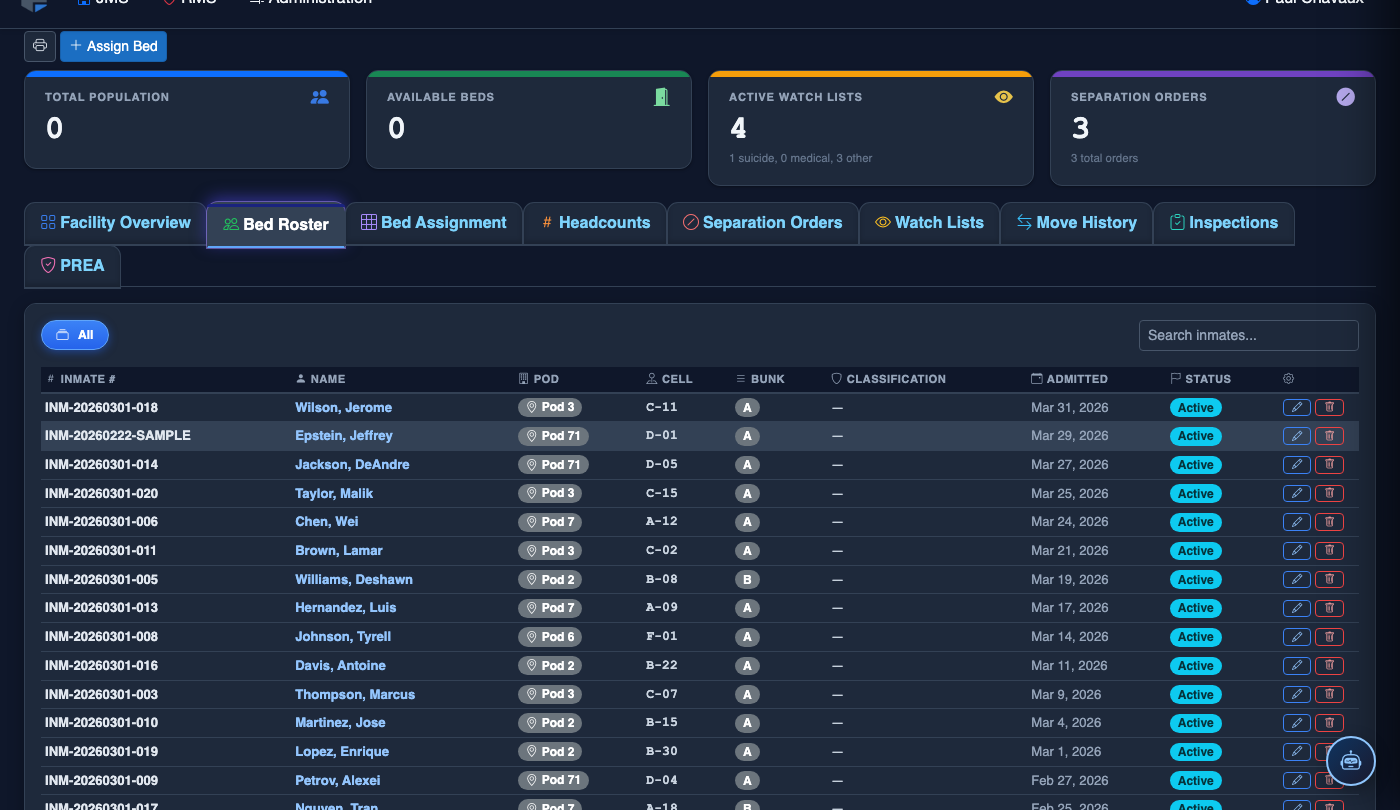
Each row in the roster displays the inmate’s Booking Number, Last Name, First Name, Classification, and active Flag Icons. Hover over a flag icon to see a tooltip describing the flag type, date set, and the officer who created it.
Open an Inmate’s Booking Record
Click on any inmate’s Booking Number or name to open their full booking record in a side panel. From the side panel you can view charges, medical alerts, property inventory, and housing history without leaving the roster view.
Search for a Specific Inmate
Use the Search bar at the top of the roster to locate an inmate by name or booking number. The roster instantly highlights the matching bed row and scrolls to it, even across multiple housing units.
Print or Export the Roster
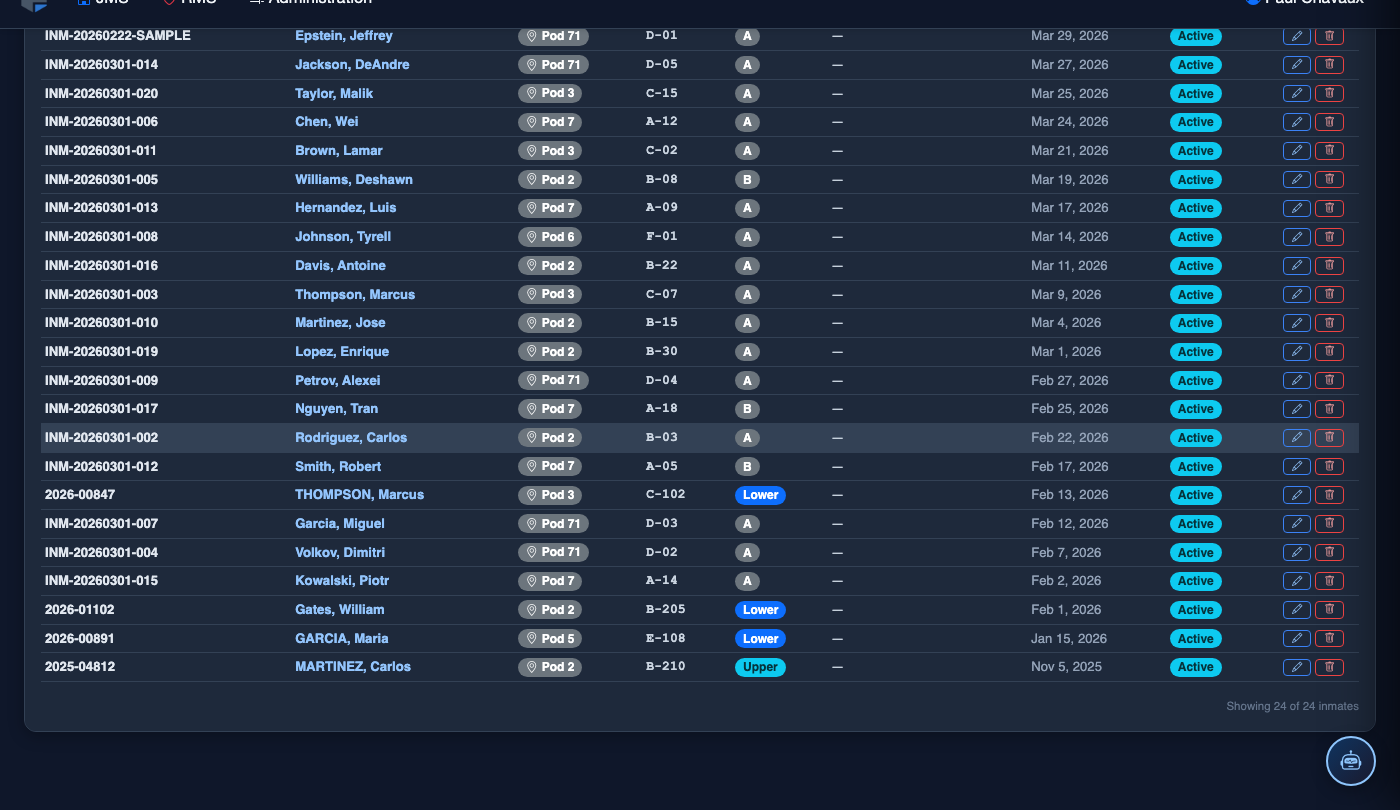
Click Export Roster to download the current filtered view as a PDF or CSV. The PDF format includes facility header, date/time stamp, and officer signature line for use as an official count sheet or shift briefing document.
Check In / Assign an Inmate to a Bed
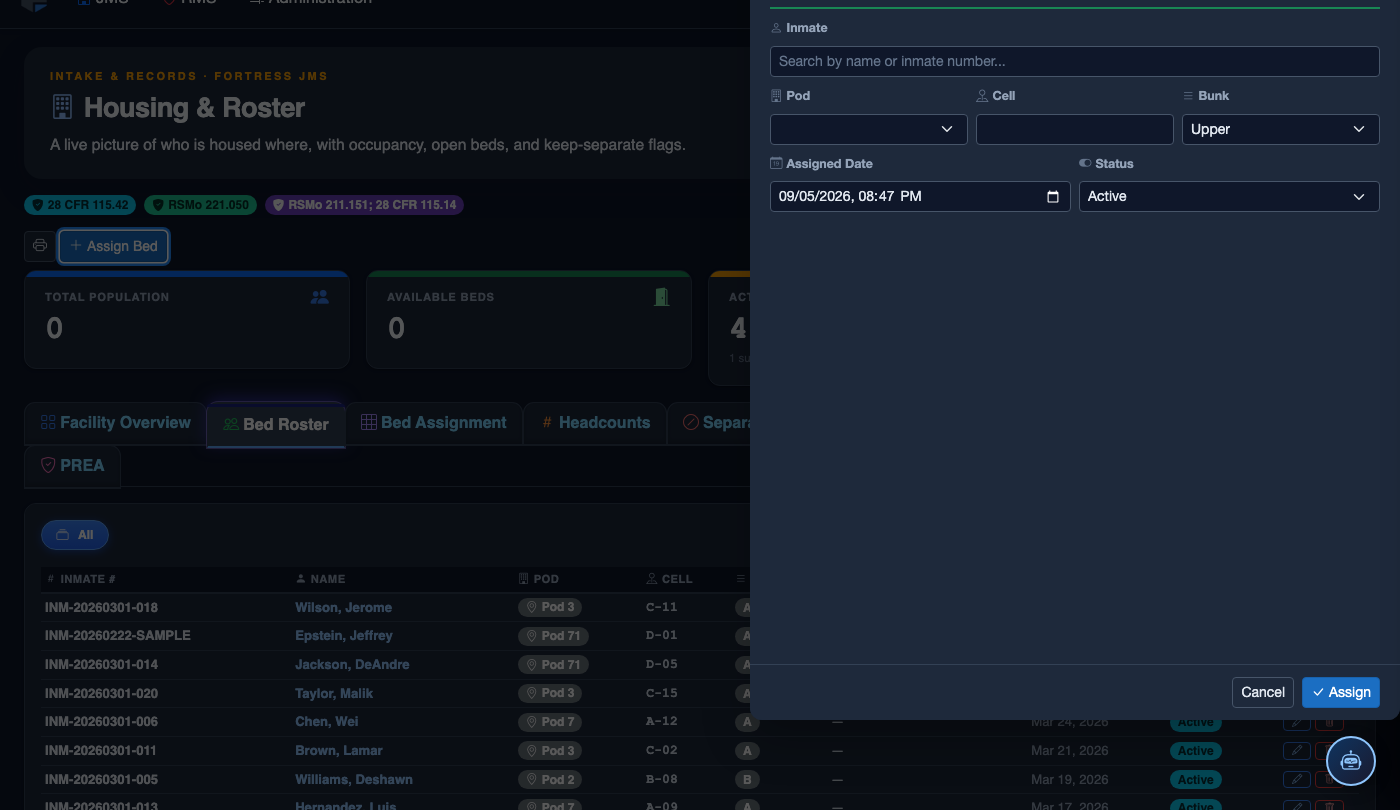
In the toolbar, click Assign Bed. In the assignment dialog:
- Type a name or booking number in the Inmate field and select from the results.
- Choose the Housing Unit, Pod, Cell, and Bed Number from the dropdowns.
- Set the Assignment Date and select the Classification Level.
- Enter any Placement Notes (e.g., known separation conflicts, medical requirements).
- Click Save Assignment — the roster row updates in real time and the bed status changes to Occupied.
💡 Pro Tips
- Use the Show Flags Only toggle to instantly filter the roster to only inmates with active flags — ideal for briefing incoming shift officers on special-attention cases.
- Empty bed rows are displayed in a muted color; enable the Hide Empty Beds option during count time to reduce visual clutter and speed up verification.
- The roster timestamp at the top of every exported PDF reflects the exact server time of export — always export immediately before printing to ensure accuracy for legal and audit purposes.
Mobile View — Bed Roster
FortressDMS is fully responsive. Officers can access the Bed Roster on a phone or tablet directly from the field — no app install required.
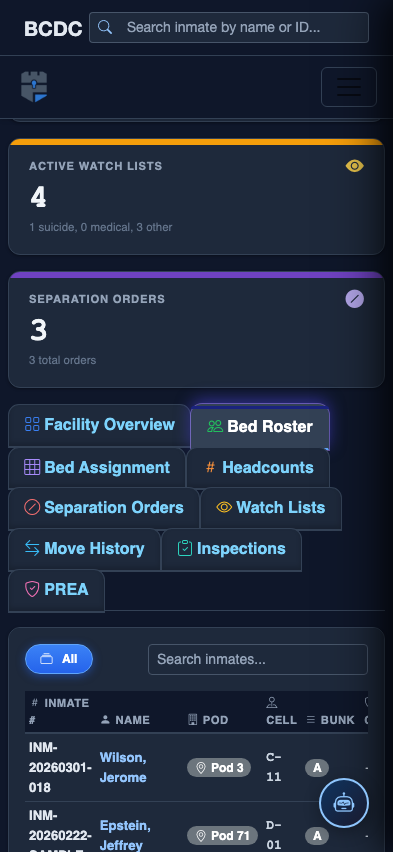
Tab view with data rows
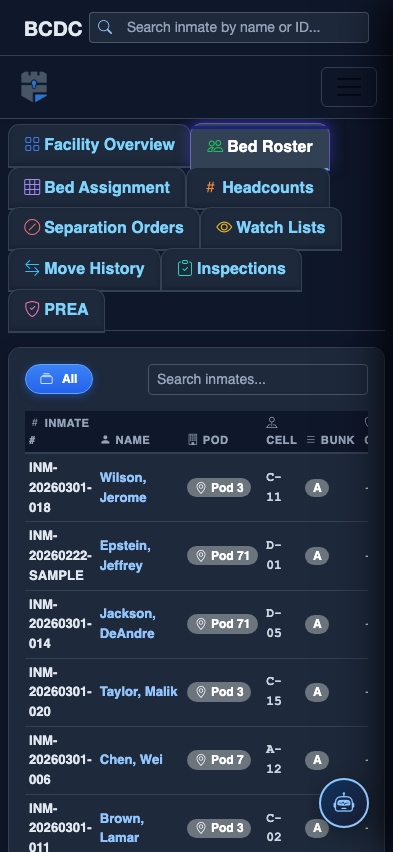
Scrolled / detail view