
Headcounts
The Headcounts tab provides a structured, officer-guided workflow for conducting official inmate counts at scheduled intervals or on-demand, capturing verified counts by housing unit and flagging any discrepancies between the expected and actual population in real time. Every completed count is time-stamped and associated with the officer who submitted it, creating an immutable record for audits, incident reviews, and state compliance reporting. The system supports both formal scheduled counts and emergency emergency mustering counts with customizable count intervals.
Guided Count Workflow
Step-by-step unit-by-unit count entry ensures no housing area is skipped and every officer submission is validated.
Discrepancy Alerts
Instantly flags any unit where the submitted count does not match the roster, triggering a supervisor notification and recount workflow.
Scheduled Count Tracking
Tracks compliance with required count intervals (e.g., every 30 minutes for high-security units) and alerts supervisors when a count is overdue.
Count History & Reports
Full history of all counts — including discrepancies, recounts, and resolution notes — available for state audit and legal proceedings.
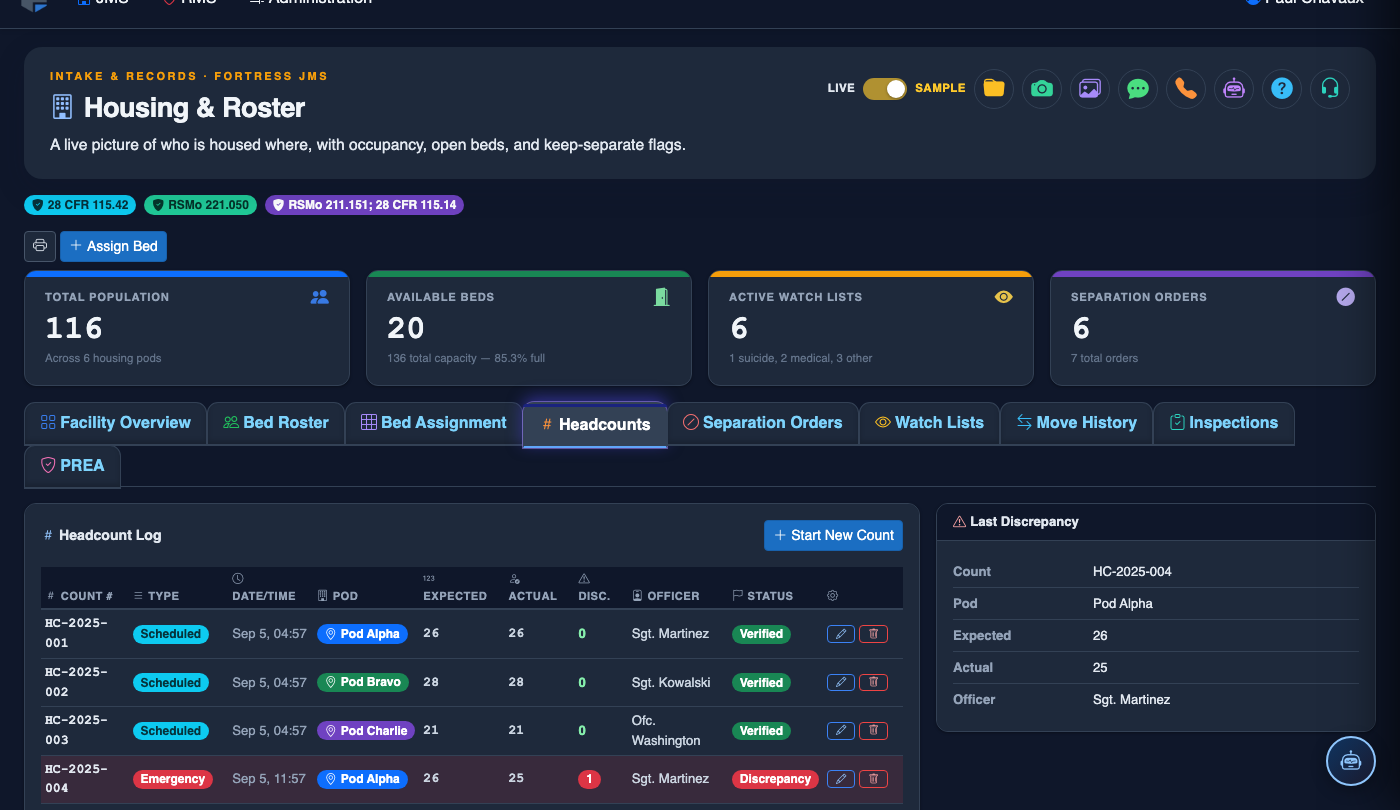
Step-by-Step: Conducting and Submitting a Headcount
Open the Headcounts Tab and Start a Count
Navigate to Housing & Roster > Headcounts. Click Start New Count to initiate a count session. Select the count type — Scheduled, Emergency, or Ad Hoc — from the dropdown before proceeding.
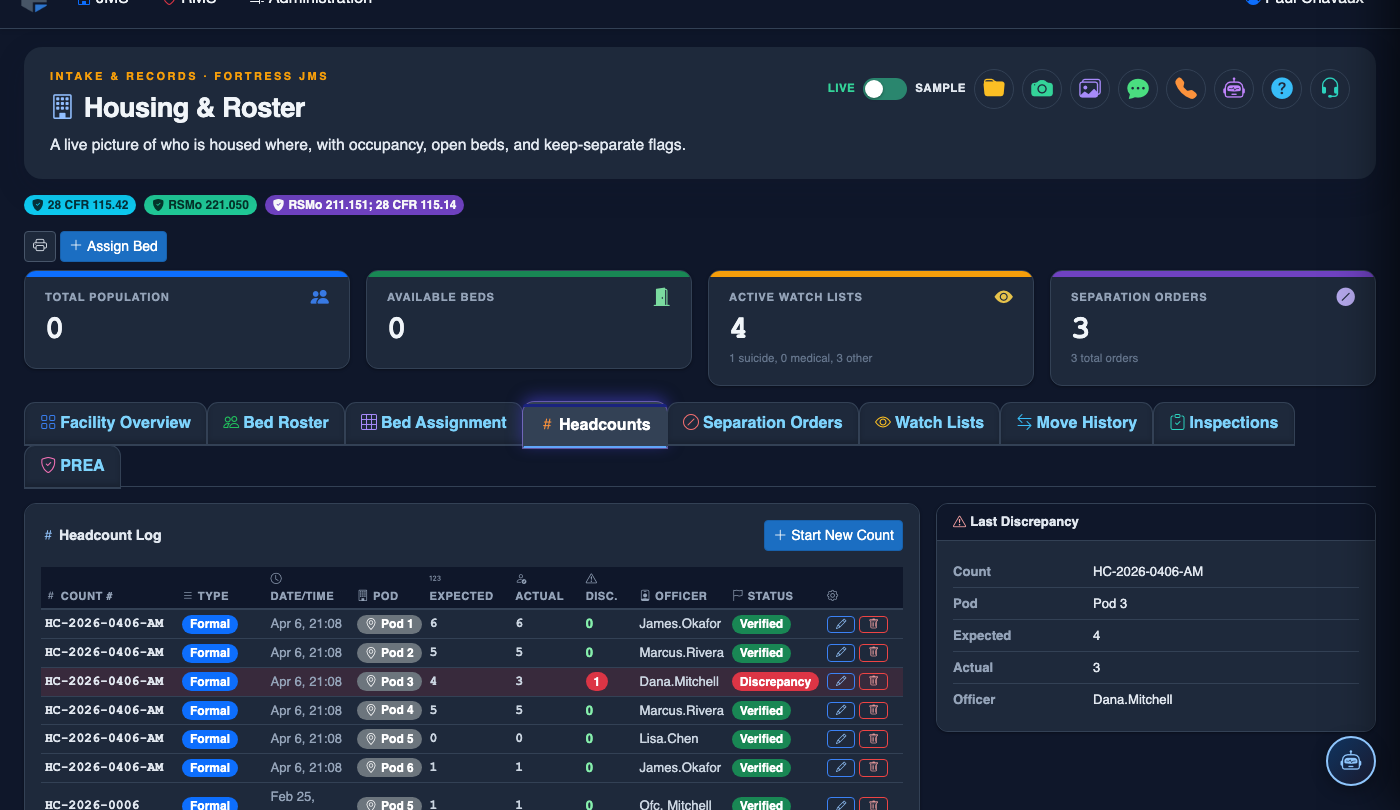
Enter Physical Count for Each Unit
For each housing unit listed in the count form, enter the Physical Count number in the input field. The system displays the Expected Count from the roster beside each unit for immediate comparison. Work through units from top to bottom to ensure full facility coverage.
Respond to Discrepancy Flags
If your physical count does not match the roster for a unit, the row immediately turns red and a Discrepancy Reason field appears. Select the appropriate reason (e.g., Court Transport, Medical, Discipline Move) or enter a note, then confirm before proceeding to the next unit.
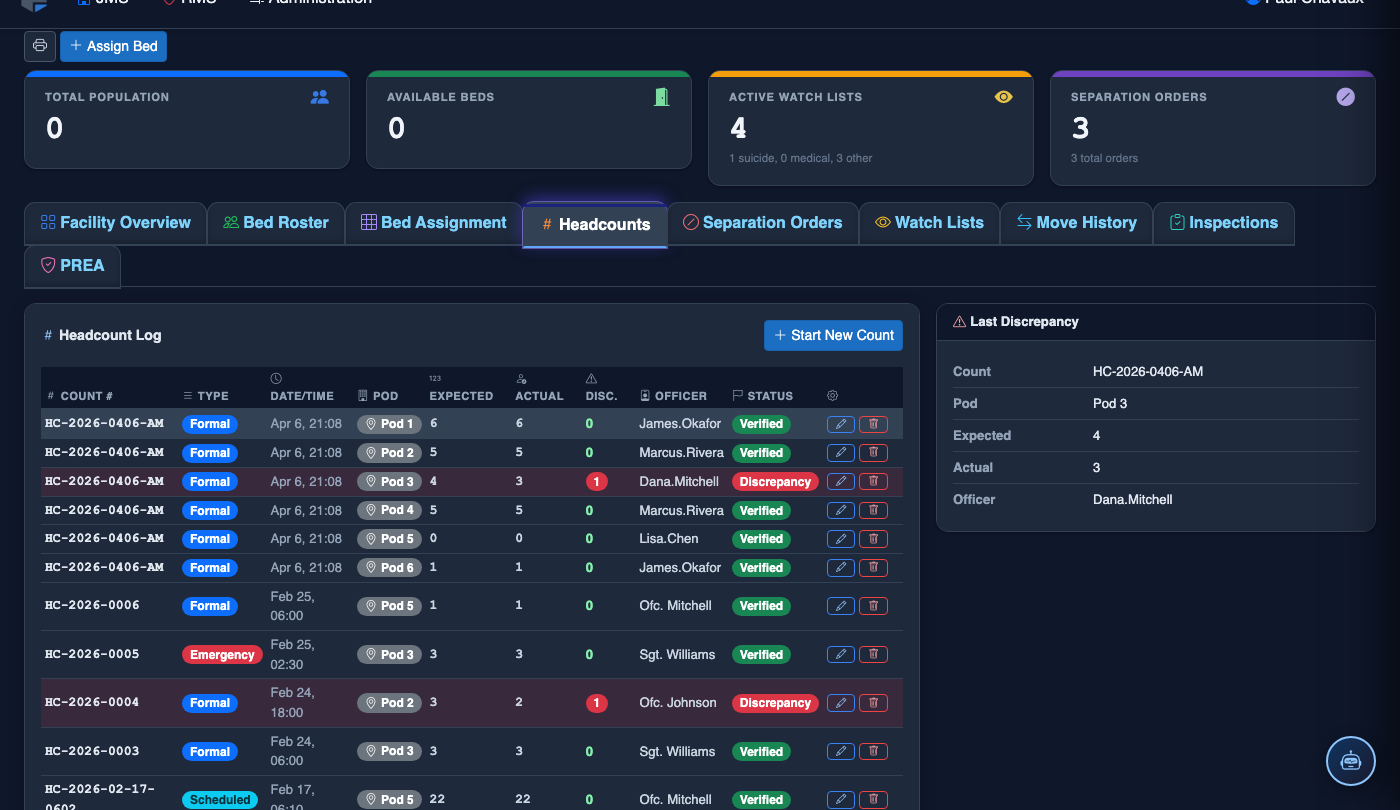
Submit and Lock the Count
Once all units have been entered, click Submit Count. The system locks the count record, assigns your officer ID and a server-generated timestamp, and notifies your supervisor for review. A locked count cannot be edited — initiate a Recount if corrections are needed.
Initiate a Recount if Needed
If a supervisor determines a recount is required (e.g., unexplained discrepancy), click Request Recount on the submitted count record. The recount session opens with the original count data pre-filled for comparison, and requires a supervisor PIN authorization to initiate.
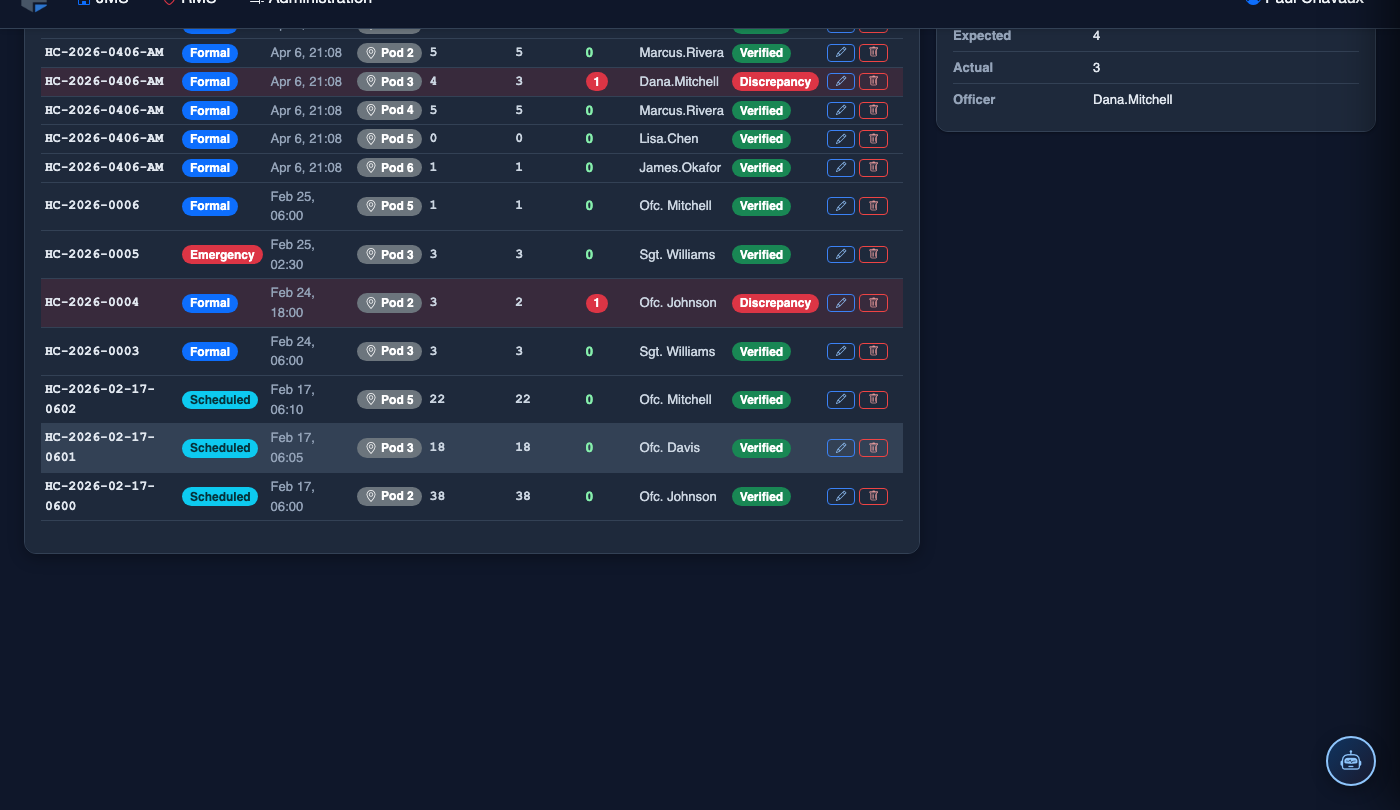
Review Count History and Generate Reports
Click Count History to view all completed counts for the current and past shifts. Use the Date Range filter and Export button to generate a PDF count compliance report for state inspections or internal audits.
Start a New Headcount
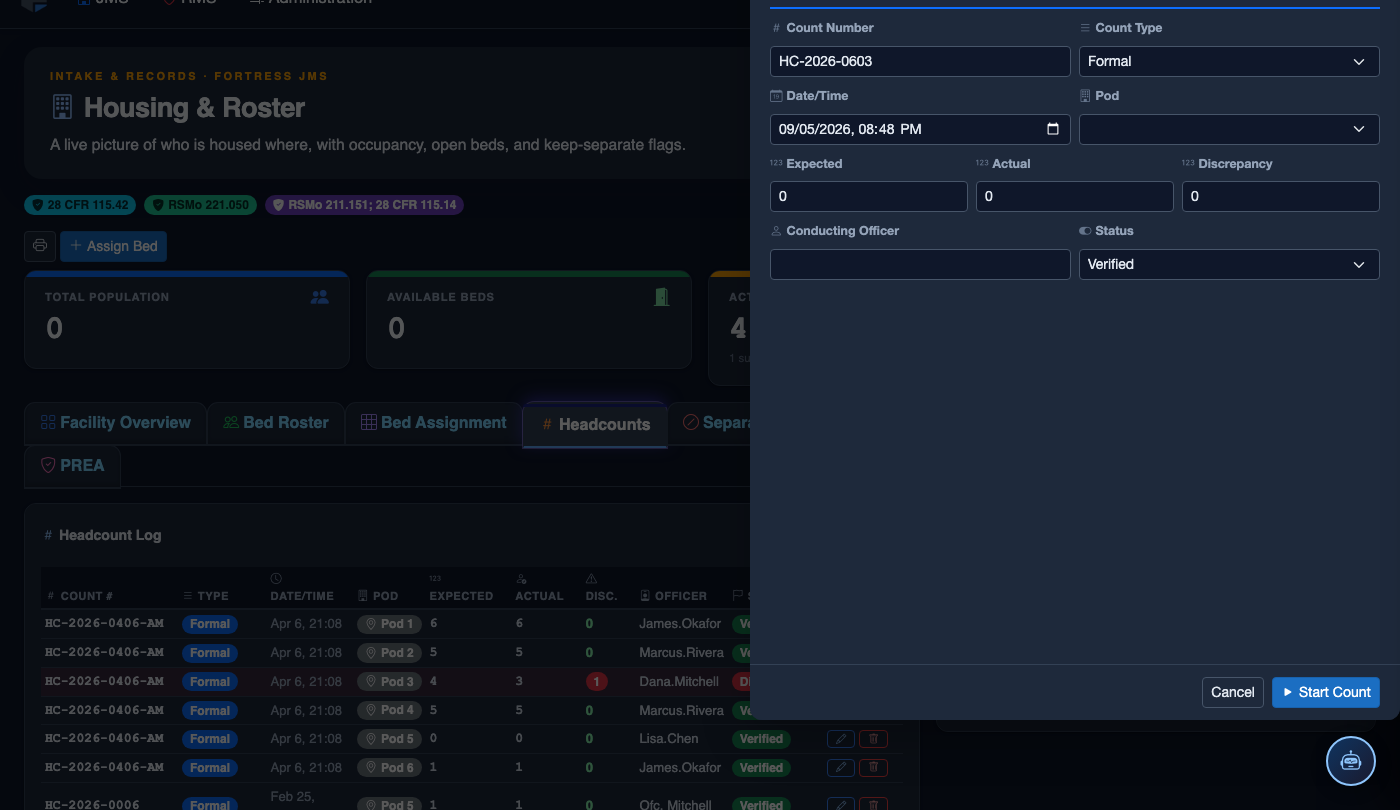
Click Start New Count in the toolbar. Configure the count session:
- Count Type — Routine, Shift Change, or Emergency.
- Housing Units — select individual pods or choose All Units for a facility-wide count.
- Scheduled Time — set the official count start time (recorded for compliance reporting).
- Count Officer — the officer conducting and certifying this count.
- Pre-Count Notes — log any known out-of-facility inmates (medical transport, court) before beginning to avoid false discrepancy alerts.
- Click Begin Count — the system locks a roster snapshot and opens the tally entry screen.
💡 Pro Tips
- Configure count interval alerts under Settings > Count Schedule so that supervisors receive an automatic notification if a required count has not been started within 5 minutes of the scheduled time.
- For units with court transports or medical appointments, pre-log the out-of-facility movements in the Movements module before starting the count — this eliminates false discrepancy flags and speeds up the count workflow.
- The Count Dashboard widget on the facility homepage shows a real-time green/amber/red status for the most recent count across every unit — make it your first check at the start of each shift.
Mobile View — Headcounts
FortressDMS is fully responsive. Officers can access the Headcounts on a phone or tablet directly from the field — no app install required.
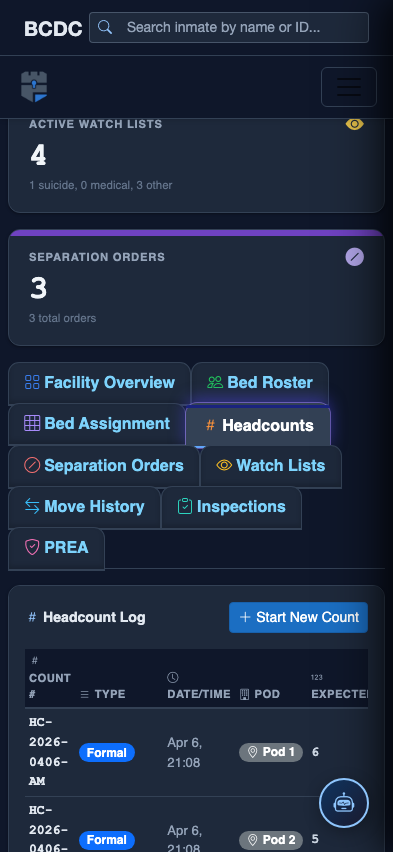
Tab view with data rows
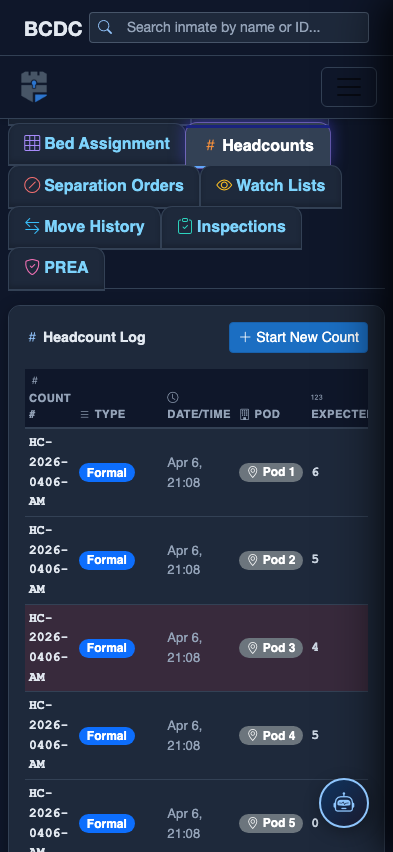
Scrolled / detail view