
Watch Lists
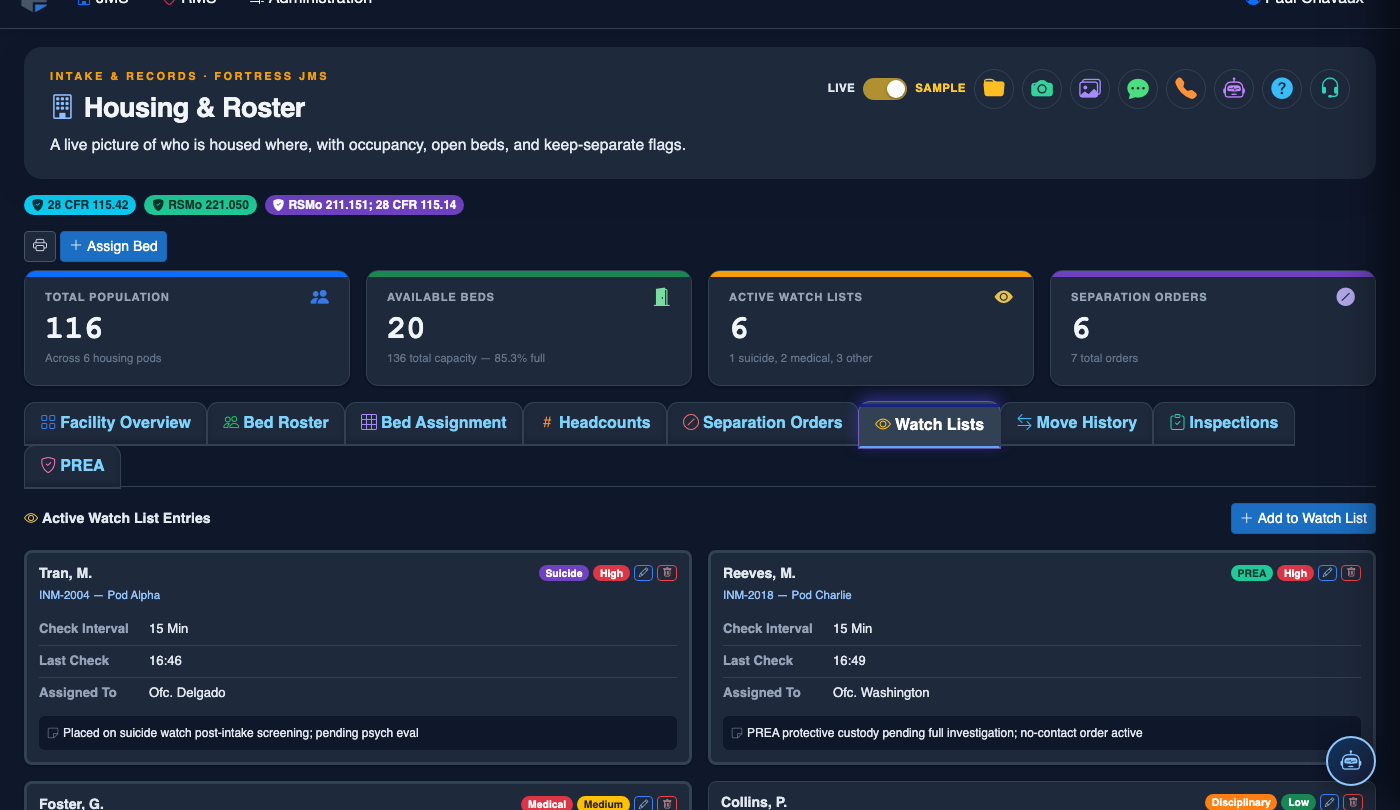
The Watch Lists tab enables supervisors and mental health staff to place specific inmates on structured observation programs with defined check intervals, automated reminders, and documented officer sign-offs for each observation round. Watch lists cover a range of risk designations — including suicide watch, self-harm risk, escape risk, medical observation, and protective custody — each with configurable check frequencies and escalation triggers. Every observation and officer note is time-stamped and stored in the inmate’s record to support incident investigations and accreditation audits.
Tiered Watch Designations
Supports multiple watch levels — Constant, 15-Minute, 30-Minute, and Medical — each with its own automated check reminder schedule.
Observation Reminders
Automated on-screen and audio alerts notify the assigned officer when a check interval has elapsed, preventing missed rounds.
Officer Sign-Off Logging
Each observation round requires an officer sign-off with optional notes, creating a legally defensible observation log for every inmate on watch.
Escalation Triggers
Missed check rounds automatically escalate to the supervisor dashboard and generate an incident notification to the on-duty administrator.
Step-by-Step: Placing an Inmate on Watch and Logging Observations
Open the Watch Lists Tab
Navigate to Housing & Roster > Watch Lists. The active watch list is displayed with each inmate’s name, watch type, check interval, last check time, and the officer who placed them on watch. Color-coded badges indicate watch level severity.
Add an Inmate to a Watch List
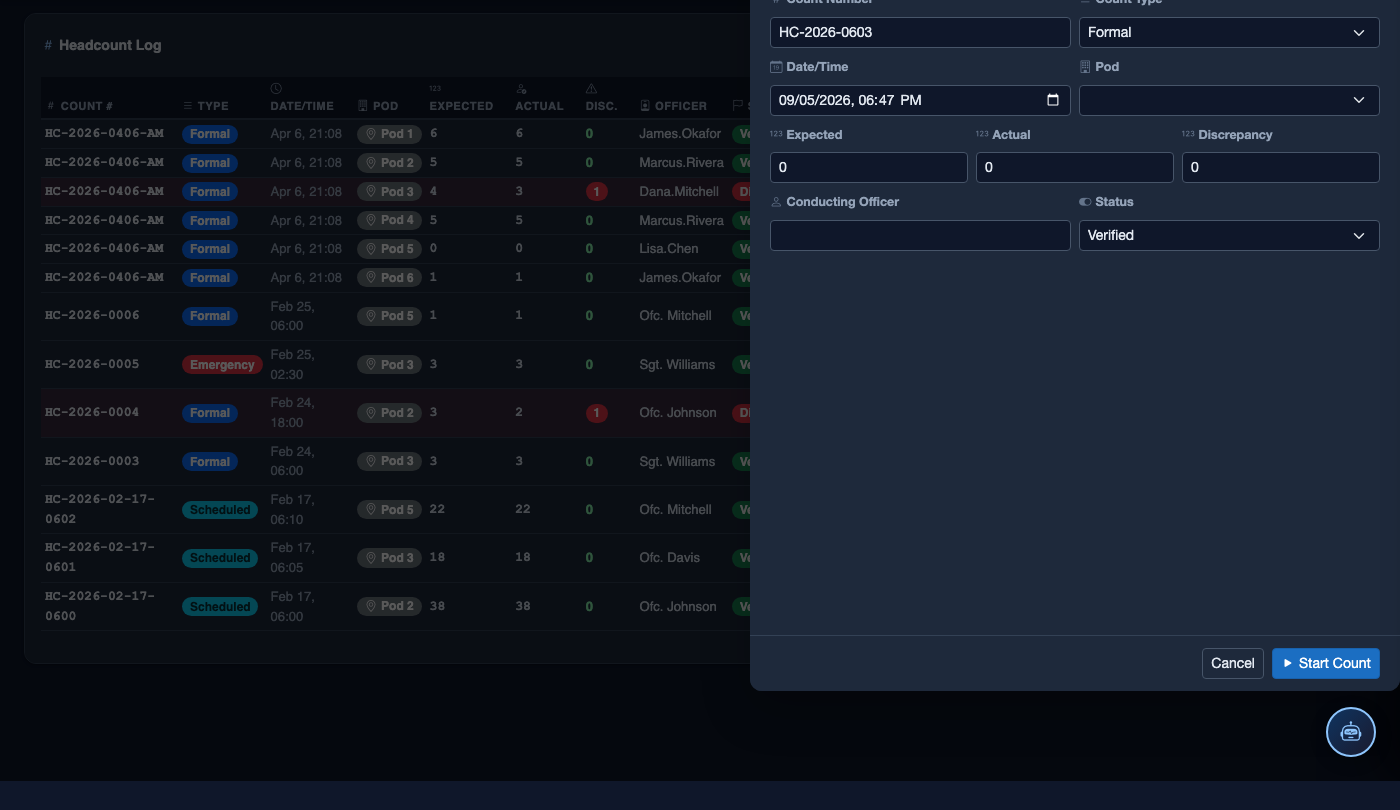
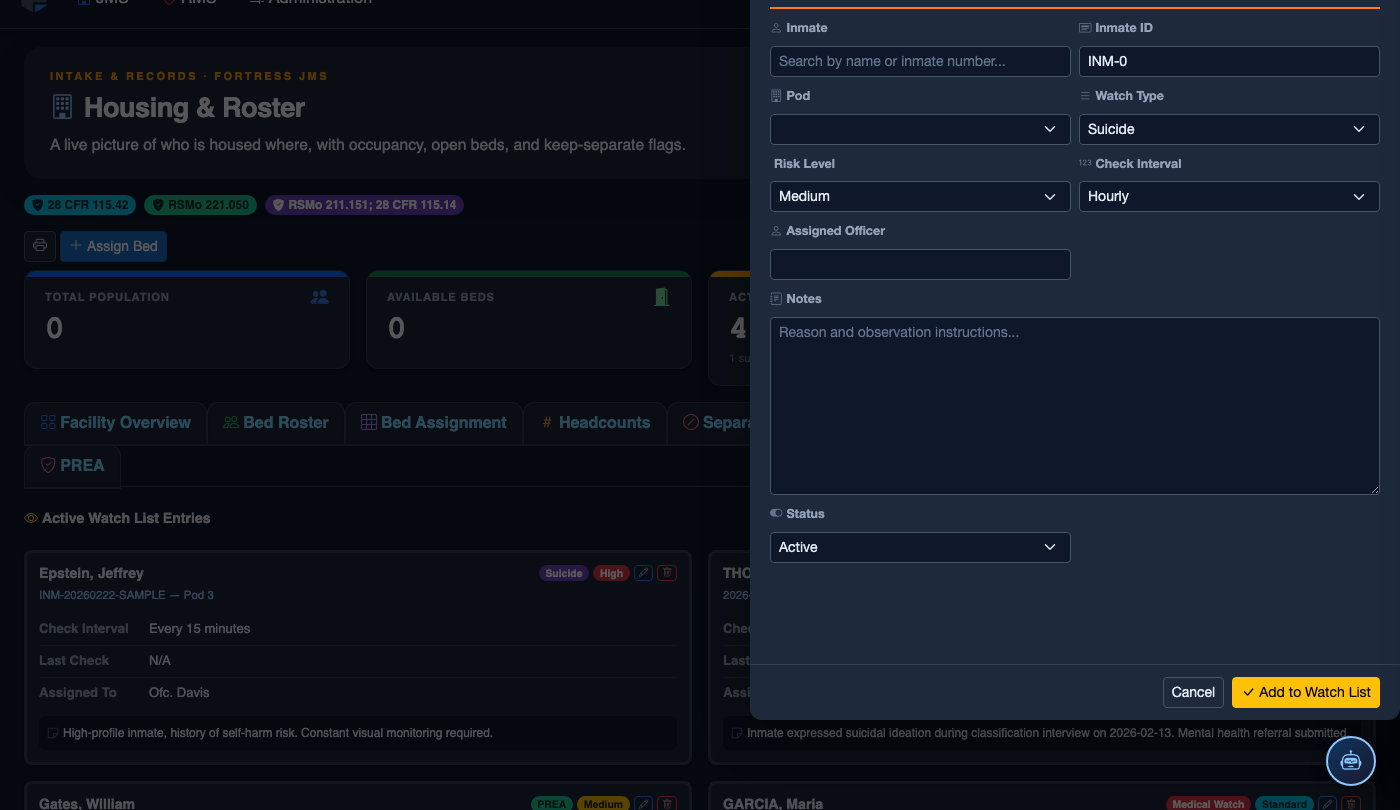
Click Add to Watch List. Search for the inmate by name or booking number, then select the Watch Type (Suicide Watch, Self-Harm Risk, Escape Risk, Medical Observation, or Protective Custody) from the dropdown. The system auto-populates the default check interval for the selected type.
Configure Check Interval and Assigned Officer
Adjust the Check Interval if the default does not match the mental health or medical order (e.g., changing from 30-minute to 15-minute intervals per a clinician’s directive). Assign the Primary Officer responsible for this inmate’s watch rounds. Click Save & Activate to begin the watch.
Log Each Observation Round
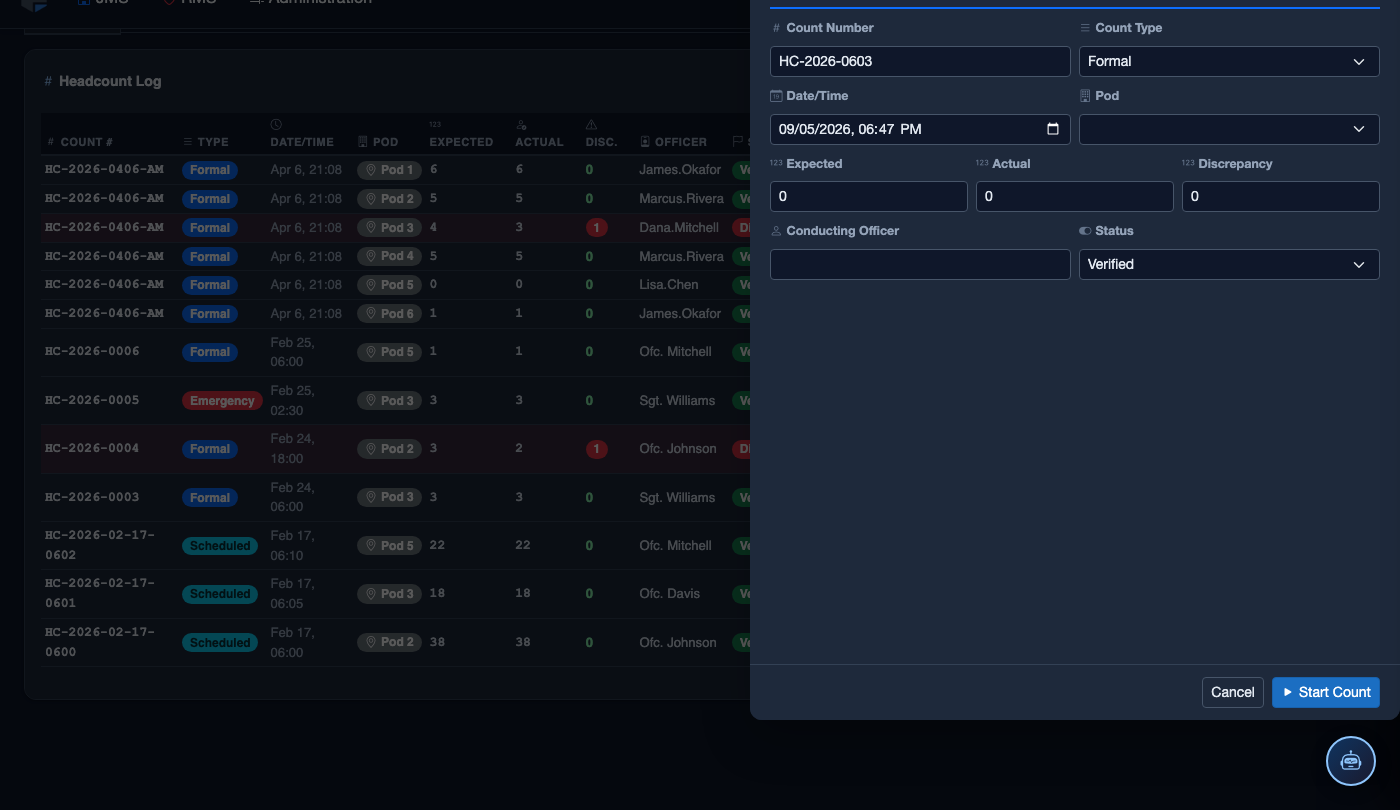
When the check interval elapses, the inmate’s row highlights and an alert sounds at the officer’s workstation. Click Log Observation, confirm the inmate’s Condition (e.g., Sleeping, Awake, No Issues, Concern — see supervisor), enter optional notes, and click Submit. The sign-off is recorded with your officer ID and a server timestamp.
Escalate or Report a Concern
If an observation reveals a concern, select Concern — Notify Supervisor from the condition dropdown. The system immediately sends a supervisor notification with the observation details and the inmate’s location. Document your response actions in the Notes field before submitting.
Remove an Inmate from Watch
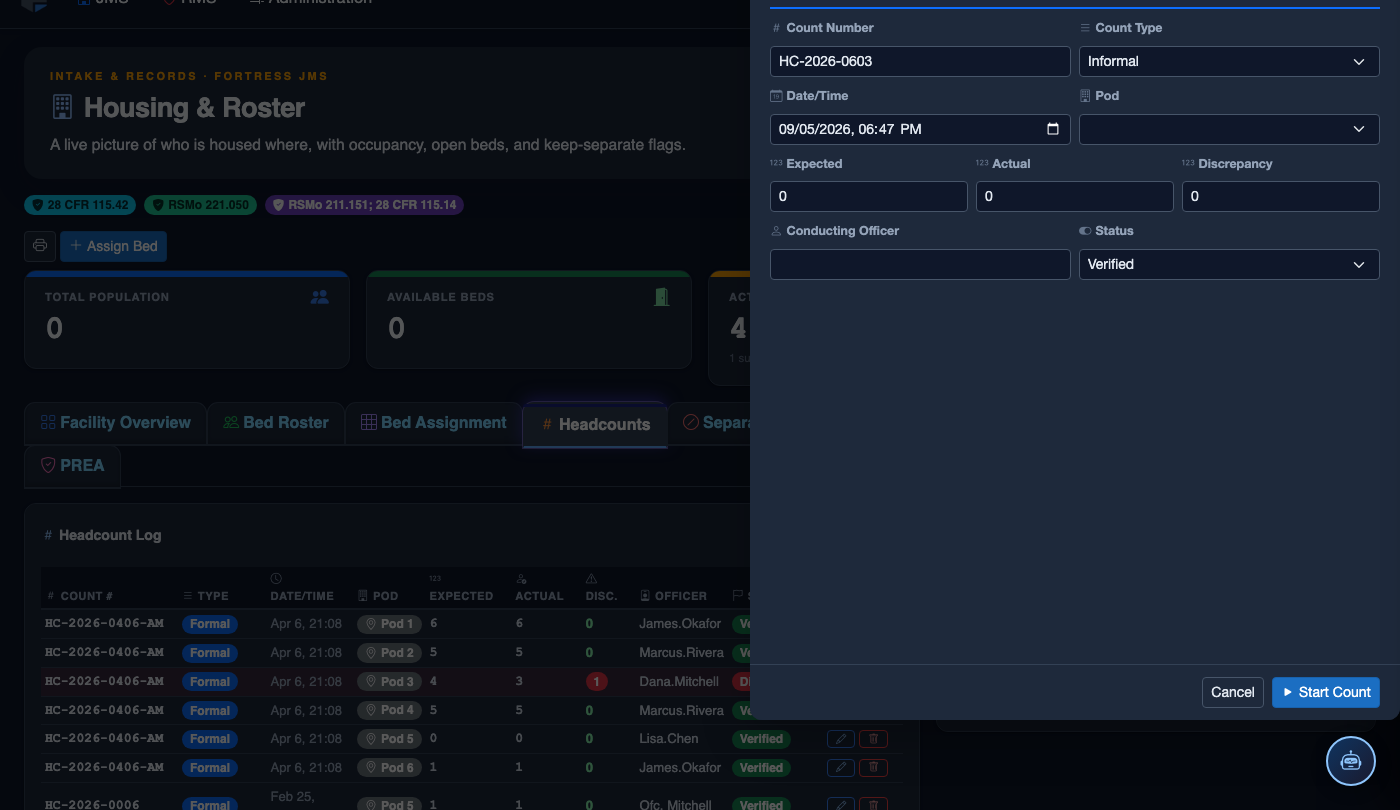
When the watch designation is no longer required — per clinician order or supervisor decision — click Remove from Watch on the inmate’s record. Enter a Removal Reason and the authorizing supervisor’s name. The watch record is archived and remains accessible in the inmate’s permanent history.
Log a New Watch Entry
Click Add Watch Entry. Complete the watch log form:
- Inmate — search by name or booking number.
- Watch Type — Suicide Watch, Self-Harm Risk, Medical Observation, Protective Custody, or Administrative.
- Watch Level — Constant Observation, Staggered 15-min, or 30-min Intervals.
- Monitoring Officer — the officer assigned to document check-ins.
- Clinical Notes — enter the documented basis for the watch (verbalization, behavior observed, clinical referral status).
- Click Start Watch. The entry is pinned to the top of the watch list and auto-generates check-in reminders for the assigned officer at the selected interval.
💡 Pro Tips
- For Suicide Watch inmates, set the condition to Constant interval — this disables the automatic timer and requires a manual log entry every time the officer passes the cell, creating the most granular observation record possible.
- At shift change, print the Active Watch List Report (available via the Export button) and walk the incoming officer through each active watch inmate by name, condition, and last log time before signing off on the shift.
- Watch list data feeds directly into the Mental Health module — any observation logged here is automatically visible to the facility mental health clinician without requiring duplicate data entry.
Mobile View — Watch Log
FortressDMS is fully responsive. Officers can access the Watch Log on a phone or tablet directly from the field — no app install required.
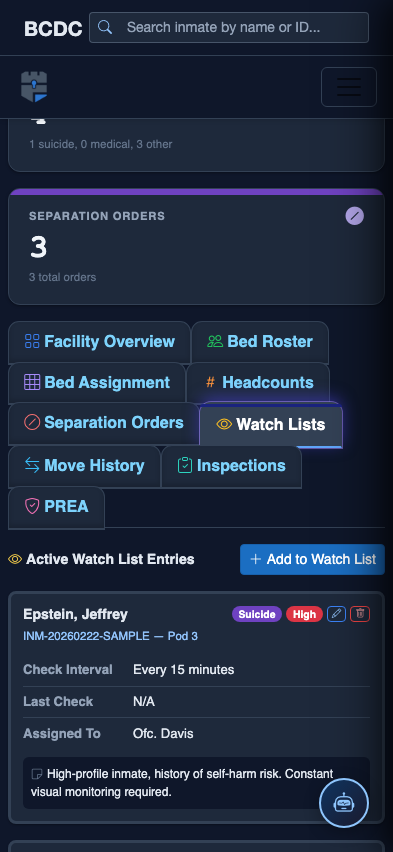
Tab view with data rows
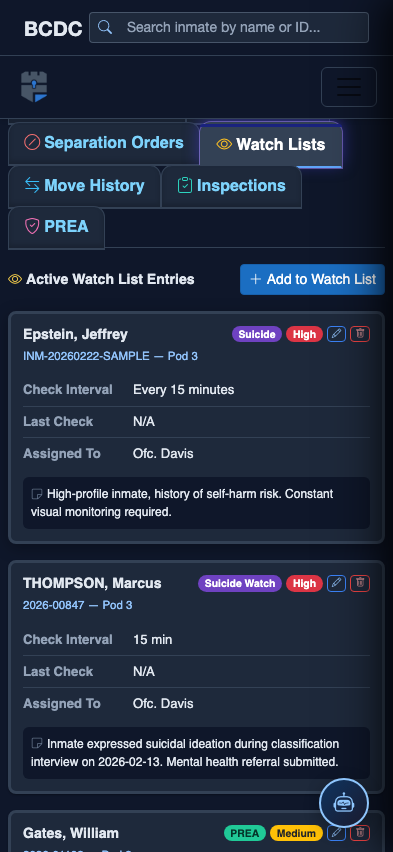
Scrolled / detail view