
Move History
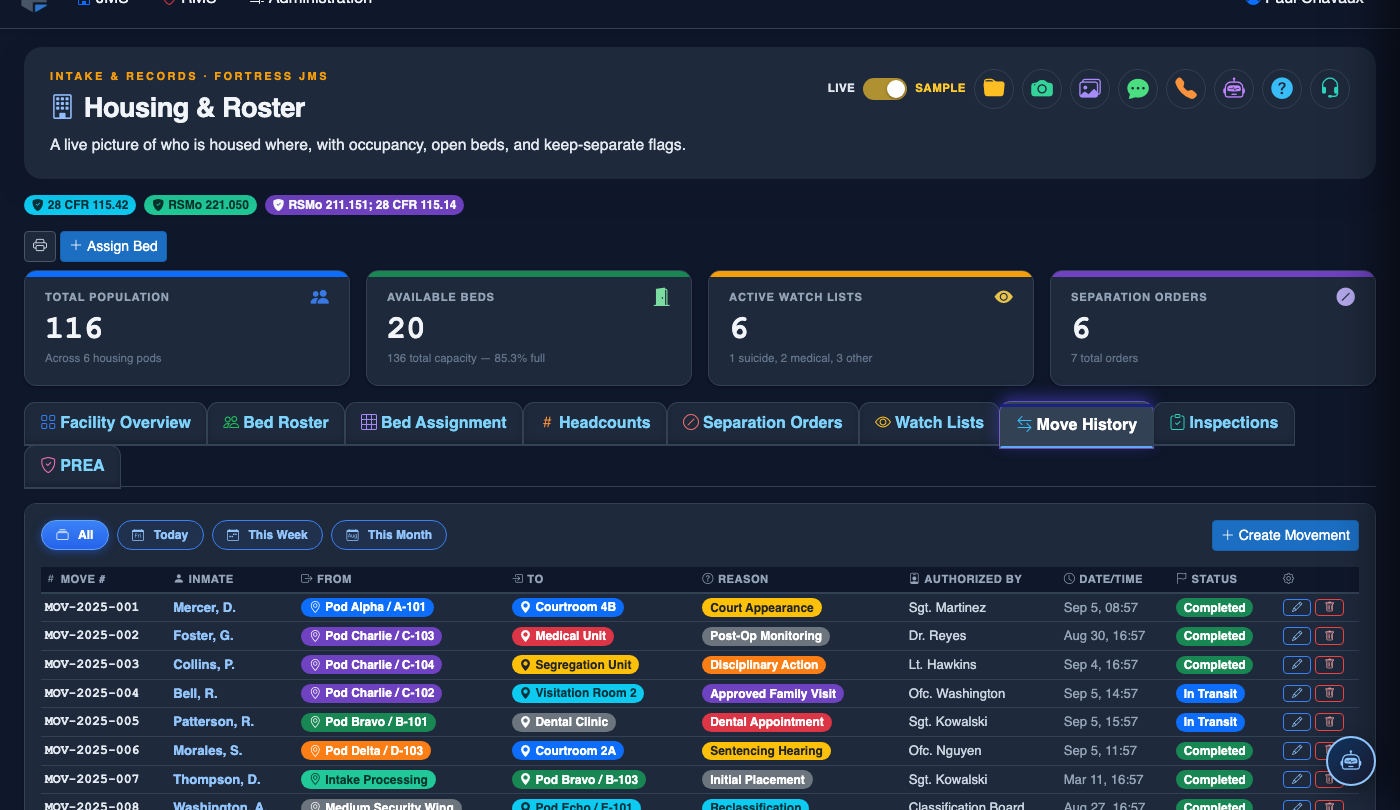
The Move History tab provides a comprehensive, chronological audit trail of every housing assignment change for each inmate in your facility. Officers and administrators can instantly verify where an inmate was housed at any point in time, supporting compliance reporting, incident investigations, and accountability reviews. This immutable record ensures transparency and supports legal defensibility for all housing decisions.
Complete Audit Trail
Every cell and housing unit transfer is permanently logged with timestamp, officer, and reason code.
Incident Investigation
Quickly reconstruct inmate location at any date and time to support incident or grievance investigations.
Date-Range Filtering
Filter move records by custom date ranges to isolate relevant housing events for reporting or review.
Export & Reporting
Export move history to PDF or CSV for court submissions, audits, or facility compliance reviews.
Step-by-Step: Reviewing Inmate Move History
Open the Housing & Roster Module
From the main navigation, select Housing & Roster. Use the inmate search bar at the top of the roster to locate the inmate whose move history you need to review.
Select the Inmate Record
Click on the inmate’s name or booking number in the roster list to open their detailed record. The inmate detail panel will open on the right side of the screen.
Navigate to the Move History Tab
Click the Move History tab (Tab 7) in the inmate detail navigation. The system will load a chronological list of all housing assignments for this inmate.
Apply Date Range Filters
Use the From Date and To Date fields at the top of the Move History tab to narrow the results to a specific time period relevant to your investigation or review.
Review Move Records
Each row displays the From Cell, To Cell, Move Date/Time, Reason, and the Officer who authorized the transfer. Click any row to expand details.
Export Move History
Click the Export button to download the filtered move history as a PDF or CSV file. Include this report in incident packages, legal submissions, or accreditation audits.
Record an Inmate Cell Move
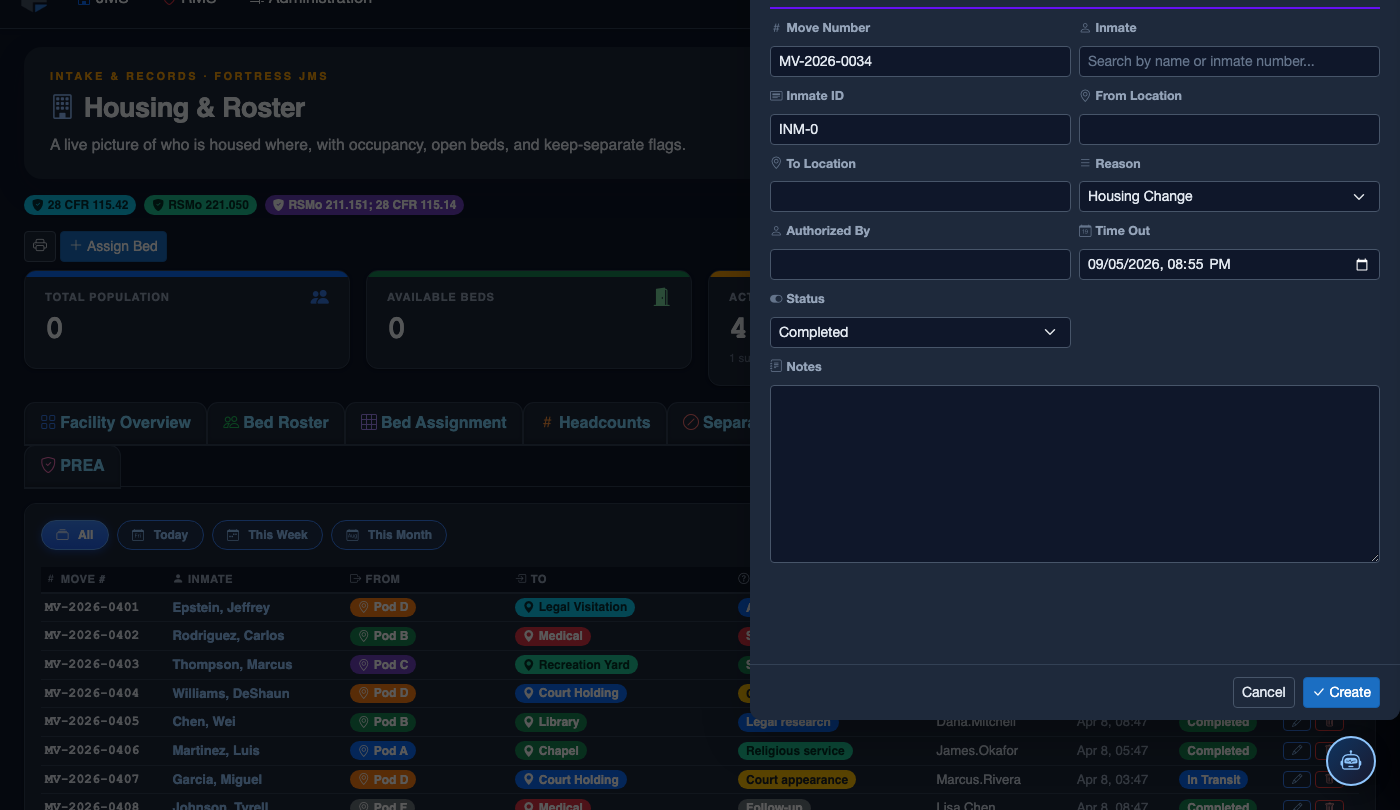
Click Record Move. Fill in the move details:
- Inmate — search by name or booking number.
- From Cell — select the current unit, pod, and cell the inmate is leaving.
- To Cell — select the destination unit, pod, and cell. The system highlights unavailable or restricted beds.
- Move Reason — Classification Change, Disciplinary, Safety Reassignment, Court Hold, Medical, Administrative.
- Authorizing Officer — the officer or supervisor who approved the move.
- Notes — document the specific reason and any relevant case details.
- Click Log Move. The Bed Roster and Bed Assignment records update automatically and a timestamped entry appears in Move History.
💡 Pro Tips
- Move History is read-only and cannot be edited — this protects the integrity of the audit trail for legal proceedings.
- Use the date range filter during PREA investigations to quickly establish whether an inmate shared housing with an alleged perpetrator.
- Export move records immediately after an incident occurs to preserve a point-in-time snapshot before any administrative changes are made.
Mobile View — Move Records
FortressDMS is fully responsive. Officers can access the Move Records on a phone or tablet directly from the field — no app install required.
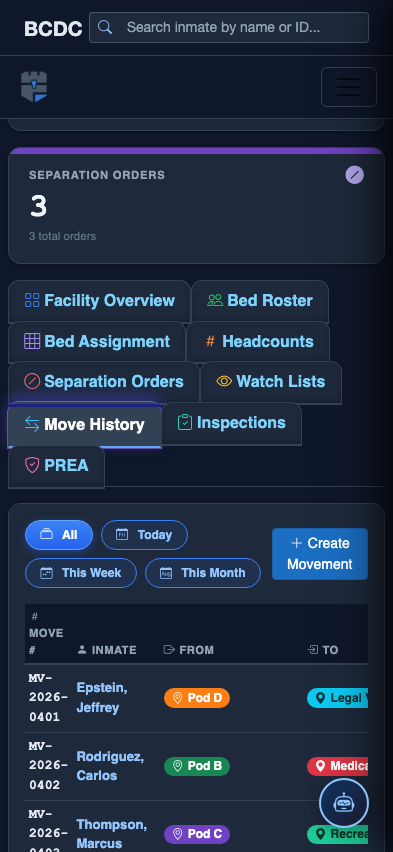
Tab view with data rows
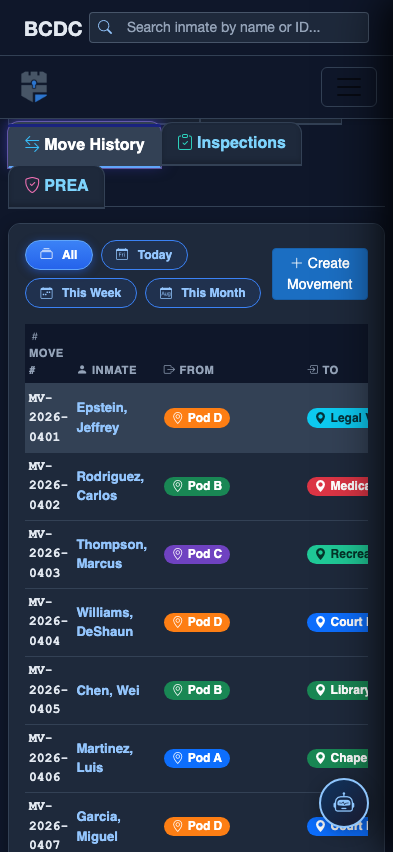
Scrolled / detail view