
Cell Inspections
The Cell Inspections tab enables officers to document, schedule, and track formal cell inspections directly within the inmate’s housing record. Facilities can enforce routine sanitation and contraband checks while building a defensible documentation trail that satisfies accreditation standards and reduces liability. Every inspection result — pass, fail, or corrective action — is timestamped and linked to the responsible officer.
Scheduled Inspections
Set recurring inspection schedules by housing unit or individual cell to ensure consistent compliance with facility policy.
Pass / Fail Scoring
Record structured checklist results with pass/fail scoring across sanitation, safety, and contraband categories.
Photo Documentation
Attach photographic evidence to any inspection record to support findings and corrective action orders.
Corrective Action Tracking
Flag failed inspections for follow-up and track corrective action completion with officer sign-off.
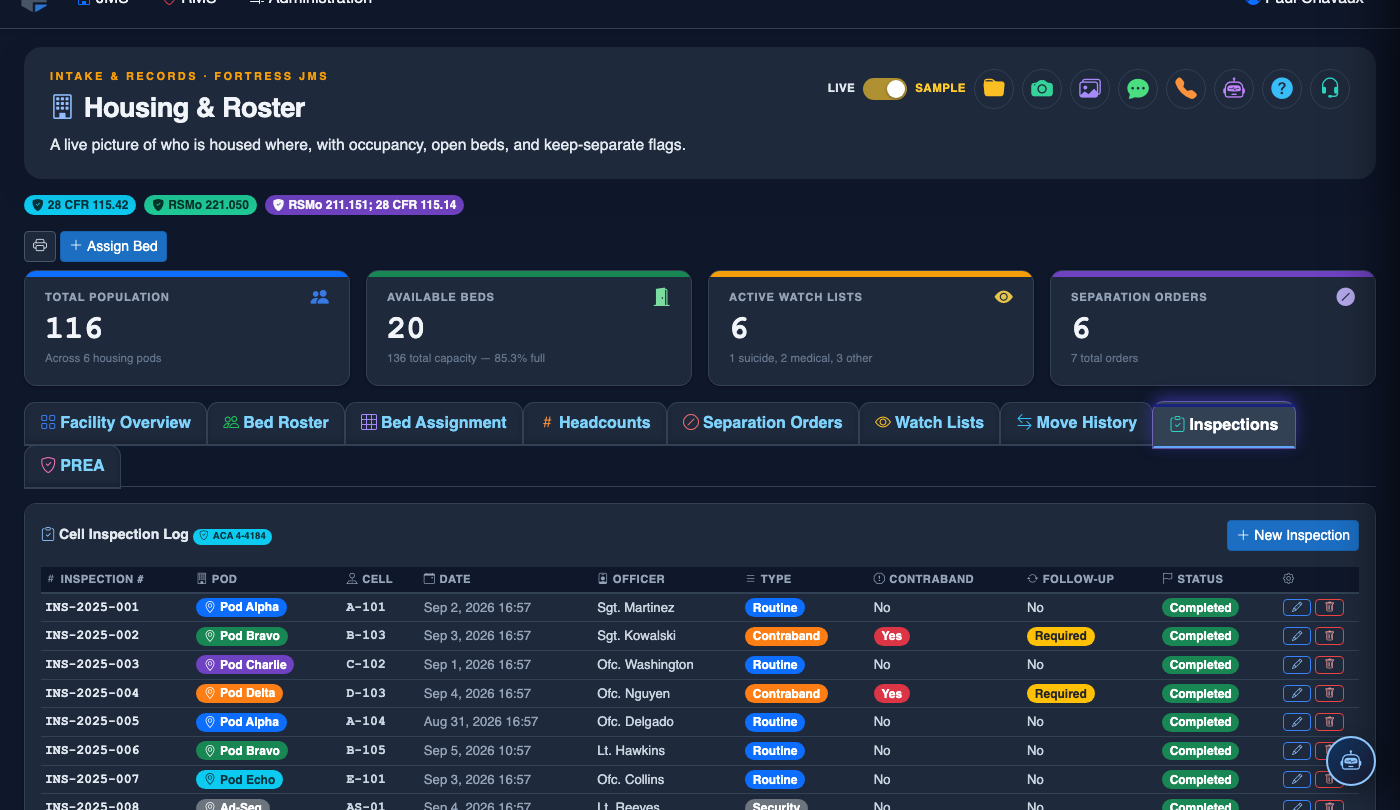
Step-by-Step: Conducting and Recording a Cell Inspection
Open the Inmate Housing Record
Navigate to Housing & Roster and locate the inmate or cell requiring inspection. Open the inmate record or select the cell directly from the housing unit map.
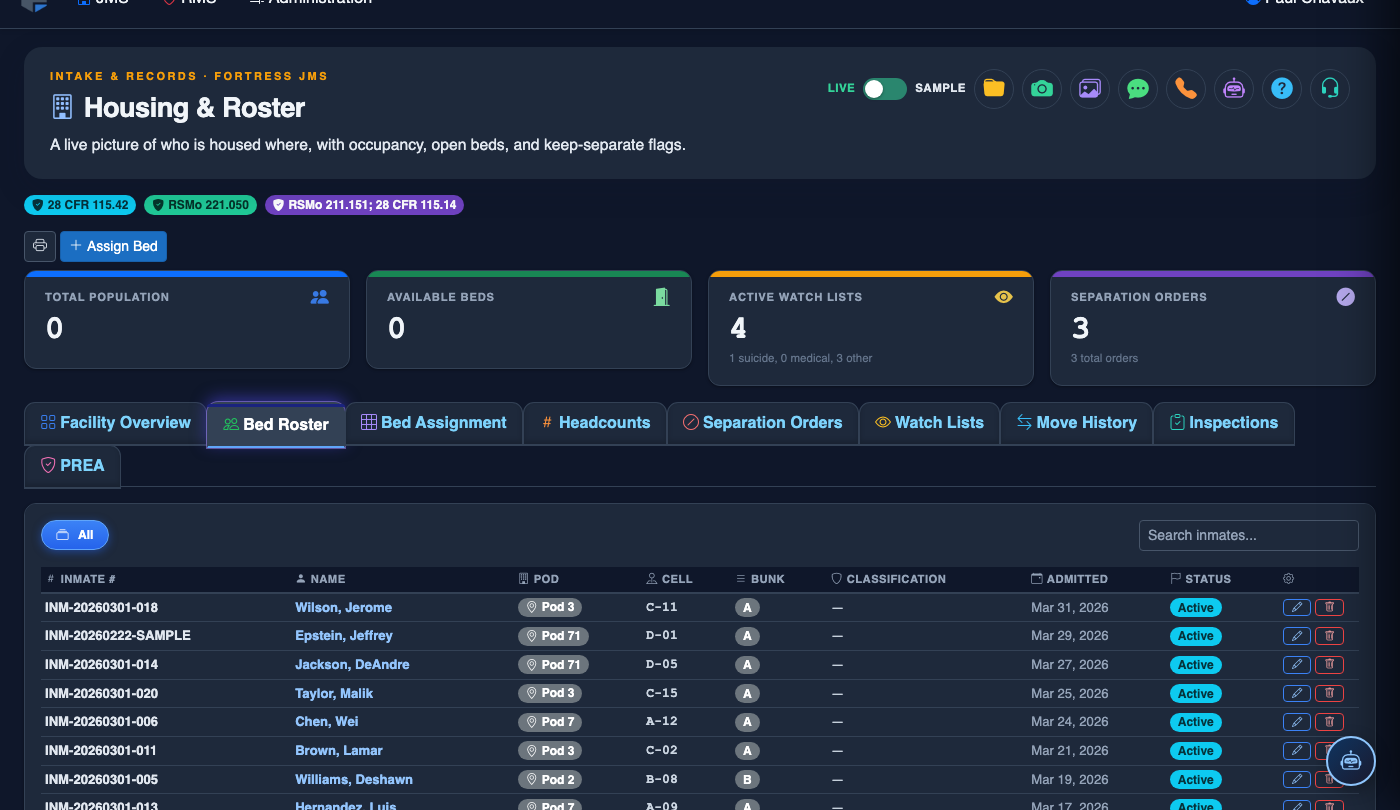
Navigate to Cell Inspections Tab
Click the Cell Inspections tab (Tab 8) to view the inspection history and initiate a new inspection entry for this cell.
Click New Inspection
Click the + New Inspection button. The inspection form will open with the current date, time, and your officer credentials pre-populated. Select the appropriate Inspection Type (Routine, Random, or Cause-Based).
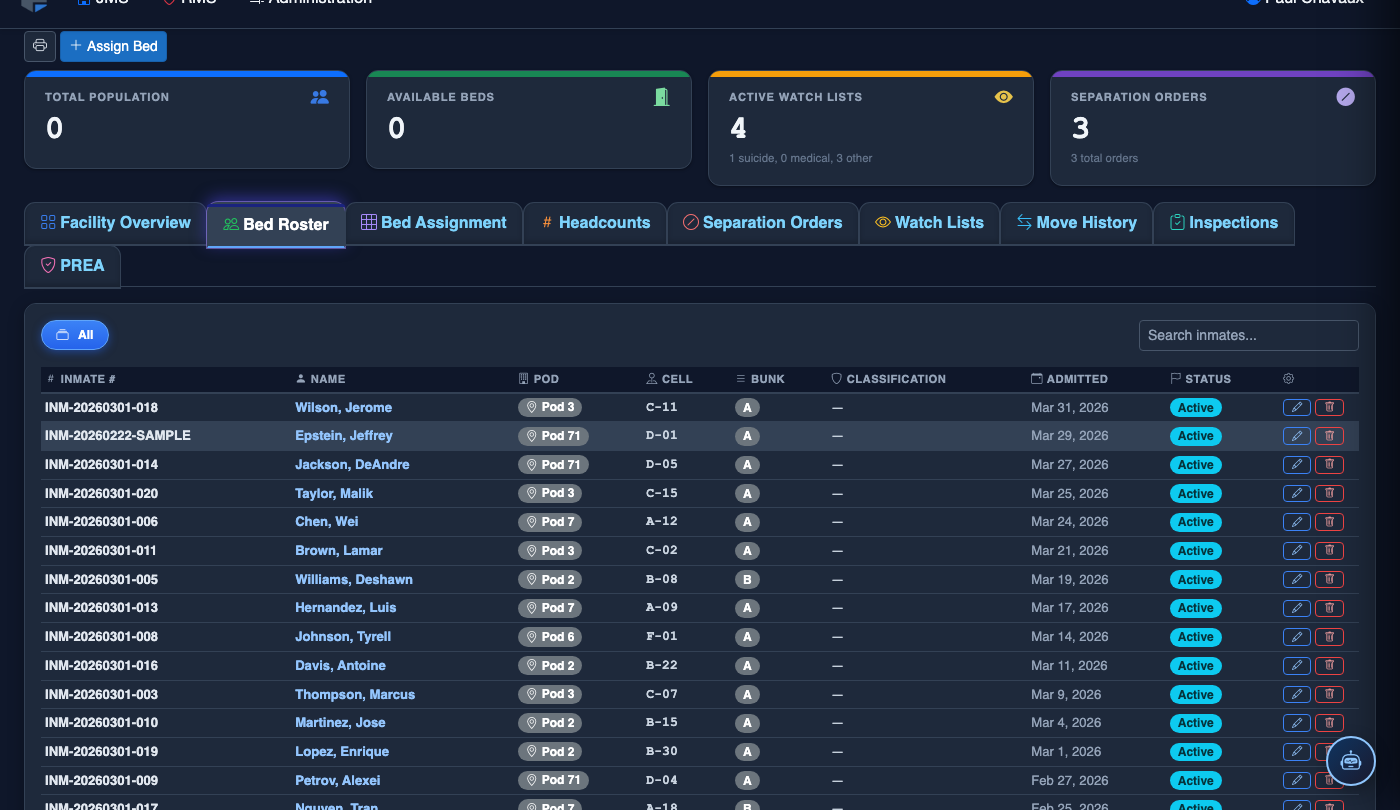
Complete the Inspection Checklist
Work through each checklist item: Sanitation, Structural Integrity, Contraband, and Personal Property Compliance. Mark each item as Pass, Fail, or N/A.
Document Findings and Attach Photos
Enter notes in the Findings field for any failed items. Use the Attach Photo button to upload photographic evidence of violations or contraband discovered during the inspection.
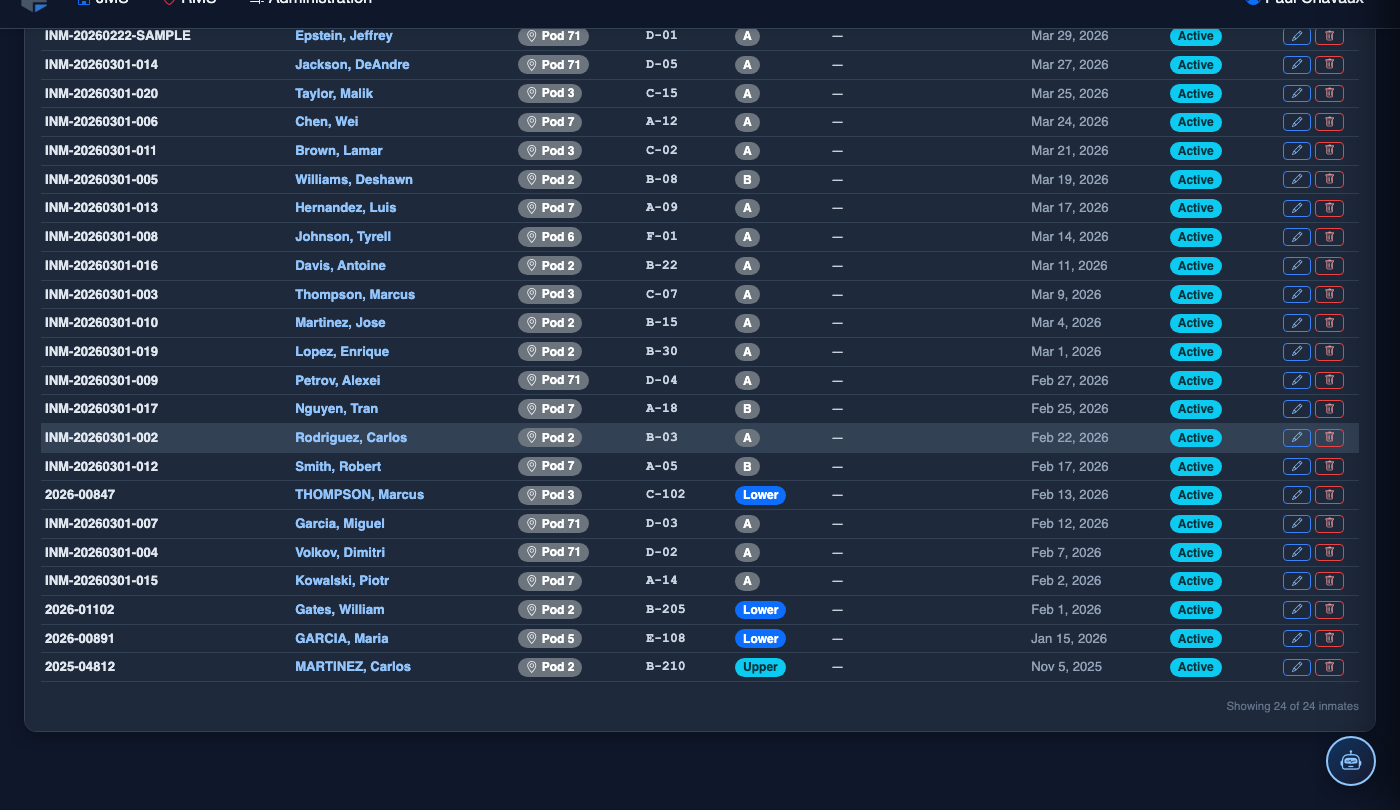
Set Corrective Action if Required
If any items failed, toggle Corrective Action Required and enter the required action, assigned officer, and deadline date. The system will flag the cell for follow-up inspection.
Save and Submit Inspection Record
Click Save Inspection to finalize the record. The inspection is immediately added to the cell’s history, timestamped, and associated with your officer badge number. Supervisors can review pending corrective actions from the Housing dashboard.
Log a New Cell Inspection
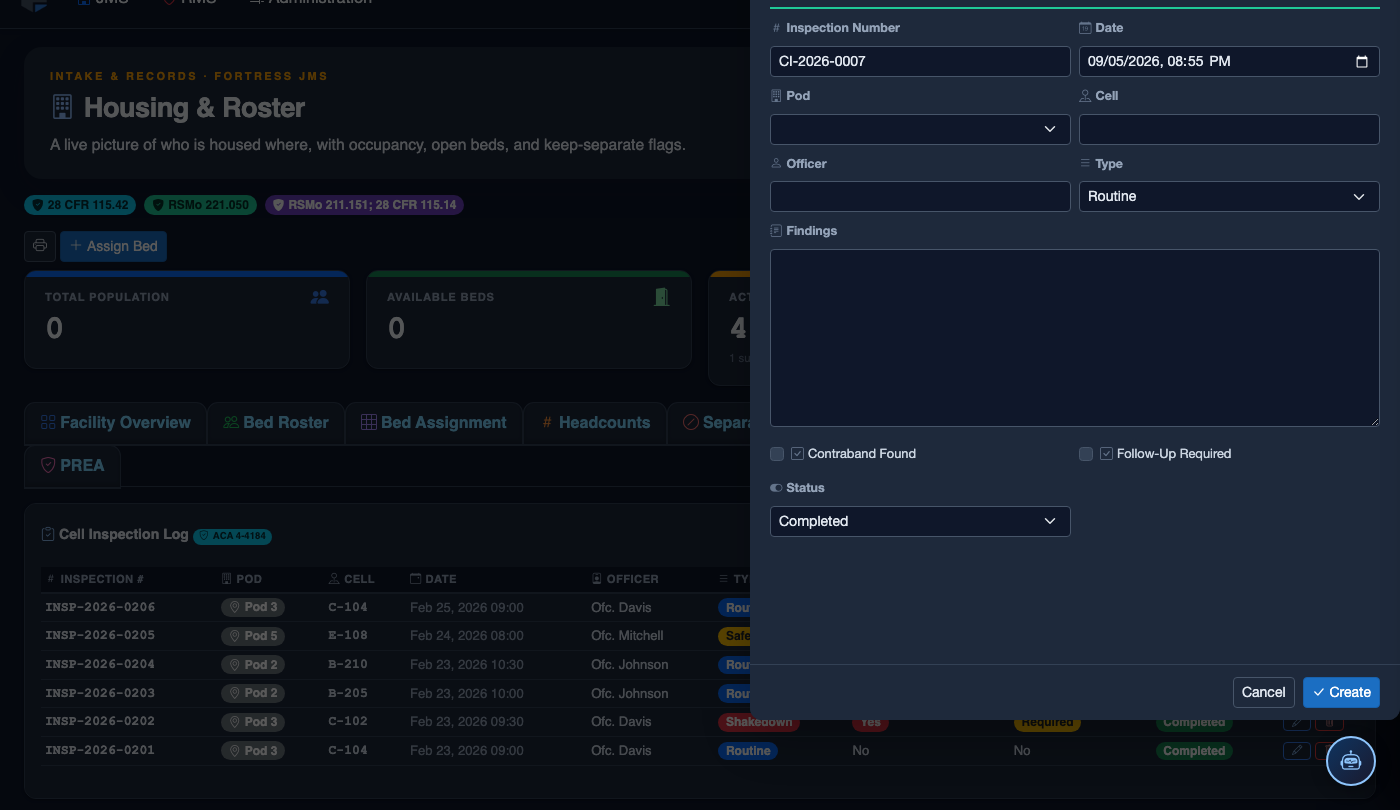
Click New Inspection. Complete the inspection form:
- Housing Unit › Pod › Cell — select the cell to inspect.
- Inspection Type — Routine (scheduled), Shakedown, or Emergency.
- Inspecting Officer — the officer conducting the inspection.
- Work through the Inspection Checklist — toggle Pass / Fail for each item: Cleanliness, Structural Integrity, Plumbing, Electrical/Lighting, Bedding, and Contraband.
- Findings Notes — describe any failed items in detail. Failing Structural or Contraband items prompts an automatic incident/maintenance alert.
- Overall Result — Pass, Pass with Notes, or Fail. Fail places the cell on a 24-hour re-inspection schedule.
- Click Submit Inspection. Failed items auto-generate a maintenance work order.
💡 Pro Tips
- Use cause-based inspection type when responding to a disturbance or tip — this creates a legally distinct record separate from routine inspections.
- Overdue corrective actions automatically surface on the Housing dashboard so supervisors can follow up without manual tracking.
- Random inspection records are date-stamped at initiation, not completion — begin the record before entering the cell to preserve legal defensibility.
Mobile View — Cell Inspections
FortressDMS is fully responsive. Officers can access the Cell Inspections on a phone or tablet directly from the field — no app install required.
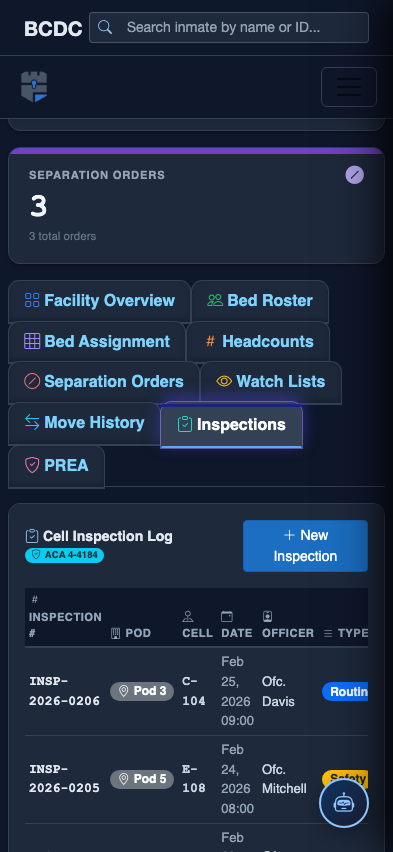
Tab view with data rows
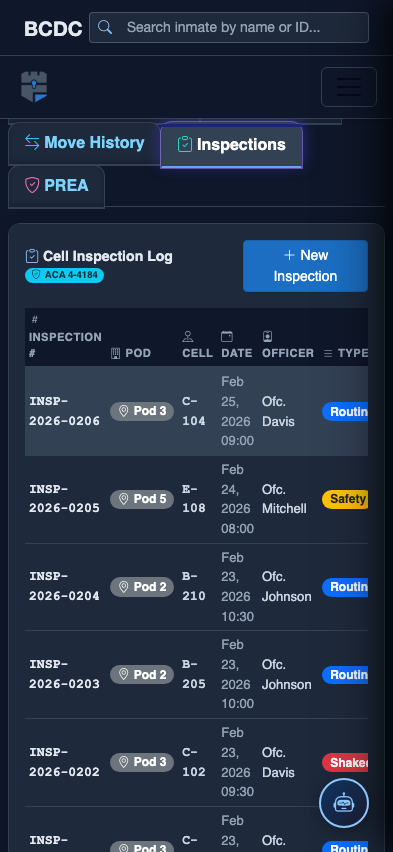
Scrolled / detail view