
Visitation Dashboard
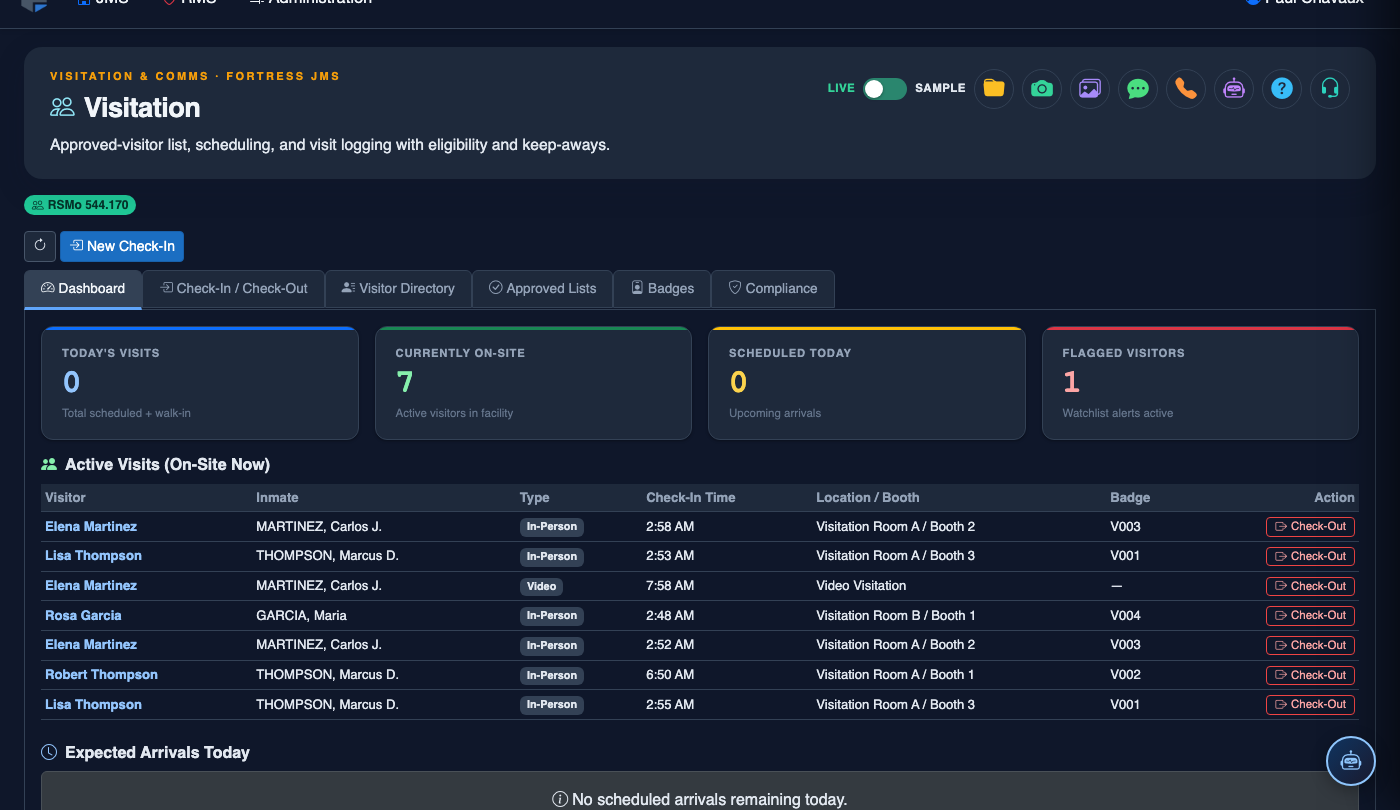
The Visitation Dashboard is the command center for your facility’s daily visit operations. It provides a live, at-a-glance view of all scheduled, active, and recently completed visits — giving control room officers and visitation staff the real-time situational awareness needed to manage room capacity, enforce time limits, respond to incidents, and keep visit traffic moving smoothly throughout each shift.
Live Visit Grid
Real-time display of every active visit with elapsed time, assigned room, inmate name, and visitor identity — auto-refreshing without page reloads.
Today’s Schedule
A chronological list of all visits scheduled for the current shift, color-coded by status: upcoming, checked-in, active, completed, and no-show.
Quick Actions
Schedule a new visit, check in a walk-up attorney, terminate a flagged visit, or extend time — all from a single button row without navigating away.
Shift Summary Stats
Running totals for the current shift: visits completed, average duration, denials issued, and current room utilization percentage.
Step-by-Step: Using the Visitation Dashboard
Open the Visitation Dashboard
Navigate to Visitation in the main menu. The Visitation Dashboard tab (Tab 1) loads automatically and begins displaying today’s visit schedule and any currently active visits. The dashboard auto-refreshes every 30 seconds — the Last Updated timestamp in the top right corner confirms data currency. No manual refresh is required during normal operations.
Review Today’s Upcoming Schedule
The Today’s Schedule panel on the left side of the dashboard lists all visits in chronological order. Each entry shows the scheduled time, inmate name and housing unit, visitor name, visit type (in-person / video / attorney), and room assignment. Use the Filter dropdown to narrow the schedule by housing unit, visit type, or officer assignment. Visits that are overdue for check-in are automatically highlighted in amber.
Monitor the Active Visit Grid
The Active Visits grid in the center panel shows every visit currently in progress. Each card displays the room number, inmate and visitor names, elapsed time (live countdown), and a color-coded time bar: green (ample time remaining), amber (5 minutes remaining), and red (time expired — awaiting extension or termination). Click any active visit card to open the full visit record for quick action.
Extend or Terminate an Active Visit
From any active visit card, click the ⋮ Actions menu. Select Extend Visit to add 15 or 30 additional minutes — this requires a supervisor PIN and the extension is logged. Select Terminate Visit to end the visit immediately; the officer is prompted to choose a Termination Reason (time expired, rule violation, inmate request, security concern) before the record is closed. Both actions are audit-logged with the officer’s identity and timestamp.
Schedule a New Visit from the Dashboard
Click the + Schedule Visit button in the top action bar. Enter the inmate booking number or name, select the visitor from the approved list, choose a visit type and available time slot, and confirm room assignment. The system checks real-time room availability and flags any scheduling conflicts before saving. Attorney visits bypass the normal visitor approval check but still require a bar number or law firm code entry.
Review Shift Summary and End-of-Day Stats
The Shift Summary panel in the bottom right corner displays running totals for the current shift — visits scheduled, completed, cancelled, and denied; average visit duration; and current room utilization. At the end of the shift, click Export Shift Report to generate a PDF summary for the shift log. The report is also automatically archived to the facility’s visitation audit log for the date.
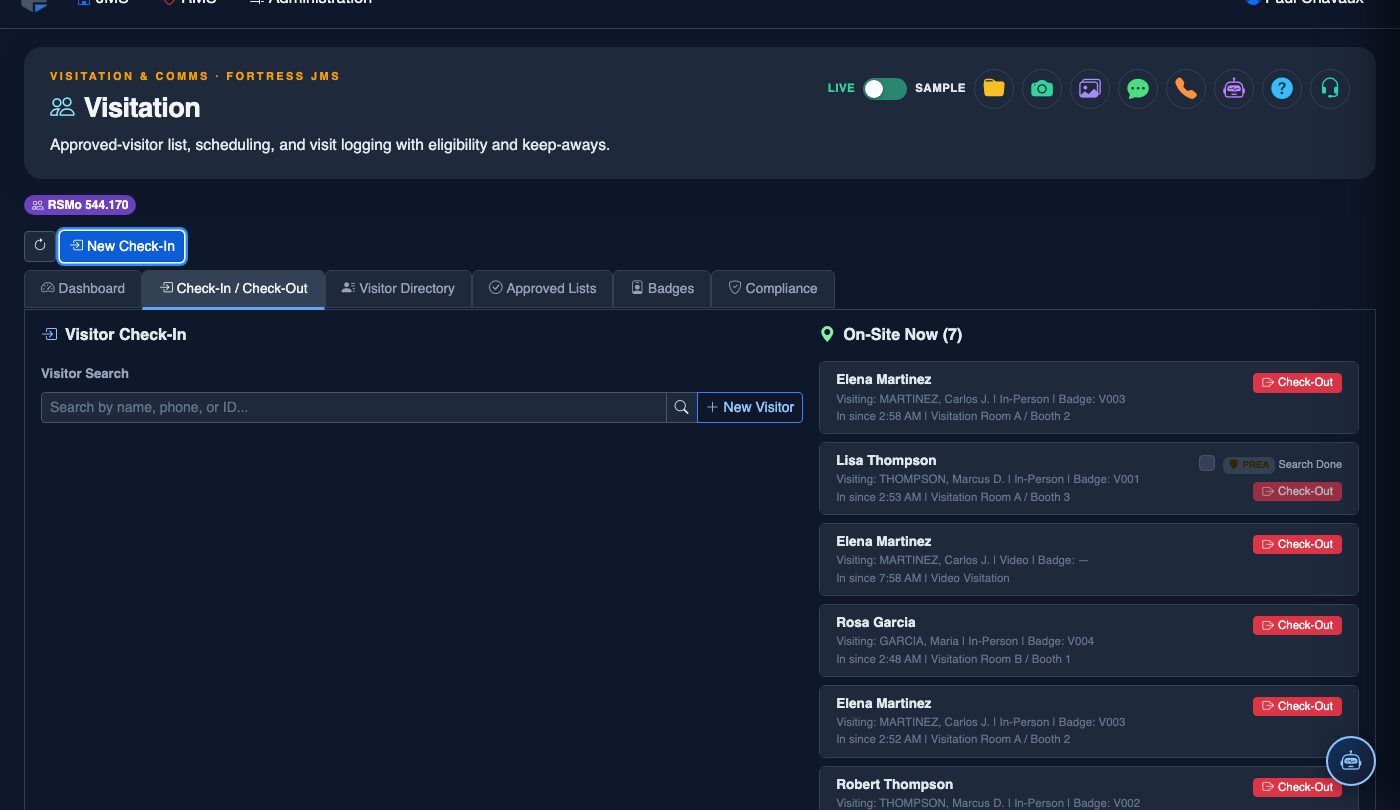
Log a New Visitor Check-In
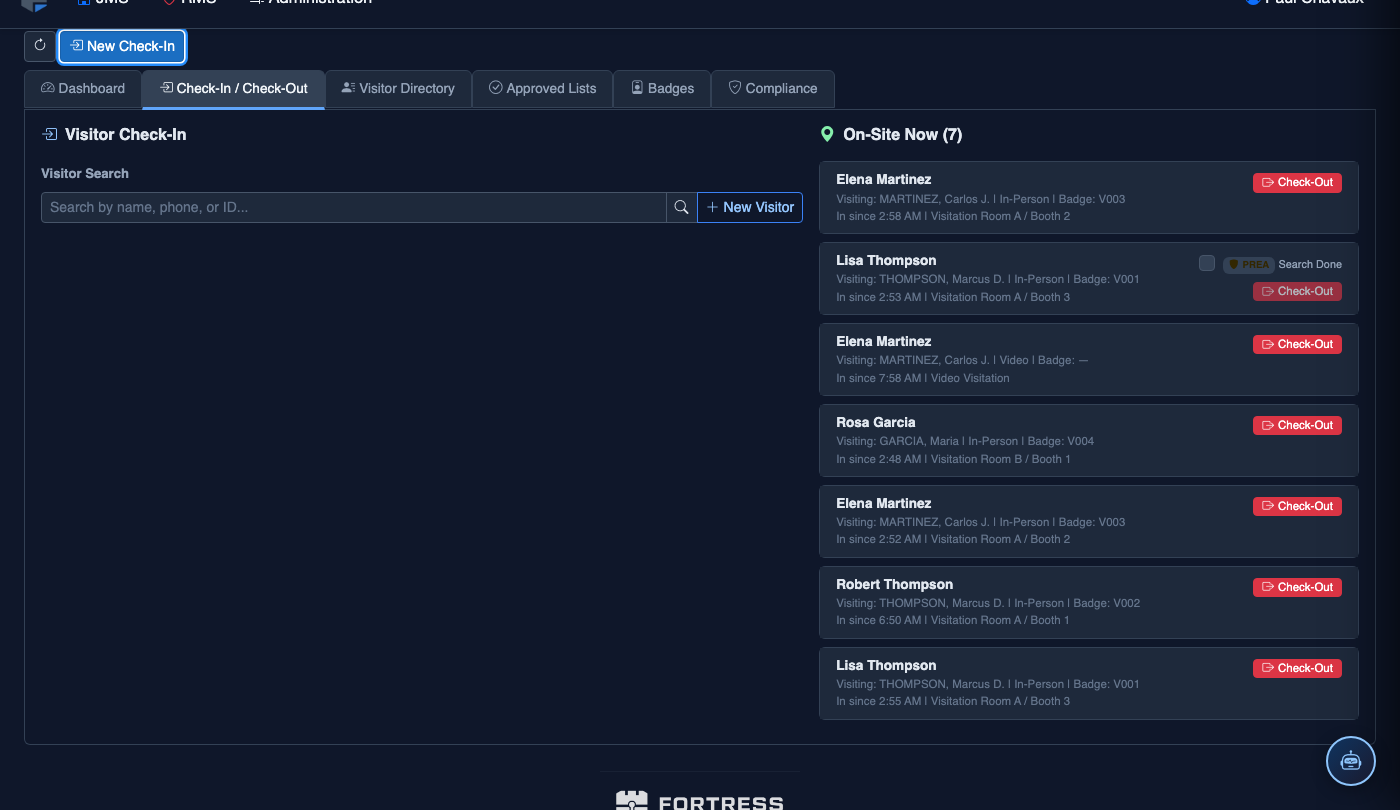
Click New Check-In. Complete the visitation log:
- Inmate — search by name or booking number.
- Visitor — select from the Approved Visitor List. Visitors not on the list must be added first via Visitor Directory.
- Photo ID Verification — confirm ID type and number; the system compares against the visitor record.
- Visit Type — General, Legal, Clergy, or Official (each has different duration limits and privacy rules).
- Booth / Room Assignment — select the visitation station.
- Scheduled Duration — defaults to facility policy; adjust if authorized for extended visit.
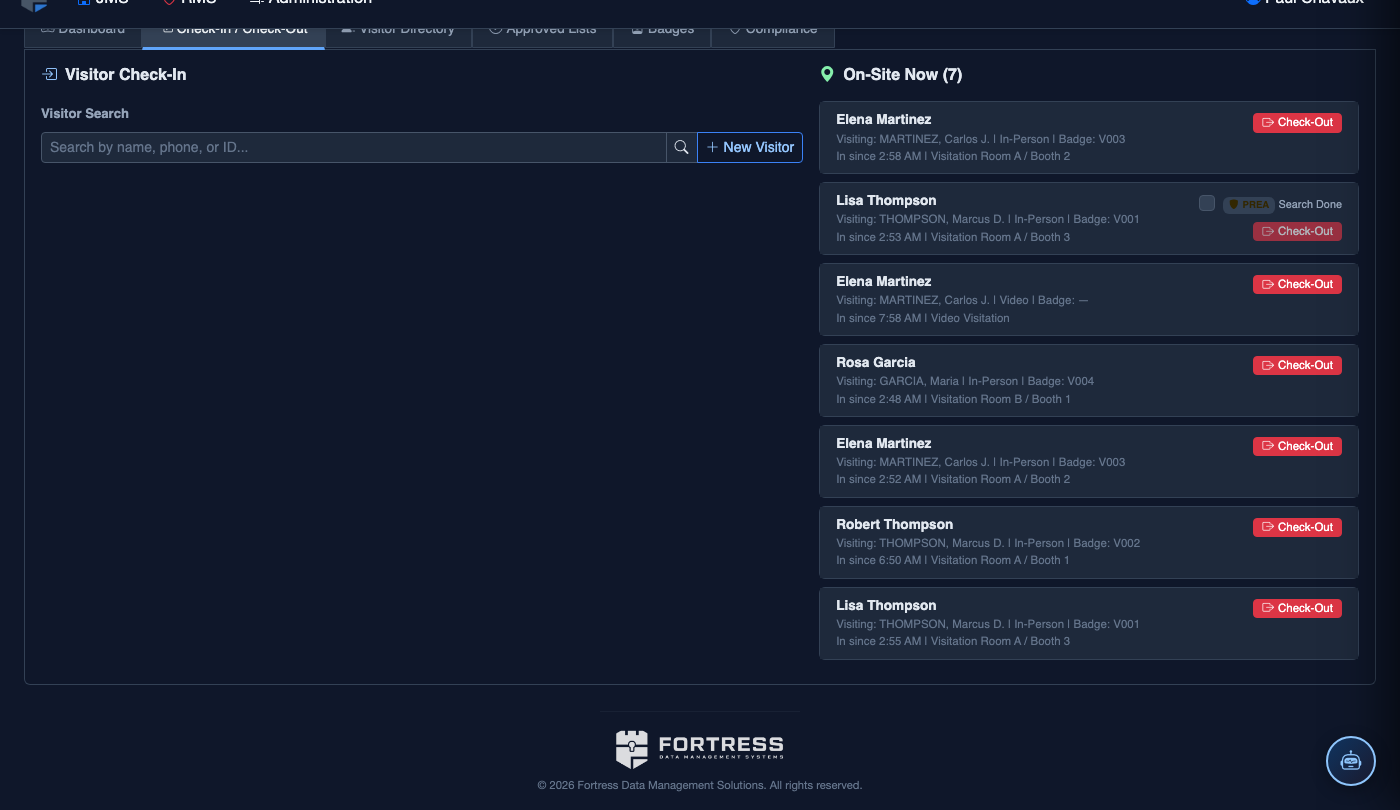
- Click Start Visit. A timer begins and the visitor’s badge logs are updated. End the visit with Check-Out.
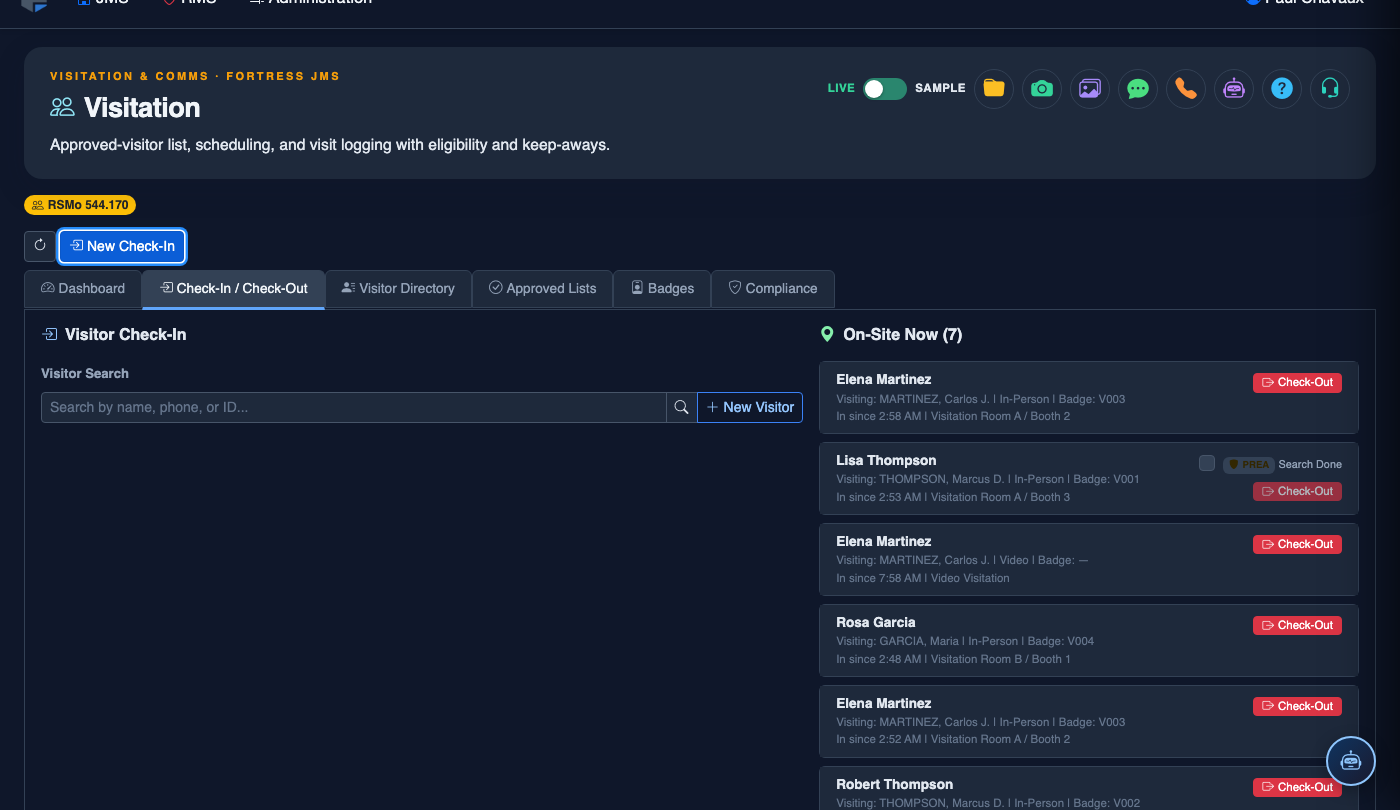
💡 Pro Tips
- Pin the Visitation Dashboard as your browser’s default tab for the visitation station so it is always visible at the start of each shift without extra navigation.
- The No-Show Timer begins counting automatically 10 minutes after a scheduled visit start time — if the visitor has not checked in, the system will prompt you to mark the visit as a No-Show and release the room for standby scheduling.
- Use the Housing Unit Filter to scope the dashboard to a specific block during high-traffic periods — this lets an officer assigned to one wing focus only on their relevant visits without distraction from other units.
- The amber Capacity Warning banner appears when the facility reaches 80% of configured simultaneous visit capacity — a useful signal to begin staggering check-ins before rooms are fully booked.
Mobile View — Visitation Dashboard
FortressDMS is fully responsive. Officers can access the Visitation Dashboard on a phone or tablet directly from the field — no app install required.
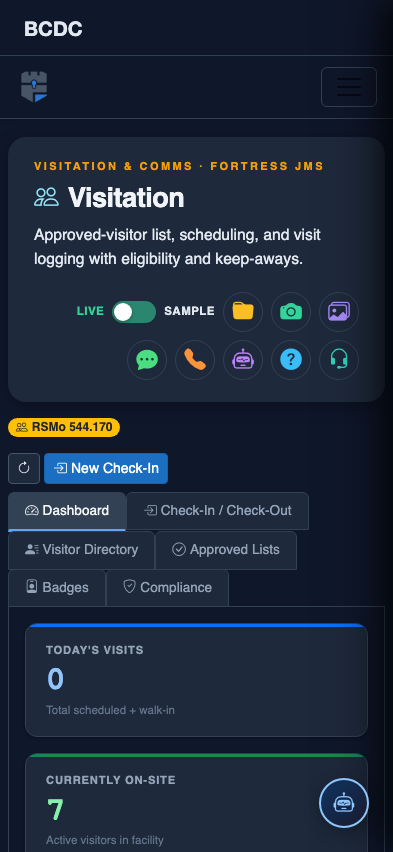
Tab view with data rows
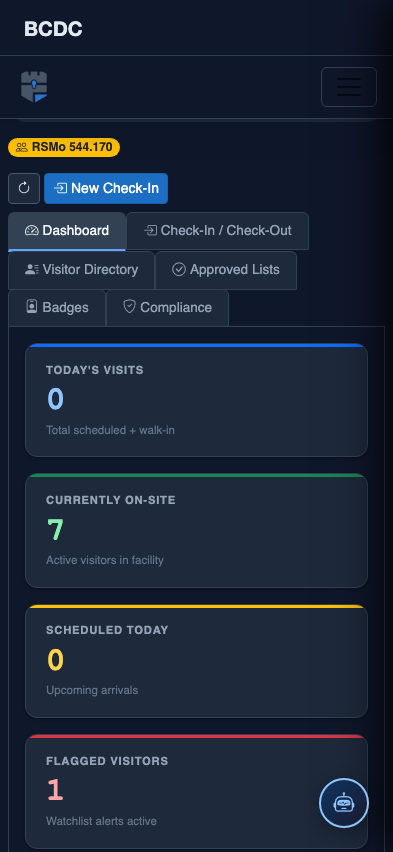
Scrolled / detail view