
Check-In & Check-Out
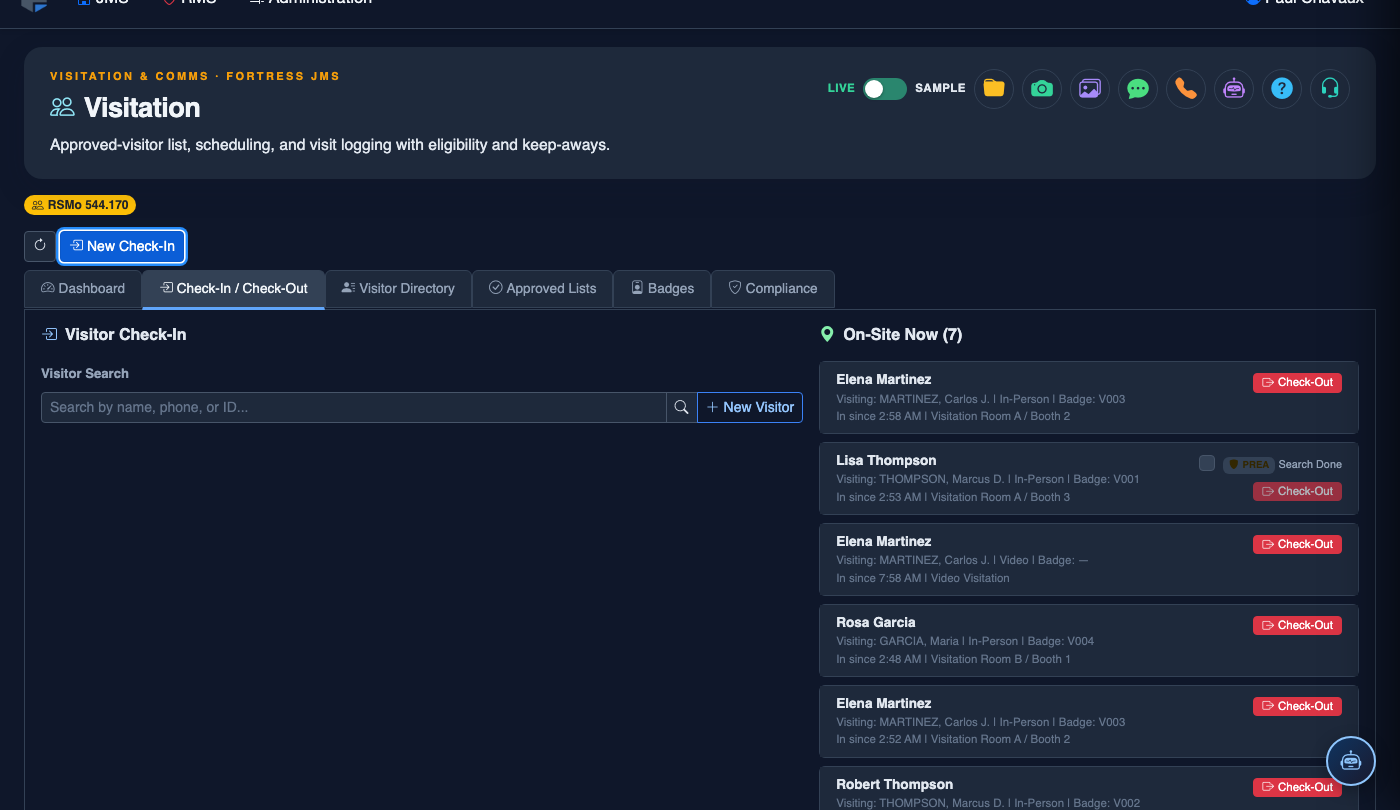
The Check-In & Check-Out tab is the frontline processing station for all visitation entry and exit activity. Officers use this interface to verify visitor identity, confirm visit eligibility, issue visitor passes, manage room assignments at the point of arrival, and formally close out each visit upon departure — ensuring an unbroken chain of custody documentation for every person who enters and exits the visitation area.
ID Scan Check-In
Barcode or magnetic stripe ID scan instantly pulls up the visitor’s record, confirmed reservations, and eligibility status at the check-in window.
Real-Time Eligibility Check
Simultaneously checks the exclusion list, active no-contact orders, and inmate visit suspension status at every check-in — no stale data.
Visitor Pass Printing
Prints a time-stamped, room-specific visitor pass at check-in with the visitor’s photo, expiration time, and assigned inmate name.
One-Click Check-Out
Closes the visit record, records exact departure time, and automatically releases the room back to the available pool for the next scheduled visitor.
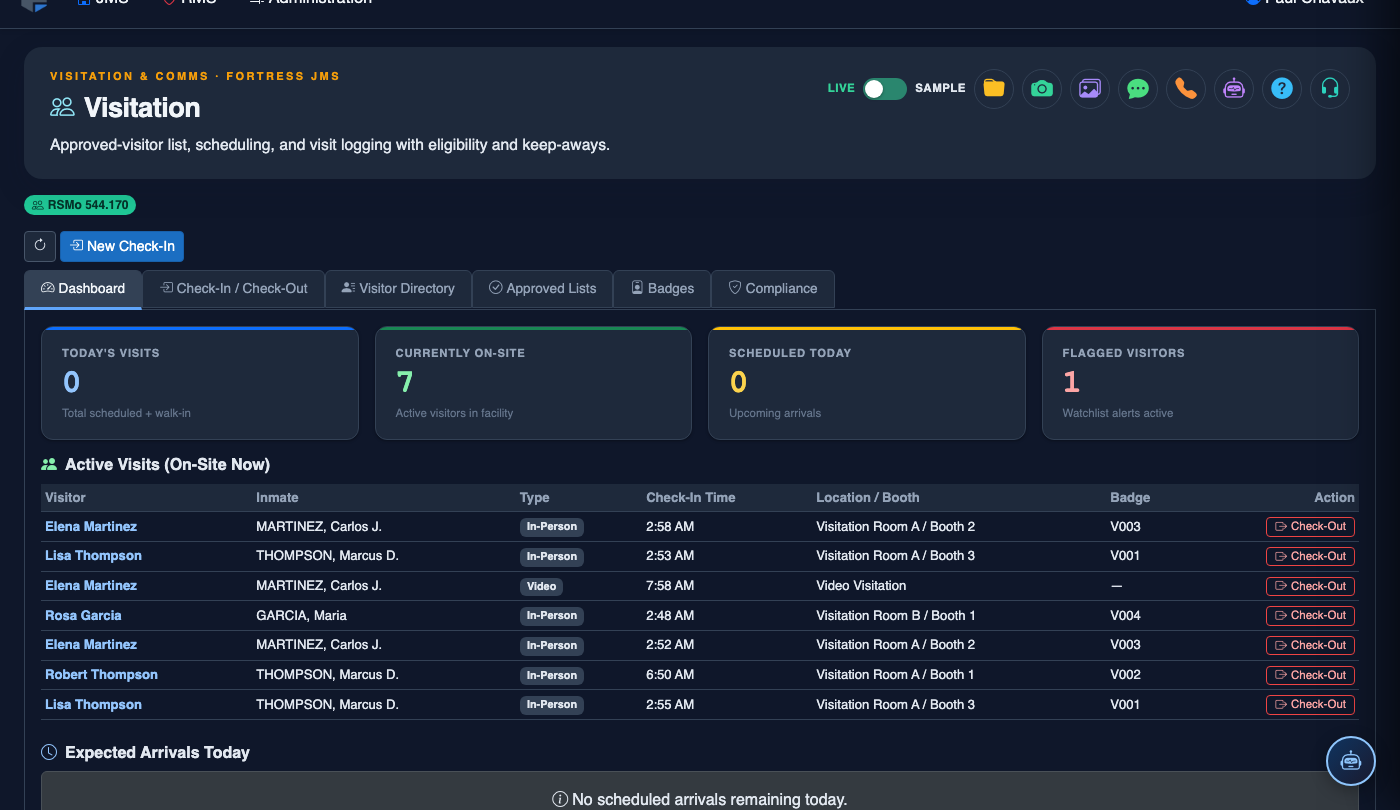
Step-by-Step: Visitor Check-In and Check-Out
Open the Check-In Station
Navigate to Visitation > Check-In & Check-Out (Tab 2). The tab loads in Check-In Mode by default, showing the ID scan field prominently at the top. The right panel displays the queue of visitors with upcoming scheduled visits in the next 30 minutes, listed in appointment order. Ensure the ID scanner is connected and the Scanner Ready indicator in the bottom status bar is green before beginning the shift.
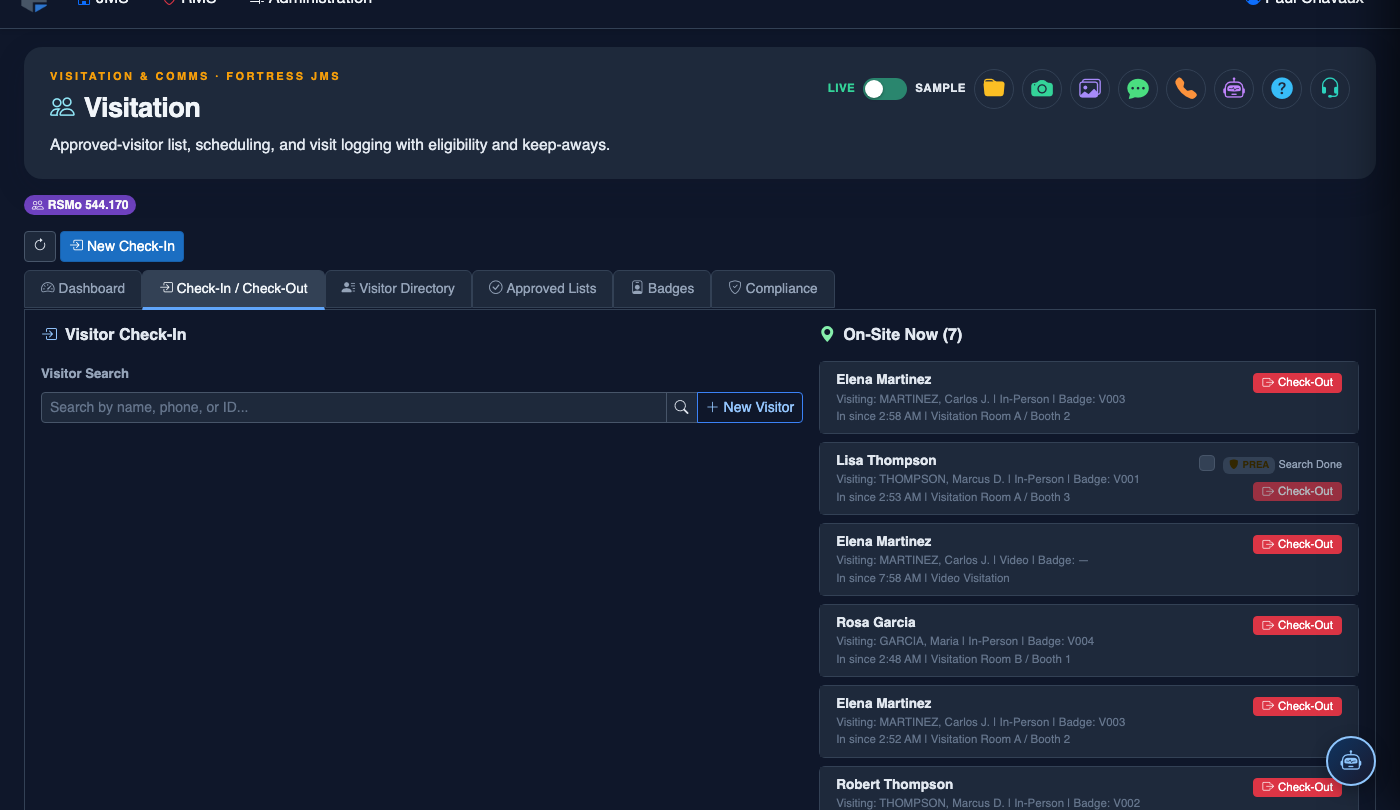
Scan or Enter Visitor ID
Ask the visitor to present their government-issued photo ID. Swipe or scan the ID using the connected reader — the system auto-populates the Visitor Search field. If the ID scanner is unavailable, manually type the visitor’s last name and date of birth to locate their record. The system will display any matched reservation along with the visitor’s photo on file and current approval status.
Review Eligibility Check Results
A real-time eligibility panel displays instantly after ID scan with three status indicators: Approved Visitor (green check), No Active Restrictions (green check), and Inmate Visit Status (green check). If any indicator is red, the system displays the specific denial reason — for example, “Visitor flagged on facility exclusion list” or “Inmate visit privileges suspended — disciplinary action”. A red result requires a supervisor review before proceeding.
Confirm Reservation and Assign Room
If all eligibility checks pass, the system displays the matched reservation. Confirm the visit time, inmate, and visit type with the visitor. The Room Assignment field shows the pre-assigned room. If the assigned room is unavailable (occupied, maintenance hold), use the Reassign Room dropdown to select an available alternative. The system shows real-time room availability and prevents double-booking.
Complete Check-In and Print Visitor Pass
Click Complete Check-In. The system marks the visit as Active, starts the visit timer, notifies the housing unit officer to escort the inmate to the visit room, and prints the Visitor Pass at the window printer. The visitor pass includes the visitor’s name and photo, room number, inmate name, check-in time, and visit expiration time. Hand the pass to the visitor and direct them to the waiting area.
Process Check-Out at Visit End
When the visit concludes, click the Check-Out tab at the top of the panel. Locate the visit by scanning the visitor pass barcode or searching by room number. Click Check Out to record the exact departure time, close the visit record, and release the room. If the visit is being terminated early by officer action, select the Termination Reason from the dropdown before confirming check-out. The inmate’s visit count for the week is automatically updated.
Handle Visit Denial and Log the Reason
If a visitor must be denied entry (failed eligibility check, improper ID, supervisor decision), click Deny Entry instead of completing check-in. Select the appropriate Denial Reason Code, enter any supplementary notes, and click Log Denial. The system records the denial event, notifies the visitor via their registered contact method if configured, and archives the event to both the visitor’s record and the inmate’s visitation log.
Log a New Visitor Check-In
Click New Check-In. Complete the visitation log:
- Inmate — search by name or booking number.
- Visitor — select from the Approved Visitor List. Visitors not on the list must be added first via Visitor Directory.
- Photo ID Verification — confirm ID type and number; the system compares against the visitor record.
- Visit Type — General, Legal, Clergy, or Official (each has different duration limits and privacy rules).
- Booth / Room Assignment — select the visitation station.
- Scheduled Duration — defaults to facility policy; adjust if authorized for extended visit.
- Click Start Visit. A timer begins and the visitor’s badge logs are updated. End the visit with Check-Out.
💡 Pro Tips
- Keep a Walk-Up Queue slot open each hour for attorney visits — attorneys often arrive without a scheduled appointment, and having a reserved slot prevents backup at the check-in window during peak family visit hours.
- If a visitor presents an ID that differs from their registered name (e.g., a legal name change), use the ID Discrepancy flag at check-in rather than denying entry — this escalates to a supervisor for a real-time decision and logs the discrepancy for follow-up.
- The Group Visit mode allows up to 3 approved visitors to check in together for a single reservation — process all IDs before clicking Complete Check-In to ensure all names appear on the single visitor pass.
- Reprint a lost visitor pass at any time during an active visit by locating the visit record and clicking Reprint Pass — the original pass is automatically voided to prevent two passes being active simultaneously.
Mobile View — Check
FortressDMS is fully responsive. Officers can access the Check on a phone or tablet directly from the field — no app install required.
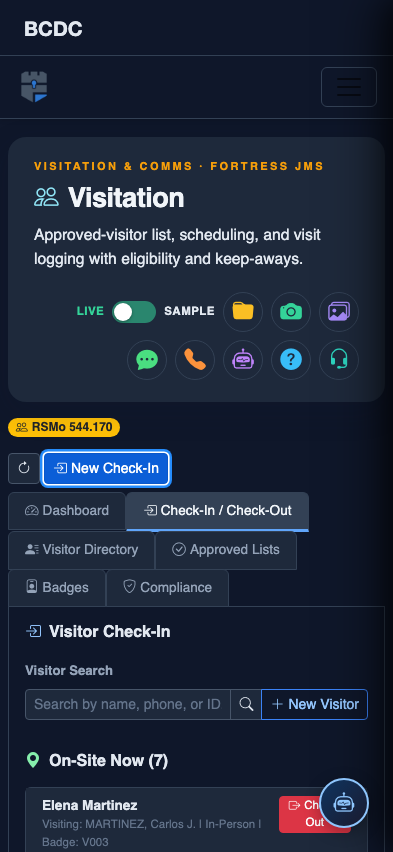
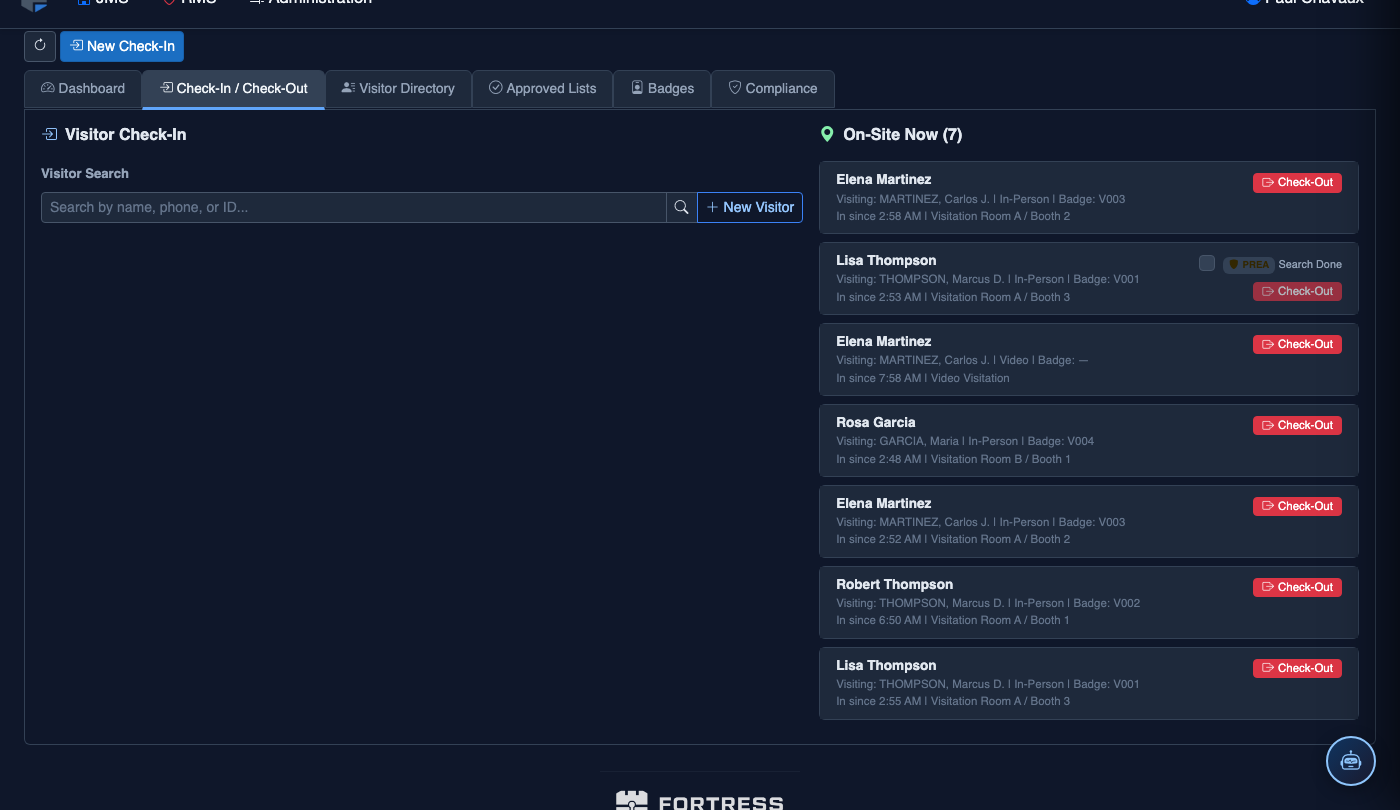
Tab view with data rows
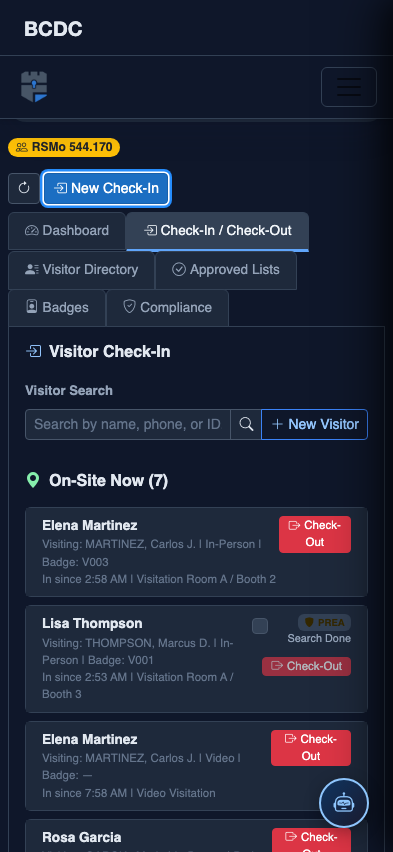
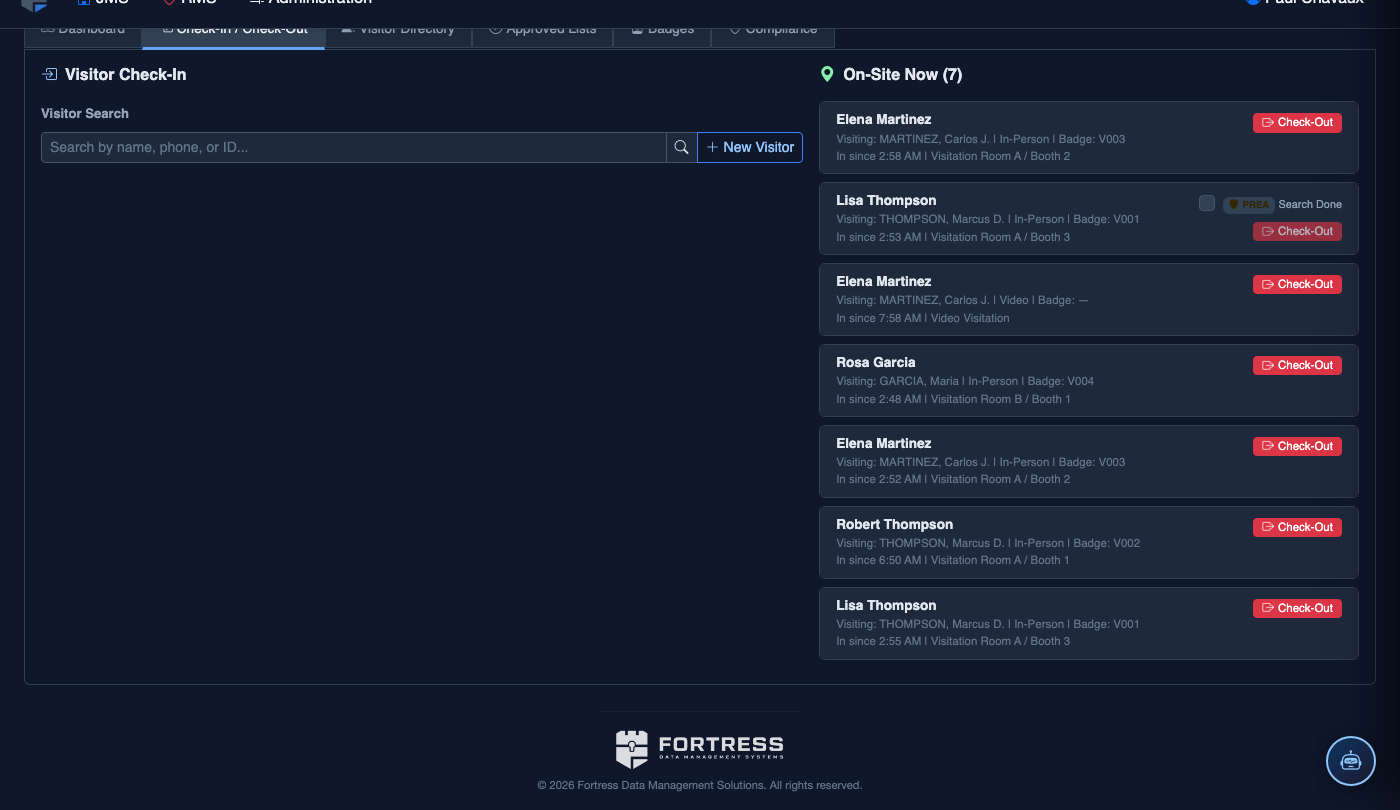
Scrolled / detail view