
Visitor Directory
The Visitor Directory is the central registry of every individual who has applied for, been granted, or been denied visitation privileges at the facility. Officers use this tab to register new visitors, review and update approval status, manage exclusion flags, and maintain complete visit history records — providing the single source of truth for visitor identity, eligibility, and activity across all inmates and all time periods.
Visitor Profiles
Stores full identity details, photo, government ID records, relationship type, and contact information for every registered visitor in a searchable database.
Approval Workflow
Multi-step approval process with background check integration, inmate consent verification, and supervisory sign-off before a visitor is granted access.
Exclusion Management
Facility-wide and inmate-specific bans are tracked here with reason codes, expiration dates, and the authorizing supervisor — instantly enforceable at check-in.
Full Visit History
Complete log of every visit, denial, and check-in event associated with a visitor across any inmate — supporting investigations, grievances, and legal discovery.
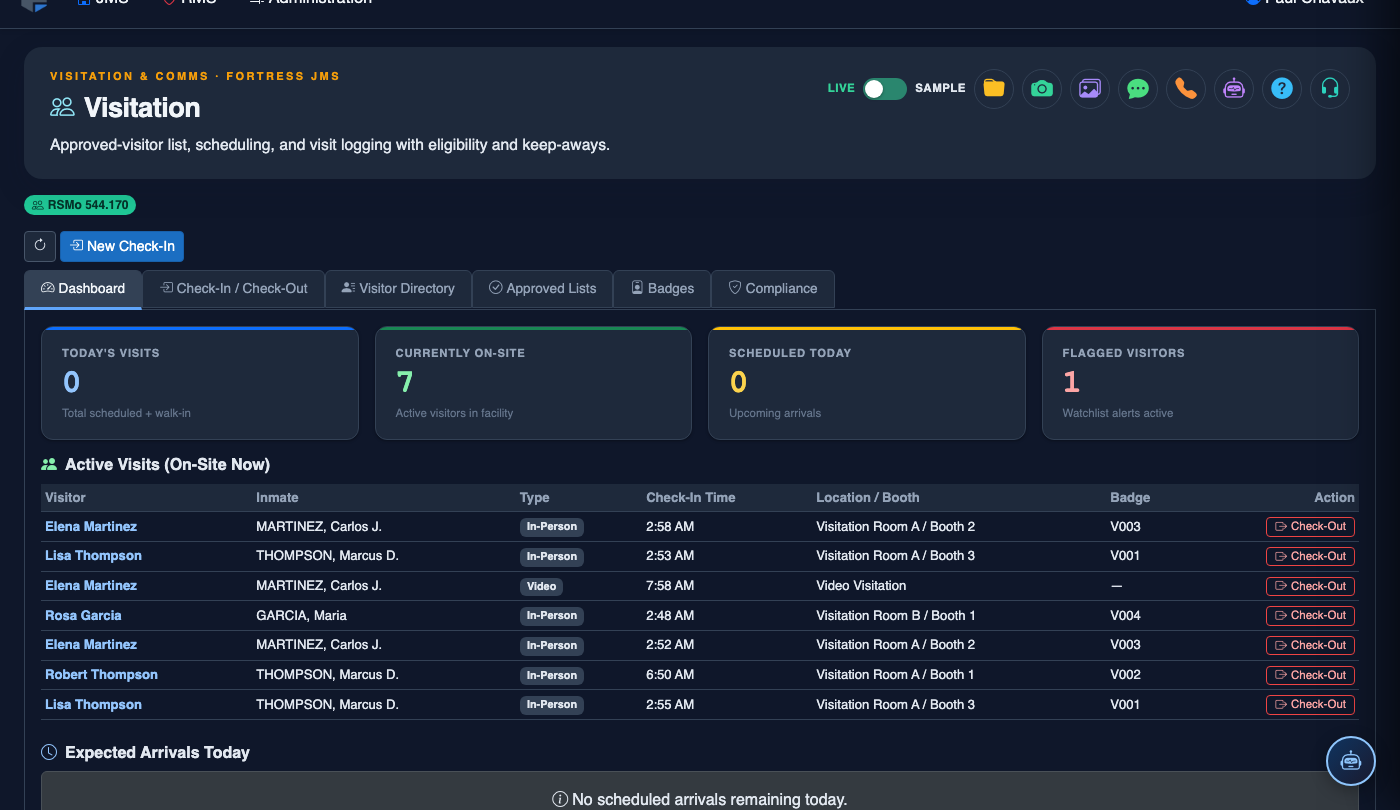
Step-by-Step: Managing the Visitor Directory
Search the Visitor Directory
Navigate to Visitation > Visitor Directory (Tab 3). Use the Search bar at the top to locate an existing visitor by name, date of birth, government ID number, or phone number. The directory table displays all matching results with a status badge — Approved (green), Pending Review (amber), Denied (red), or Excluded (dark red). Click any row to open the full visitor profile.
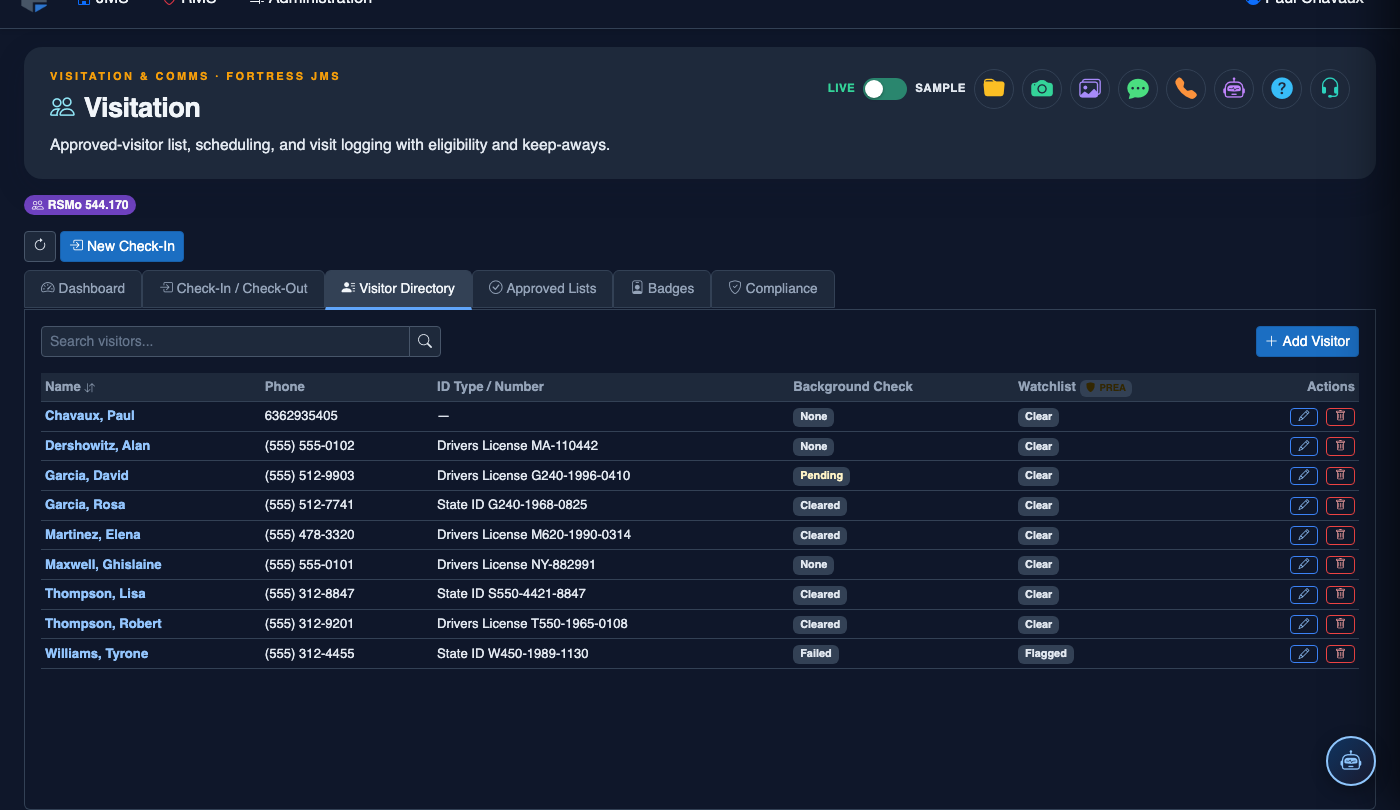
Register a New Visitor
Click + Register Visitor to open the registration form. Enter the visitor’s Full Legal Name, Date of Birth, Government ID Type (state DL, passport, military ID), ID Number, Address, Phone Number, and Email Address. Select the Relationship to Inmate from the dropdown and link to the relevant inmate booking record. Upload a photo capture from the ID scanner or webcam. Click Submit for Approval to begin the review process.
Process the Approval Workflow
New visitor registrations enter a Pending Review queue. A visitation officer reviews the application and verifies that the inmate has acknowledged and accepted the visitor. If your facility has integrated background check services, the system will display the background check result alongside the registration. Once reviewed, click Approve or Deny with a required reason code. Approved visitors are immediately added to the inmate’s active approved visitor list.
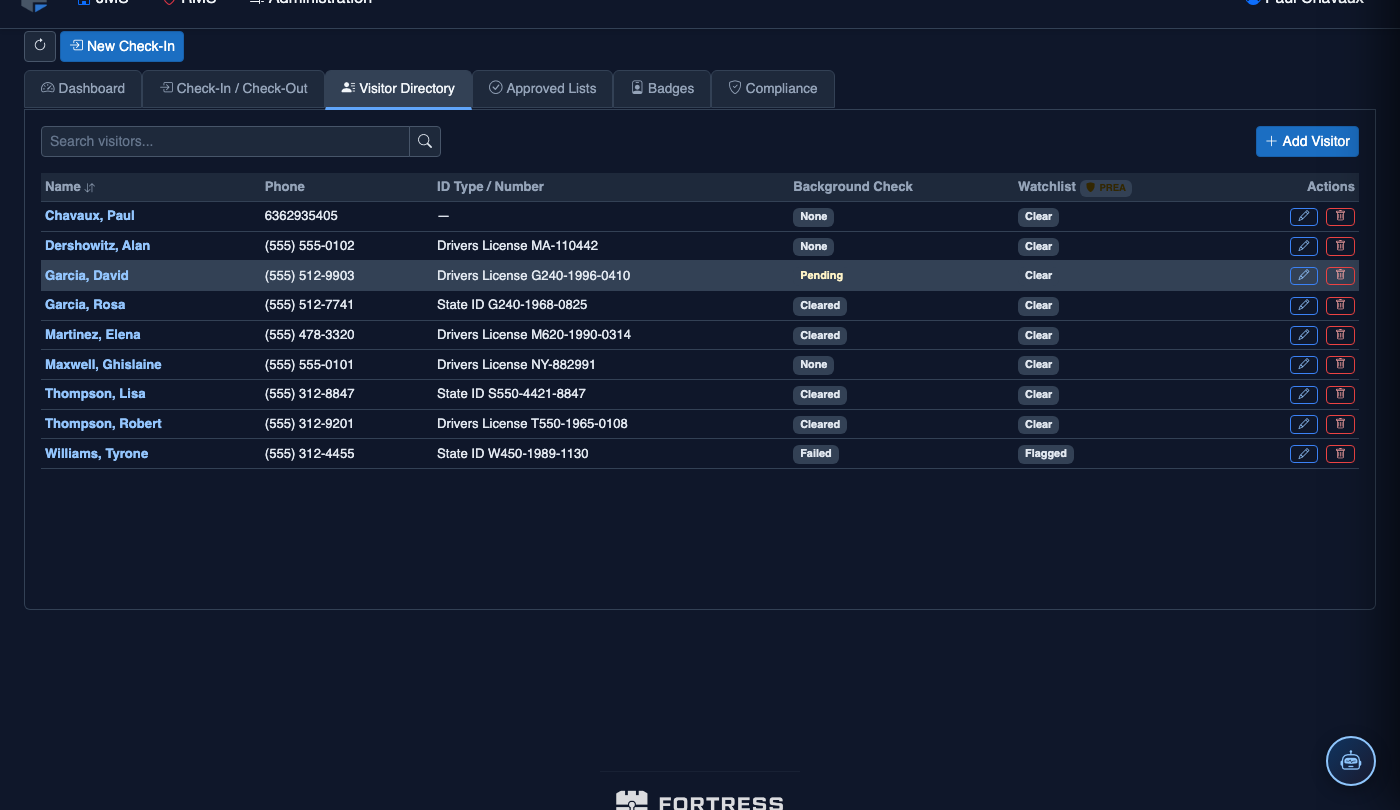
Update Visitor Information
Open an existing visitor’s profile and click Edit Profile to update any field — address, phone number, ID renewal details, or contact preferences. Changes to identity-critical fields (name, date of birth, government ID number) require supervisory authorization and are logged as a profile audit event. After saving, the updated information will be used at the next check-in without any additional action.
Apply or Lift a Visitor Exclusion
To ban a visitor from the facility, open their profile and click Add Exclusion. Select the Exclusion Scope (facility-wide or specific-inmate), enter the Exclusion Reason, set an optional Expiration Date, and submit for supervisory approval. The exclusion takes effect immediately upon approval and will block the visitor at check-in. To lift an exclusion, click Remove Exclusion on the exclusion record — this also requires supervisory authorization and is permanently logged.
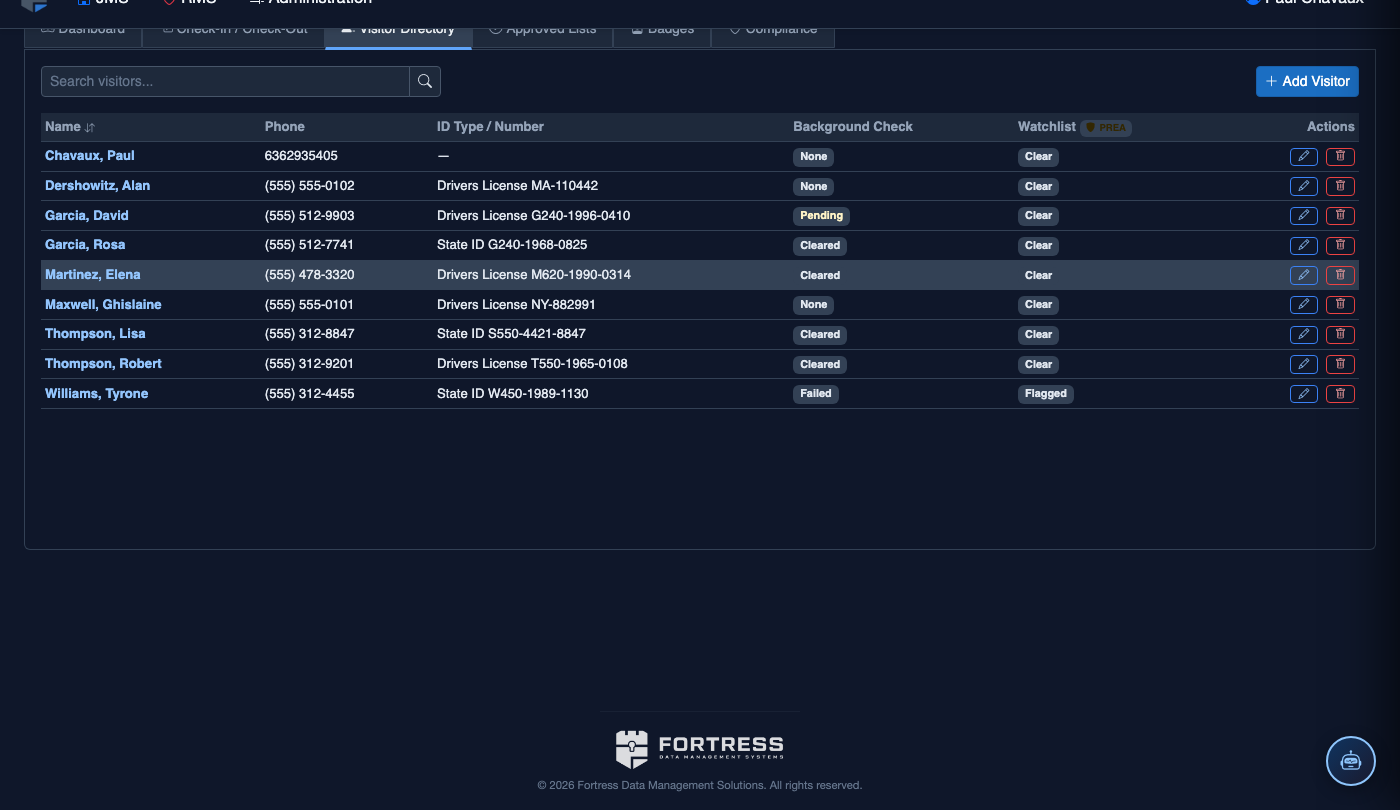
Review a Visitor’s Full Visit History
Open any visitor profile and click the Visit History tab within the profile panel. The history log shows every visit event — completed visits, denied entries, no-shows, and early terminations — across all associated inmates, sorted by date. Each entry shows the inmate visited, visit duration, room used, and the processing officer. Click any entry to view full visit details. Use the Export button to download the history as a CSV for legal discovery or internal review.
Run Visitor Directory Reports
Use the Reports dropdown at the top of the directory to generate visitor-level analytics. Available reports include: Pending Approvals (visitors awaiting review), High-Frequency Visitors (visitors exceeding defined visit thresholds), Active Exclusions (current facility and inmate-specific bans), and Expiring Exclusions (bans expiring within 30 days). All reports are PDF/CSV exportable and access is audit-logged.
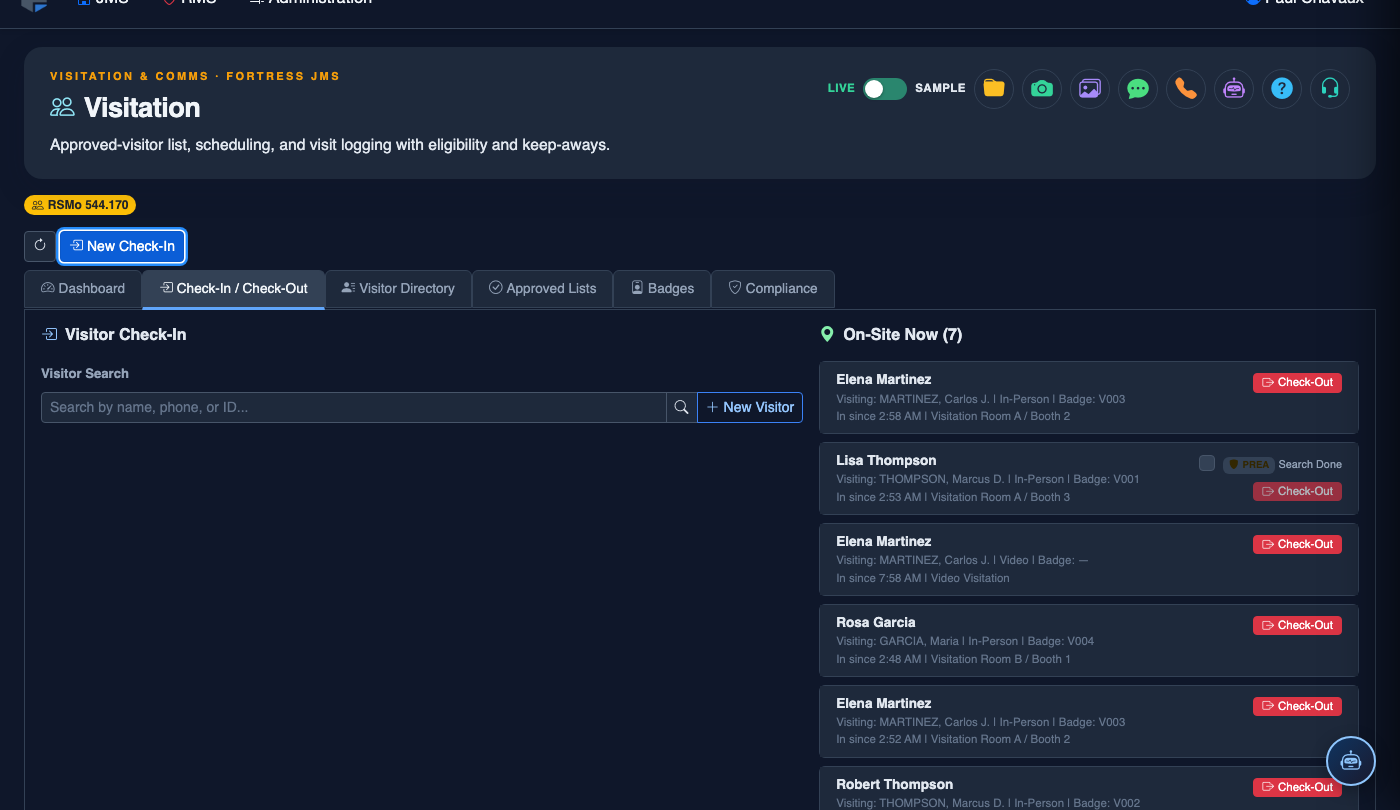
Log a New Visitor Check-In
Click New Check-In. Complete the visitation log:
- Inmate — search by name or booking number.
- Visitor — select from the Approved Visitor List. Visitors not on the list must be added first via Visitor Directory.
- Photo ID Verification — confirm ID type and number; the system compares against the visitor record.
- Visit Type — General, Legal, Clergy, or Official (each has different duration limits and privacy rules).
- Booth / Room Assignment — select the visitation station.
- Scheduled Duration — defaults to facility policy; adjust if authorized for extended visit.
- Click Start Visit. A timer begins and the visitor’s badge logs are updated. End the visit with Check-Out.
💡 Pro Tips
- A single visitor profile is shared across all inmates they are approved to visit — if a visitor is approved to see three different inmates, updating their phone number in one place automatically updates it for all three relationships.
- Set Exclusion Expiration Dates for disciplinary bans (e.g., 30 days for a minor infraction) rather than open-ended exclusions — the system will automatically prompt a supervisor to review and confirm or extend before the ban lapses.
- Use the High-Frequency Visitors report monthly to identify visitors who may be acting as contraband couriers — unusually high visit counts across multiple inmates is a key investigative indicator.
- Attorneys registered under the Legal Counsel relationship type bypass the normal visit frequency limits and standard approval queue — they still require a valid bar number linked to their profile, which the system validates against the state bar directory if configured.
Mobile View — Visitor Directory
FortressDMS is fully responsive. Officers can access the Visitor Directory on a phone or tablet directly from the field — no app install required.
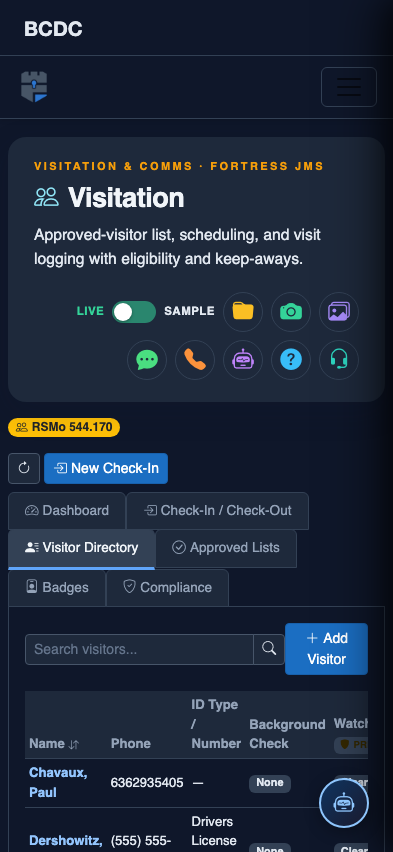
Tab view with data rows
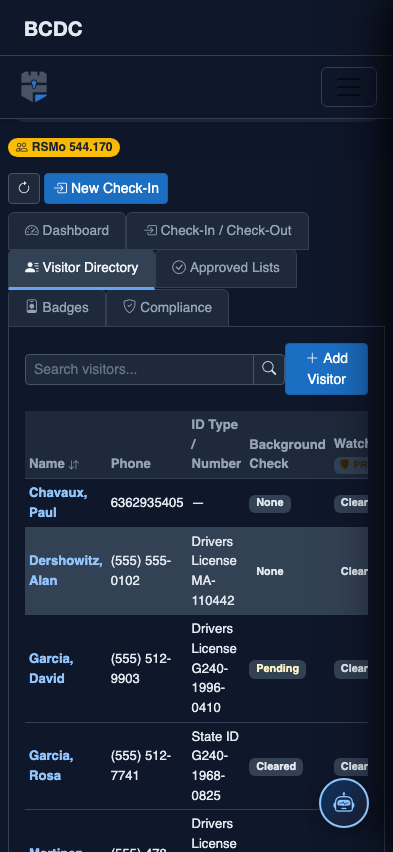
Scrolled / detail view