
Approved Visitor Lists
The Approved Visitor Lists tab centralizes the management of all individuals authorized to visit inmates at your facility. Officers can quickly verify visitor eligibility, add or revoke approvals, and maintain a documented chain of custody for all visitation authorizations — all within the FortressDMS Visitation module.
Eligibility Verification
Instantly confirm whether a visitor is on an inmate’s approved list before allowing facility entry.
Relationship Tracking
Record the relationship type (spouse, attorney, clergy, etc.) for each approved visitor to ensure proper classification.
Revocation Controls
Revoke visitor privileges immediately and log the reason, ensuring no unauthorized individuals gain access.
Audit History
Every approval and revocation is time-stamped and officer-attributed for complete accountability and court-ready records.
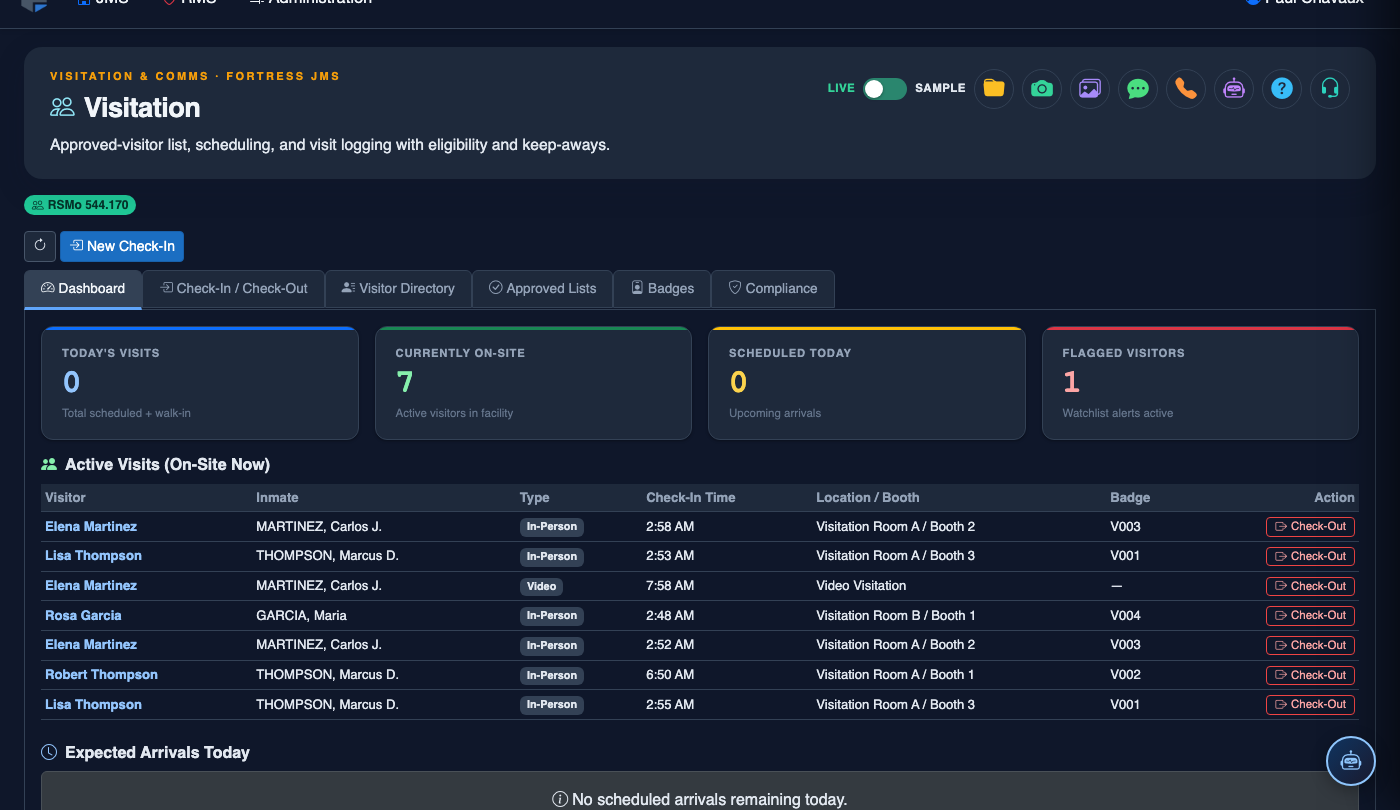
Step-by-Step: Managing Approved Visitor Lists
Navigate to the Visitation Module
From the main navigation, select Visitation and click the Approved Visitor Lists tab at the top of the module.
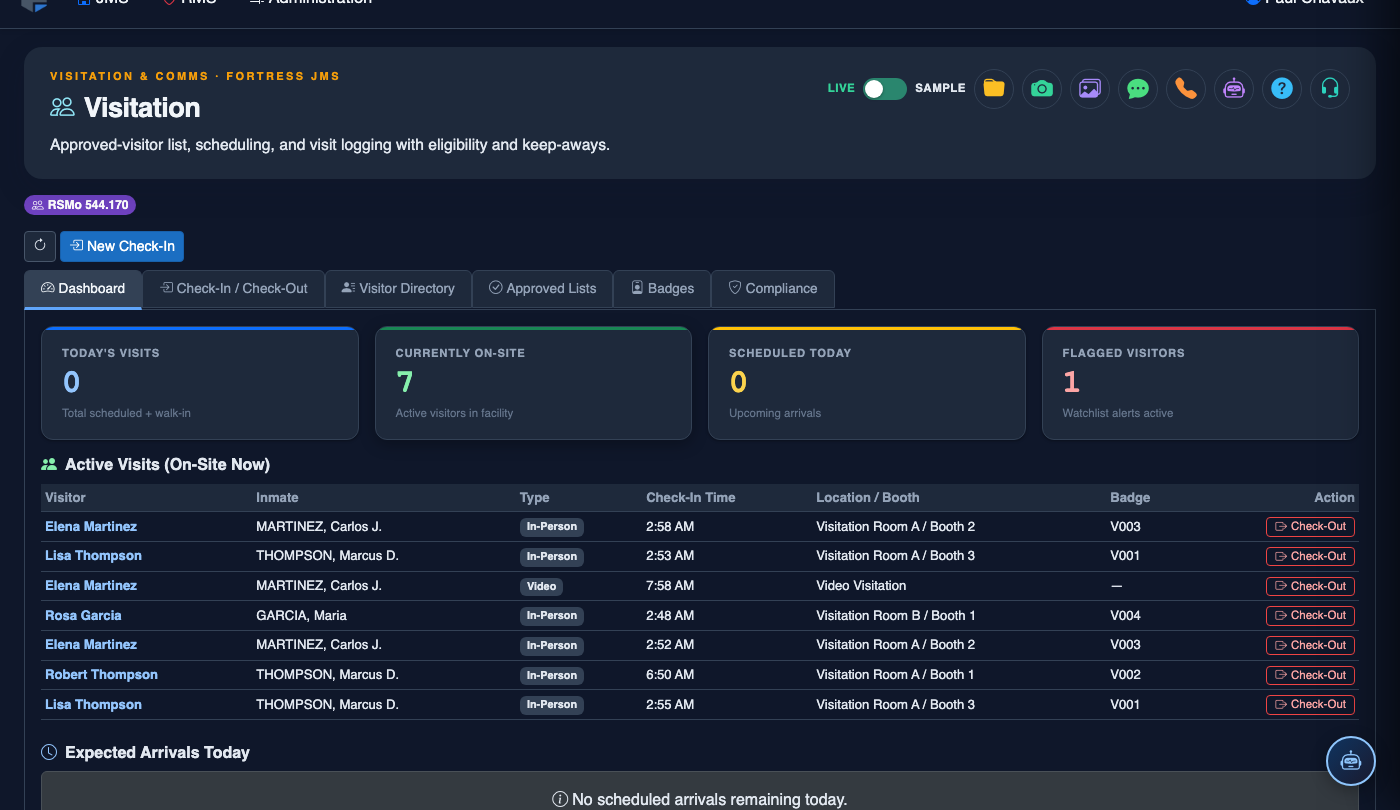
Search for an Inmate
Use the Inmate Search field to locate the inmate by name or booking number. Select the correct record from the results list to load their approved visitor roster.
Review Current Approved Visitors
The list displays all currently approved visitors including their Name, Relationship, ID Type, Approval Date, and current Status (Active / Suspended / Revoked).
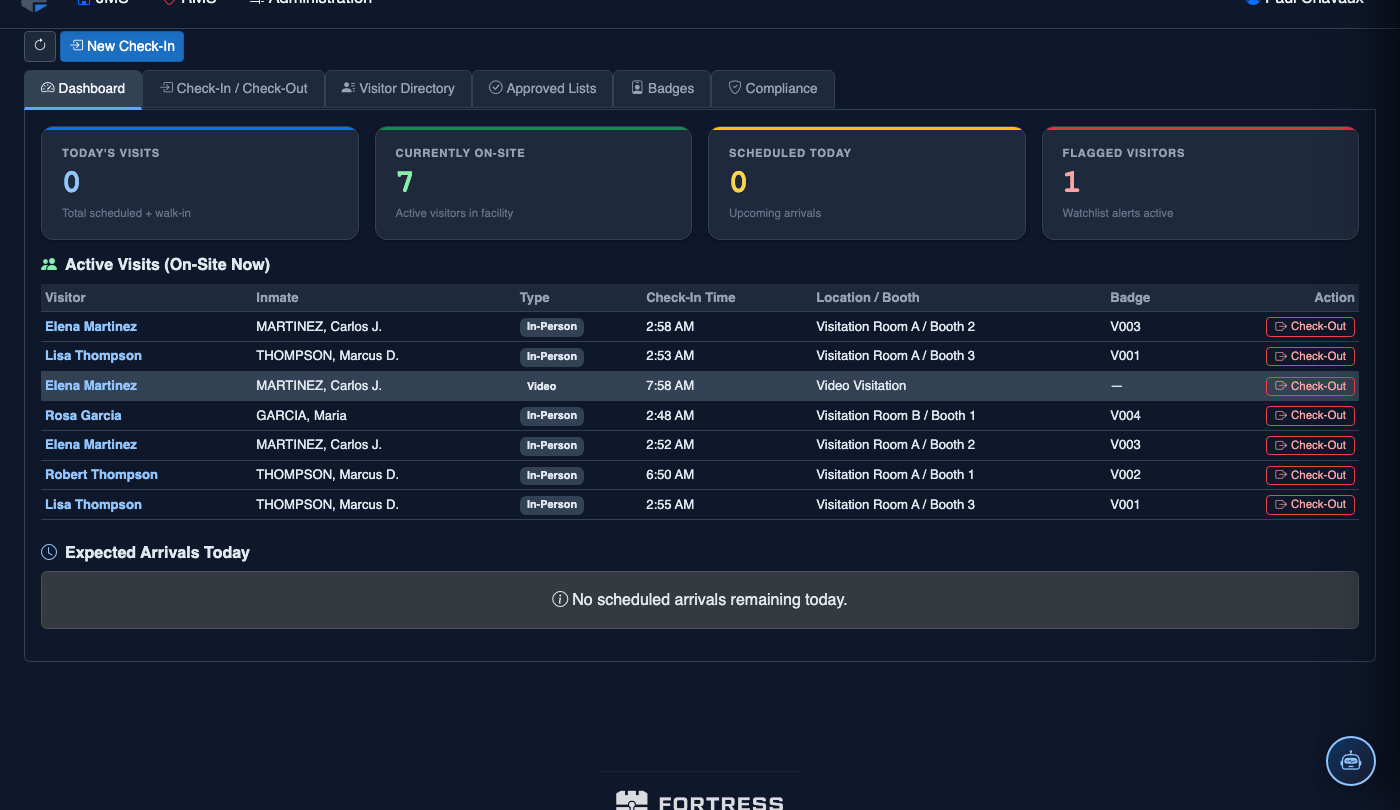
Add a New Approved Visitor
Click + Add Visitor to open the visitor intake form. Enter the visitor’s Full Name, Date of Birth, Government ID Number, Relationship to Inmate, and any applicable Restrictions (e.g., supervised only).
Submit and Confirm Approval
Click Save Visitor to add the individual to the approved list. The system records your officer ID and a timestamp automatically. Confirm the new entry appears with Status: Active.
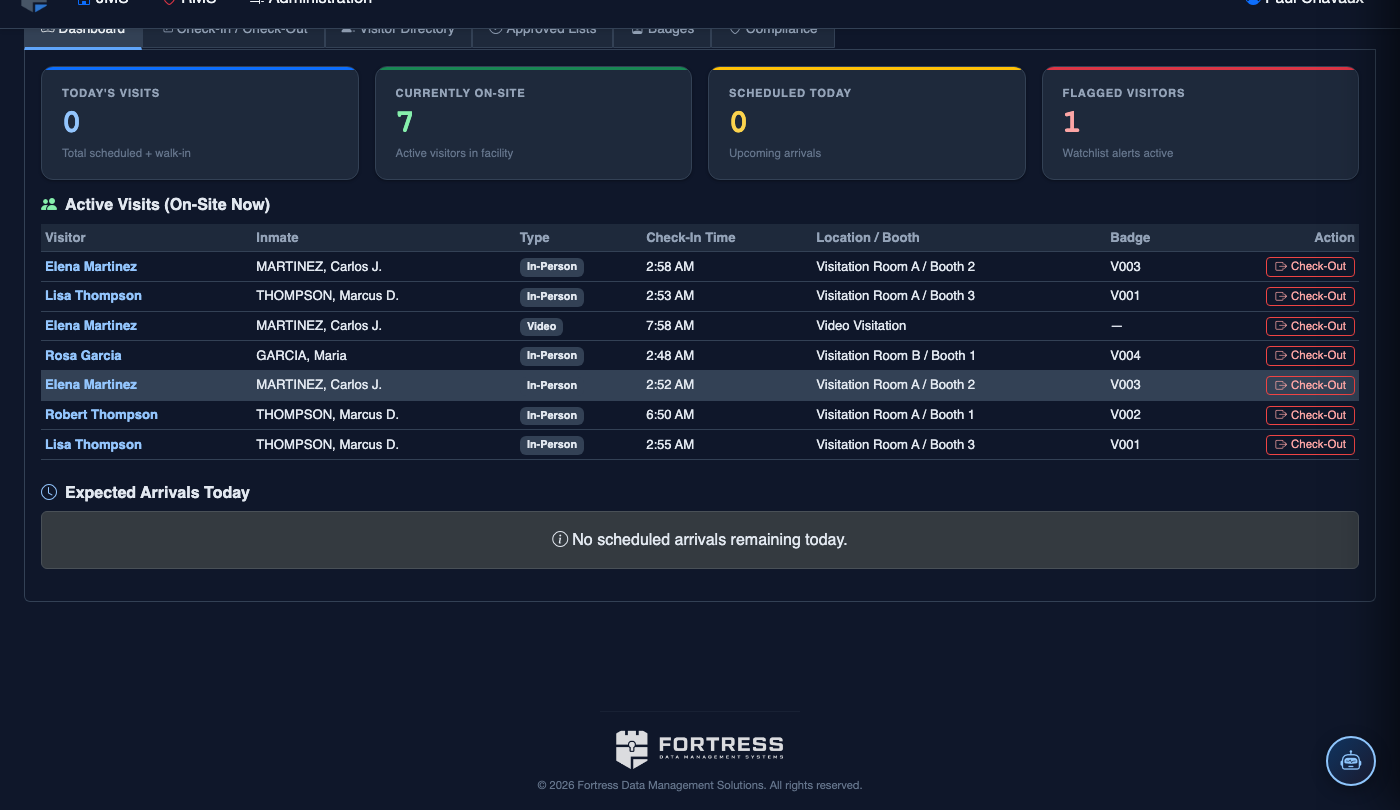
Suspend or Revoke a Visitor
Click the Actions menu next to any visitor and select Suspend (temporary hold) or Revoke (permanent removal). Enter a Reason in the dialog — this is required and will appear in the audit log.
Export the Approved List
Use the Export button to download a PDF or CSV copy of the approved visitor list for a specific inmate — useful for court submissions or shift briefing packets.
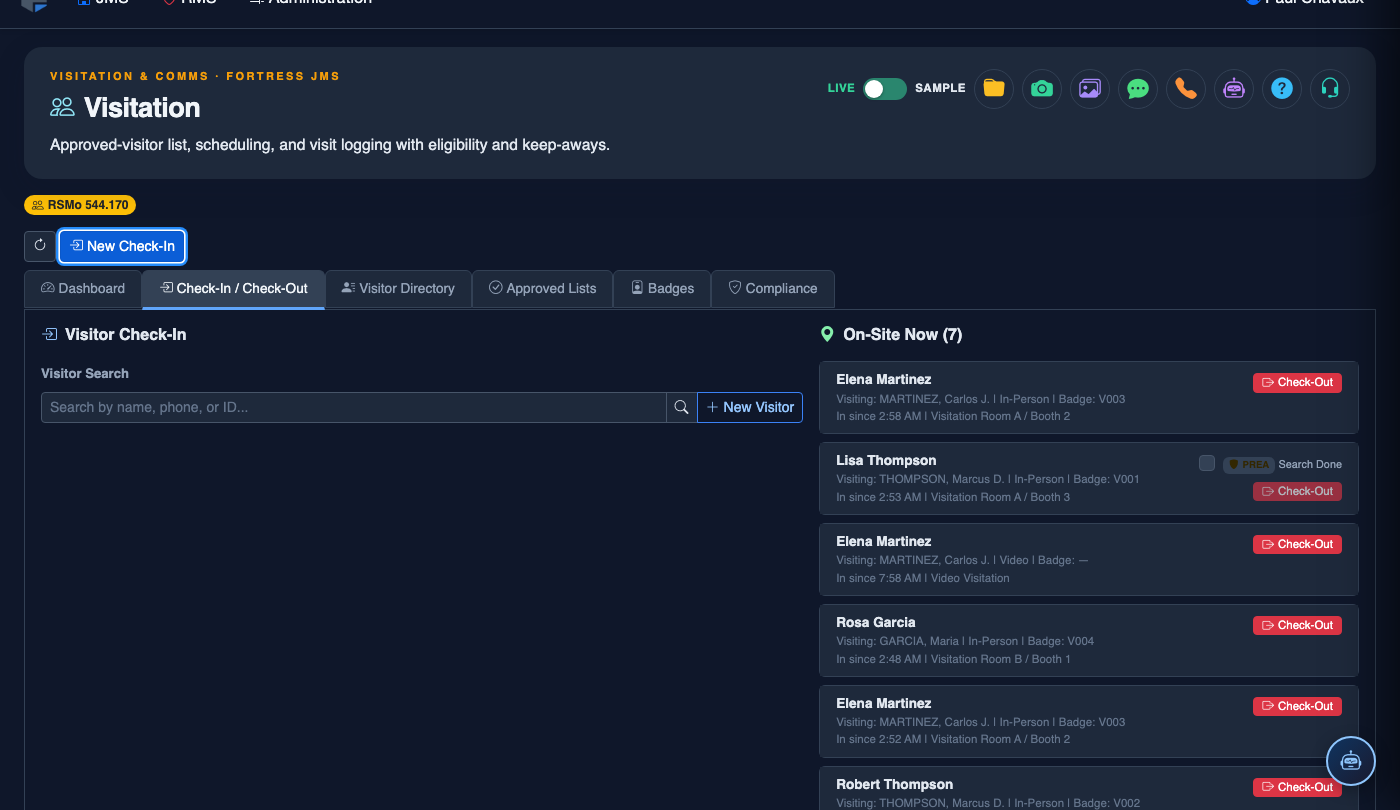
Log a New Visitor Check-In
Click New Check-In. Complete the visitation log:
- Inmate — search by name or booking number.
- Visitor — select from the Approved Visitor List. Visitors not on the list must be added first via Visitor Directory.
- Photo ID Verification — confirm ID type and number; the system compares against the visitor record.
- Visit Type — General, Legal, Clergy, or Official (each has different duration limits and privacy rules).
- Booth / Room Assignment — select the visitation station.
- Scheduled Duration — defaults to facility policy; adjust if authorized for extended visit.
- Click Start Visit. A timer begins and the visitor’s badge logs are updated. End the visit with Check-Out.
💡 Pro Tips
- Always verify government-issued photo ID against the record on file before admitting any visitor — the system flags mismatches but does not override officer judgment.
- Use the Relationship: Attorney classification carefully — attorney-approved visitors bypass some standard restrictions per policy; this field triggers different access rules.
- Suspended visitors can be reinstated; Revoked visitors require a supervisor override to re-add, providing an additional security layer for serious infractions.
Mobile View — Approved Visitor Lists
FortressDMS is fully responsive. Officers can access the Approved Visitor Lists on a phone or tablet directly from the field — no app install required.
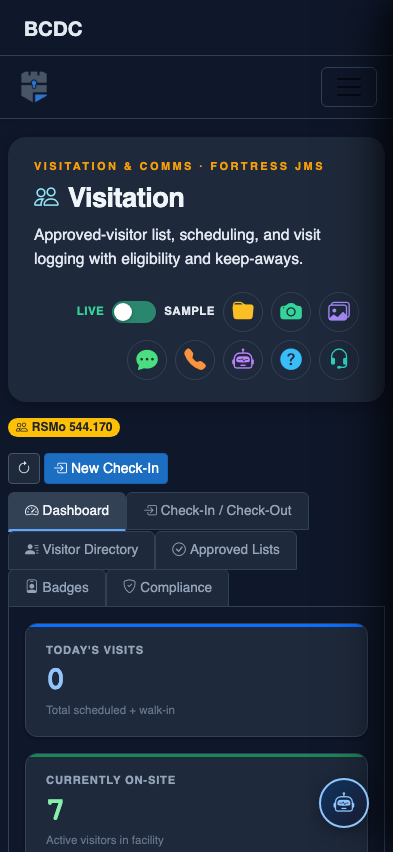
Tab view with data rows
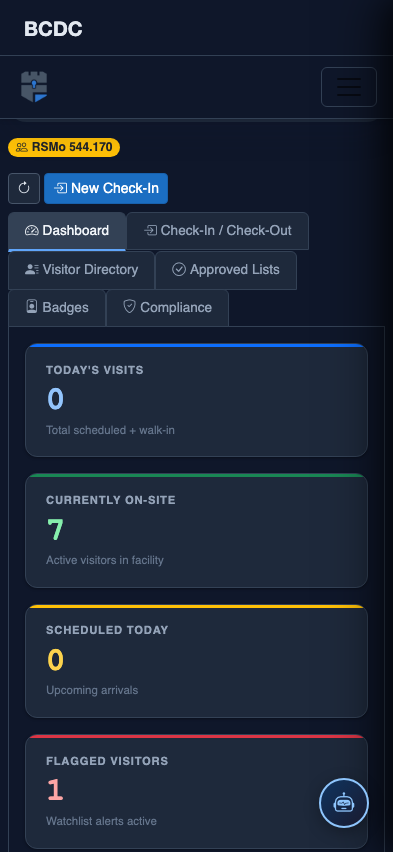
Scrolled / detail view