
Staff Accounts
The Staff Accounts tab within Communicator Management is where administrators provision and maintain VoIP extensions for all jail personnel — officers, sergeants, administrators, and medical staff. Each account links a staff member’s JMS identity to a SIP extension on the facility’s phone system, controls call-recording obligations, and sets outbound calling permissions. Keeping staff accounts current ensures the phone system accurately reflects current personnel and that every call is attributed to the correct officer for accountability purposes.
Identity-Linked Extensions
Each VoIP extension is tied directly to a staff member’s JMS login, ensuring call logs are automatically attributed to the correct person.
Role-Based Permissions
Assign call permission profiles by rank — officers get standard outbound access while investigators receive unrestricted external dialing.
Recording Policy Control
Set per-account recording rules — always record, never record (e.g., union lines), or record on demand for supervisory extensions.
Suspend / Deactivate
Instantly suspend a staff extension during investigations or upon termination without deleting the account history.
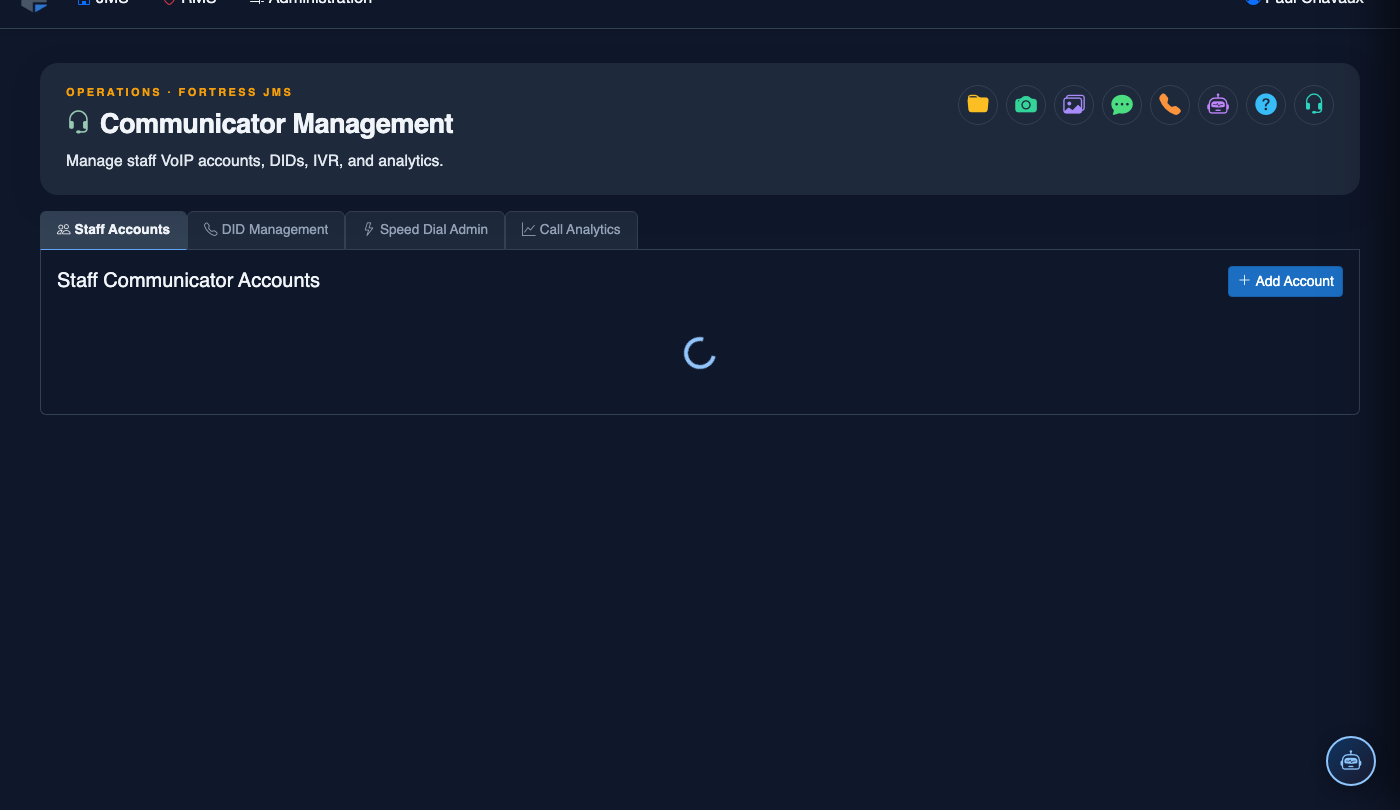
Step-by-Step: Provisioning and Managing Staff Accounts
Open the Staff Accounts Tab
Navigate to Communicator Management and click the Staff Accounts tab. The accounts grid lists all provisioned extensions showing Employee Name, Extension, Department, Permission Profile, and Status (Active / Suspended).
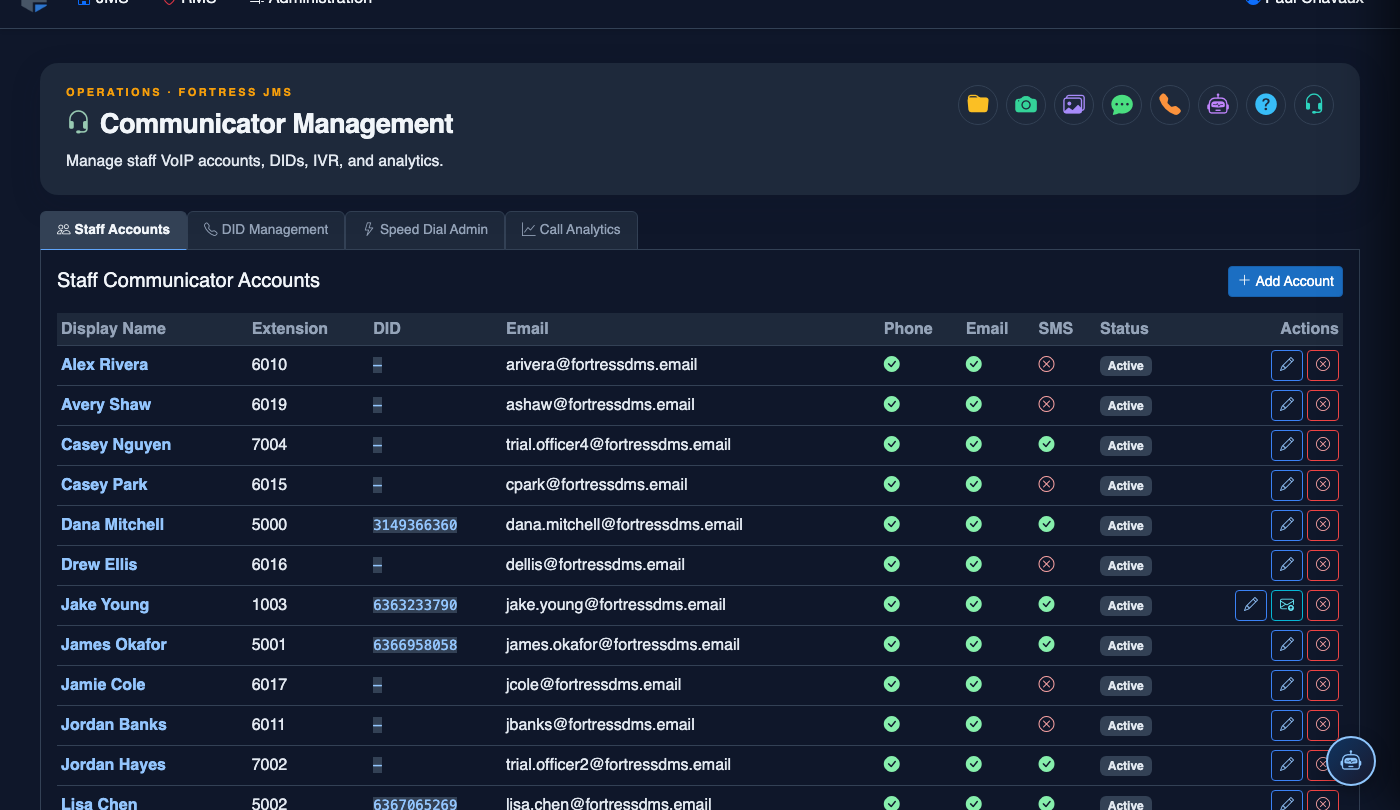
Create a New Staff Account
Click + Add Staff Account. In the drawer that opens, search for the staff member by name or employee ID — the system pulls their identity from the JMS personnel record. Select the match and confirm their Department and Rank.
Assign an Extension Number
Enter the desired SIP Extension number or click Auto-Assign to pull the next available number from your configured extension pool. The system validates the number is not already in use and that it falls within the allowed range for the selected department.
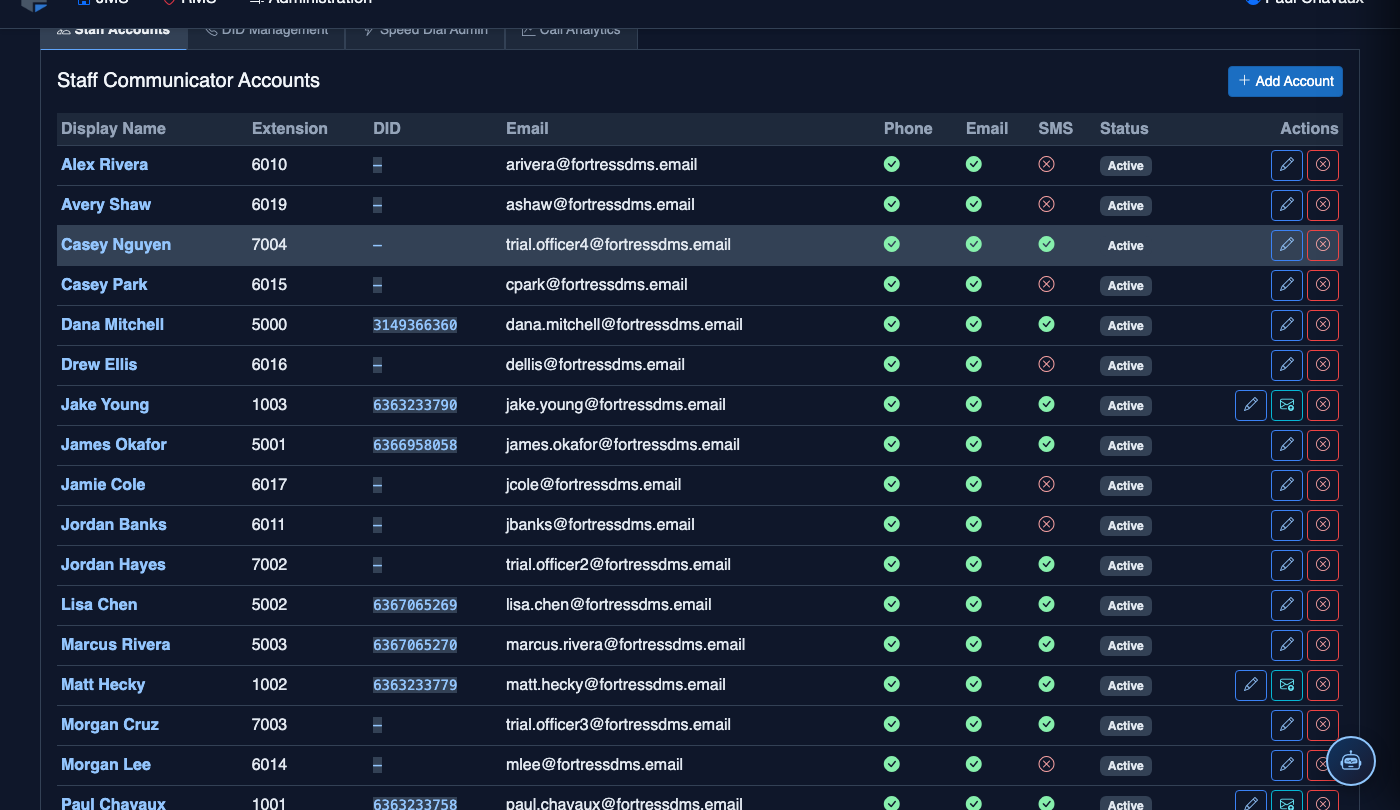
Select a Permission Profile
Choose the appropriate Call Permission Profile from the dropdown. Profiles define which number ranges staff can dial (internal only, local, long distance, international). Profiles are managed centrally under Settings > Permission Profiles so changes propagate to all assigned accounts automatically.
Configure Recording Policy
Set the Call Recording option for this account: Always Record, Never Record, or On Demand. Retain the default Always Record for most staff roles. Select Never Record only for extensions designated as employee assistance or union representative lines.
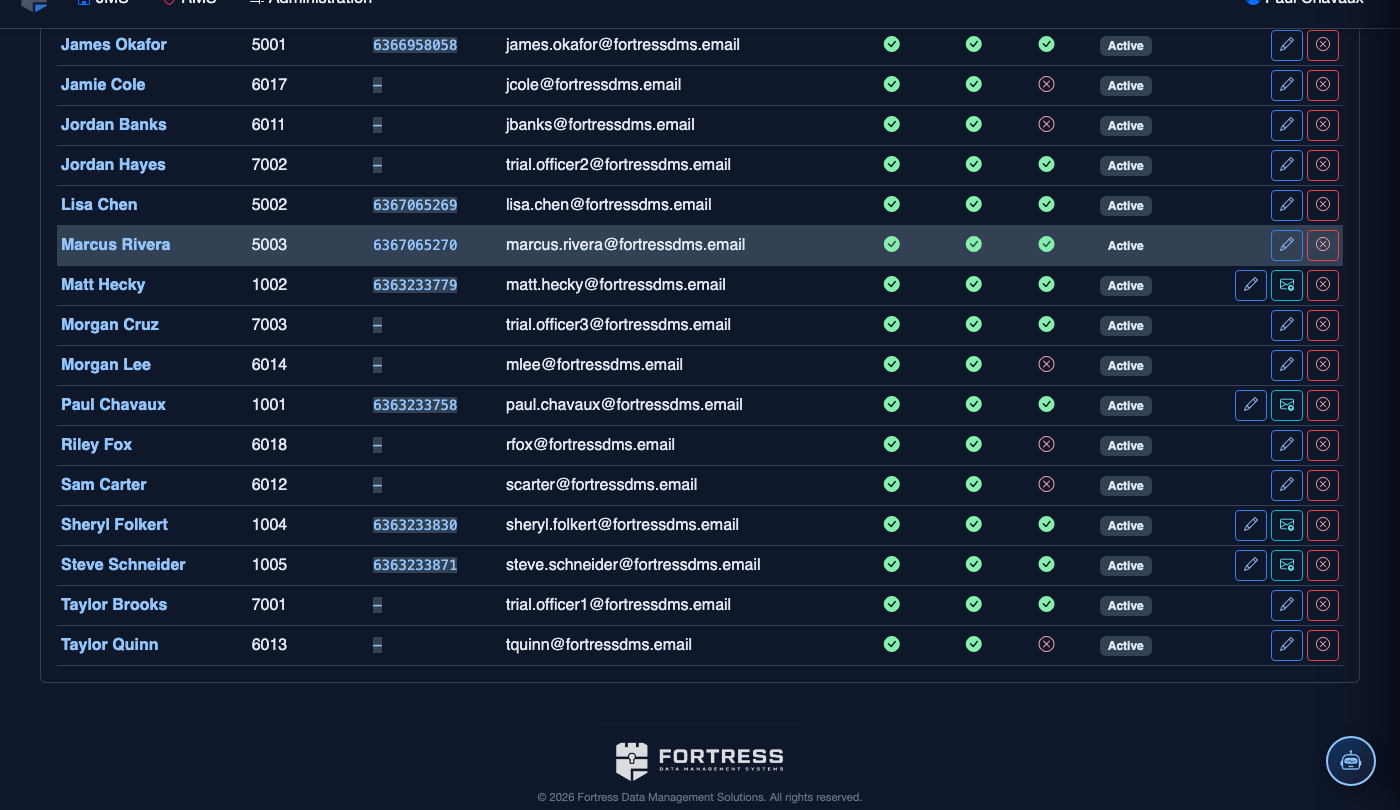
Save and Deliver Credentials
Click Save Account. The system generates SIP credentials and displays a one-time QR code the staff member scans with the Fortress Communicator mobile app to complete registration. Credentials are not stored in plaintext after initial provisioning.
Suspend Accounts for Departing Staff
When an officer is terminated or placed on administrative leave, locate their account and click Suspend. The extension is immediately disabled — no calls can be placed or received — but all call history and recordings are preserved intact for HR or investigative purposes. Do not delete the account until legally cleared to do so.
💡 Pro Tips
- Run a Stale Account Report monthly — accounts with zero call activity in 60+ days typically belong to staff who have separated or transferred and should be suspended to free up extensions.
- Use the Bulk Import option when onboarding a large recruit class — upload a CSV of employee IDs and the system auto-assigns extensions from the pool.
- Coordinate with IT security to rotate SIP credentials every 90 days, especially for accounts assigned to shared workstation phones in booking areas.
Mobile View — Staff Accounts
FortressDMS is fully responsive. Officers can access the Staff Accounts on a phone or tablet directly from the field — no app install required.
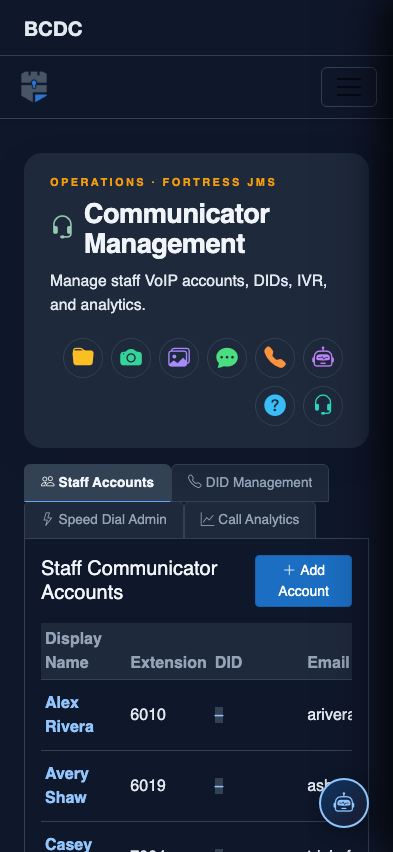
Tab view with data rows
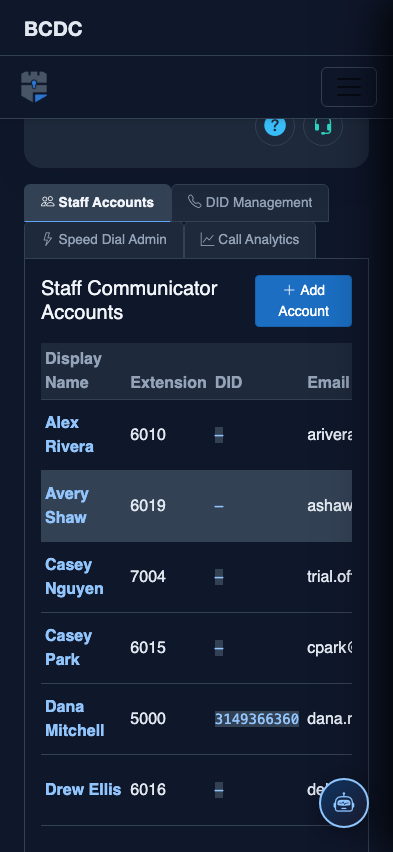
Scrolled / detail view