
NIBRS Validation
The NIBRS Validation tab runs real-time compliance checks against FBI National Incident-Based Reporting System business rules as officers complete each incident report. Every field that feeds into NIBRS submission — offense codes, victim/offender relationships, injury types, arrest information, and property descriptions — is validated before the report is finalized. Errors and warnings are surfaced inline, allowing officers to correct data at the point of entry rather than during monthly batch review.
Real-Time Rule Checking
Over 400 FBI NIBRS business rules are checked automatically as officers type, with inline error messages for immediate correction.
UCR/NIBRS Code Lookup
Integrated offense code library with plain-language descriptions helps officers select the correct NIBRS code without memorizing the manual.
Warning vs. Error Triage
Validation issues are categorized as hard errors (block submission) or warnings (flag for supervisor review) to prioritize officer attention.
Submission-Ready Export
Validated reports are automatically queued for monthly NIBRS submission in the state-required flat-file or XML format.
Step-by-Step: NIBRS Validation
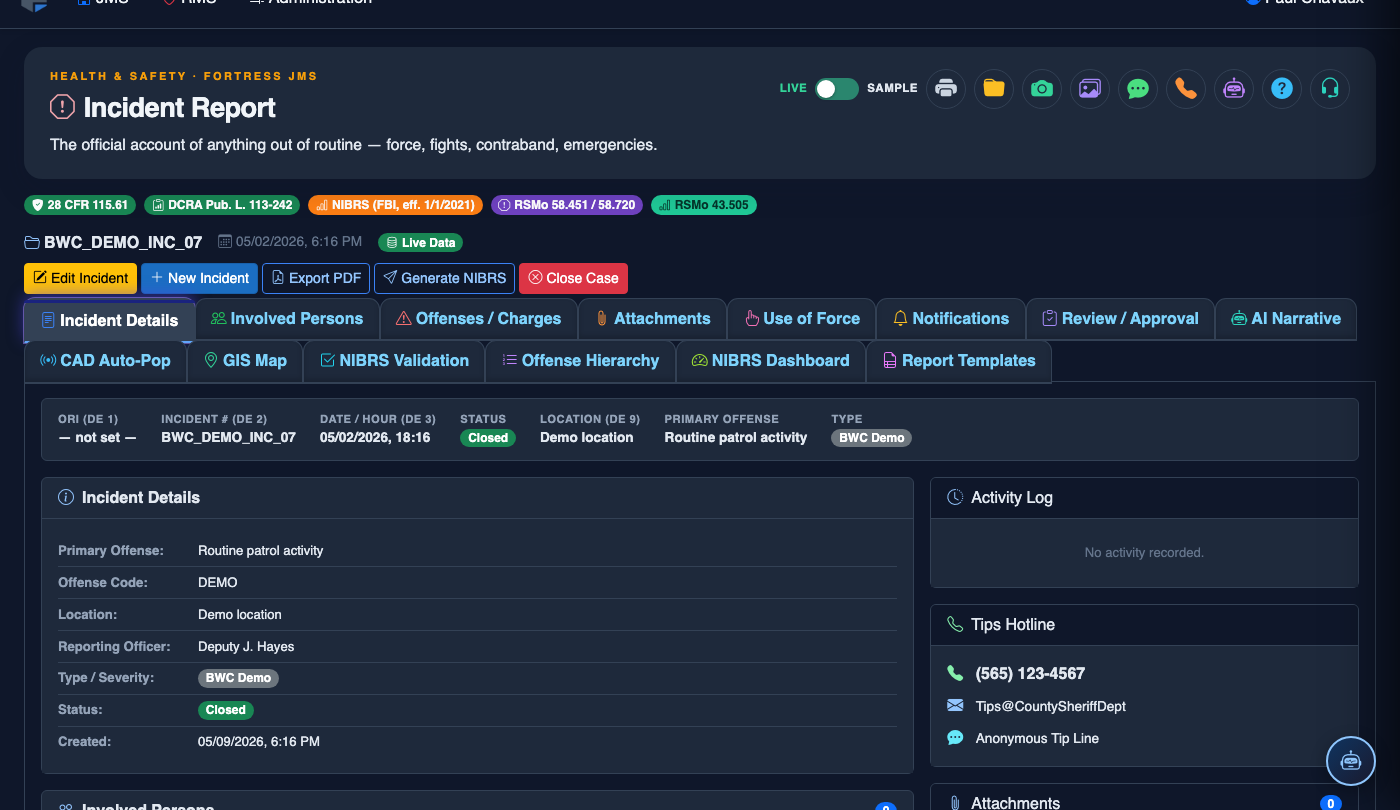
Open the NIBRS Validation Tab
Within an incident report, navigate to the NIBRS Validation tab. The validation panel displays a checklist of all required NIBRS data elements for the selected offense group, with their current completion status shown as green checkmarks or red error indicators.
Run the Validation Check
Click Validate Now to trigger a full NIBRS business rules check against the current report data. Validation runs automatically on save, but officers can run it manually at any point during report creation to check progress.
Review Errors and Warnings
The results panel groups issues into Hard Errors (shown in red — must fix before submission) and Warnings (shown in amber — flag for supervisor review). Each issue includes the NIBRS rule code, a plain-English explanation, and a direct link to the field that needs correction.
Click Through to Fix Errors
Click Go to Field on any error item to jump directly to the tab and field that requires correction. Fix the value, return to the Validation tab, and the error will be cleared automatically when the system re-validates.
Acknowledge Warnings
For warnings that are intentional or explained by circumstances, click Acknowledge & Add Note to attach an explanation. Acknowledged warnings are logged but will not block submission; they are flagged for supervisor sign-off.
Achieve NIBRS-Ready Status
Once all hard errors are resolved and warnings are acknowledged, the report status changes to NIBRS Ready (shown in green). The report is now eligible for supervisor approval and will be included in the next monthly NIBRS submission batch.
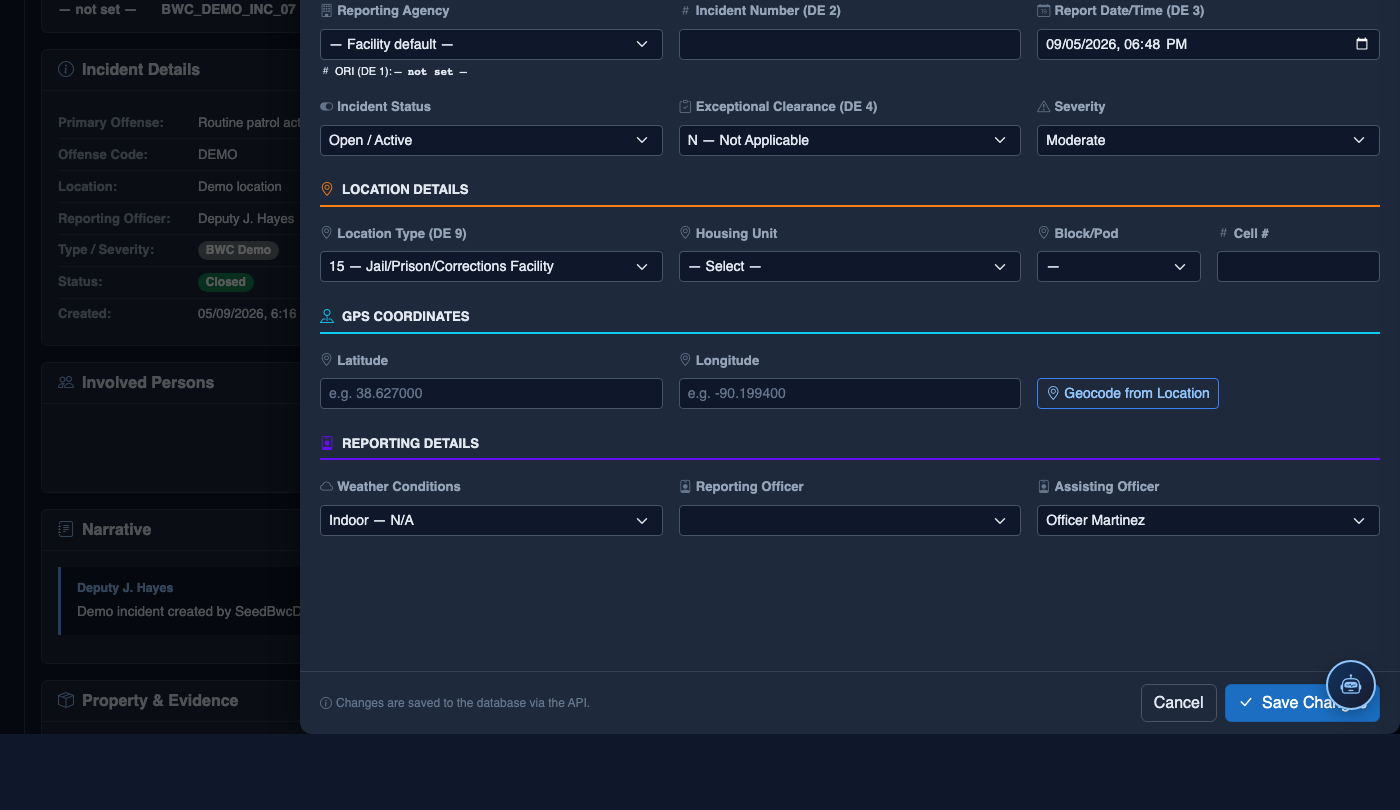
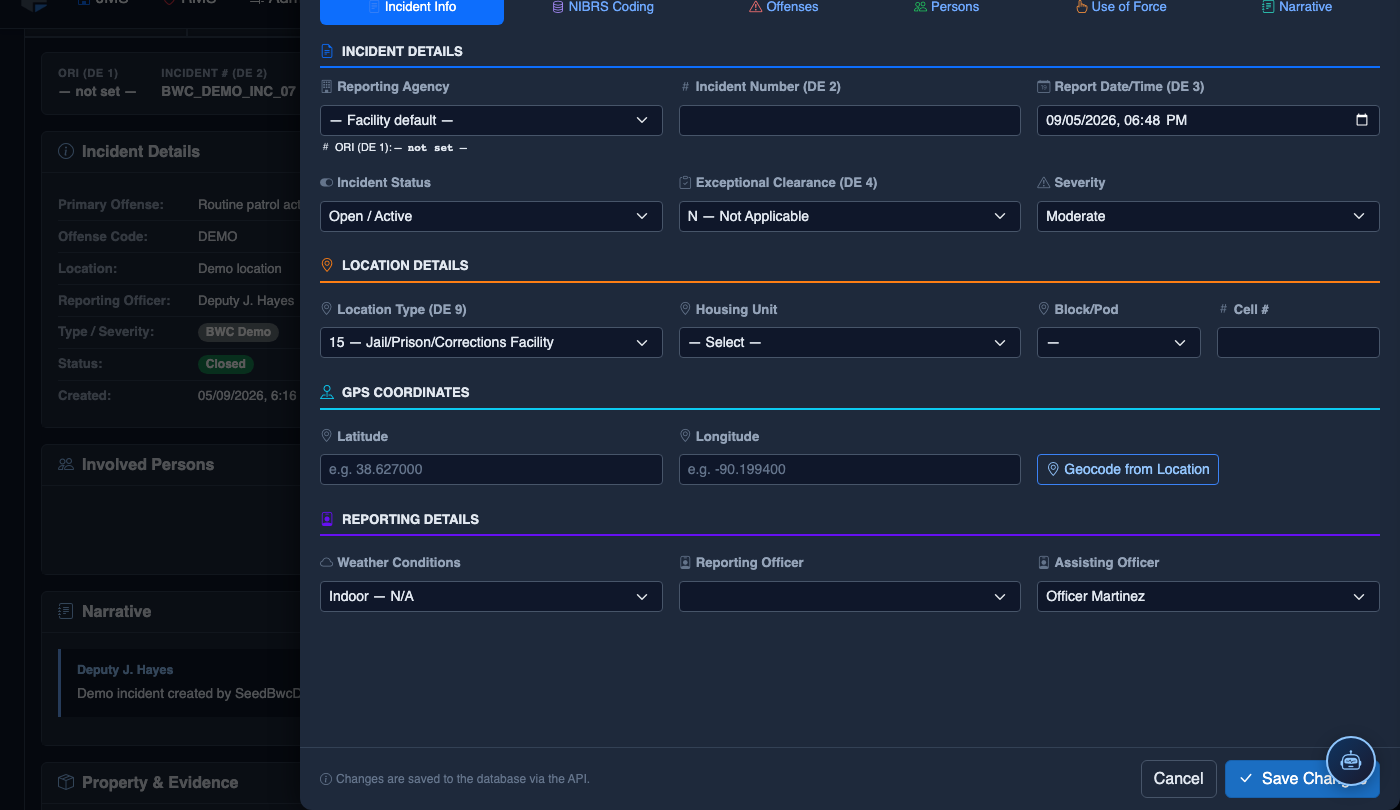
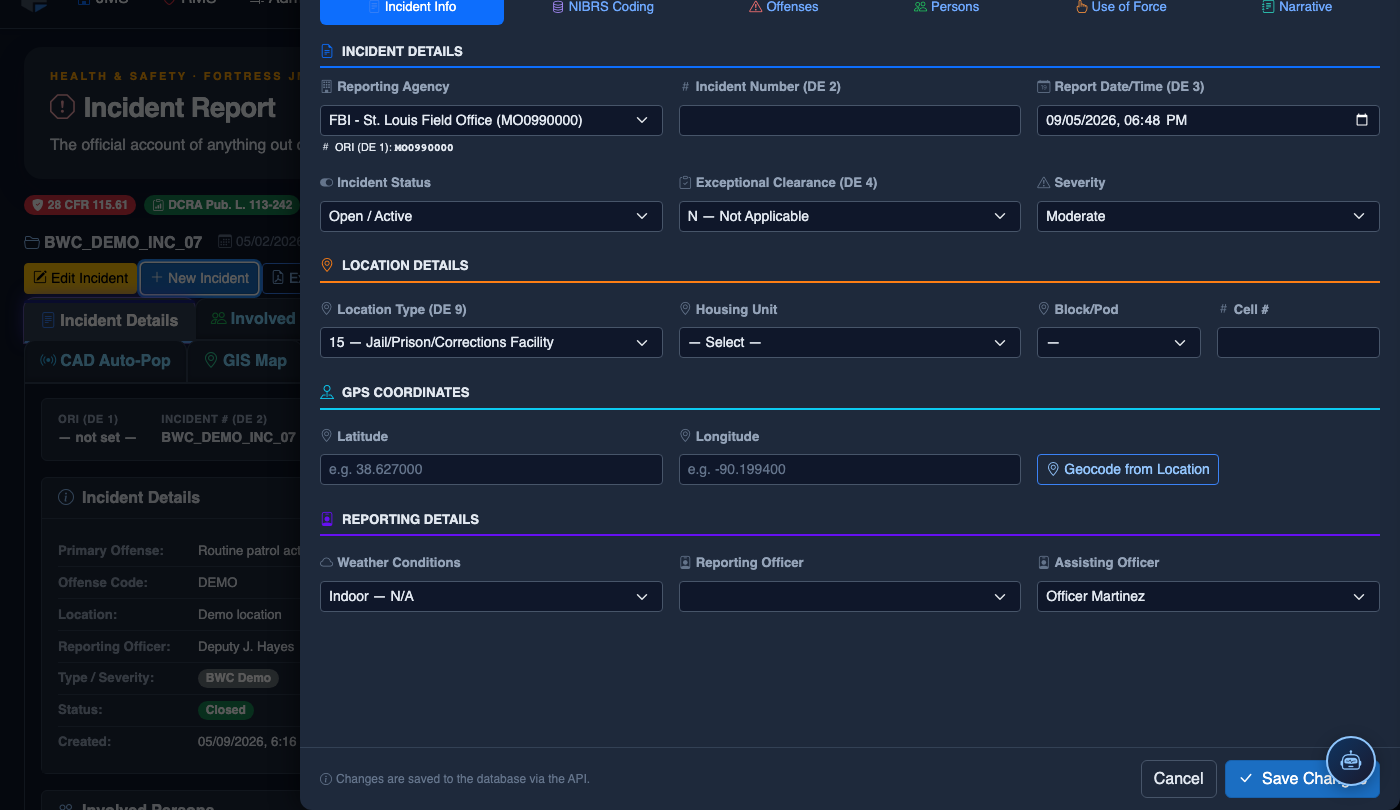
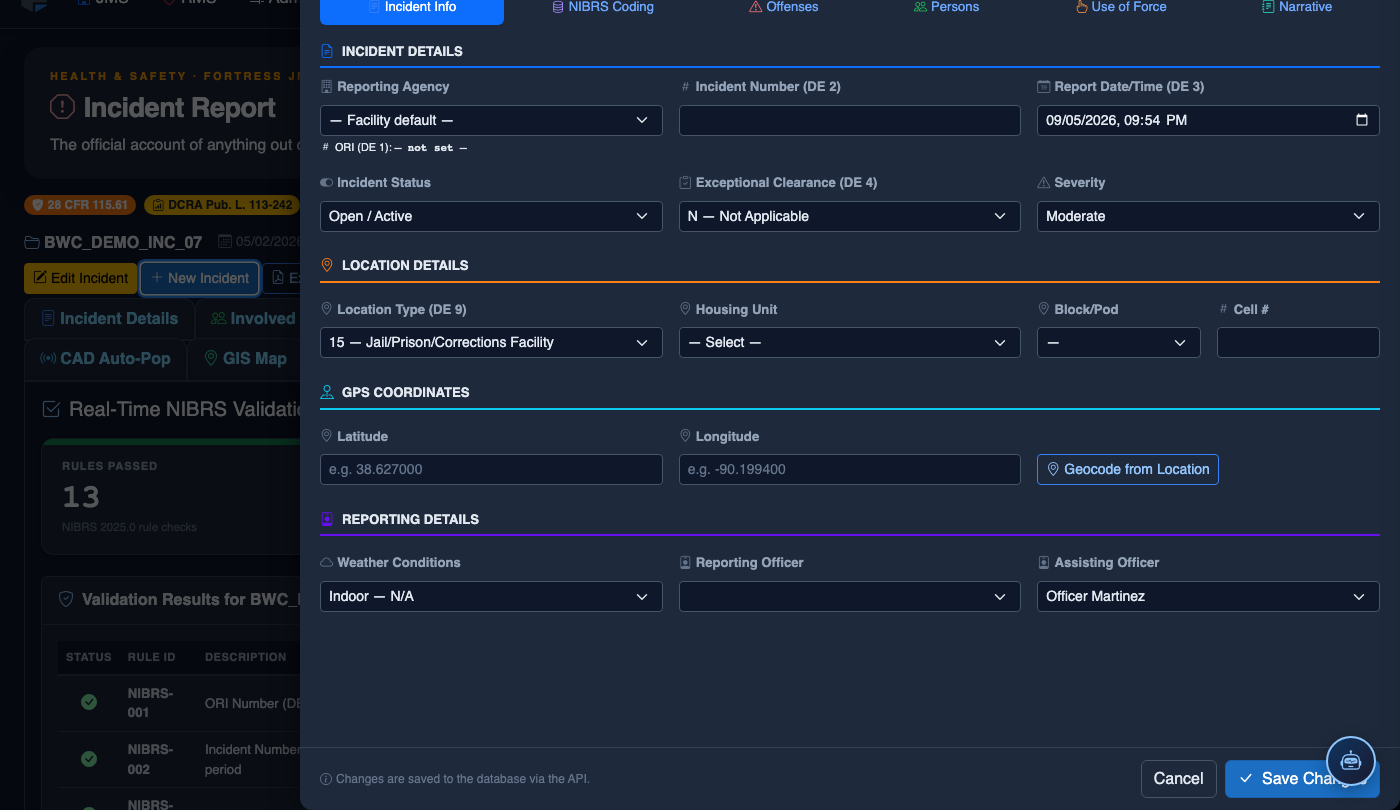
File a New Incident Report
Click New Incident. Complete the incident report:
- Incident Type — select the category (Altercation, Medical Emergency, Escape Attempt, Property Damage, Use of Force, etc.).
- Date, Time, and Location — the precise time and place of the incident.
- Involved Persons — add all Inmates, Staff, and Witnesses using the search tool.
- Narrative — write the factual incident description in first person, past tense. The AI Narrative Assist can draft based on your bullet points.
- Severity — Minor, Moderate, or Major. Major incidents trigger automatic supervisor notification.
- Attachments — upload photos, BWC footage, or medical documentation directly.
- Click Save Draft to continue later, or Submit for Review to route to your supervisor.
💡 Pro Tips
- Use the NIBRS Code Lookup tool (magnifying glass icon next to offense fields) to search by plain-English term rather than memorizing FBI code numbers — it filters to your state's active code set automatically.
- Supervisor accounts can access the NIBRS Validation Summary report under Reports to see facility-wide error rates by officer, helping identify training needs before the monthly submission deadline.
- When a report involves multiple offense segments (e.g., assault with weapon), run validation after completing each offense segment rather than waiting until the entire report is done — it is much easier to fix errors one segment at a time.
Mobile View — NIBRS Validation
FortressDMS is fully responsive. Officers can access the NIBRS Validation on a phone or tablet directly from the field — no app install required.
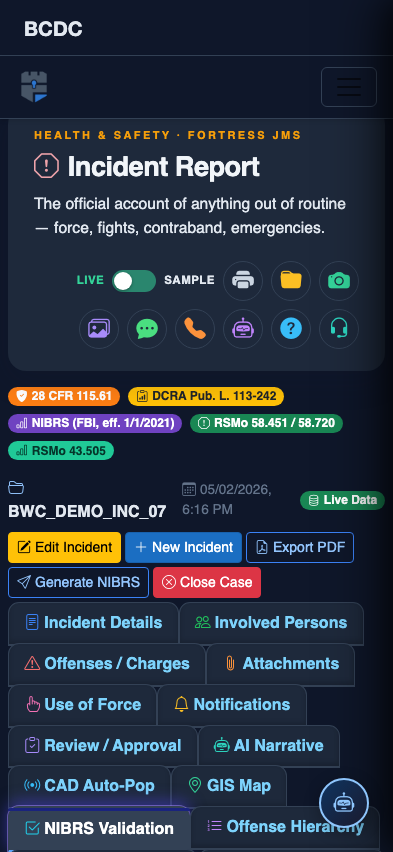
Tab view with data rows
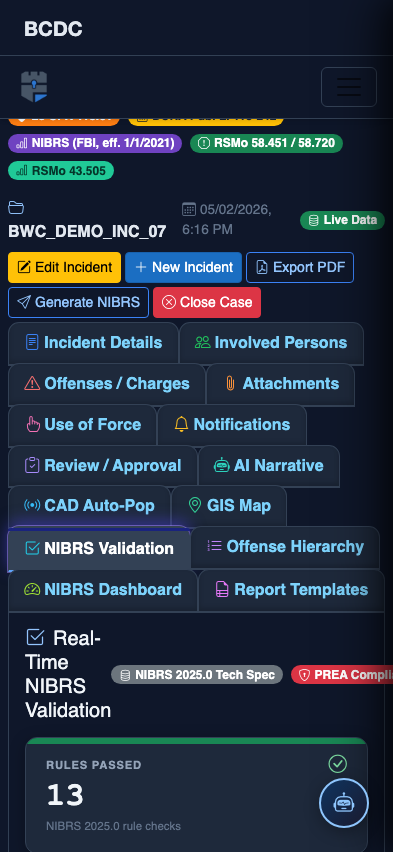
Scrolled / detail view