
Medication Administration Record
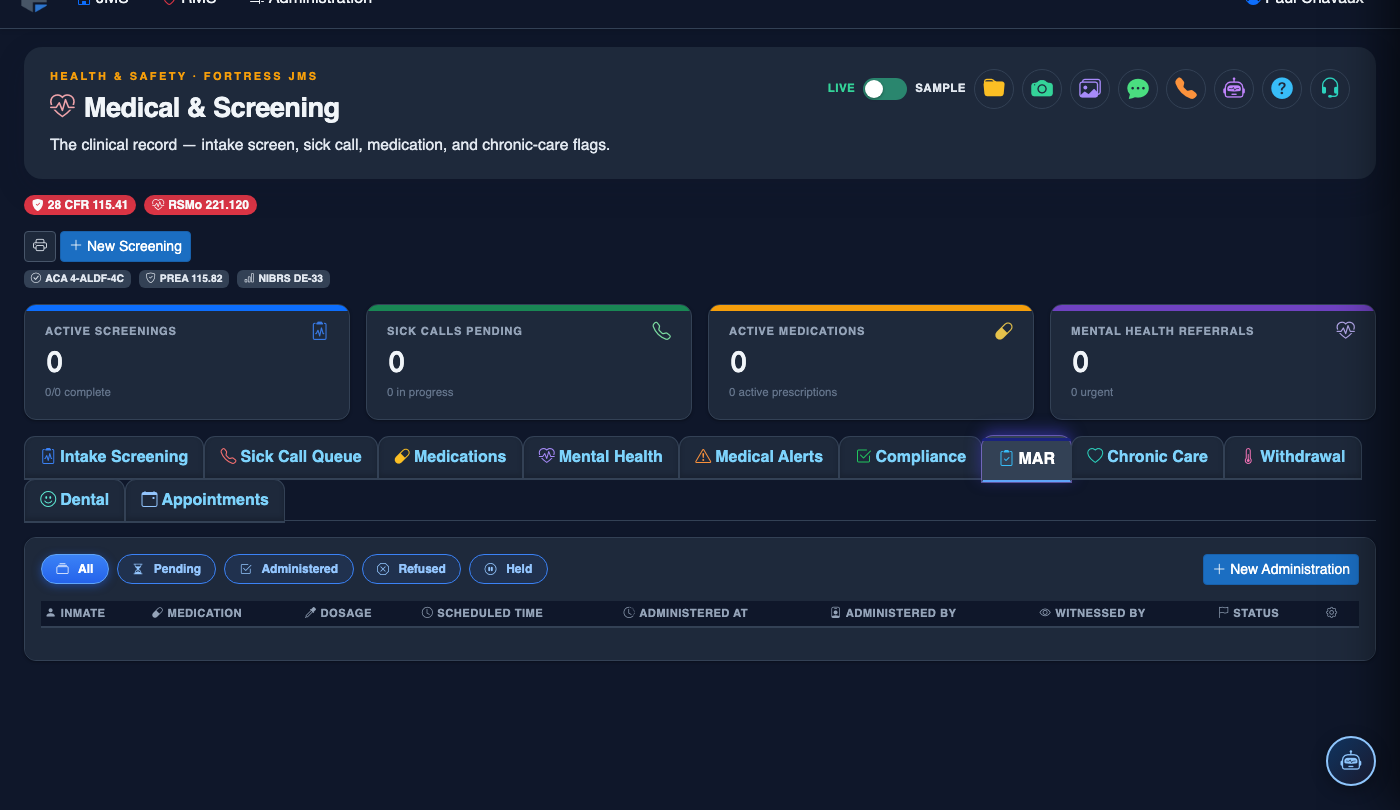
The Medication Administration Record (MAR) tab provides a structured, time-stamped electronic log of every medication administered to an inmate. Nursing staff can quickly document each medication pass, flag refused or withheld doses, and maintain a complete pharmacy-auditable record that satisfies both correctional healthcare standards and state pharmacy board requirements.
Electronic MAR
Replaces paper MAR sheets with a digital record that is timestamped, provider-attributed, and tamper-evident.
Medication Pass Workflow
Guided medication pass workflow ensures the right drug, dose, route, and time are verified before every administration.
Refusal & Hold Documentation
Captures inmate medication refusals and nurse-initiated holds with reason codes and provider notifications.
Controlled Substance Tracking
Enhanced documentation requirements for Schedule II-V controlled substances with chain-of-custody logging.
Step-by-Step: Documenting Medication Administration
Open the MAR Tab
From the inmate’s medical record, click the Medication Administration Record tab (Tab 7). The MAR displays the current month’s administration grid by default, with each prescribed medication listed as a row and each scheduled dose time as a column. Color-coded cells show given, refused, held, or missed doses at a glance.
Begin the Medication Pass
Click the cell corresponding to the scheduled Medication and Pass Time. The system opens the administration confirmation dialog which displays the Drug Name, Dose, Route, Scheduled Time, and any active Allergy Alerts. Verify all five rights before proceeding.
Document Administration
Once the medication has been given, click Mark as Given. The system records the actual administration time (distinct from the scheduled time), the administering nurse’s credentials, and the administration site if applicable (e.g., injection location). The MAR cell turns green to confirm the entry.
Document a Refusal or Hold
If the inmate refuses the medication, click Mark as Refused and select a Refusal Reason from the dropdown. If a nurse-initiated hold is required, click Hold Medication and document the clinical reason. Both actions trigger an automatic notification to the prescribing provider for review.
Document Controlled Substance Administration
For Schedule II-V medications, the system requires two-nurse verification. The administering nurse and a witness must both enter their credentials before the administration is recorded. The system also prompts for a Pill Count Reconciliation and updates the controlled substance log automatically.
Review the Monthly MAR Summary
At month end, click Print MAR to generate a PDF summary of all administration records for the month. This document is suitable for pharmacy audits, accreditation reviews, and transfer to community healthcare providers upon release.
Reconcile Medications at Release or Transfer
When an inmate is released or transferred, use the Medication Reconciliation function to generate a complete current medication list. The system flags any controlled substances requiring disposition documentation and creates a final MAR snapshot in the inmate’s permanent record.
Create a New Medical Record
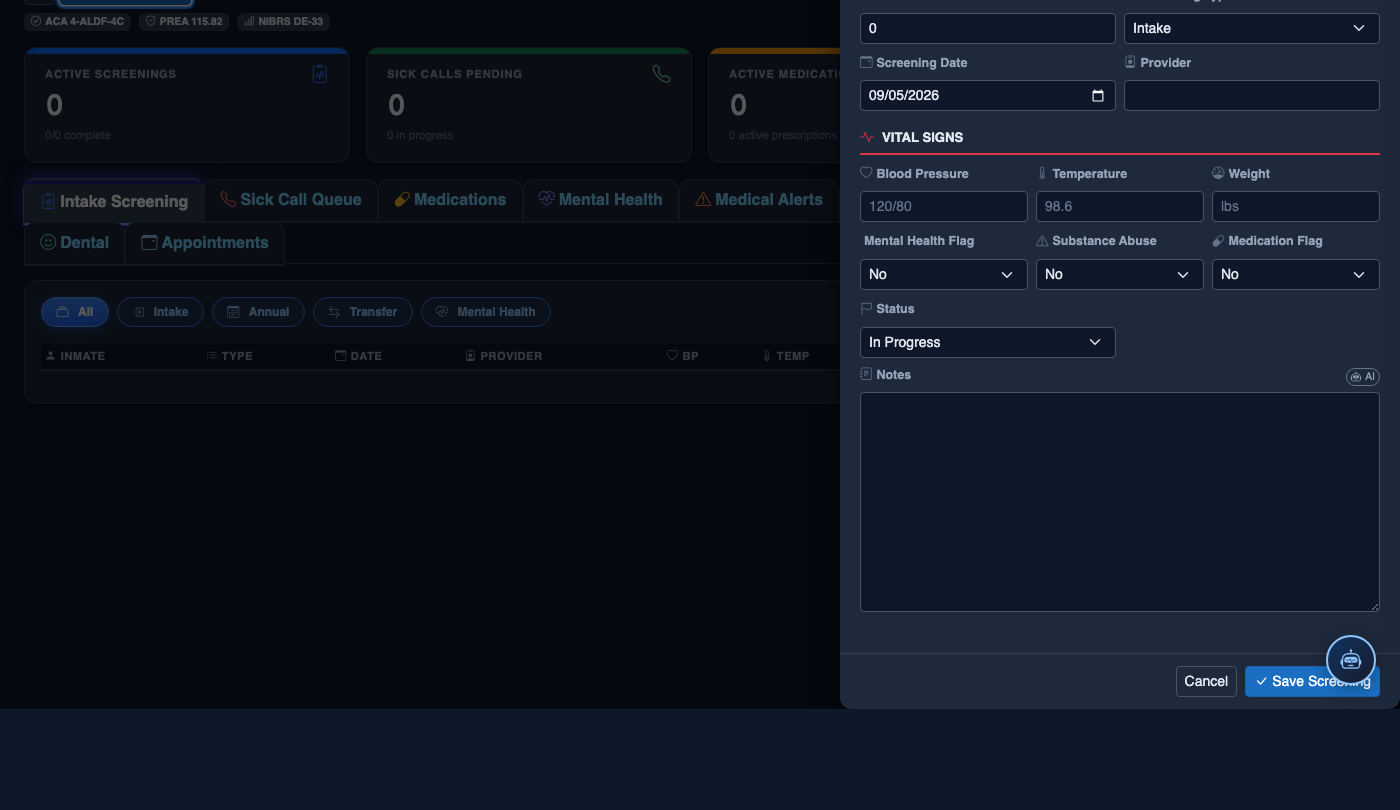
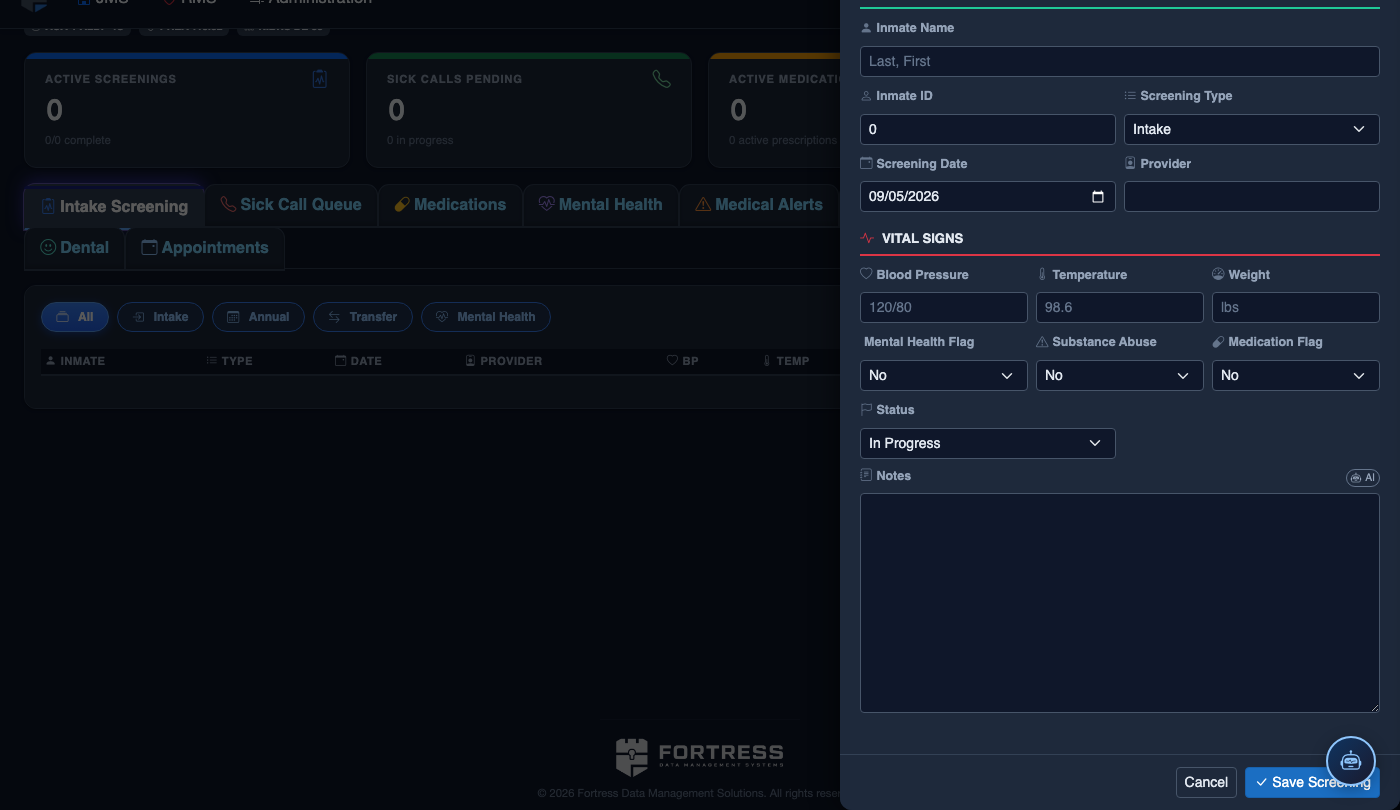
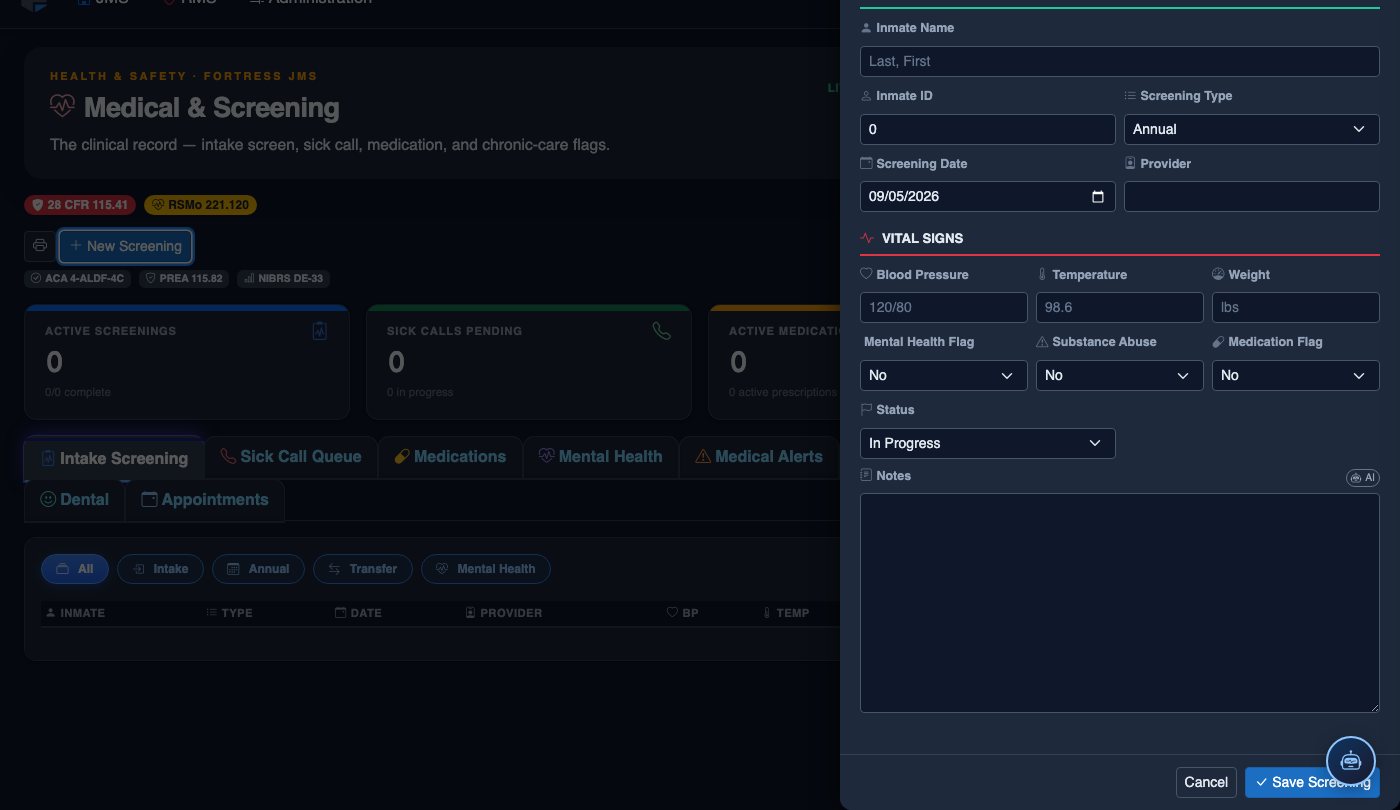
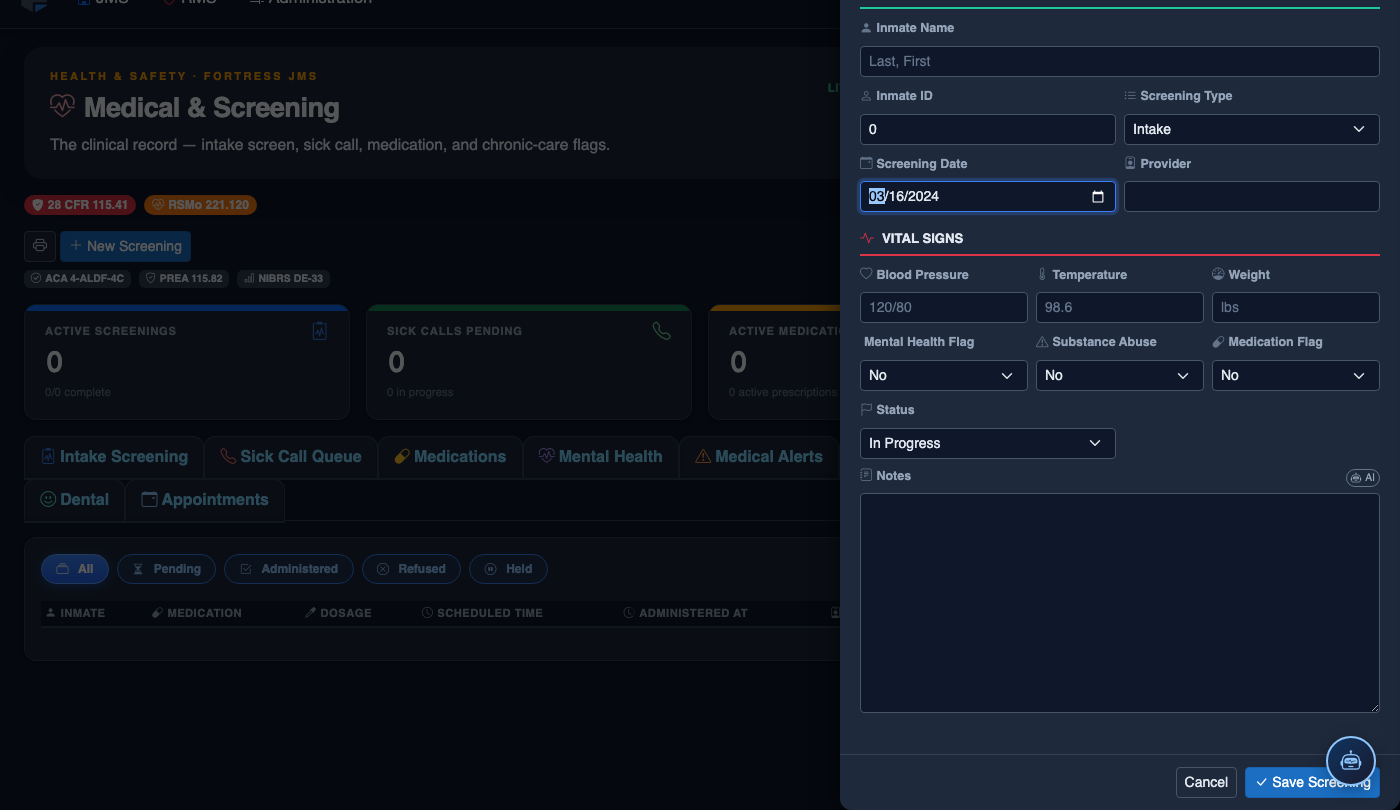
Click New Screening in the module toolbar. Complete the medical form:
- Inmate — search by name or booking number.
- Visit Type — Intake Screening, Sick Call, Scheduled Follow-Up, or Emergency.
- Priority — Routine, Urgent, or Emergent; Emergent pages on-call provider immediately.
- Chief Complaint / Findings — document symptoms, vitals, and objective observations.
- Provider — assign the clinician or nurse conducting the visit.
- Disposition — Treat and Return, Infirmary Admission, Hospital Transfer, or No Action.
- Add any Prescriptions, Follow-Up Date, or Restrictions.
- Click Save Record. Alerts fire automatically if vital signs are out of range.
💡 Pro Tips
- The MAR color grid makes it immediately obvious during supervisor rounds if a medication pass was missed — red cells stand out on the pod medication cart tablet.
- Consecutive refusals (3 or more) auto-flag the prescribing provider so they can assess whether the treatment plan needs to be modified, protecting you from liability for inadequate care.
- Always document controlled substance administration before leaving the medication room — the two-nurse verification timestamp is your primary defense during state pharmacy board inspections.
Mobile View — MAR
FortressDMS is fully responsive. Officers can access the MAR on a phone or tablet directly from the field — no app install required.
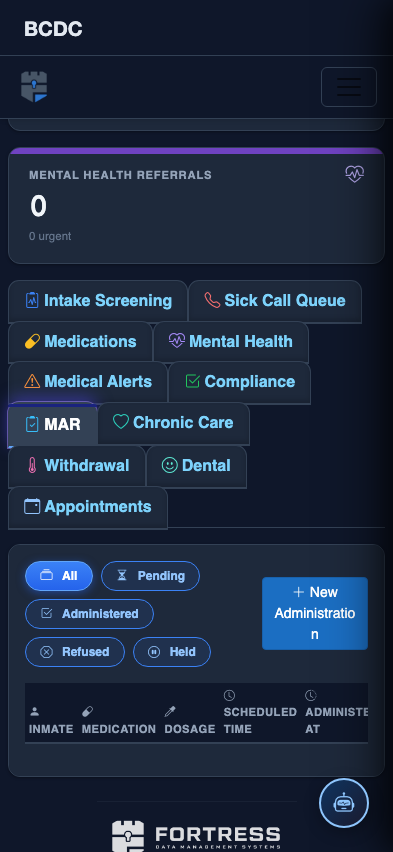
Tab view with data rows
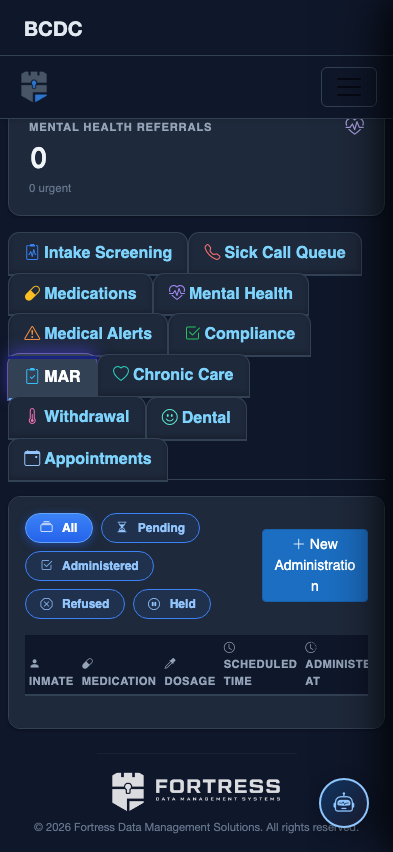
Scrolled / detail view