
Account Overview
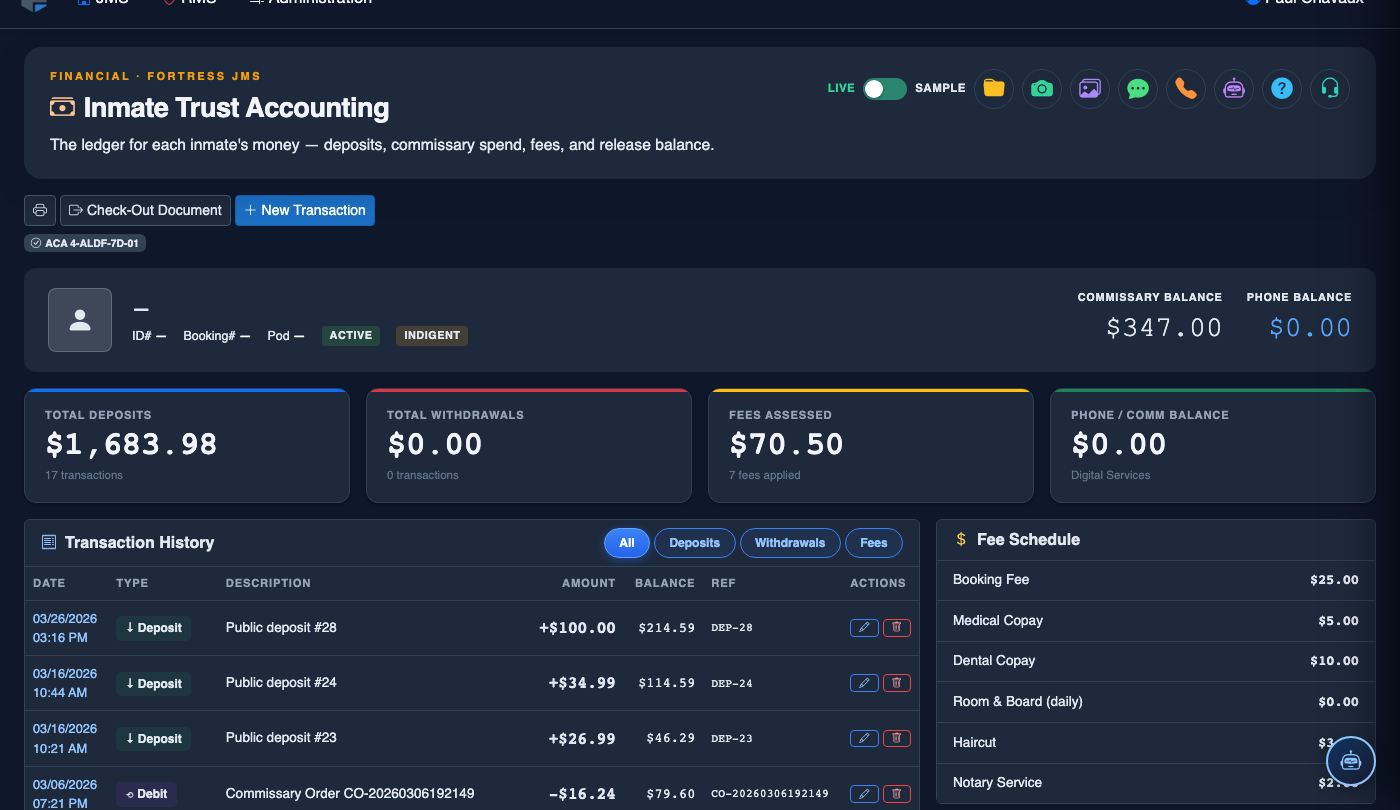
The Account Overview tab is the primary dashboard for an individual inmate’s trust account, presenting current balances across all sub-accounts, pending holds, and a snapshot of recent activity at a glance. Finance officers and booking staff use this view to quickly verify available funds before authorizing commissary orders, processing incoming deposits, or calculating release disbursements. The at-a-glance balance summary eliminates the need to scroll transaction histories for routine balance inquiries.
Live Balance Summary
Displays the inmate’s current spendable, savings, and restitution balances in real time with instant refresh after any transaction.
Hold and Restriction Flags
Active court-ordered holds, restitution obligations, and spending restrictions are prominently flagged to prevent unauthorized disbursements.
Recent Activity Snapshot
Shows the five most recent transactions with date, type, and amount — giving context without requiring a full history search.
Account Metadata
Displays booking date, account open date, and linked inmate identifiers so every financial inquiry is tied to the correct individual record.
Step-by-Step: Using the Account Overview Tab
Open the Inmate Trust Accounting Module
Navigate to Inmate Trust Accounting from the main menu. Use the Inmate Search field to locate the inmate by name or booking number. Click the inmate row to open their trust account — the system defaults to the Account Overview tab.
Read the Balance Summary Panel
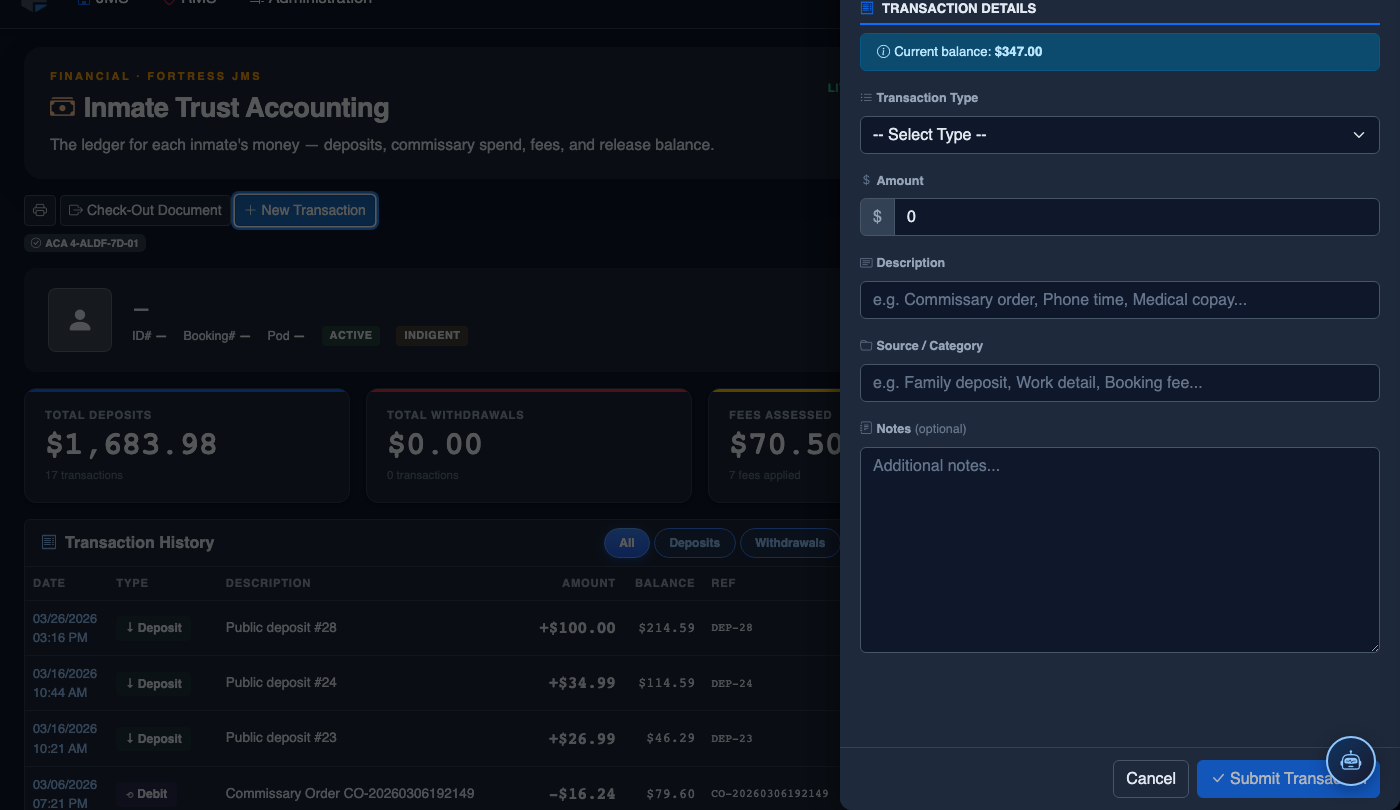
The top of the Account Overview displays three balance tiles: Spendable Trust Balance (available for commissary and authorized withdrawals), Savings Balance (restricted from routine spending), and Restitution Hold (court-ordered funds not available for disbursement). A Total Account Balance figure summarizes all three.
Review Active Holds and Restrictions
Below the balance tiles, the Active Holds section lists any court-ordered freezes, restitution obligations, or administrative spending restrictions with the originating authority and expiration date if applicable. A red Hold Active badge signals that disbursement restrictions are in effect.
Check the Recent Activity List
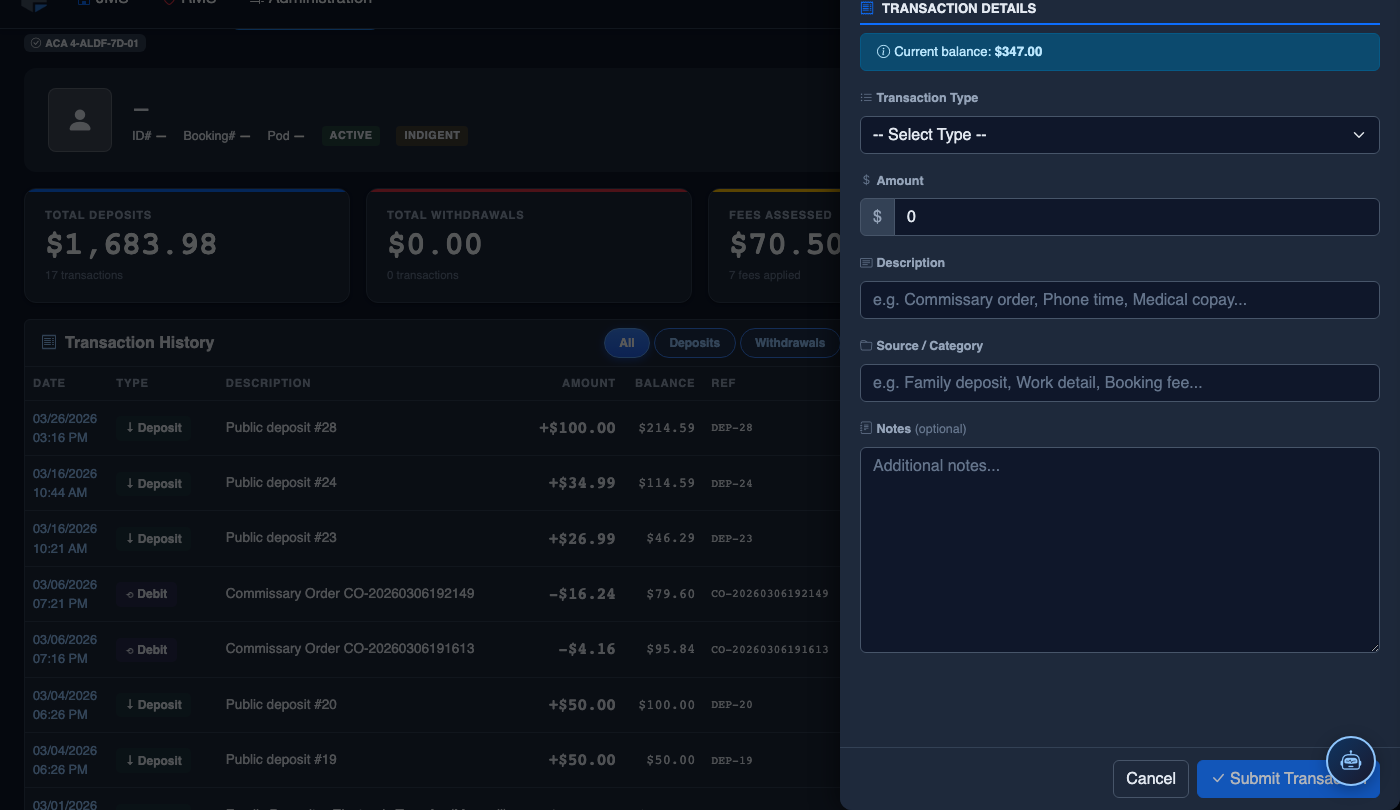
The Recent Transactions section beneath the holds panel shows the five most recent account events. Each row displays the date, transaction type, amount (positive for credits, negative for debits), and posting officer. Click View Full History to navigate to the Transaction History tab for a complete ledger.
Apply or Remove a Hold
Supervisors with the Finance Admin role can click Manage Holds in the Active Holds section to add a new court-ordered hold or remove an expired one. Enter the hold amount, authority reference (case number or court order), and effective date, then click Apply Hold. Hold changes generate an automatic audit log entry.
Print or Export the Account Summary
Click Export Summary in the top-right corner of the Account Overview tab to generate a one-page PDF showing current balances, active holds, and recent transactions. This document is suitable for providing to legal counsel, classification boards, or as a release receipt for the inmate at checkout.
Record a New Financial Transaction
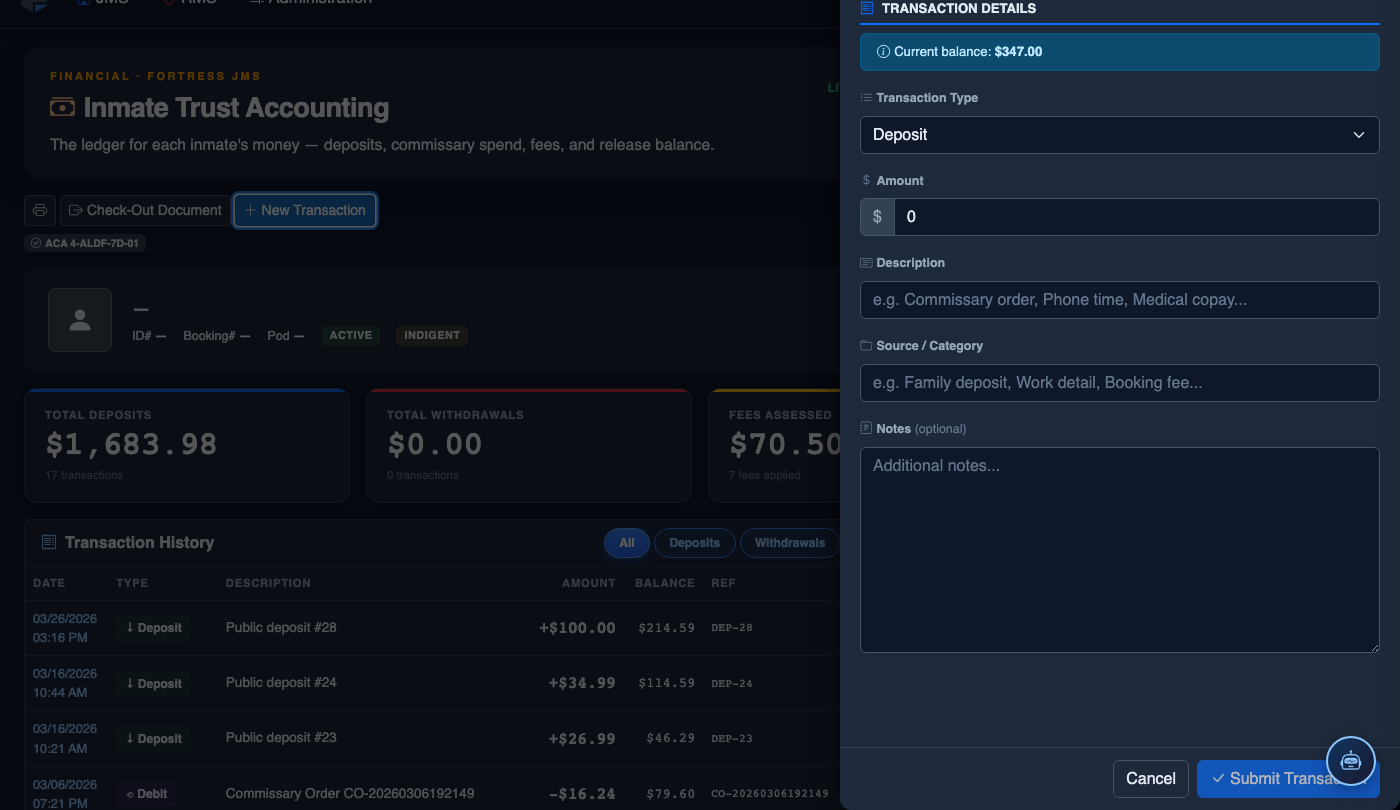
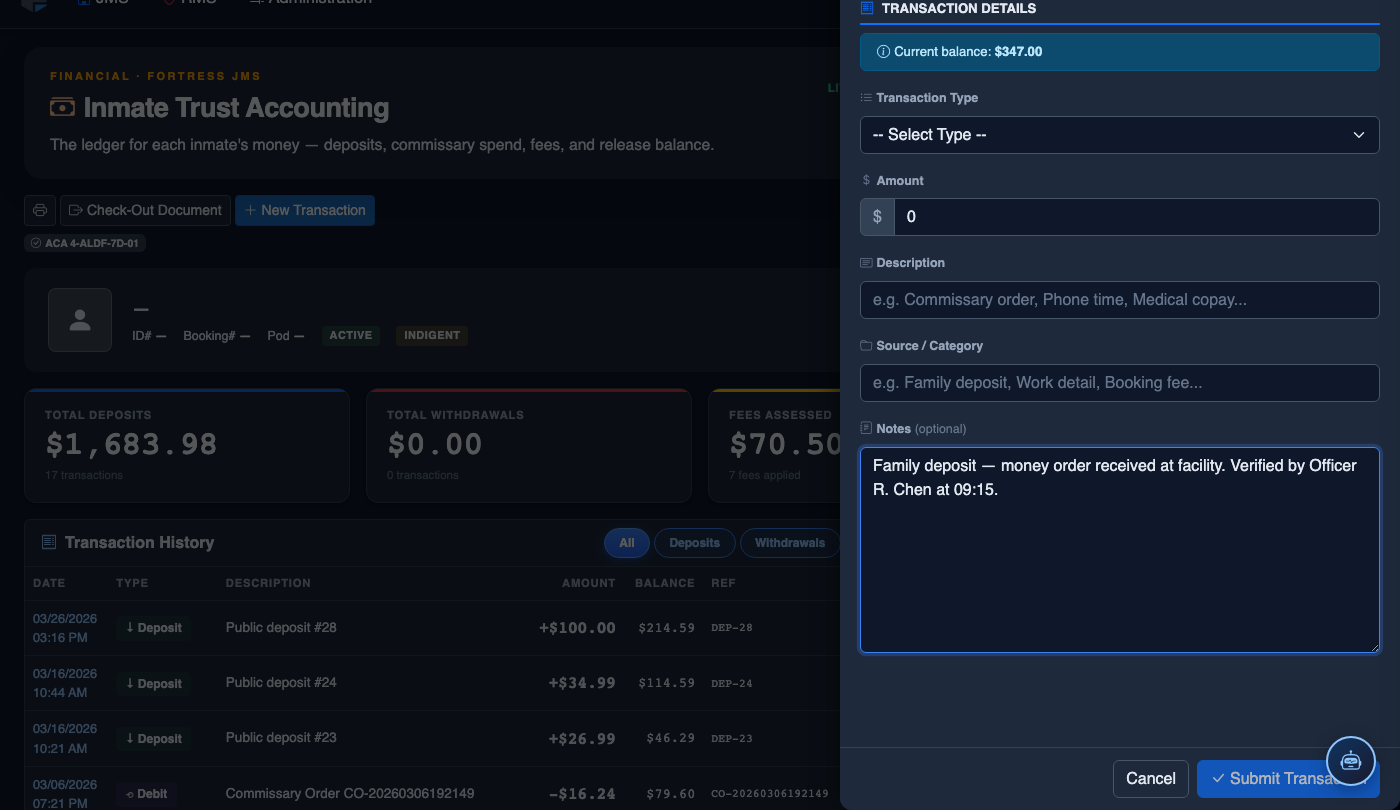
Click New Transaction. Complete the trust accounting form:
- Inmate — search by name or booking number. Current balance displays immediately.
- Transaction Type — Deposit, Withdrawal, Commissary Debit, Court Fee, Restitution, or Adjustment.
- Amount — enter the dollar amount. System validates against available balance for debits.
- Payment Method — Money Order, Cash, Check, Electronic Transfer, or Internal Transfer.
- Reference Number — document the money order number, check number, or authorization code.
- Notes — record who tendered payment and any special circumstances.
- Click Post Transaction. Balance updates immediately; a receipt prints automatically.
💡 Pro Tips
- The Account Overview is the fastest way to answer a “how much does this inmate have?” question from a supervisor or attorney — it loads with the current balance already calculated, no filters needed.
- Always check the Active Holds section before any disbursement; releasing funds with a court hold in place can create serious legal liability for the facility.
- If the Spendable Trust Balance shows a negative number, flag it for immediate supervisor review — this indicates a ledger error or unauthorized override that requires correction before the next transaction.
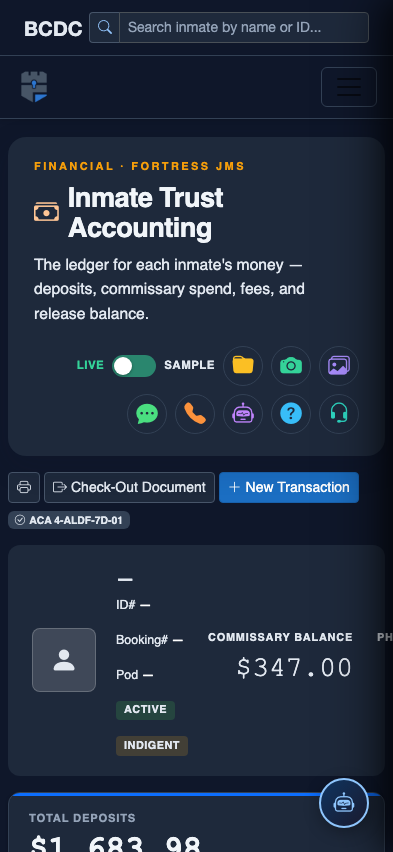
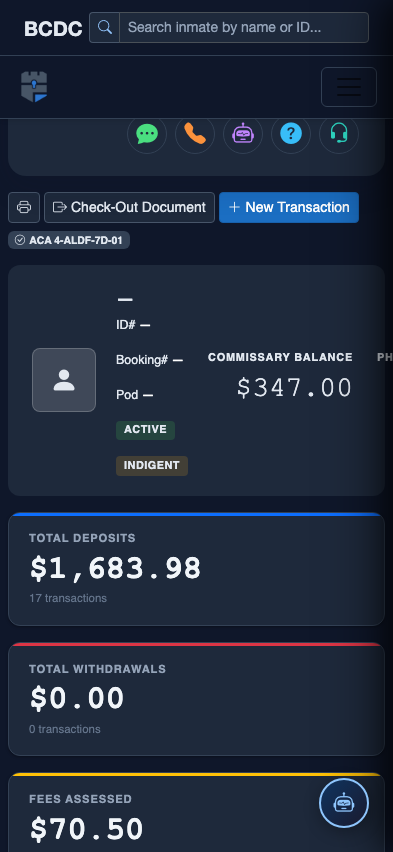
Mobile View — Account Overview
FortressDMS is fully responsive. Officers can access the Account Overview on a phone or tablet directly from the field — no app install required.
Tab view with data rows
Scrolled / detail view