
Withdrawals & Debits
The Withdrawals & Debits tab controls all outgoing transactions from an inmate’s trust account, including commissary purchases, court-ordered fines and restitution payments, medical co-pays, and release disbursements. The system enforces balance checks in real time, preventing any withdrawal that would exceed the available spendable balance or violate an active account hold, protecting both the facility and the inmate from unauthorized fund removal. Every debit is permanently logged with the authorizing officer and reason code, satisfying audit and regulatory requirements.
Commissary Integration
Commissary order totals are automatically posted as debits when orders are fulfilled, eliminating manual double-entry.
Court-Ordered Deductions
Process restitution payments, fines, and court fees with mandatory case number reference and automatic ledger posting.
Real-Time Balance Protection
System automatically rejects any withdrawal exceeding the available spendable balance or flagged by an active account hold.
Medical Co-Pay Billing
Post medical and dental co-pay charges directly from the health services module with automatic trust account deduction.
Step-by-Step: Processing Withdrawals & Debits
Open the Withdrawals & Debits Tab
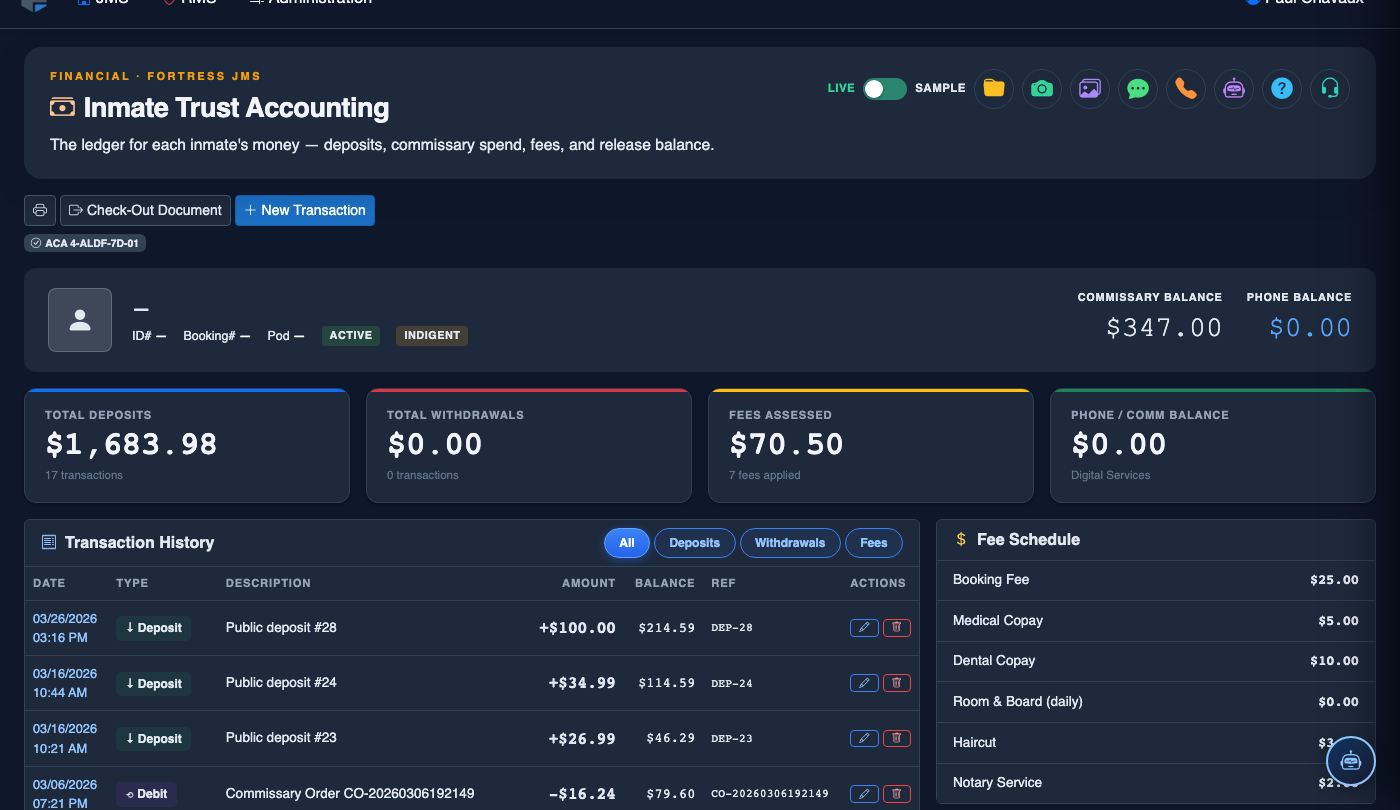
After opening an inmate’s trust account, click the Withdrawals & Debits tab. The screen shows a list of all prior outgoing transactions in reverse chronological order. The inmate’s current Spendable Balance is displayed prominently at the top to guide withdrawal decisions.
Initiate a New Withdrawal
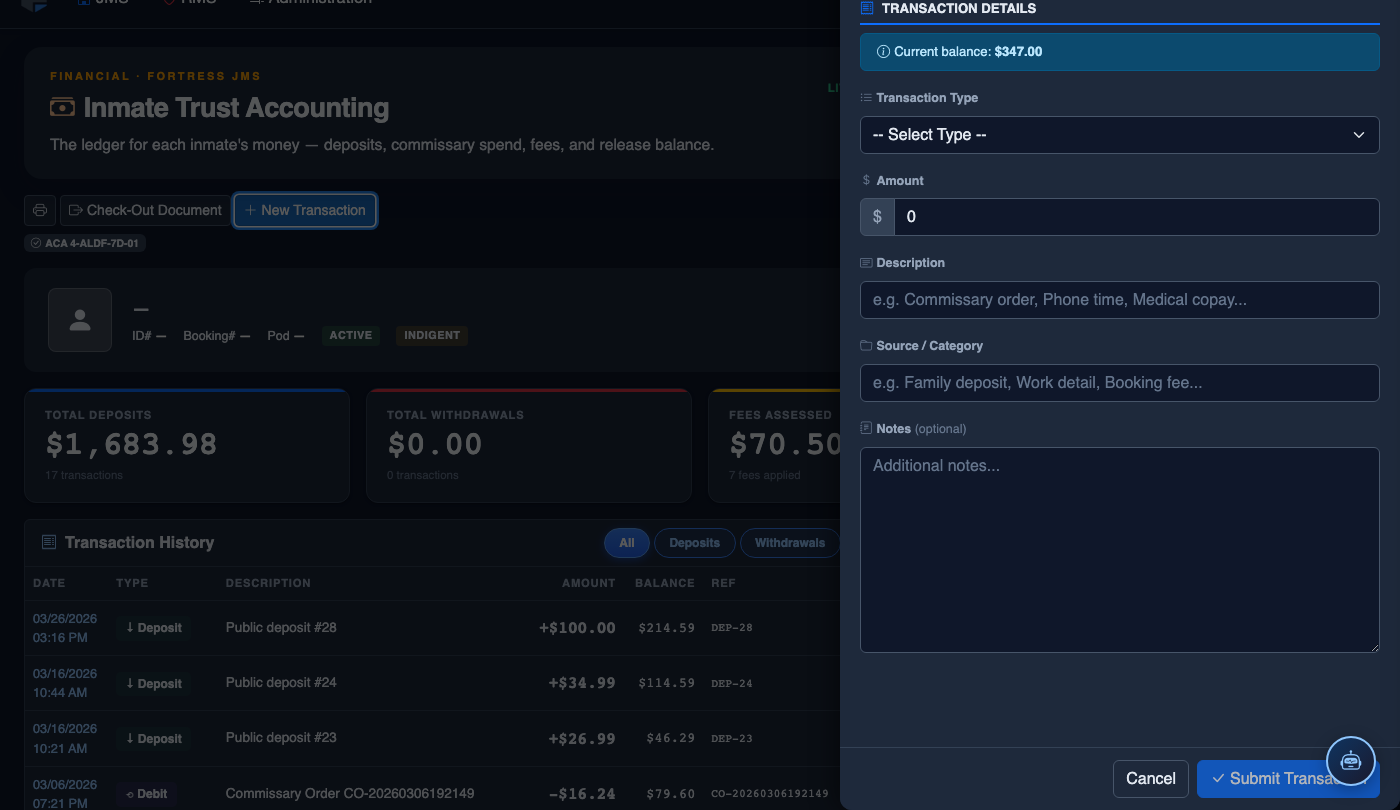
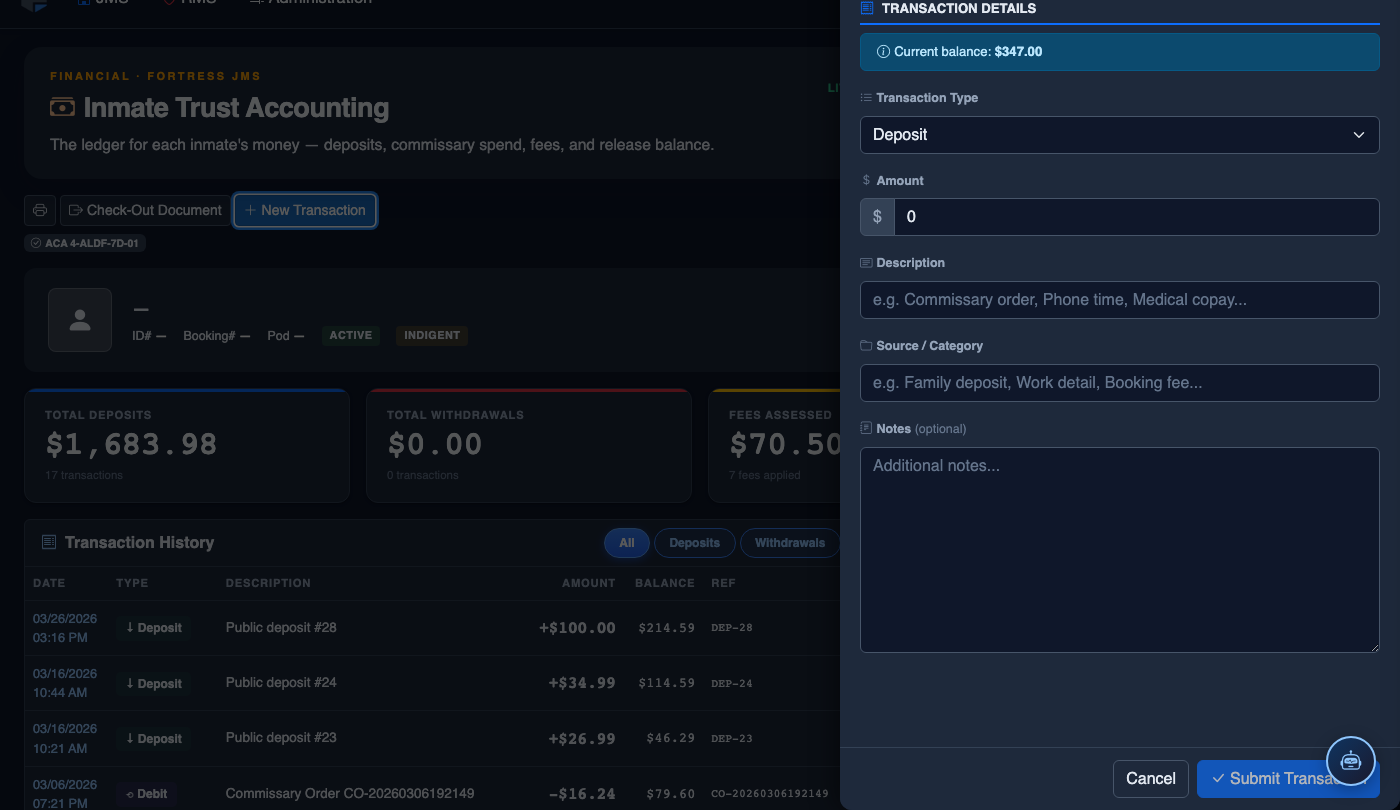
Click + New Withdrawal to open the withdrawal entry form. Select the Withdrawal Type from the dropdown: Commissary, Court-Ordered Fine, Restitution Payment, Medical Co-Pay, Release Disbursement, or Administrative Fee. Each type may require different supporting reference fields.
Enter Amount and Authorization Reference
Enter the Amount to be debited. For court-ordered withdrawals, enter the Court Case Number in the reference field. For commissary debits, the commissary order number is required. The system will immediately show whether sufficient funds are available in the Balance Check indicator below the amount field.
Confirm the Source Sub-Account
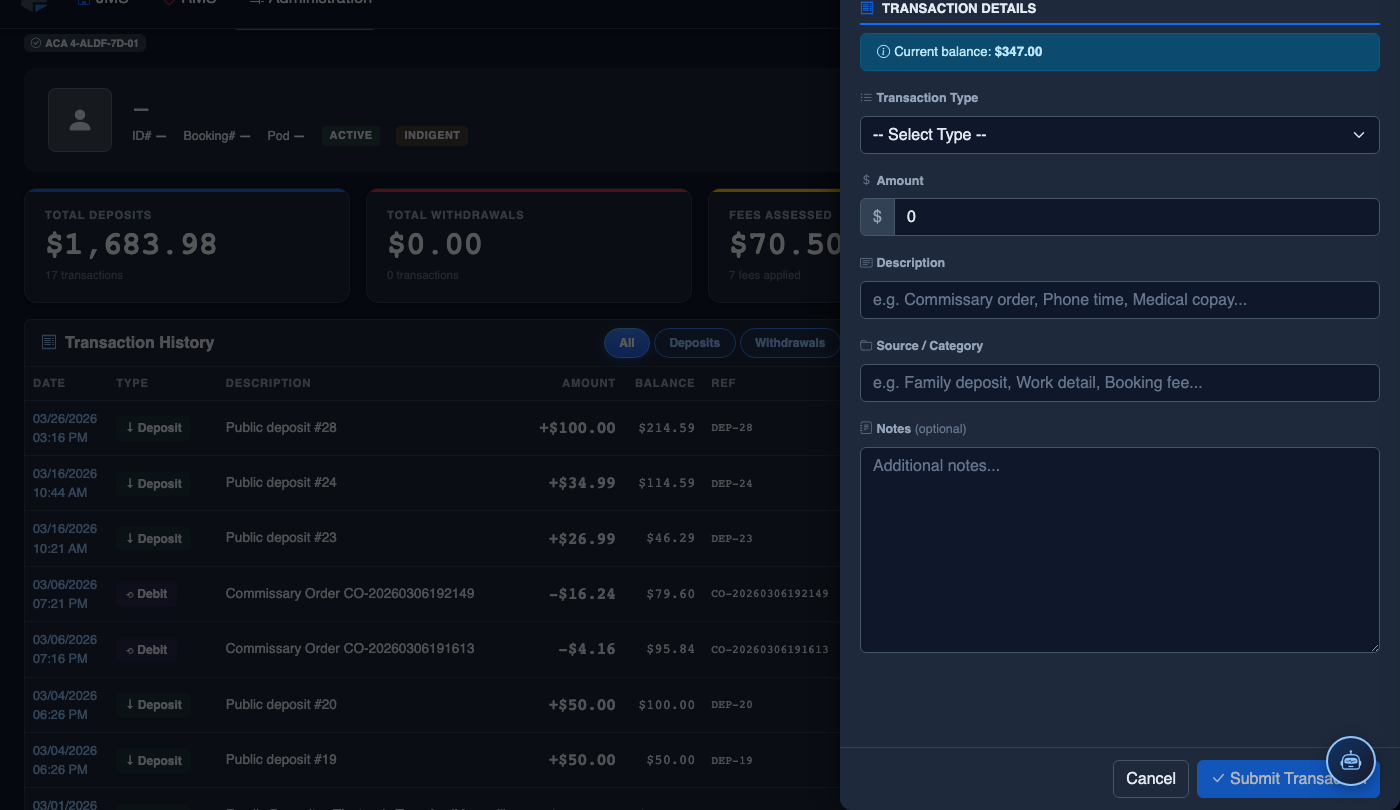
Select the Source Sub-Account from which the funds will be deducted. For standard withdrawals, this is Spendable Trust. For restitution payments, select Restitution Hold. The system will prevent debiting from a sub-account with a hold in place unless you have supervisor-level override authority.
Post the Withdrawal
Click Post Withdrawal to finalize the debit. If the balance is sufficient and no holds are violated, the transaction will be committed immediately and a Withdrawal Confirmed banner will appear. If funds are insufficient, the system will display an Insufficient Funds error and the transaction will not be posted.
Print the Withdrawal Receipt
After a successful withdrawal, click Print Receipt from the confirmation banner to generate a dated, officer-signed receipt. For release disbursements, two copies should be printed — one for the inmate and one retained in the facility’s release paperwork file.
Reverse an Erroneous Debit
To reverse a withdrawal posted in error, locate the transaction in the debit list and click Reverse. Select the Reversal Reason (duplicate entry, wrong account, erroneous charge, etc.), add a Supervisor Note, and click Confirm Reversal. Reversals require Finance Admin role and are permanently logged with the approving supervisor’s credentials.
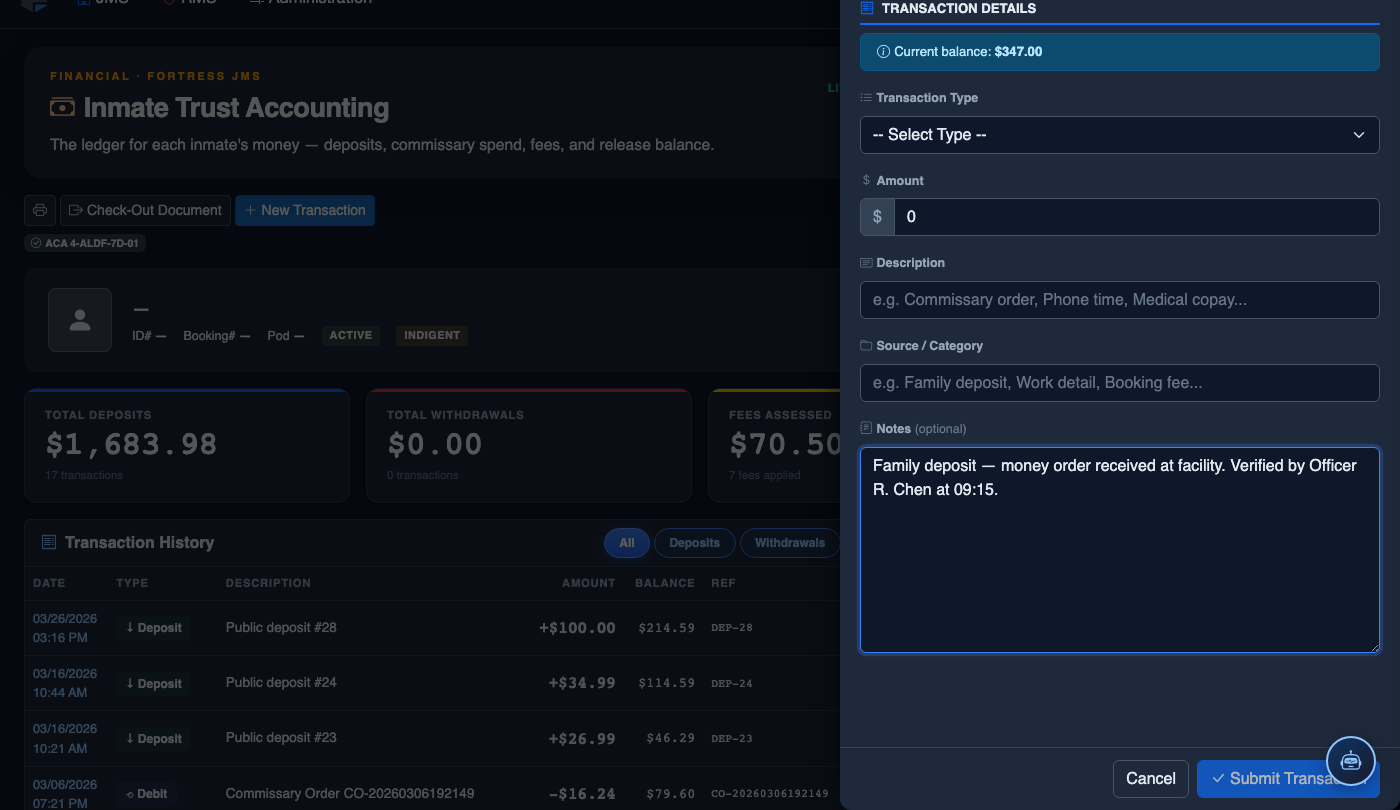
Record a New Financial Transaction
Click New Transaction. Complete the trust accounting form:
- Inmate — search by name or booking number. Current balance displays immediately.
- Transaction Type — Deposit, Withdrawal, Commissary Debit, Court Fee, Restitution, or Adjustment.
- Amount — enter the dollar amount. System validates against available balance for debits.
- Payment Method — Money Order, Cash, Check, Electronic Transfer, or Internal Transfer.
- Reference Number — document the money order number, check number, or authorization code.
- Notes — record who tendered payment and any special circumstances.
- Click Post Transaction. Balance updates immediately; a receipt prints automatically.
💡 Pro Tips
- Never manually post a commissary debit — wait for the commissary module to auto-post the charge upon order fulfillment to prevent double-billing the inmate’s account.
- For medical co-pay debits, confirm the health services visit is documented in the inmate’s medical record before posting — this protects the facility against claims of unauthorized charges.
- If a release disbursement is being made by check rather than cash, note the check number in the Reference Number field and attach a scanned copy of the voided check to the transaction record.
Mobile View — Withdrawals Debits
FortressDMS is fully responsive. Officers can access the Withdrawals Debits on a phone or tablet directly from the field — no app install required.
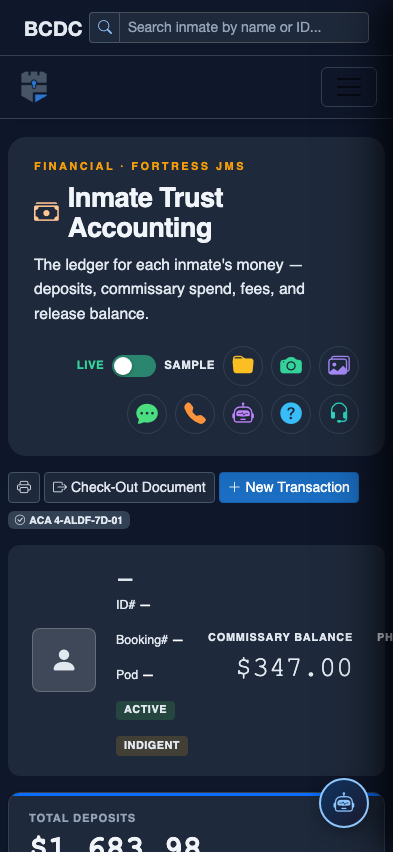
Tab view with data rows
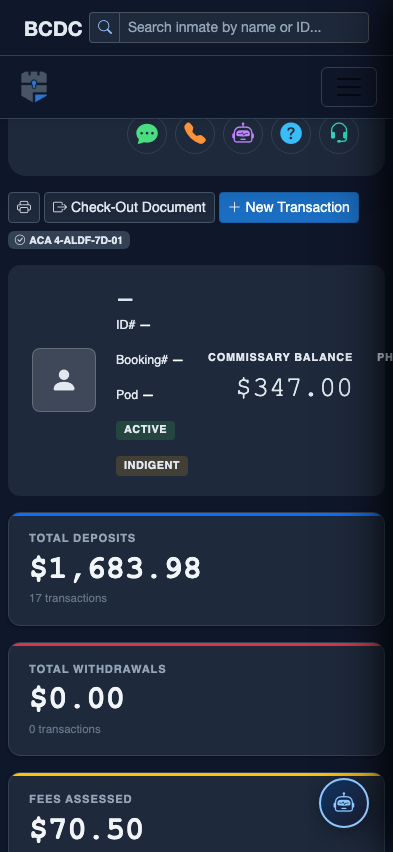
Scrolled / detail view