
Account Statements
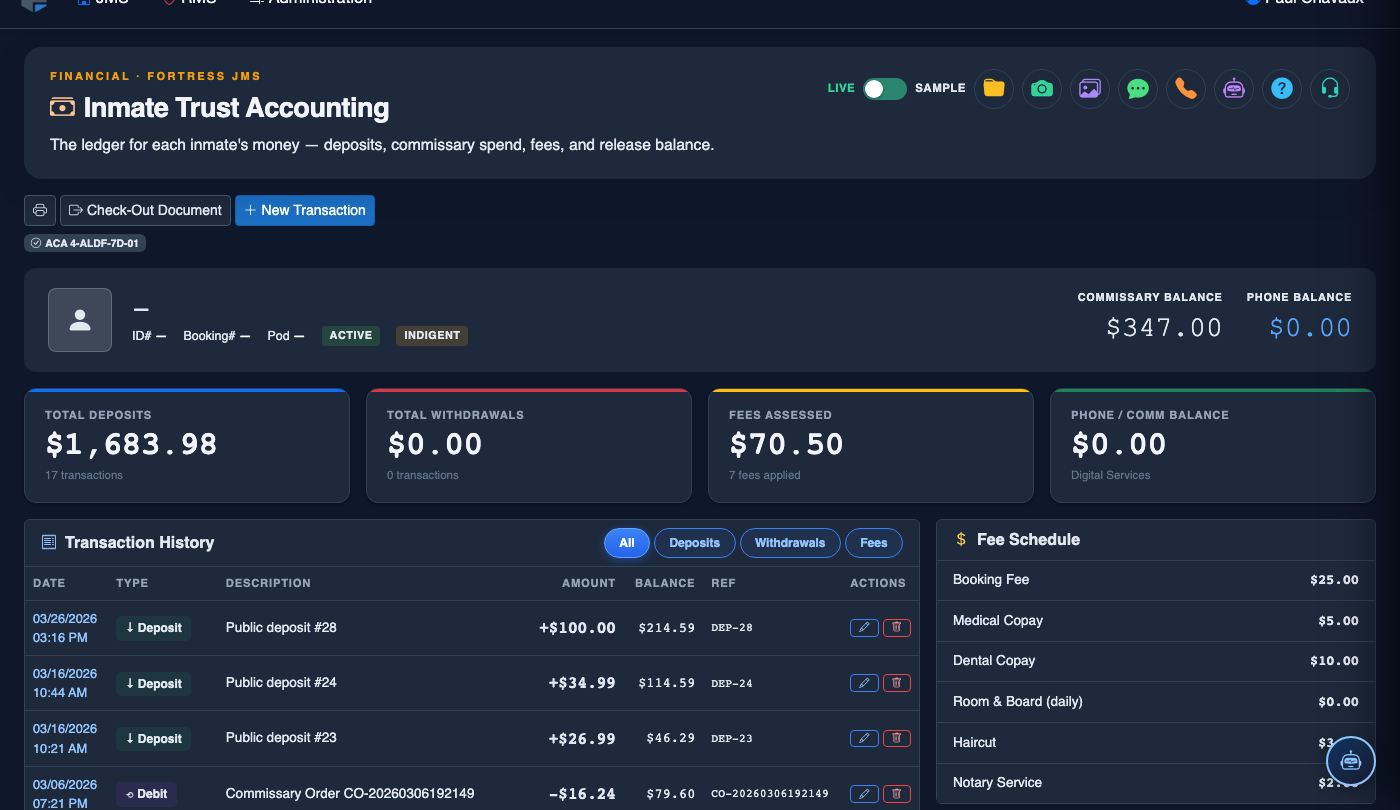
The Account Statements tab within Inmate Trust Accounting provides correctional staff with a complete, auditable transaction history for each inmate’s trust fund account. Officers and administrators can generate official balance statements, review deposits, withdrawals, and holds, and produce court-ready financial documents on demand. This feature ensures full financial transparency and supports compliance with ACA standards and state auditing requirements.
Full Transaction History
View every credit, debit, hold, and release posted to an inmate’s trust account with date, time, and officer attribution.
Official Statement Generation
Print or export court-ready PDF statements with facility letterhead, balance summaries, and itemized line items.
Hold & Freeze Tracking
Clearly identify funds placed on hold for fines, restitution, or court orders, with hold reason and authorizing officer recorded.
Date-Range Filtering
Filter account activity by custom date ranges to isolate specific booking periods, quarters, or audit windows.
Step-by-Step: Generating an Inmate Account Statement
Navigate to Inmate Trust Accounting
From the Fortress JMS main navigation, select Inmate Trust Accounting from the Finance module group. Once inside the module, click the Account Statements tab to open the statements workspace.
Search for the Inmate
Use the Inmate Search field to locate the individual by last name, booking number, or inmate ID. The system will display a list of matching records — select the correct inmate to load their trust account profile.
Set the Statement Date Range
In the Statement Period section, enter a From Date and To Date to define the reporting window. Use the calendar picker for accuracy. Leave both fields blank to pull the full account history since booking intake.
Review Transaction Line Items
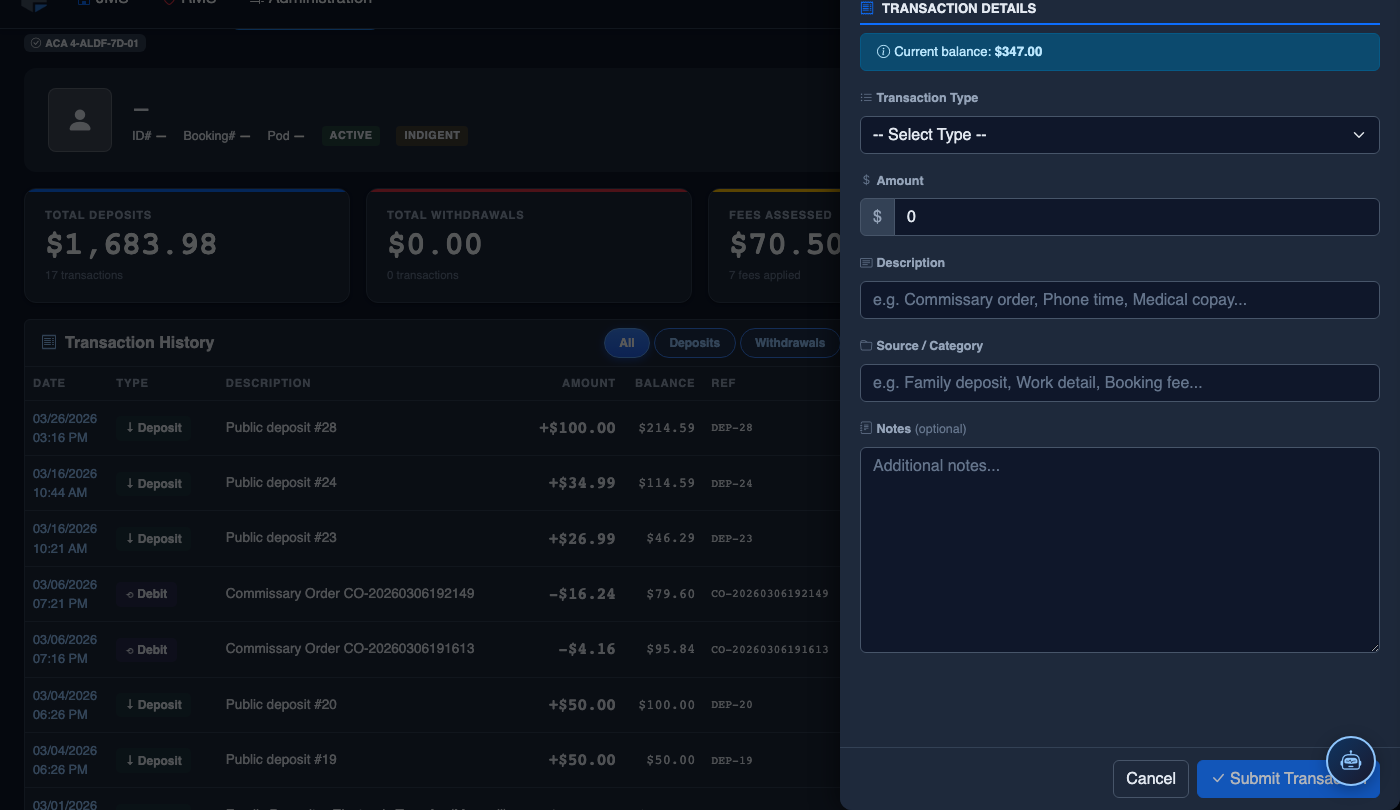
The statement grid displays each transaction with columns for Date, Type (Deposit, Withdrawal, Hold, Release), Amount, Running Balance, and Reference/Note. Rows flagged in amber indicate funds currently on hold; rows in red indicate deductions for facility fees or restitution.
Verify Balance Summary
At the top of the statement panel, review the Available Balance, Total Holds, and Total Balance fields. Confirm that the available balance equals total balance minus all active holds before generating a formal statement for release or court submission.
Generate and Export the Statement
Click Generate Statement to compile the filtered transactions into a formatted document. Choose Print to produce a physical copy or Export PDF to save a digital version. The PDF includes facility name, inmate booking number, statement period, and officer name for chain-of-custody documentation.
Attach to Release or Legal Record
For inmates being released, attach the finalized statement to the Release Packet via the Attach to Release button. For court-ordered financial disclosures, use the Send to Case File option to link the statement directly to the inmate’s legal record in FortressDMS.
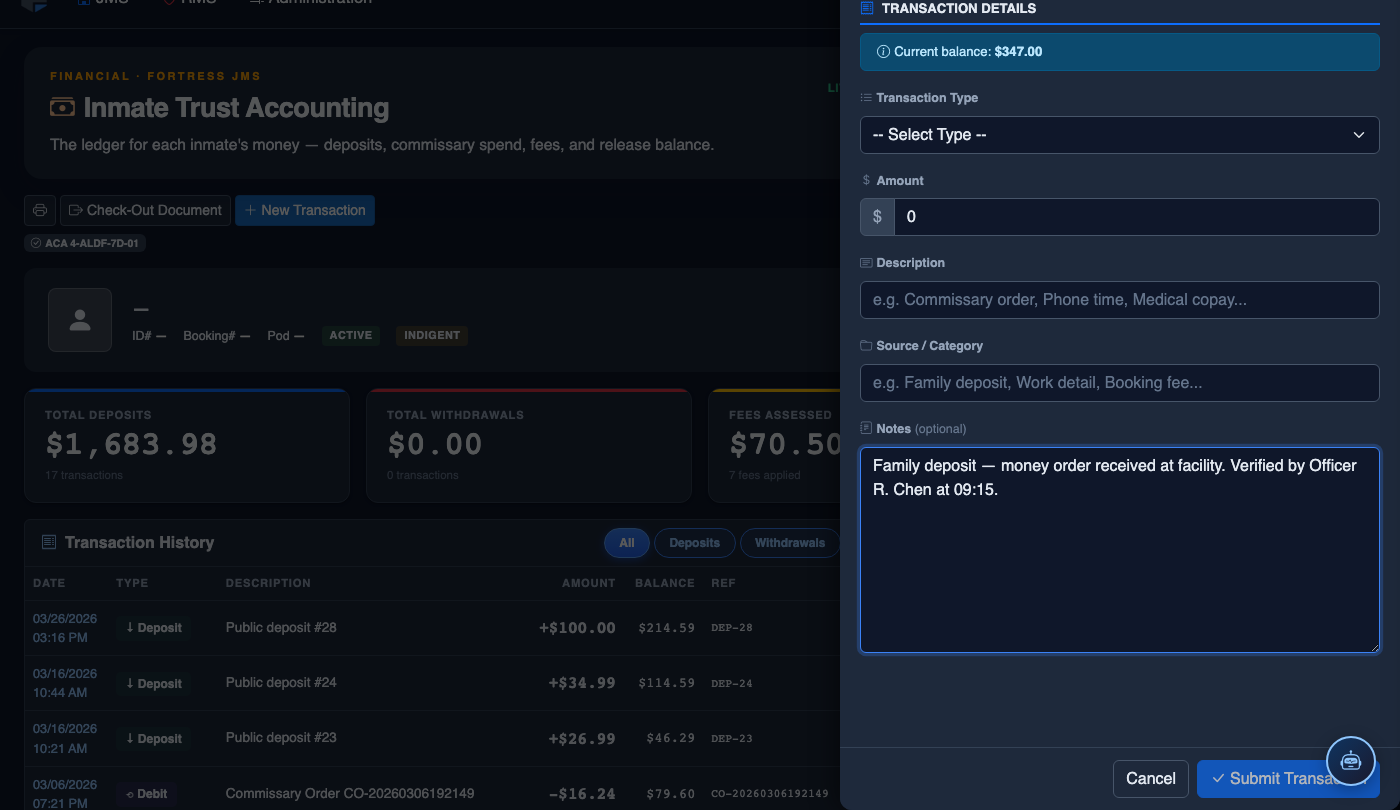
Record a New Financial Transaction
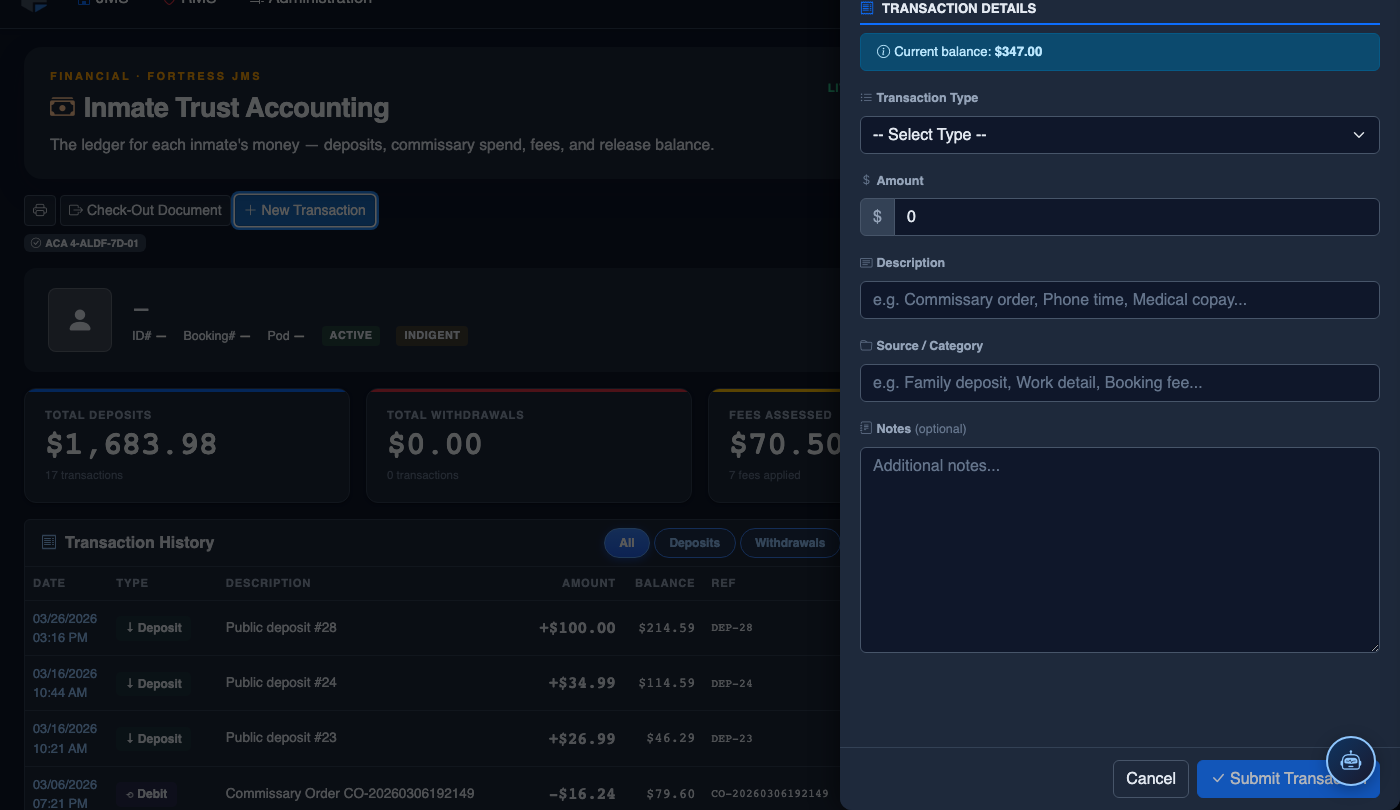
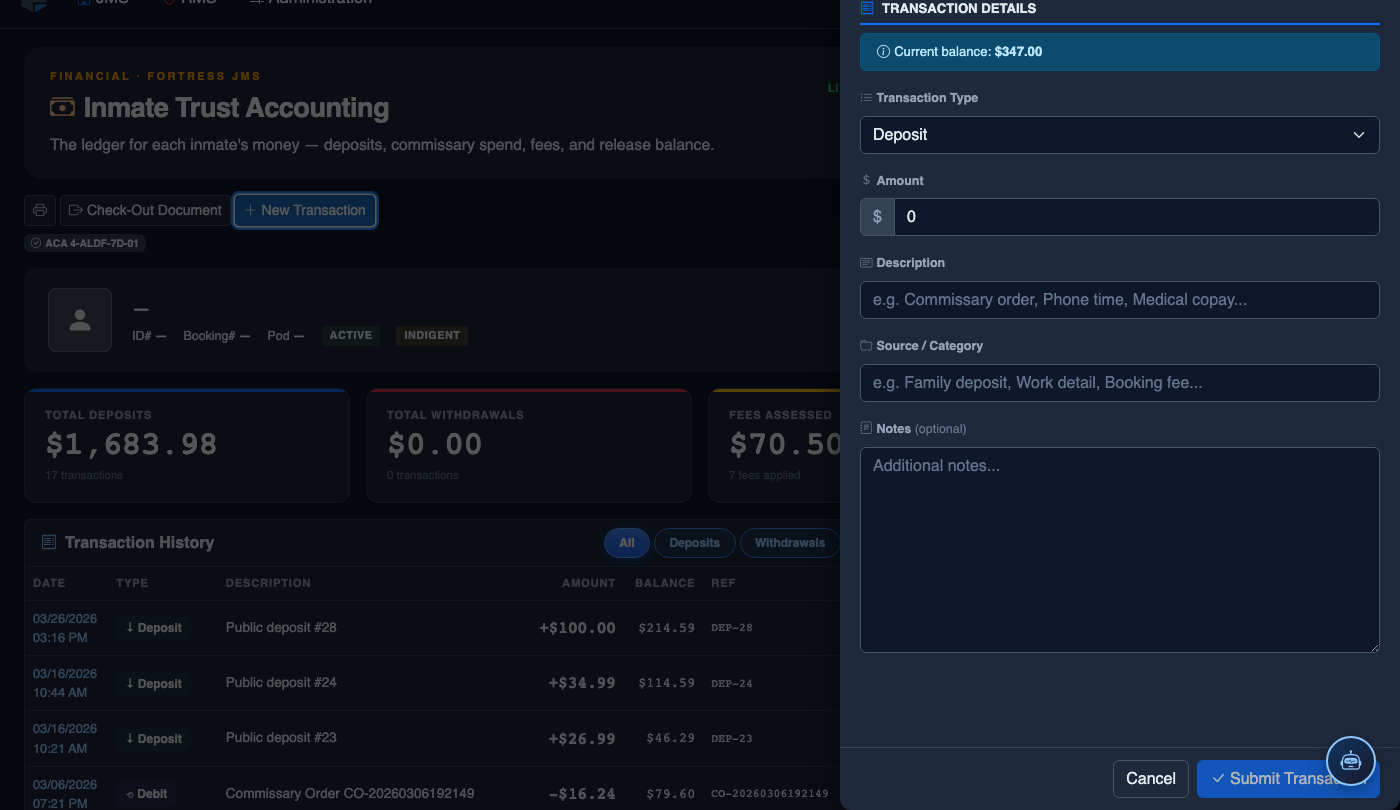
Click New Transaction. Complete the trust accounting form:
- Inmate — search by name or booking number. Current balance displays immediately.
- Transaction Type — Deposit, Withdrawal, Commissary Debit, Court Fee, Restitution, or Adjustment.
- Amount — enter the dollar amount. System validates against available balance for debits.
- Payment Method — Money Order, Cash, Check, Electronic Transfer, or Internal Transfer.
- Reference Number — document the money order number, check number, or authorization code.
- Notes — record who tendered payment and any special circumstances.
- Click Post Transaction. Balance updates immediately; a receipt prints automatically.
💡 Pro Tips
- Run a statement at the time of booking and again at release to produce a clean audit trail of all trust activity during incarceration — courts frequently request this documentation.
- Use the date-range filter to isolate a single month when reconciling facility trust account totals against your general ledger at month-end close.
- Holds placed for restitution or court-ordered fees will display the authorizing officer’s badge number — verify this before releasing any held funds to ensure proper chain of authority.
- Exported PDFs are timestamped with the generating officer’s credentials, making them suitable for legal proceedings without additional notarization.
Mobile View — Account Statements
FortressDMS is fully responsive. Officers can access the Account Statements on a phone or tablet directly from the field — no app install required.
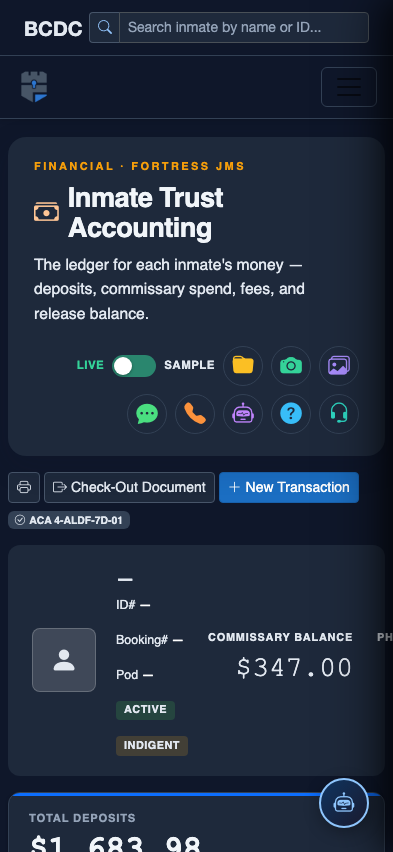
Tab view with data rows
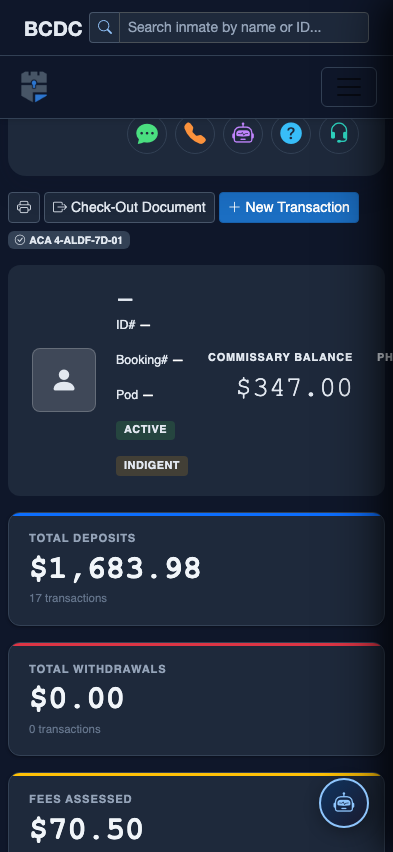
Scrolled / detail view